
Tagging channels and events in SourCherry Communities helps members quickly reference relevant discussions and scheduled Community Events directly inside posts and comments. By typing #, users can select available channels or events and insert clickable tags into their content. These tags make it easier to guide members to the right place, promote upcoming events, and keep Community conversations organized.
TABLE OF CONTENTS
- What is Tagging Channels and Events in Communities?
- Key Benefits of Tagging Channels and Events
- Where Channel and Event Tags Can Be Used
- Permission-Based Tagging and Visibility
- How To Setup Tagging Channels and Events
- Best Practices for Using Channel and Event Tags
- Frequently Asked Questions
- Related Articles
What is Tagging Channels and Events in Communities?
Tagging channels and events lets users create clickable references to Community channels and scheduled Community Events directly inside a post or comment. Instead of copying links or telling members where to go manually, users can type #, select an available channel or event, and add it inline with the rest of their message.
When a tagged channel or event is added, it appears with its respective icon so members can recognize the type of destination. Clicking the tag takes members to the tagged channel or event when they have access. SourCherry’s existing article confirms this feature uses # tagging to add clickable, permission-aware links inside Community posts and comments.
Key Benefits of Tagging Channels and Events
Tagging creates a smoother Community experience by connecting conversations to the right destinations. This helps admins, owners, and members reduce confusion, encourage participation, and make Community content easier to navigate.
- Faster Navigation: Members can click a tagged channel or event instead of searching for it manually.
- Better Engagement: Posts and comments can direct members to relevant discussions, upcoming events, or follow-up spaces.
- Cleaner Communication: Inline tags reduce the need for pasted URLs or long written instructions.
- Permission-Aware Tagging: Users only see channels and events they have access to when opening the tag picker.
- Stronger Calls-to-Action: Every post or comment can guide members toward the next relevant action, such as joining an event or continuing the conversation in a specific channel.
Where Channel and Event Tags Can Be Used
Channel and event tags are designed for Community conversations where members are already creating or replying to content. They help connect a discussion to the next best place for members to go.
You can use channel and event tags in:
- Community posts
- Community comments
- Supported Community post/comment editors
Use channel tags when you want members to continue a conversation in a specific topic area. Use event tags when you want to promote a scheduled Community Event or direct members to the event details page.
Community content in SourCherry is organized around posts, comments, channels, and member interaction, which makes tagging useful for keeping conversations connected and easy to follow.
Permission-Based Tagging and Visibility
Permission-based tagging helps protect private or restricted Community areas. The tag picker only shows channels and events the user has permission to access, which helps prevent users from tagging destinations they should not be able to view.
Important permission behaviors:
- Users only see available channels and events they can access.
- Private channels may not appear in the picker unless the user has access to that channel.
- Restricted Community Events may not appear unless the user has permission to view them.
- Clicking a tagged channel or event navigates members to that destination when they have access.
- If a user cannot find a channel or event in the picker, access permissions are the first thing to check.
Private Channels in SourCherry Communities are designed for members-only discussions, and channel visibility depends on access. Community Events also include visibility controls so events can be shown to the right audience.
How To Setup Tagging Channels and Events
Proper use of channel and event tagging helps members move from a conversation to the correct Community destination without extra instructions. Before tagging, make sure the channel or event already exists and that you have permission to access it.
- Open the relevant Community.
- Create a new post or open a comment editor.
- Type # where you want to insert the channel or event tag.
- Review the pop-up list of available channels and events.
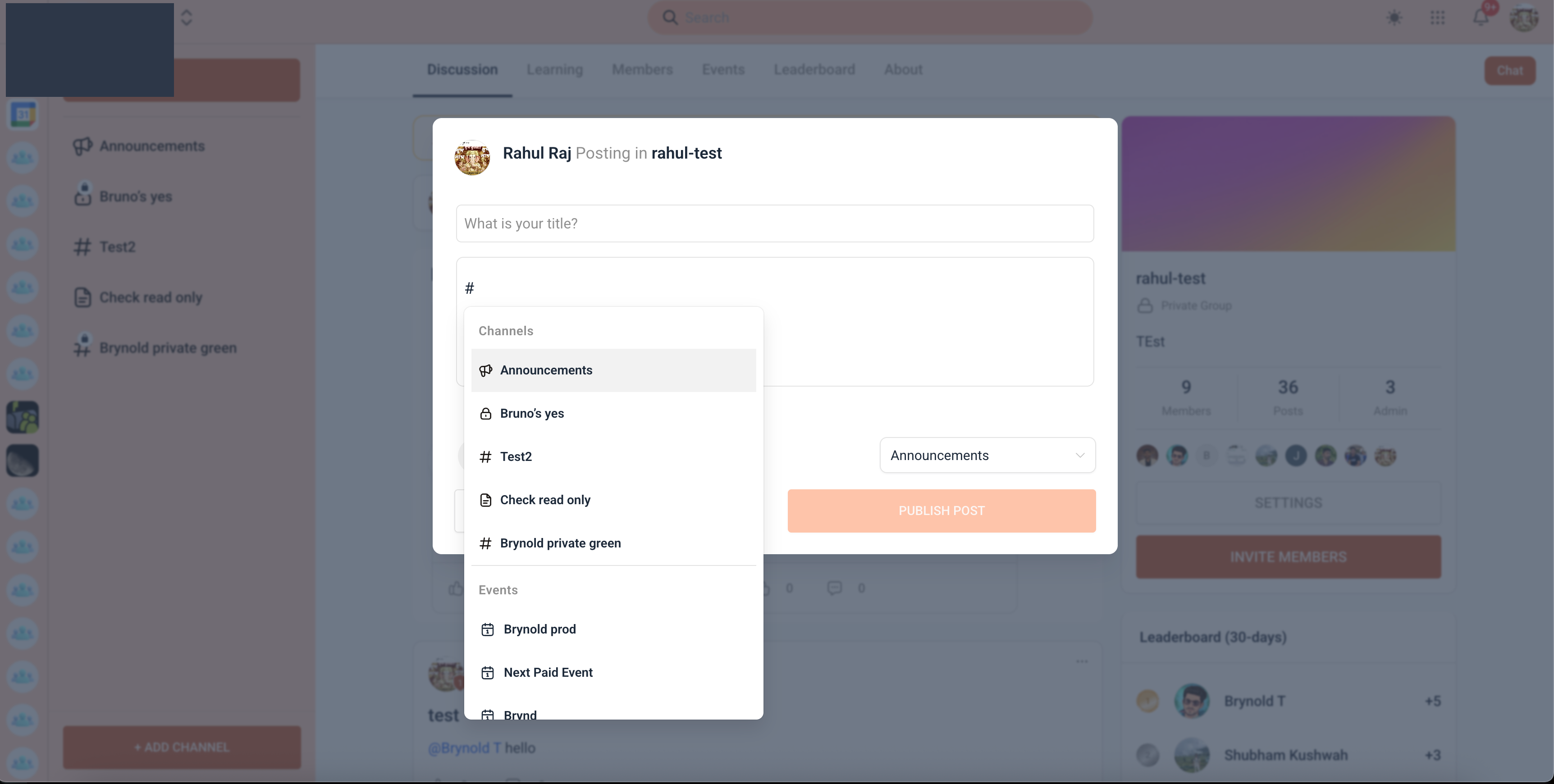
- Click the channel or event you want to tag, or use your keyboard to select it.
- Confirm the selected tag appears inside the post or comment with its icon.
- Finish writing your content.
- Save or publish the post/comment.
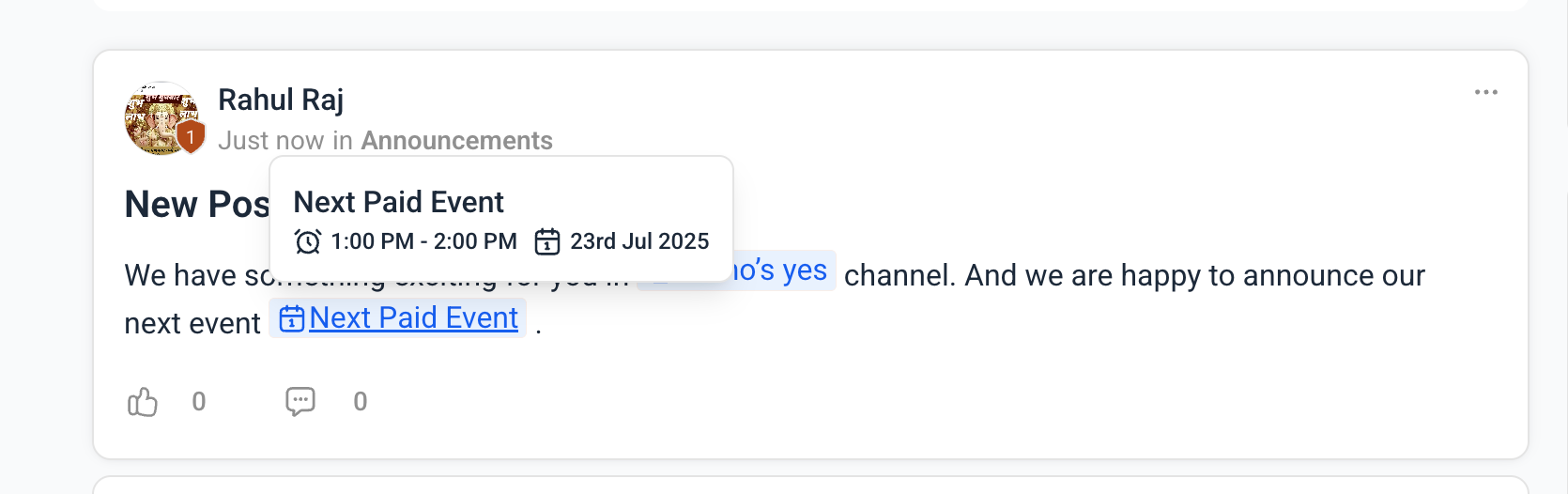
After the content is saved, members will see the tagged channel or event inline. When they click the tag, SourCherry navigates them to the tagged destination if they have access.
Best Practices for Using Channel and Event Tags
Intentional tagging keeps Community content helpful instead of cluttered. Tags should guide members to the most relevant destination and support the purpose of the conversation.
Recommended Best Practices:
- Tag a channel when you want members to continue a topic-specific discussion.
- Tag an event when you want members to view event details, register, or attend.
- Keep tags relevant to the post or comment topic.
- Avoid adding too many tags in one message.
- Use clear surrounding text so members understand why the channel or event is being referenced.
- Check access settings if members report that they cannot open a tagged destination.
Examples:

“Join the discussion in #Announcements after today’s session.”

“Register for #Weekly Coaching Call before Friday.”

“New members can introduce themselves in #Introductions.”
Frequently Asked Questions
Q: Why do some channels or events not appear when I type #?
A: The picker only shows channels and events you can access. If an item is missing, check whether it is private, restricted, unpublished, or unavailable to your user role.
Q: Can members click a tagged channel or event?
A: Yes. Tags are clickable. Members who have access can open the tagged channel or event from the post or comment.
Q: Can I tag private channels?
A: You can tag private channels only when you have access to them. Users without access should not expect those private channels to appear in their picker.
Q: Can I tag Community Events that are restricted to certain members?
A: Restricted events may only appear for users who have permission to view them. Event visibility settings determine who can access the event.
Q: Is this the same as tagging a member with @?
A: No. Use @ to tag or mention members. Use # to tag Community resources such as channels, events, and supported course tags. SourCherry’s member tagging article documents @ tagging for posts and comments.
Q: Can I remove a tag after adding it?
A: Yes. Edit the post or comment, remove the tag from the editor, and save the updated content.
Q: Should the editor bug fixes be included in this article?
A: No. The editor outline and extra newline fixes are not part of the channel/event tagging workflow and should remain in release notes or separate editor-related documentation.