This article explains how Agency owners and admins can disable AI Studio in bulk across multiple sub-accounts.
Who is this for?
This guide is intended for Agency owners and admins who want to restrict access to AI Studio for their sub-accounts. Once disabled, AI Studio will only be available to sub-accounts when it is manually enabled by the Agency.
Follow the instructions in this article to configure this setting.
Step 1:
Navigate to your Agency dashboard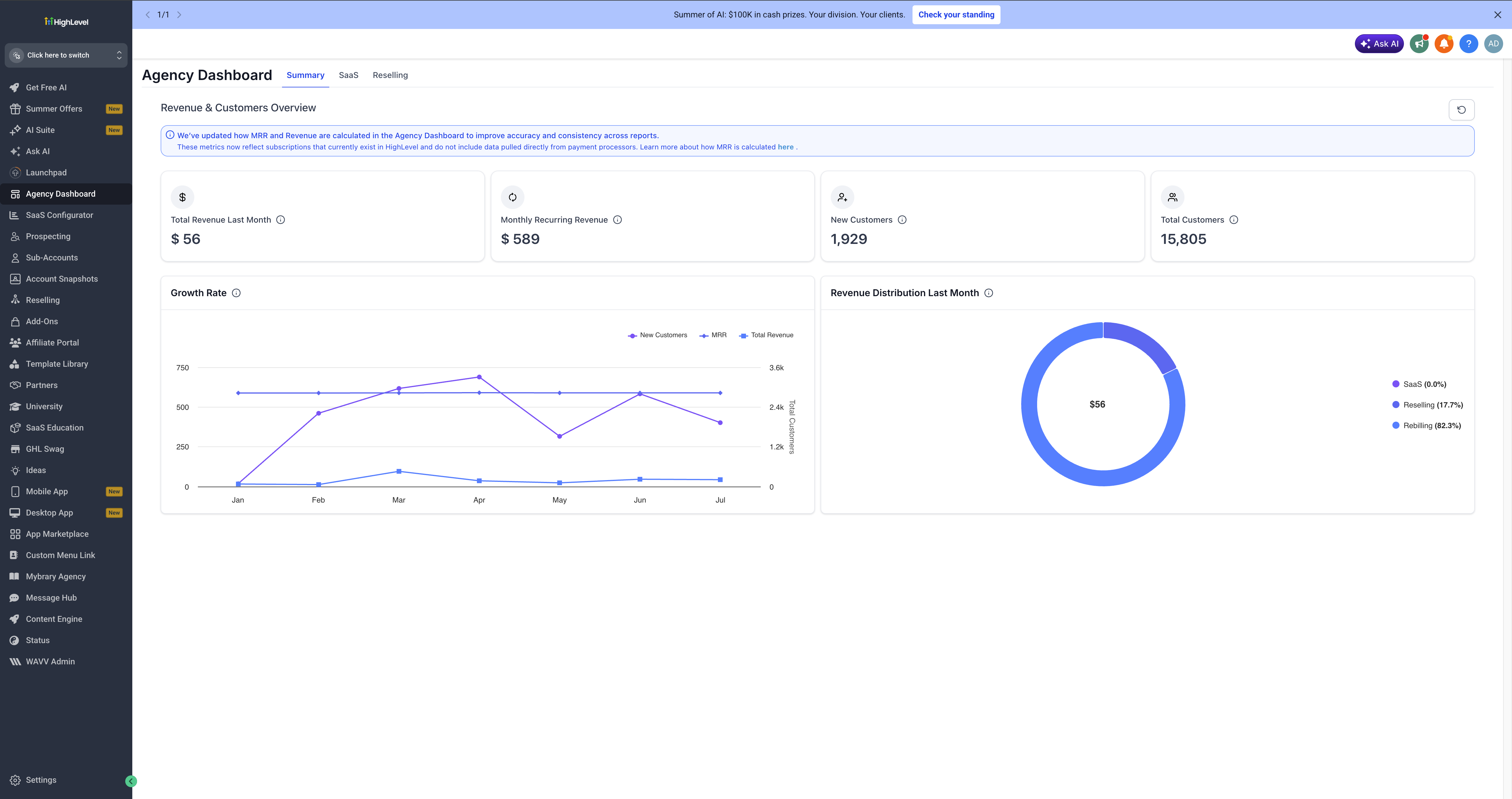
Step 2:
Select AI Suite from the left-hand menu.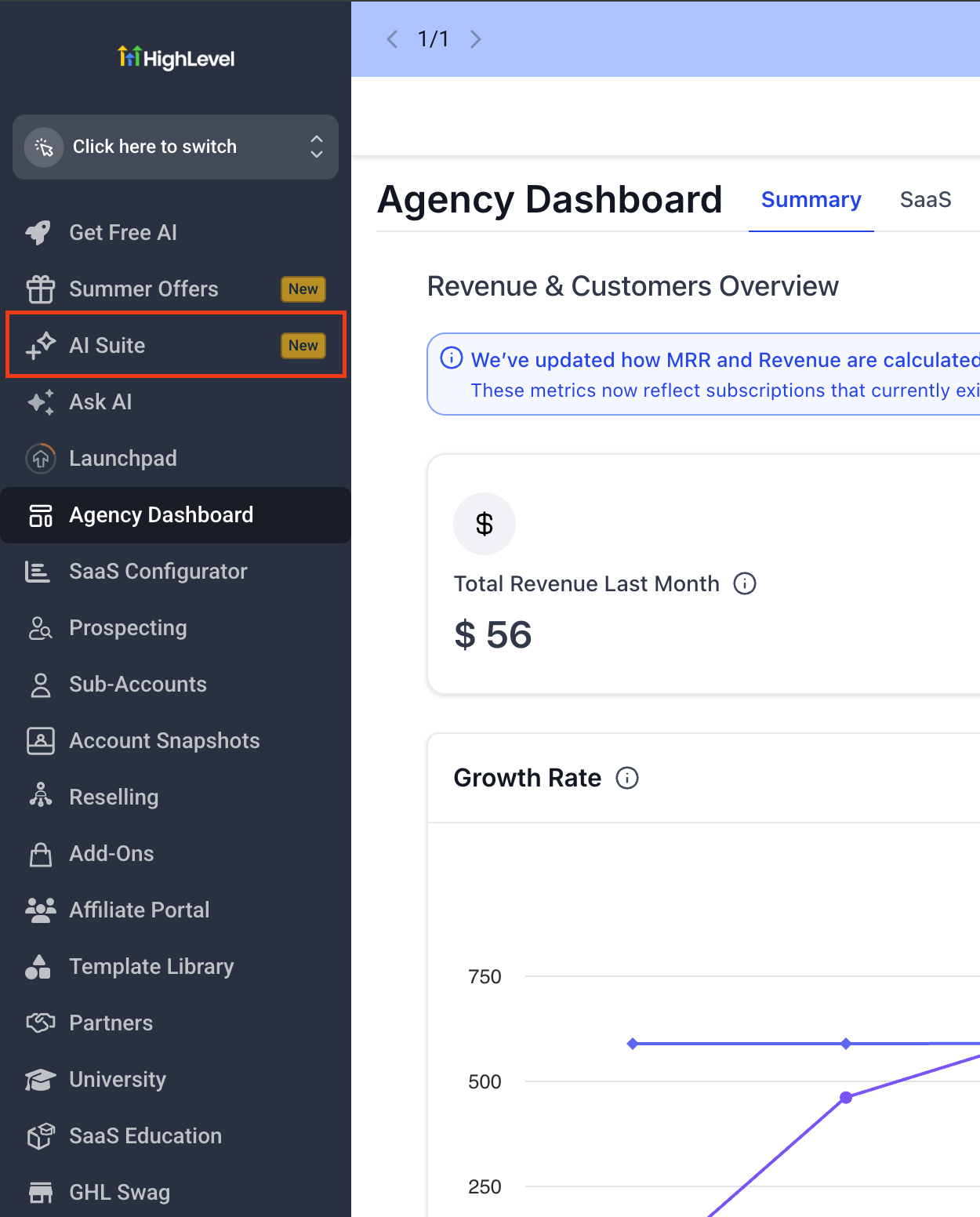
Step 3:
Select AI setup from the menu options in AI Suite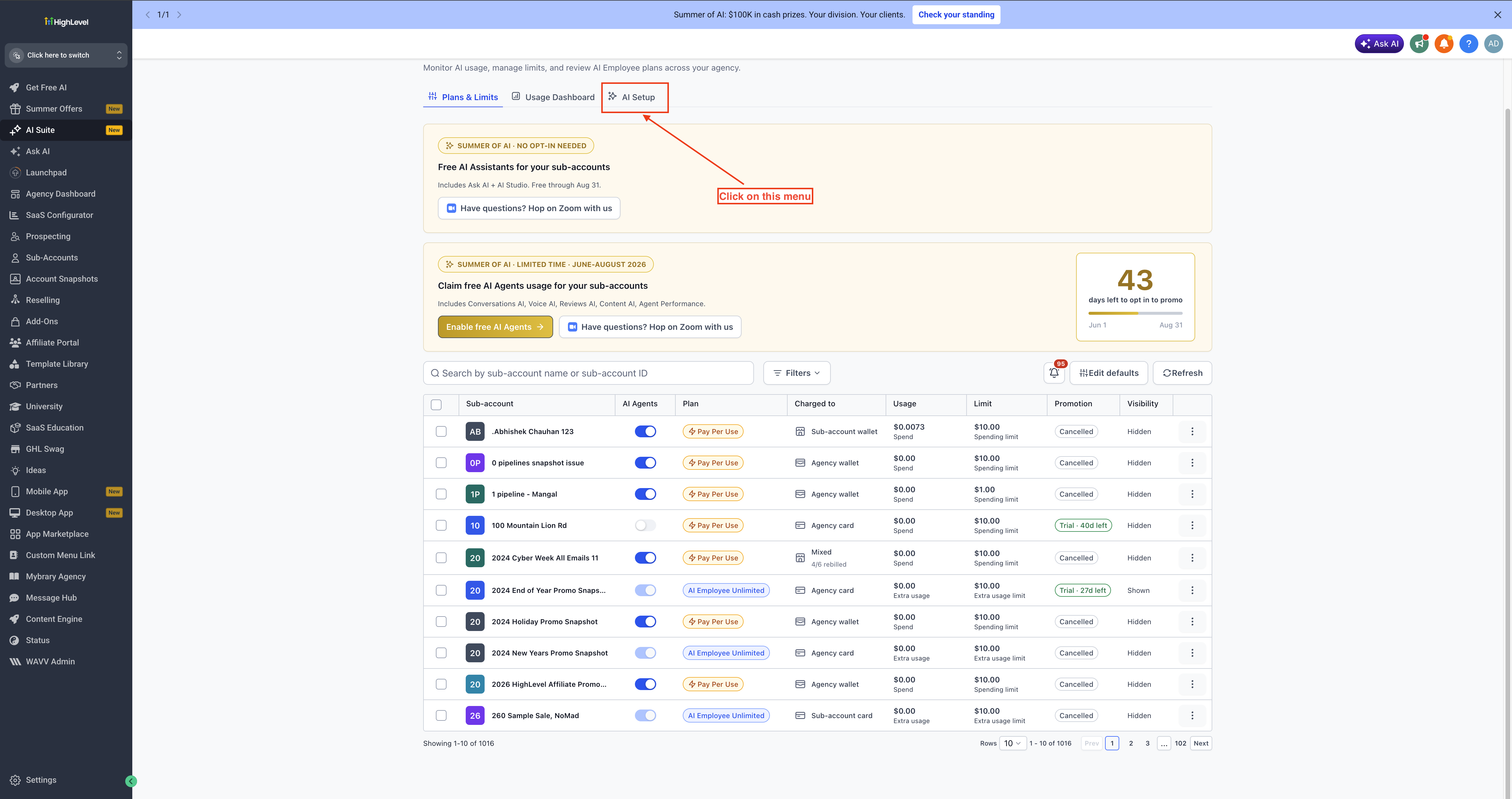
Step 4:
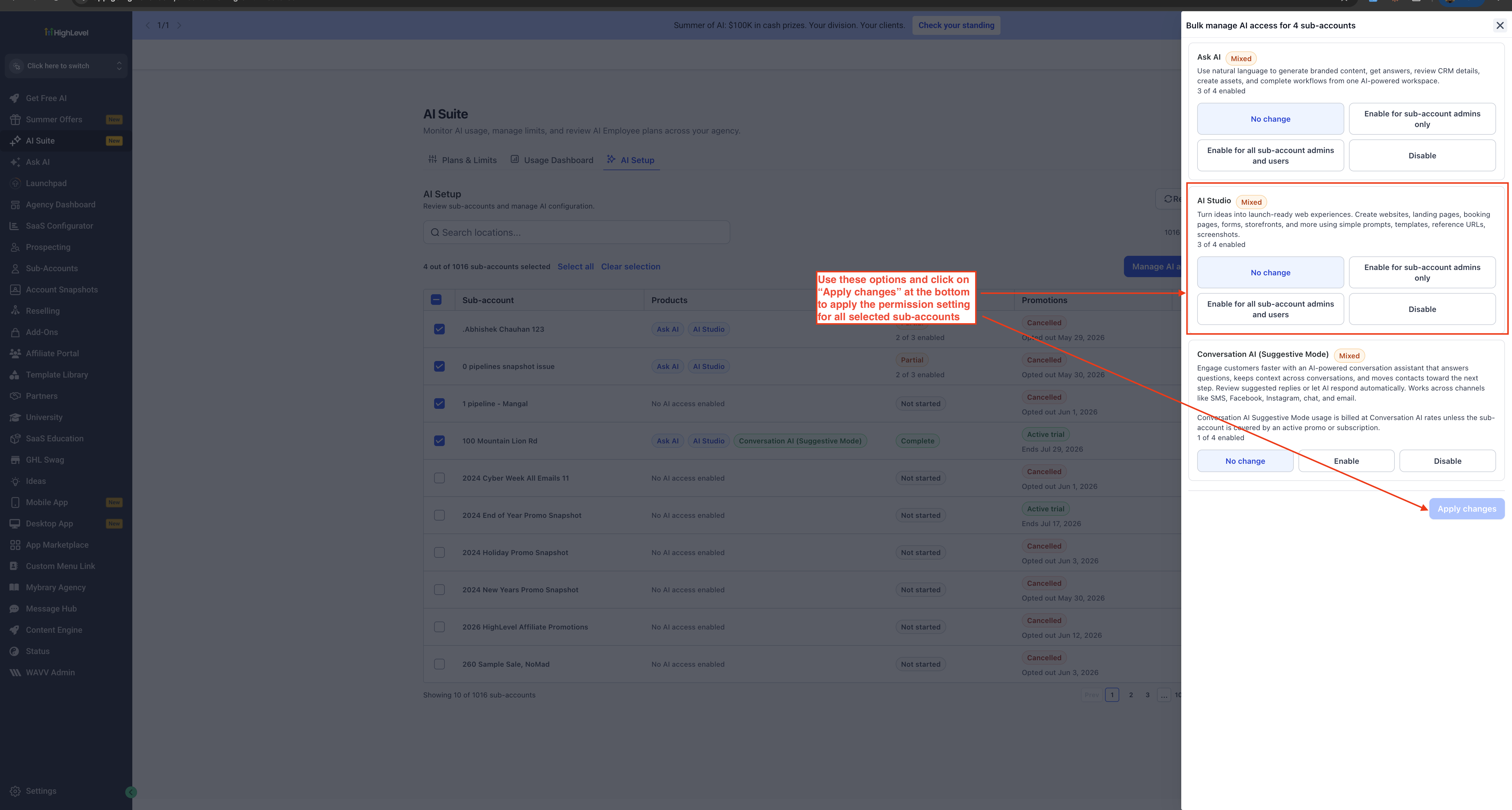
Use the multi select checkboxes in the table entries to select sub-accounts for which you wish to change the permissions in bulk. Once selected click on Manage AI access button which will open a drawer on the right side.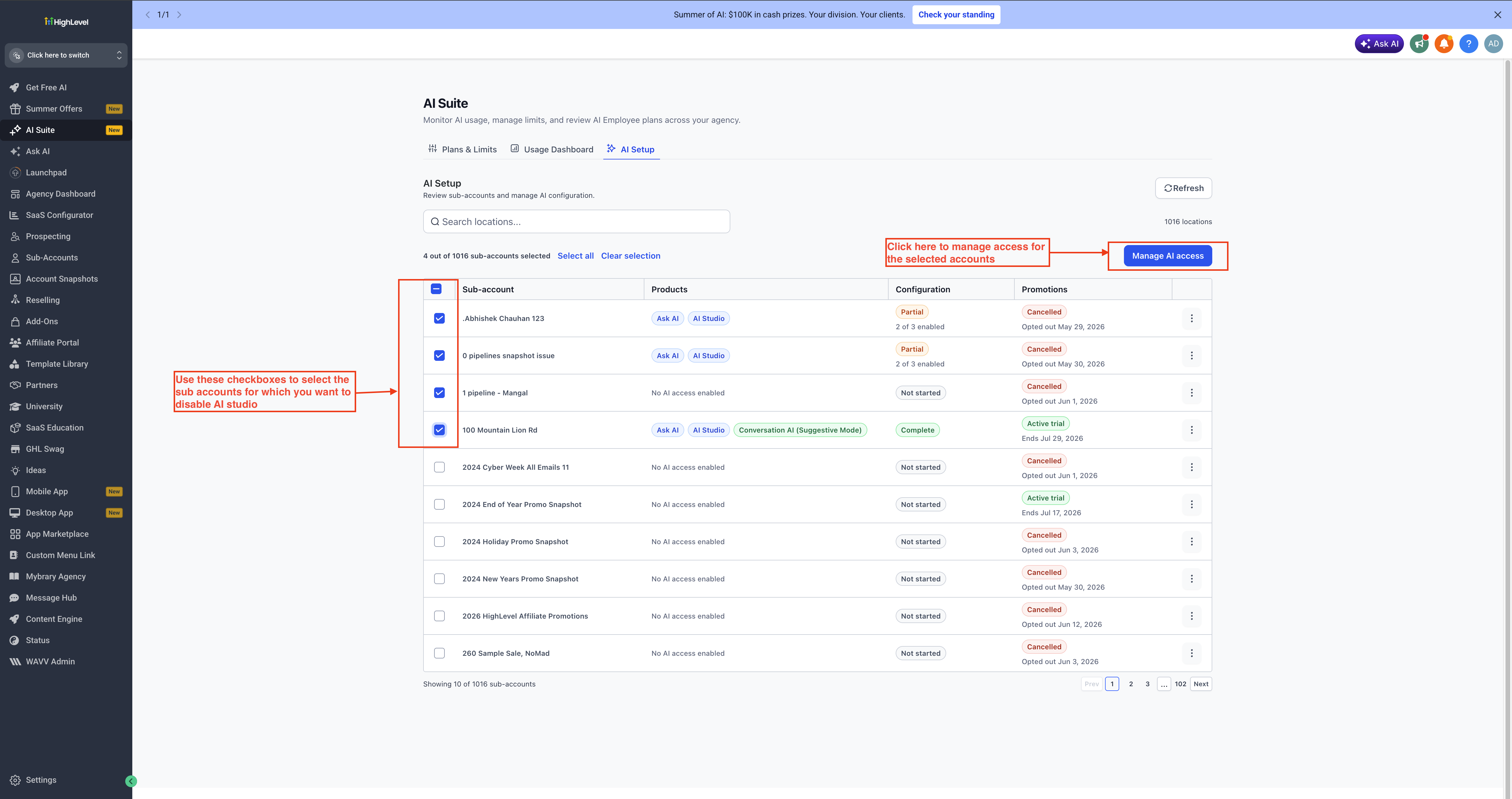
Step 5:
In the drawer, select the AI Studio permission you want to apply to the selected sub-accounts. Then click Apply Changes.
- No change: Keeps the existing AI Studio setting for each selected sub-account.
- Enable for sub-account admins only: Allows only sub-account admins to access AI Studio. Other users in those sub-accounts will not have access.
- Enable for all sub-account admins and users: Allows all users in the selected sub-accounts to access AI Studio, regardless of their role.
- Disable: Hides AI Studio and prevents access in the selected sub-accounts.