
Use your Mailgun Private API key to connect a verified Mailgun domain to SourCherry so you can send and receive emails reliably. This guide explains where to find the key in Mailgun, exactly where to paste it in SourCherry at the Agency and Location levels, and how to validate and troubleshoot the connection.
TABLE OF CONTENTS
- What is the Mailgun Private API Key for SourCherry?
- Key Benefits of Using a Mailgun Private API Key
- Prerequisites
- Region and Domain Visibility (US vs. EU)
- How To Set Up the Mailgun Private API Key in SourCherry
- Location Settings Considerations
- Troubleshooting & Validation
- Frequently Asked Questions
What is the Mailgun Private API Key for SourCherry?
The Mailgun Private API key authenticates SourCherry with your Mailgun account so SourCherry can access your verified sending domains, send emails, and process replies. The key is generated in Mailgun and then pasted into SourCherry. Once saved, eligible US‑region verified domains appear in the domain dropdown for selection at the Location level.
IMPORTANT: Treat these Private API keys as a secret; do not share in tickets or screenshots. Rotate periodically or whenever you suspect exposure; generate a new key in Mailgun and update it in SourCherry at the Agency/Location where it’s stored.
Key Benefits of Using a Mailgun Private API Key
Understanding the value of this connection helps you choose the right place to configure it and avoid sending issues. The bullets below highlight how a correct setup improves reliability, control, and scalability when emailing from SourCherry.
Centralized authentication: Use one key at the Agency level to power multiple Locations when appropriate.
Location‑level control: Override the Agency key at a specific Location when a client needs their own Mailgun account and domain.
Domain dropdown visibility: Selecting a verified US‑region domain from a dropdown reduces misconfiguration and ensures you send from the correct domain.
Reply handling enablement: A valid key plus a proper receiving route helps replies land in Conversations for the right sub‑account.
Security & rotation: Keys can be regenerated in Mailgun and updated in SourCherry to maintain account security.
Scalability: Multi‑client agencies can standardize setup, speed onboarding, and align with client‑owned infrastructure when needed.
Prerequisites
Preparing the environment first prevents common blockers where the domain doesn’t appear in SourCherry or emails fail to send. Confirm each item before pasting your key.
A Mailgun account with at least one verified sending domain (green check) set up under the US region.
Access to the High-Level Agency view and the relevant Location with permissions to open Settings → Email Services.
DNS for the Mailgun domain is correctly configured (DKIM, SPF, MX, and tracking CNAME if you use link tracking).
Any Mailgun IP allowlist will be temporarily relaxed if needed to allow SourCherry to sync domains (restore after validation).
Region and Domain Visibility (US vs. EU)
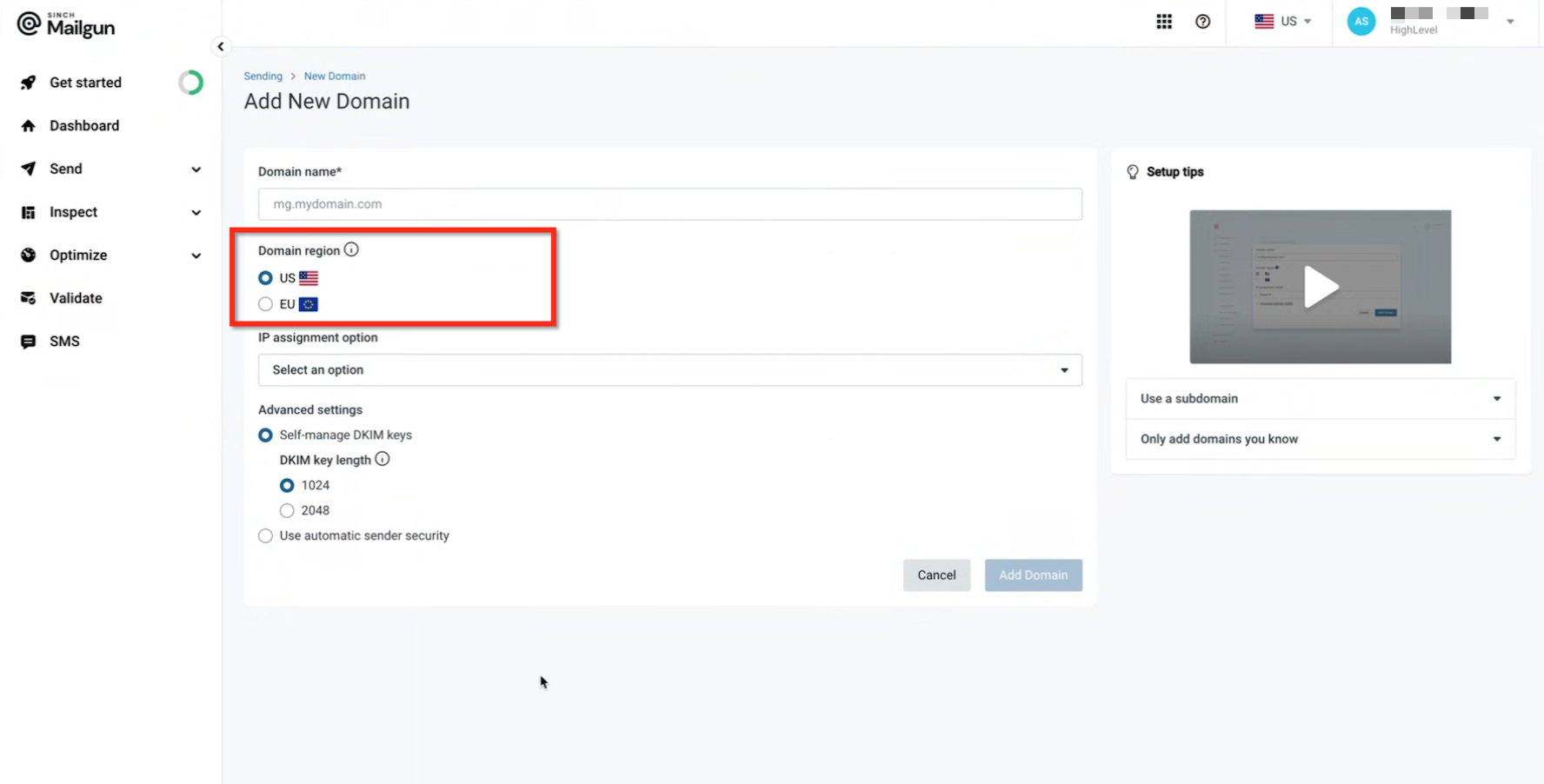
SourCherry reads verified domains from Mailgun’s US region only. If a domain is created in the EU region, it will not populate in the High-Level domain dropdown.
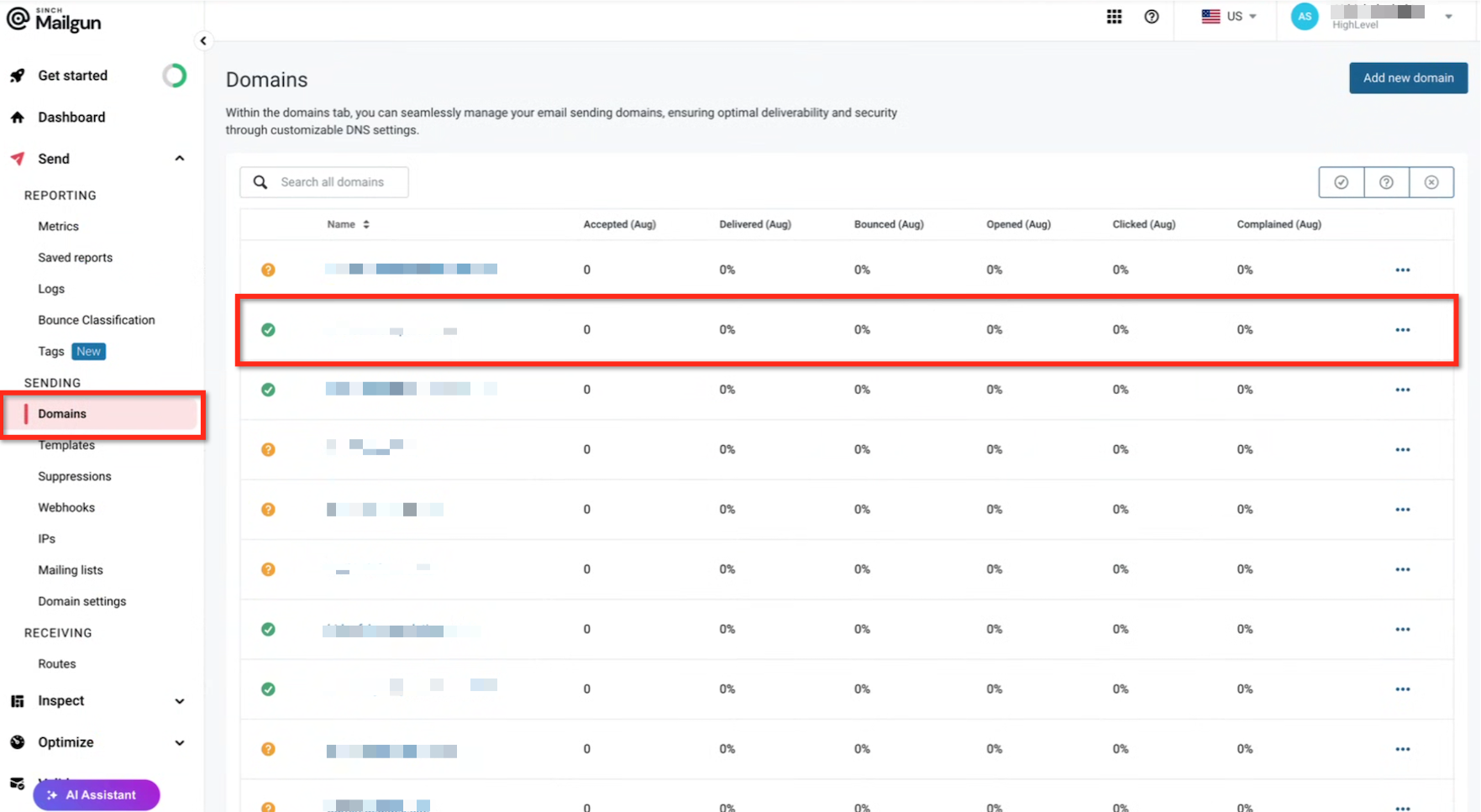
Ensure the Mailgun domain lives in the US and shows as Verified.
If your domain is in the EU, create/migrate a US‑region domain for use with SourCherry.
How To Set Up the Mailgun Private API Key in SourCherry
Following the steps in order prevents the most common misconfigurations. Start in Mailgun to retrieve the key, then paste it into SourCherry at the Agency or Location level, select your domain, and validate.
Step 1: Copy your Private API key from Mailgun
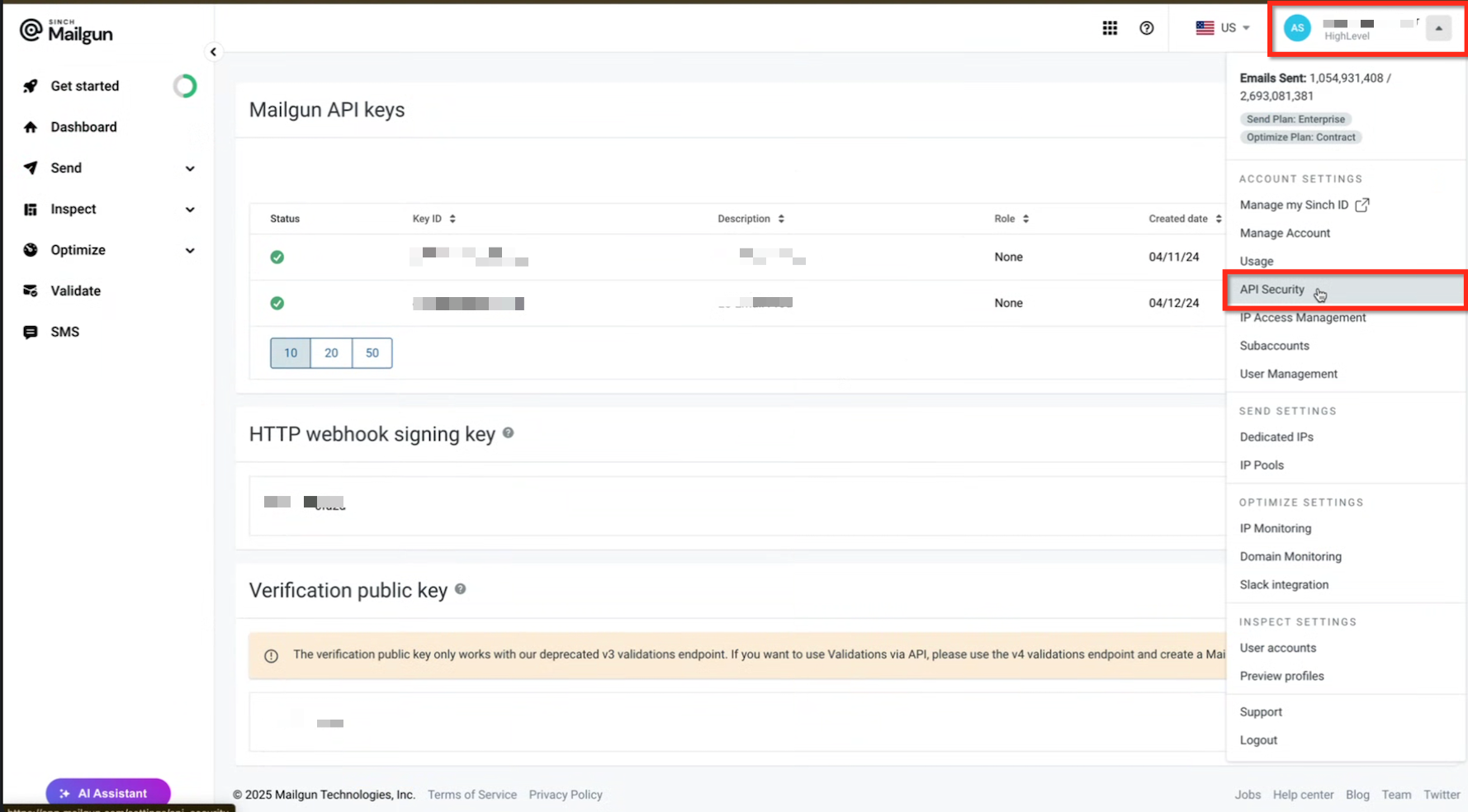
Log in to Mailgun. Click your profile avatar (top‑right) → API Security. Create a new key if needed, or copy the existing Private API key.
Step 2: Add the key at the Agency level (optional, shared use)
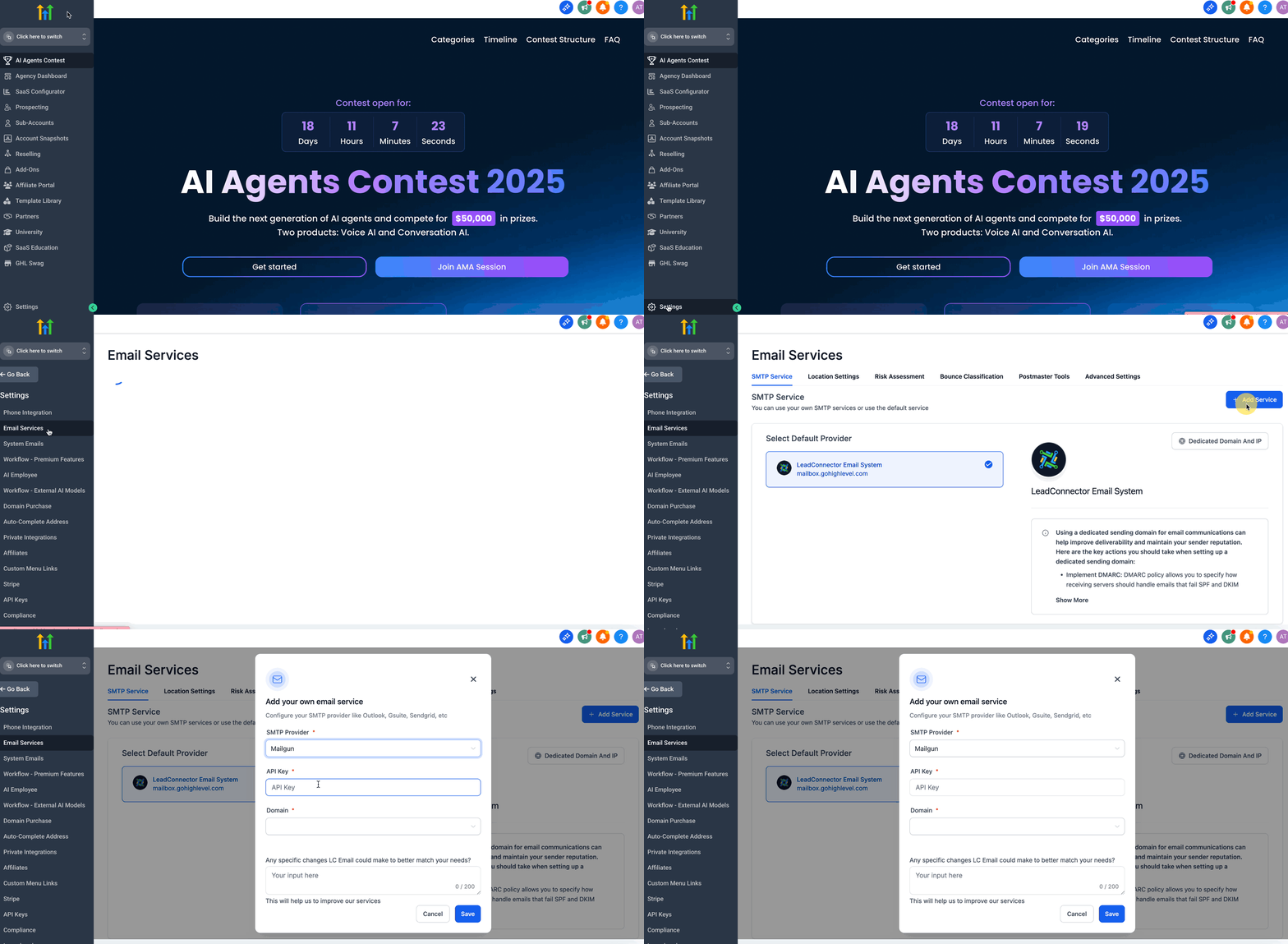
In SourCherry (Agency view), go to Settings → Email Services. Select Mailgun and paste the Private API key. Select the domain and then click Save.
(Optional) Open a Location to confirm the domain appears in its dropdown after sync.
IMPORTANT: Make sure the domain is set up for US and there's a green checkmark next to the domain.
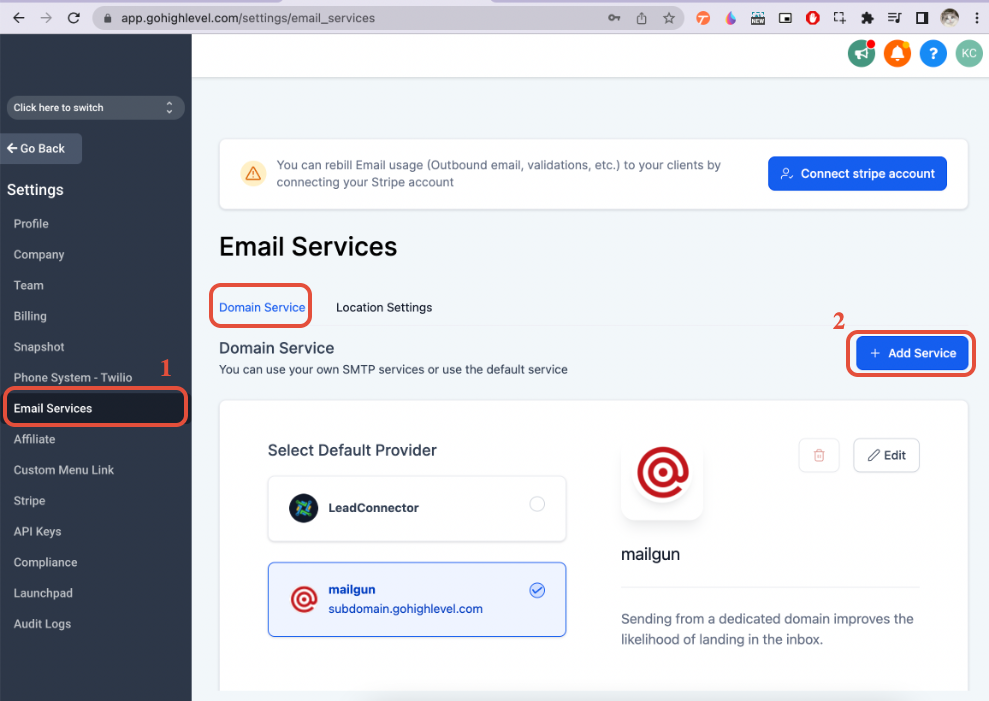
This is how a successful Connection would look-
Location Settings Considerations
- You can configure each location with your client's own Mailgun or your Mailgun.
- We can use the same Mailgun API and the same domain/subdomain for multiple locations.
- We can use the same Mailgun API and different domains/subdomains for multiple locations.
- We can use the different Mailgun API and domains/subdomains for multiple locations.
- You can also set up a unique domain/subdomain for each location to capture cold inbound emails. Learn more about Cold Email Inbound Setup here.
Troubleshooting & Validation
If the domain you set up does not show up in the dropdown.
1. Please set up the domain or subdomain under the US, not the EU.
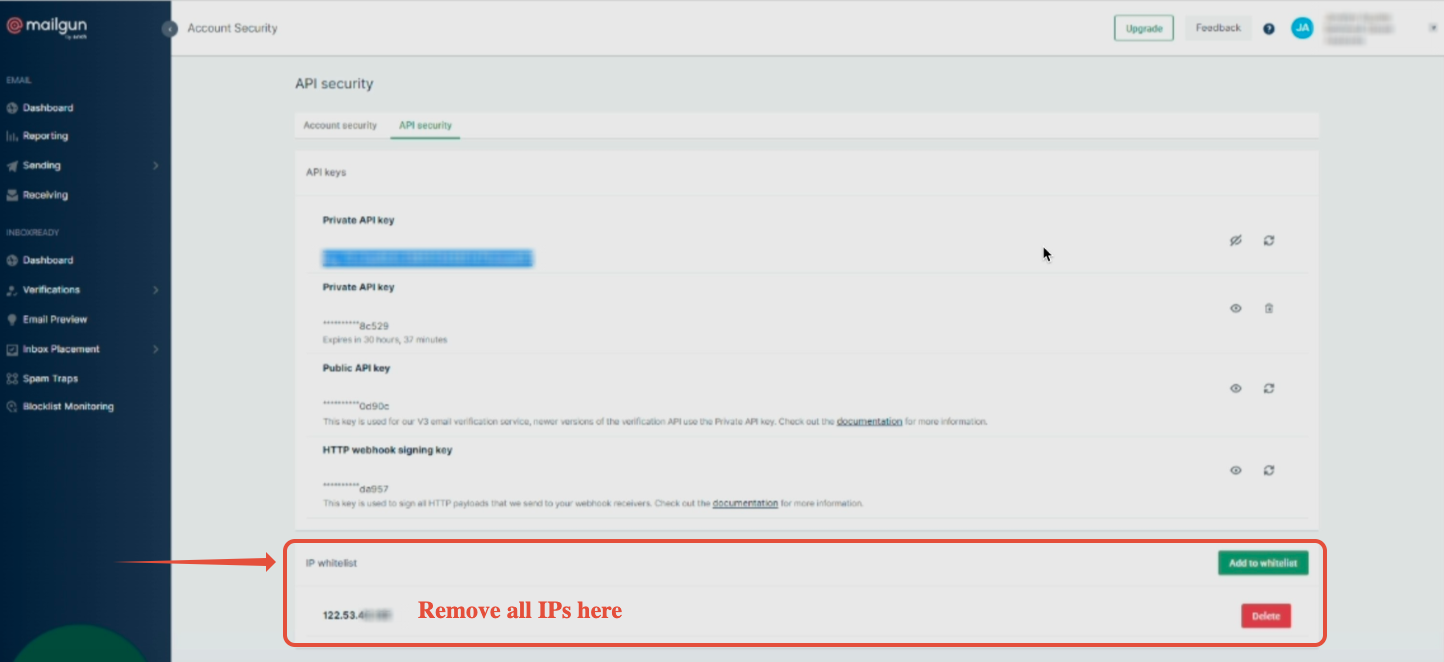
2. Check if the Mailgun account has added the allowed IP in MailGun, so we are not able to pull it. Please remove all the IP whitelist; you can add it back later on.
Frequently Asked Questions
Q: Do I need the Private or Public API key?
Use the Private API key. Public keys won’t authenticate the provider in SourCherry.
Q: My domain is verified in Mailgun EU. Why can’t I select it in SourCherry?
SourCherry reads verified domains from the US region. Create or migrate a US‑region domain to use it in SourCherry.
Q: What happens if I paste a key at both the Agency and the Location?
The Location configuration overrides the Agency provider for that Location, allowing client‑specific domains and sending.
Q: Can multiple Locations share one Mailgun key?
Yes. Paste the key at the Agency level to make its verified US‑region domains available across Locations. Use Location‑level keys when a client must be isolated.
Q: My domain doesn’t appear even after saving the key—what next?
Re‑check the US region and domain verification, temporarily relax the Mailgun IP allowlist to sync, then restore it. Also, confirm you’re saving at the intended level.