
Understanding the different opportunity statuses and how to update them empowers users to manage their sales workflow efficiently and maximize conversion rates. This comprehensive guide will walk you through the process of updating opportunity statuses in SourCherry while also covering the differences between the various statuses and how to leverage them effectively.
TABLE OF CONTENTS
Understanding Opportunity Statuses
Open
- Opportunities with the "Open" status are actively being pursued and are still in progress.
- These opportunities represent potential deals that have not yet been won, lost, or abandoned and are still viable for conversion.
Won
- The "Won" status indicates that the opportunity has been successfully converted into a sale or deal.
- This status is applied when the lead has made a purchase or signed a contract, resulting in revenue generation for the business.
Lost
- Opportunities with the "Lost" status represent deals that have been unsuccessfully concluded.
- This status is applied when the lead decides not to move forward with the purchase or chooses a competitor's offering.
Abandoned
- The "Abandoned" status indicates that the opportunity has been neglected or disregarded, either by the lead or by the sales team.
- This status is applied when there is no further action or follow-up planned for the opportunity, and it is effectively removed from active consideration.
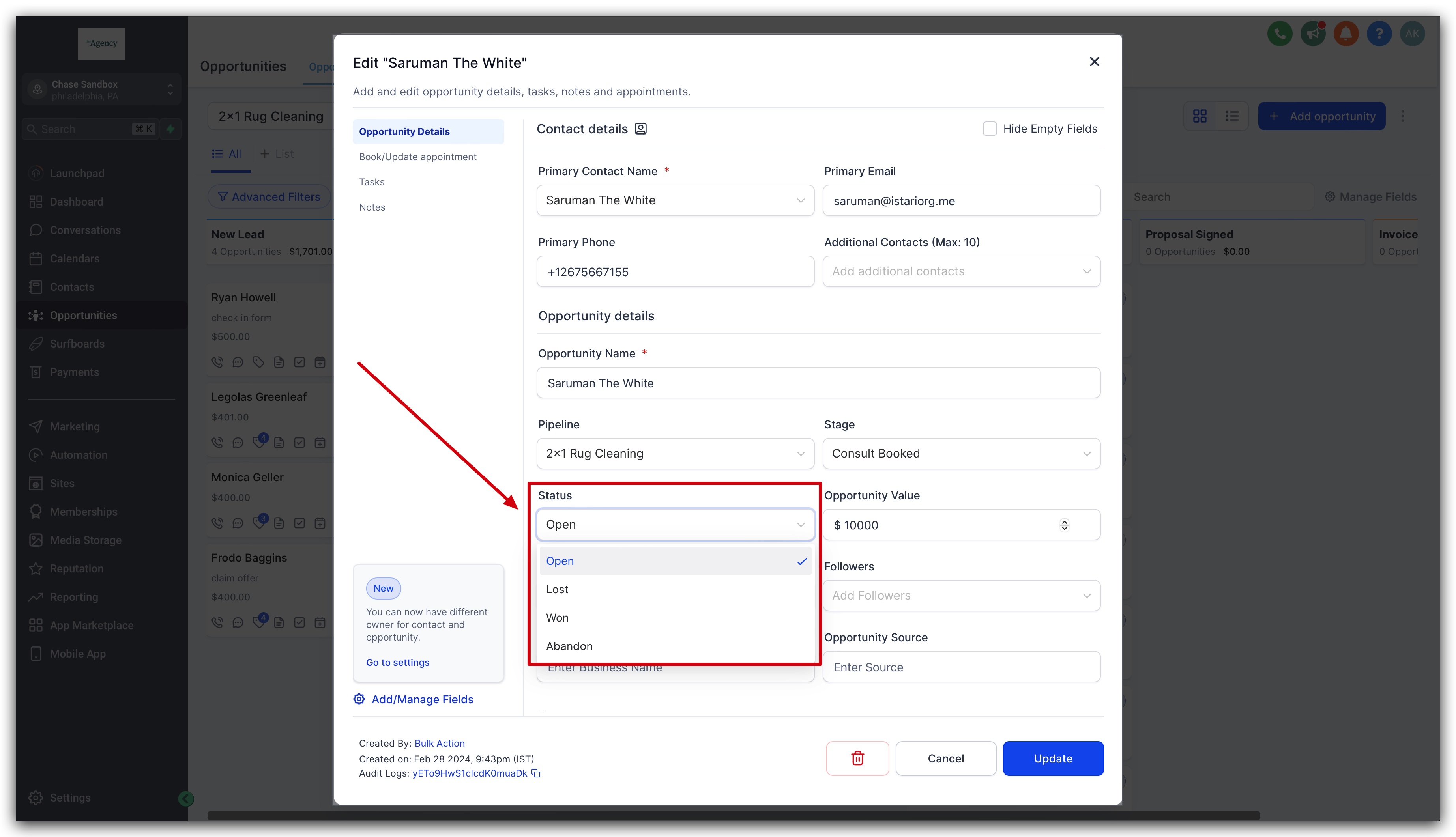
Note: Opportunity status type and names cannot be changed or updated. You can only choose from the 4 opportunity status types.
Updating Opportunity Status
There are a few different ways to update the status of your opportunities:
- Clicking directly into the opportunity and update the status
- Dragging and dropping the opportunity into the proper status
- Updating the status using workflows
We go over each option step-by-step below!
Option 1: Clicking directly into the opportunity and update the status
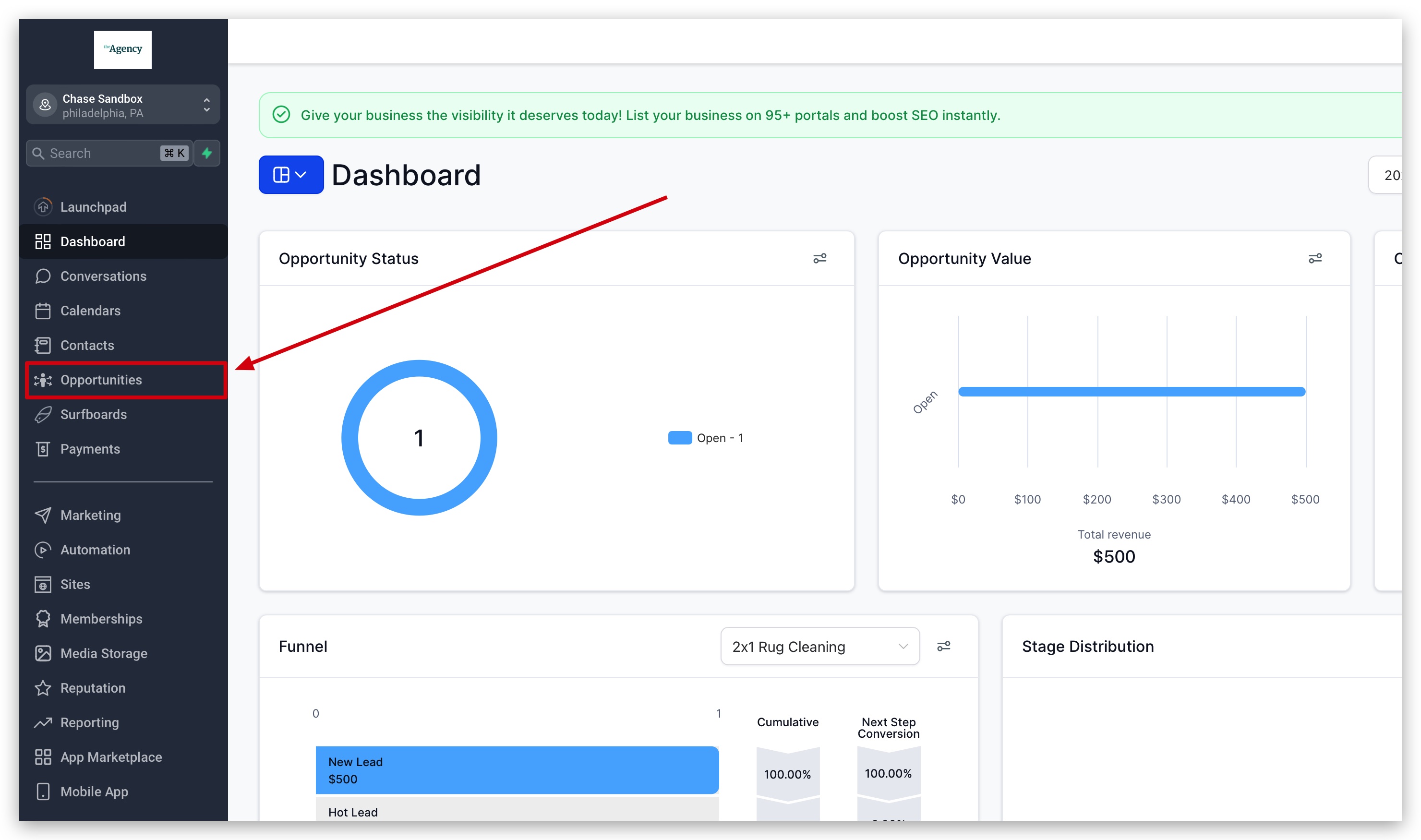
1. Navigate to the Opportunities Section
Log in to your SourCherry account and navigate to the "Automation" section from the sidebar menu.
2. Locate and Open the Opportunity You Need to Edit
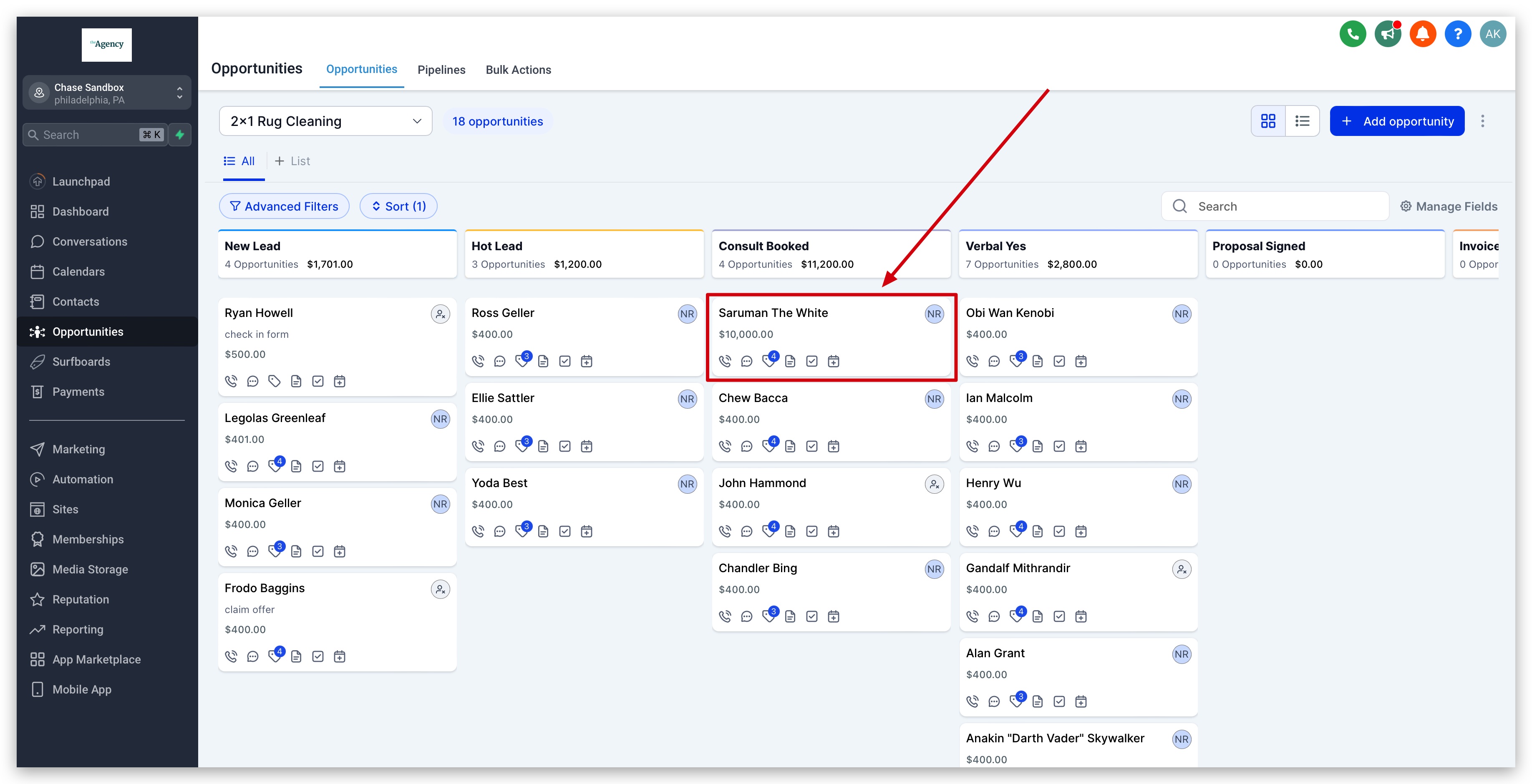
Once you're in the Opportunities section, locate the opportunity whose status you wish to update. You can use search filters or browse through the list of opportunities to find the specific one you need to modify.
Click on the opportunity card to open its details page. Alternatively, you can click on the "Edit" button next to the opportunity to access its details.
3. Update the Status Field in the Opportunity
In the opportunity details page, locate the status field, which typically displays the current status of the opportunity. Click on the status field to open the dropdown menu and select the desired status from the available options (Open, Won, Lost, or Abandoned). Confirm the status change, and the opportunity will be updated accordingly in the sales pipeline.
Option 2: Dragging and dropping the opportunity into the proper status
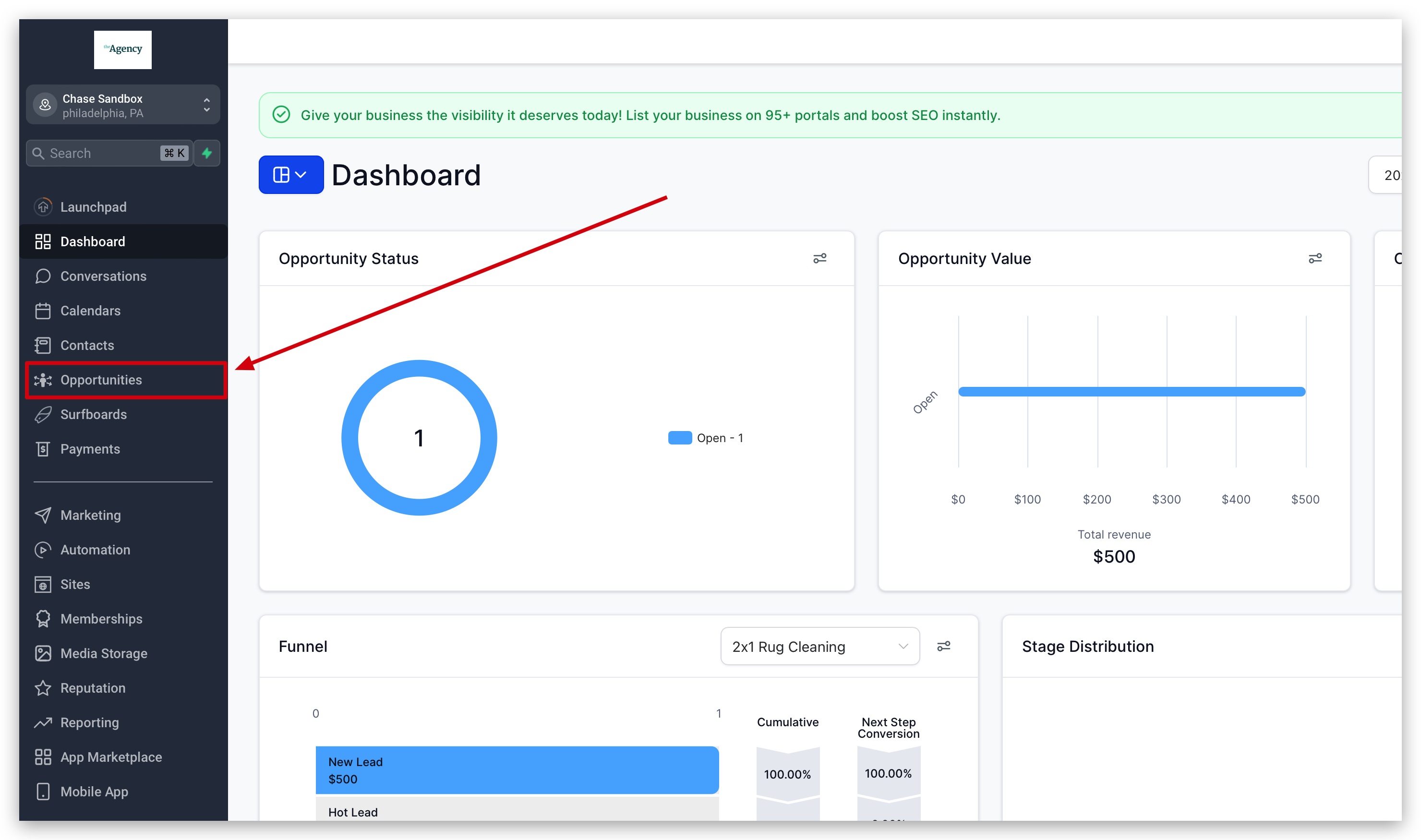
1. Navigate to the Opportunities Section
Log in to your SourCherry account and navigate to the "Automation" section from the sidebar menu.
2. Locate the Opportunity You Need to Edit
Once you're in the Opportunities section, locate the opportunity whose status you wish to update. You can use search filters or browse through the list of opportunities to find the specific one you need to modify.
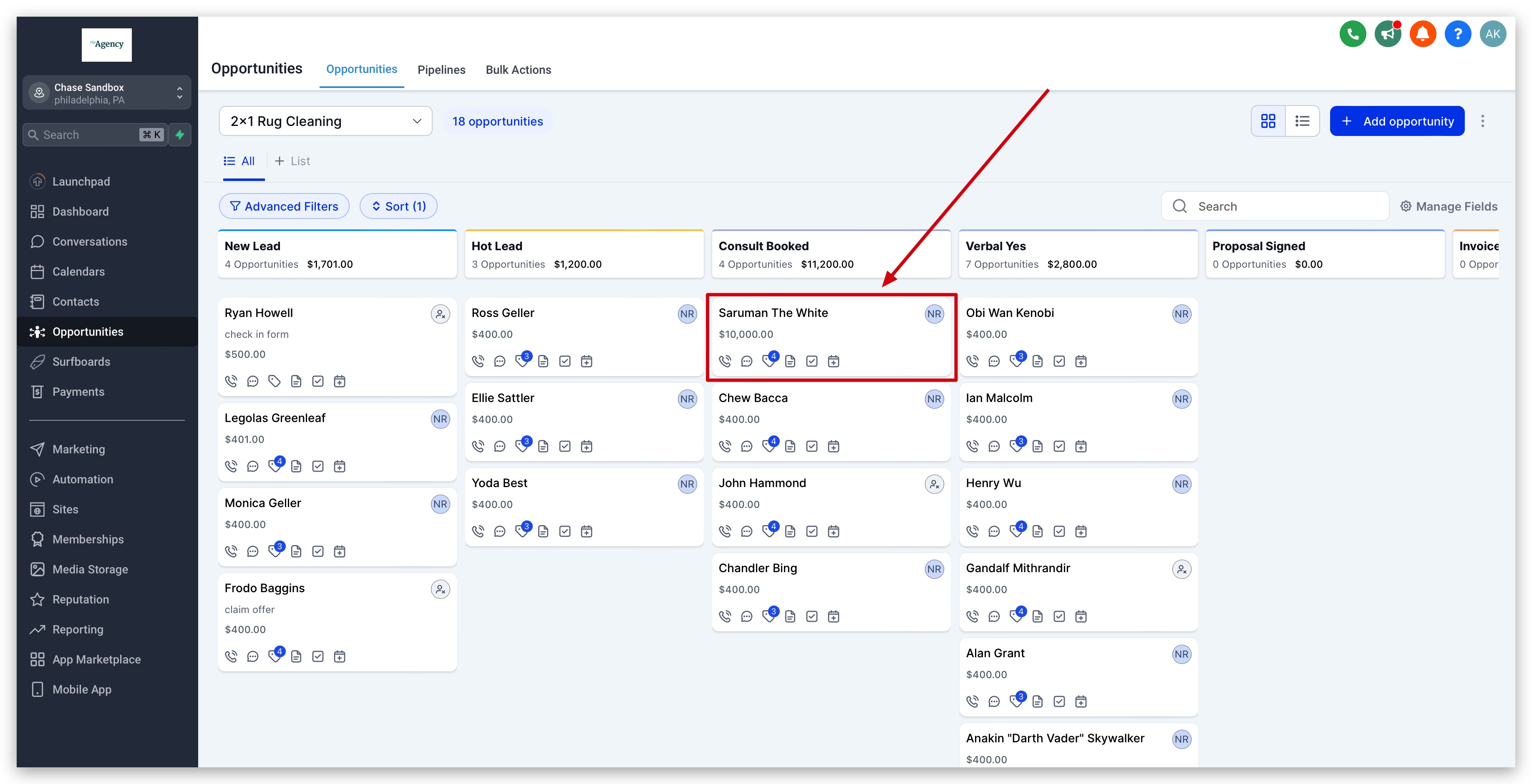
3. Drag and Drop Opportunity
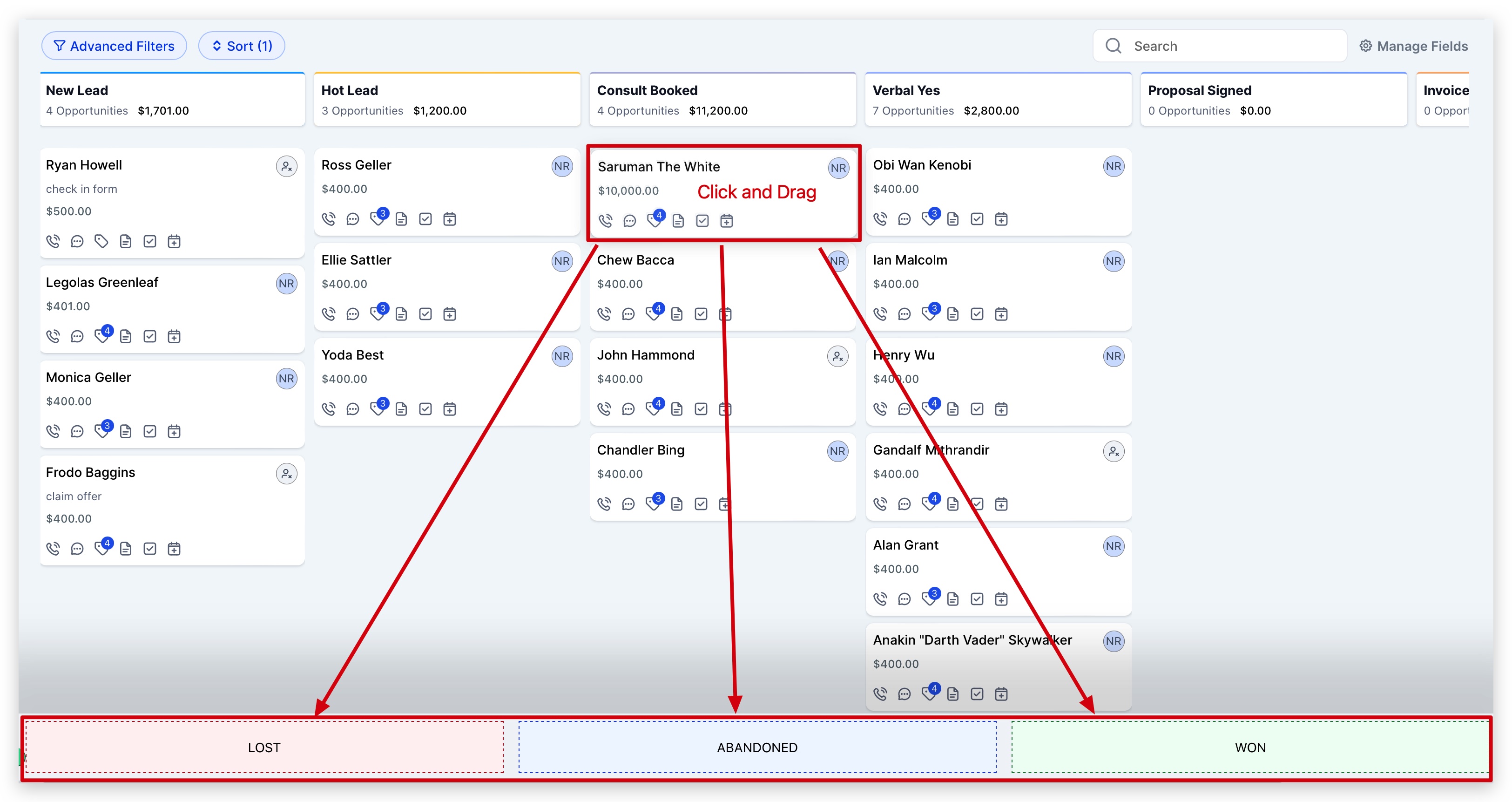
Drag the opportunity card to the right status which appears as soon as the card is dragged. Drop it on the status which you want to update the card to. The status of the card will be updated and will reflect on the card.
Option 3: Updating the status using workflows
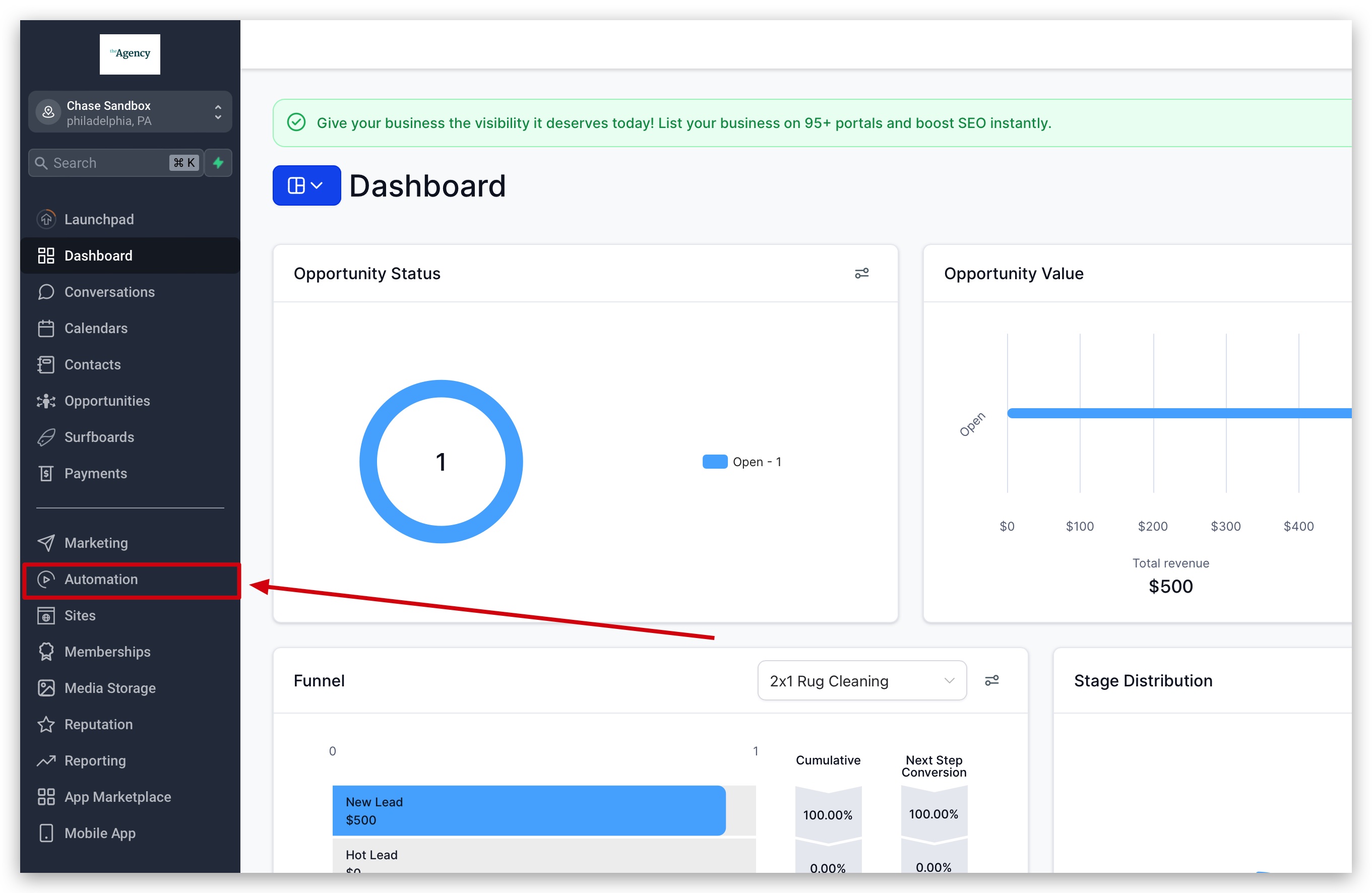
1. Navigate to the Automation Section
Log in to your SourCherry account and navigate to the "Automation" section from the sidebar menu.
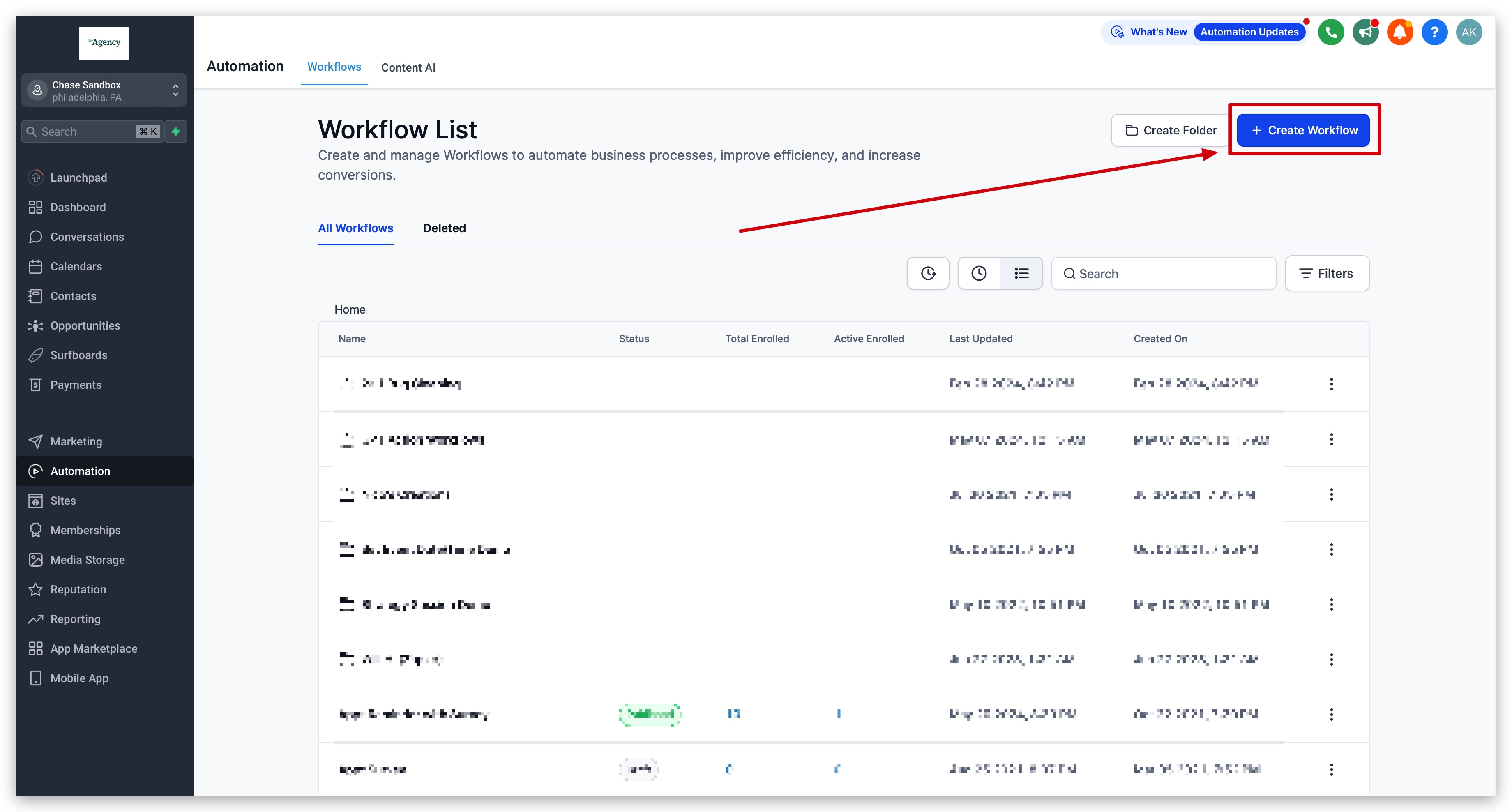
2. Create a new workflow
If you already have a workflow created for your opportunities, or a workflow that manages leads and contacts that you would like to use when updating the statuses of your opportunities, find that workflow and open it.
3. Create a workflow trigger
This can be anything you want it to be. The idea here is to perform a workflow action that updates the opportunity status after some sort of workflow trigger happens such as:
- Form submitted
- Contact Tag Added or Removed
- Appointment Booked
- Transaction was made
- Invoice was paid
- Contract was signed
- ect.
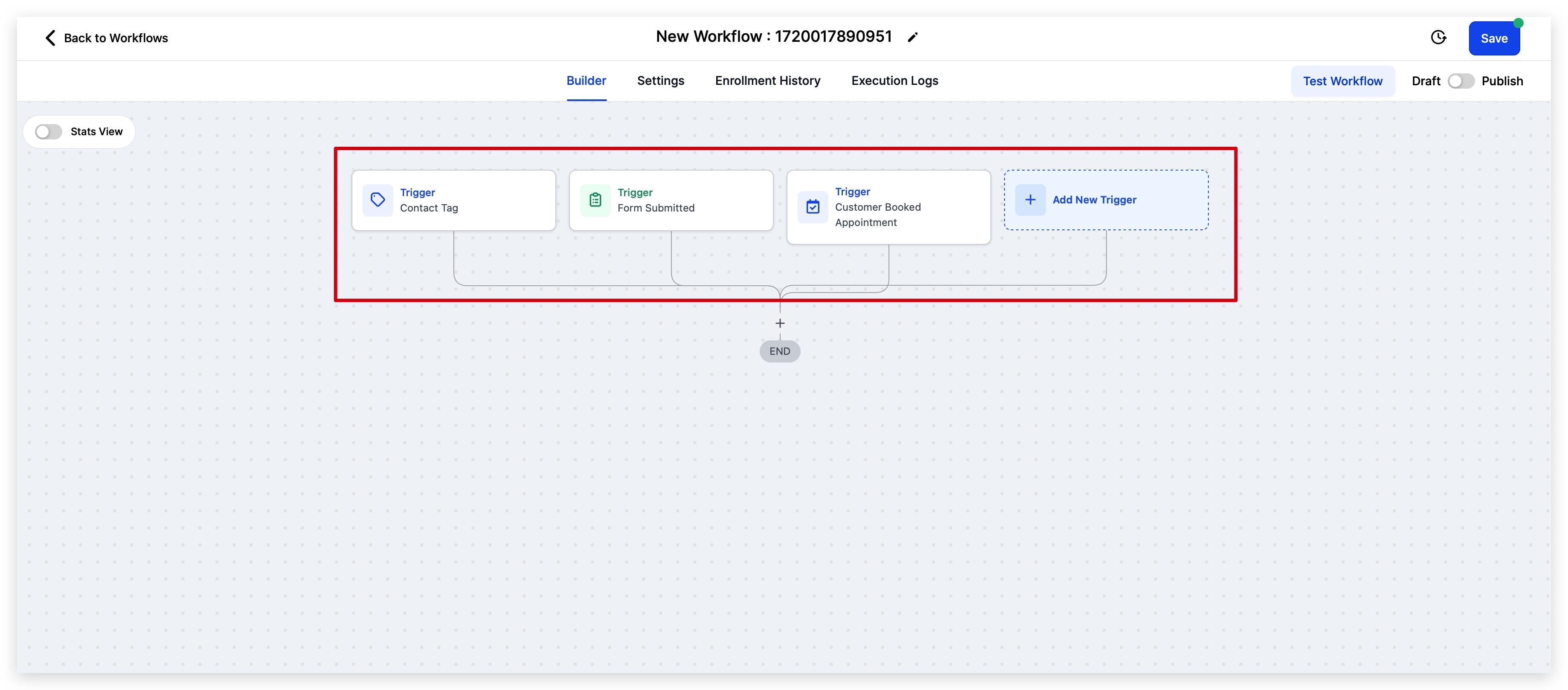
4. Add the "Create/Update Opportunity" Workflow Action
Once you create your trigger, add the "Create/Update Opportunity" workflow action. If you're having trouble finding this workflow action in the list of actions, you can use the search bar to find it by beginning to type the word "opportunity".
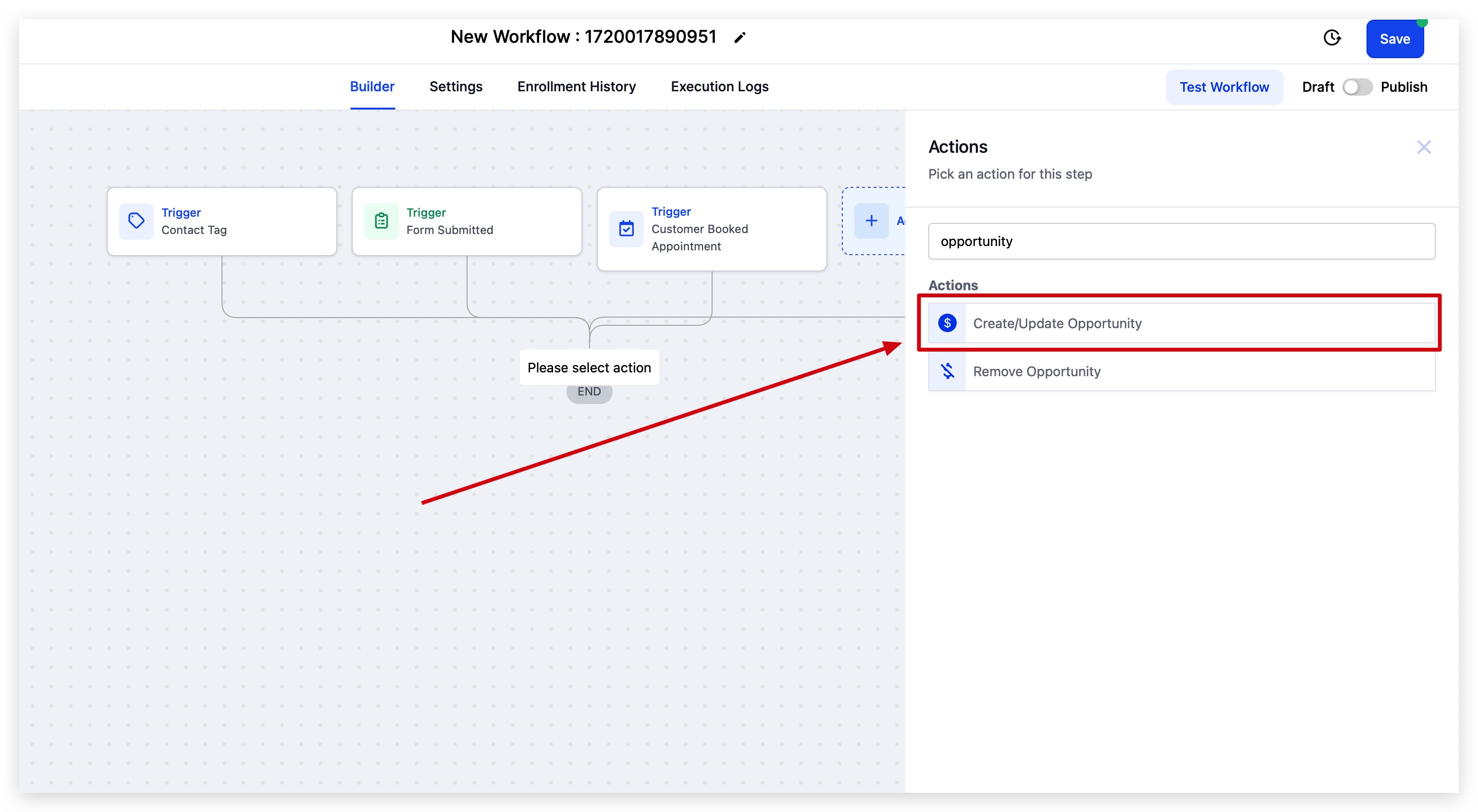
5. Edit Workflow Action
Next, you'll need to select the pipeline and pipeline stage you'd like to move your opportunity to. During this step you can change any information you need to about the opportunity like the name, source, lead value, and of course the status.
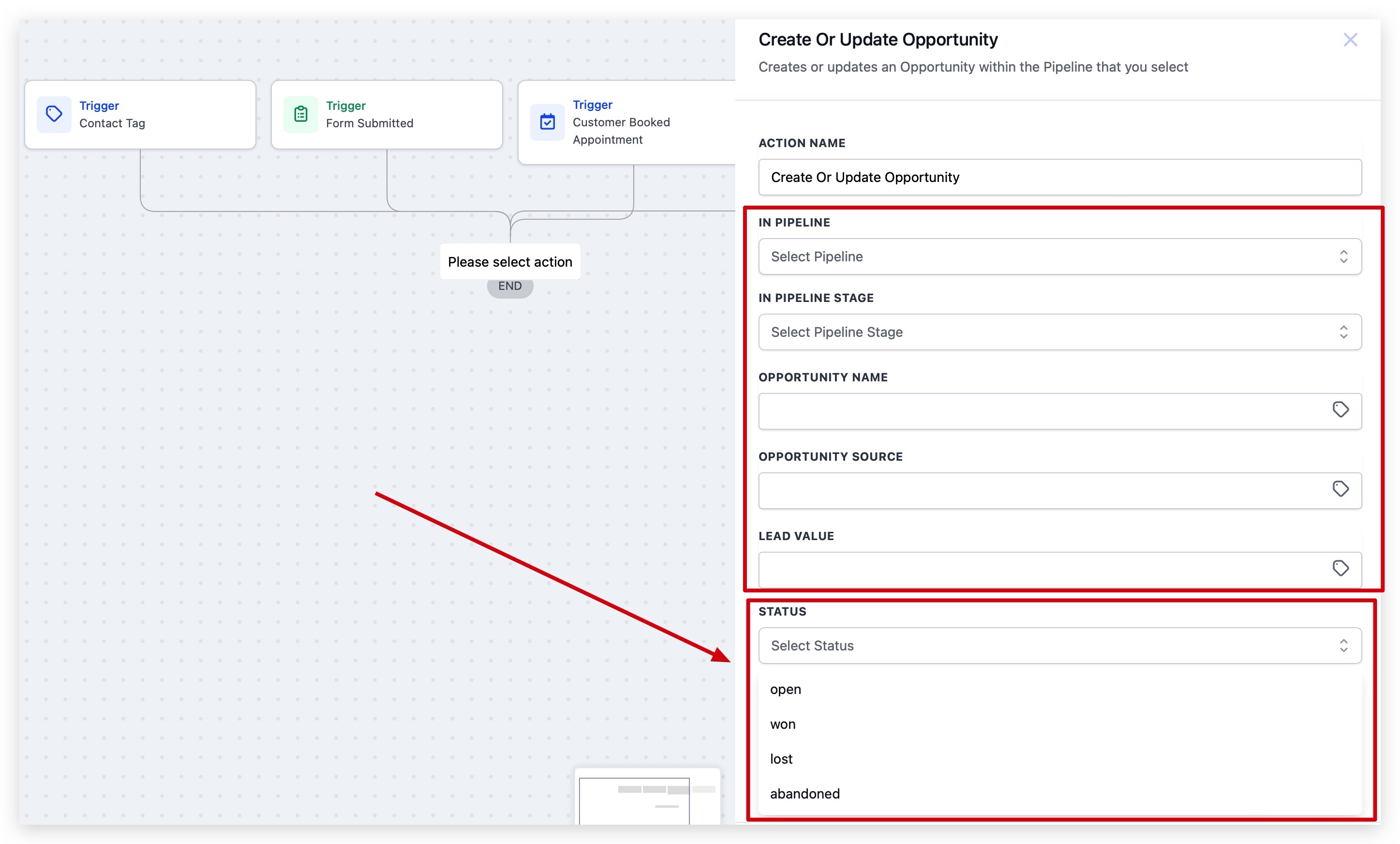
Once you update the opportunity status, make sure you save your new workflow action and save the entire workflow so you don't lose your previous work!