Workflow Automation
How to Forward Incoming SMS Messages as Notifications via a Workflow
Use a Customer Replied workflow trigger to send internal SMS notifications every time a contact messages you.
Overview
The platform's mobile and web apps are built to receive inbound SMS messages directly within the Conversations tab. However, by configuring a workflow with custom triggers and notifications, you can also forward these incoming message notifications — though this will result in additional charges.
If you'd like incoming SMS messages to appear in the Conversations tab and be automatically forwarded to a designated number as a notification, this guide will walk you through the process.
Important — Before You Begin
Inbound SMS messages are received in the Conversations tab using the platform's mobile app and web app. Incoming SMS will not be natively forwarded to an external number.
To achieve forwarding, you need to set up a Customer Replied workflow trigger that uses the custom value {{message.body}} to relay the content as an internal notification.
1
Steps to Create a Workflow
Step 1
Create a Workflow
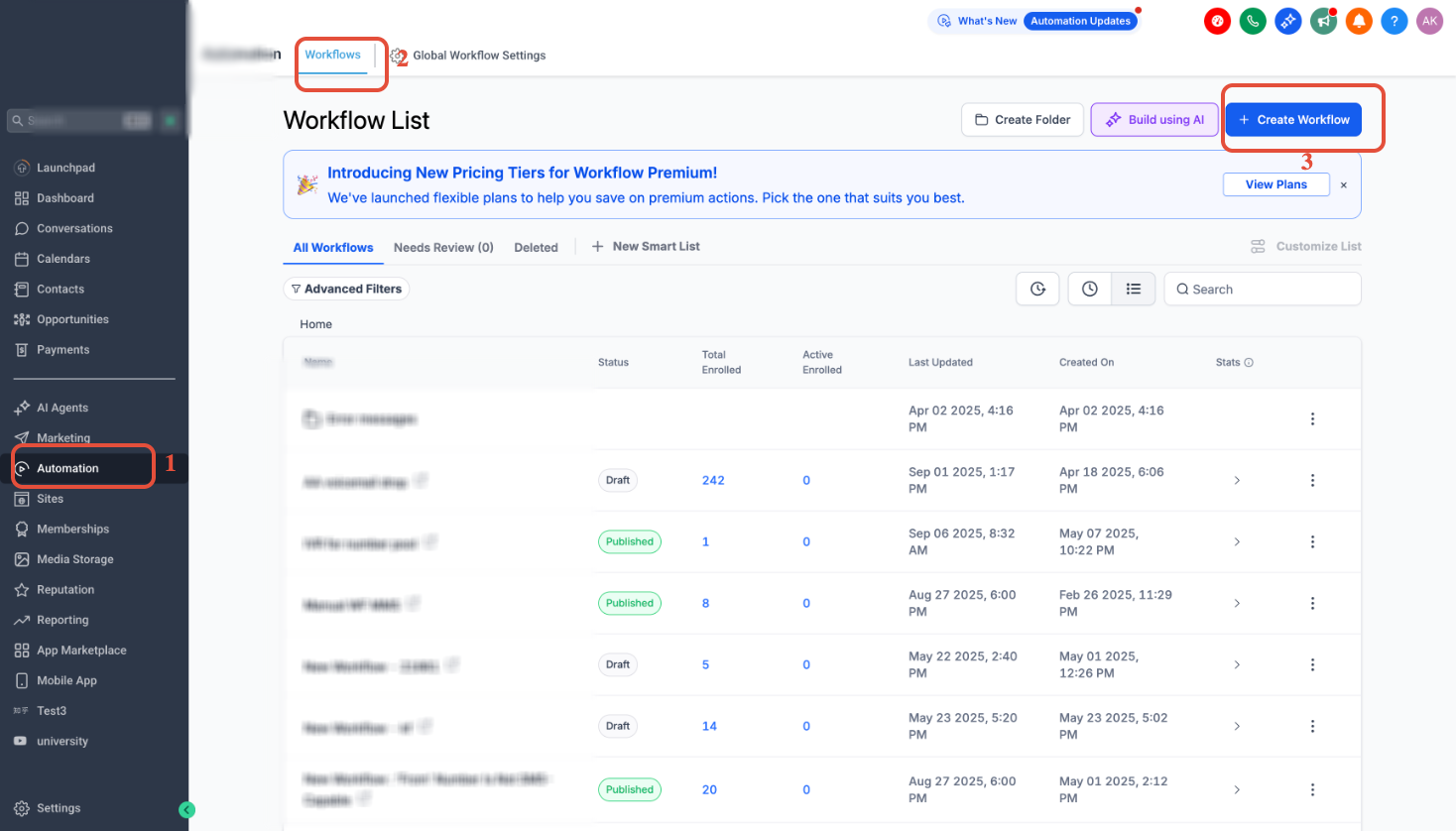
Navigate to Automation > Workflows > Create Workflow.
Step 2
Start from Scratch
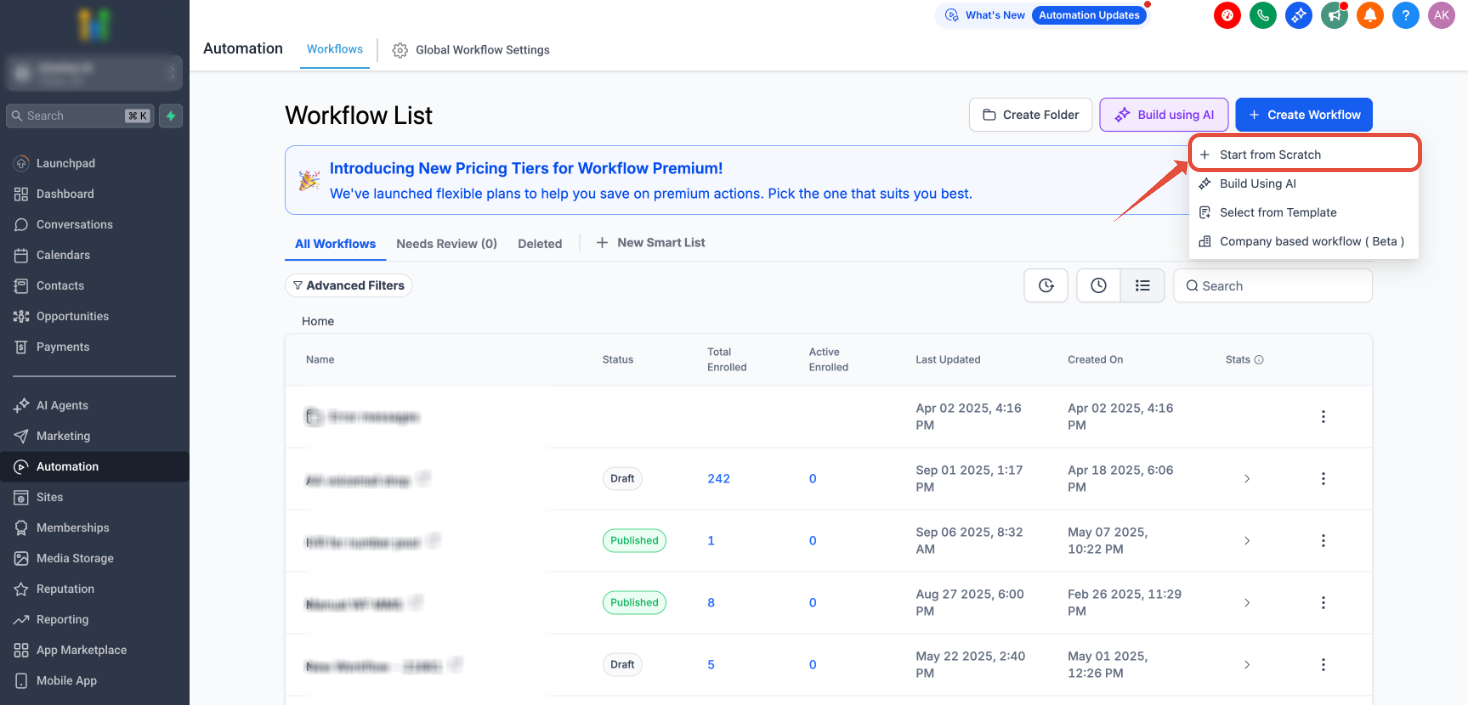
Click Start from Scratch and then select Create New Workflow.
Step 3
Add a Workflow Trigger
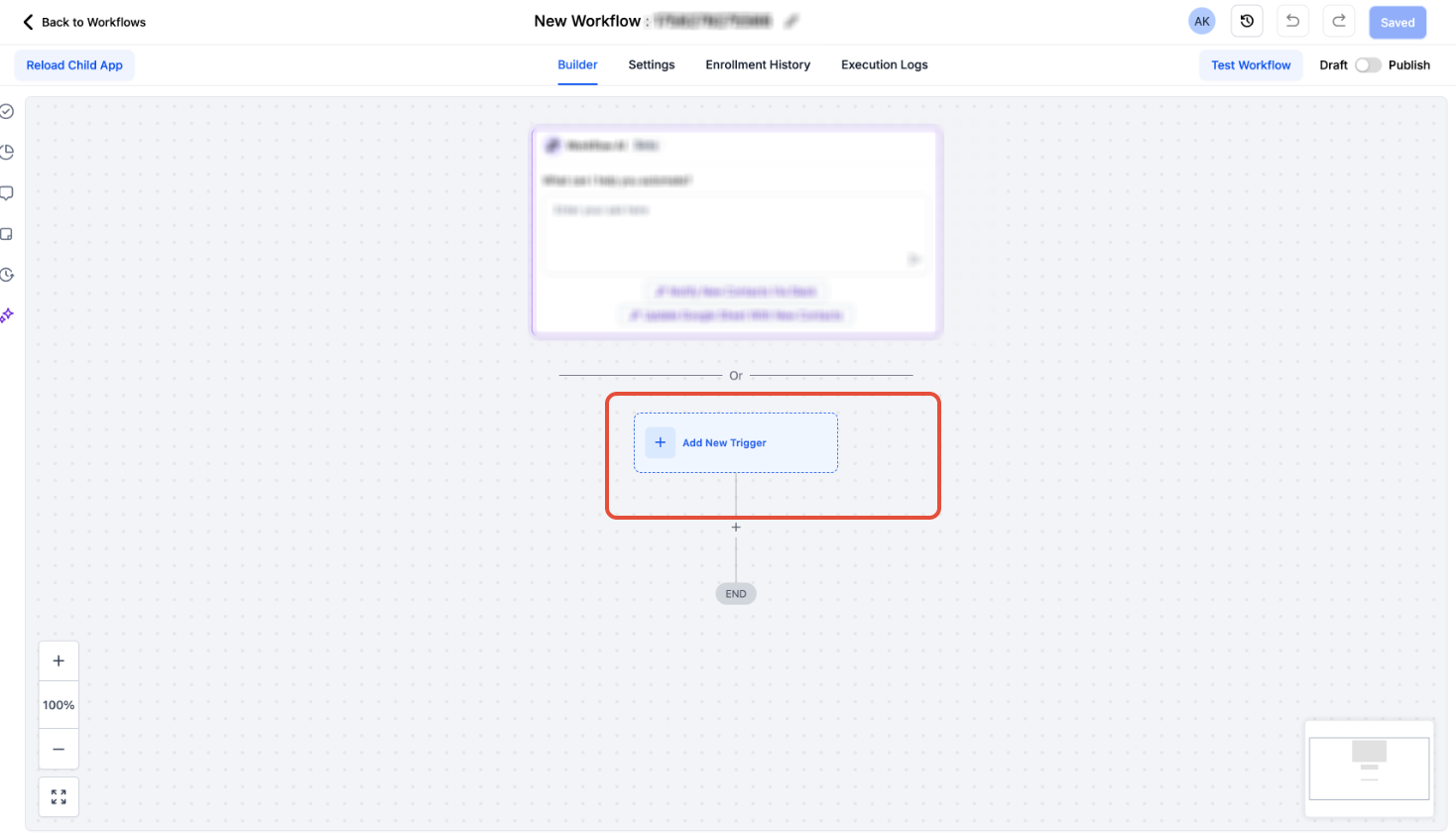
Click Add New Workflow Trigger.
Step 4
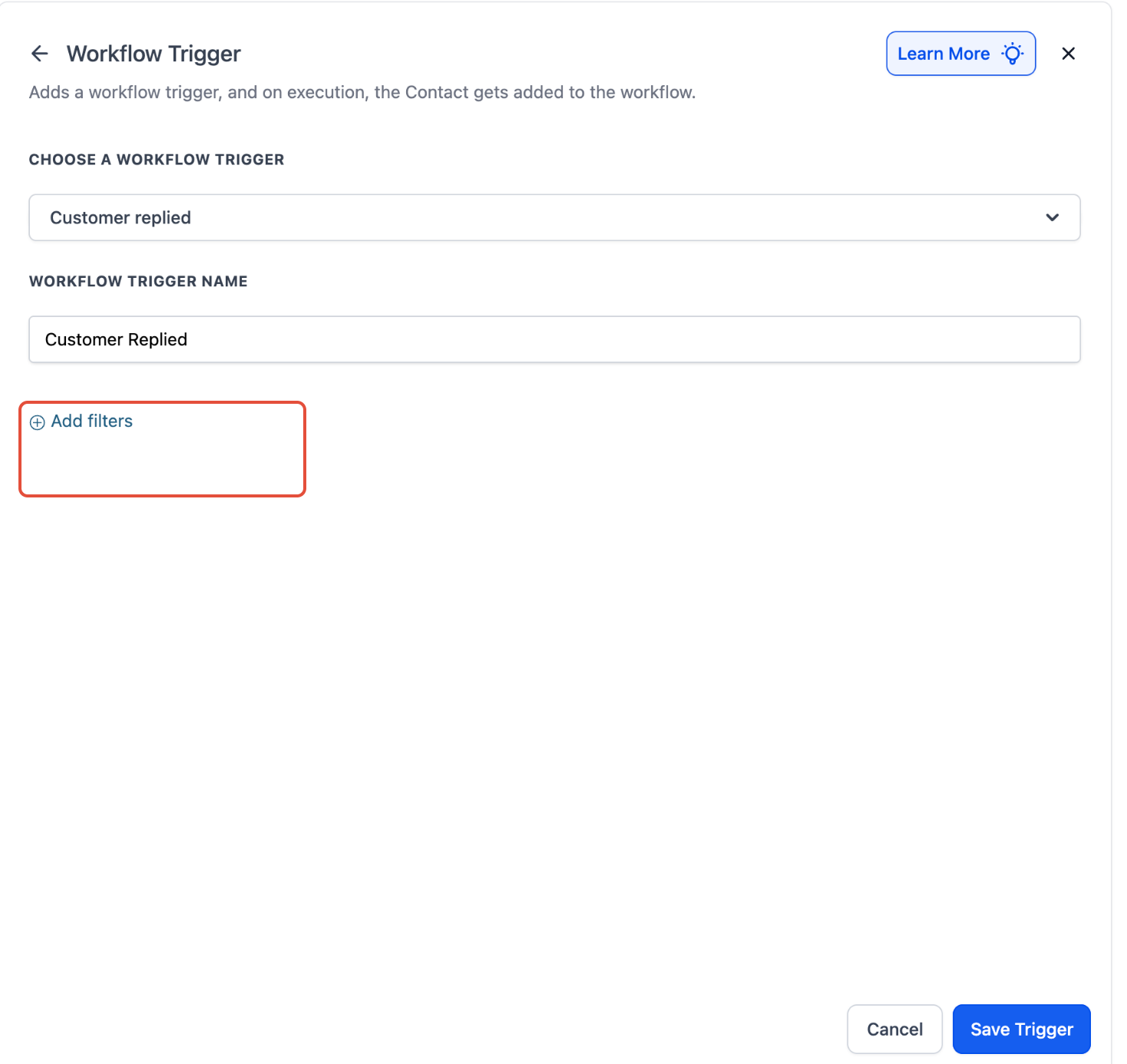
Select "Customer Replied"
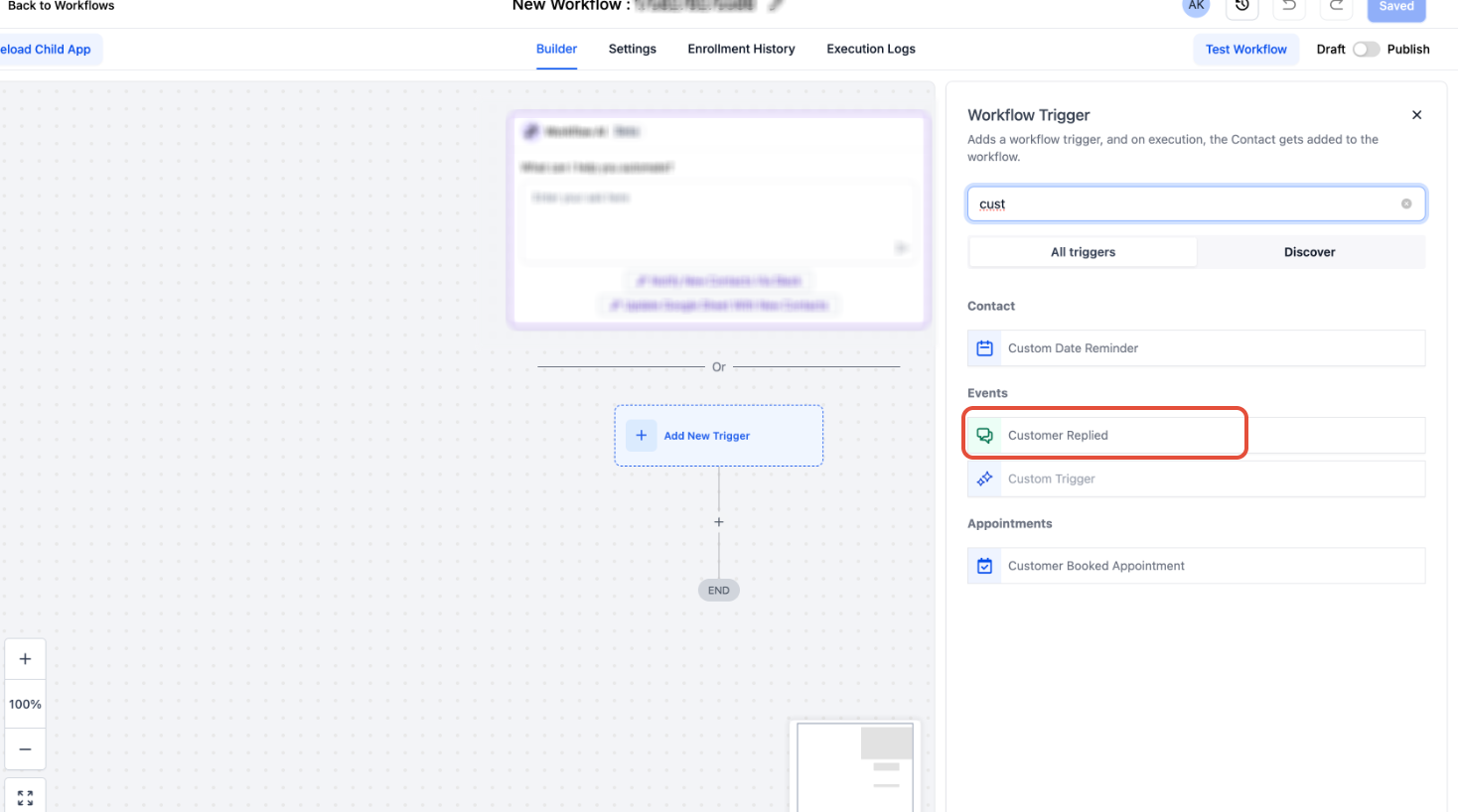
Choose Customer Replied as the workflow trigger.
Step 5
Add Filters
Click Add Filters to scope this trigger to SMS messages only.
Step 6
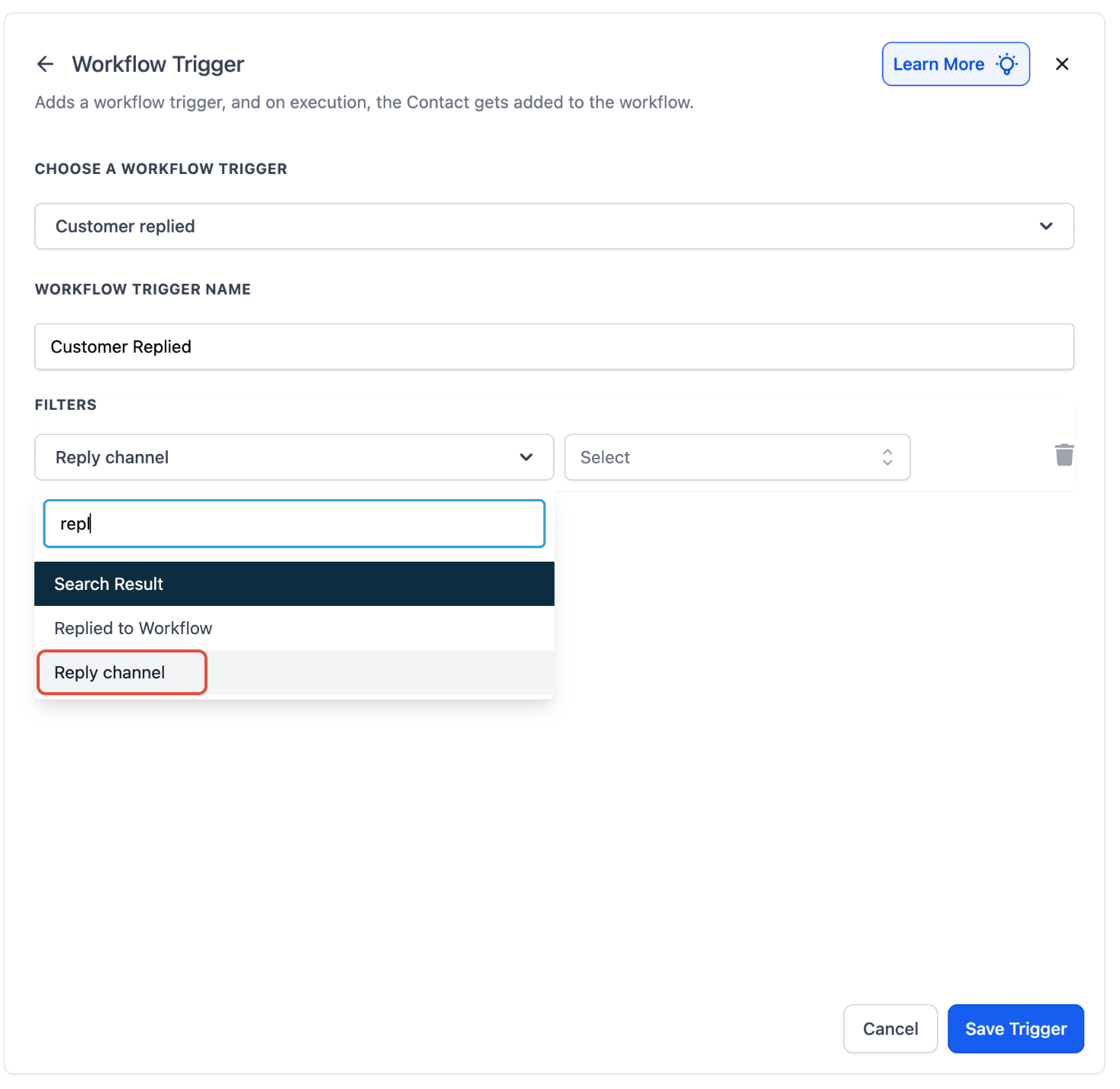
Select Reply Channel
In the filter options, select Reply Channel.
Step 7
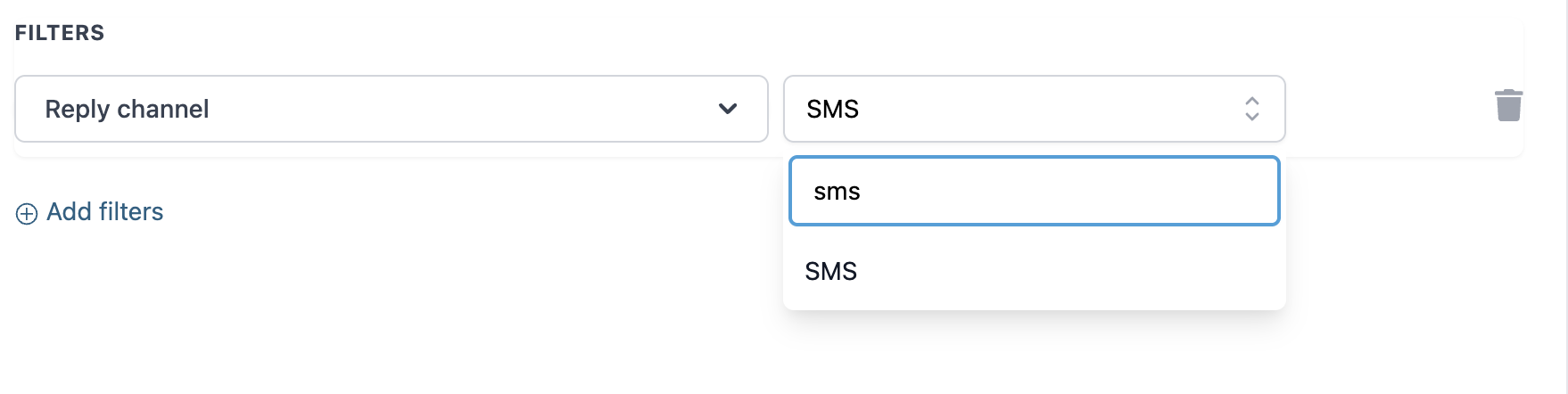
Choose SMS
From the reply channel dropdown, choose SMS.
Step 8
Click on Save Trigger
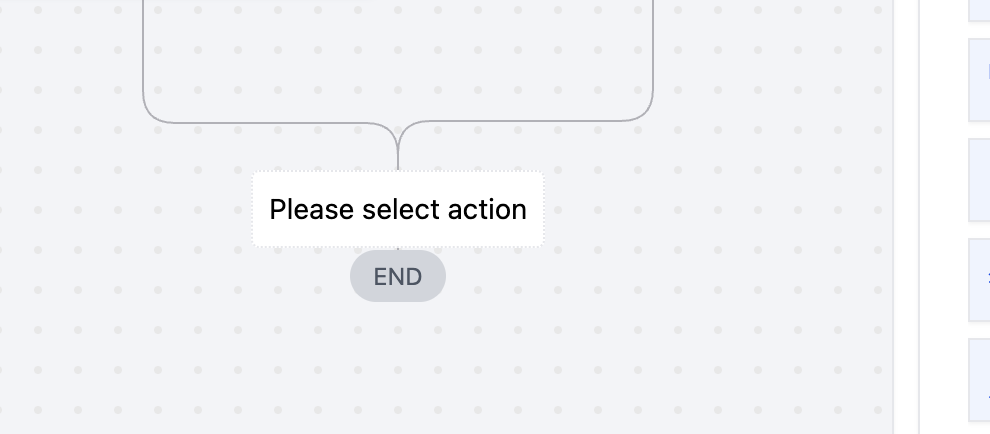
Click Save Trigger to confirm your trigger configuration, then click Please select action to proceed to adding an action.
Step 9
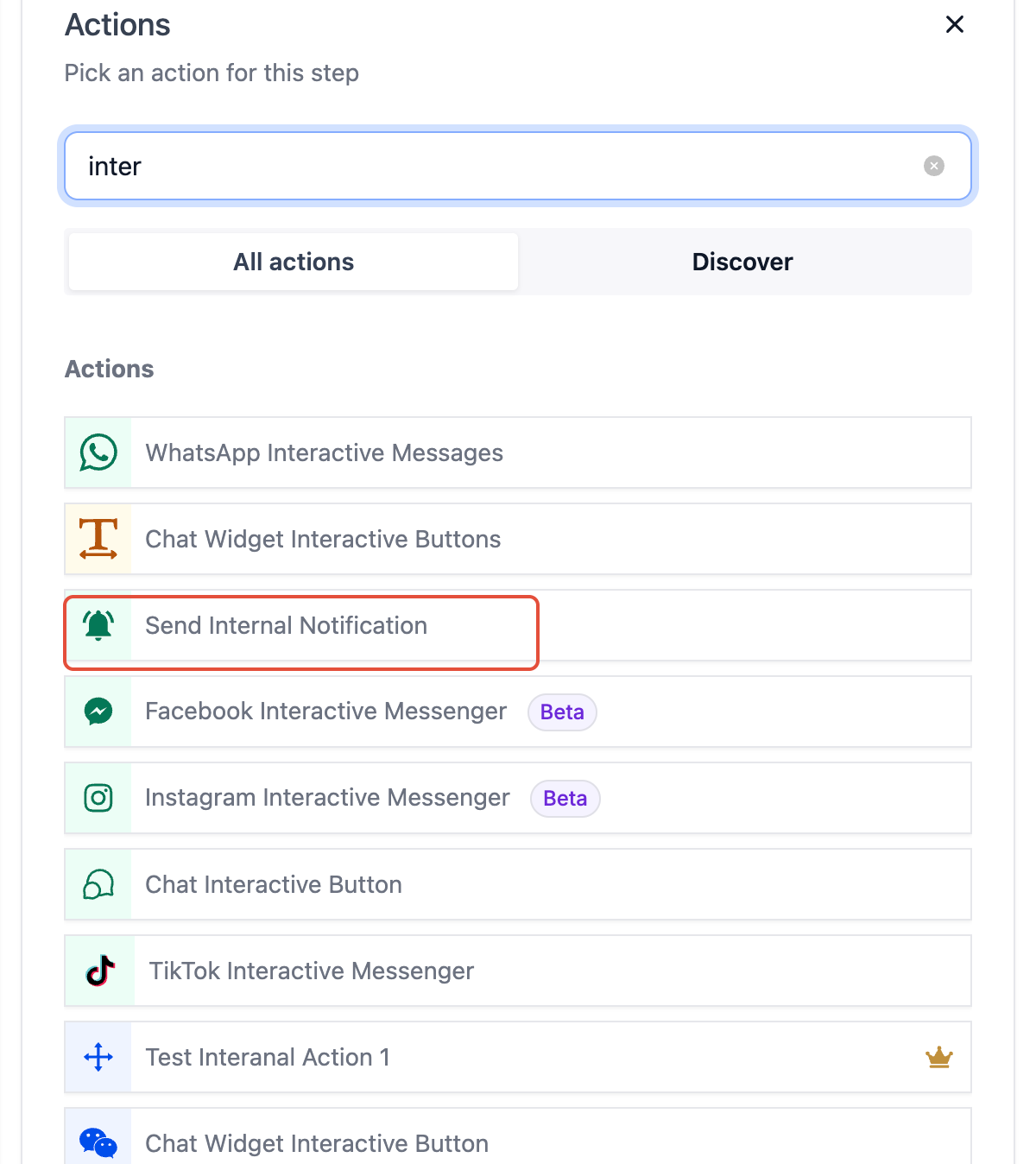
Add an Action – Send Internal Notification
Choose Send Internal Notification as the action type.
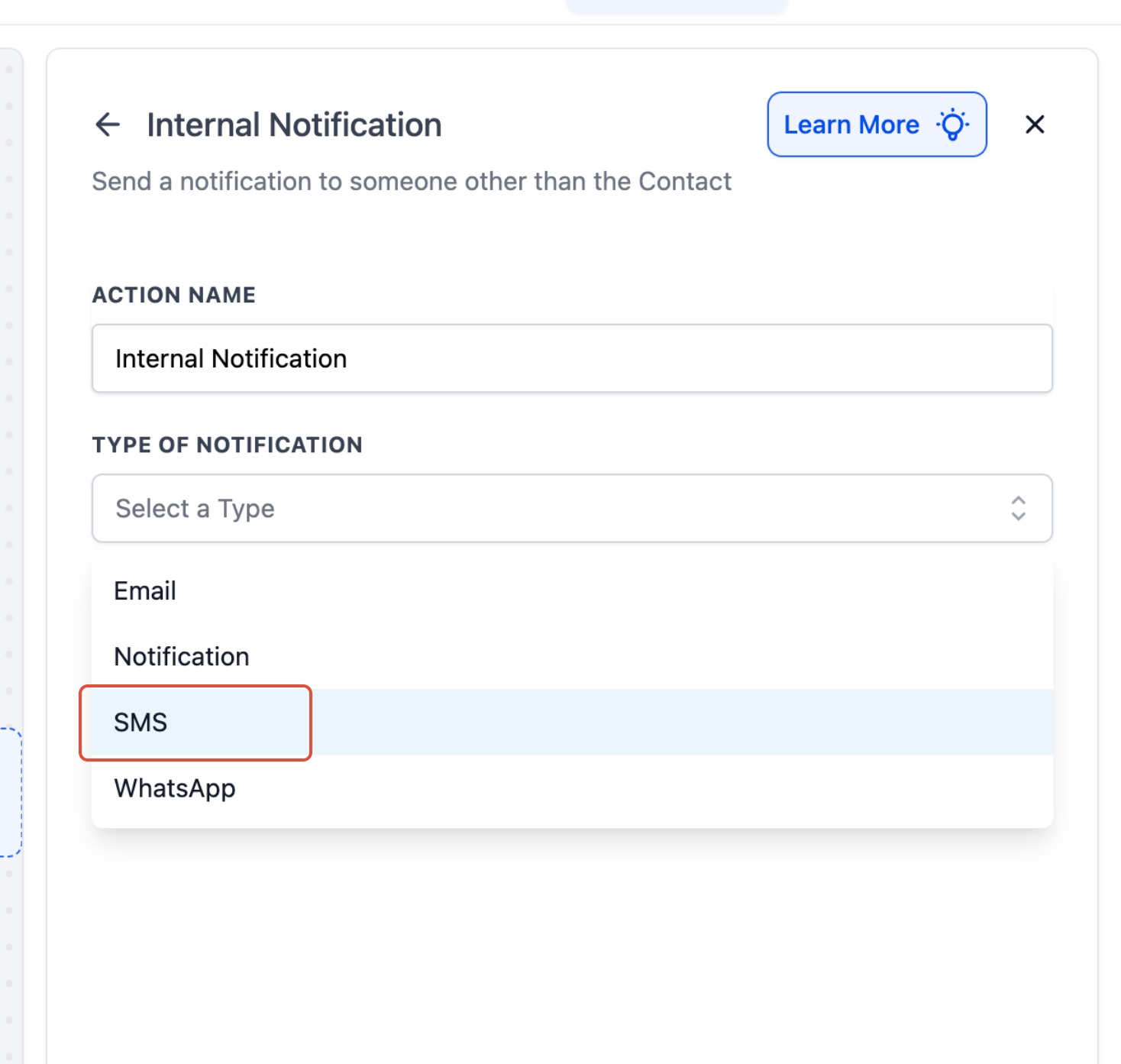
Important
SMS notifications will generate charges for each SMS sent.
Step 10
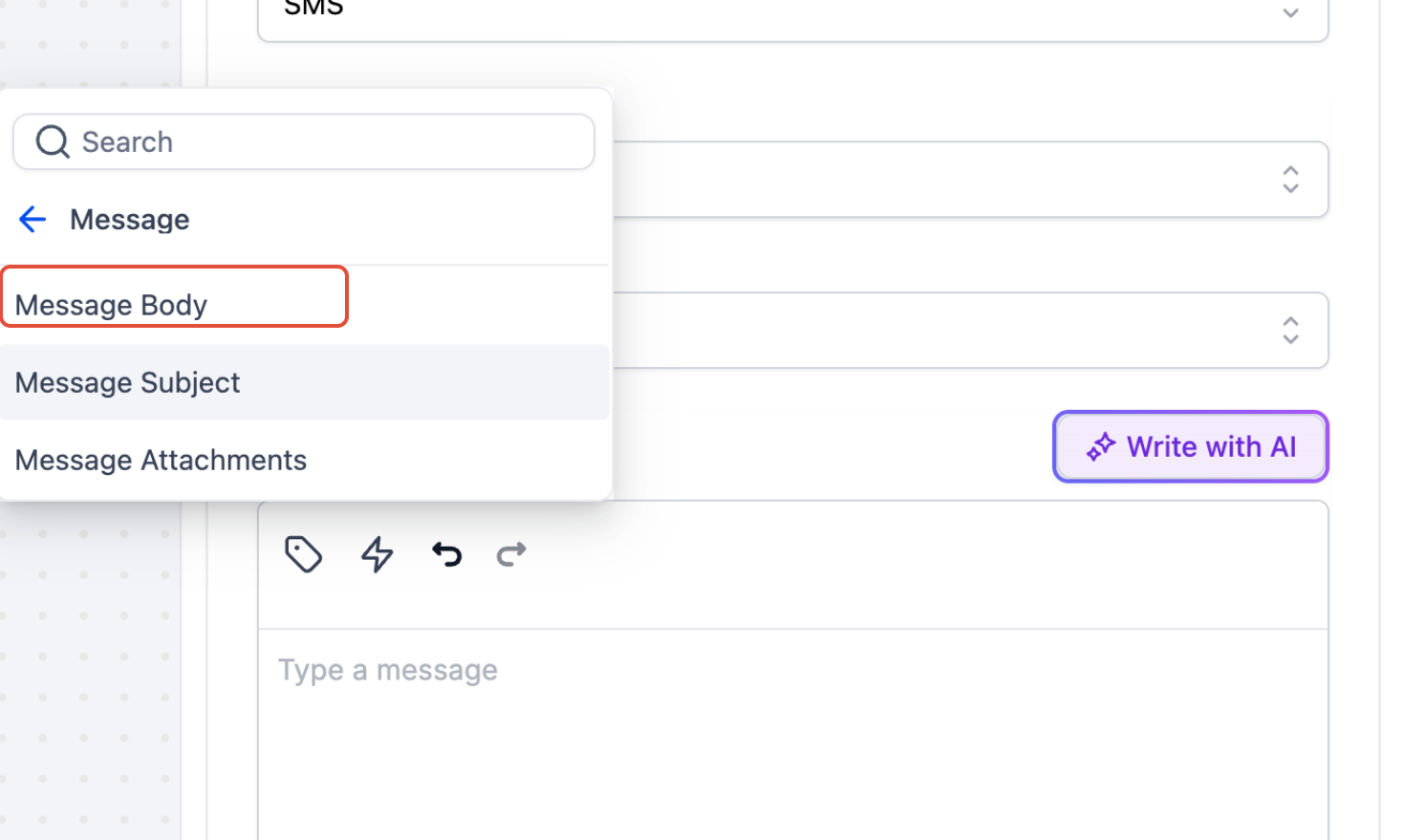
Add Custom Values – Message Body
Navigate to Custom Values > Message > Message Body to insert the {{message.body}} custom value into your notification message.
Step 11
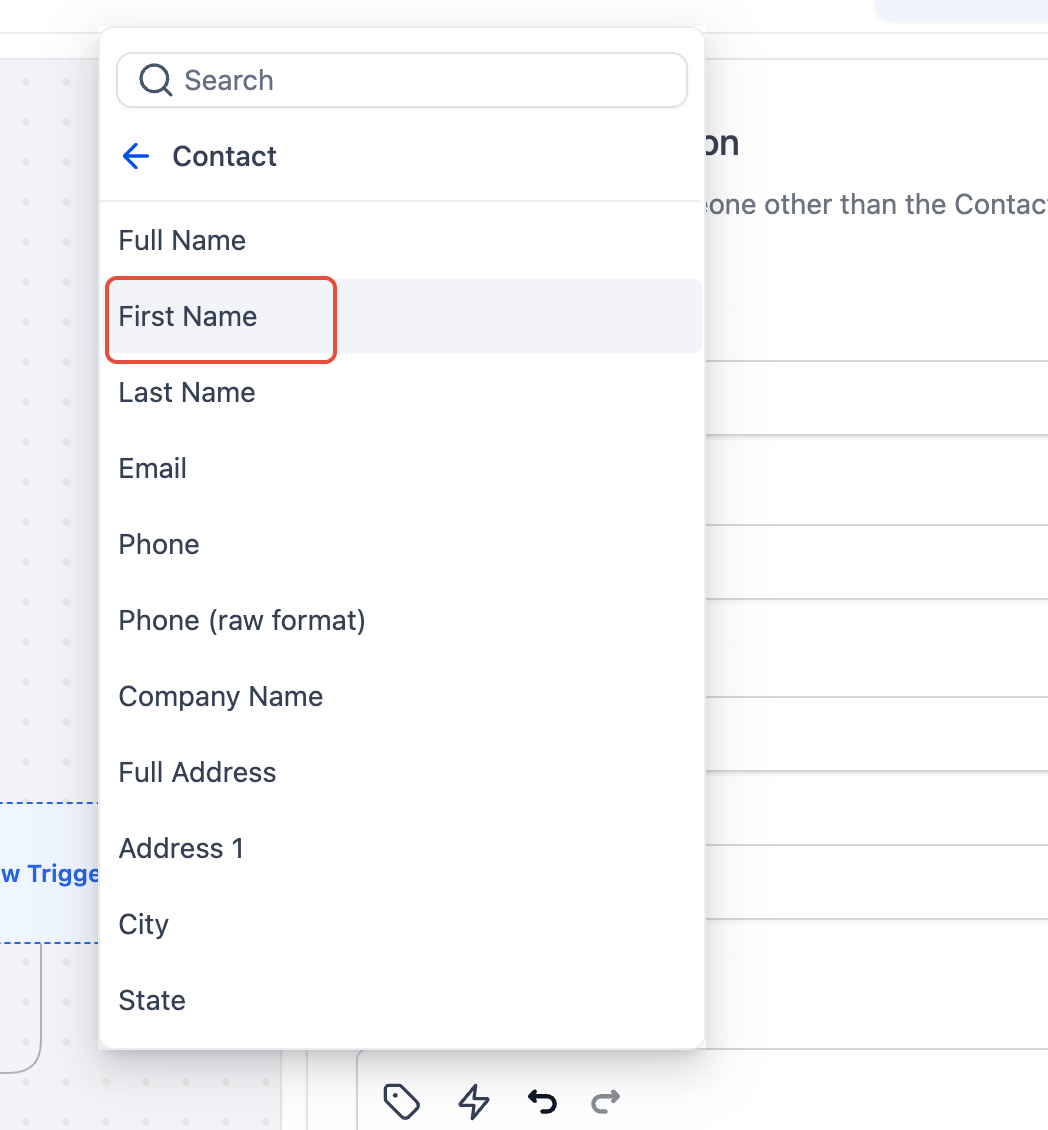
Add Custom Values – Contact First Name
Navigate to Contact > First Name to include personalization in your notification. This ensures each notification includes the sender's name alongside their message.
2
Frequently Asked Questions
Q: Will I be charged for every SMS notification sent via this workflow?
Yes. Each SMS notification sent through the Send Internal Notification action is treated as an outbound SMS and will incur standard messaging charges. If your volume is high, consider using an email or in-app notification instead to reduce costs.
Q: Can I forward inbound SMS to multiple phone numbers at once?
Yes. You can add multiple Send Internal Notification actions in the same workflow — one per destination number. Each action will fire independently and will count as a separate SMS charge.
Q: Why isn't my workflow triggering when a contact sends an SMS?
The most common causes are: the Reply Channel filter is missing or set to the wrong channel, the contact is not replying to the correct phone number, or the workflow is paused or not published. Double-check that the trigger is set to Customer Replied with a Reply Channel = SMS filter and that the workflow is active.
Q: What does {{message.body}} include in the notification?
The {{message.body}} custom value pulls in the full text of the inbound SMS that triggered the workflow. If the message is very long (over 1,600 characters), the notification may fail to send. In that case, trim the custom value or add logic to limit which messages trigger the workflow.
Q: Will this workflow re-trigger if a contact sends multiple SMS messages?
Yes — by default the Customer Replied trigger fires each time a qualifying message is received. If you want to limit re-triggering (e.g., only once per contact per day), add a Wait step or use the workflow's Allow Re-entry settings to control re-enrollment behavior.
Q: Can I use this setup to forward messages from email or live chat too?
Yes. The Customer Replied trigger supports multiple reply channels. To capture other channels, either create separate workflows for each channel or remove the channel filter entirely — but be aware this will send a notification for every inbound message regardless of channel, which may increase costs significantly.
Q: Does the contact receive a confirmation that their message was forwarded?
No. The Send Internal Notification action sends a notification to your team's designated number — it does not send any message back to the contact. If you want to auto-reply to the contact as well, add a separate Send SMS action after the notification action in your workflow.