Covered in this Article:
How to authorize card payments in Websites
How Authorization Works
Setting up Authorization
How to authorize card payments in Websites
(Version 2)
How Authorization Works
- This is not turned on by default and will require a couple of quick extra steps, covered below
- The system will remove the monetary value placed in the "authorized amount" from the client's bank account before crediting it back later.
- If the account does not have the funds during the authorization process, they will not be allowed to continue to the next step.
- Upon authorization approval, the system will credit back the account for the amount used to authorize.
- If you have any "Trial days" attached to the plan, those will kick in as soon as the card is authorized.
- Funds may take up to 5 business days before being returned to the client's bank account
- It ONLY works with Subscriptions and Payment plans.
Please Note:
If you would like to authorize payment before purchase for all your plans, this process will need to be repeated for each plan attached to the payment form.

If you are using Version 1 of the Website builder, click here
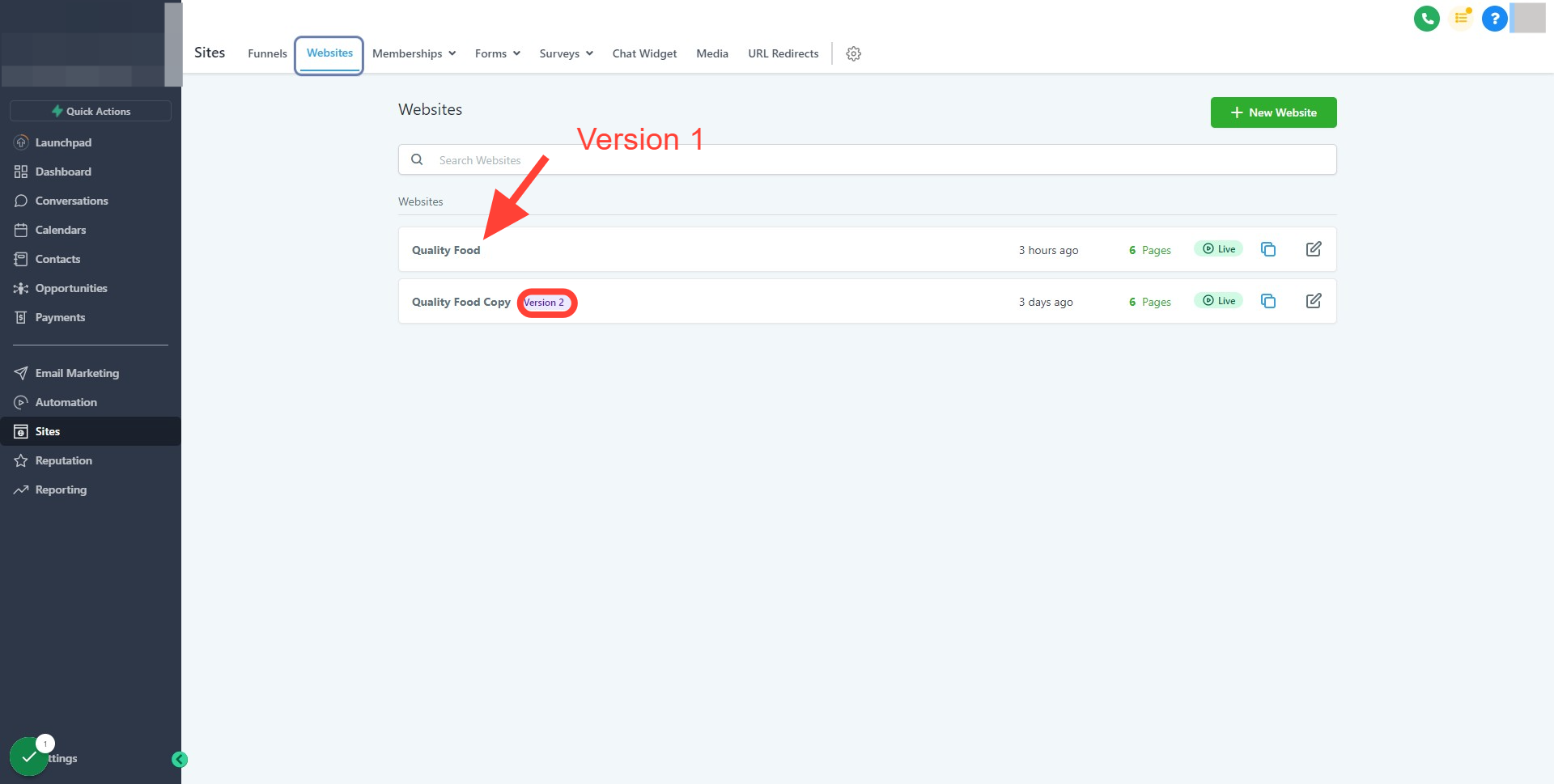
Related article: What's the difference between Version 1 & Version 2 of the page builders
Setting up Authorization
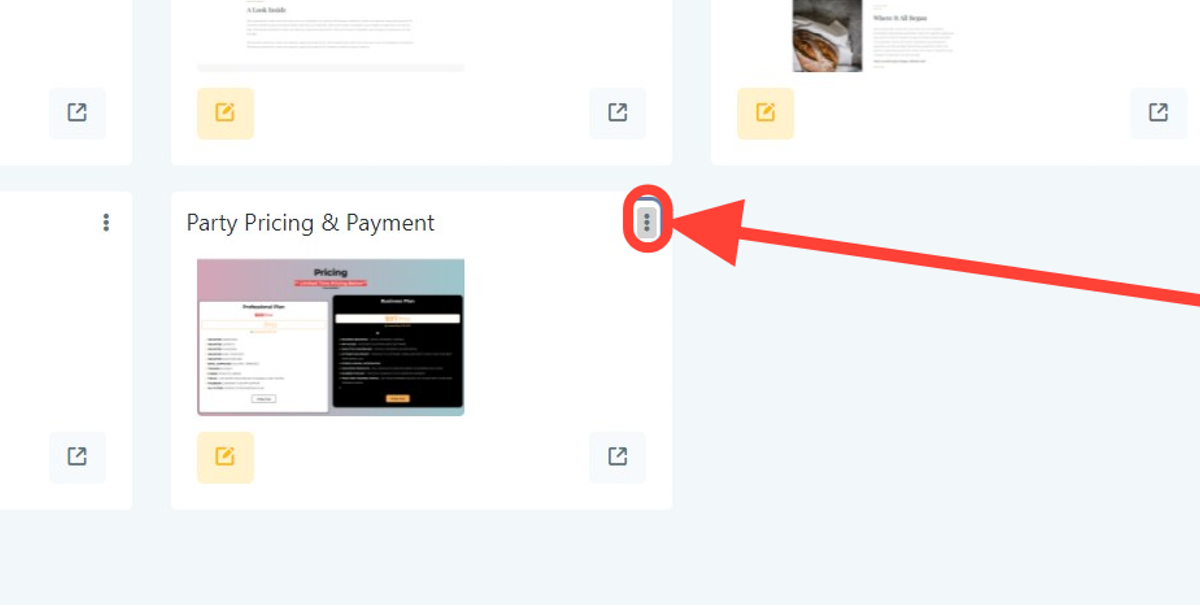
1. Head into the website and find the step where the order form is placed
Click on the "3 dots"
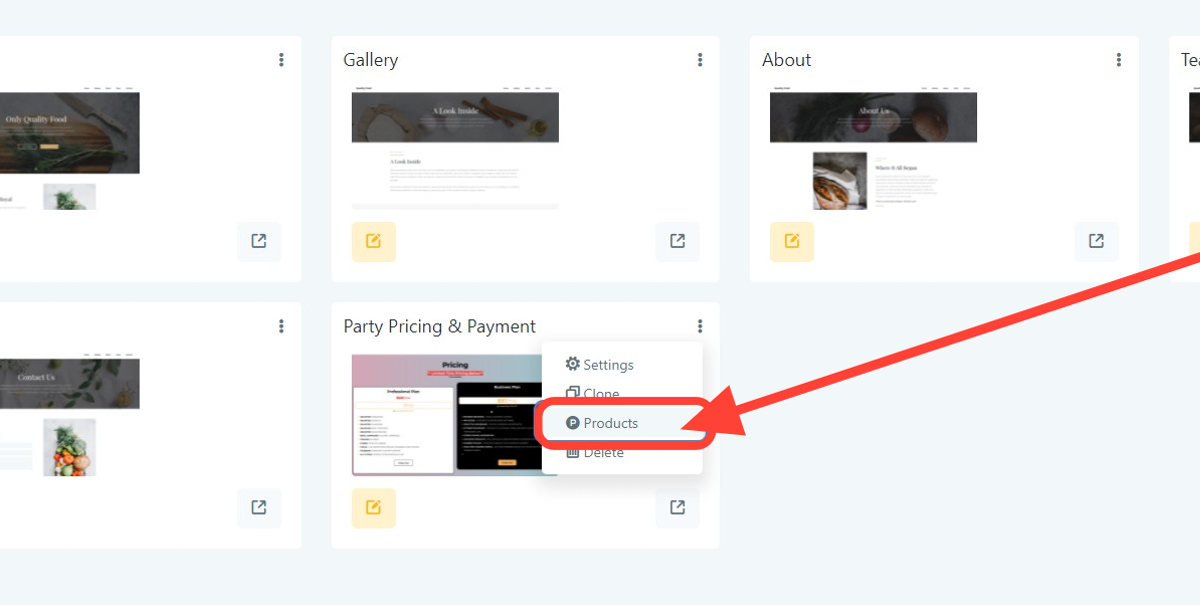
2. Click on "Products"
If you do not see any products attached to your page, you will need to add them before continuing.
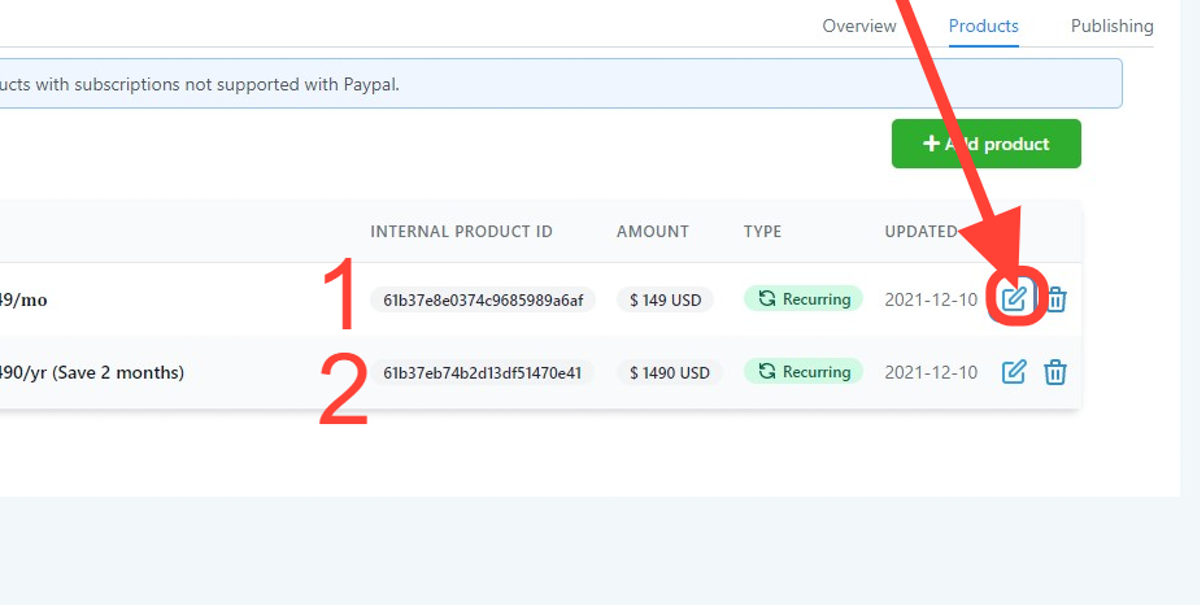
3. Click on the "Edit" icon
This will open the product settings. In this example, there are two plans (monthly $149 & Annual $1490) where "Authorization" will need to be turned on.
First, we will start with plan 1 (monthly $149), then return and repeat this process for plan 2 (Annual plan $1490).
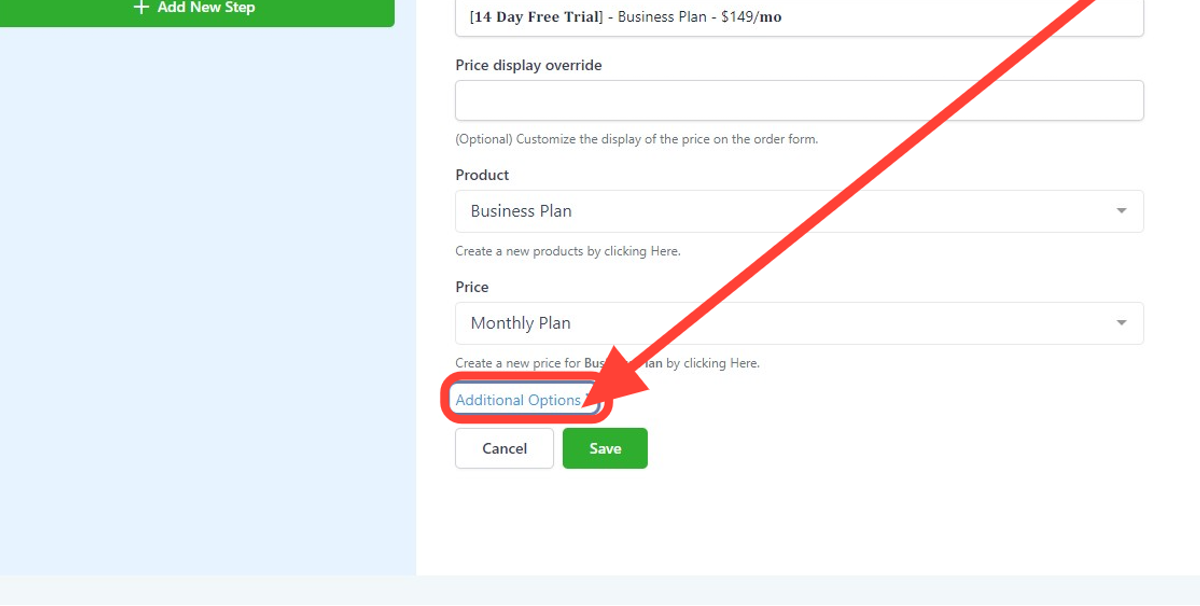
4. Scroll to the bottom and click on "Additional Options"
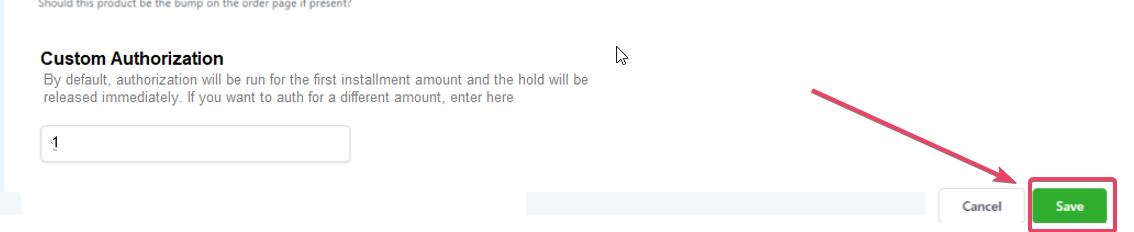
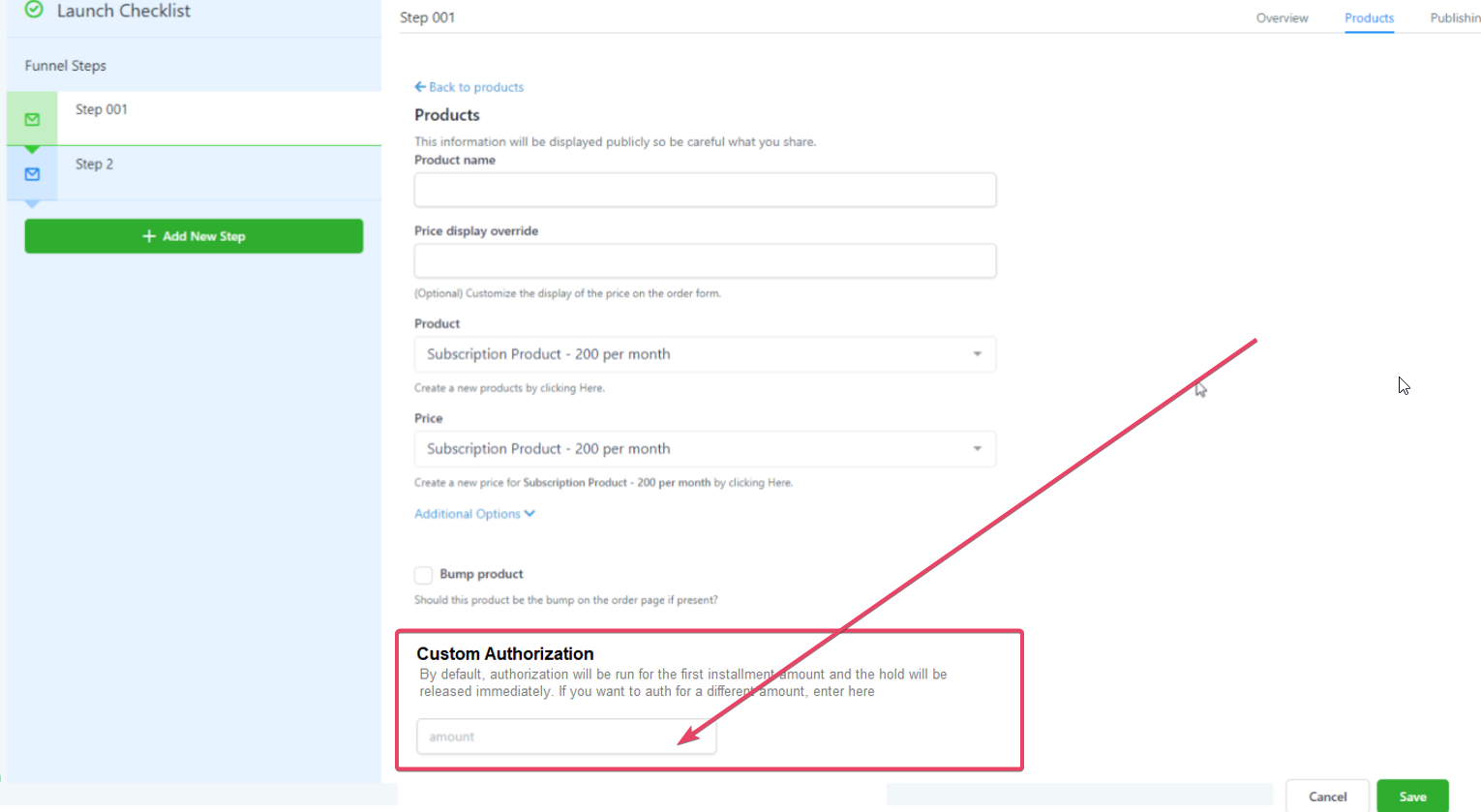
5. Click on "Custom Authorization" and add your amount
Please Note:
Keep in mind the amount you place here will be deducted from the clients account.

If the funds are unavailable they will not be able to proceed. In this example: The system will take "$1" out of the clients account and then refund the "$1" back.

The refund process may take up to 5 business days before returning the amount taken. ONLY works with Subscriptions and Payment plans.

The number should be:
equal to or more than 1,
number of decimals should be just two.
Should NOT be a negative number
6. Click on "Save."
Make sure to hit "Save". That's it.