
Overview
This article explains the file size limits of attachments for both SMS and email sent through SourCherry. It also introduces a powerful enhancement — Attachments Made Easy in Conversations — which allows users to send larger files effortlessly via Media Library links and auto-generates video thumbnails to boost engagement.
TABLE OF CONTENTS
- Key Benefits of Understanding File Size Limits
- Impact on Users
- SMS Attachment Size Limits
- Email Attachment Size Limits
- How to Upload Attachments in Conversations
- Paste Attachments from Clipboard
- How to Send Larger Files
- Frequently Asked Questions
- Related Articles
Key Benefits of Understanding File Size Limits
Knowing attachment limits helps you avoid failed deliveries and ensures your emails and messages are optimized for deliverability and engagement.
- Prevents delivery issues caused by large files
- Ensures compliance with MMS and email provider rules
- Simplifies file handling using built-in Media Library
- Boosts open and click rates with interactive video thumbnails
- Reduces manual effort and reliance on third-party file hosting
Impact on Users
- Reduces manual workarounds like compressing or hosting files externally.
- Speeds up the attachment process with direct device uploads.
- Improves engagement by making emails more visually appealing and interactive.
- Ensures smooth delivery across SMS and email by auto-managing limits.
SMS Attachment Size Limits
SMS messages can only contain text. To include attachments like images, videos, or audio files, you must use MMS, which is supported differently depending on the phone number type and carrier. If you're attaching a file to an SMS, it is automatically converted to an MMS. The following file types are supported for MMS:
JPEG
PNG
GIF
Please Note: Some file types like MP3, MP4, and PDF may work depending on the carrier and device.You can also check out Twilio’s list of supported media types here: Twilio Supported File Types
1. Carrier-Specific File Size Limits for MMS
The Recommended Best Practice is to keep MMS attachments under 500 KB to ensure successful delivery across all carriers.
ChatGPT said:
2. Short Code, Toll-Free, and Long Code Support for MMS
As of October 2022, Toll-Free numbers support MMS. Before that, they supported SMS only.
| Message Type | Supports MMS? | Recommended Max Size |
|---|---|---|
| Long Code (10DLC) | ✅ Yes | ~500 KB – 1 MB |
| Short Code | ✅ Yes | Up to 5 MB |
| Toll-Free | ✅ Yes (Since Oct 2022) | Up to 5 MB |
Email Attachment Size Limits
Attachment limits for email depend on the email provider used. Exceeding these limits can cause emails to bounce or be undeliverable.
File Size Limits by Provider
The SourCherry email composer allows up to 20 MB in attachments. Files above this size will be automatically uploaded to the Media Library and sent as clickable links.
| Email Provider | Max Attachment Size |
|---|---|
| Gmail | 25 MB |
| Yahoo Mail | 25 MB |
| Outlook.com | 10 MB |
| Mailgun | 25 MB |
How to Upload Attachments in Conversations
Uploading files directly in the Conversations composer has been made easier and more flexible with the new attachment workflow. Whether you're sending an SMS or an email, you can now upload files from your device or choose from your Media Library — all from within the message composer. This process eliminates the need to manually compress files or use third-party hosting platforms, streamlining your workflow and improving the customer experience. Here is a Step-by-Step process for uploading or attaching Files.
1. Access the Attachment Options
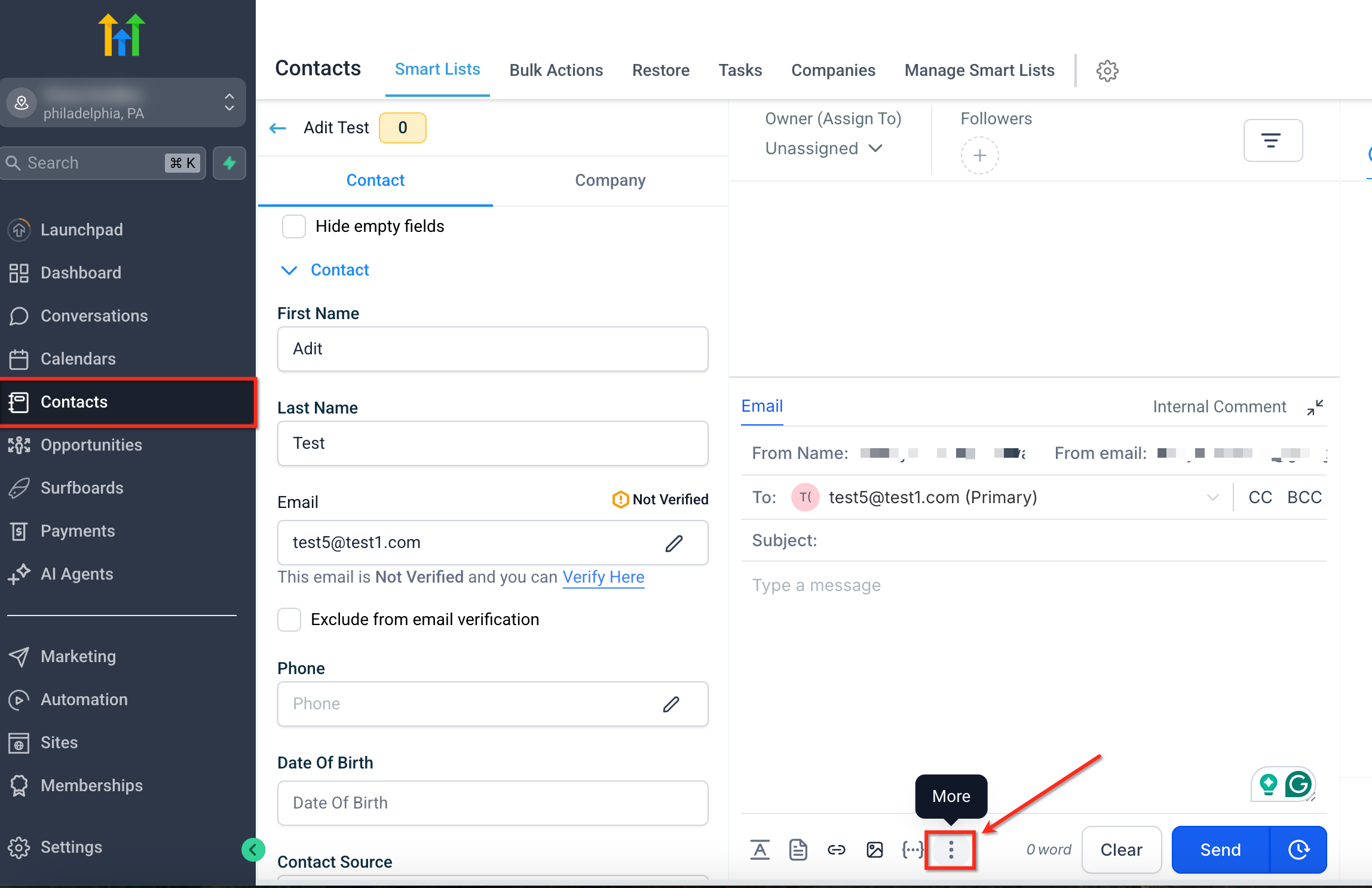
To begin, open a conversation under the conversations tab and click the three-dot icon (•••) in the message composer.
2. Choose Your Attachment Source
After clicking on the three dot icon, select “Attach Files”. You'll see two options:
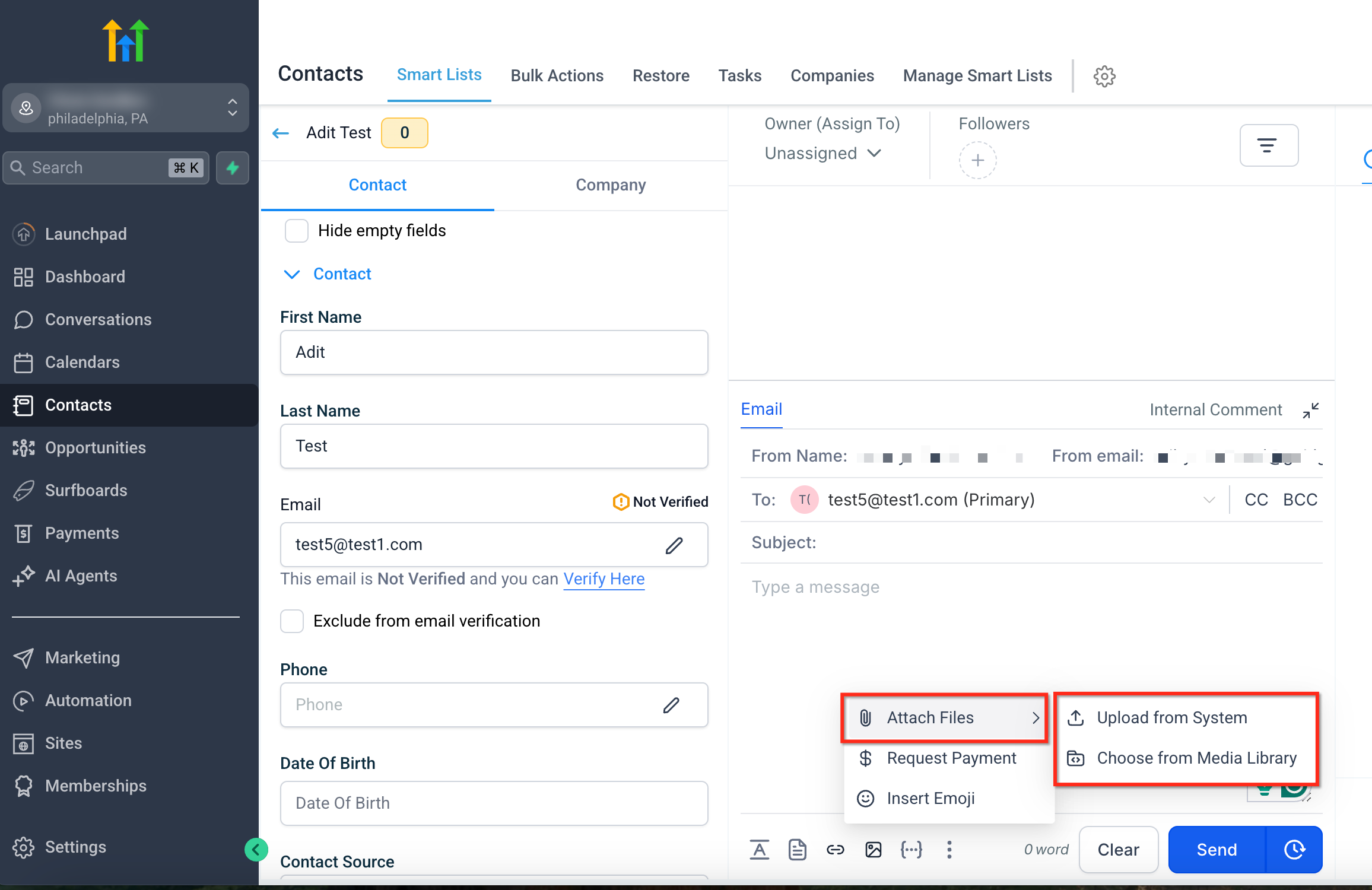
Upload from System – choose a file from your local device
Choose from Media Library – select a previously uploaded file
3. Automatic Handling for Large Files
If the file exceeds 20MB (for email) or any size for SMS, SourCherry will automatically upload it to the Media Library and insert a clickable link into your message.
This ensures that your message is delivered without hitting size limits.
IMPORTANT: Video Uploads Get Auto-Generated Thumbnails When uploading a video file through the Media Library, SourCherry will automatically generate a GIF thumbnail to be shown in your email, making your message more engaging and clickable.Paste Attachments from Clipboard
Instead of opening the attachment menu, you can attach files by pasting them.
1. Copy a supported file or image on your computer.
2. Click inside the message composer in Conversations.
3. Press Ctrl + V (Windows) or Cmd + V (Mac) or Right click and Paste.
The pasted file attaches instantly to the current message and respects the same size limits and media handling rules described above.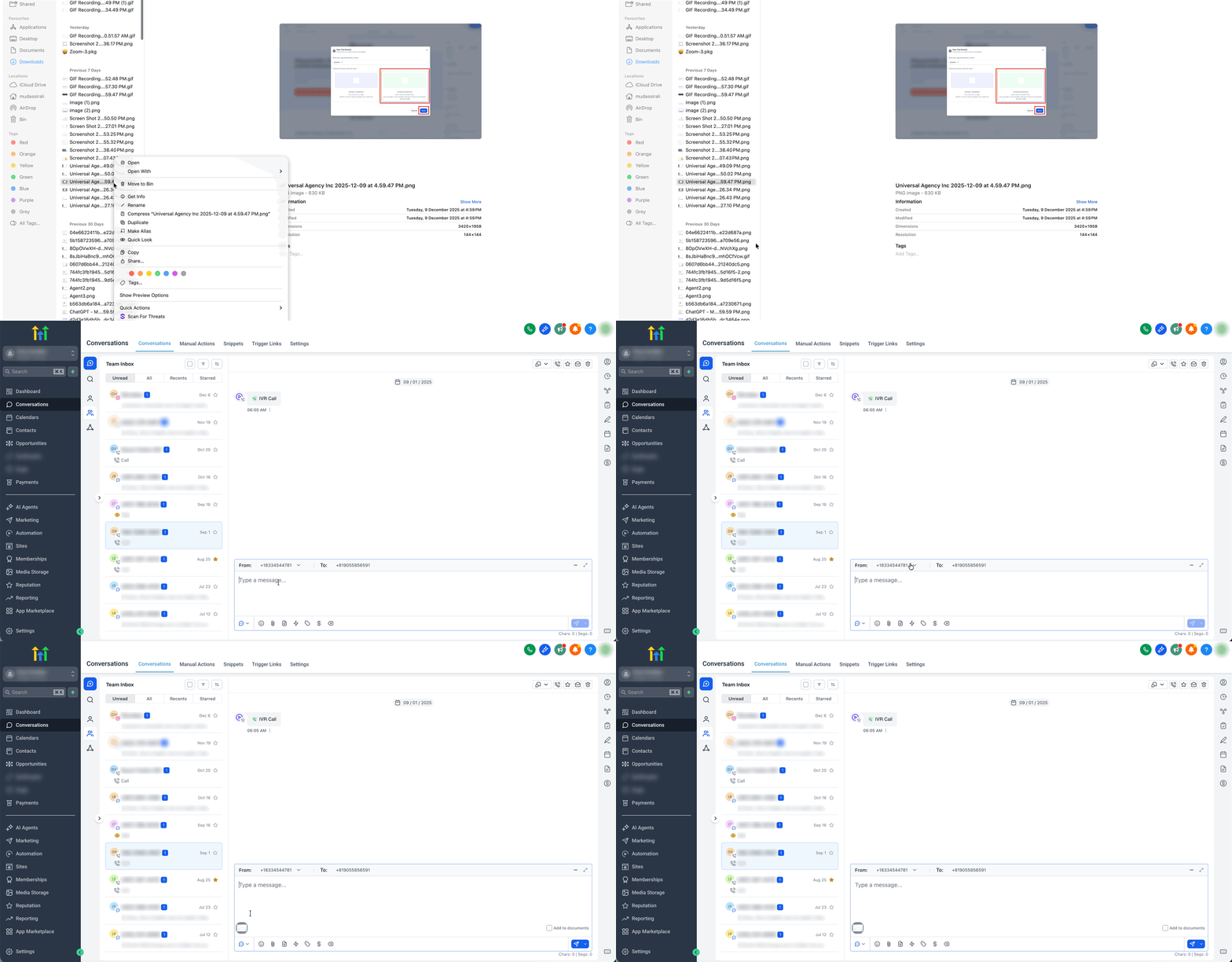
How to Send Larger Files
- Upload directly via the email/SMS composer.
- Files larger than 20MB are auto-hosted via Media Library and inserted as links.
- Use cloud hosting only if needed outside SourCherry.
- Add videos via Media Library for interactive thumbnails.
Frequently Asked Questions
Q: What happens to files over 20MB?
They are auto-uploaded to the Media Library and sent as clickable links.
Q: Can I upload attachments directly from my device?
Yes! You can choose between uploading from your system or browsing the Media Library.
Q: Can I attach videos to an SMS?
Yes, videos are sent as hosted links — not embedded files — to avoid delivery issues.
Q: Do Toll-Free numbers support MMS?
Yes! Since October 2022, Toll-Free numbers now support MMS and attachments.
Q: Will video attachments generate a preview in emails?
Yes — GIF thumbnails are auto-generated for video files uploaded via Media Library.