
Need to Schedule Calendar Appointments for someone else- leads, clients, or team members? Here’s how to manually book appointments across SourCherry.
TABLE OF CONTENTS
- Booking Appointments Manually
- Key Benefits of Manually Booking Appointments
- Different Ways to Access the "Book Appointment" Feature
- Booking the Appointment (After Accessing the Modal)
- Frequently Asked Questions
- Related Articles
Booking Appointments Manually
SourCherry makes it easy for users to book appointments manually across different areas of the platform. Booking Calendar Appointments as a User (Manually) is helpful when you want to create appointments on behalf of a contact, especially when working across different time zones or calendars. Whether you're communicating with a contact, managing calendars, or accessing a specific contact profile, there are multiple ways to schedule appointments in just a few clicks. Manual booking ensures you're always in control of scheduling, even when contacts are offline, unresponsive, or need extra assistance.
Key Benefits of Manually Booking Appointments
Manual booking gives you the flexibility to schedule appointments directly from within the platform without needing the customer to take action. This is especially useful in high-touch workflows, urgent situations, or internal coordination. Here’s how it helps:
Schedule appointments on behalf of leads or customers when they can't or don’t take action themselves.
Book appointments while on a call to secure a slot instantly
Respond to SMS or email confirmations by locking in an appointment from your end
Book internal meetings with team members directly within the system
Create test appointments to QA workflows, reminders, or calendar logic
Choose specific dates, times, and calendars when precision matters
Work across multiple time zones with automatic timezone detection
Add recurring events and block off time to manage availability effectively
Different Ways to Access the "Book Appointment" Feature
You can book an appointment from multiple places in SourCherry, including Conversations, Contacts, Calendars, and Opportunities. Choose the entry point that matches your workflow.
IMPORTANT: These entry points all let you book appointments, but the UI may differ depending on where you start. For example, **Opportunities** opens booking inside the **Edit Opportunity** experience using the appointment modal.
1. From the Conversations Tab
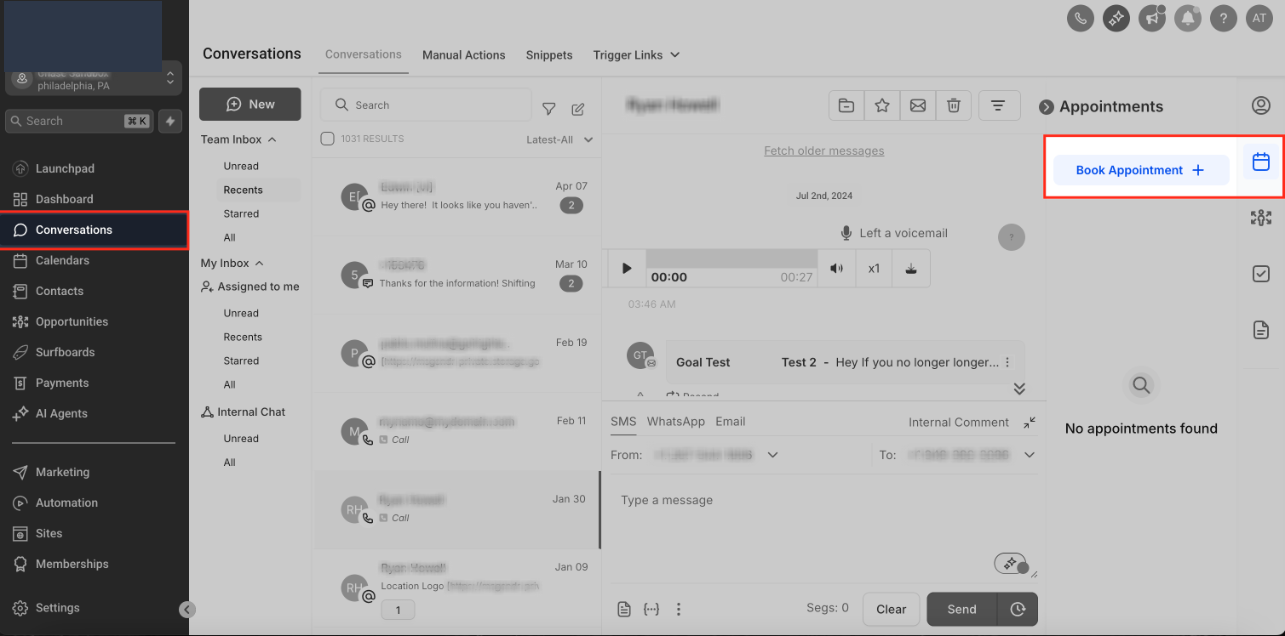
If you're messaging a contact and want to book an appointment on the spot, Conversations is the fastest path. Go to Conversations → Select Contact → Calendar Icon in the sidebar. Now you will have the button "Book Appointment"
2. From the Contacts Tab
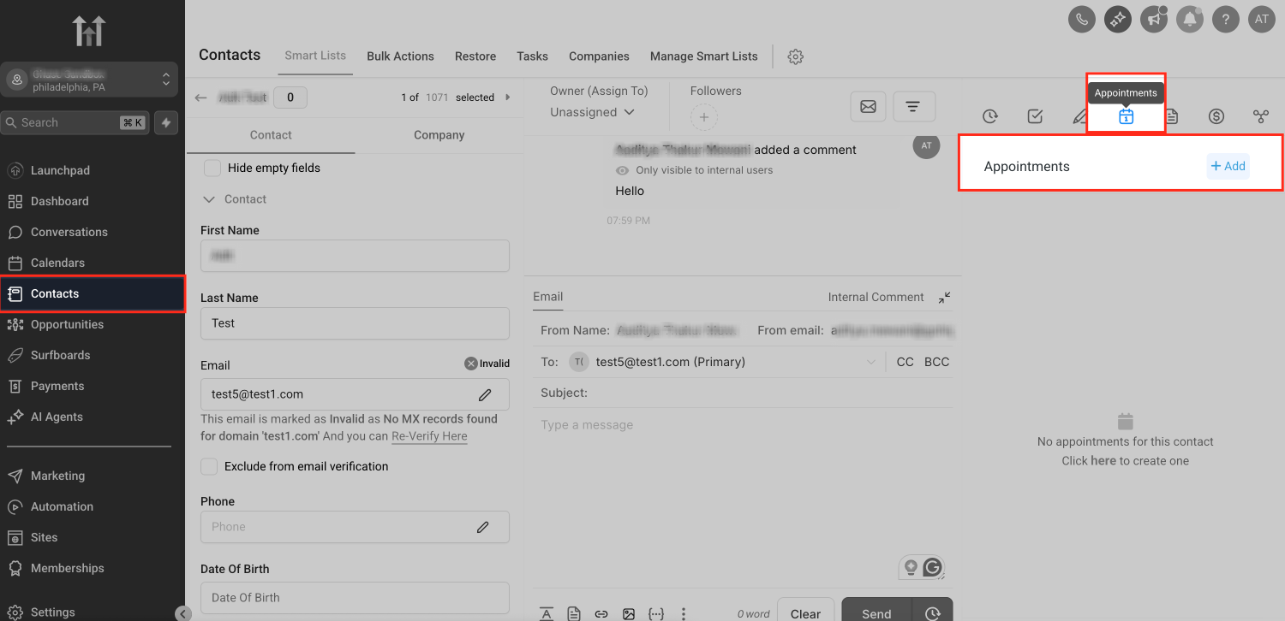
You can also book appointments directly from the contact's profile. Navigate to Contacts → Open a Contact → Click the Appointments tab in the right section of the contact → +Add
3. From the Calendar Tab
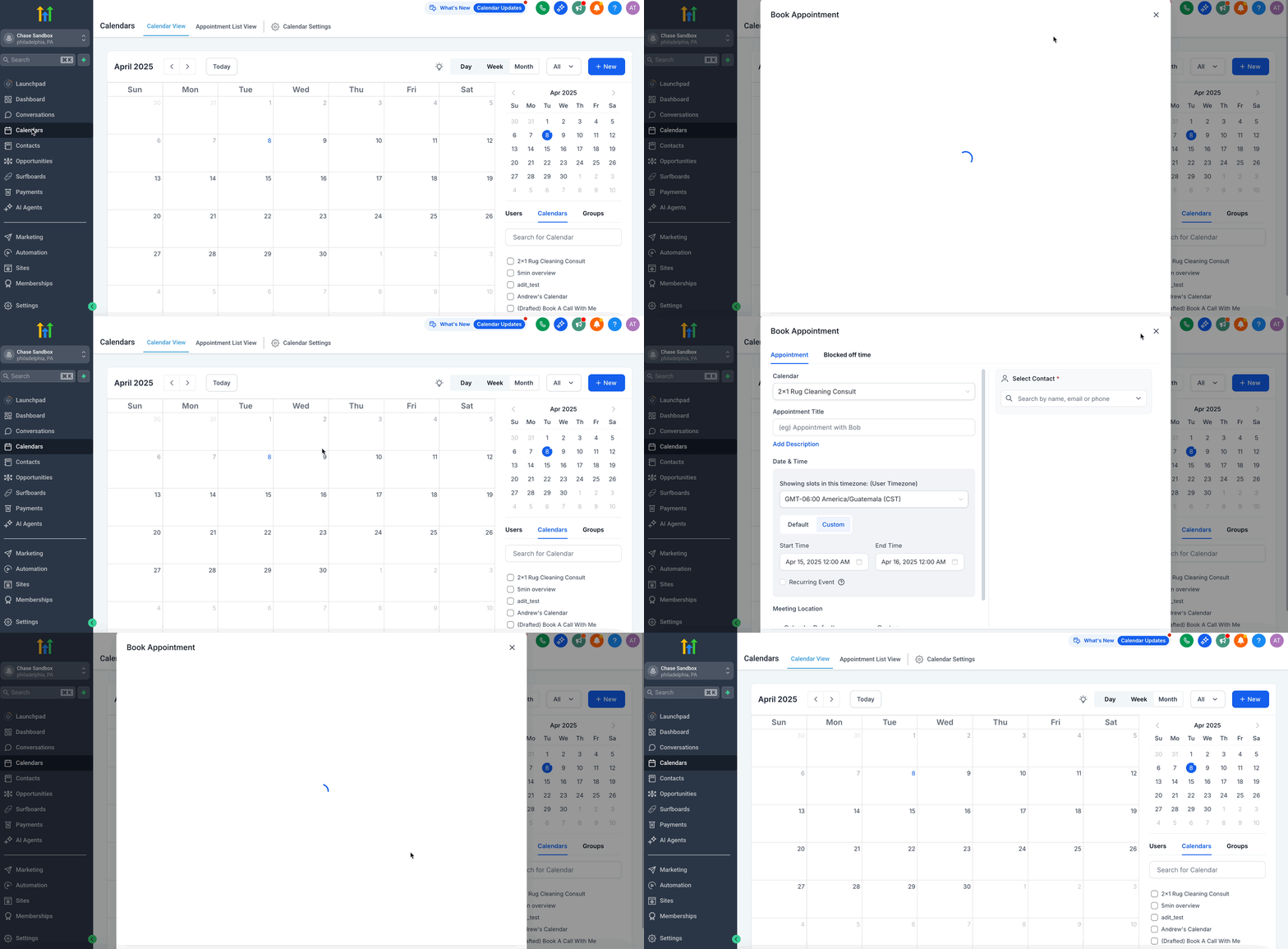
Want to schedule visually? Click directly on a calendar slot in the Calendar view. Go to Calendars → Calendar View → Either click on "New" or click on a Specific time slot to book an appointment directly.
4. From Opportunities
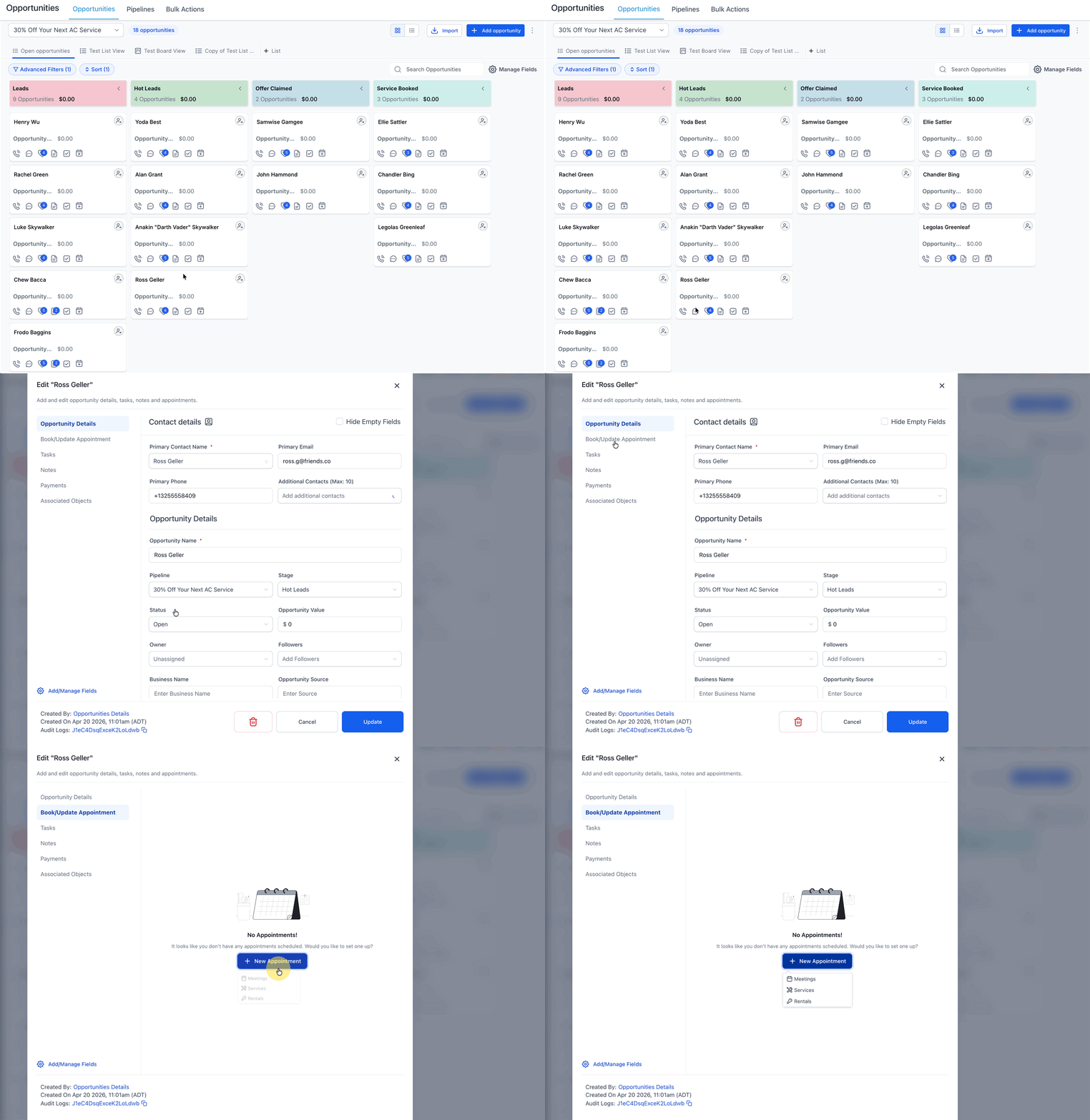
You can book or update an appointment directly from an opportunity.
1. Go to Opportunities and open the opportunity you want to update.
2. Open the Book/Update Appointment section.
3. Click + New Appointment, then choose Meetings, Services, or Rentals.
4. Complete the appointment details in the appointment modal, then save.
Booking the Appointment (After Accessing the Modal)
Once you've accessed the Book Appointment modal using any of the four available methods, the booking steps are the same. This section walks you through choosing a calendar, selecting a contact, adding details, and finalizing the appointment.
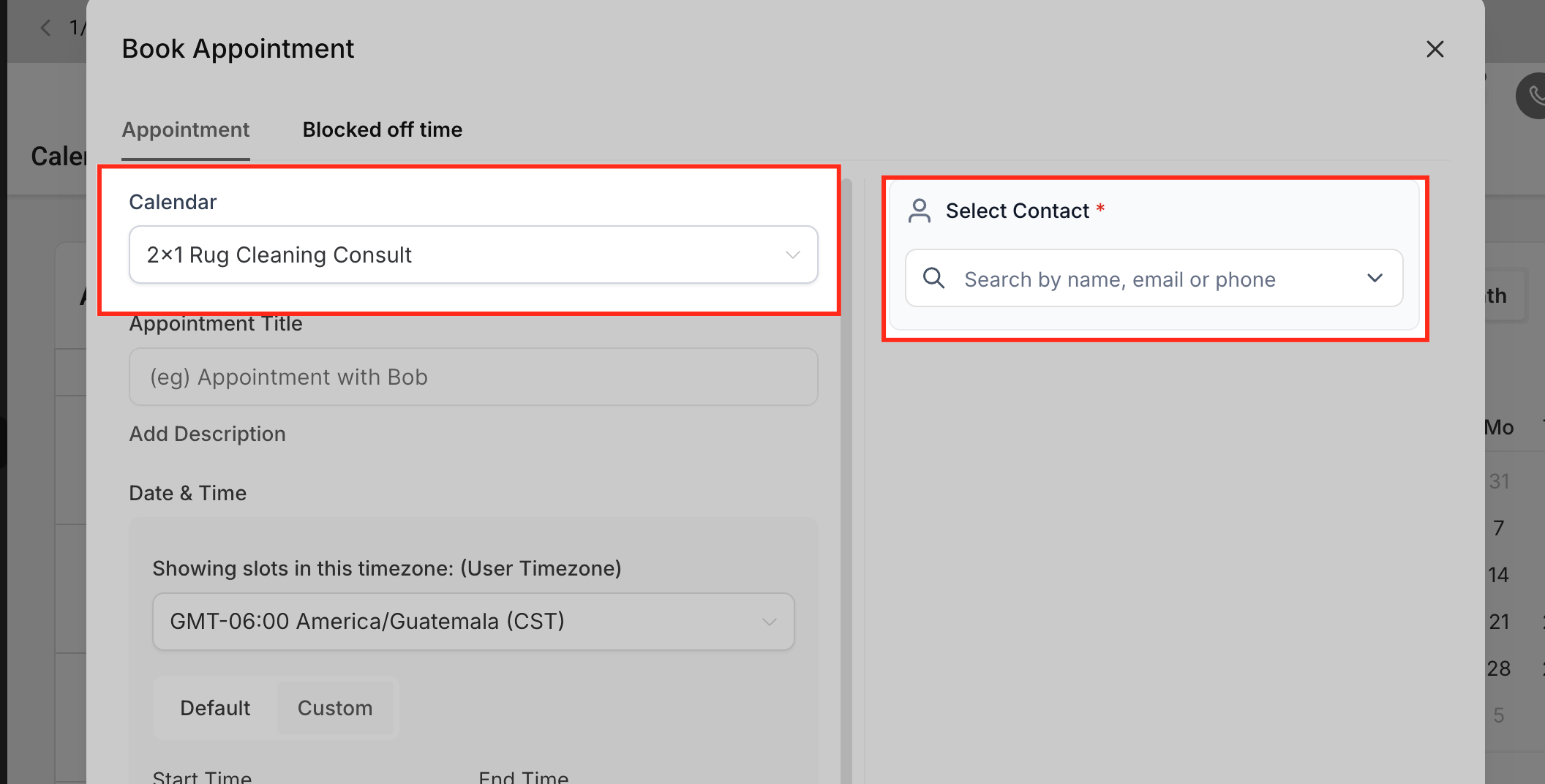
Step 1: Select the Calendar & Contact
Select which calendar you want the appointment to be created in and the contact it should be assigned to.
Step 2: Add Appointment Details
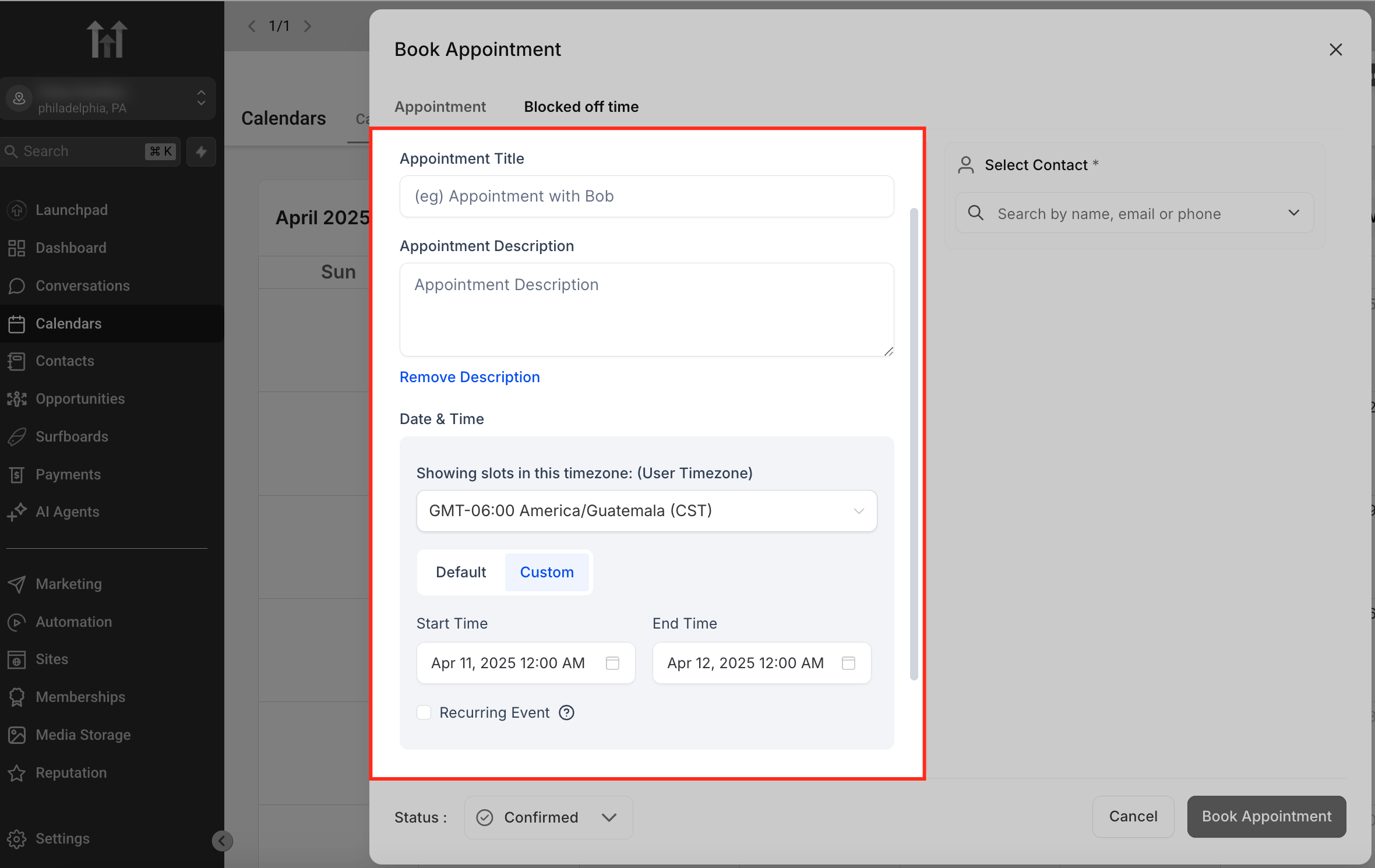
In this step, you'll enter the key information that defines your appointment — including title, time, location, and recurrence options. SourCherry helps streamline this by automatically detecting time zones and providing flexible input options for custom bookings.
Appointment Title: Add a relevant subject (e.g., “Consultation with Sarah”). You could also add a description of the title below.
Date & Time: Choose a start and end time. The system will display the user's time zone but can be toggled with custom Date and Time.
Custom:
You'll be prompted to manually enter a custom meeting link (e.g., Zoom, Teams, physical address).
You can select a custom start and end time.
You’ll also have the option to make the appointment recurring with your preferred cadence and duration.
Meeting Location: Choose a default, custom, or integrated video meeting option. If you chose custom, then you would need to provide the custom meeting link.
Step 3: Block Off Time (Optional)
The Blocked Off Time tab allows you to prevent new appointments from being booked during specific time periods, which is perfect for breaks, personal time, team training, or vacation days. When using this feature, you can choose to block time for a Specific user or an entire calendar and also specify Start Time and End Time.
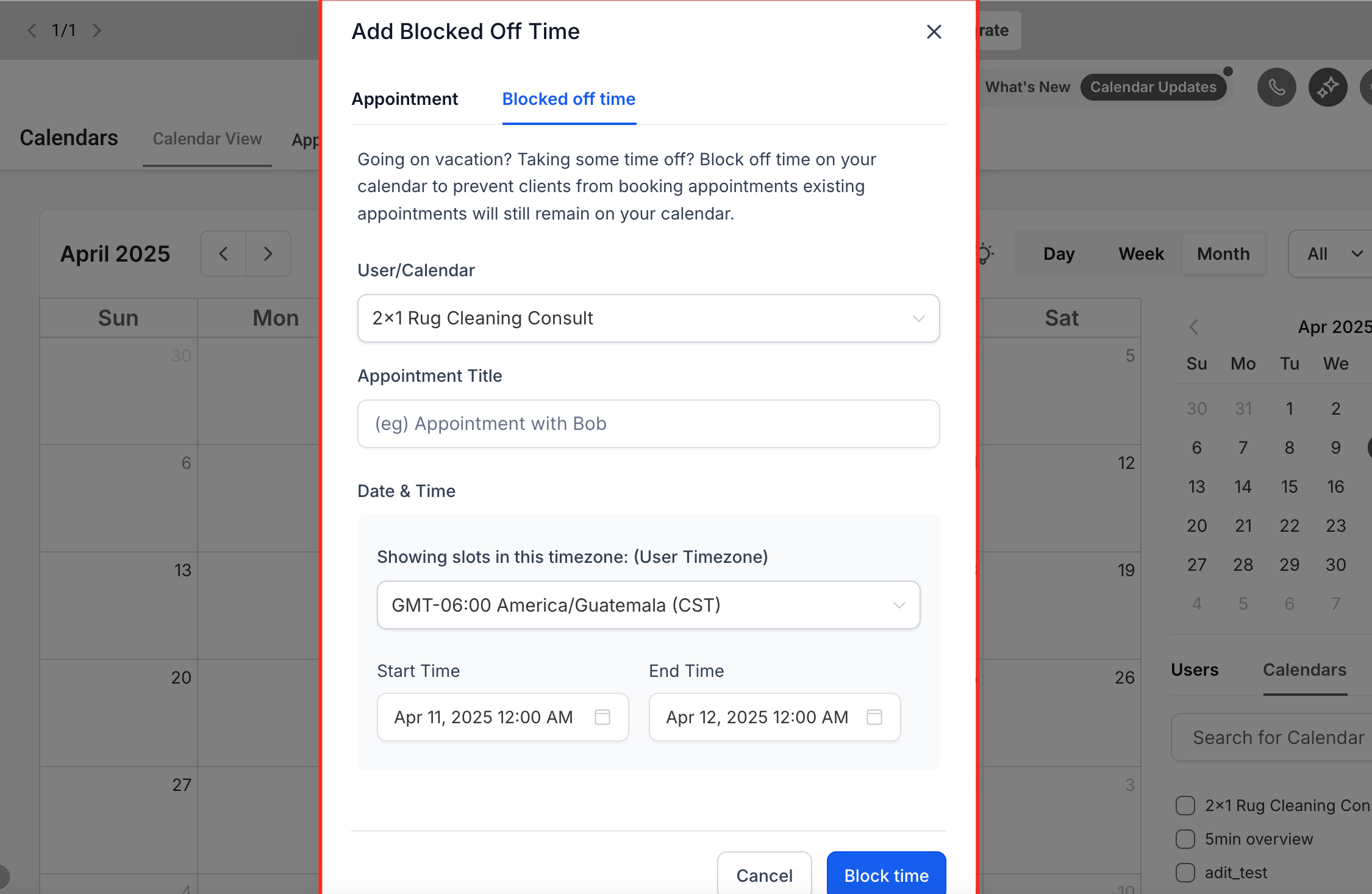
IMPORTANT: Use Blocked Off Time option to remove availability for specific dates and times. Existing appointments will not be deleted, blocked times only affect new booking availability.
Pro Tips:

1. You can schedule for any team member as long as their calendar is available to you.

2. Time zone handling is automatic and visible in the modal.

3. Use recurring appointments for ongoing sessions or check-ins.

4. Use the "Blocked off time" tab to keep your availability clean and organized
Frequently Asked Questions
Q: Can I book an appointment for another team member?
Yes, just choose their calendar from the dropdown in the modal.
Q: What if I don’t see the appointment on the calendar?
Make sure you select the correct calendar and contact. Also, check if filters are applied in the calendar view.
Q: Can I block time without removing existing appointments?
Yes, blocked-off time prevents new bookings but leaves existing ones intact.
Q: Will the time auto-adjust to the contact's timezone?
Yes, SourCherry shows appointment slots based on the contact’s time zone by default.