
Quickly recover accidentally deleted leads with SourCherry’s updated Contacts → Restore page. The refreshed interface, multi‑select checkboxes, clear contact columns, and a confirmation modal make restoring one—or hundreds—of contacts faster and safer. This guide explains what’s changed, why it matters, and exactly how to use it.
TABLE OF CONTENTS
- What is Contacts Restore Page?
- Key Benefits of the Contacts Restore Page
- Important Information when Restoring Contacts
- Confirmation Modal
- Restoring Single/Multiple Contacts
- Reversing a Bulk Delete
- Frequently Asked Questions
- Related Articles
What is Contacts Restore Page?
The Contacts Restore page is your safety net for retrieving contacts removed from your CRM. It centralizes recently deleted records (within the data‑retention window) so you can bring them back without re‑imports or complex workarounds. This page is especially helpful after accidental deletions or when reversing small clean‑ups.
SourCherry’s October 2025 refresh delivers a faster, clearer Restore experience. You’ll see a clean, modern layout; quick checkboxes to select and recover multiple contacts at once; prominent list columns for Name, Email, Phone, and Deleted On; and a streamlined confirmation dialog that clearly shows how many records you’re about to bring back. Together these improvements reduce clicks, prevent mistakes, and make both single and bulk restores feel safe and predictable.
Key Benefits of the Contacts Restore Page
Understanding the practical wins helps you choose the fastest, safest recovery path—whether you’re restoring one record or many.
Bulk efficiency: Select multiple records at once using new checkboxes to restore batches in fewer steps.
At‑a‑glance context: Review key columns (Name, Email, Phone, Deleted On) before you commit to restoring.
Safety net: A confirmation modal summarizes exactly how many contacts you’re about to recover.
Time savings: Restore directly from SourCherry instead of re‑importing CSVs.
Consistency: Restored contacts reappear throughout your CRM so teams can keep working without disruption.
Important Information when Restoring Contacts
- Restrictions in HIPAA Accounts: In HIPAA-compliant accounts, deleted contacts cannot be restored due to strict data security regulations.
- Time Limit: A contact can be restored within 60 days only. Beyond this timeframe, the data is permanently deleted.
- Restoration includes: When restored, contacts are reinstated with their associated data, such as:
- Opportunities
- Notes and tasks
- Conversations
- Appointments
- Workflow and campaign participation
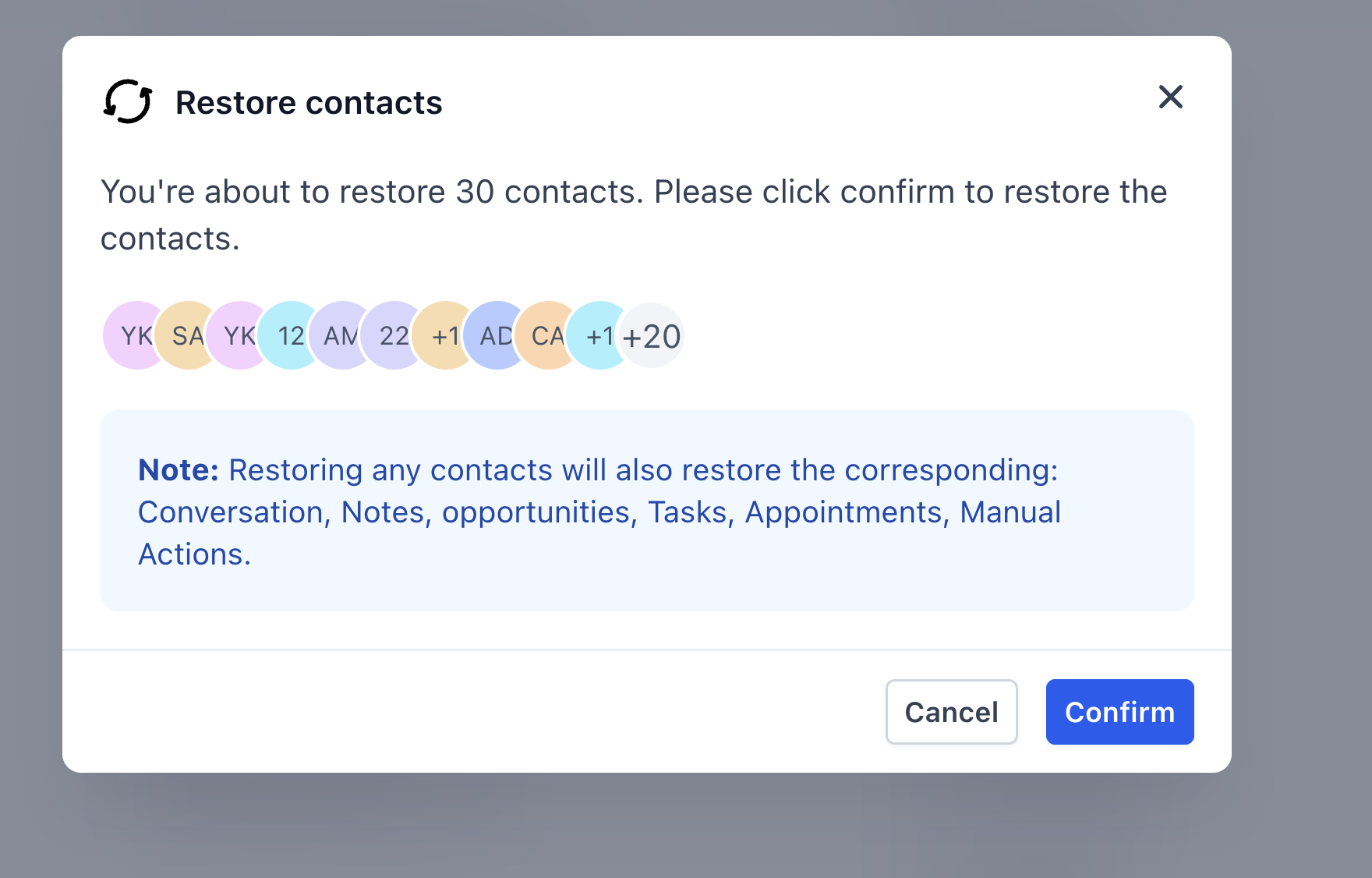
Confirmation Modal
A clear confirmation step reduces errors by summarizing the scope of your action.
The modal displays the total number of selected contacts to be restored.
One click to confirm; restoration begins immediately.
If any contacts are beyond the retention window or otherwise ineligible, you’ll be notified before completion.
Restoring Single/Multiple Contacts
If you’ve deleted one or more contacts manually, SourCherry makes it easy to bring them back from the Restore tab. This method is ideal for recovering individual contacts or small batches without needing to reverse an entire bulk action.
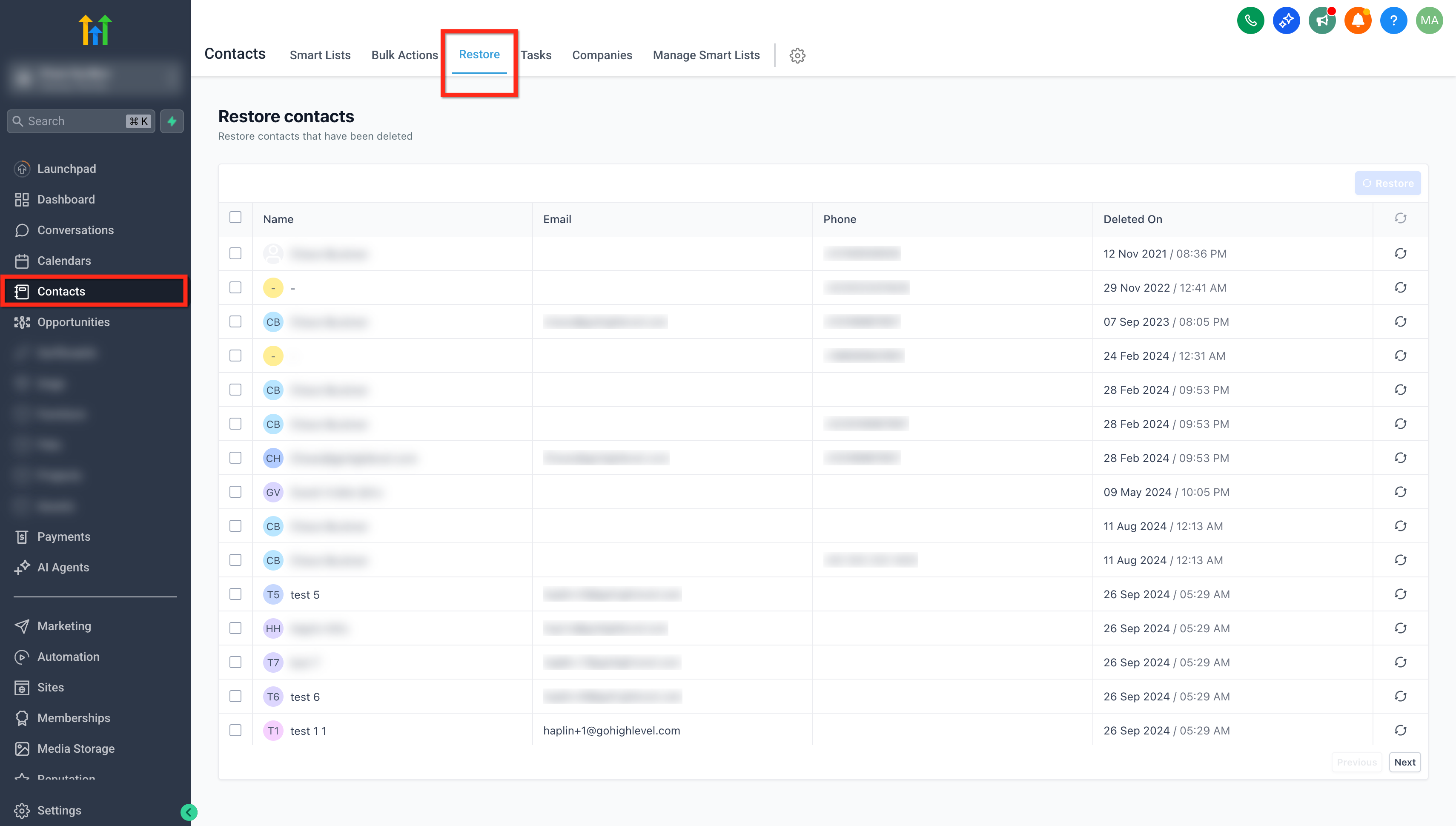
Step 1: Access the Restore Tab in the Contacts Section
Navigate to the Contacts section in your SourCherry dashboard and select the Restore tab.
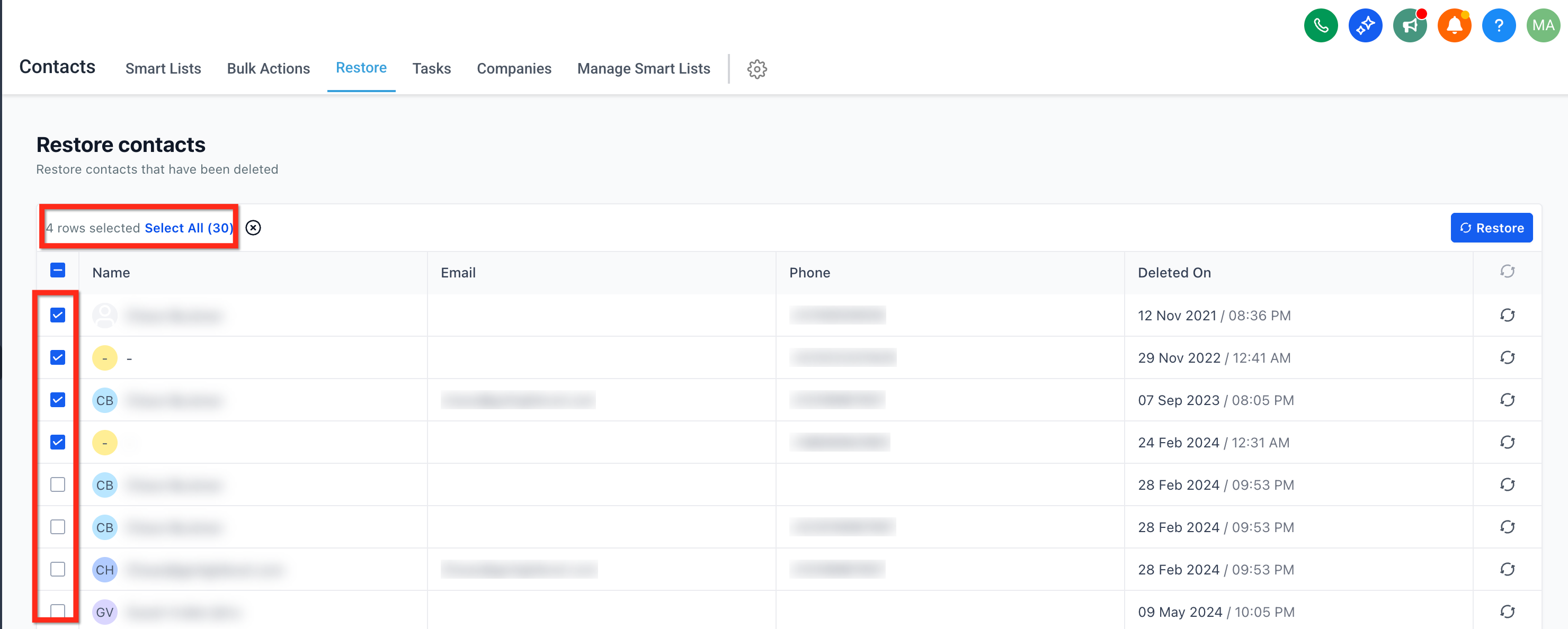
Step 2: Find and Select Contacts to Restore
Locate the contacts you wish to restore and select the contacts by clicking the checkbox next to their name. You can select individual contacts or all contacts in the list when restoring.
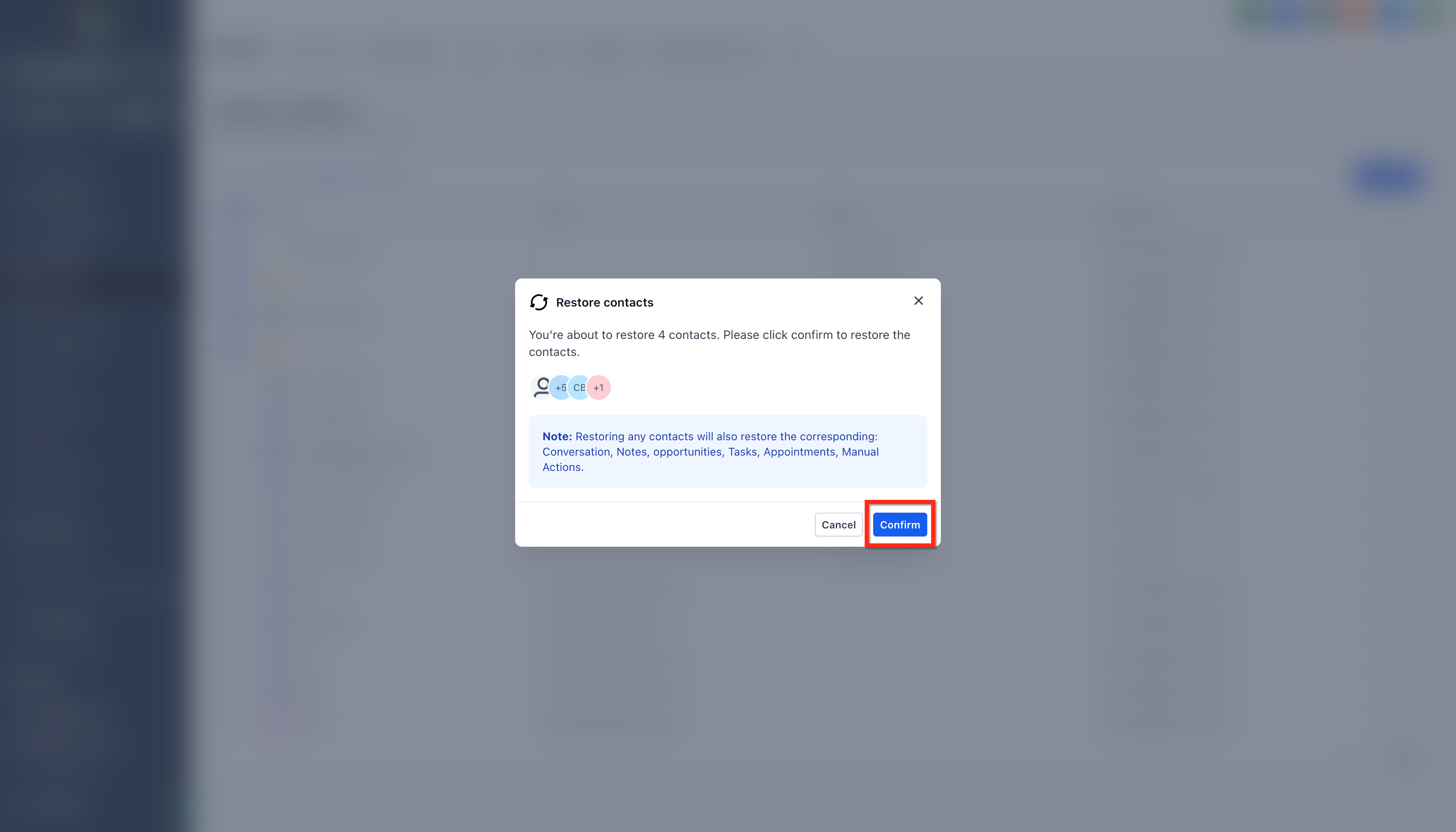
Step 3: Restore the Contact
Click the Restore button next to the contact’s name and confirm the action.
Reversing a Bulk Delete
If you've accidentally deleted multiple contacts using the bulk delete feature, you can easily reverse the action and restore the deleted contacts along with their associated data.
Step 1: Navigate to the Bulk Actions Page
Go to the Contacts section and click on Bulk Actions in the navigation menu. The Bulk Actions page shows a history of all bulk operations performed in your account, including bulk deletes.
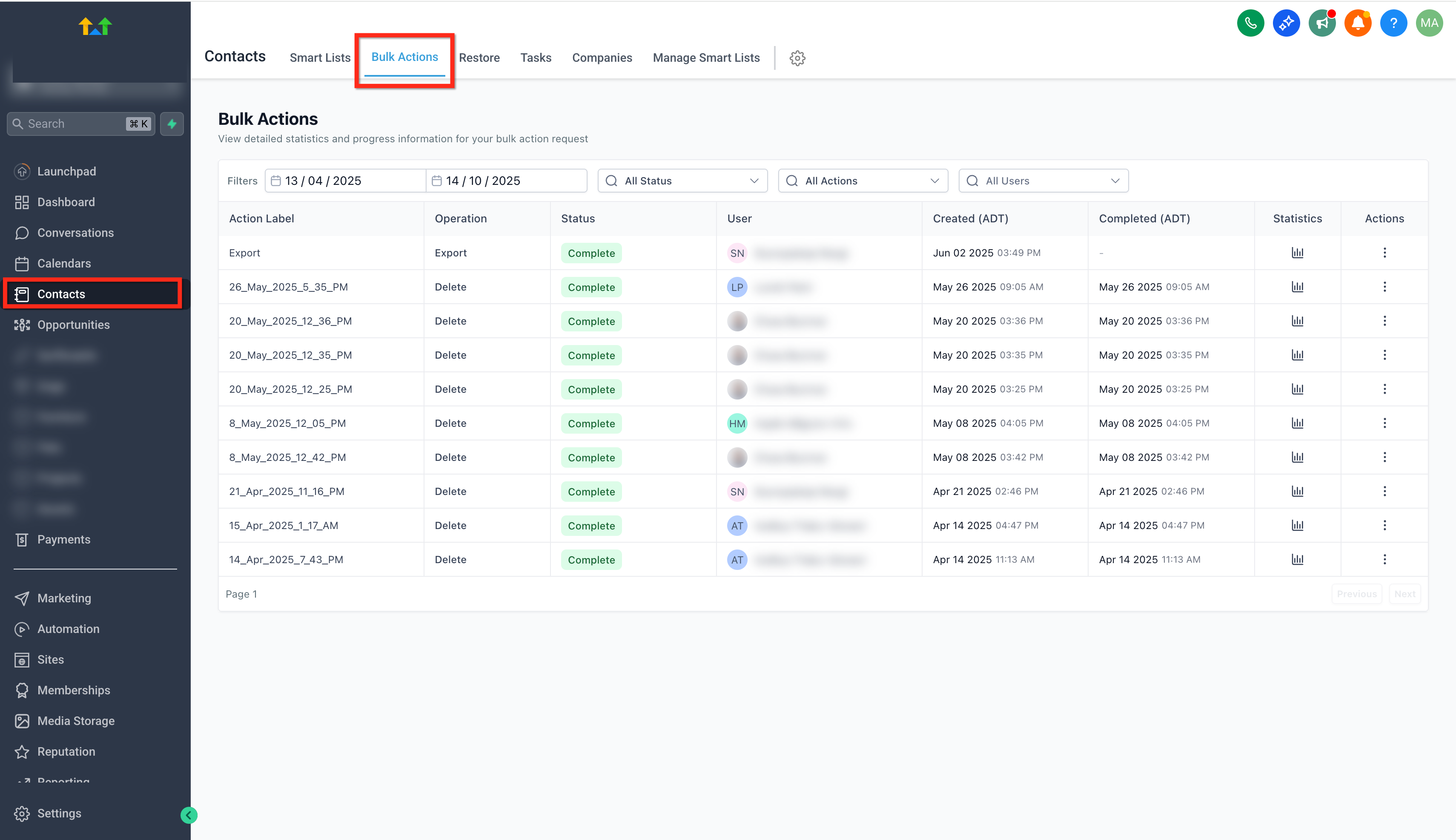
Step 2: Find the Bulk Delete Operation
Scroll through the list of bulk actions to locate the specific bulk delete operation you wish to reverse and click on three dots > Restore
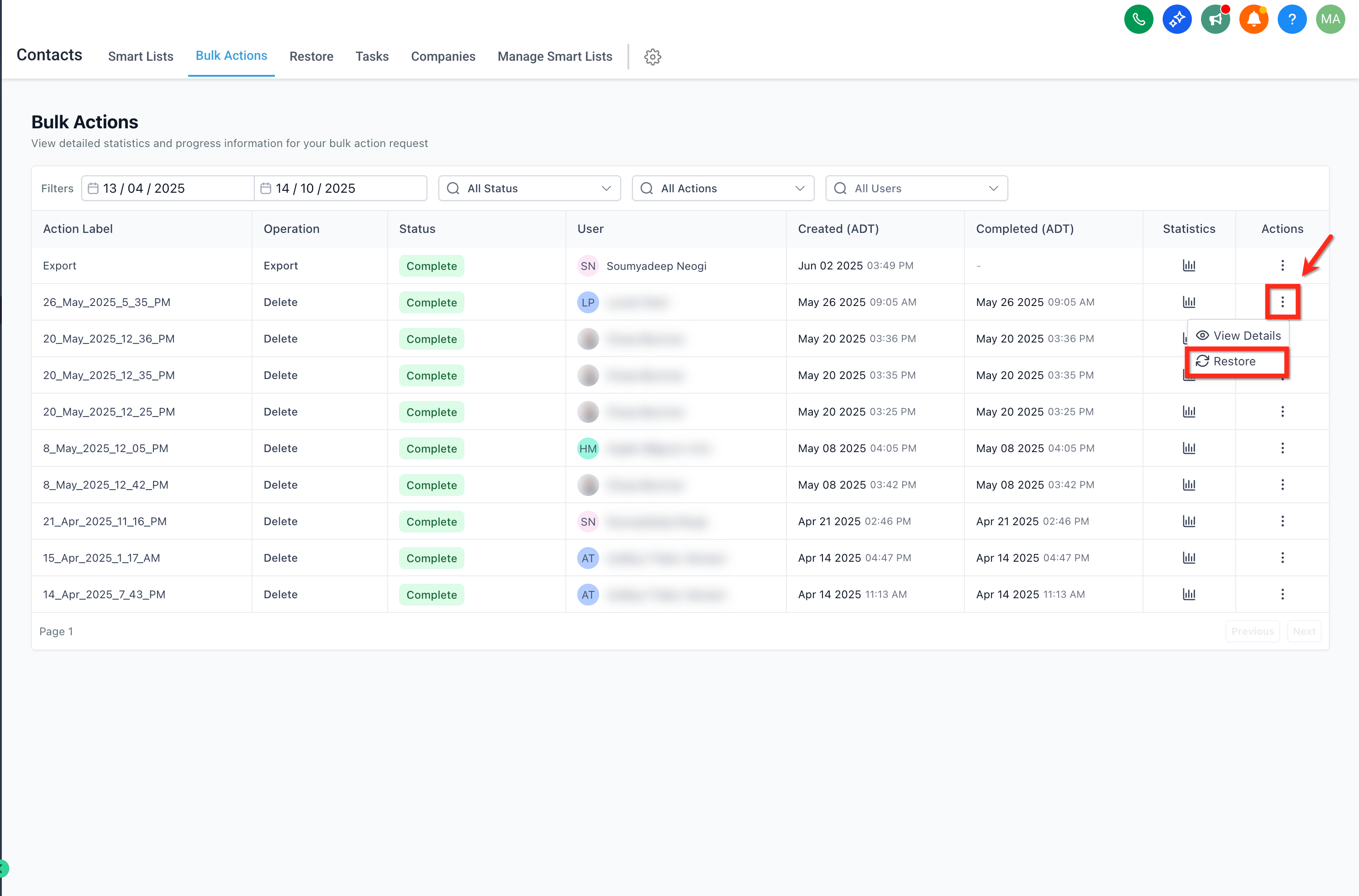
Step 3: Click on the Restore Option to restore the Bulk deletion
Select Restore again from the Pop-up.
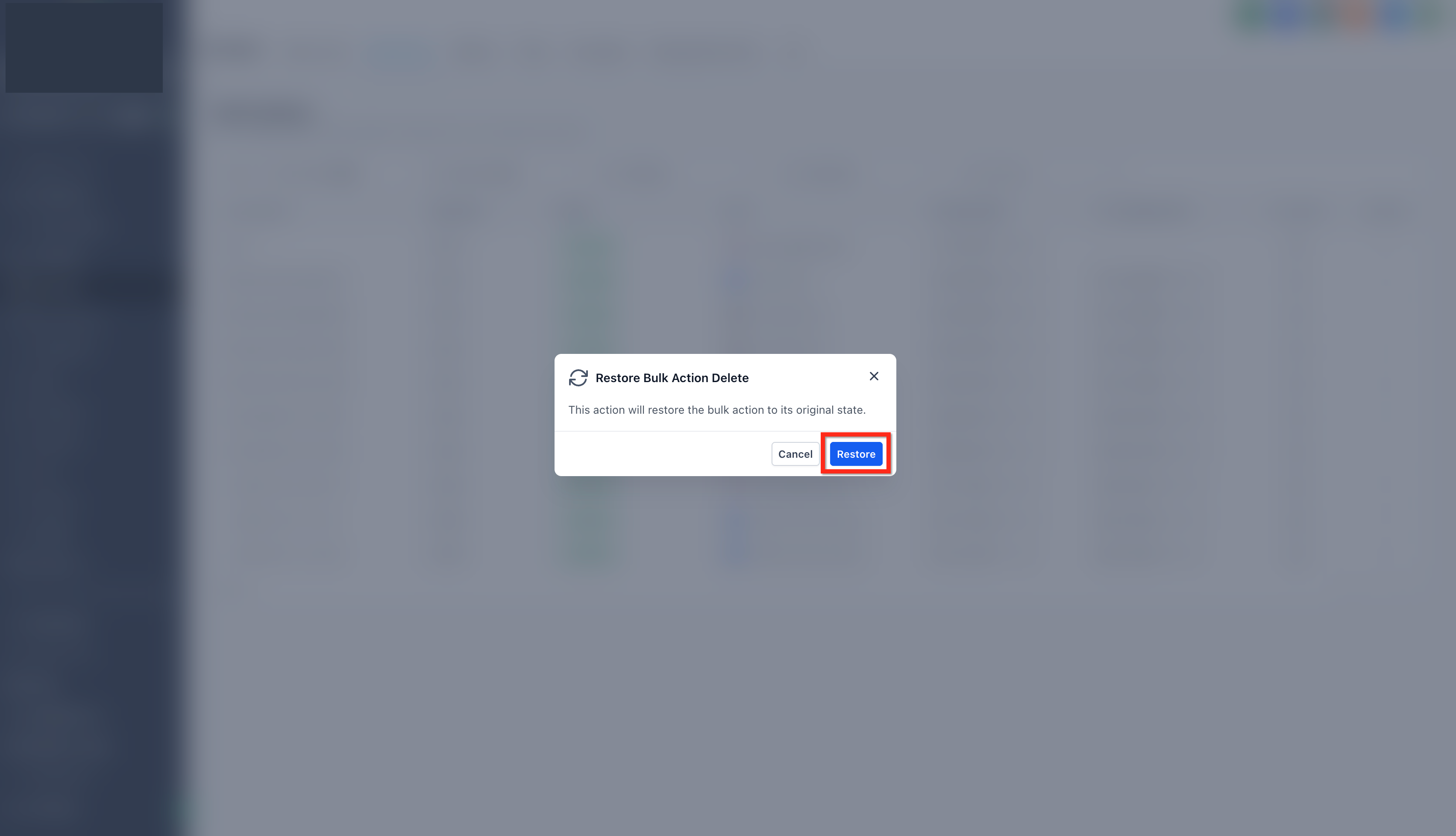
Please Note: The restoration process will begin immediately, You can monitor its progress in the Bulk Actions page, where the status will change to indicate the restoration’s progress (e.g., "In Progress" or "Completed"). After the process is complete, navigate back to the Contacts section and Verify the Restored Contacts.
Frequently Asked Questions
Q: How long after deletion can I restore a contact?
Up to 60 days. After that, the contact is permanently removed and cannot be recovered.
Q: Can I restore contacts deleted by someone else?
Yes, as long as it's within the 60-day window and you have Admin access.
Q: What happens to associated data?
Restored contacts regain their associated data, such as conversations and opportunities, unless deleted separately.
Q: What exactly is restored?
All associated data (conversations, tasks, etc.), unless it was independently deleted.
Q: Does “Select all” include contacts on every page of results?
It includes all contacts in the current list view. If you have multiple pages, increase the rows per page or repeat your selection on subsequent pages before restoring.
Q: How long does the restoration process take for bulk actions?
The time taken depends on the number of contacts being restored. For large bulk actions, it may take several minutes to complete.
Q: Can I restore contacts in a HIPAA-compliant account?
No, HIPAA-compliant accounts do not permit restoring deleted contacts for data security reasons.
Q: Why Can’t I Restore a Contact?
Either of the following is possible: The contact may have been deleted more than two months ago and is no longer recoverable OR HIPAA-compliant accounts do not allow contact restoration.