
One-click upsells provide a seamless way to increase revenue by offering additional products or services to customers after their initial purchase, without requiring them to re-enter payment details. This article guides you through the step-by-step process of setting up one-click upsells within membership, ensuring a smooth and automated experience for both businesses and customers.
TABLE OF CONTENTS
- What is One-Click Upsell in Memberships?
- Key Benefits of One-Click Upsell
- How to Configure One-Click Upsell in Memberships
- Frequently Asked Questions
What is One-Click Upsell in Memberships?
A one-click upsell is a post-purchase offer that appears immediately after a customer buys a product. Instead of going through another full checkout process, customers can accept the additional offer with just a single click, and the same payment method is used automatically. This technique helps businesses increase order value without adding friction to the buying process. It’s especially useful for selling related digital products, bonuses, or access to premium content.
Key Benefits of One-Click Upsell
One-click upsells allow you to make the most of every sale by offering targeted add-ons at the perfect moment. Here’s how this feature supports your growth:
- Increase order value without extra marketing effort
- Present highly relevant offers right after purchase
- Simplify the experience with no additional checkout steps
- Customize upsell pages to match your branding
- Automate upsell delivery and track results with analytics
How to Configure One-Click Upsell in Memberships
Follow these steps to set up a seamless one-click upsell experience inside your membership system.
Access Memberships
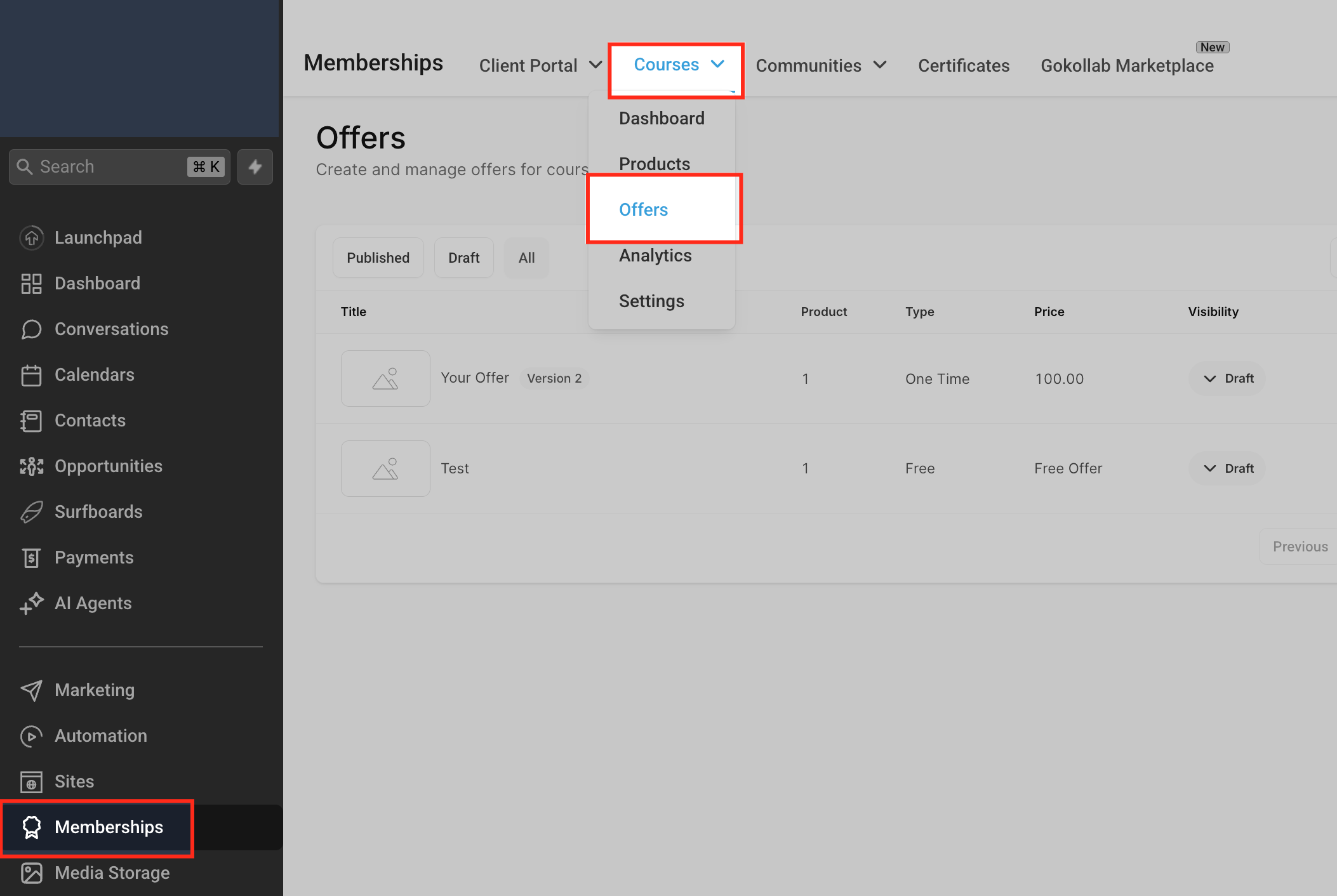
To begin, navigate to the Memberships tab from your main dashboard. From there, click on the Courses dropdown menu at the top and select Offers.
Select an Offer to Edit
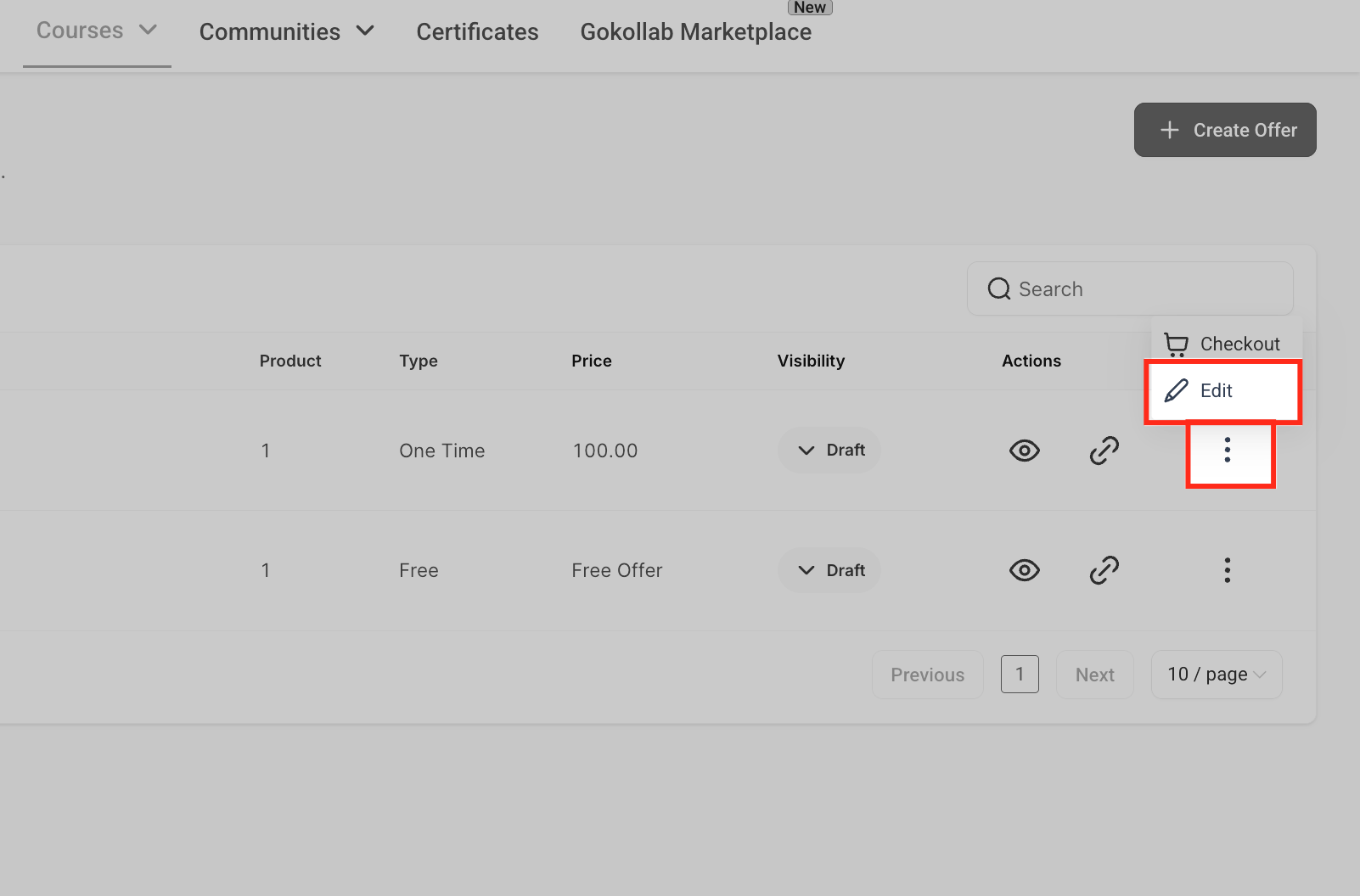
Inside the Offers section, locate the offer you want to enhance with a one-click upsell. Click the three-dot menu beside it and choose Edit from the dropdown options to enter the offer editor.
Open the Upsell Tab
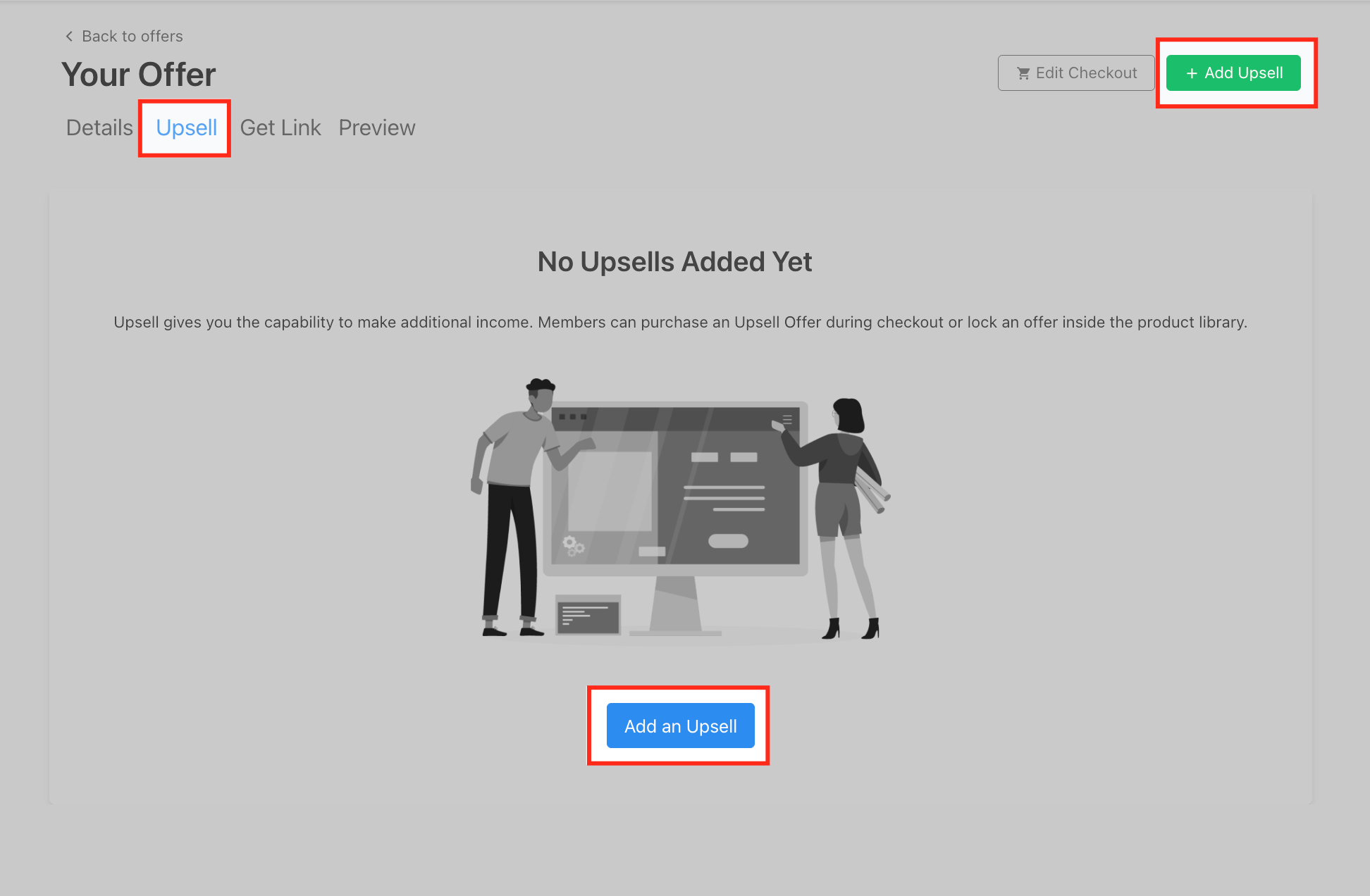
The Upsell tab is where you can manage all upsell offers associated with a specific product. This is the starting point for adding additional offers to increase the value of your initial sale and streamline the purchase process for your customers.
Choose “One-Click Upsell”
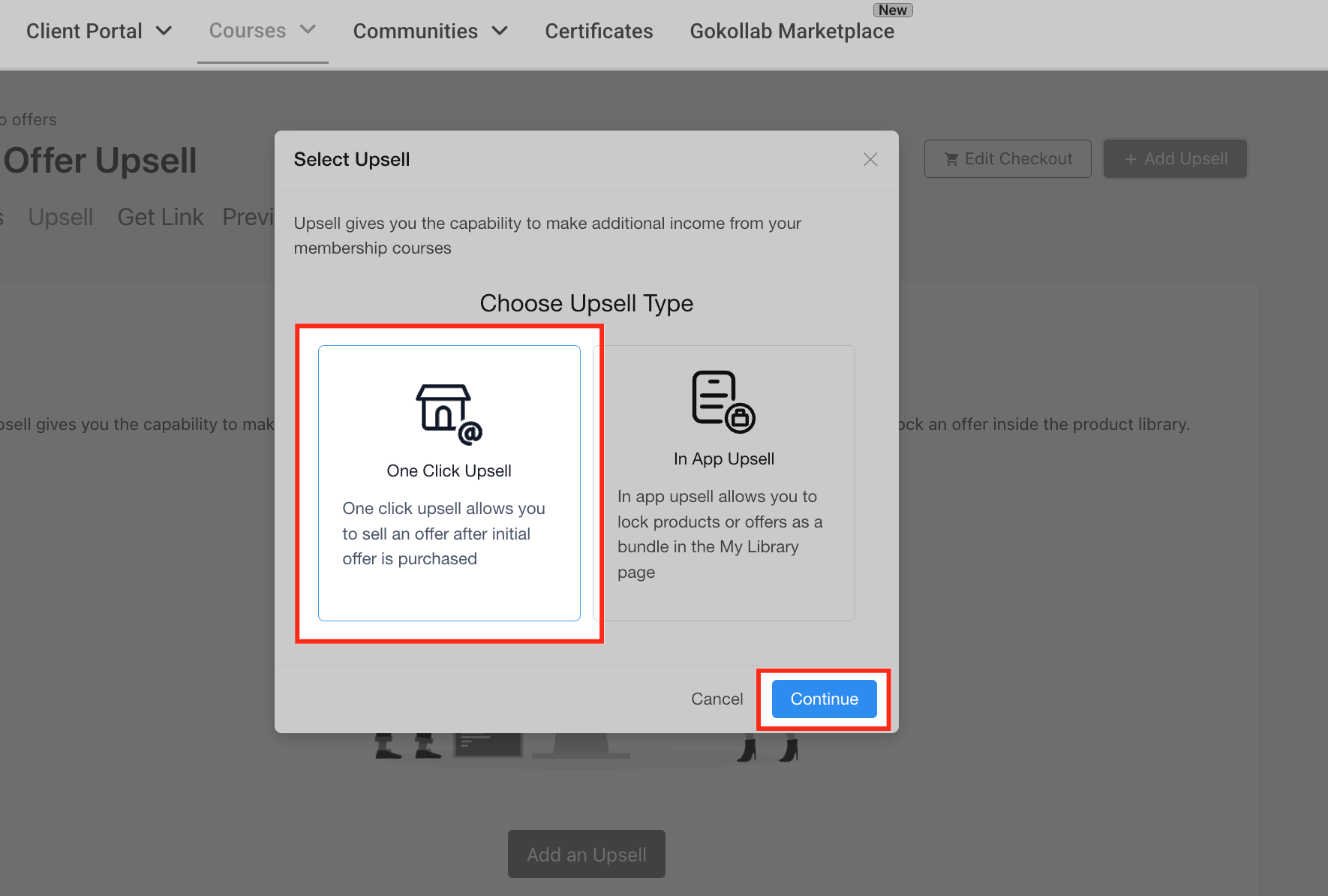
In the upsell type selection modal that appears, choose the One-Click Upsell option. This type of upsell lets customers purchase an additional offer right after their initial purchase with a single click. After selecting it, click Continue to move forward.
Select the Upsell Offer
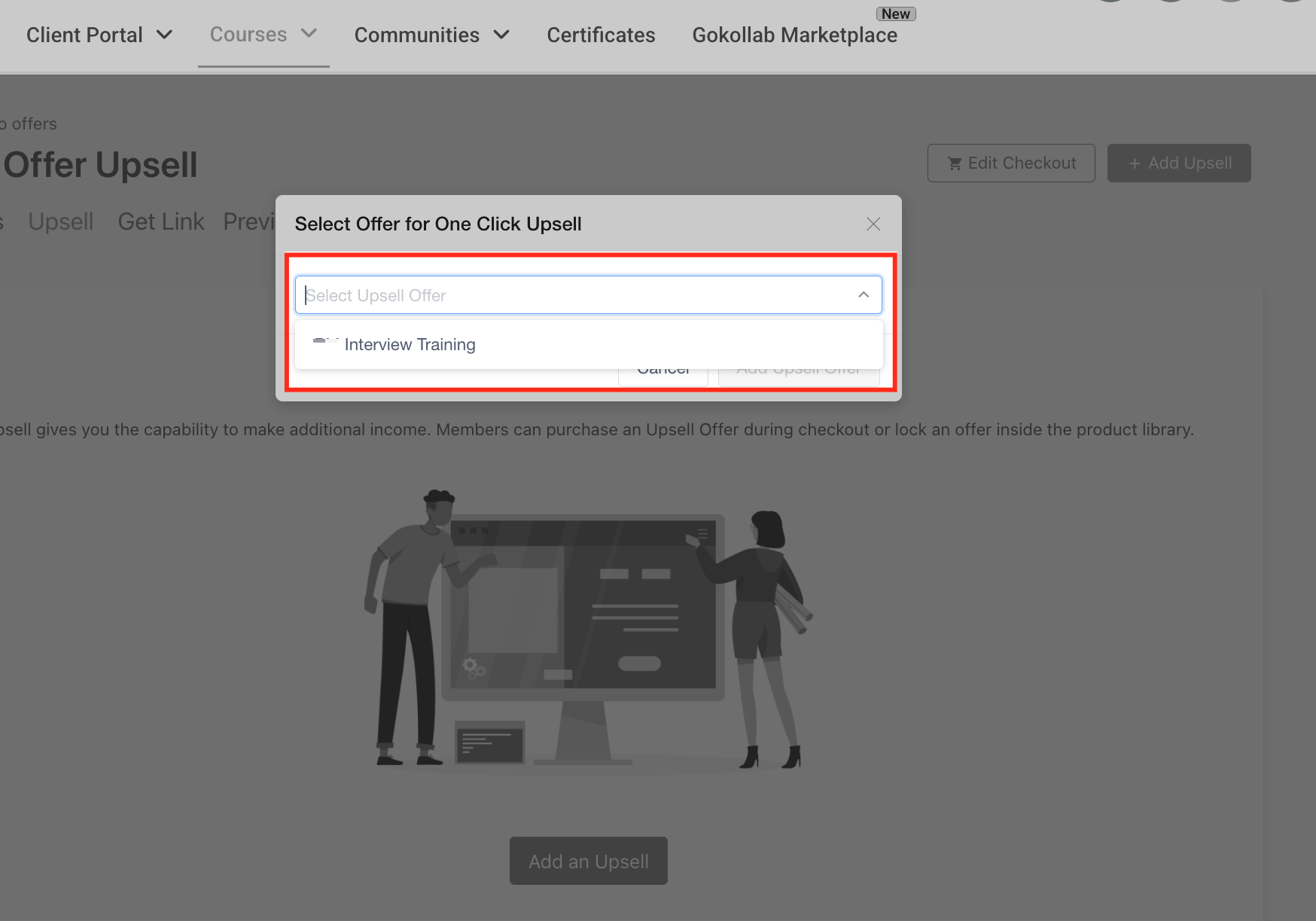
From the dropdown menu, select the existing Offer you want to promote as the Upsell. Click Add Upsell Offer to attach it.
Customize the Upsell Page
Once your upsell is added, you’ll be taken to the customization screen. The built-in editor offers full control over visuals, messaging, and layout through three key tabs: Details, Body, and Checkout. Below is a breakdown of each customization area.
Make sure to click Save after making changes and toggle the status to Active when ready to publish.
Details Tab
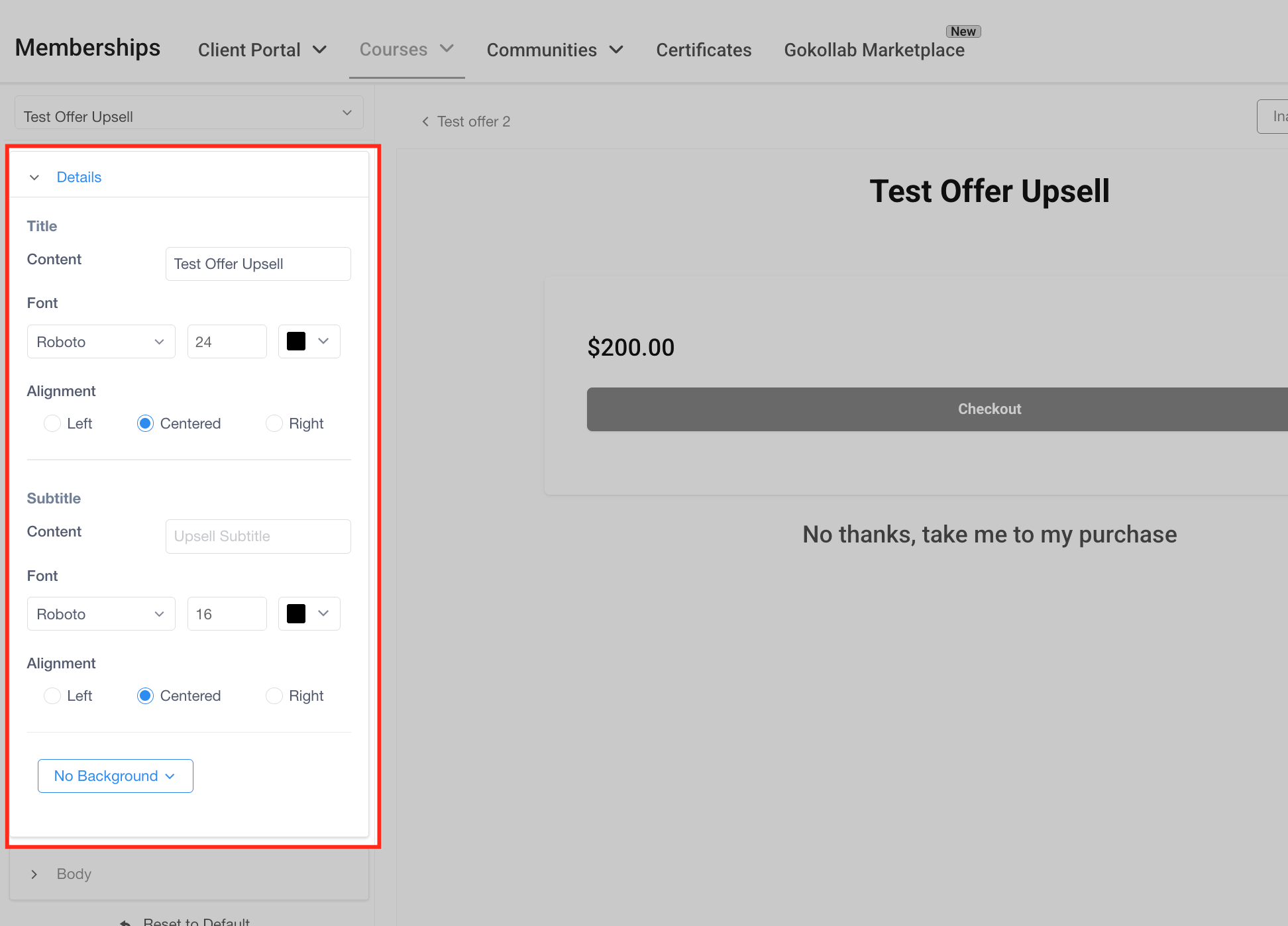
This section controls the textual content and layout of your upsell headline and subheading.
- Title Content: Set the main headline for your upsell page. This is typically the name of the offer or a strong callout (e.g., “Unlock VIP Access”).
- Font & Size: Choose the font family and font size for the title text.
- Text Color: Set a custom color for your title to match your brand.
- Alignment: Choose whether the title appears left-aligned, centered, or right-aligned.
- Subtitle Content: Add supporting text beneath your headline for context or emphasis.
- Subtitle Font & Size: Set the subtitle font style and size to match or contrast with your title.
- Background Style: Select from predefined background options (like solid colors or no background) for the top section of your page.
Body Tab
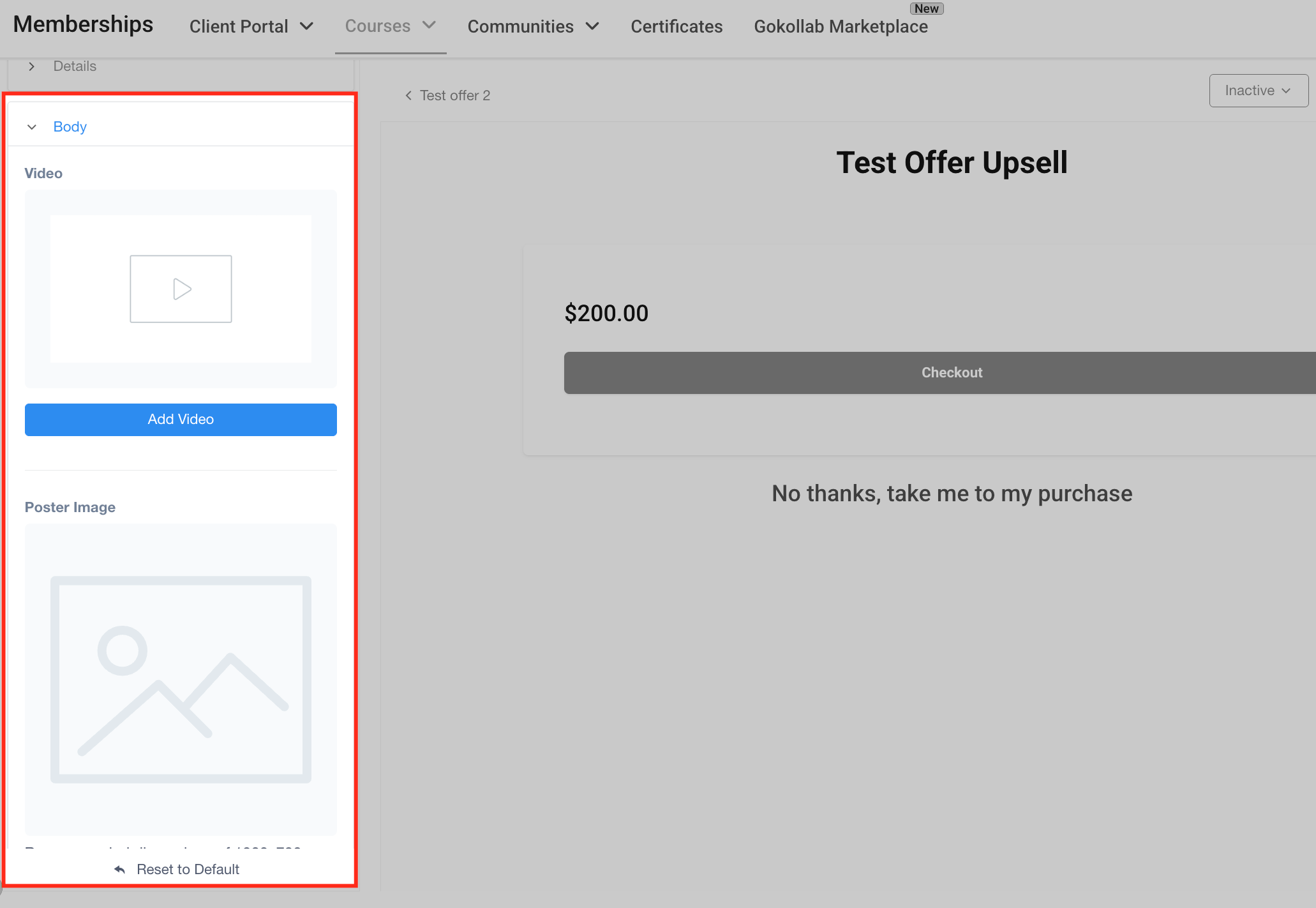
The Body tab allows you to add engaging visuals that help sell the upsell product.
- Add Video: Upload or embed a promotional video for your upsell product. This is a great way to explain the offer visually and drive conversions.
- Poster Image: Upload a static image that displays as a preview thumbnail before the video plays (ideal dimensions: 1280x720). This image also serves as a fallback if the video is not played.
- Reset to Default: Quickly revert the section back to its original default layout and visuals.
Checkout Tab
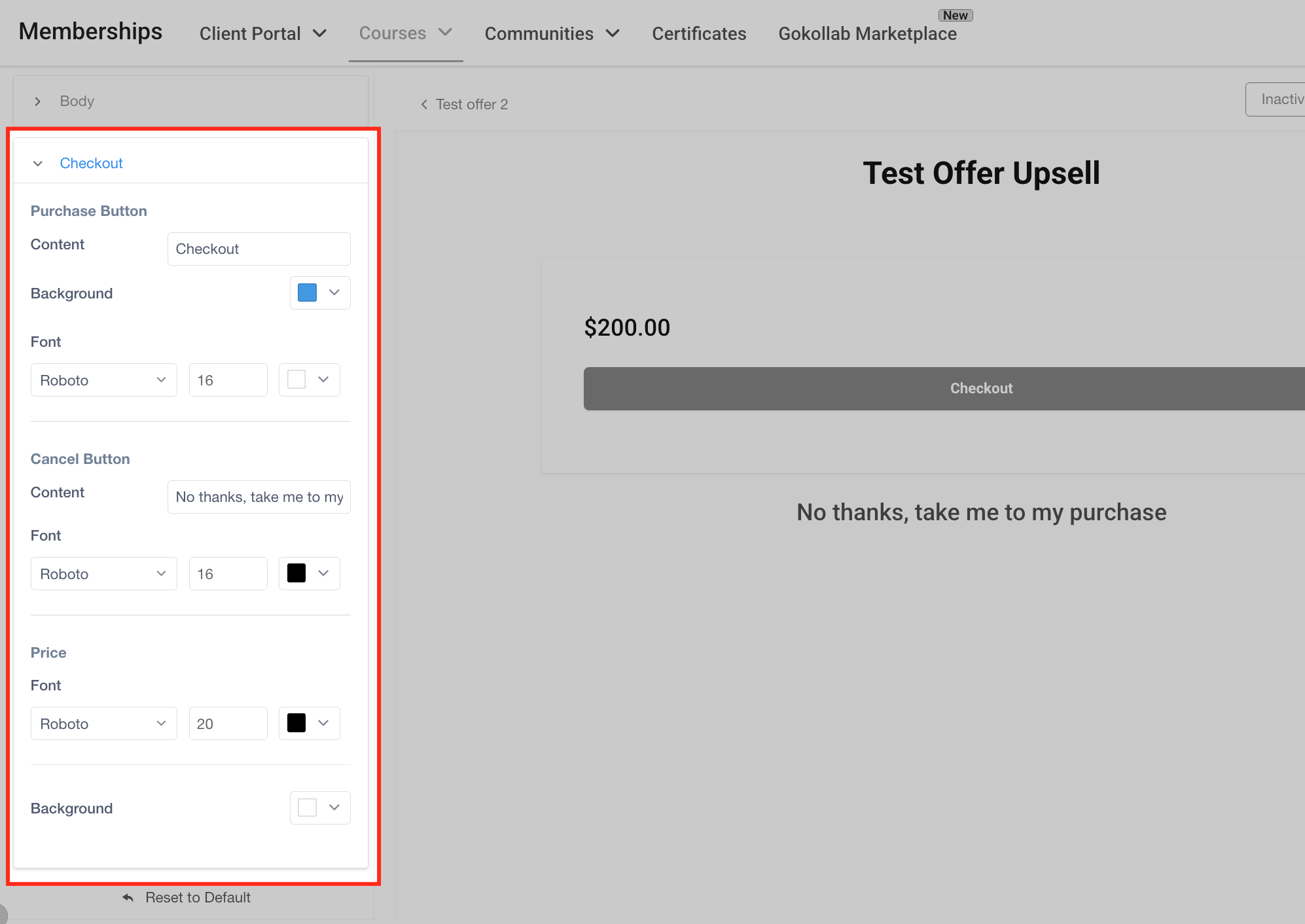
This section controls the buttons and price styling on your upsell page, giving you complete control over the call-to-action elements.
- Purchase Button Content: Edit the label on the primary CTA (e.g., “Buy Now,” “Add to My Order”).
- Background Color: Choose a custom background color for the button to make it pop.
- Purchase Button Font: Customize the font type, size, and text color.
- Cancel Button Content: Edit the text that appears as the secondary option (e.g., “No thanks, take me to my purchase”).
- Cancel Button Font: Adjust the font and color for this button to de-emphasize it.
- Price Font & Style: Choose how the price is displayed, including font family, size, and text color.
- Price Background: Customize the background of the pricing section to further match your branding.
Preview and Activate
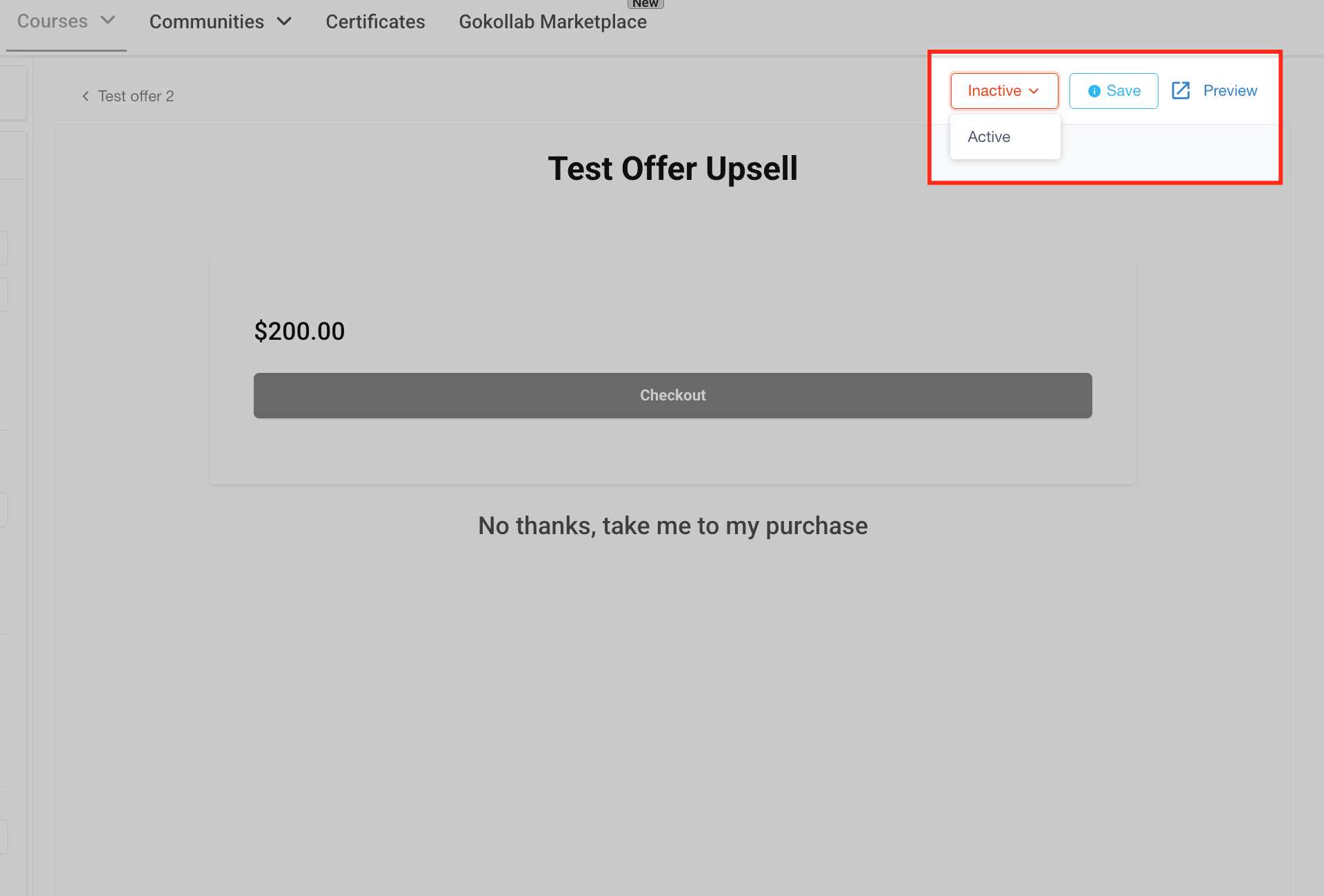
Once your upsell page is fully customized, you can save changes, preview the final experience, and activate the upsell offer for live use. These controls are located in the top-right corner of the editor.
- Save: Click the Save button to apply any edits or customizations you’ve made to the upsell page. Saving ensures that your changes are preserved before activating the offer.
- Preview: Use the Preview option to view the upsell experience exactly as your customers will see it. This is helpful for reviewing layout, messaging, and checkout flow before publishing.
- Activate/Deactivate Toggle: The dropdown that says Inactive allows you to change the upsell’s status. Select Active to make the upsell live and available to customers during the checkout process. You can also toggle it back to Inactive if you want to pause the upsell offer without deleting it.
Remove or Edit as Needed
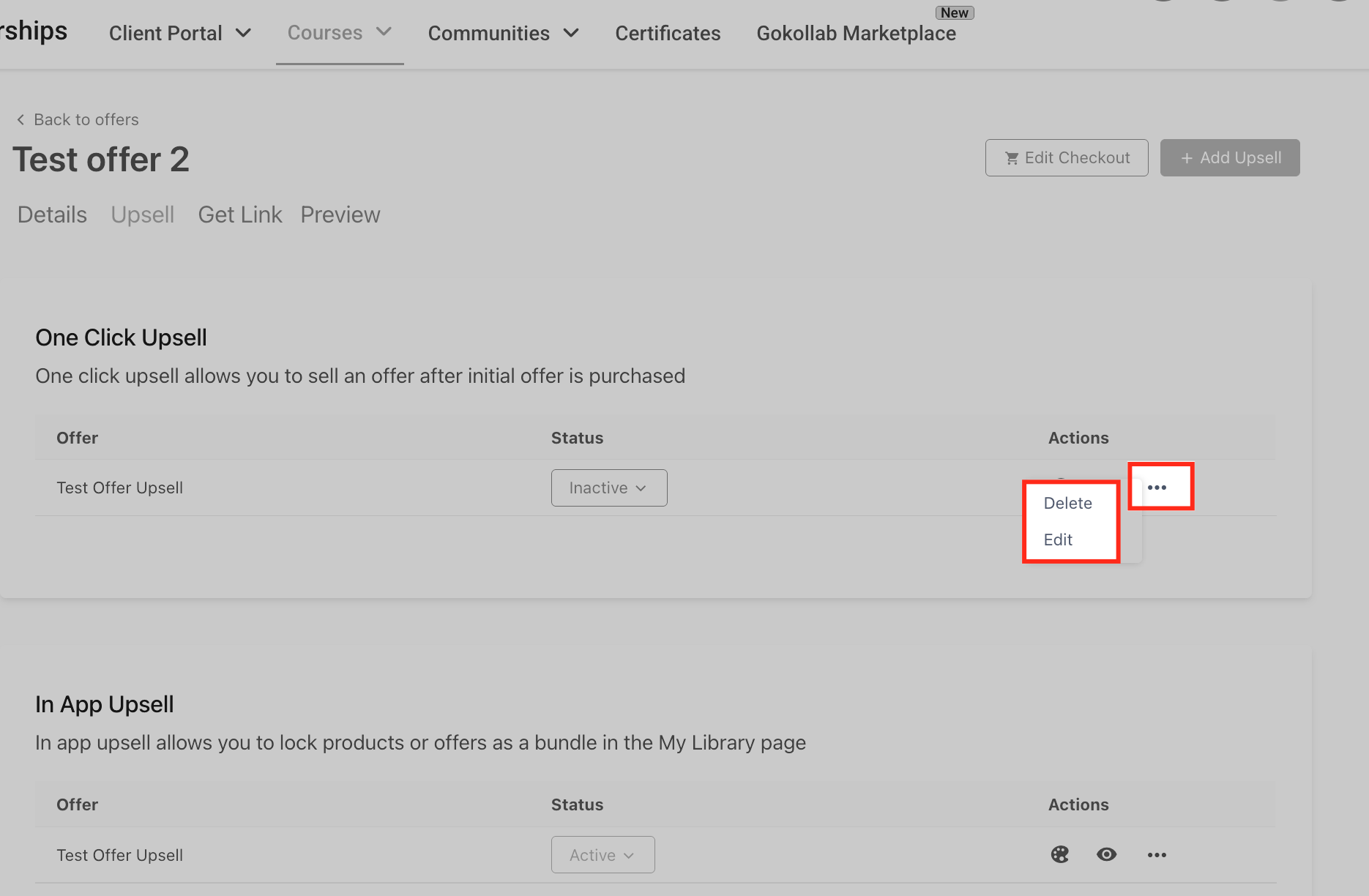
To remove or edit an upsell, navigate back to the Upsell tab within your Offer. Click the three-dot menu next to the upsell name and select Delete to remove it. If you want to make changes, simply click the upsell name to edit its details or swap it with a different offer.
Frequently Asked Questions
Q: Can I offer multiple upsells after one purchase?
Yes. You can create multiple sequential upsells that are shown to the user one after another.
Q: Which payment methods support one-click upsells?
Currently, Stripe and PayPal are supported for processing one-click transactions.
Q: Can I change the design of the upsell page?
Absolutely. Use the built-in customization panel to match your upsell page to your overall brand.
Q: How do I track upsell performance?
You can monitor views, clicks, and conversions from the Offer analytics section.
Q: Is this feature available to all accounts?
The one-click upsell feature is available depending on your current plan. If you don’t see it, contact support for assistance.