
Managing conversations efficiently is crucial for any business handling customer interactions. The Edit Conversation Workflow Action in SourCherry automates conversation management by marking messages as read/unread and archiving/unarchiving them. This eliminates manual work, streamlines workflows, and ensures that teams stay organized. In this guide, we’ll cover what this action does, its benefits, and how to configure it within workflows.
TABLE OF CONTENTS
- What is Edit Conversation Workflow Action?
- Key Benefits of Edit Conversation Workflow Action
- Configuring Edit Conversation Workflow Action
- Frequently Asked Questions
What is Edit Conversation Workflow Action?
The Edit Conversation Workflow Action allows businesses to automatically update conversation statuses based on specific events in their workflow. Instead of manually marking conversations as read or unread or archiving chats, this action automates those processes, improving organization and efficiency. It helps customer support teams manage their inboxes effectively and ensures important conversations get the right attention.
Marking a conversation as read clears its unread state in the Conversations inbox. In supported inbox views, this also removes the unread divider from the thread.
Key Benefits of Edit Conversation Workflow Action
- Automates Inbox Management: Reduces manual effort by automatically updating conversation statuses.
- Improves Response Prioritization: Ensures unread messages that require attention are easily identifiable.
- Enhances Workflow Efficiency: Streamlines communication by organizing conversations based on predefined triggers.
- Keeps Conversations Organized: Moves completed or inactive conversations to the archive while keeping active ones accessible.
Configuring Edit Conversation Workflow Action
Setting up the Edit Conversation Workflow Action in SourCherry is simple. Follow the steps below to integrate it into your workflow.
Access the Workflow Builder
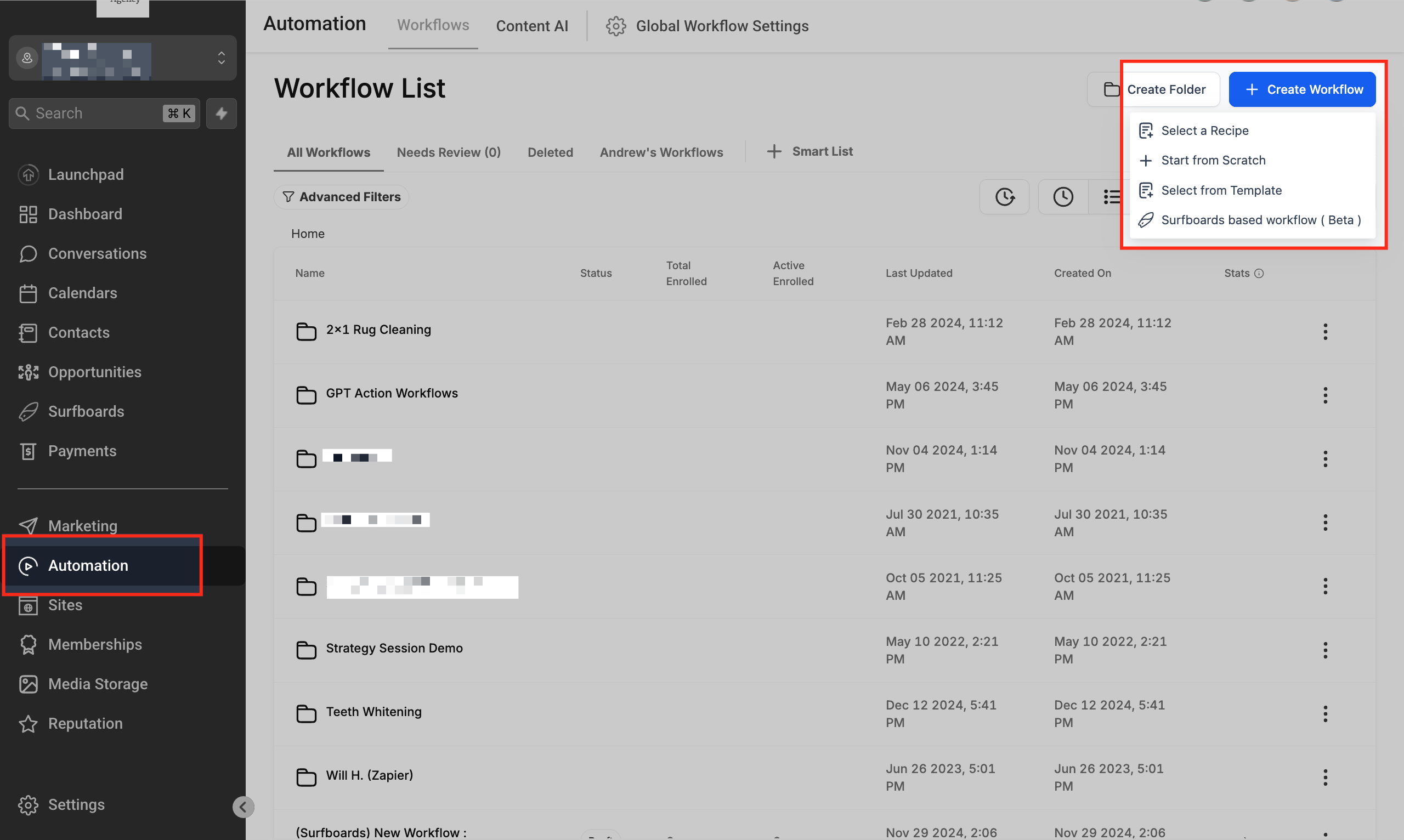
Navigate to Automation section in your SourCherry dashboard. Click + Create Workflow and then select +Start from scratch or open an existing workflow where you want to automate conversation management.
Add the Edit Conversation Action
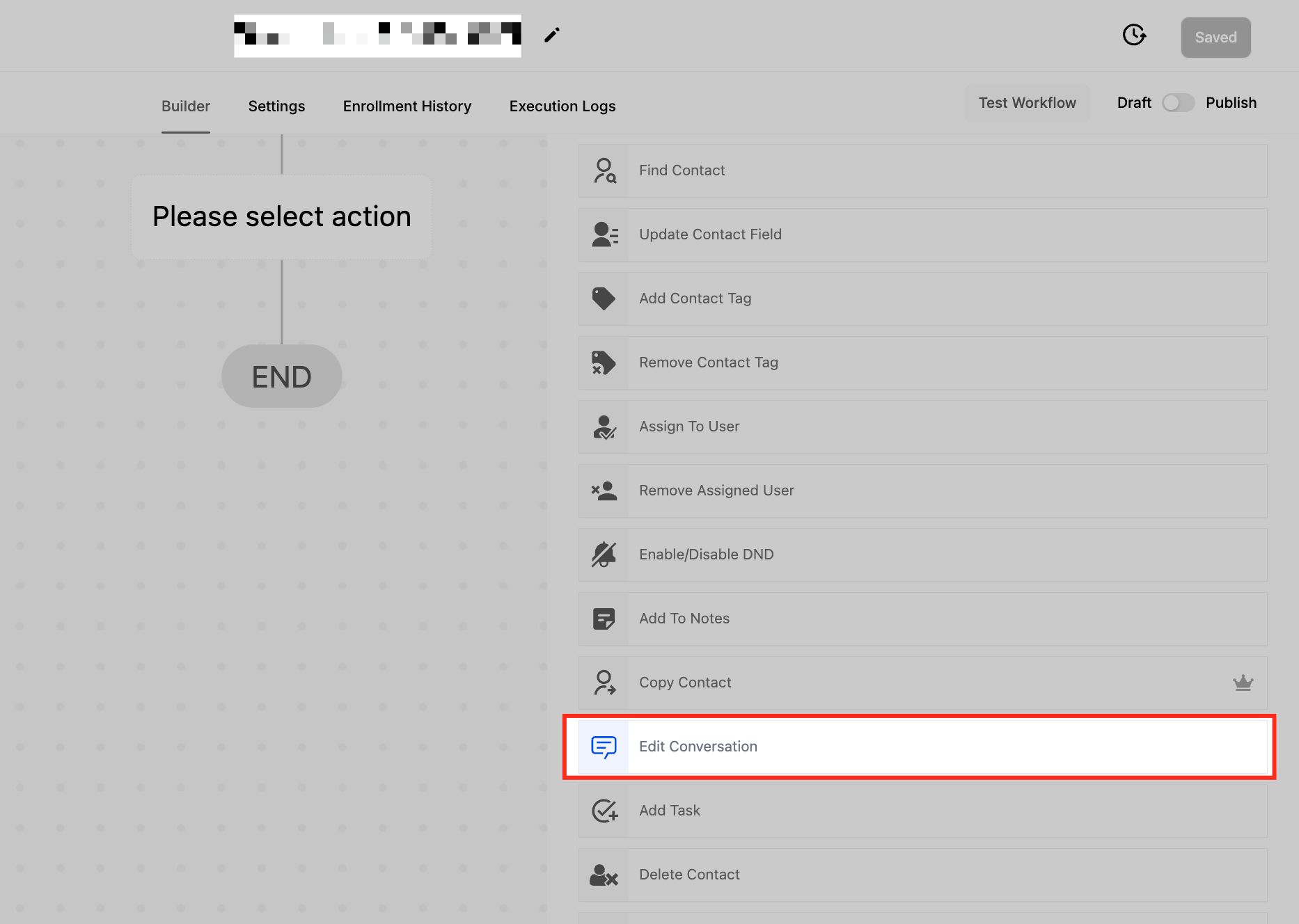
Click on the + Add Action button within the workflow editor. Search for Edit Conversation in the action list and select it.
Naming the Action
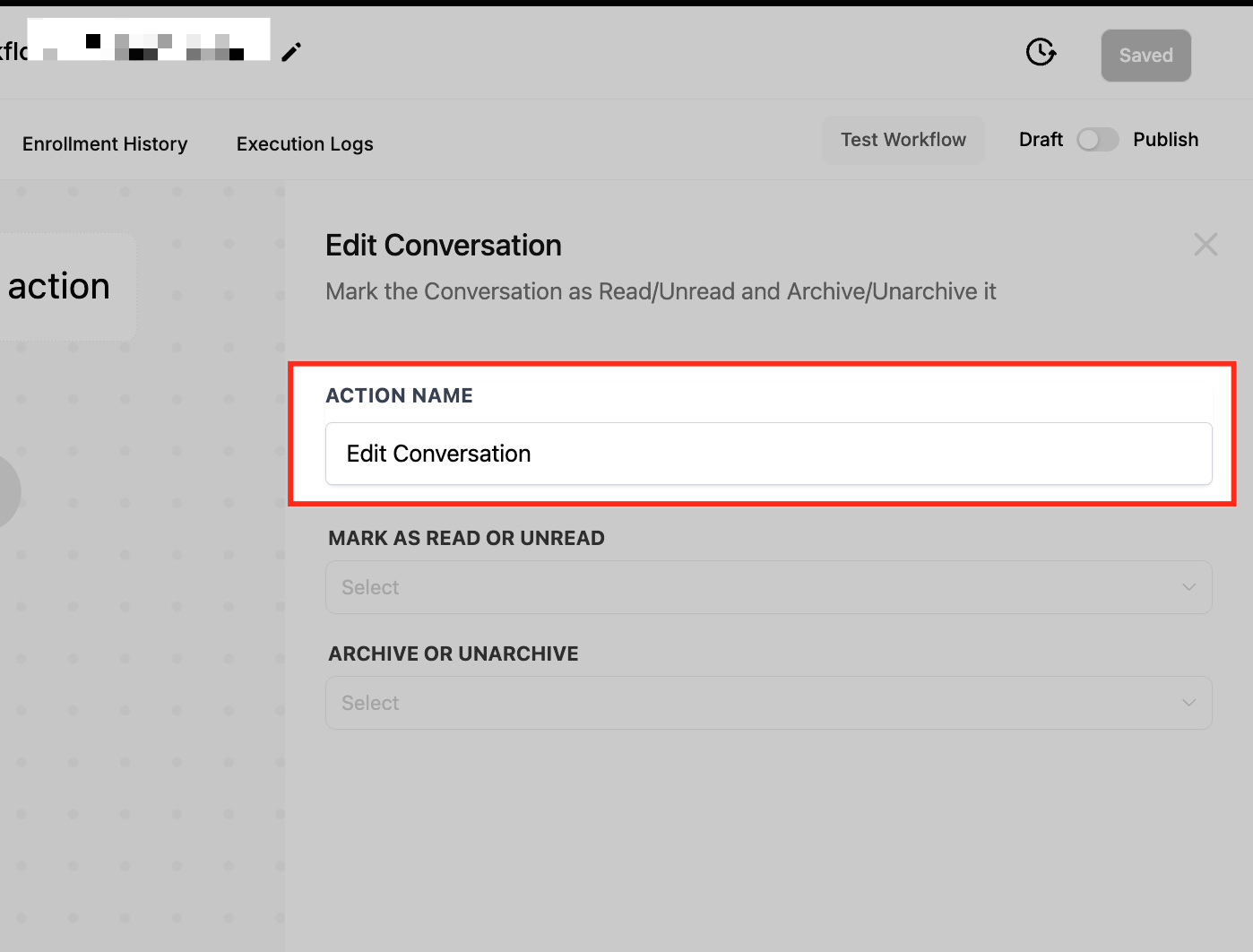
Provide a descriptive name for the action, such as “Mark as Read & Archive”, to easily identify its function within the workflow.
Configuring the Action Settings
Once the Edit Conversation action is added, configure the available settings:
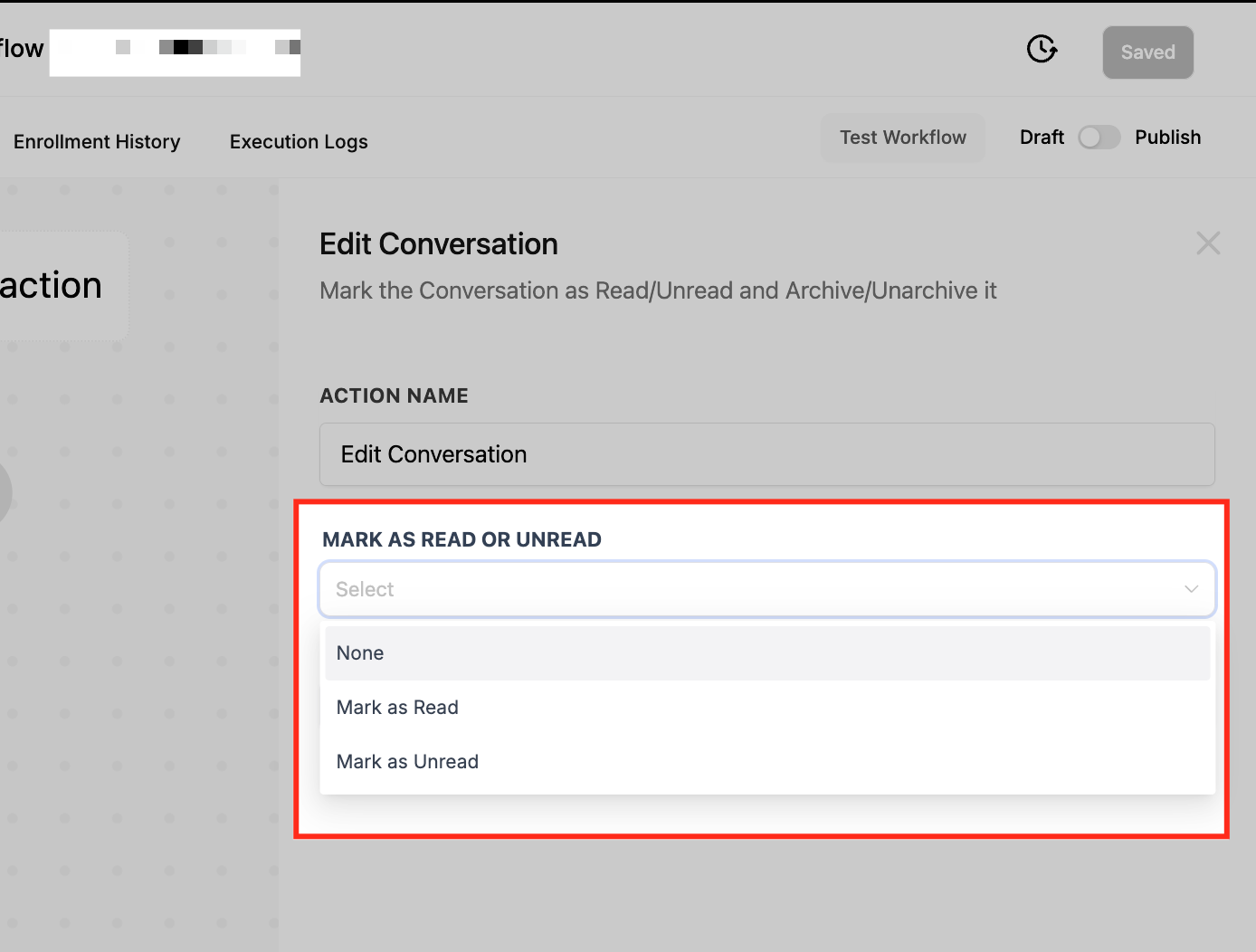
Mark as Read or Unread
- Mark as Read: Marks a conversation as read without opening it.
- Mark as Unread: Resets the conversation status to unread, ensuring it remains visible.
- None: Keeps the current read/unread status unchanged.
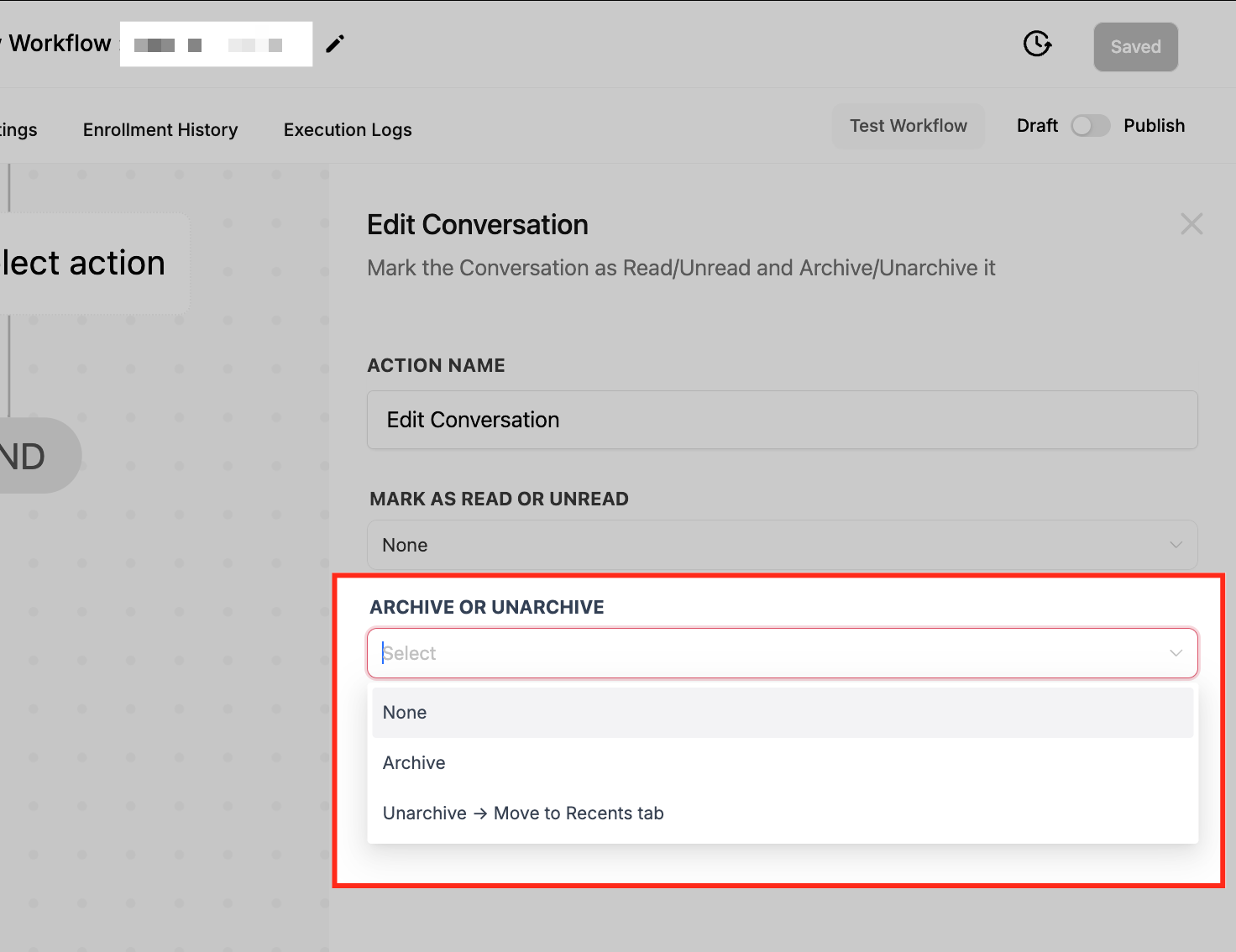
Archive or Unarchive
- Archive: Moves the conversation out of active view to keep the inbox clutter-free.
- Unarchive: Restores a conversation back into the Recents tab for easy access.
- None: Keeps the conversation in its current state.
Save and Publish the Workflow
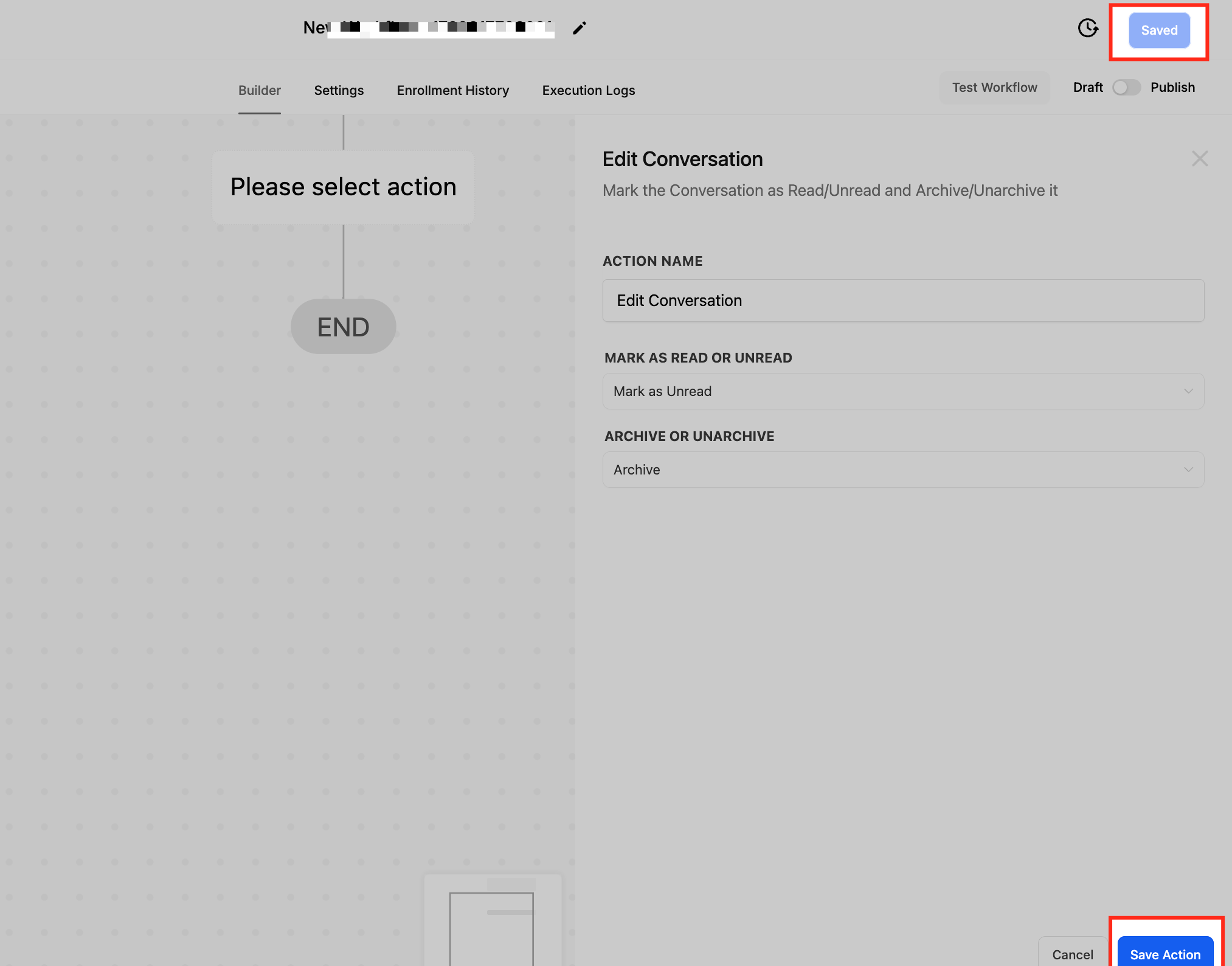
Once the settings are configured, click Save Action and then Publish Workflow to activate the automation. The system will now automatically update conversations based on the defined workflow triggers.
Frequently Asked Questions
Q: Can I use this action to automatically archive all completed conversations?
Yes! By setting up a trigger like Contact Replied or Appointment Status Changed, you can automatically archive conversations once an interaction is complete.
Q: What happens if I select “None” for both Mark as Read/Unread and Archive/Unarchive?
If both options are set to None, the action will not make any changes to the conversation, and it will remain in its current state.
Q: Will this action notify the user when a conversation is archived or unarchived?
No, this action only updates the conversation’s status. If you need notifications, you can add a Send Notification action separately.
Q: Can I bulk update conversations using this action?
No, this action applies only to individual conversations triggered within a workflow. However, you can create workflows that apply to multiple conversations over time.