
If you’re using your own Twilio account connected to SourCherry, any numbers you purchase directly in your Twilio console can automatically reflect in your SourCherry location. This guide walks you through the step-by-step process to buy a phone number from your Twilio console while ensuring it becomes immediately available inside your SourCherry account.
TABLE OF CONTENTS
Steps to Purchase a Twilio Number and Reflect It in SourCherry
Step 1: Log in to Twilio
- Go to https://www.twilio.com/login and log in to your account.
- At the top of the dashboard, locate your Main Account, click it, and select the relevant Sub-account.
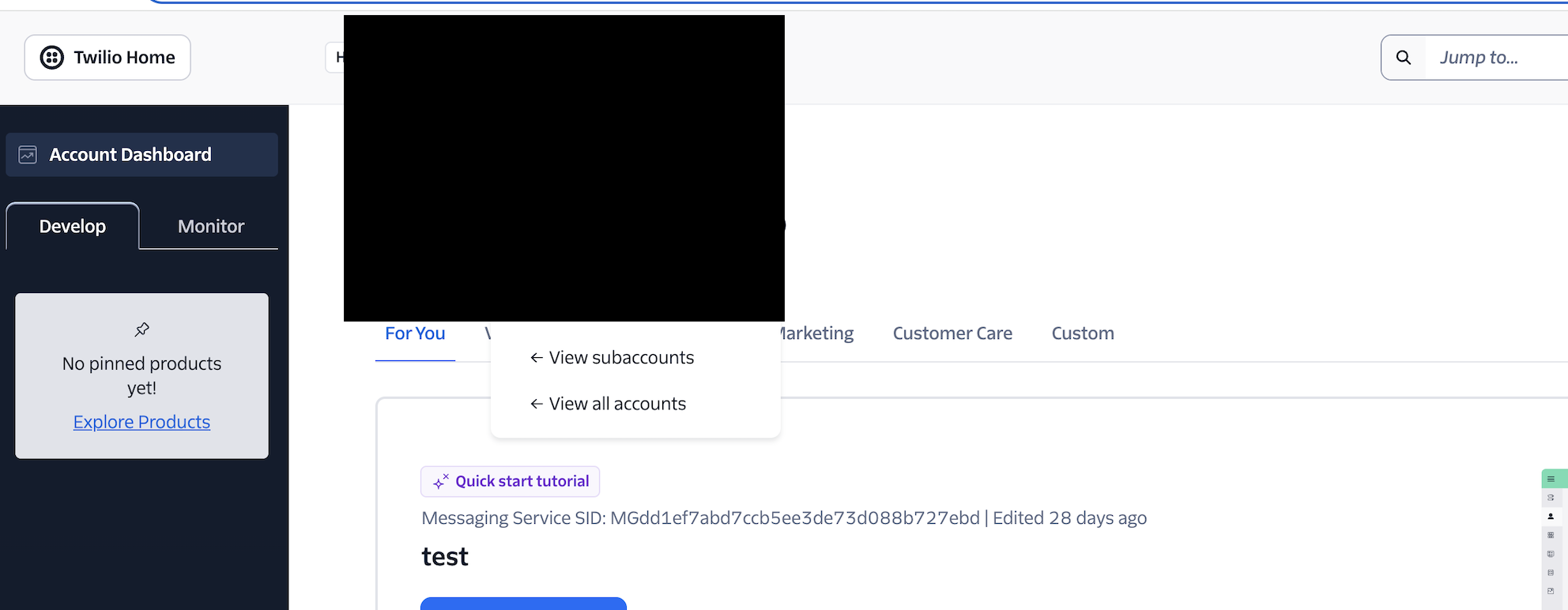
Note: If you have multiple sub-accounts in Twilio and are unsure which one to select, you can retrieve the correct Account SID from SourCherry.
To do this:
Go to SourCherry Agency View > Settings > Phone Integration > Sub-account Settings.
Find and copy the Account SID for the specific location.
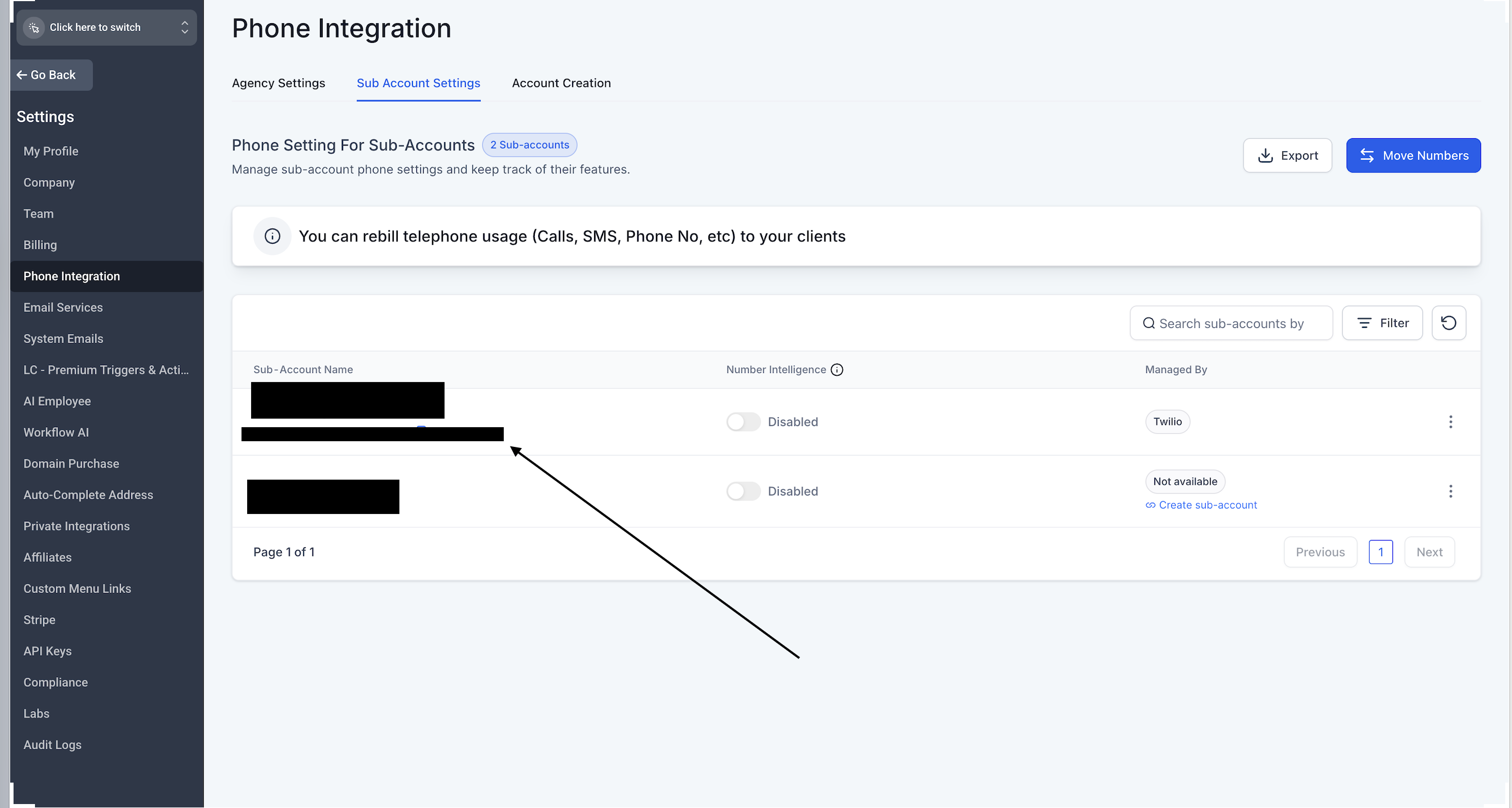
Step 2: Locate the Sub-account in Twilio
- Return to the Twilio dashboard.
- Use the Account SID copied from SourCherry to search for and switch into the correct Twilio sub-account.
- Paste the Account SID in Twilio’s account switcher and select it.
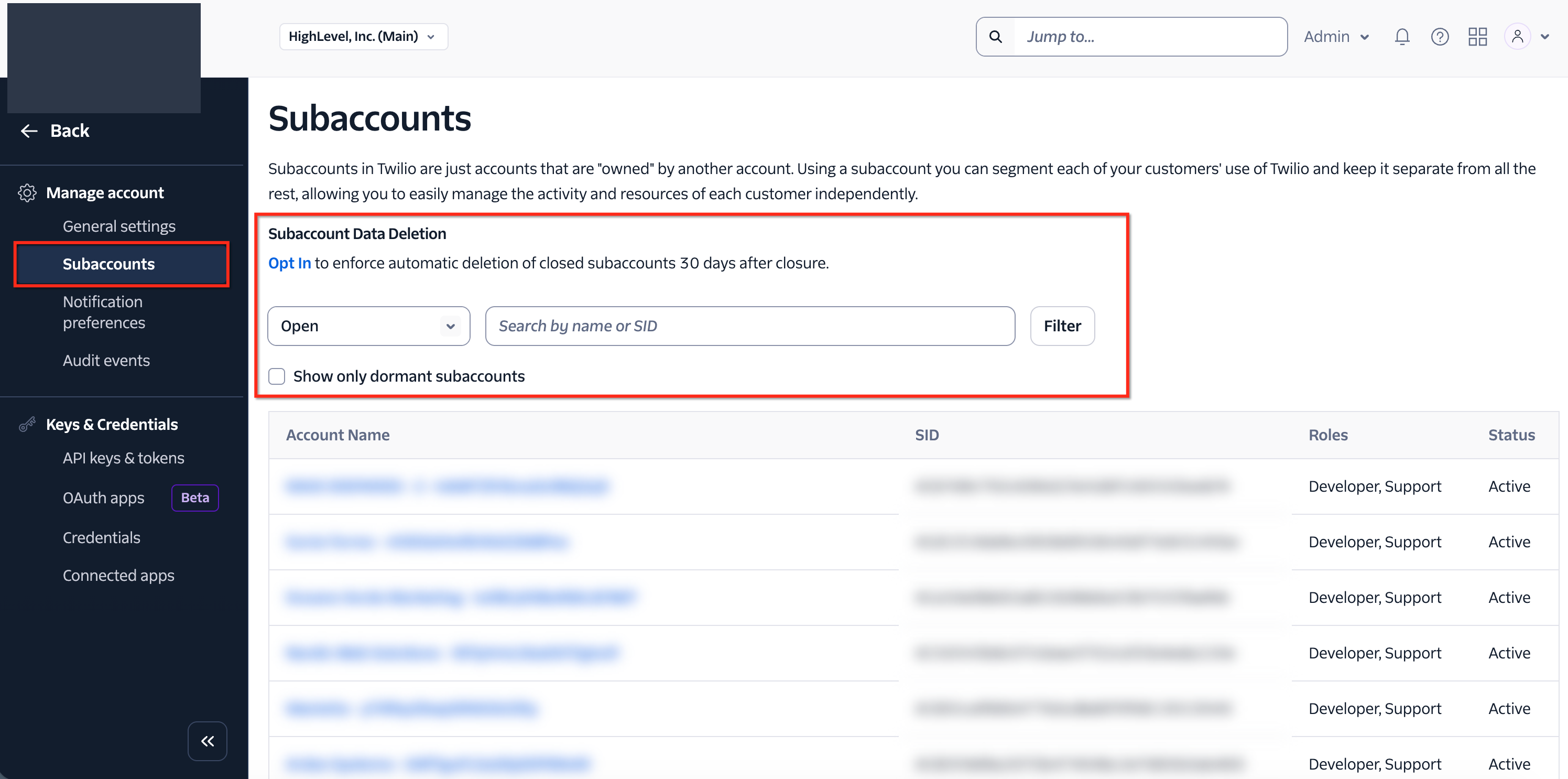
Step 3: Navigate to Purchase a Number
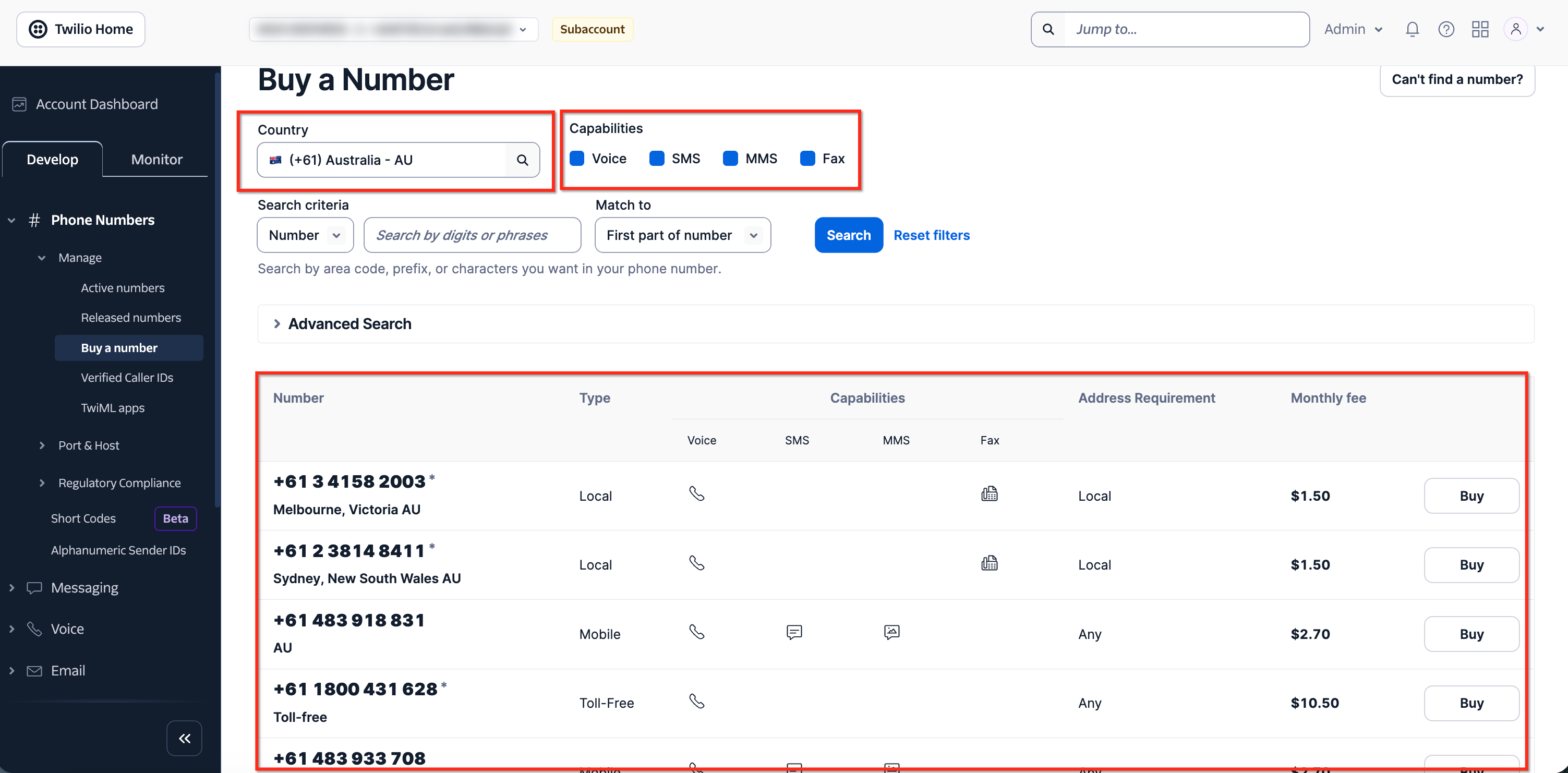
In the left-hand sidebar of the Twilio console, go to: Develop > Phone Numbers > Manage > Buy a Number.
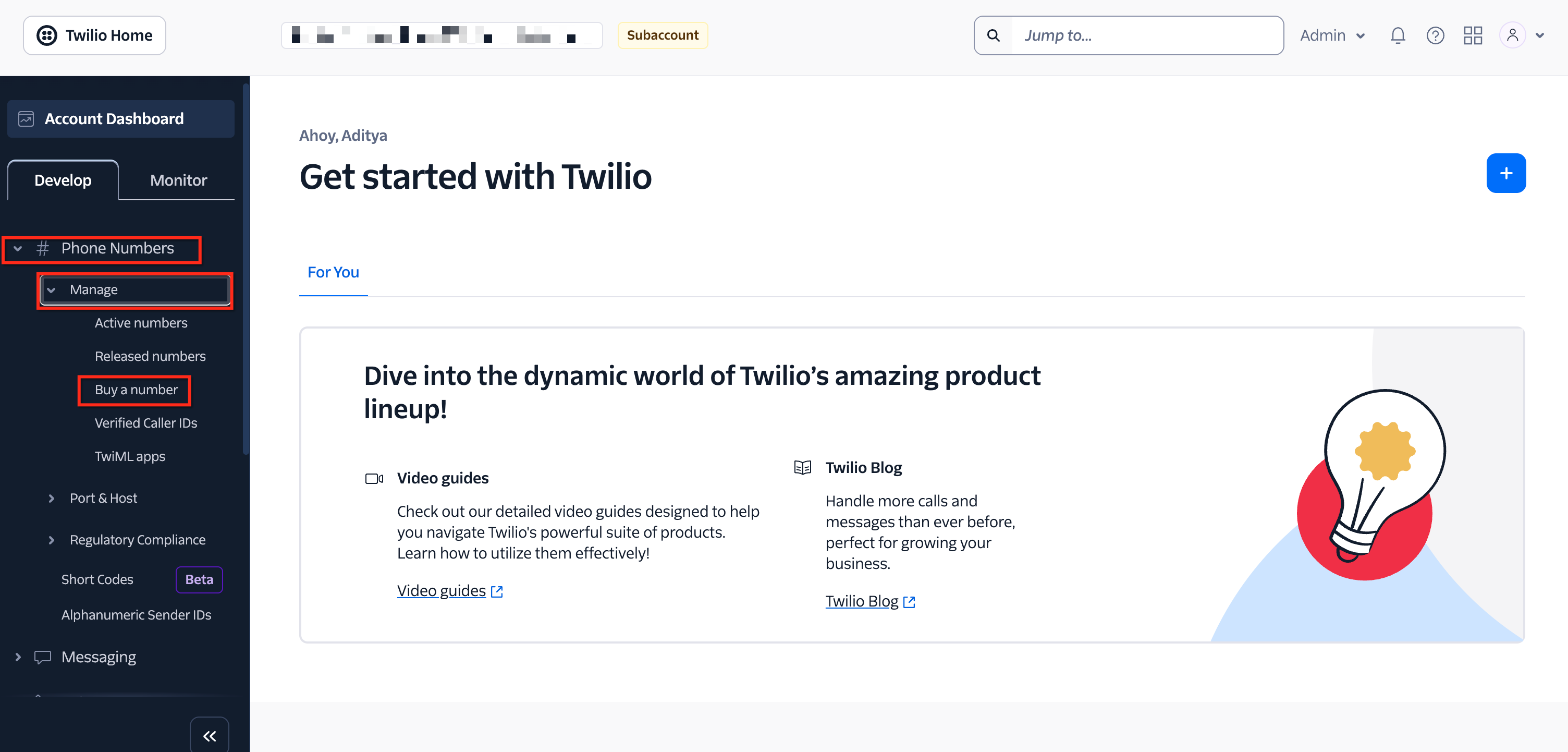
Step 4: Choose the Country
In the country dropdown menu (top-left corner), type and select your desired country (e.g., Australia). Twilio will now display a list of local phone numbers with voice capabilities only.
Step 5: Use Advanced Search to Find Mobile Numbers
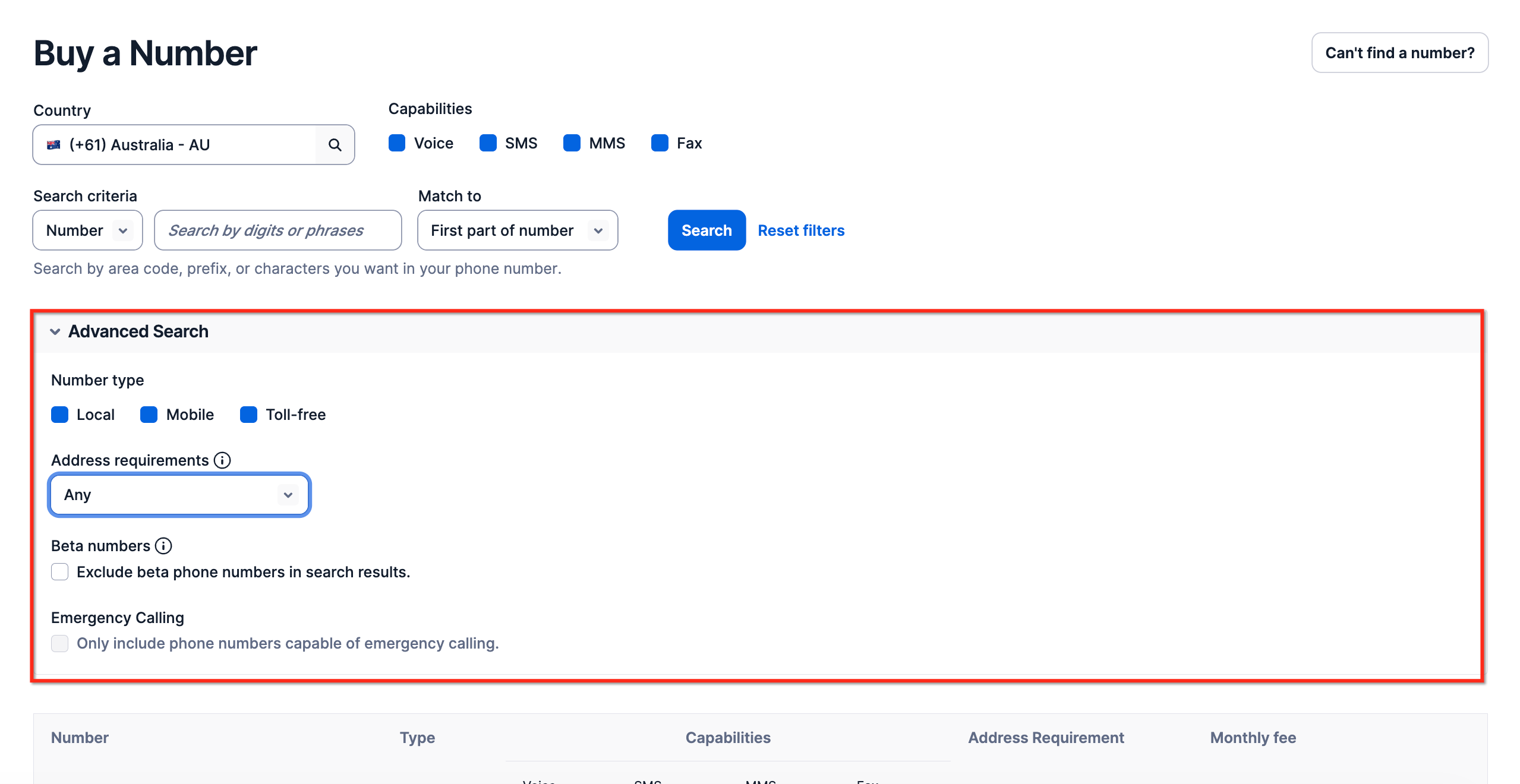
- Click on Advanced Search.
- Uncheck the Local number option and search again.
- This will now display mobile phone numbers available for purchase with the selected capabilities (e.g., voice, SMS).
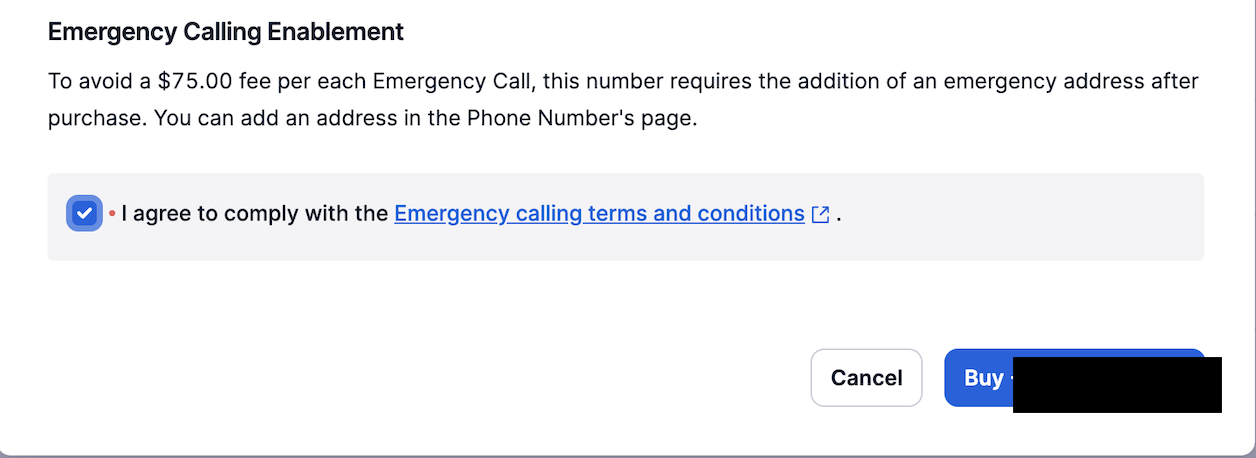
Step 6: Finalize and Verify in SourCherry
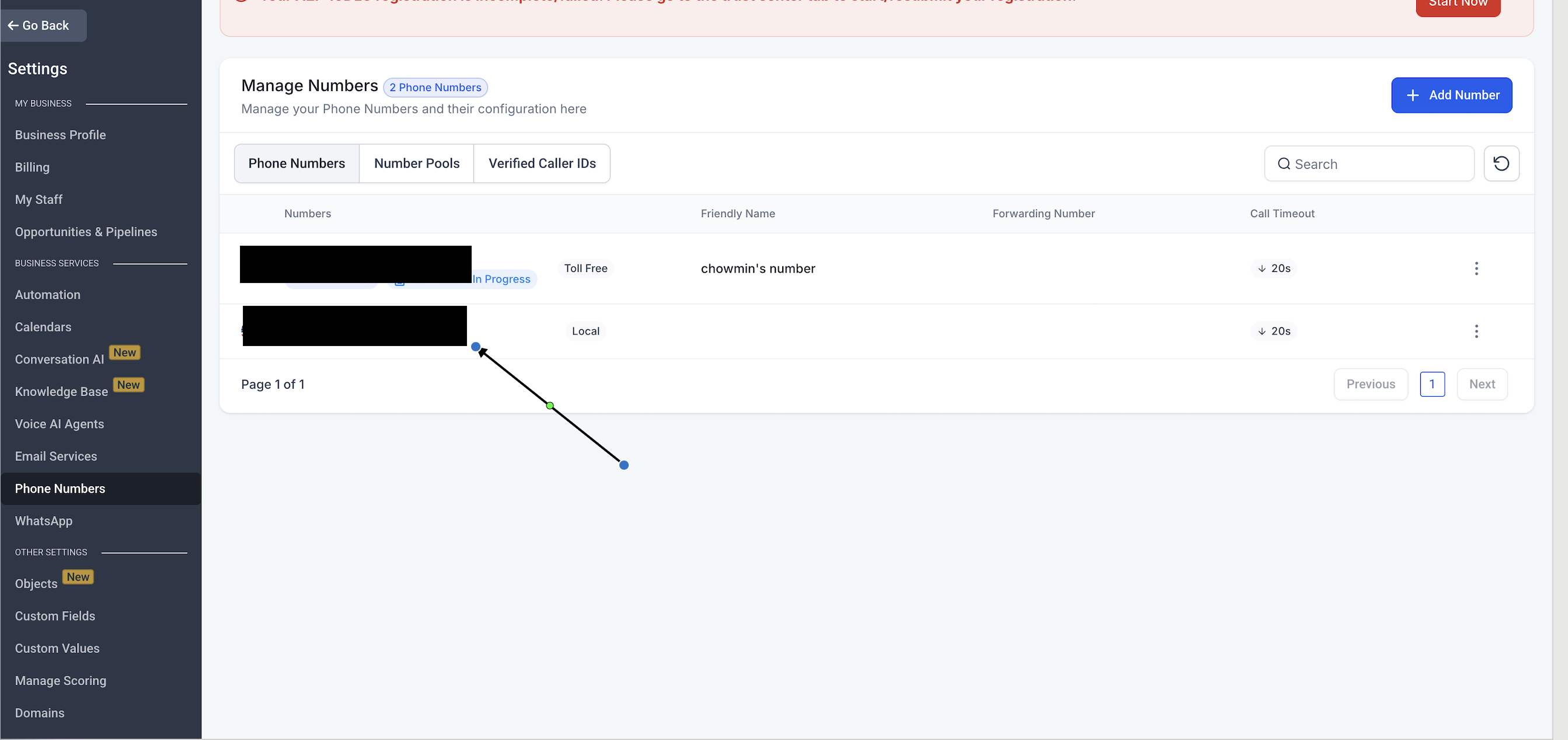
- After purchasing the desired number, return to your SourCherry location.
- Navigate to Settings > Phone Numbers.
- You should now see the newly purchased Twilio number automatically reflected in the list.
Frequently Asked Questions
Q. Will the newly purchased Twilio number automatically appear in my SourCherry location?
Yes. As long as your Twilio sub-account is properly connected to the correct SourCherry location, the number will sync automatically and appear under Settings > Phone Numbers in the location.
Q. How do I make sure I’m using the correct Twilio sub-account?
You can confirm the correct sub-account by:
- Going to your SourCherry Agency view > Settings > Phone Integration > Sub-account Settings
- Copying the Account SID linked to the location
- Using that SID to search and switch to the correct sub-account in Twilio
Q. Do I need to configure anything else after buying the number?
No additional configuration is required if your Twilio account is correctly integrated with SourCherry. The number should be fully functional for workflows, conversations, and calls.