
The Slack Premium Workflow Action enables users to send automated messages to Slack channels and users, streamlining communication and improving team collaboration. The action offers three main events: sending a message to a user, a private channel, or a public channel.
Agencies on Any Plan  ($97, $970, $297, $2970, $497, $4970) can access LC Premium Triggers & Actions.

- Once Premium Actions & Triggers are enabled via the Agency settings, EXISTING and New Sub-Accounts will have 100 free executions.

- For agencies to avoid accruing execution costs for EXISTING Sub-Accounts, rebilling will need to be enabled manually for each Sub-Account within the Agency view (more info).

- If premium actions are enabled on the SaaS Configurator, new Sub-Accounts generated will automatically be enrolled in LC Premium Actions & Triggers, no further action is required by the agency.
TABLE OF CONTENTS
- What is the Slack Premium Action?
- Who is this for?
- Key Benefits
- How To Setup Slack Action
- Send Direct Message to a User
- Assigned User (of contact)
- Custom Email
- Internal User
- Slack User
- Message Content
- Send a Public Channel message
- Choose a Public Channel
- Message Content
- Send a Private Channel message
- Choose a Private Channel
- Message Content
What is the Slack Premium Action?
The Slack Premium Workflow Action is an advanced communication feature designed to automate and streamline messaging within Slack, a widely-used team collaboration tool. This feature allows users to send targeted messages to specific users, private or public channels within their Slack workspace. A user-friendly interface and customizable options ensure effective communication by enabling users to set up and schedule notifications based on their needs.
The action offers three main events:
- Sending a message to a user: Users can choose from four options to send a direct message to the right person: Assigned User, Custom Email, Internal User, or Slack User. Each option serves a unique purpose in determining the Message's recipient, ensuring accurate and efficient communication.
- Sending a message to a private channel: Users can select a private channel within their workspace to send messages, which will appear as if sent manually by the User who created the Slack integration. This allows for secure communication within a select group of team members.
- Sending a message to a public channel: Users can choose a public channel within their workspace to broadcast messages, making information accessible to all workspace members.
Who is this for?
The Slack Premium Workflow Action is helpful for organizations and teams that rely on Slack for communication and collaboration. It helps automate messages and notifications, streamlining the information flow within the workspace. Some good usage cases for this feature include:
- Project Management: Automatically notify team members when new tasks are assigned, project deadlines are approaching, or tasks are marked as complete. This can help ensure everyone stays on track and knows their responsibilities.
- Sales and Marketing: Notify the sales team of new leads, opportunities, or closed deals, allowing them to act quickly and efficiently. Marketing teams can also benefit from automated notifications about campaign performance, content publication, or social media engagement.
- Customer Support: Send automated notifications to the support team when new support tickets are created, escalated, or resolved, ensuring a timely response and efficient issue resolution.
- Human Resources: Notify HR and relevant team members of employee onboarding, training sessions, performance reviews, or policy updates, keeping everyone informed and engaged.
- IT and Development: Send alerts to the IT or development team when new bugs are reported, system outages occur, or software updates are released, allowing them to address issues promptly and maintain system stability.
- Company-wide Announcements: Share important news, updates, or reminders with the entire organization through public channels, ensuring that everyone stays informed and engaged.
Key Benefits
Workflow Slack Premium Action offers several benefits to organizations and teams using Slack for communication and collaboration:
- Single Inbox: By brining various system events and notifications into Slack, team members can have one place to track things that need their attention.
- Increased accountability: Automated notifications for task assignments, updates, or deadlines encourage team members to take responsibility for their work, leading to better overall performance and accountability.
- Real-time updates: Workflow Slack Premium Action enables teams to receive instant notifications about critical events or updates, allowing them to respond quickly and make data-driven decisions.
- Scalability: Workflow Slack Premium Action can quickly adapt to the changing needs of a growing organization, ensuring that communication remains efficient and streamlined as the team expands.
How To Setup Slack Action
Send Direct Message to a User
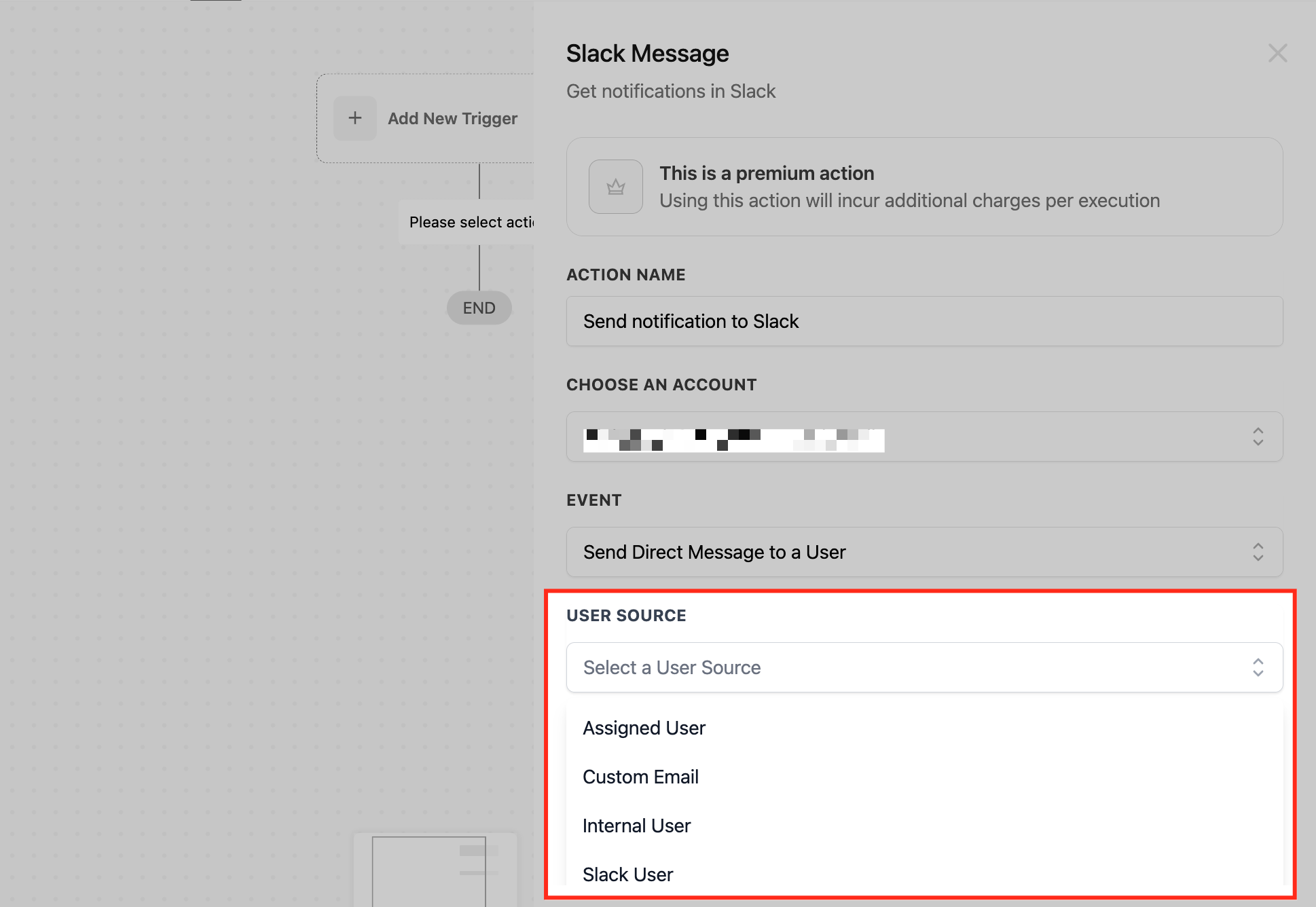
You will have four options if the event is Send Direct Message to User.
- Assigned User - The contact's assigned user
- Custom Email - Add a specific email matching a user in Slack
- Internal User - Users from your Subaccount
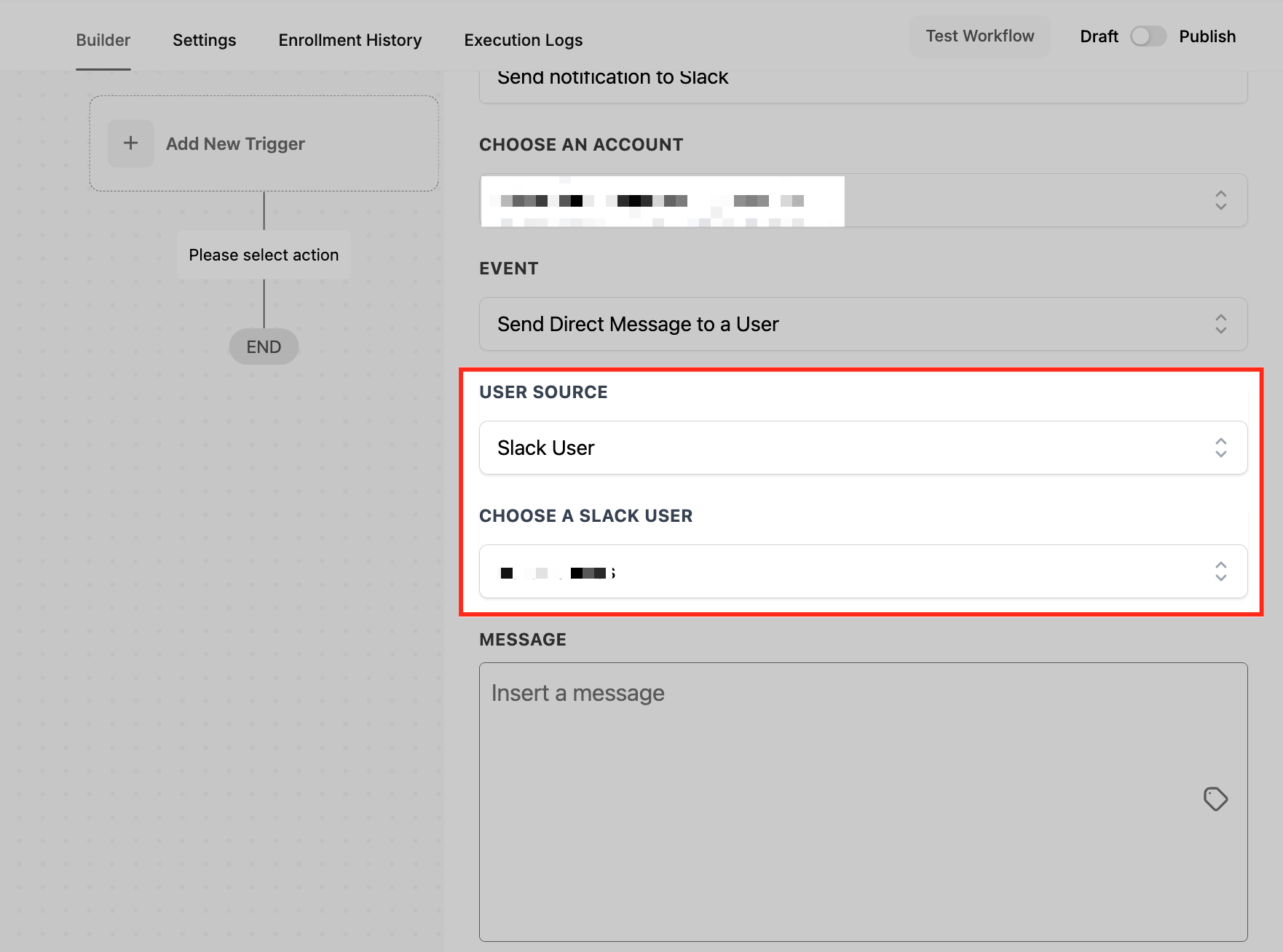
- Slack User - Directly search your Slack Workspace Users by name.
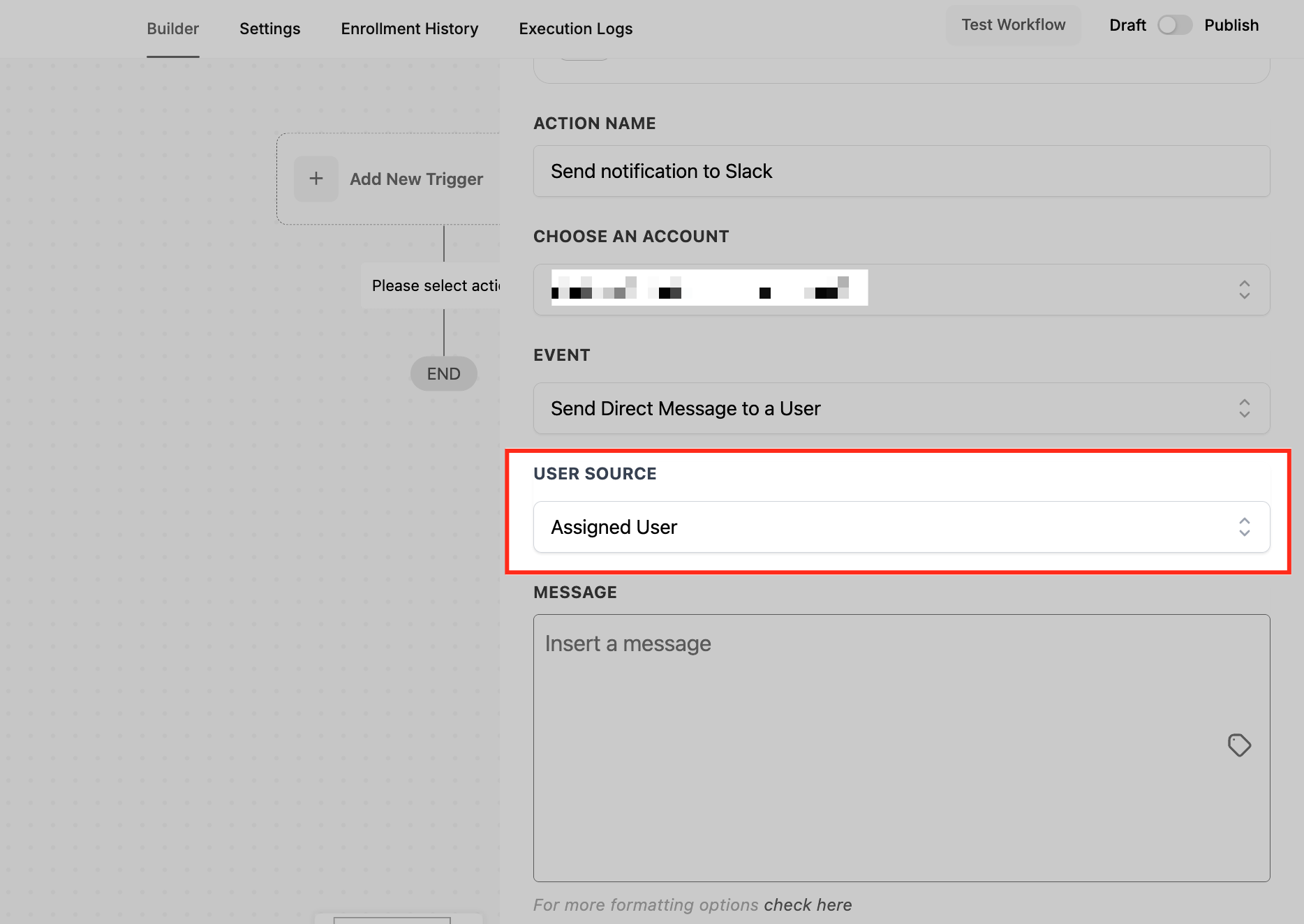
Assigned User (of contact)
This is used to send out notifications for the assigned contact user. In this case, the User's email (in settings>My Staff> User Info) for the User Assigned to the contact is used to find the Slack user.
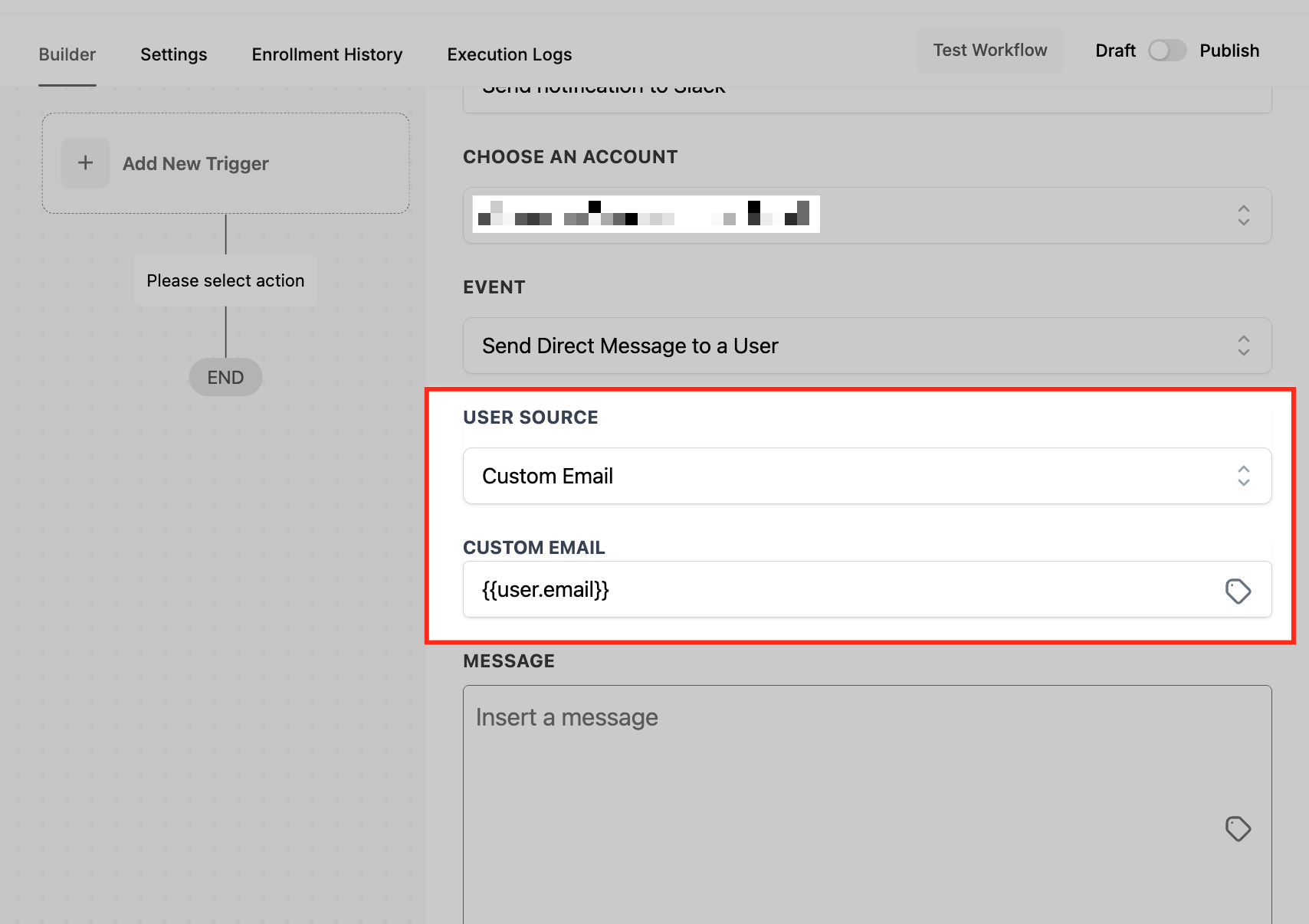
Custom Email
This is used for all the cases where you need a dynamic user to send notifications to. The custom email that is filled in is used to find the matching Slack user.
This is for all those cases where you do not have the User predefined. Either type in the email or select from a list of custom variables using the custom variable picker.
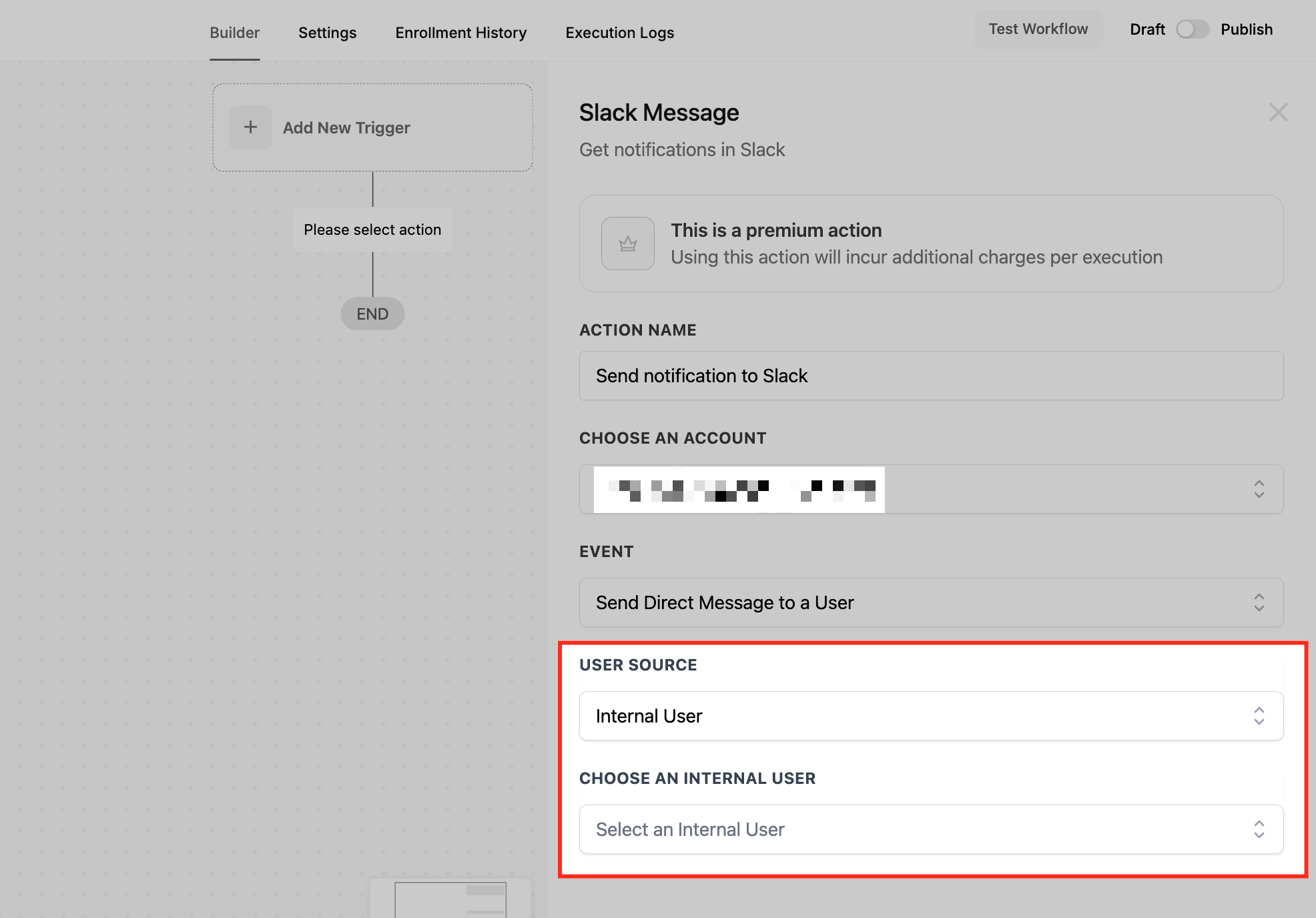
Internal User
Use this option to send a message to one of the account users. You were typically used to send notifications to particular users responsible for certain sections of your business. Say, sending out information on a successful opportunity won to your finance head. The email of the Internal User selected is used to find the Slack user.
Slack User
This is as simple as it sounds. Send a direct message to any Slack user of your workspace.
Slack allows only a limited number of users to be fetched simultaneously. So if you don't see your user by typing out the name, please hit the load more button. This will keep searching until you have the required user found. If the user is at the bottom of the list, you might have to hit the load more button several times. This is only for the workspaces having more than 1000 users.
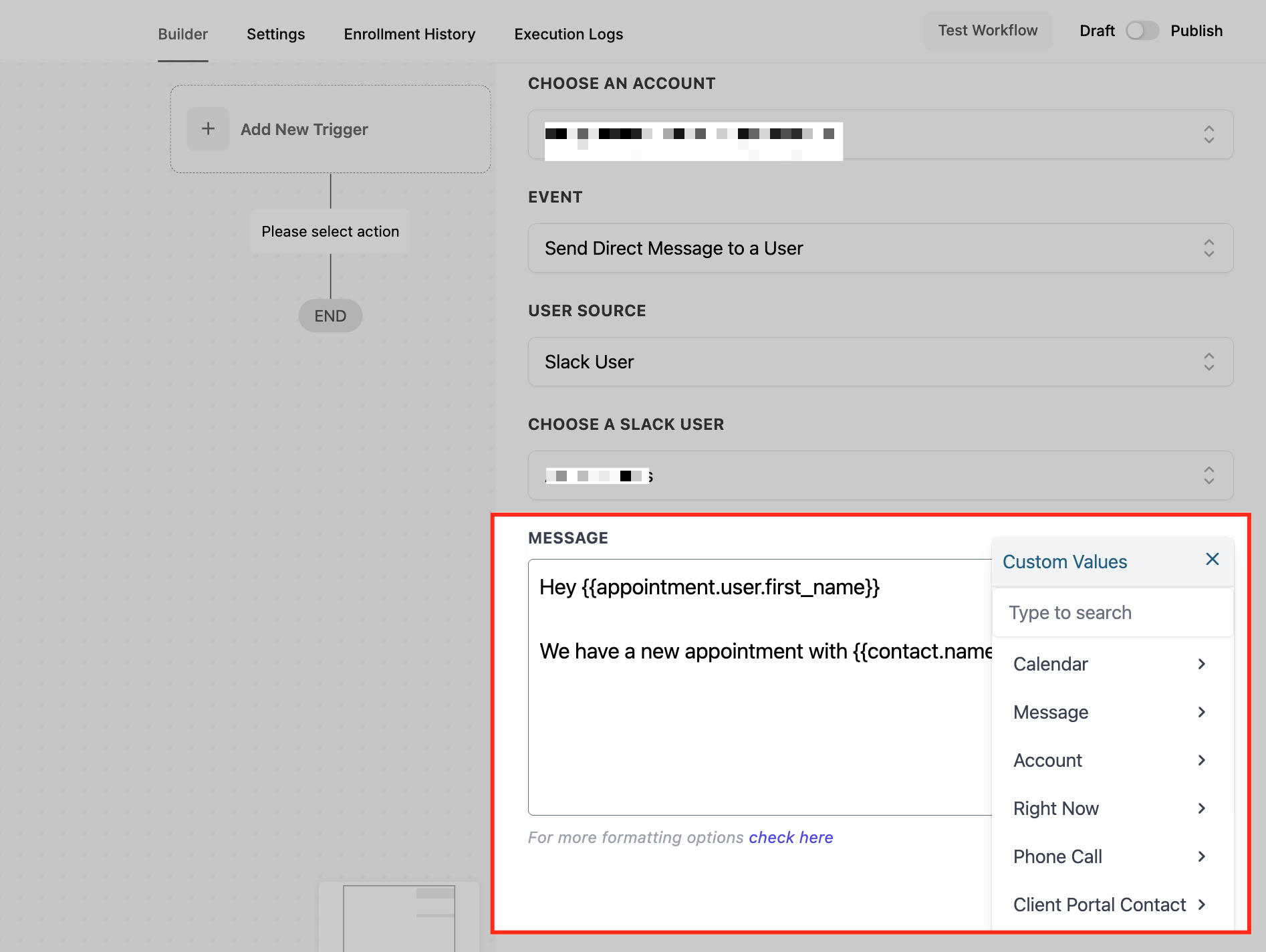
Message Content
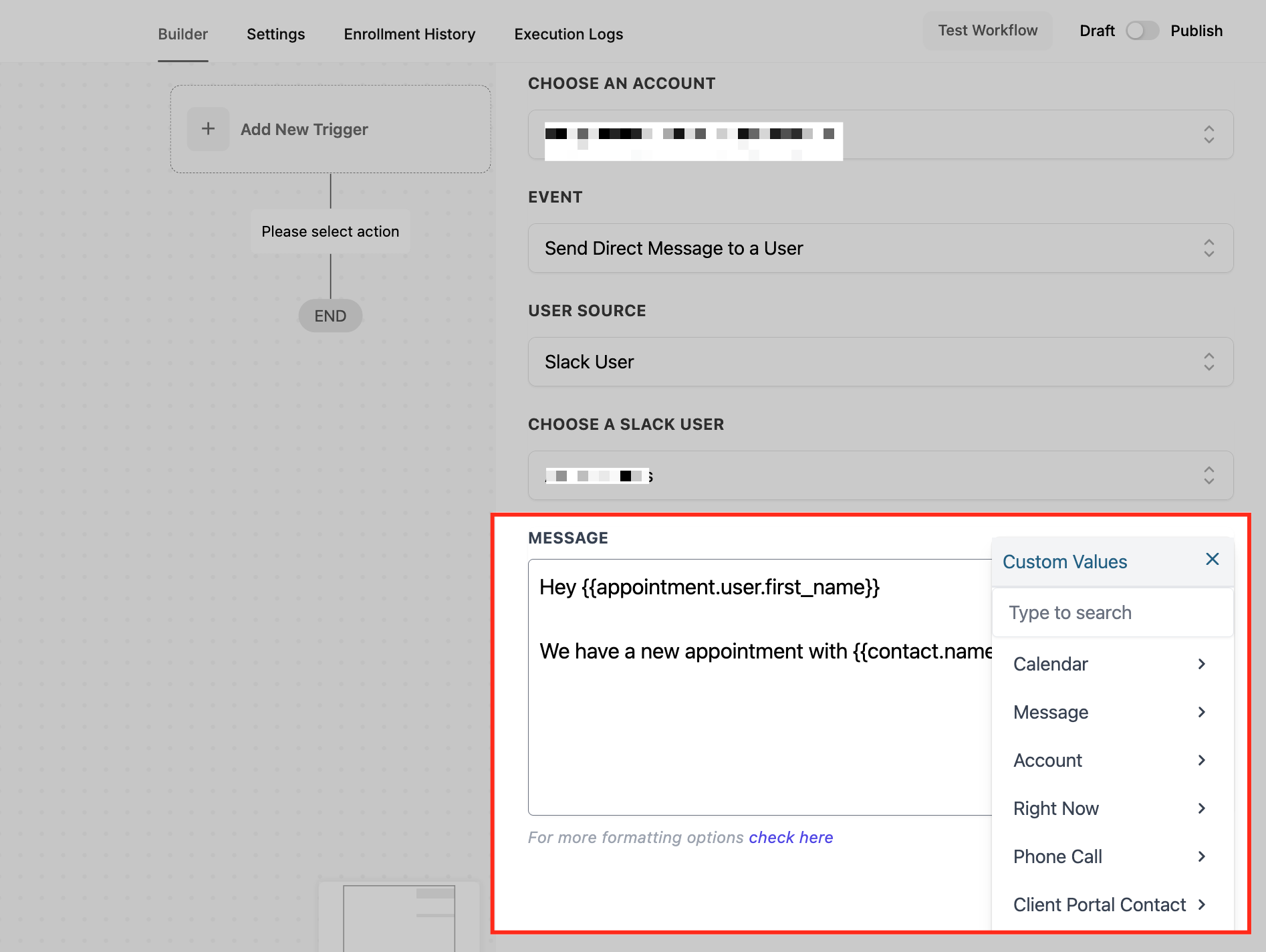
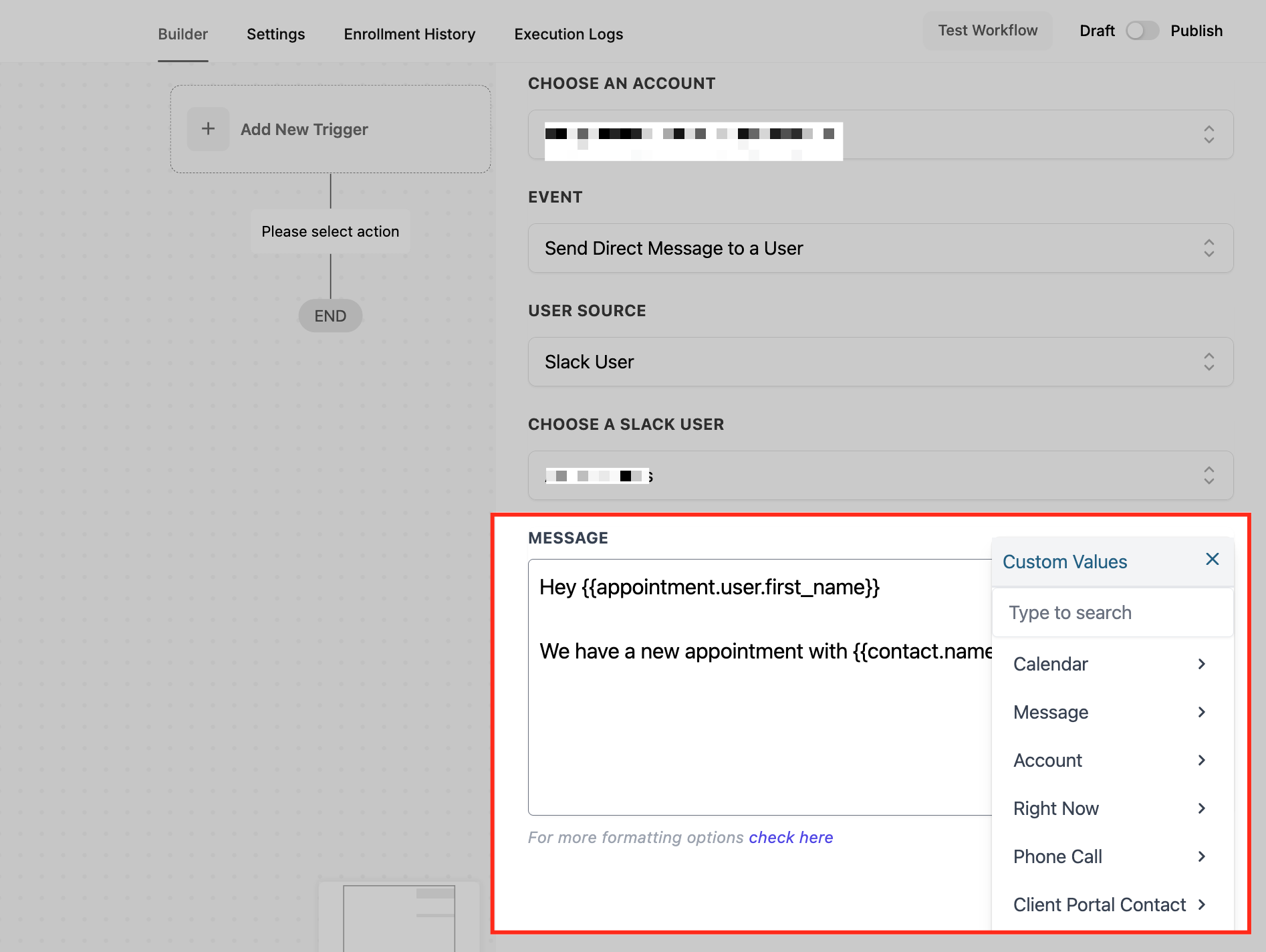
Insert Message to send Direct Message to a User. For more formatting options, check here
You can use the extensive custom variable picker to send information about a contact or any CRM-related information.
Send a Public Channel message
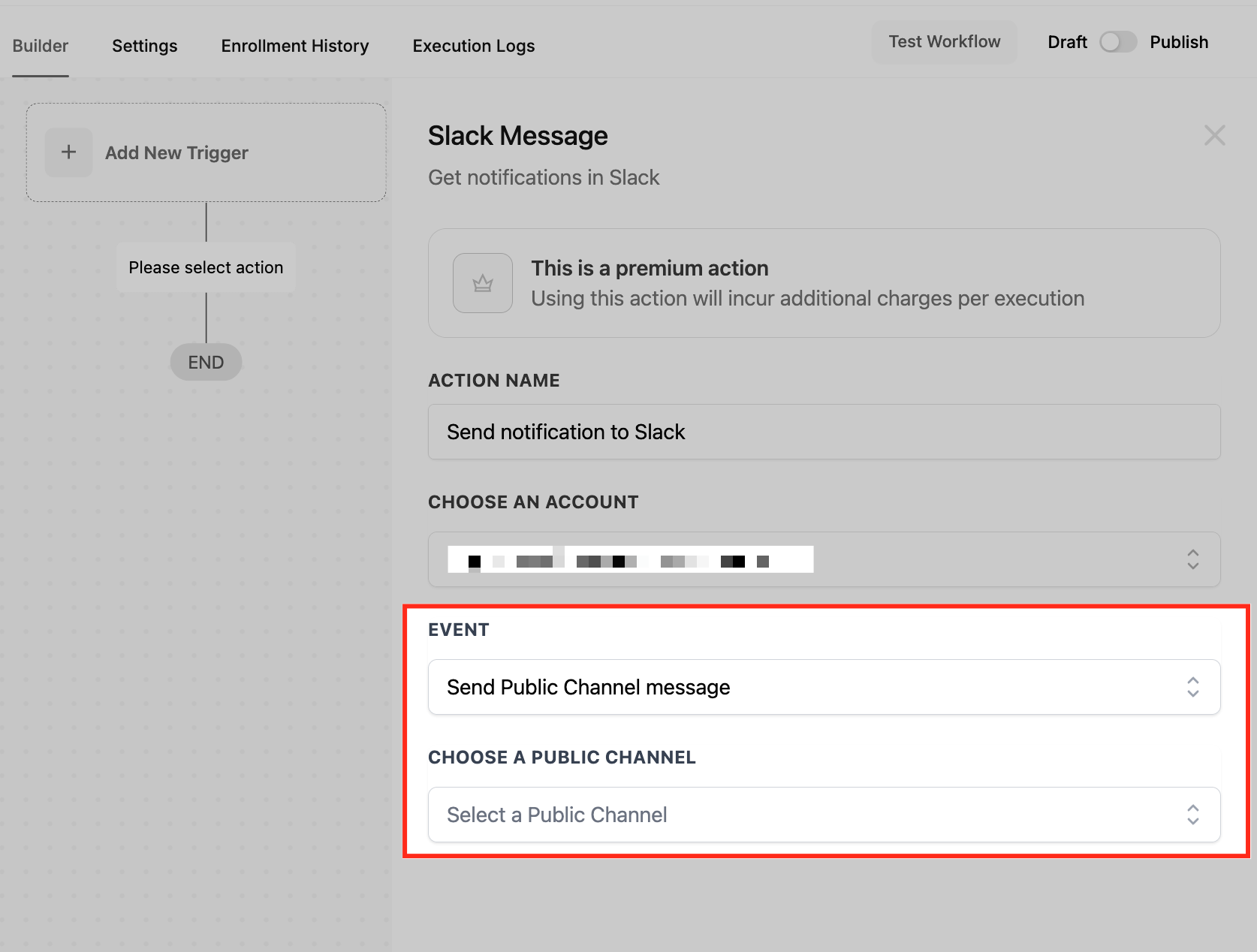
If the event is Send Public Channel Message, you must select which Public Channel you want to send messages to.
Choose a Public Channel
Select the desired channel to send the Message.
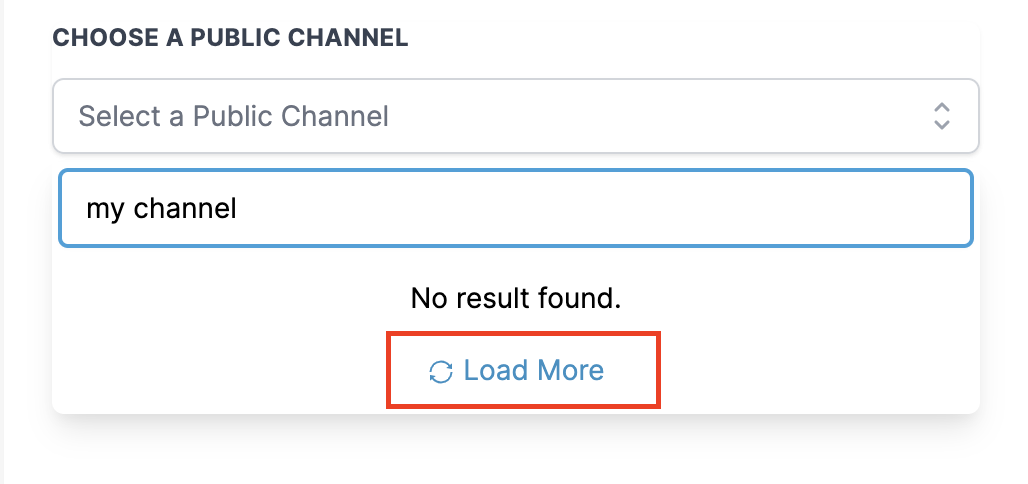
Slack allows only limited number of Public Channels to be fetched at once. So if you don't see the desired channel by typing out the name, please hit the load more button. This will keep searching until you have the required channel found. If the channel is in the bottom of the list you might have to hit the load more button a couple of times. This is only for the workspaces having more than 1000 channels.
Message Content
Insert Message to send to the Public Channel. For more formatting options, check here.
You can use the extensive custom variable picker to send information about a contact or any CRM-related information.
Send a Private Channel message
If the event is Send Private Channel Message, you must select which Private Channel you want to send messages to.
Choose a Private Channel
Select the desired channel to send the message.
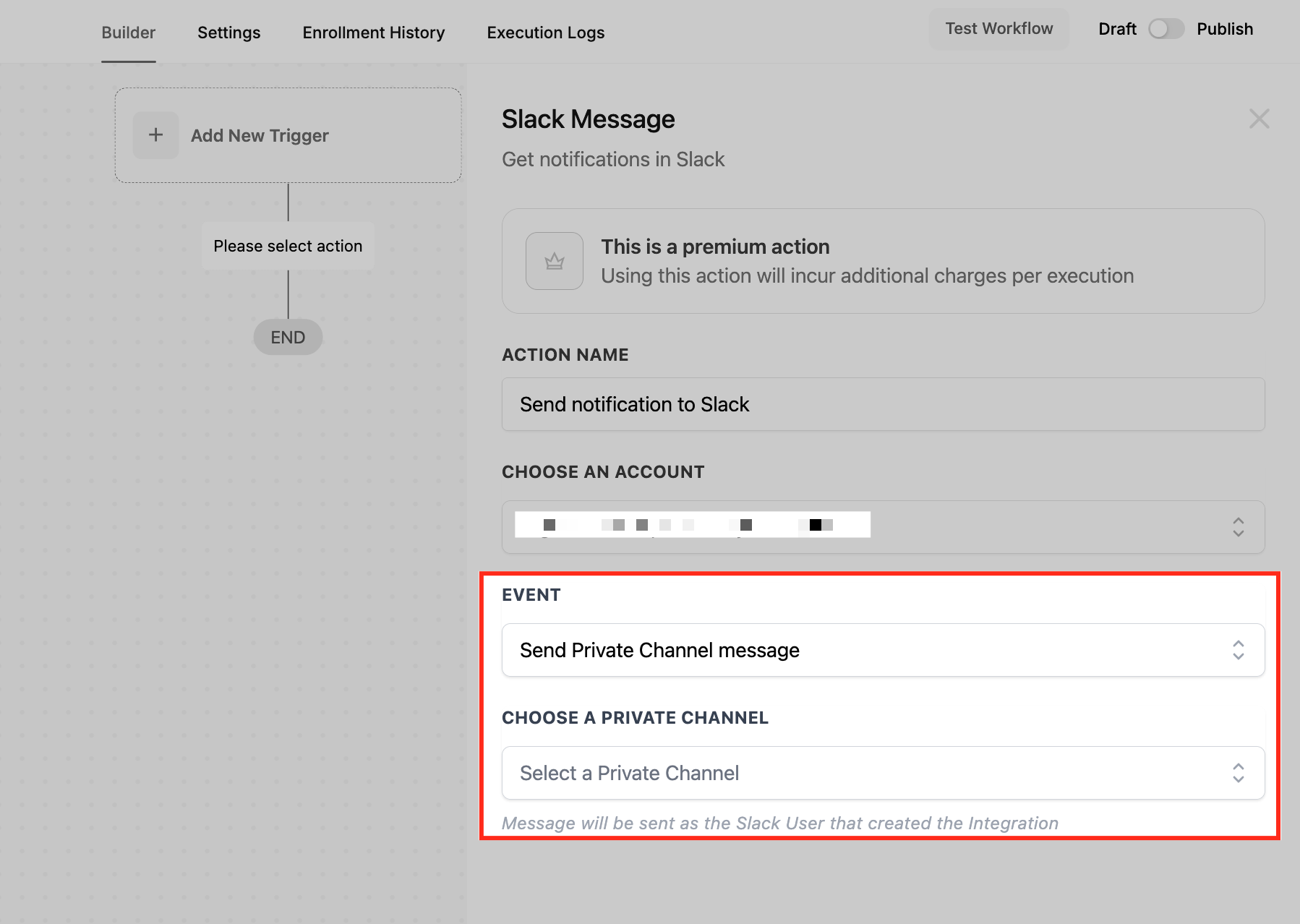
It's important to be aware that when sending messages to a Private Channel, these messages will be sent as the User who created that Slack Integration, not as the Bot. Therefore, it will appear as if it was sent manually by the User itself.

Slack allows only limited number of Private Channels to be fetched at once. So if you don't see the desired channel by typing out the name, please hit the load more button. This will keep searching until you have the required channel found. If the channel is in the bottom of the list you might have to hit the load more button a couple of times. This is only for the workspaces having more than 1000 channels.
Message Content
Insert Message to send to the Private Channel. For more formatting options, check here.
You can use the extensive custom variable picker to send information about a contact or any CRM-related information.
Frequently Asked Questions
Q: Will I be charged for every Slack message sent using this action?
Yes, Slack Premium Actions incur charges per execution. However, accounts receive 100 free executions once enabled.
Q: What happens if I don't see my Slack user or channel in the dropdown?
Use the "Load More" button to search deeper into your Slack workspace. Workspaces with over 1000 users or channels may require extra loads.
Q: Can I use Slack Premium Action without rebilling enabled?
Only if you’re using the free executions. Beyond that, rebilling must be enabled for the sub-account to avoid interruptions.
Q: Can I dynamically insert user information into Slack messages?
Yes. Use the custom variable picker to insert contact info, deal data, or user details directly into your Slack message.
Q: Will messages sent to a private channel appear as coming from a bot?
No. Private channel messages are sent from the user who set up the Slack integration—not from a bot.