
This article introduces the ability to send a single document or contract to multiple recipients, each with their own signature fields, rather than being limited to one signer. In addition, it lets you designate contacts as “CC” (who can view but not sign) and assign one of the business users themselves as a signer within the same document.
TABLE OF CONTENTS
Key Features
Multiple Signers & CC Recipients
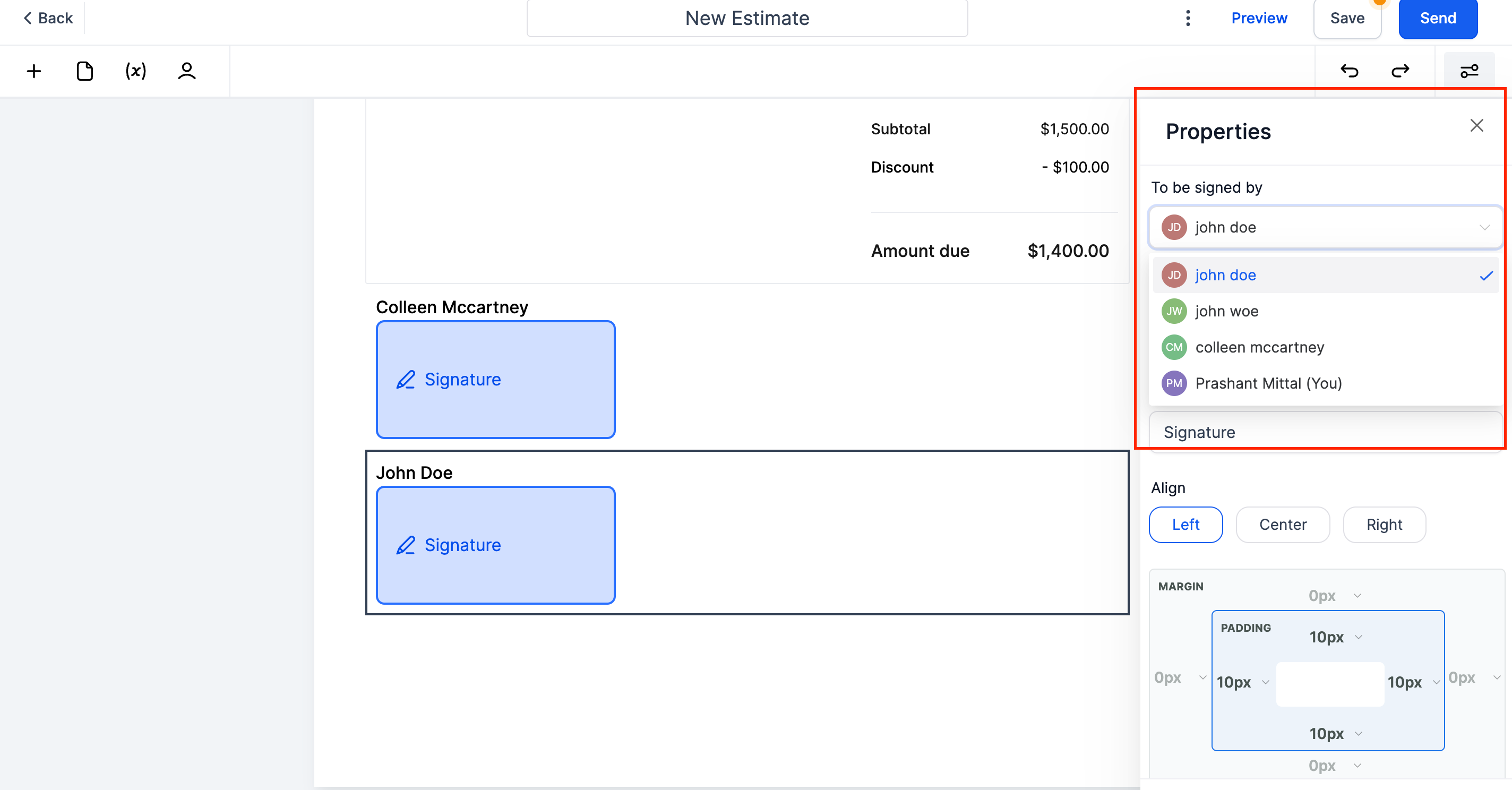
You can now assign signature elements (e.g., signature fields) to more than one recipient inside a single document or contract.
Recipients who have at least one signature field are considered Signers. Any contact added to the document without a signature field is treated as a CC recipient, meaning they receive a copy but do not sign.
You may also include your own business user (the sender) as one of the Signers.
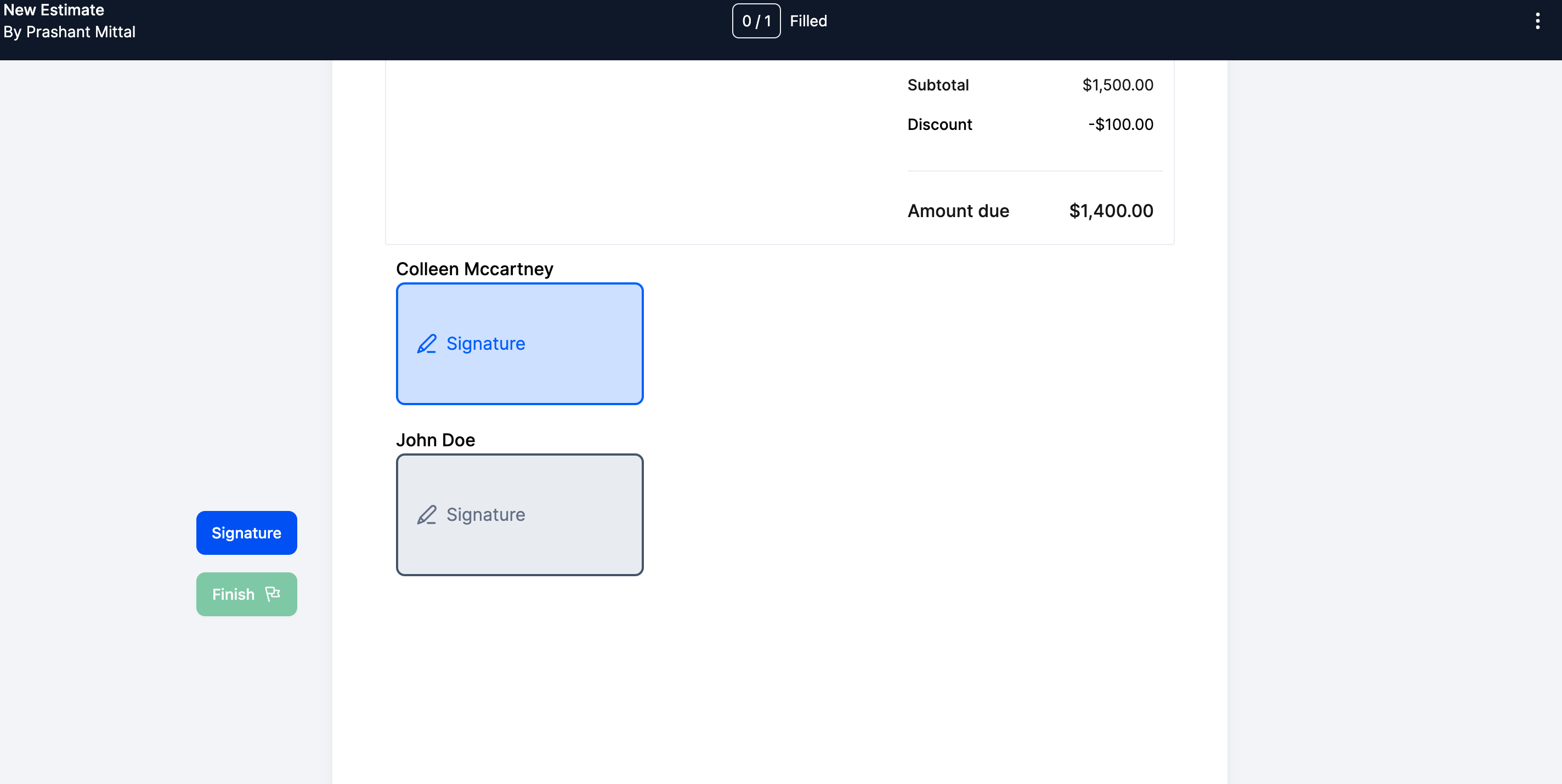
Unique Signing Links
Combined PDF & Signature Certificate
Once all Signers have signed (and any CC recipients have viewed), SourCherry generates a final PDF containing all signatures.
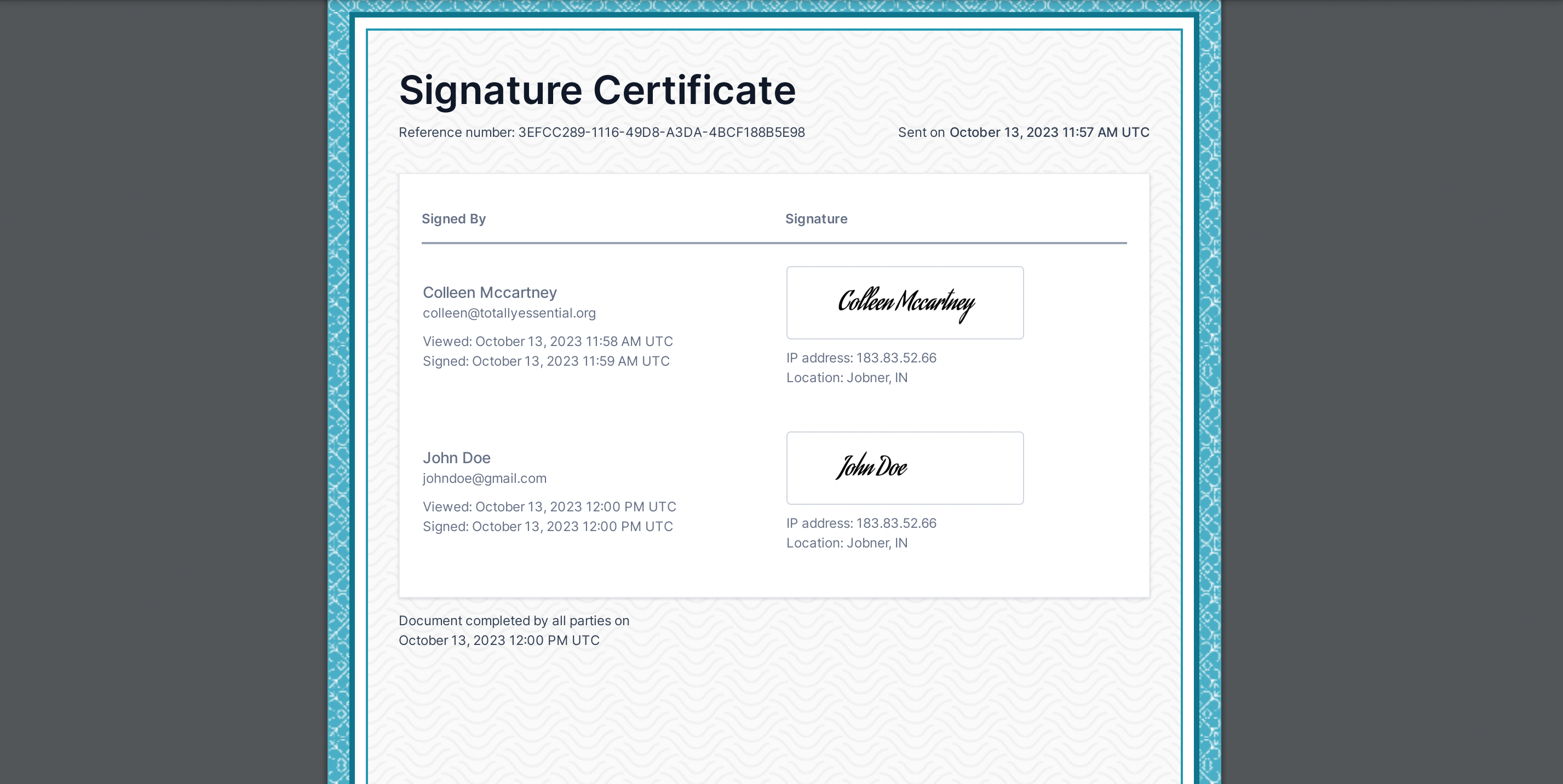
Alongside the signed PDF, a signature certificate is produced. This certificate logs each signer’s IP address, geographic location (when possible), and the exact date/time they viewed and signed their portion.
Primary Recipient Logic
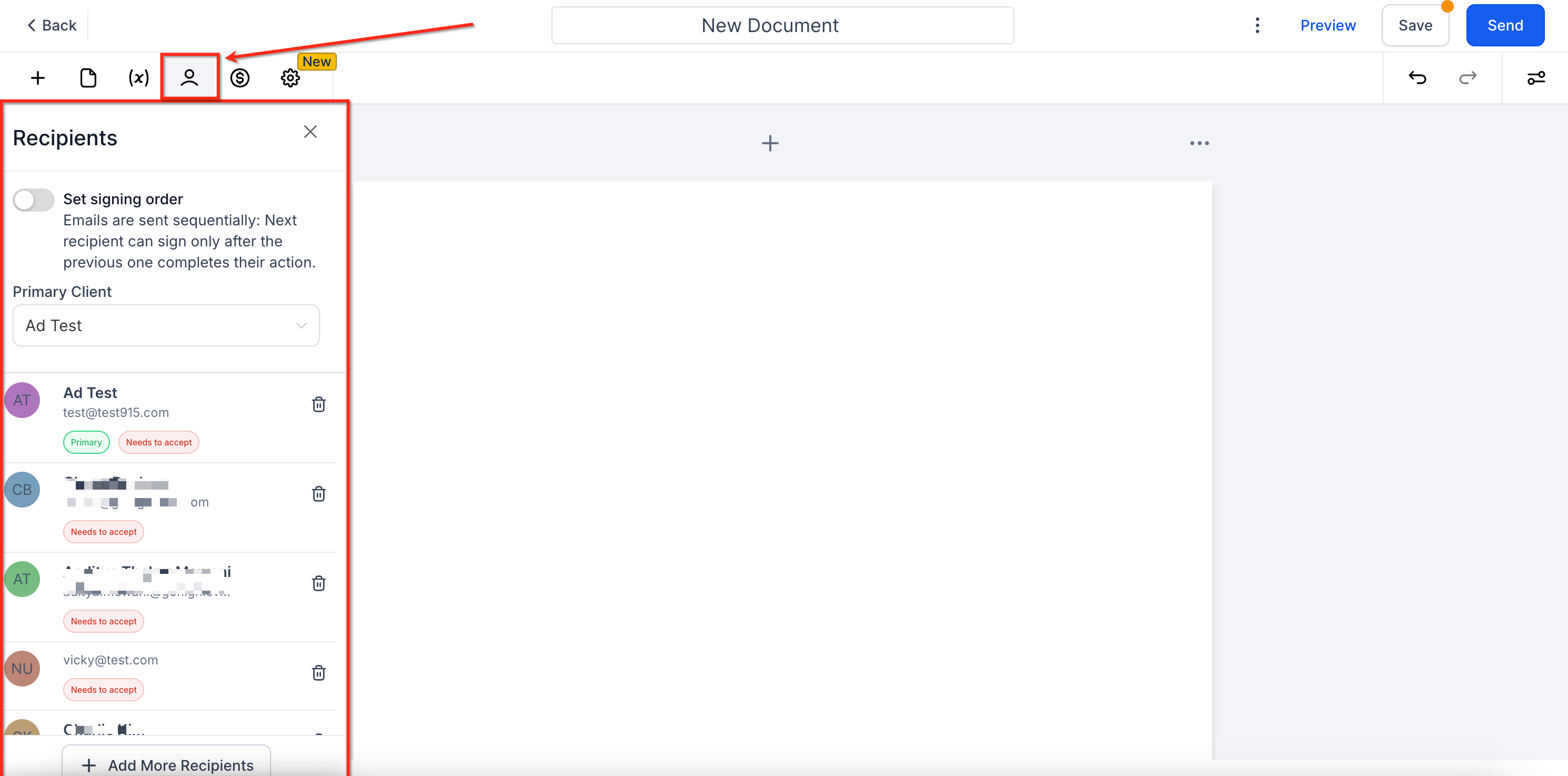
By default, the first added recipient becomes the Primary Recipient.
Any custom fields in the document (e.g., client name, address) will pull from the Primary Recipient’s contact record.
After all parties have signed or accepted, an invoice is automatically generated for that Primary Recipient (assuming you have automatic invoice creation enabled).
- Businesses will now be able to send as well as assign signature elements to multiple recipients instead of a single recipient inside the document
- This also includes the functionality to assign the signature to the business user who is sending the document as well
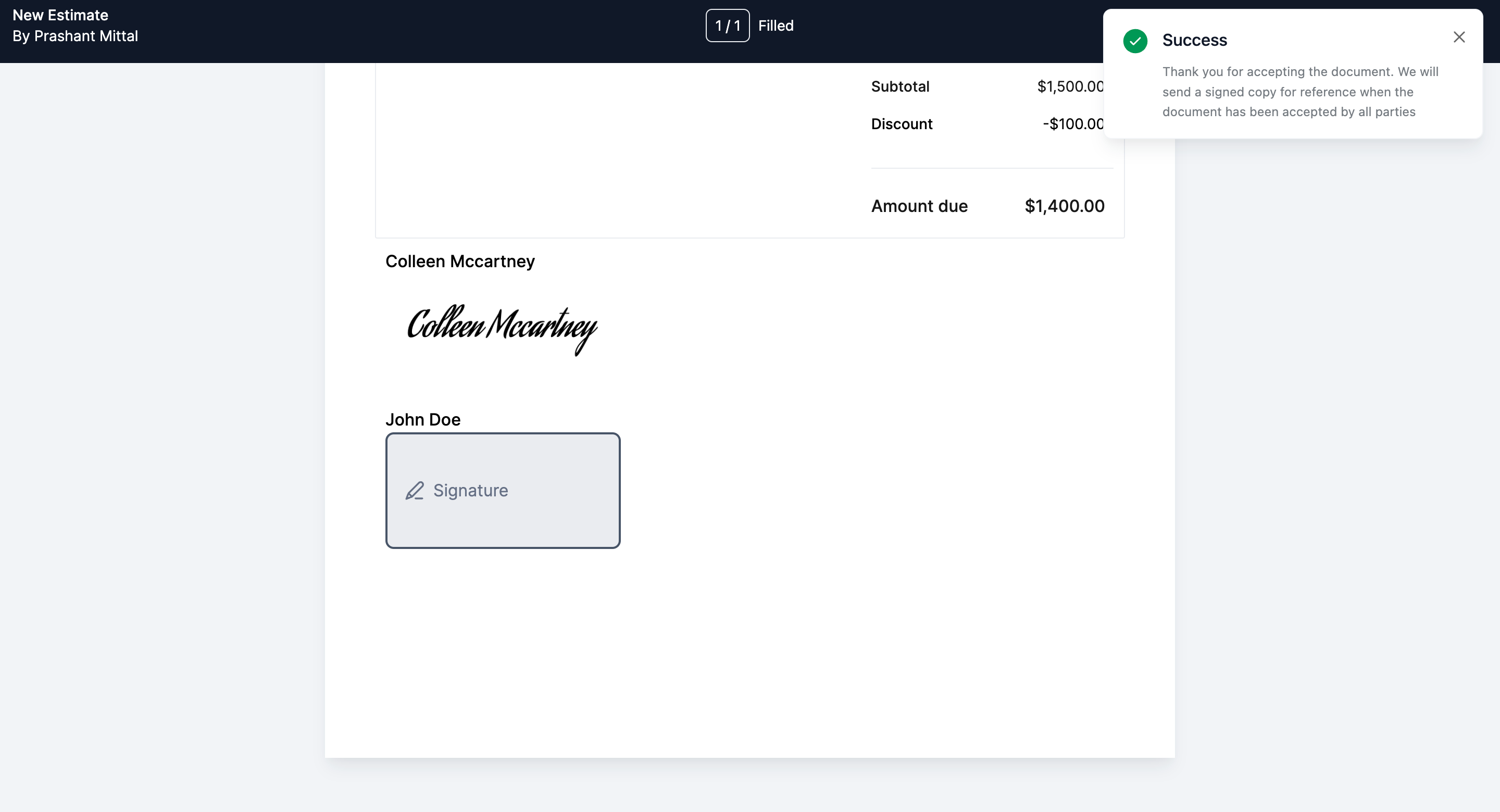
- Each recipient will receive a unique link that will allow them to sign only their respective portion of the document
- Any recipient who has a signature field associated with them will be referred to as Signer and any contact that has been added to the document but does not have any signature field associated with them will be referred to as CC
- The signed PDF copy of the document along with the signature certificate will be generated after all the participants have signed/accepted the document
- The signature certificate will capture information like IP address, location, viewed and signed date and time for all recipients who will sign the document
- By default, the first added recipient will be treated as the Primary recipient of the document. This means that any custom fields will be populated according to the primary recipient's info and an invoice will also be created for the primary client after the document has been accepted/signed by all parties.
Creating or Editing a Document/Contract
In your sub-account, navigate to Documents & Contracts → Create New Document (or edit an existing template). Add multiple contacts in the “Recipients” section. For each contact, drag and drop or assign their signature fields.
Designating Signers vs. CC Recipients
When adding a contact, assign at least one signature field to make them a Signer.
If you simply add a contact without any signature fields, they become a CC recipient who will still receive the finalized document but has no signing obligation.
Considerations & Best Practices
Order Matters for Primary Recipient
If you intend for a specific person to receive the invoice or populate custom fields, add them first when selecting recipients.
Clear Communication with All Parties
Notify CC recipients beforehand that they will receive a view-only copy. Clarify that only Signers need to take action.
Review Signature Fields Thoroughly
Before sending, double-check that each Signer has been assigned the correct number and placement of signature/date fields. Any missing signature fields will prevent completion.
Verify Signature Certificate Details
For high-stakes contracts, download the signature certificate and confirm that all IPs, locations, and timestamps align with expectations. This is especially important if recipients are signing from different time zones or via mobile devices.
Fallback for Absent Signers
If one Signer does not complete their portion, the document remains “Pending.” You can resend reminder emails or cancel and reassign fields as needed.