
A recurring timer is a useful tool for managing and promoting events, sales, or activities that happen regularly. Unlike a fixed timer, which counts down to a single event, a recurring timer resets after each cycle, providing ongoing reminders about repeating events or deadlines.
TABLE OF CONTENTS
- What is a Recurring Timer?
- Key Benefits of a Recurring Timer
- Where Can You Use a Recurring Timer?
- What are Loop Events?
- How to Create a Recurring Timer?
- Wait Time in Recurring Timers
- Frequently Asked Questions
- Related Articles
What is a Recurring Timer?
A recurring countdown timer is a timer that counts down for a fixed duration (for example, seven days), reaches zero, then restarts automatically for a set number of loops. Because the deadline is the same for everyone, every visitor sees the same sense of urgency each cycle.
Unlike one-time timers that expire permanently, recurring timers cycle through three states:
- Wait: Before the active countdown starts
- Active: The countdown is visible and running
- Expired: The countdown ends and redirects or hides content
Key Benefits of a Recurring Timer
A recurring timer keeps urgency alive without constant maintenance, ensuring every promotion feels fresh and credible.
- Automation: Resets itself on schedule, no need to rebuild or clone timers
- Consistent Urgency: Visitors always see an active countdown, encouraging action
- Multi-Channel Reuse: The same timer can appear in funnels, emails, and third-party sites
- Flexible Loops: Choose a specific number of cycles for your timer to run
- Branded Styling: Customize the design, including fonts and colors, to match your brand
Where Can You Use a Recurring Timer?
Weekly Sales or Promotions
Use a recurring timer to highlight weekly sales or special offers that occur on a regular basis. Display the timer on your website, in emails, and on social media to remind customers of the recurring opportunity to save.
Monthly Subscriptions or Renewals
For subscription-based services or membership renewals, a recurring timer can remind users of their upcoming renewal date each month. Include it in your subscription management emails or on the user dashboard.
Regular Webinars or Classes
If you host webinars or classes on a regular schedule (e.g., every Tuesday), a recurring timer can show the time remaining until the next session. Embed the timer on your event registration page or in promotional emails.
Daily Deals or Flash Offers
For daily deals or limited-time flash offers that repeat every day or week, a recurring timer can create a sense of urgency and remind customers of the next opportunity to take advantage of the deal.
What are Loop Events?
Loop Events let you control how many times your recurring timer resets once it finishes a countdown. For example, if you set the Loop Events value to 3, your timer will count down, reset itself, and do this three times total — including the original countdown plus two more loops.
If you want your timer to restart weekly, just:
- Set the Timer Start Date to the next desired start (e.g., Monday at 8:00 AM)
- Set the Countdown Duration to 7 days
- Set Loop Events to the number of times you want the weekly cycle to repeat (e.g., 4 for four weeks in a row).
Each loop refreshes automatically once the previous countdown ends, based on your time zone settings.

The loop doesn’t reset daily unless your countdown duration is 1 day. The loop refreshes only after the full duration completes.
How to Create a Recurring Timer?
Follow these steps to quickly create a recurring timer:
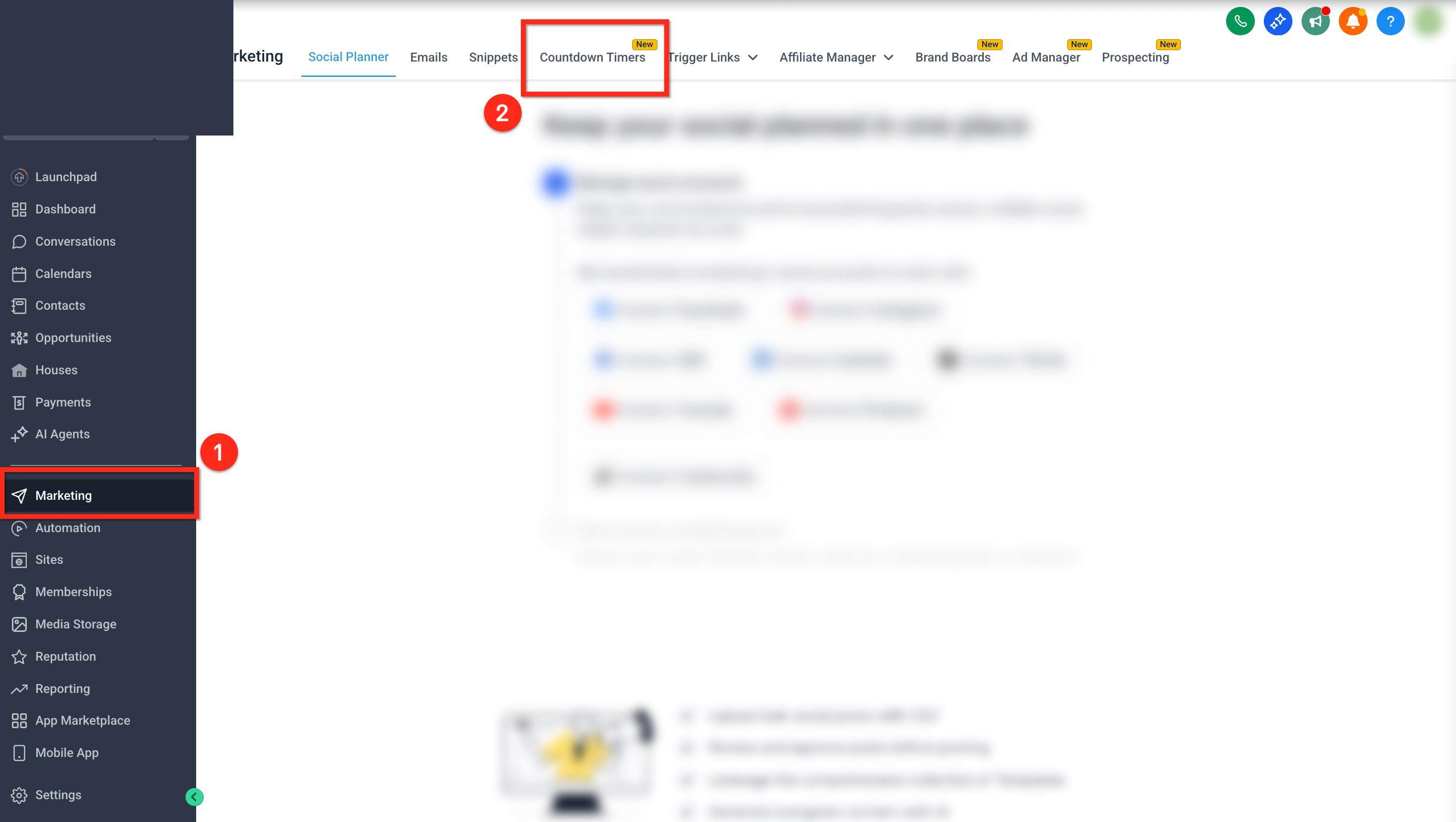
Step 1: Navigate to Marketing
- Select Marketing on the left side navigation bar
- From the top navigation ribbon, select Countdown Timers
Step 2: Select a Timer
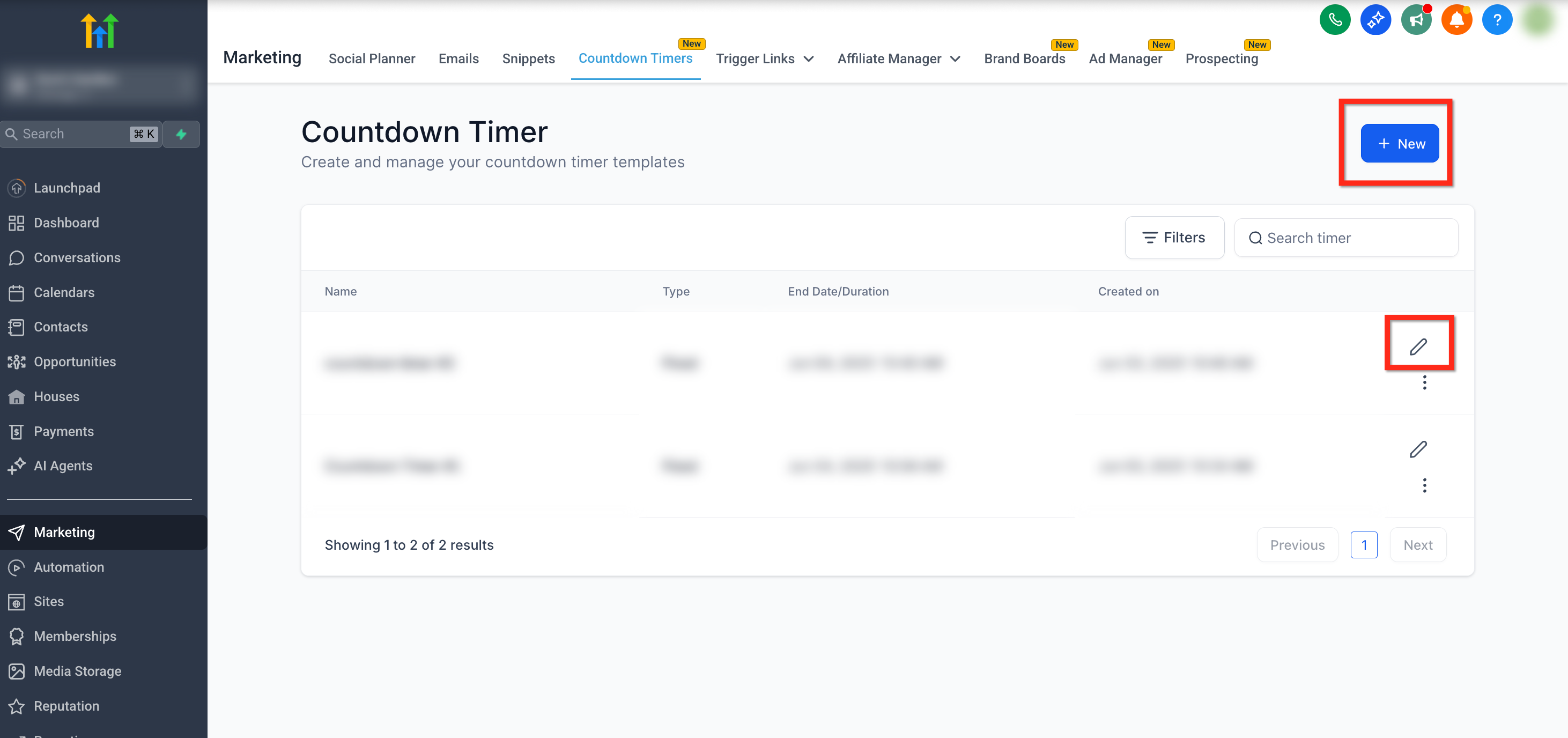
- To create a new timer, click the blue New button. Use a template to save time designing the new timer.
- To edit an existing timer, click the Edit (Pencil) icon next to the timer
Step 3: Choose Timer Type
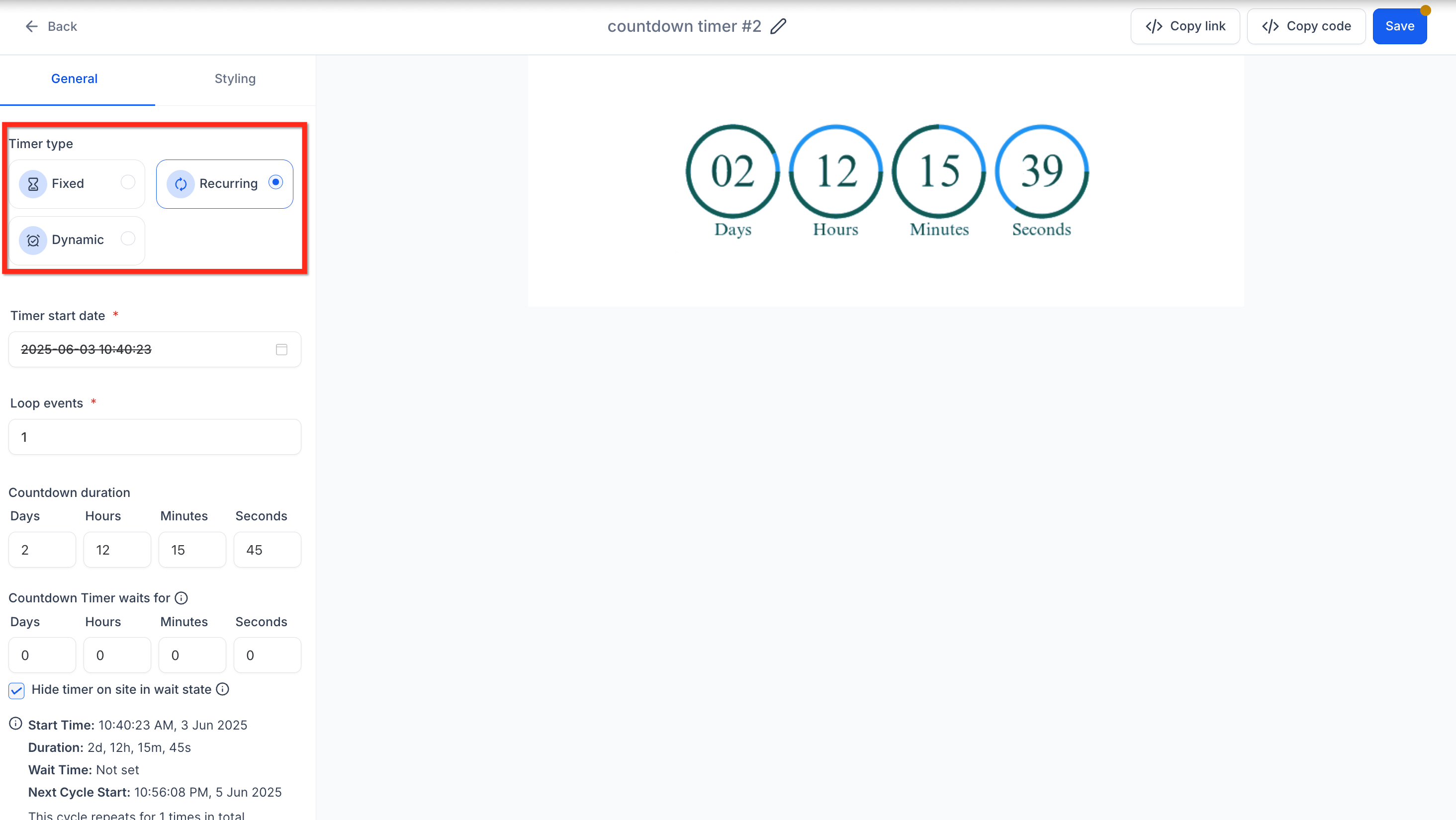
- In the settings panel under the General tab, select the Timer Type as Recurring
Step 4: Configure Timer Details
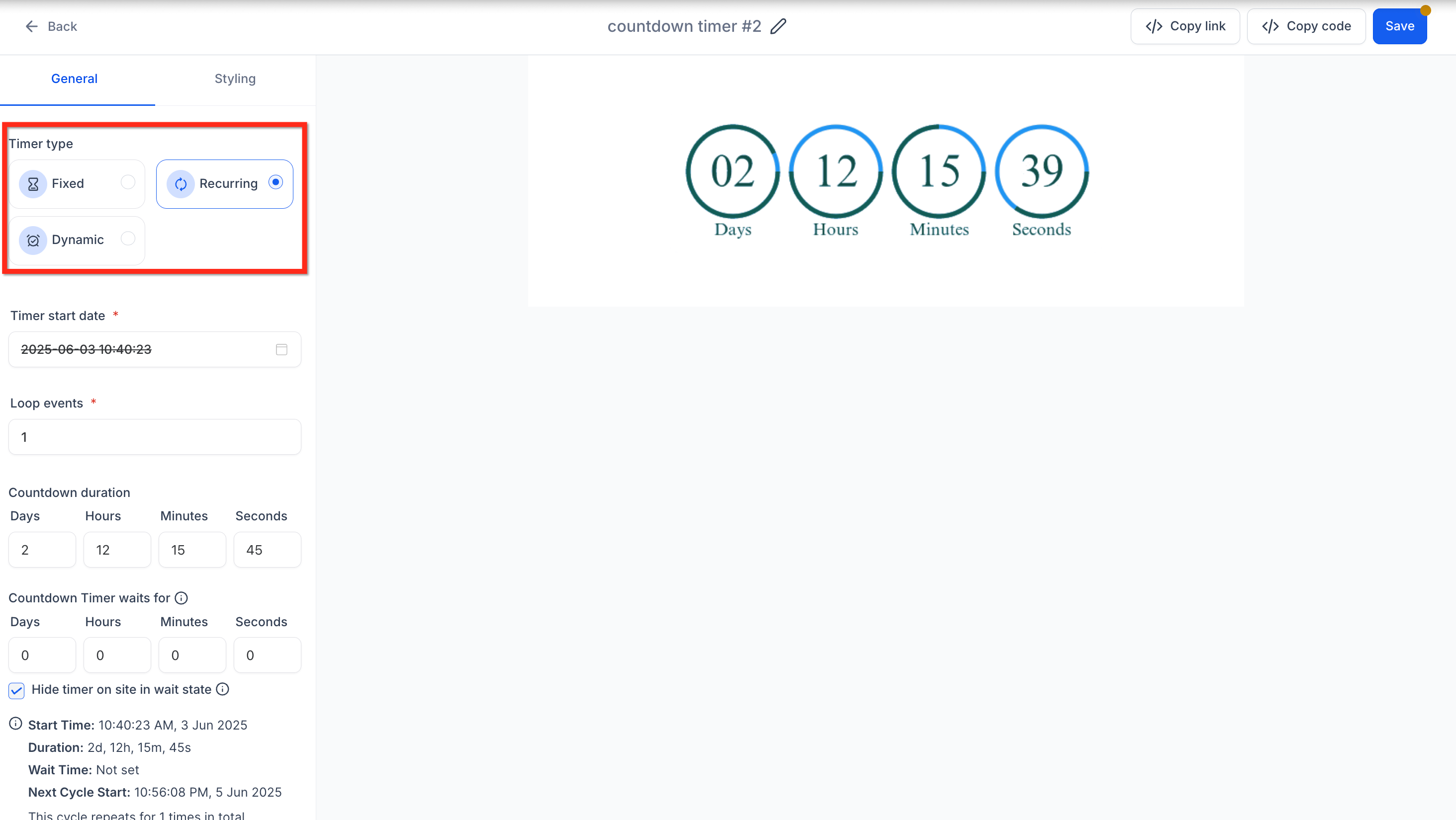
Define the timer settings:
Start Date/Time: When the first cycle begins
- Loop Events: Define the number of resets/cycles
- Countdown Duration: Length of each cycle (e.g., 7 days)
- Countdown Timer Waits For: Sites won't auto-redirect to expired if the wait state follows active. Click here for more info on this setting
- Hide Timer on Site in Wait State: If disabled, the timer will be in zero state during the wait time on sites
Step 5: Add Links
- Active Link: Specify the URL users will be directed to while the timer is active
- Expired Link: Specify the URL users will land on after the timer expires
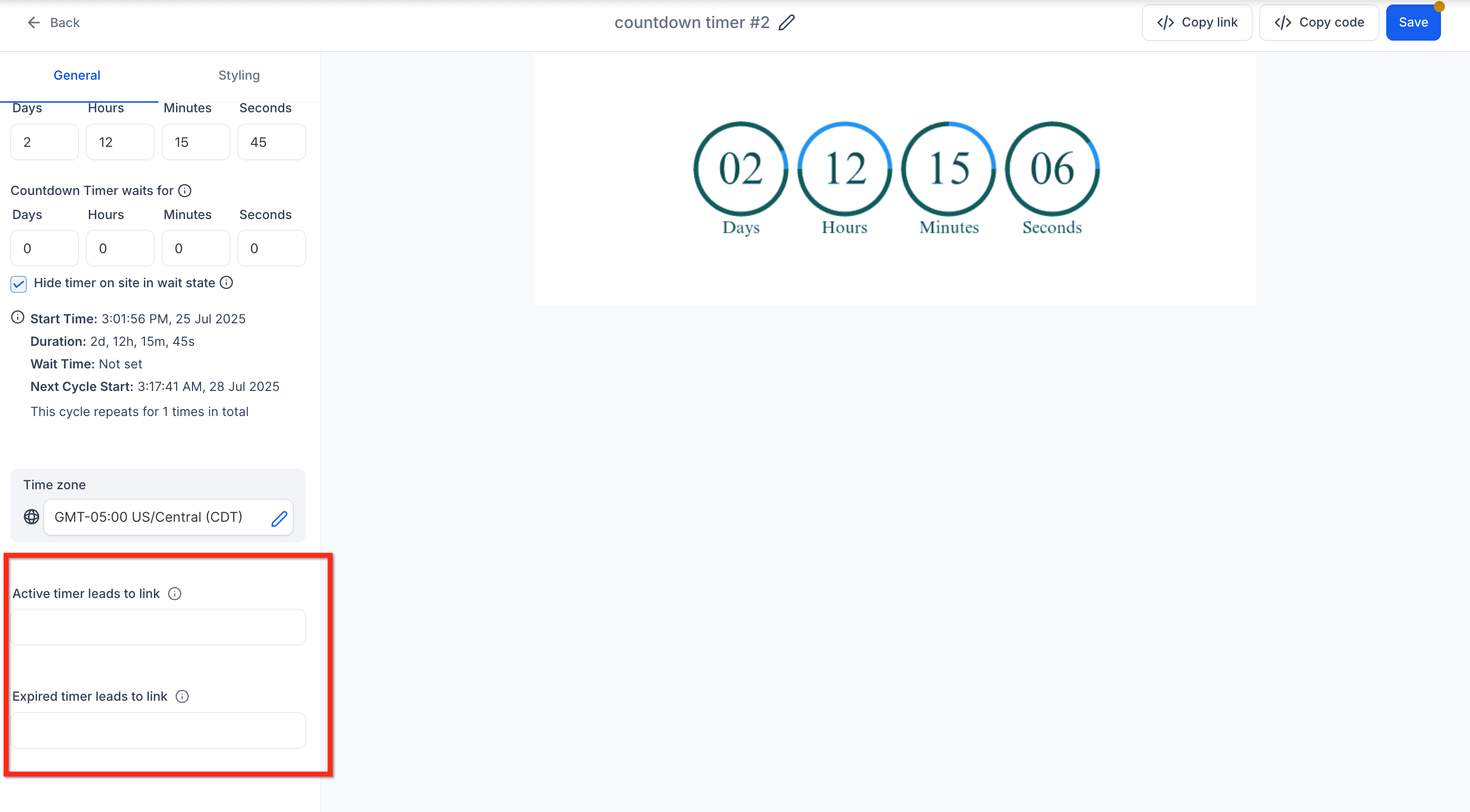
Step 6: Customize and Save
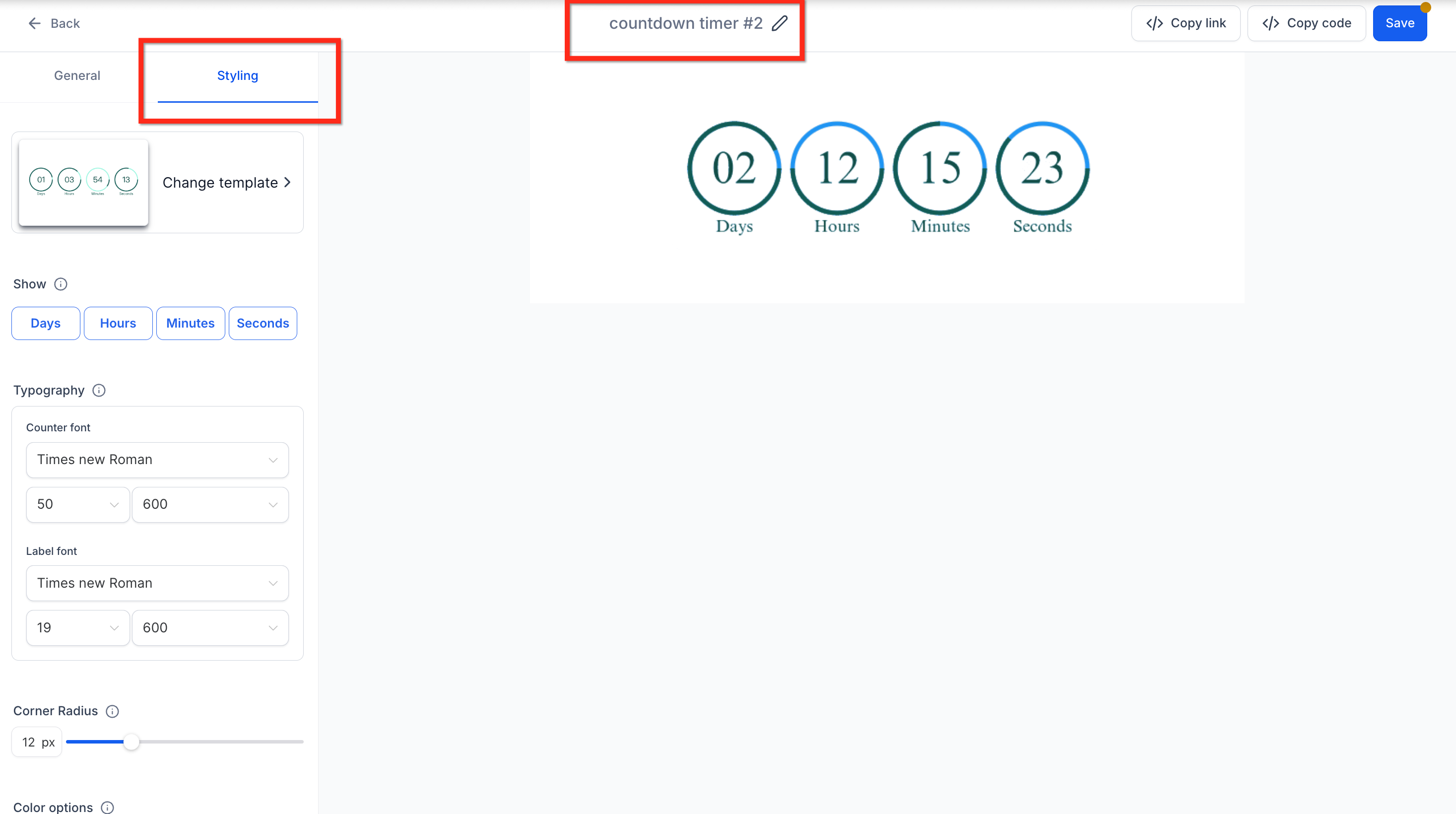
- Adjust the timer’s appearance, including colors, fonts, expiry image, and time display format
- Give your timer a descriptive name
- Click the blue Save button to finalize and activate your countdown timer
Wait Time in Recurring Timers
The Countdown Timer Waits For setting allows you to set a defined pause period between timer cycles that aligns with your campaign strategy. Customizing the wait time introduces flexibility into your recurring timers and supports tailored automation workflows. Below is how the wait time behavior in both emails and funnels:
Emails
- Timer shows zero state
- Clicking the email link redirects to Expiry Page
Funnels
- Timer can be hidden during wait (if enabled)
- If the timer transitions from Active → Wait in the same session, user stays on page (no auto-redirect)
- On page refresh, user is redirected to Expiry Page if in wait state.
Frequently Asked Questions
Q: What is Wait Time, and why would I use it?
Wait Time is an optional gap between cycles (for example, 24 hours between weekly sales). It prevents a timer from restarting immediately, giving your team time to update offers or inventory.
Q: Can I edit Wait Time or Loop Events after the timer is live?
Yes. Edit the timer under Marketing → Countdown Timers; changes apply everywhere the timer is embedded.
Q: Does the timer adjust to the visitor’s local time zone?
No. Recurring timers run in the time zone you choose during setup; all visitors see that same reference clock.
Q: Is there a limit to how many recurring timers I can have active?
SourCherry doesn’t cap the number, but each timer generates image assets on demand. Keep your list tidy and delete unused timers for optimal performance.