
This article will show you how to enable a download file action for buttons, images, and SVGs in SourCherry Funnels & Websites. This allows you to deliver downloadable content like PDFs or images with just one click.
TABLE OF CONTENTS
- What is the Download File Action?
- Key Benefits of the Download File Action
- How To Enable the Download File Action
- Supported Elements for File Download
- Customizing the Downloaded File Name
- Frequently Asked Questions
- Next Steps
What is the Download File Action?
The Download File action lets users download a file (PDF, image, ZIP, etc.) when they click a Button, Image, or SVG element on your funnel or website. This is ideal for lead magnets, brochures, or digital assets you want to offer instantly—no code required!
Key Benefits of the Download File Action
Make user interactions more powerful and seamless with simple downloads.
Instantly offer downloadable files like eBooks, images, or templates
Eliminate the need for external download services
Works across buttons, image elements, and SVG graphics
Easy one-click setup with no technical expertise needed
Customize file names to align with your branding
Boost user engagement by delivering value quickly
How To Enable the Download File Action
Follow these steps to enable the feature and attach your file.
Open your funnel or website in the editor.
Select the Button, Image, or SVG element.
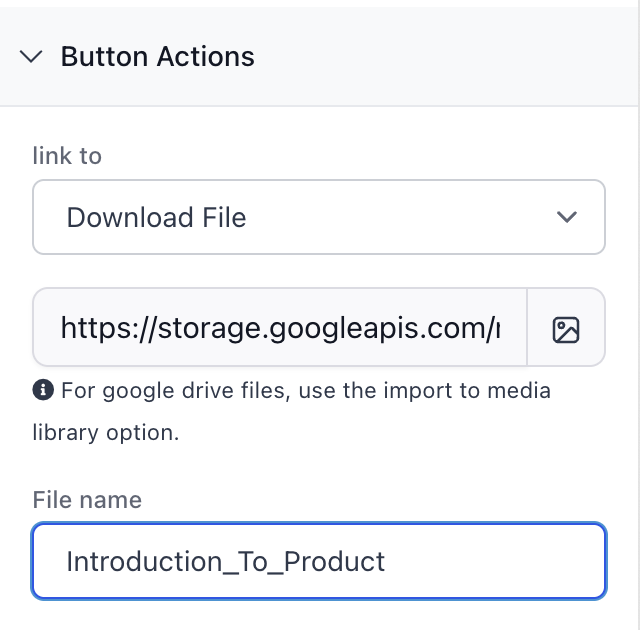
In the right-hand settings panel, toggle “Download” ON.
Click “Link File” to open the Media Picker.
Select or upload your file from the Media Library.
(Optional) Customize the file name for the download.
Save and preview your funnel or site.
Supported Elements for File Download
The feature is built to work across the most commonly used visual elements.
Buttons: Great for CTA-based downloads like “Download Now.”
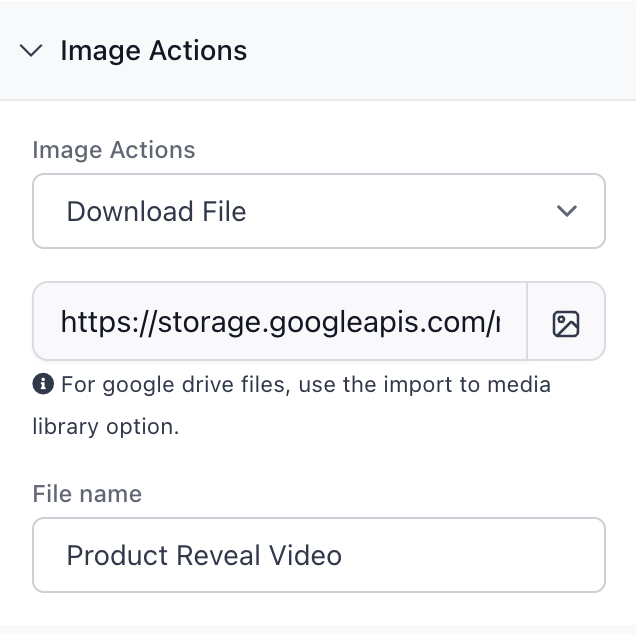
Images: Make an image (e.g., icon, poster) clickable for download.
SVGs: Enable custom graphics to trigger a download.
Customizing the Downloaded File Name
Personalize the file download name for brand consistency or clarity.
When linking a file, you’ll have the option to:
Rename the file for the end user (e.g., from “file_123.pdf” to “2025_Pricing_Guide.pdf”).
Avoid technical or confusing filenames for better professionalism.
Frequently Asked Questions
Q: Can I add more than one download to a button?
No. Each element can only be linked to a single downloadable file.
Q: What file types are supported?
Any file stored in the Media Library, including PDFs, images, ZIPs, and more.
Q: Can I track who downloads my files?
Currently, downloads aren’t tracked individually. Consider using automation triggers with form submissions for tracking.
Q: Do users see a preview or direct download?
Files are directly downloaded when the element is clicked, not previewed.