
Kollab Studio is SourCherry’s creator hub, built to give community and course owners a single, streamlined place to manage all their digital products. Whether you’re updating content, adjusting pricing, or launching something new, Kollab Studio keeps everything organized in one dashboard so you can work faster and smarter.
TABLE OF CONTENTS
- What is Kollab Studio?
- Key Benefits of Kollab Studio
- Sales Page Media Preview for Communities
- Structured Course Preview on Sales Pages
- How to Access Kollab Studio
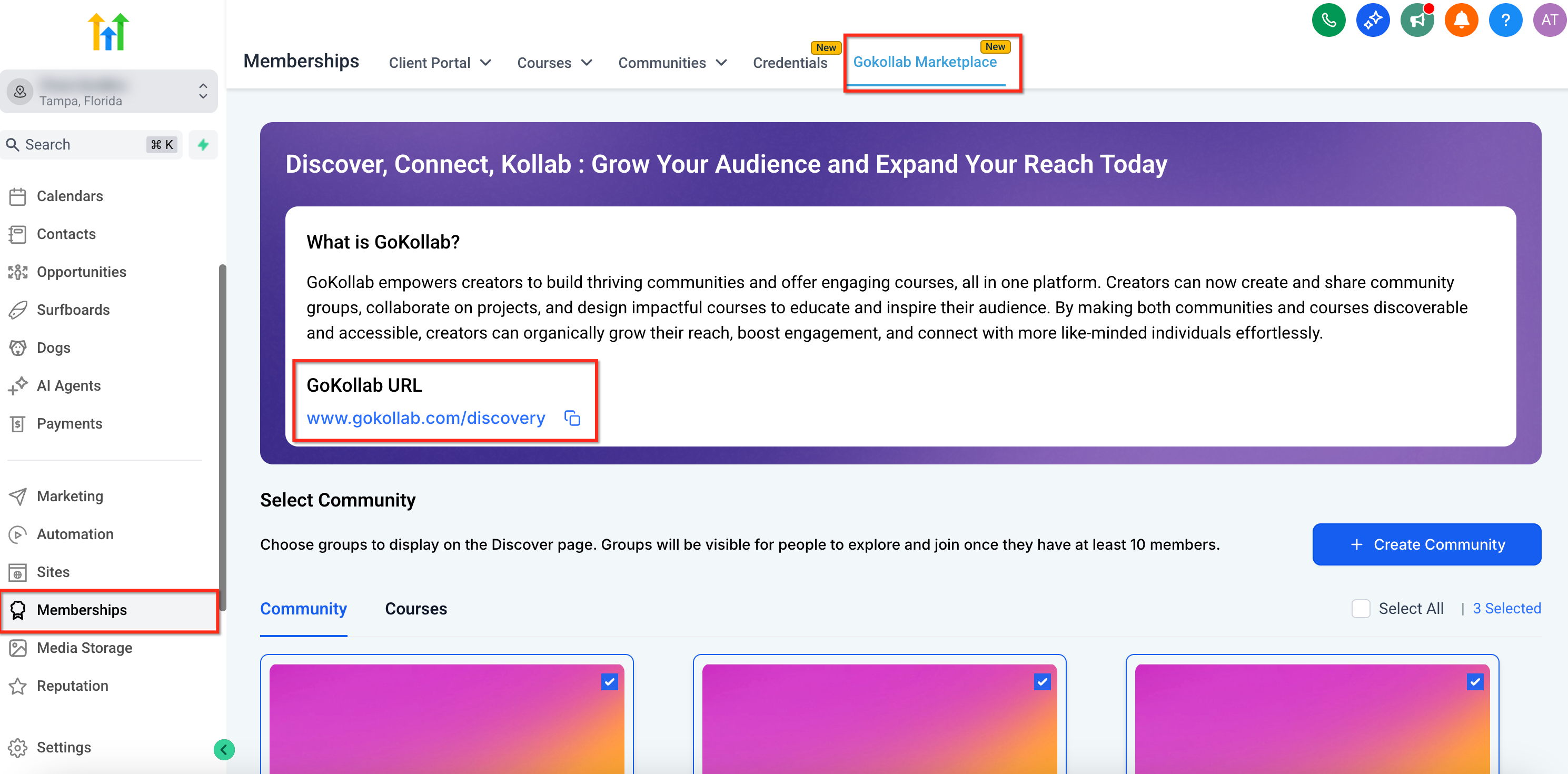
- Step 1: Navigate to Memberships → Gokollab Marketplace
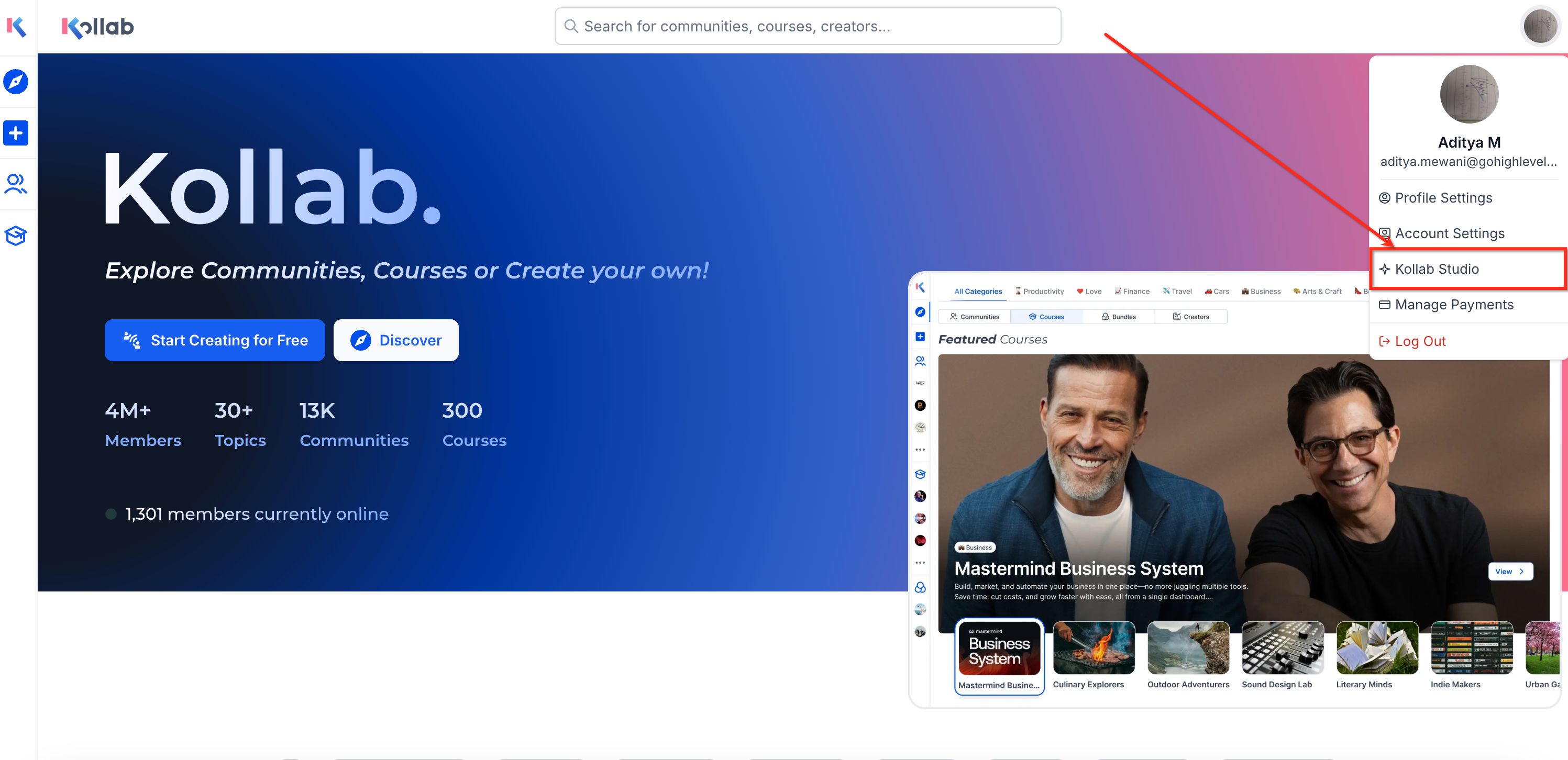
- Step 2: Open the Kollab Studio
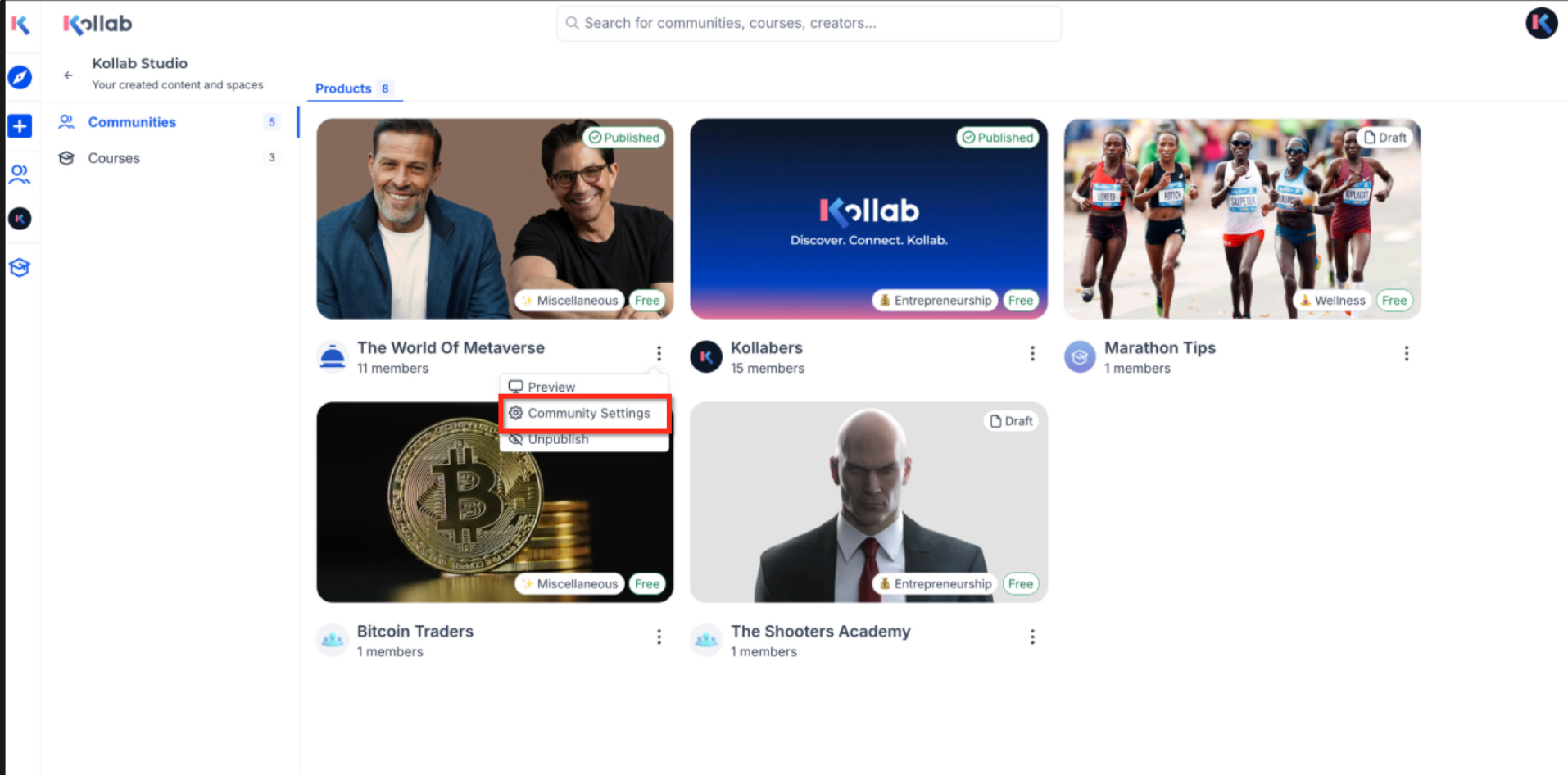
- Step 3: Manage your Communities and Courses
- Communities Section
- Courses Section
- Best Practices for Using Kollab Studio
- Frequently Asked Questions
- Related Articles
What is Kollab Studio?
Kollab Studio is a centralized management hub in SourCherry that consolidates all your communities and courses into one workspace. Instead of navigating multiple pages to update or review your products, you can now handle everything from a single, intuitive dashboard. This eliminates scattered settings and gives you complete control over your digital offerings.
Kollab Studio is perfect for:
- Community owners
- Course creators
- Anyone selling digital products via GoKollab
There’s no migration needed; all your existing communities and courses automatically appear in Kollab Studio.
Key Benefits of Kollab Studio
The main advantage of Kollab Studio is efficiency, it gives you quick, organized access to every product you own, helping you keep offerings updated and members engaged.
- Manage All in One Place – Access all communities and courses from a single dashboard.
- Move Faster – Edit access, pricing, and content in seconds.
- Stay Active & In Control – Easily publish, unpublish, or tweak content as needed.
- Boost Retention & Revenue – Better tools help you deliver better products, which means more engaged members.
- Preview Before Publishing – Review enhanced sales pages before going live. Community sales pages can display media carousels, while course sales pages can show structured curriculum previews.
Sales Page Media Preview for Communities
Community sales pages now support a media carousel that can display images and videos, including YouTube, Loom, and Vimeo videos. Media added to the community About page automatically stays synced with the sales page, so you do not need to update the listing separately.
The carousel auto-cycles through available media to give visitors a more dynamic preview of the community before they join.
Structured Course Preview on Sales Pages
Course sales pages now display a structured curriculum preview. Visitors can review modules, lessons, and thumbnails in an organized format before enrolling.
This gives visitors a clearer view of the course content and helps them understand what they will access after joining.
How to Access Kollab Studio
Accessing Kollab Studio takes just a few clicks from your SourCherry profile. Once inside, you’ll find separate tabs for managing communities and courses.
Step 1: Navigate to Memberships → Gokollab Marketplace
You can find the GoKollab URL here, which is nothing but your GoKollab Marketplace Dashboard.
IMPORTANT: Make sure the email you use to sign in to the SourCherry dashboard and GoKollab is the same. This ensures your communities and courses are properly linked to your profile and visible in Kollab Studio. If your email addresses don’t match, your products may not appear.
Step 2: Open the Kollab Studio
After logging in to the GoKollab dashboard, under your profile icon in the top-right corner, select Kollab Studio from the dropdown menu.
Step 3: Manage your Communities and Courses
Finally, getting a unified dashboard to manage your communities and courses more efficiently.
Communities Section
The Communities section is your control center for all the communities you’ve created. Here, you can quickly preview, adjust, and control their visibility without navigating away from the dashboard.
Community sales pages now support a richer media experience. Images and videos from the community About page automatically sync to the sales page, so you do not need to update the same media in multiple places. The sales page can display this media in an auto-cycling carousel to help visitors understand your community before they join.
Supported video sources include YouTube, Loom, and Vimeo.
You can:
- Preview enhanced sales pages for each community.
- Display images and videos in a sales page carousel.
- Publish or unpublish instantly.
- Access community settings directly from the menu.
- Stay on top of activity with unread post counts for each channel.
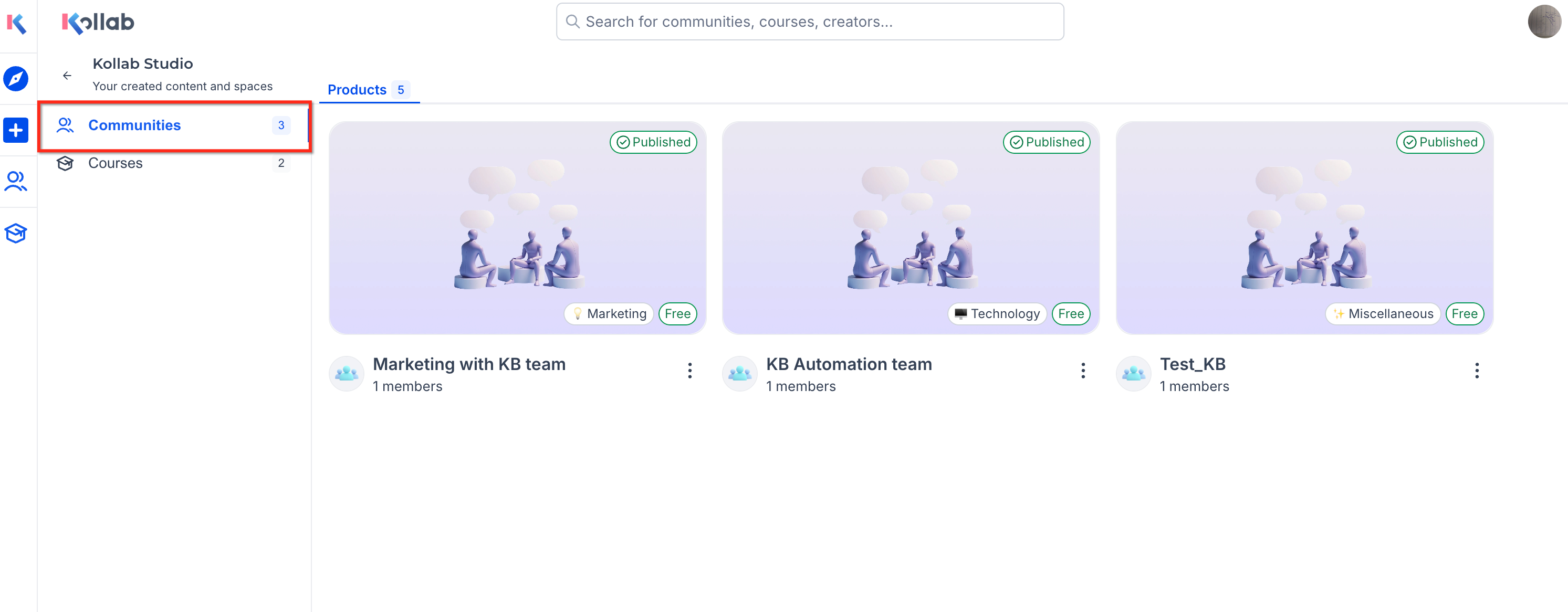
IMPORTANT: Only communities you have created will appear in Kollab Studio. If you are just a member or admin of a community created by someone else, it will not be listed here.Courses Section
The Courses section gives you a centralized view of all your training content. You can manage publish status, preview each course sales page, and review how your course appears to visitors before enrollment.
Course sales pages now include a structured curriculum preview. Visitors can see modules, lessons, and thumbnails in a clean format, which helps them understand the course content before enrolling.
You can:
- View all courses in a single list.
- Preview enhanced course sales pages.
- Show modules, lessons, and thumbnails on the course sales page.
- Edit publish status with one click.
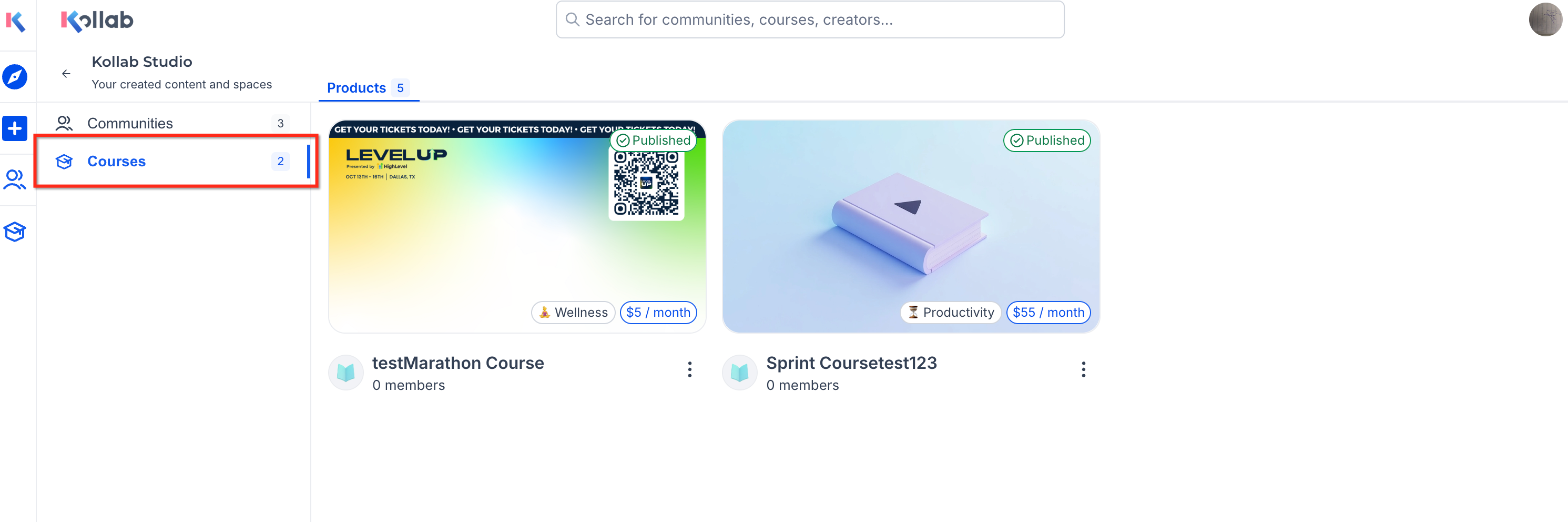
IMPORTANT: Only courses you have personally created in Memberships will display here. If you’ve added your course to the GoKollab Marketplace, it will also appear in Kollab Studio. Courses you have not created will not be shown. For more you can also refer to Getting Started - Launch a CourseBest Practices for Using Kollab Studio
Using Kollab Studio effectively can help increase member engagement and product performance. These best practices will help you get the most out of it.
- Keep sales pages updated with fresh content and current offers.
- Add polished images and videos to your community About page. These media items can automatically appear on the community sales page carousel.
- Keep course modules, lessons, and thumbnails organized so visitors can clearly understand the course before enrolling.
- Refresh course and community content regularly to maintain member interest.
- Unpublish inactive products to keep your dashboard clean and organized.
- Keep your community About page media current, since supported media can appear on the community sales page.
- Use clear course modules, lesson titles, and thumbnails to improve the course sales page preview.
Frequently Asked Questions
Q: What is Kollab Studio?
Kollab Studio is a centralized dashboard in SourCherry that lets you manage communities and courses in one place.
Q: How do I publish or unpublish a community?
In the Communities Section, use the toggle option to quickly change the publish status after previewing the sales page.
Q: Can I edit course details within Kollab Studio?
Yes, you can adjust the publish status and preview each course’s sales page right from the Courses Section.
Q: What appears on a community sales page?
A community sales page can show images and videos in an auto-cycling media carousel. Media added to the community About page automatically syncs to the sales page.
Q: Which video sources are supported for community sales page media?
Community sales page media supports YouTube, Loom, and Vimeo videos.
Q: What appears on a course sales page?
A course sales page can show a structured curriculum preview with modules, lessons, and thumbnails. This helps visitors understand the course before enrolling.
Q: Will there be additional editing features for courses?
Additional course editing options are on the roadmap and will be available in upcoming updates.
Q: Do I need to migrate my existing data to use Kollab Studio?
No migration is necessary. All your current digital product data automatically integrates into the new dashboard.
Q: Why don’t I see my courses or communities in Kollab Studio?
Kollab Studio only displays products you have created. For courses, you must have created them inside Memberships. For communities, you must be the original creator. Courses added to the GoKollab Marketplace will also display.