
Workflow AI Builder lets you create complete automations by describing your goal in plain language. Instead of configuring triggers and actions manually, you can generate a workflow, review it, and refine it using AI. This guide explains access points, building steps, editing options, and best practices.
TABLE OF CONTENTS
- What is Workflow AI Builder?
- Key Benefits of Workflow AI Builder
- Entry Points
- How to Build Your First AI Workflow
- Point and Edit for Precise Control
- Chat mode
- Best Practices for Effective Prompts
- Providing Feedback
- Beta Limitations
- Troubleshooting
- Quick Tips
- Frequently Asked Questions
- Related Articles
- Workflows Landing Page
What is Workflow AI Builder?
Workflow AI Builder converts natural‑language prompts into end‑to‑end workflows. It accelerates automation setup and reduces manual configuration by generating triggers, actions, and structure you can immediately review and customize.
In SourCherry, Workflow AI Builder generates a full workflow from a clear prompt. You can start from multiple entry points, then adjust the result using conversational edits, point‑and‑edit selection, or chat‑only brainstorming.
What’s new in AI Builder v3
AI Builder v3 streams results in real time and shows a step-by-step progress view while it builds or edits your workflow. Key improvements include:
- Live streaming progress cards during build and edit requests
- Multi-step changes in one request (for example, “rename, add a 24-hour wait, and turn off re-entry”)
- Session memory for follow-up edits (for example, “make that 48 hours”)
- Confirmation before starting fresh on a canvas that already has a workflow
- Session continuity when you close and reopen the AI panel
- Learn Mode improvements, including streaming answers and suggested follow-up questions
- White-label-safe output (AI avoids platform-branded terms in responses)
Key Benefits of Workflow AI Builder
Understanding the value helps you decide when to use AI versus manual building and how to combine both for speed and control.
Speed: Generate an entire workflow from a single prompt in seconds.
Note: AI Builder now averages under 30 seconds for workflow generation (down from ~60 seconds), with no quality trade-off.Simplicity: Use everyday language—no need to remember specific triggers and actions.
Consistency: Start with a structured draft, then iterate for accuracy.
Flexibility: Edit with natural language or target specific steps visually.
Scalability: Reuse prompt templates and best practices across teams.
Entry Points
Knowing all the ways to open Workflow AI Builder saves clicks and helps you pick the fastest route based on your context. There are three ways to access the workflow AI builder:
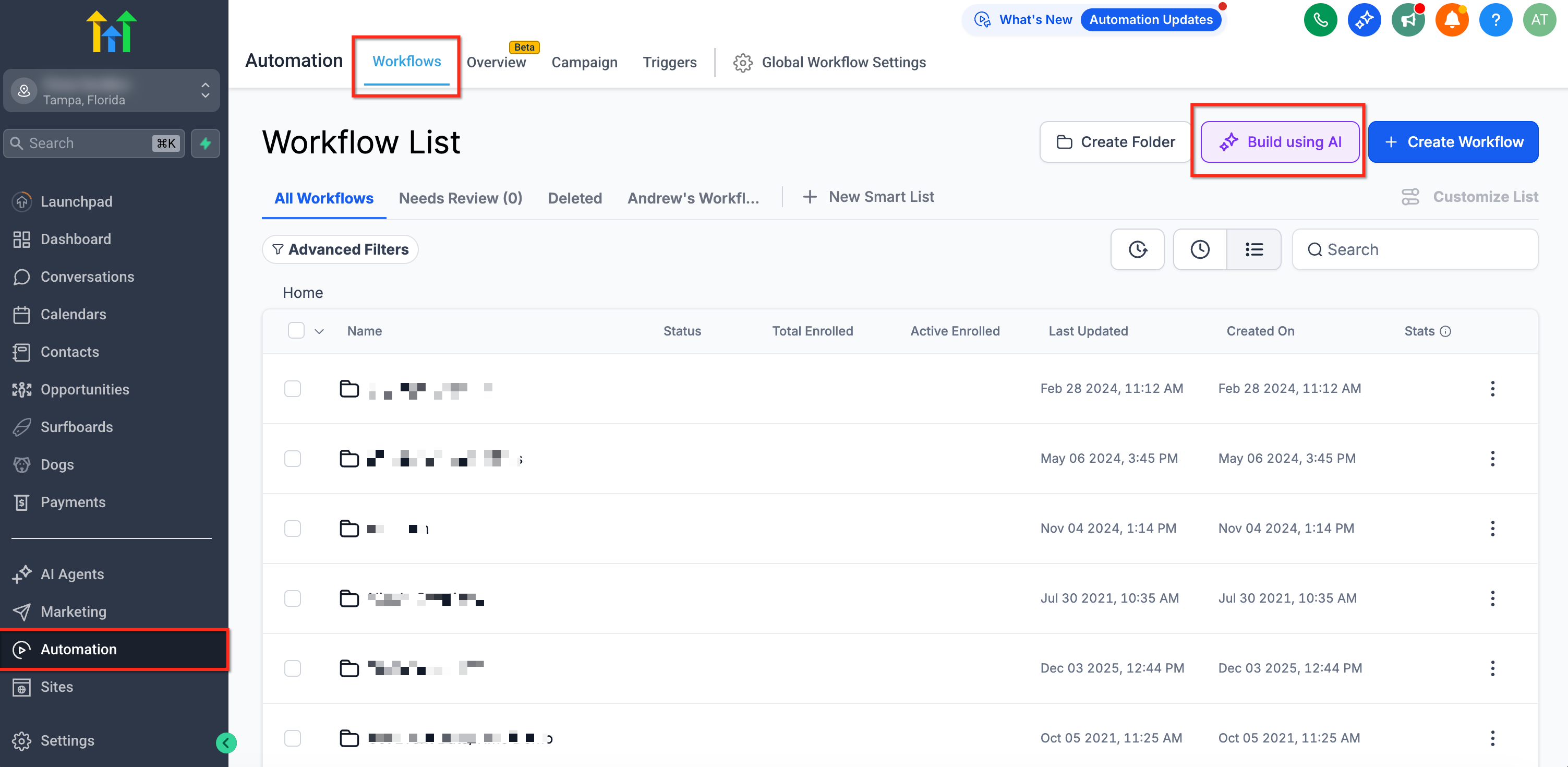
Step1: From the Workflow List Page
Navigate to Automation > Workflows and click the Build using AI button. This opens a modal where you can enter your prompt.
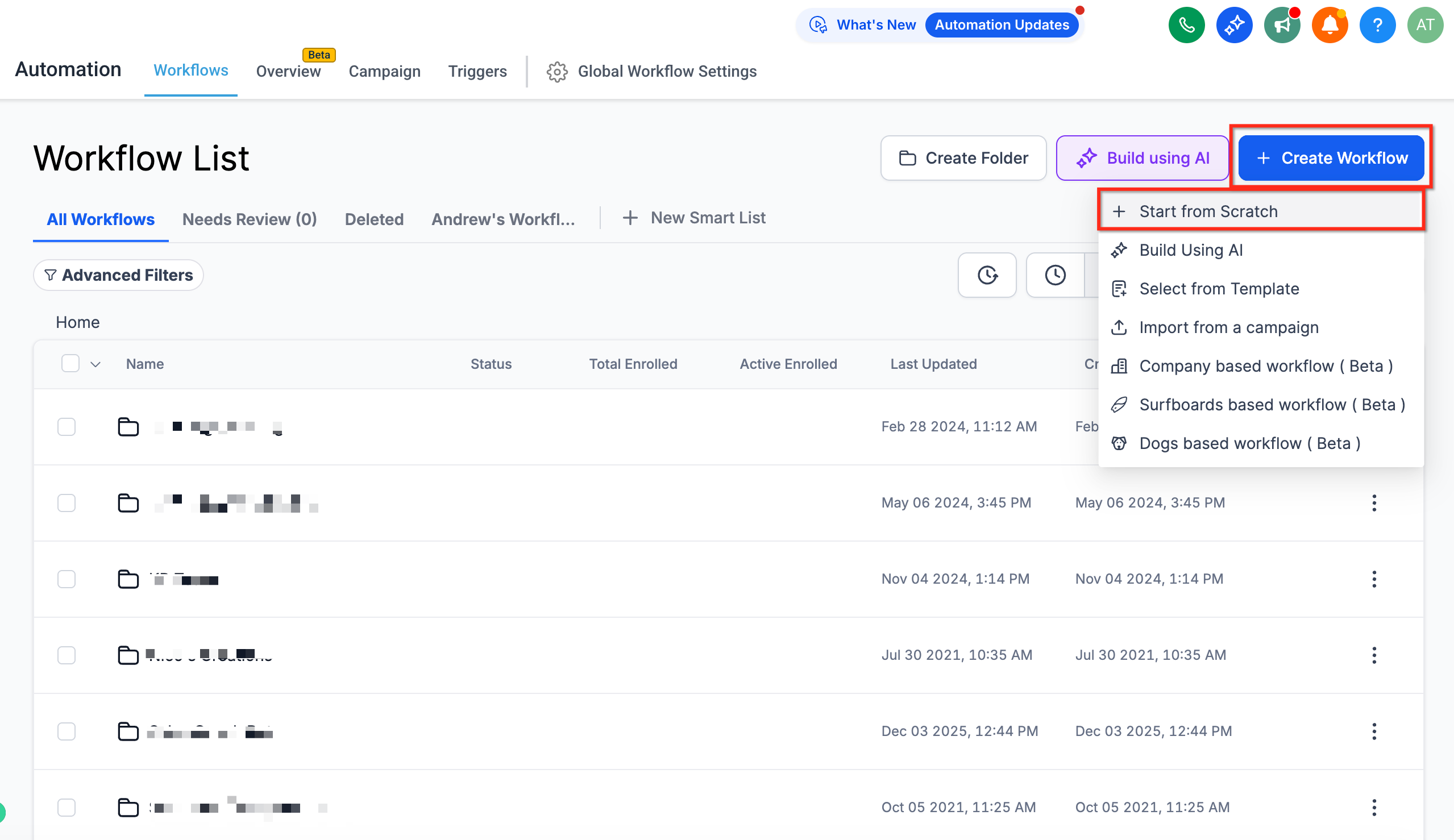
You can also click on Create Workflow and Start from Scratch to go inside the Workflow Builder.
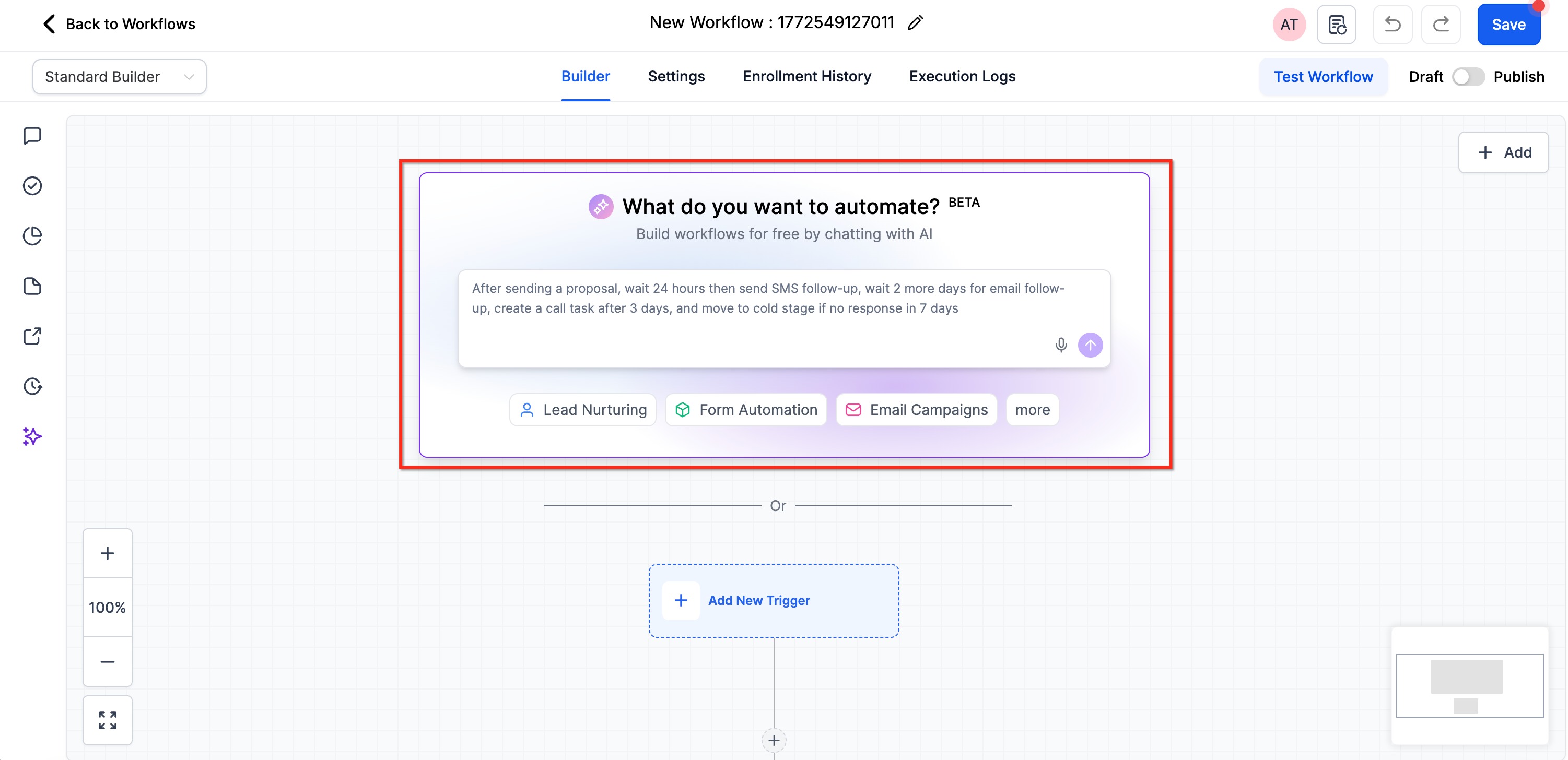
Step2: From the Prompt Box Inside Workflow Builder
When creating a new workflow from scratch, you'll find an AI prompt box in the workflow builder. Simply type your automation requirements there or you can also use voice dictation to describe your workflow.
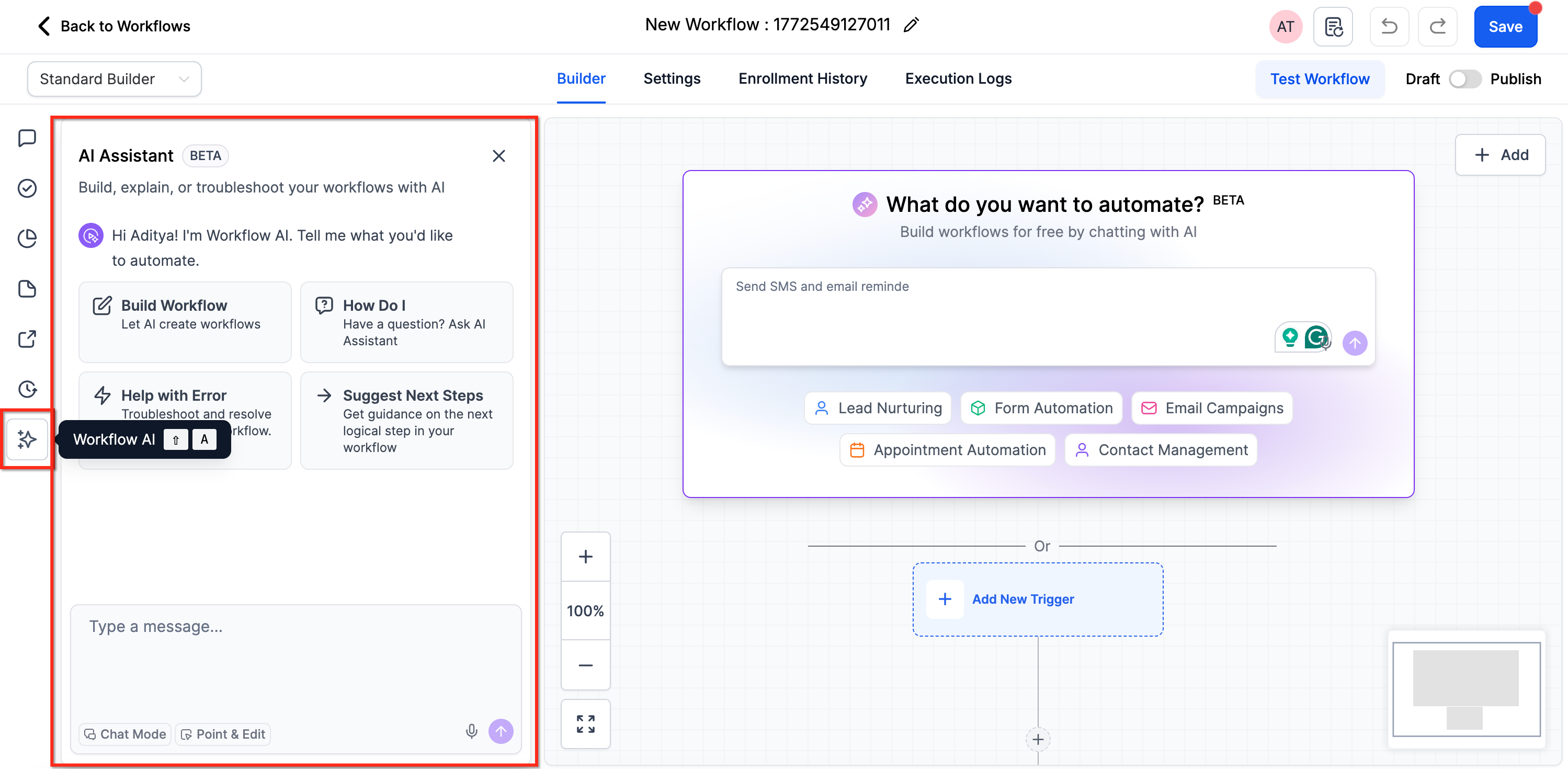
Step3: Using the AI Chatbot Assistant
Inside the workflow builder, you can also use the AI chatbot assistant to help build your workflow.
How to Build Your First AI Workflow
A structured path—prompt, generate, review, and refine—ensures the AI output aligns with your automation goals.
Step 1: Enter Your Prompt
Enter your prompt in any of the entry points mentioned above, or ask the chatbot to help build a workflow. You have two options to get started:
1. Write or Dictate your own custom prompt - Describe your automation needs in your own words
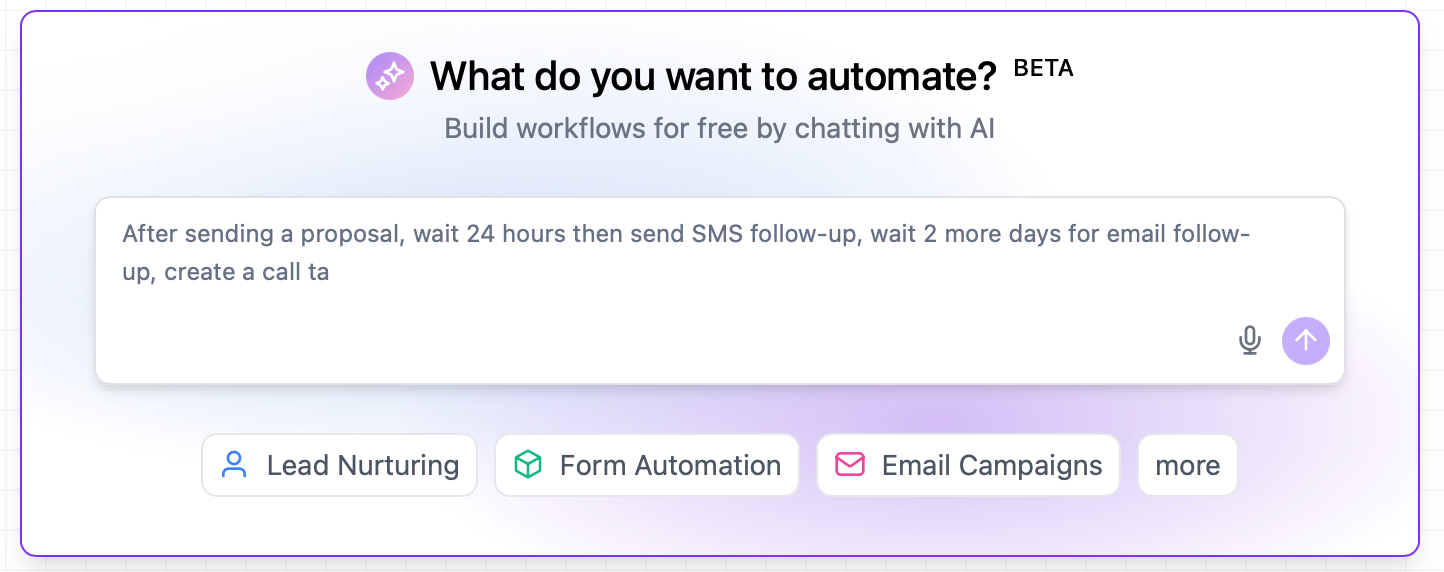
2. Use the provided templates - Select from pre-written prompt templates available in the interface.
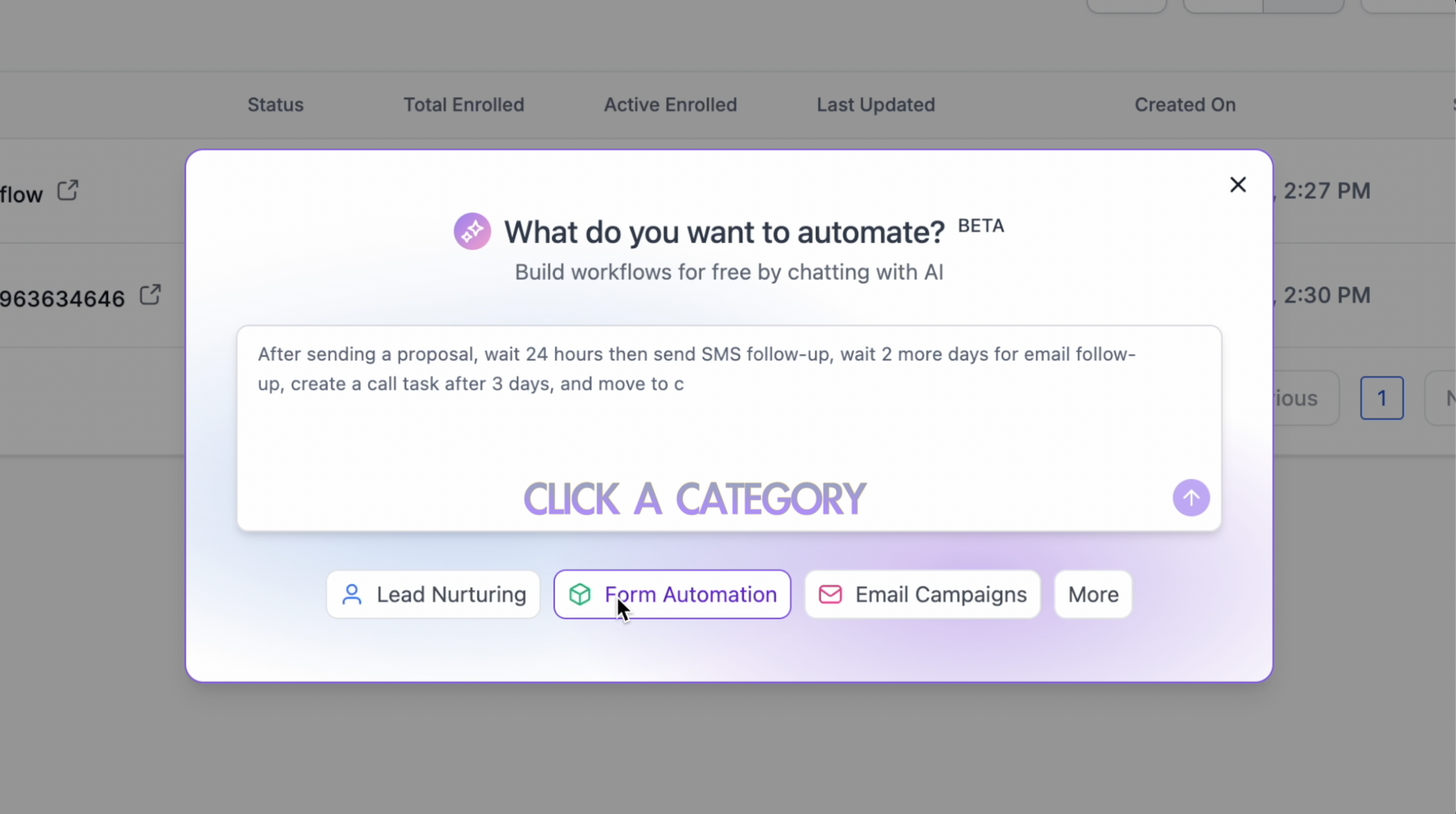
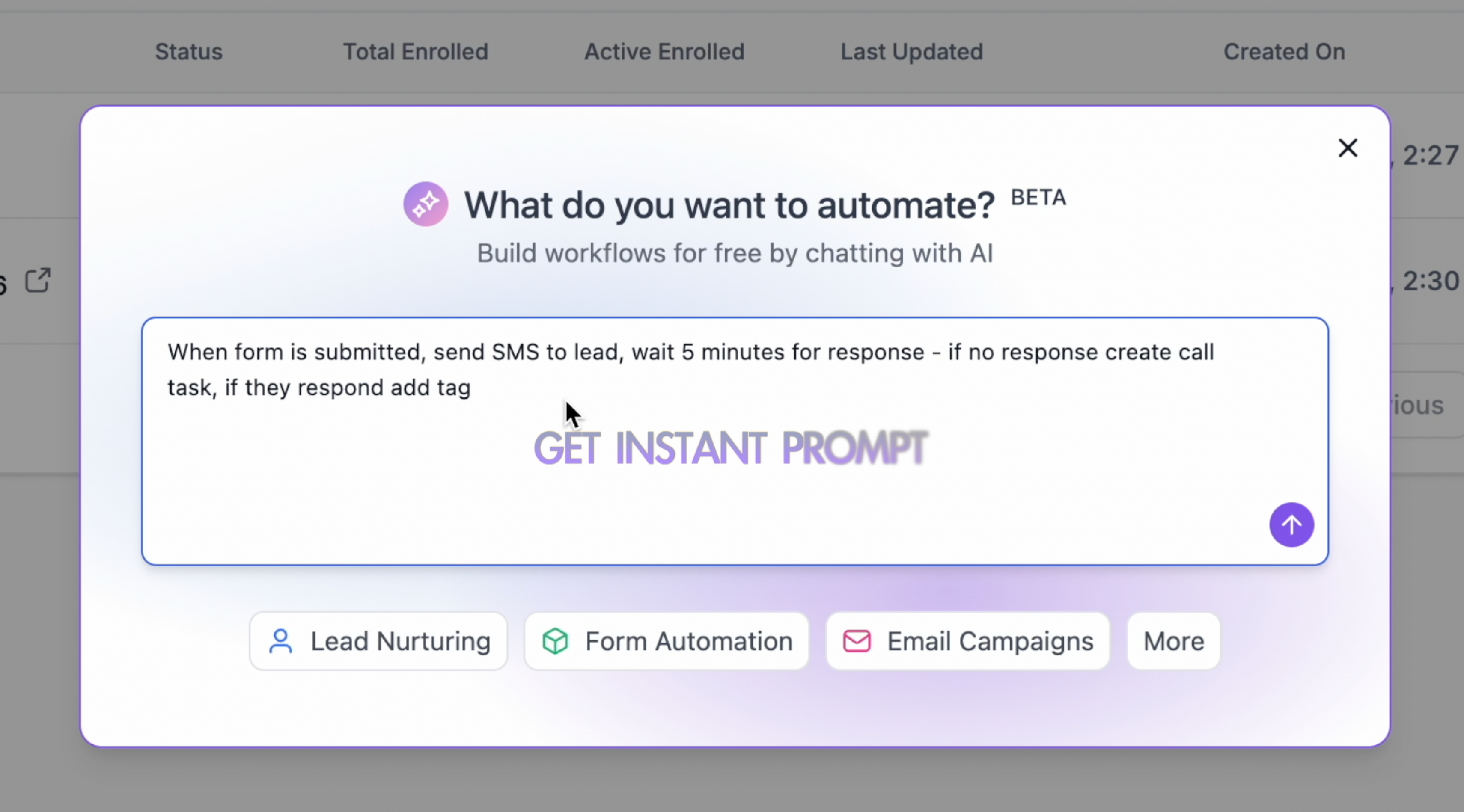
Here are some example prompts you can use:
- "Send a welcome email series when someone fills out my contact form"
- "Create a birthday reminder workflow that sends SMS greetings."
- "Notify my team on Slack when a high-value opportunity is created."
- "Follow up with webinar attendees 24 hours after the event."
Optional: Include details like
- The workflow name
- Any workflow settings you want applied
- The tools/apps to use (for example, “create a task in ClickUp”)
- How steps should use data from earlier actions (for example, “use the GPT output in the email body”)
Workflow settings you can manage with AI In your prompt, you can ask AI Builder to view, enable, disable, or update common workflow settings, including:
- Allow Re-entry
- Allow multiple Opportunities
- Stop on Response
- Timezone and Time Window (business hours)
- Sender Details (From Name, From Email, From Number)
- Conversations – Mark as Read
- Workflow name (rename during generation or rename an existing workflow) Example prompt:
Rename this to Appointment Follow Up v2, update the sender email to support@mybusiness.com, restrict messages to Monday–Friday 9 AM–6 PM, and confirm re-entry is off.”
Step 2: Generate the Workflow
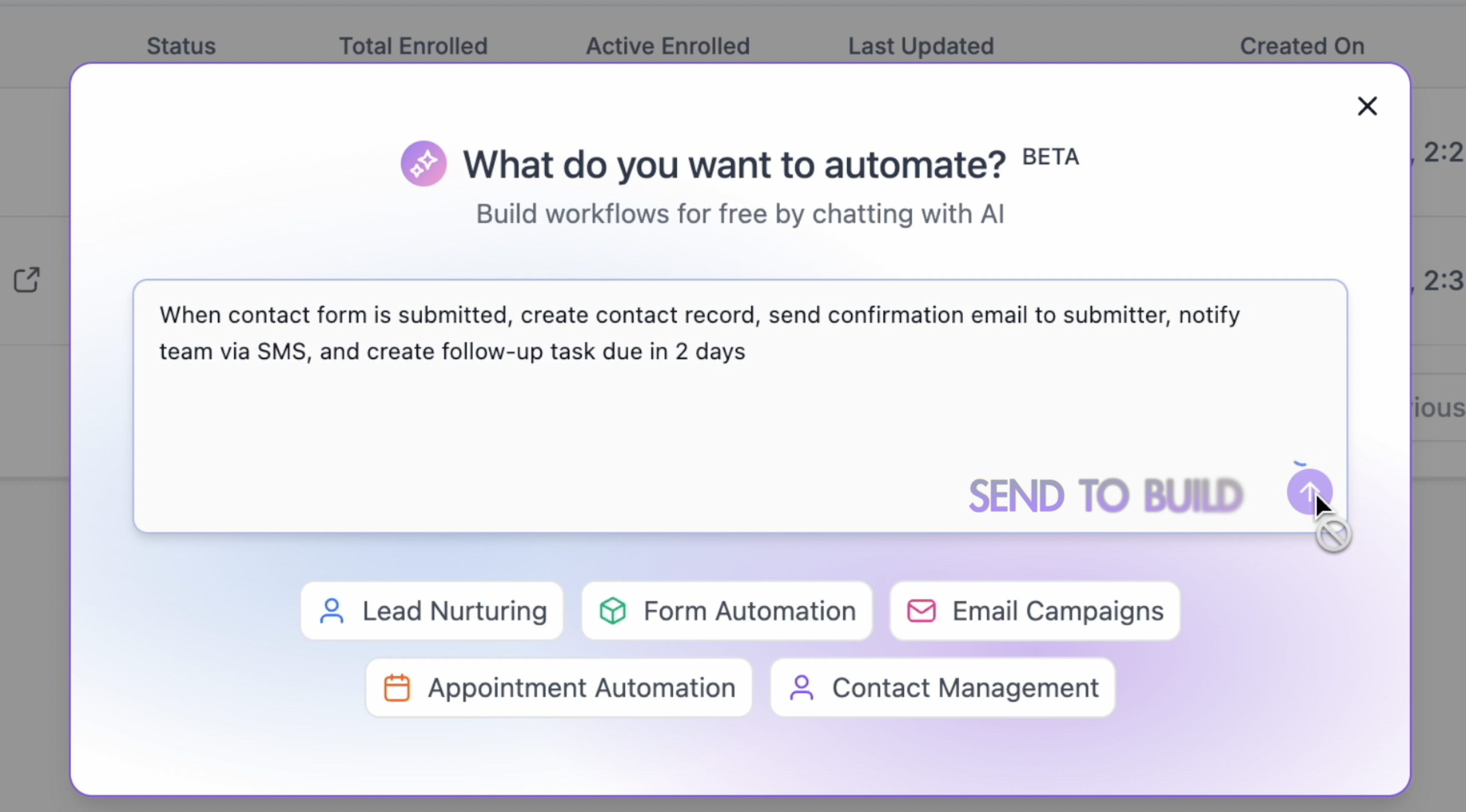
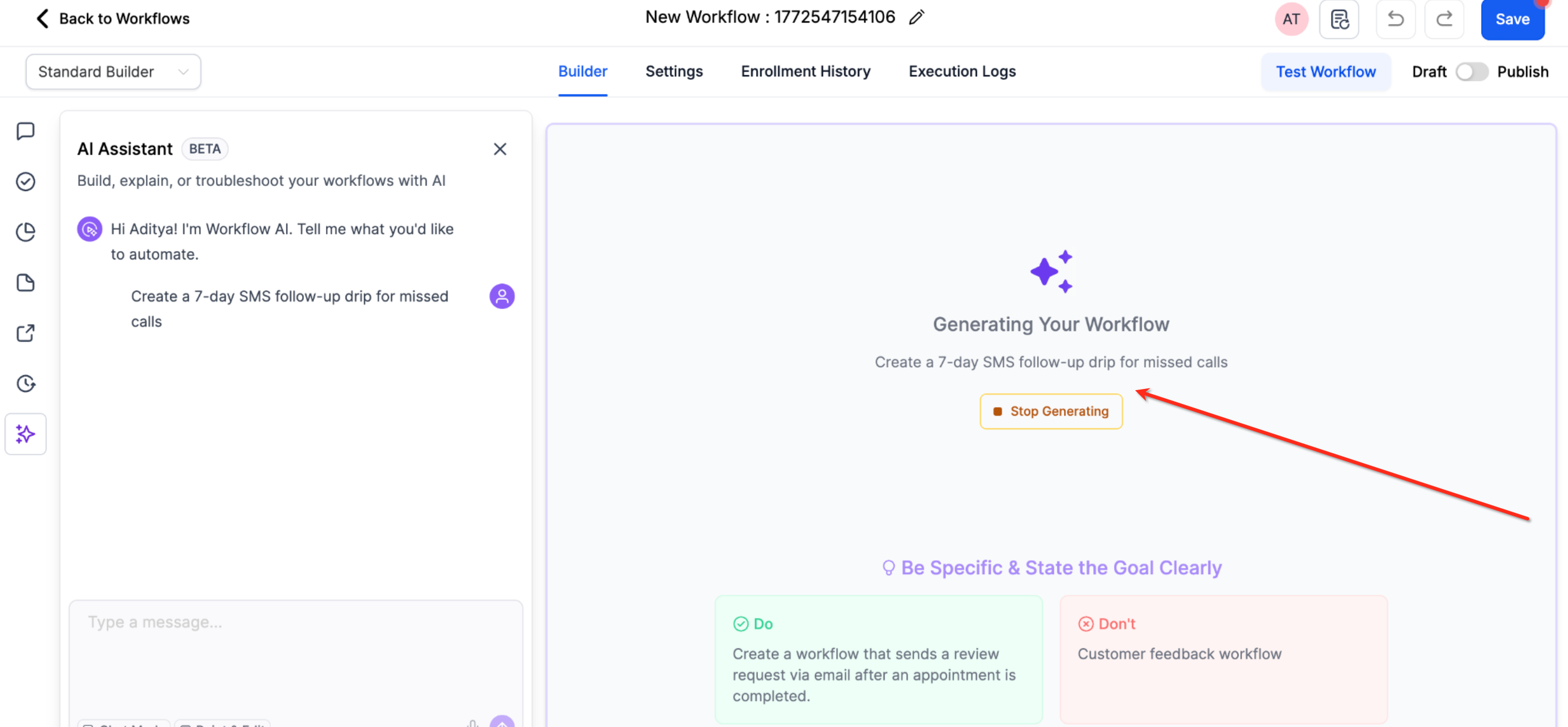
Click Build Workflow button or hit Send (depending on your entry point). You'll see a loader while AI processes your request and builds the workflow.
While the loader runs, workflow generation typically completes in under 30 seconds on average. If it takes longer, try simplifying the prompt and generating again.Note: Autosave is available for Workflow AI. When autosave is enabled, your AI-generated workflows are automatically saved the moment they're created and every subsequent edit you make through AI saves in the background.
Step 3: Review and Customize
Once the AI completes building your workflow, you will get the summary of the workflow created as well apart from the automation:
- If you used entry point 1, you'll be taken to the workflow builder
- If you used entry points 2 or 3, the workflow will be generated directly in your current builder view
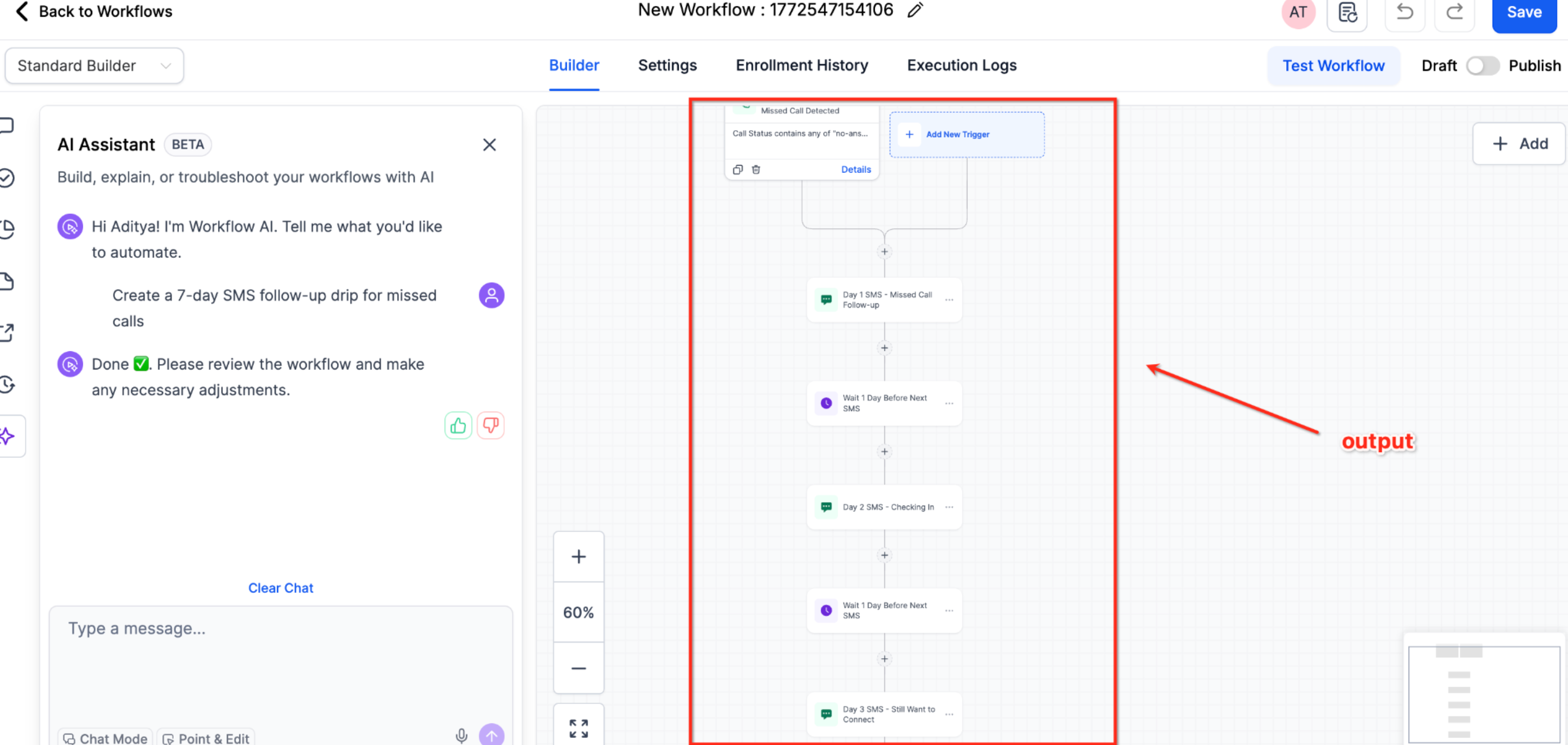
You can then:
- Review the overall workflow structure
- Check individual trigger configurations
- Verify action settings and parameters
Step 4: Edit Using AI
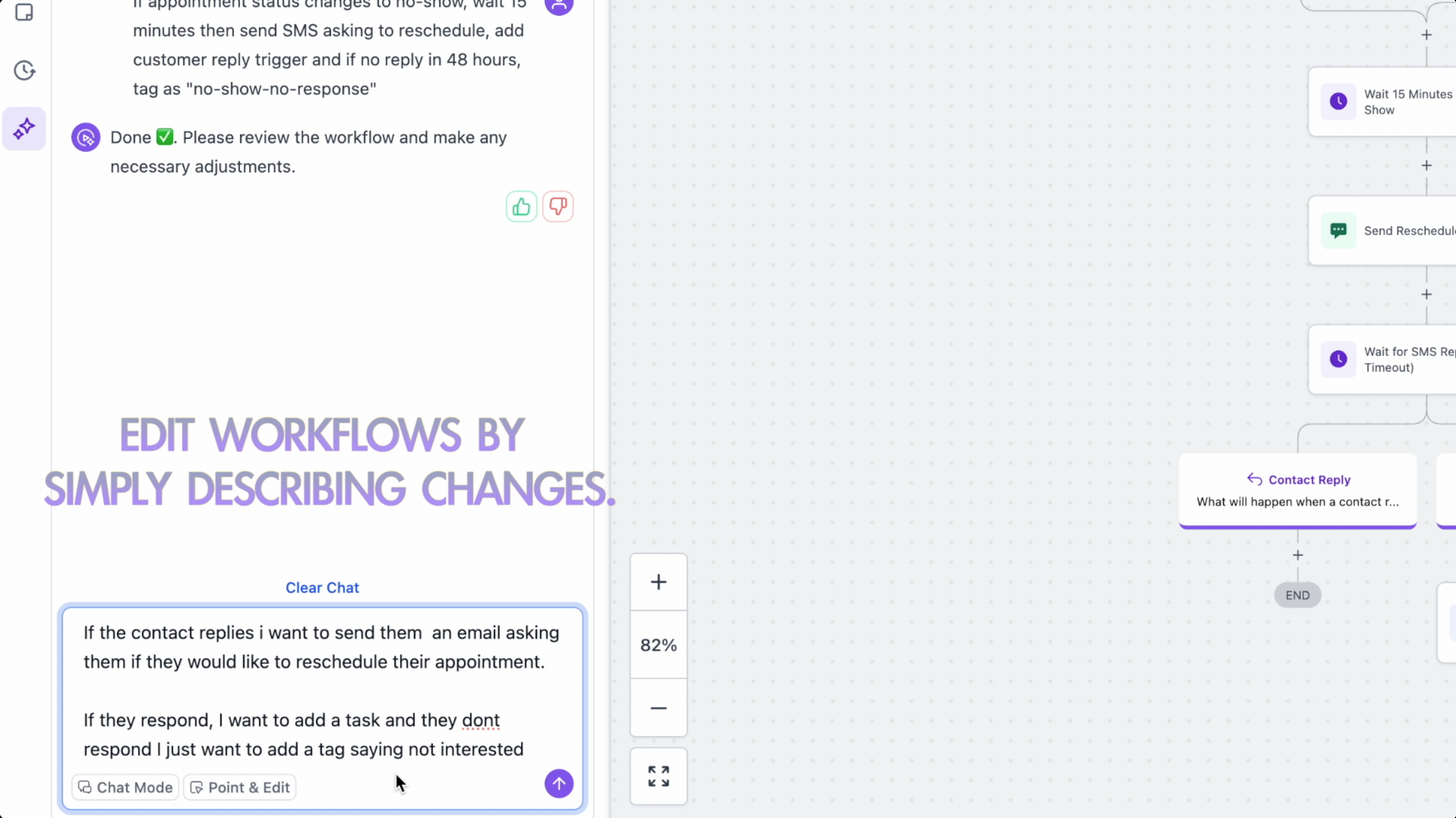
After reviewing your workflow, you can refine it with natural-language prompts in the AI chatbot. Describe the change you want, and AI Builder updates the workflow while keeping the surrounding structure intact.
You can also conversationally edit complex actions like If/Else and Wait steps. This includes updating conditions, adding or removing branches, changing wait settings, and refining existing logic without leaving the workflow conversation.
You can also ask AI to:
- Rename the workflow
- Check, enable, or disable workflow settings (re-entry, multiple opportunities, stop on response, timezone/time windows, sender details, and mark conversations as read)
- Update steps so later actions reference outputs from earlier steps (for example, inserting AI output into a message)
What You Can Edit
The conversational editing feature currently supports:
Actions:
- Add new actions anywhere in your workflow
- Remove unwanted actions (both single and multi-path)
- Replace existing actions with different ones
- Modify action configurations and settings
- Update actions to use values from previous steps (data linking across actions)
- Add or update actions that use integration apps (for example, task creation actions)
- Move actions to different positions in the workflow
Triggers:
- Add additional triggers
- Remove existing triggers
- Replace triggers with different types
- Modify trigger configurations
Complex Edits:
- Combine multiple changes in a single prompt.
Limitations:
- Combine multiple changes in a single prompt
- Edit If/Else actions conversationally by adding, removing, or updating segments within branches, changing AND/OR operators for branches and segments, and adding or removing branches. For complex requests, AI Builder may ask clarifying questions to confirm which branch or segment to update.
- Edit Wait actions conversationally by updating wait attributes, adjusting reply or window settings, adding or removing timeout branches, or changing the wait type
Example Edit Prompts
- "Add a 3-day wait between the welcome email and the follow-up"
- "Replace the SMS action with a Slack notification"
- "Remove the last email in the sequence."
- "Move the tag action to happen before sending the first email."
- "Change the trigger from form submission to contact created."
- "Add an if/else condition to check if the contact has made a purchase."
- "Remove the timeout branch from this wait action."
Note: For multi-path deletion, the AI may ask clarifying questions to ensure the changes match your intentions.Point and Edit for Precise Control
For larger workflows where identifying specific actions becomes challenging, use the Point and Edit feature for precise control over your edits.
How it works:
Click Point and Edit in the AI chatbot interface to activate selection mode.
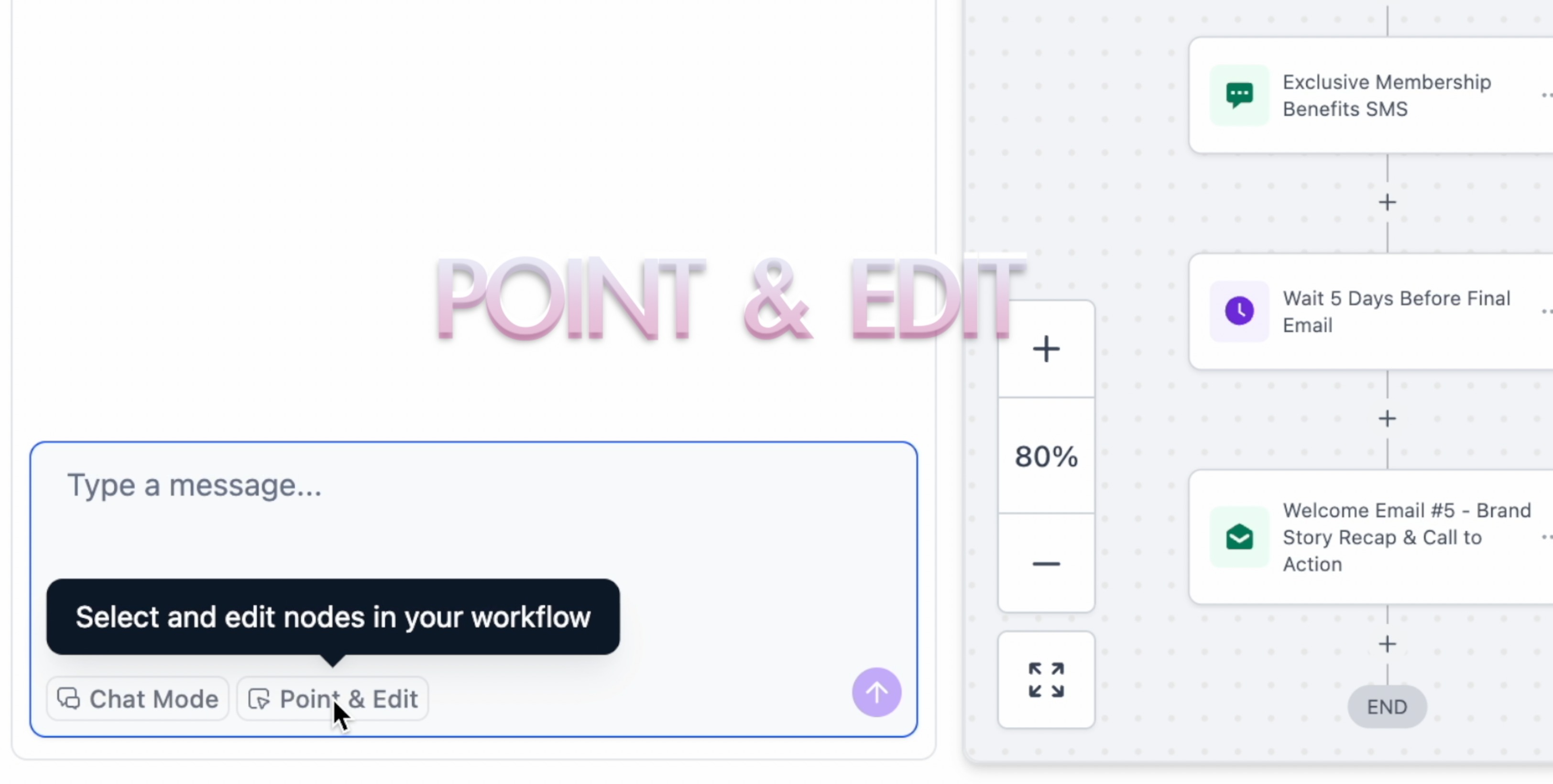
Select Actions to Edit: click to select one, click multiple, or hold Shift and drag to select a range. Selected actions are highlighted.
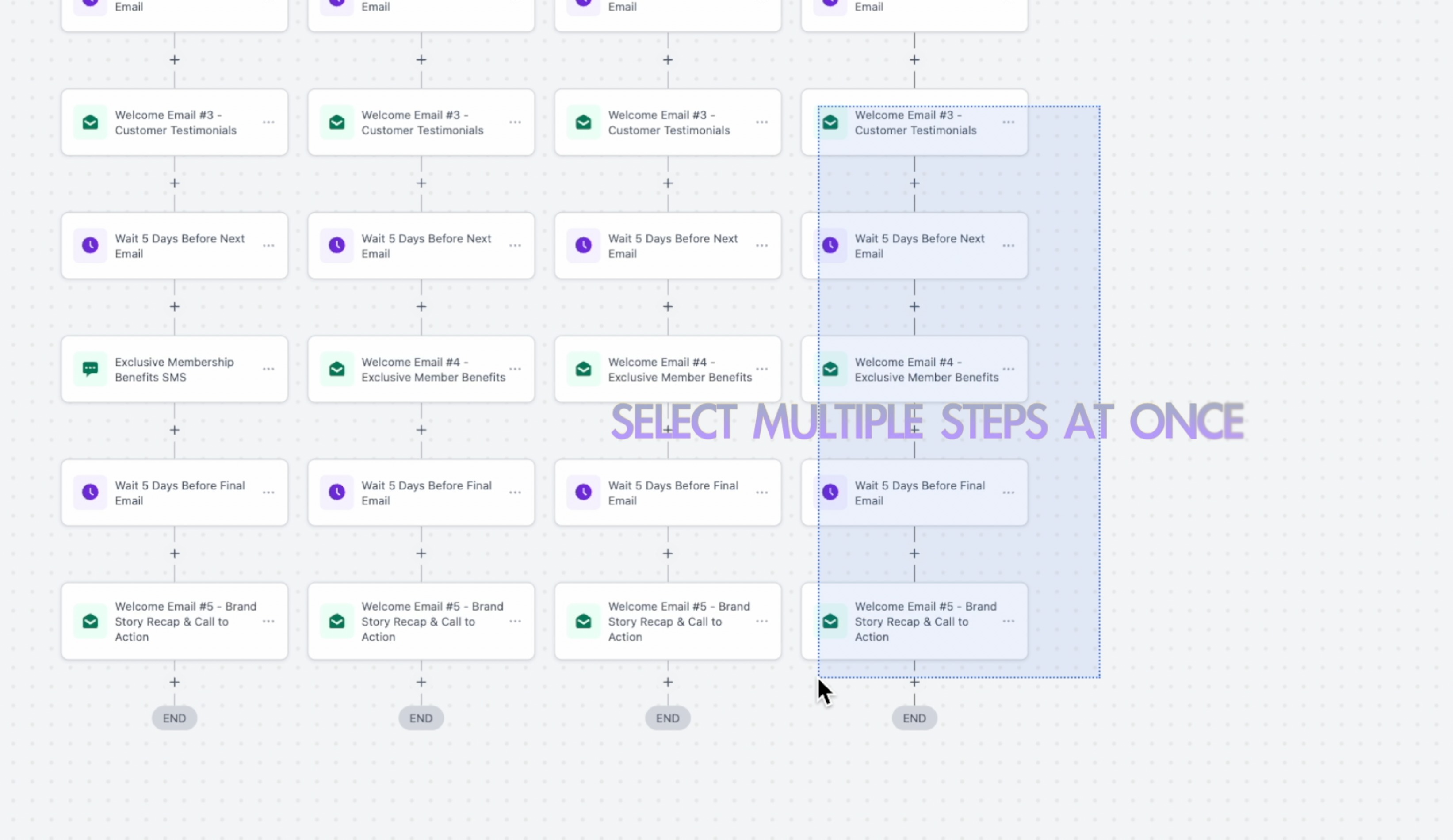
Describe your change in the chat; AI applies it only to the selected steps.
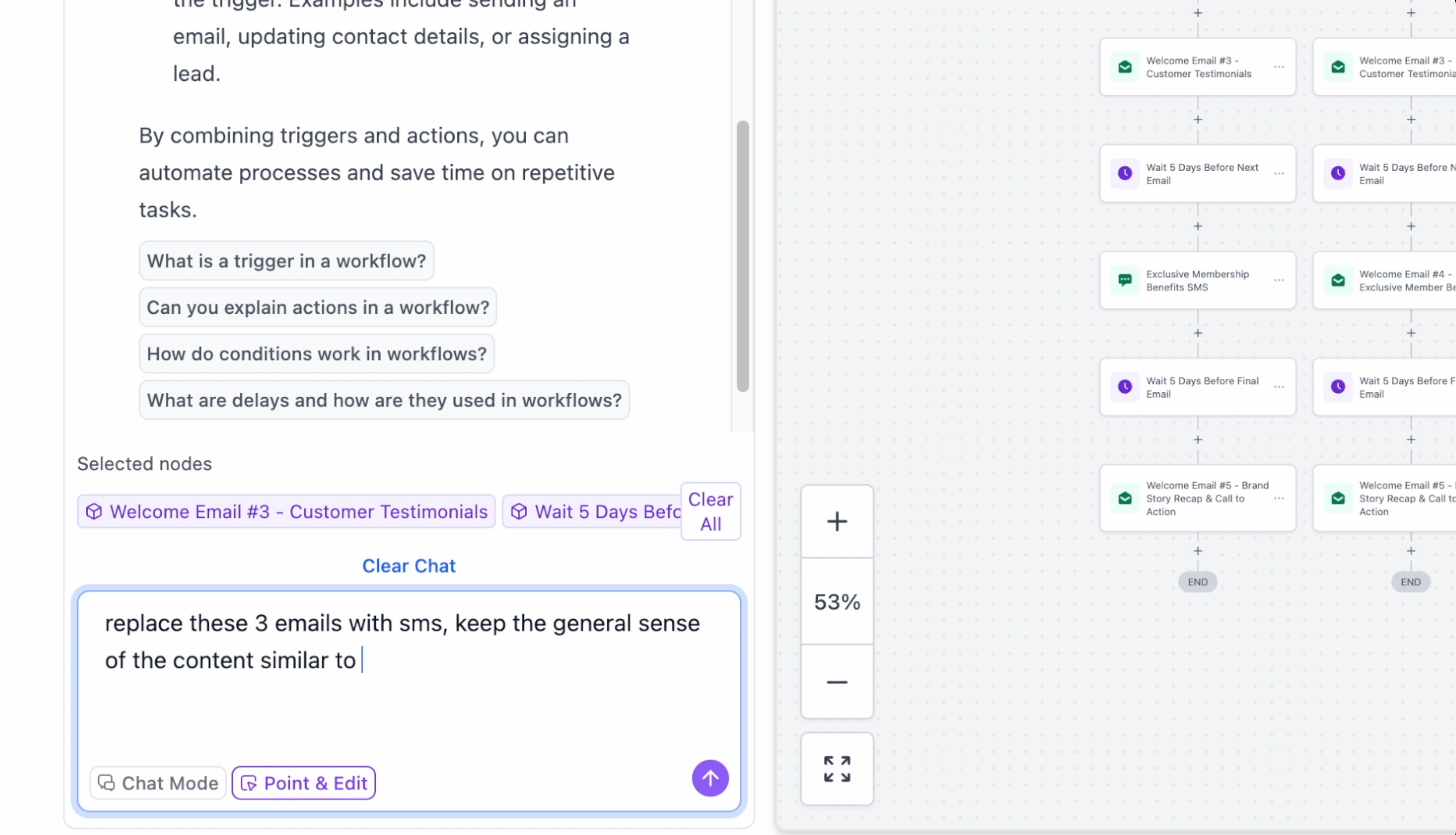
Example Point and Edit Scenarios:
- Select 3 email actions in a sequence and say "Change all these to SMS messages"
- Select a specific task action and say "Change the text to be more urgent"
- Select multiple actions in a branch and say "Move all of these after the tag action"
- Select a group of actions and say "Delete these selected actions"
Benefits of Point and Edit:
- Precision: Edit exactly what you want without affecting other parts
- Visual Clarity: See what you're editing before making changes
- Efficiency: Make bulk changes to multiple selected actions at once
- Reduced Errors: Eliminates confusion in complex workflows with similar actions
Tip: Point and Edit is especially useful for workflows with 10+ actions or multiple branches where verbal descriptions alone might be ambiguous.Clarifying Agent in Workflow AI Builder
The Clarifying Agent helps Workflow AI Builder create better results by asking for missing details before it builds a new workflow or applies changes to an existing one. This improves first-pass accuracy, reduces unnecessary revisions, and helps the AI use the right context before it acts.
When your request is too broad or leaves out important details, Workflow AI Builder may ask a short series of clarifying questions before proceeding. This helps the AI avoid making incorrect assumptions when building or editing a workflow.
The Clarifying Agent may appear when key details are missing, such as:
- The workflow trigger is not defined
- The message channel is not specified
- The timing is unclear
- An unsupported channel is requested
The questions are designed to be quick and easy to answer. Users can select from available options or type a custom response. If a user prefers not to answer, they can skip the question and let the AI decide.
Workflow AI Builder asks up to three clarifying questions before continuing.
When the Clarifying Agent appears
The Clarifying Agent appears when Workflow AI Builder detects that your request does not include enough detail to generate a reliable result. This applies to both new workflow requests and edit requests for existing workflows.
Examples include:
- “Follow up with the customer” without a trigger
- “Send a message sequence” without a channel
- “Remind them later” without timing details
- Requesting a channel that is not supported
How to answer clarifying questions
Clarifying questions help the AI Builder narrow down your intent before it proceeds. Answering them gives the AI more context and usually leads to a better result on the first attempt.
1. Review each question shown by the AI Builder.
2. Select one of the provided options, or type your own response.
3. Continue through the questions if more than one appears.
4. Skip any question if you want the AI to decide for you.
5. Let the AI Builder generate or edit the workflow using the added context.
Why this improves workflow generation
Clearer inputs lead to better outputs. By gathering missing details before generation or execution begins, the Clarifying Agent helps reduce revision cycles and improves the quality of workflow builds and edits.
Chat mode
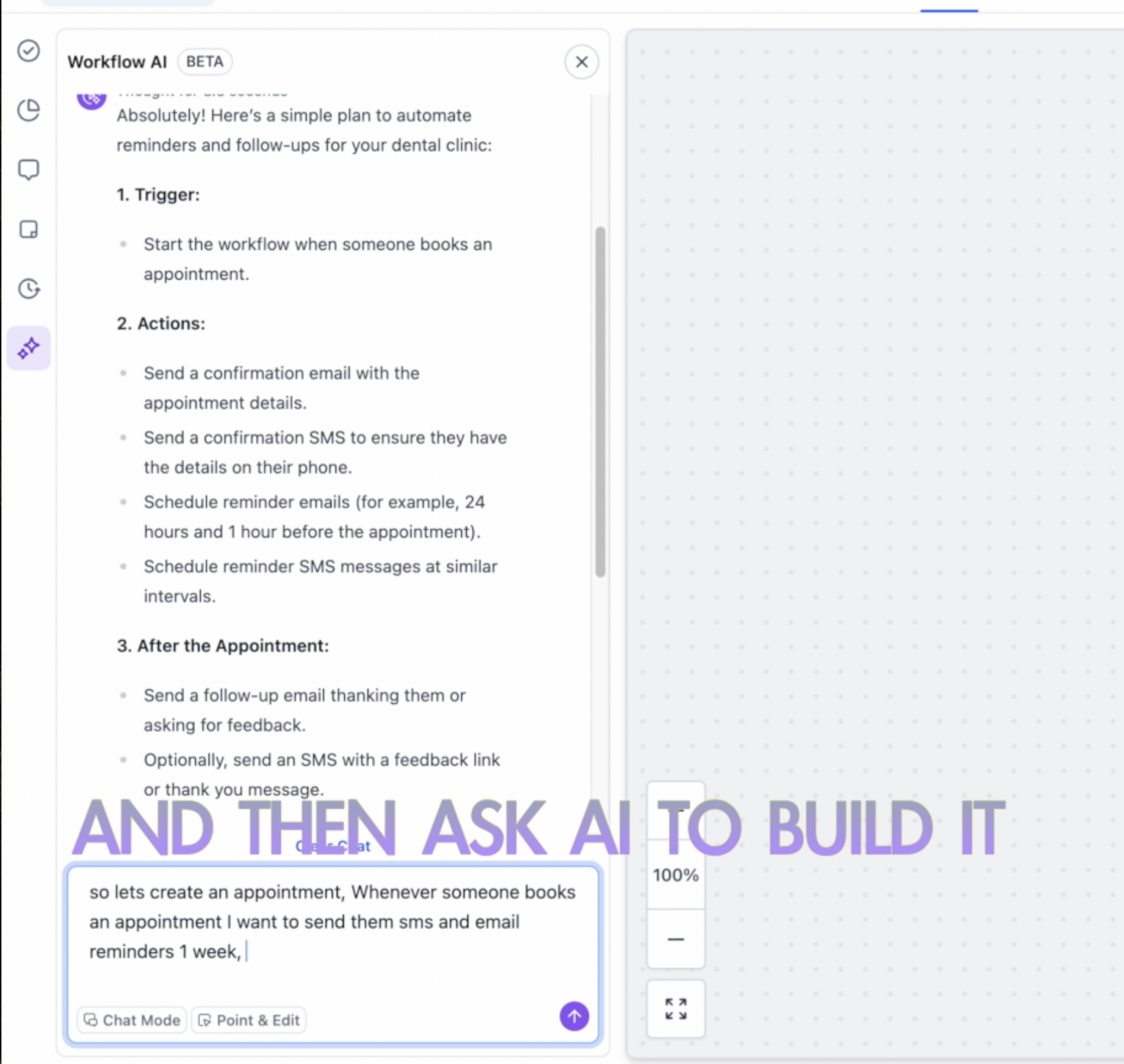
Chat Mode enables planning without building, so you can co‑design requirements with AI before committing changes.
How to use Chat Mode
Click Chat Mode in the AI panel to enable brainstorming mode.
Brainstorm with AI to plan triggers, actions, branches, and timing.
When ready, disable Chat Mode and ask AI to build the workflow.
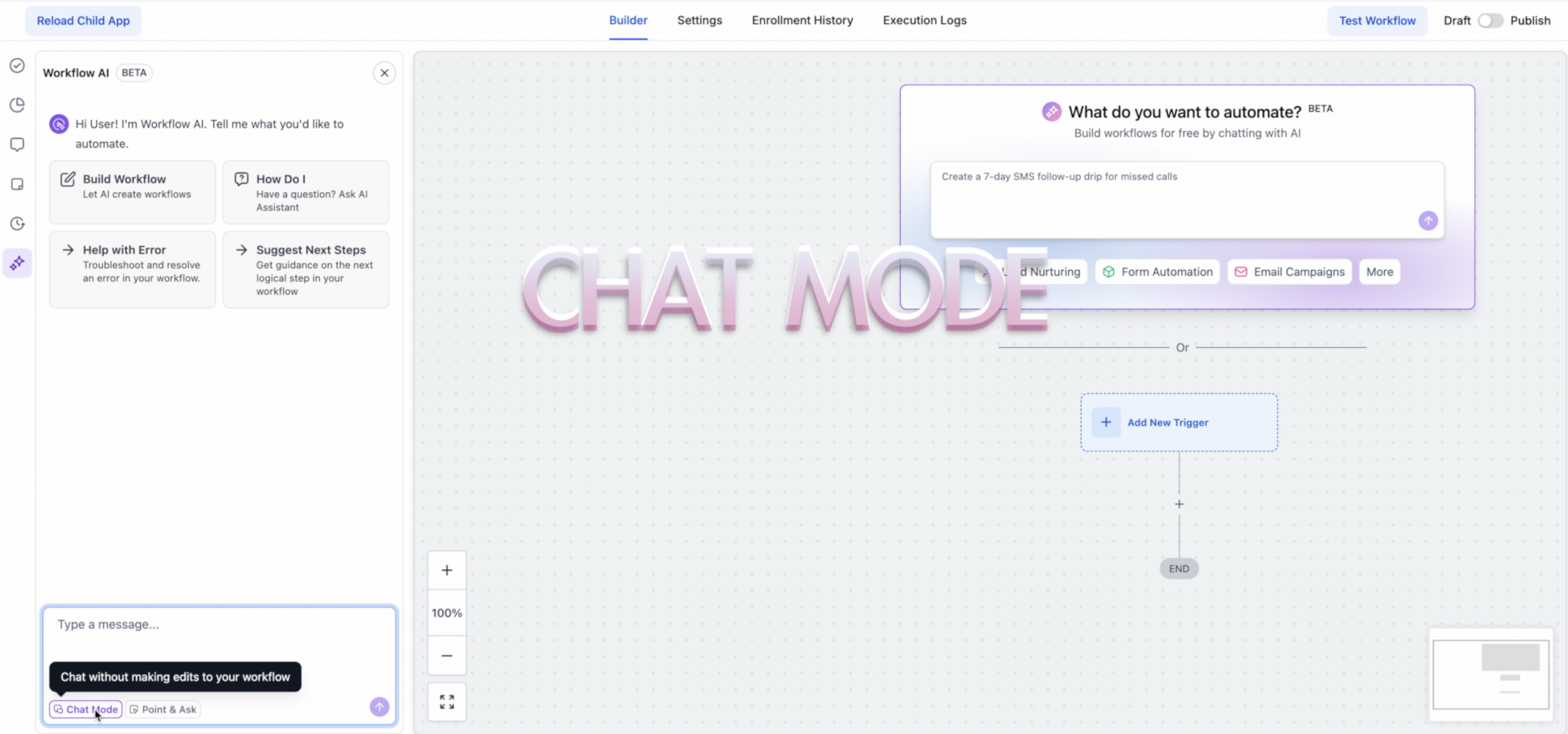
Brainstorm with AI
- Brainstorm first: Decide what to build and make AI your brainstorming partner
- Create a plan: Go back and forth and create a plan for the actions and triggers
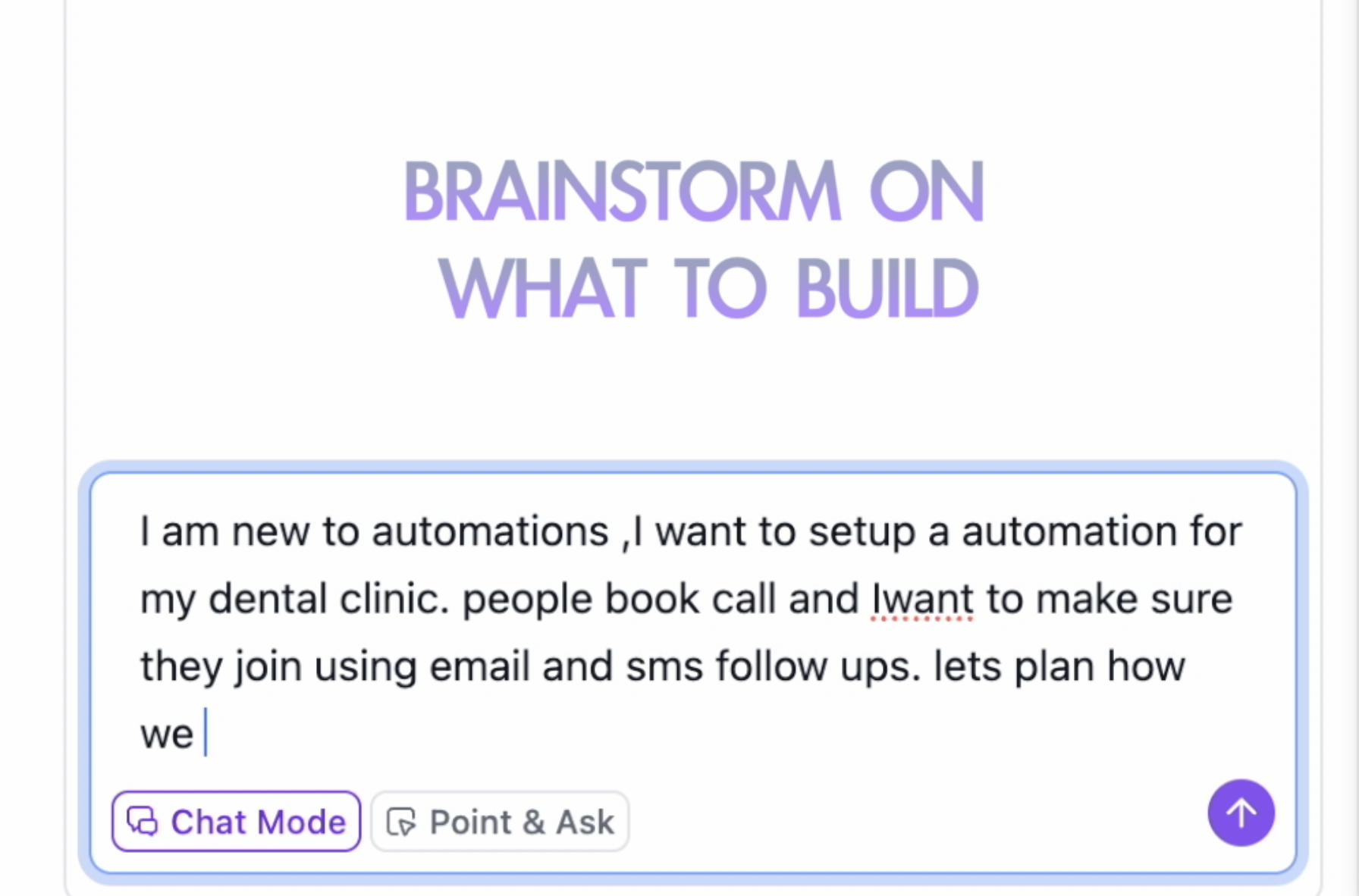
Ask AI to build it
- Once finalized, disable chat mode
- Then ask AI to create it
Post-generation To-Do List (Complete Before Publishing)
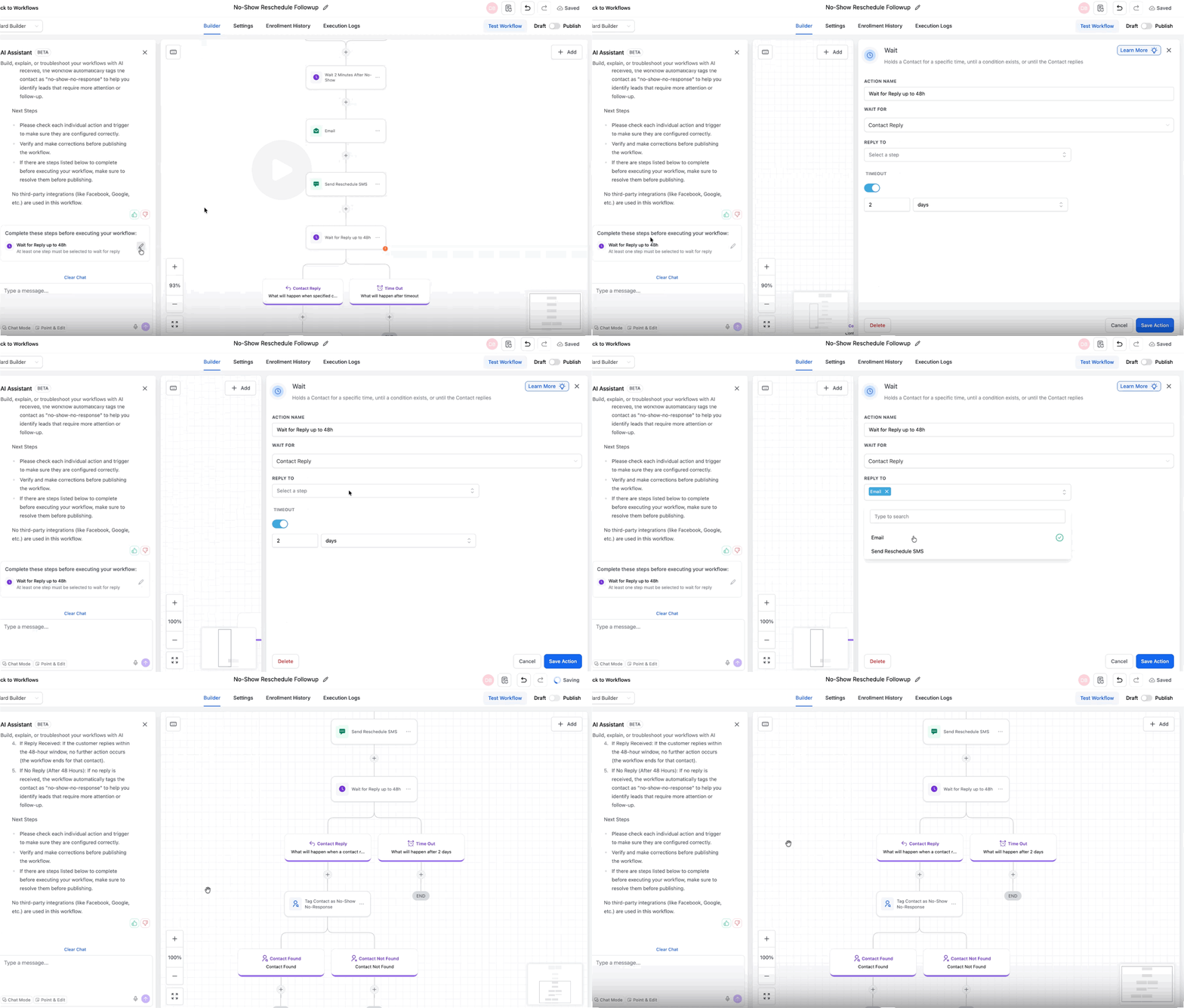
After AI generates the workflow, review the To-Do List (Complete these steps before executing your workflow) for any items that still need your input, such as credentials, required fields, or custom values.
Select a To-Do item to jump directly to the related action, then complete the missing details before publishing. This helps prevent incomplete workflows from going live.
Common items in the To-Do List may include:
- Connecting integration credentials
- Selecting the correct account
- Choosing a pipeline
- Adding required field values
- Defining step-specific settings when multiple options are available
Best Practices for Effective Prompts
Clear prompts improve accuracy. Provide specifics on timing, channels, conditions, and content so the AI builds what you expect.
Be specific and clear. Example: “When a contact books an appointment, wait 24 hours, then send a confirmation email and a reminder SMS one day before the appointment.”
Include key details. Timing, channels, conditions/filters, and content type.
Use action verbs. Start with Send, Notify, Create, Update, Wait, Check if.
Providing Feedback
Feedback helps improve generation quality and informs future enhancements.
A feedback chatbot opens when a workflow is created.
Click thumbs up if the workflow meets expectations, or thumbs down to provide improvement details.
Share whether the automation matched your intent, what was missing/incorrect, and suggestions.
Beta Limitations
Knowing today’s limits helps you plan validation steps before activating a generated workflow.
Manual review required: Verify triggers, actions, and configurations before publishing.
Configuration verification: Some complex configurations may require manual adjustments.
Testing: AI cannot test workflows. Perform manual tests.
Troubleshooting
If the first draft misses the mark, iterate on the prompt and narrow the scope to guide the AI.
Refine your prompt: Add detail or split complex goals into smaller parts.
Wrong trigger: Specify the exact trigger type in your prompt or edit using AI.
Missing actions: List desired actions explicitly or add via conversational edits.
Incorrect timing: Use precise time references (e.g., “after 2 days”).
Quick Tips
These tips reduce setup time and prevent common mistakes when adopting AI‑assisted building.
Start with simple workflows to learn capabilities; then increase complexity.
Always test before publishing.
Provide feedback to improve results over time.
Revisit periodically for new features and improvements.
If a generated workflow is not ready to publish, check the Post-Generation To-Do List in the AI panel. It highlights unresolved actions and triggers that still need manual input.
Frequently Asked Questions
Q: Can I edit the generated workflow using AI?
Yes. Use conversational edits to add, remove, replace, move, or modify actions and triggers. You can also edit multi-path configurations for If/Else and Wait actions through conversation.
Q: Can I target only certain steps when editing?
Yes. Use Point and Edit to select specific actions (single, multiple, or drag‑select) and apply changes only to those selections.
Q: What if the workflow doesn’t match my intent?
Refine your prompt with more detail or perform conversational edits. You can also plan in Chat Mode before building.
Q: Do I still need to test?
Yes. Always validate triggers, actions, timing, and outcomes with a live test before activating.
Q: How do I disable Workflow AI Builder?
You can disable it at the agency or Sub-Account level.
Agency: Go to Settings → Labs and disable Workflow AI Builder.
Sub-Account: Go to Automations → Global Workflow Settings → Workflow AI and toggle off AI Builder.
Q: Why do items appear in the Post-Generation To-Do List?
Some workflow settings require a human decision. For example, you may need to choose credentials, select an account, pick a pipeline, or define a step-specific setting before the workflow can be finalized.
Q: Is an AI-generated workflow always ready to publish right away?
Not always. Review the Post-Generation To-Do List after generation and complete any required fields before you publish the workflow.