
This article shows you how to configure quizzes so that the result page displays either the highest or lowest scoring category. This allows you to run personality-style assessments or highlight skill gaps directly in the results.
TABLE OF CONTENTS
What are Personality-Style Quizzes?
Personality‑style quizzes group your questions into categories (such as styles, archetypes, or skills). Each answer adds points to one or more categories. When the quiz is submitted, SourCherry totals the points and picks one outcome, usually the highest score (or the lowest if you want to highlight a gap). That outcome shows on the Results page in the Individual Category section, where you can display the category name and score, add a short explanation
Key Benefits of Personality-Style Quizzes
Clear Outcomes: One category is highlighted as the user’s “type” for easy interpretation.
- Deeper personalization: Add custom fields and dynamic values to personalize user journeys, segment quiz results, or show personalized content on results page.
- Richer Storytelling: the Rich Text Editor supports headings, lists, and links for polished result narratives.
Automation‑ready: Pair results with Workflows (e.g., branch by category) for targeted follow‑up.
Higher Engagement: Add GIFs, explainer videos, and action-driven CTA buttons directly inside any quiz page.
How to Set Up a Personality‑Style Quiz
With these steps, you can configure your quizzes to display only the highest or lowest category on the result page, creating personality-style outcomes or skill-gap assessments.
Step 1: Open a Quiz
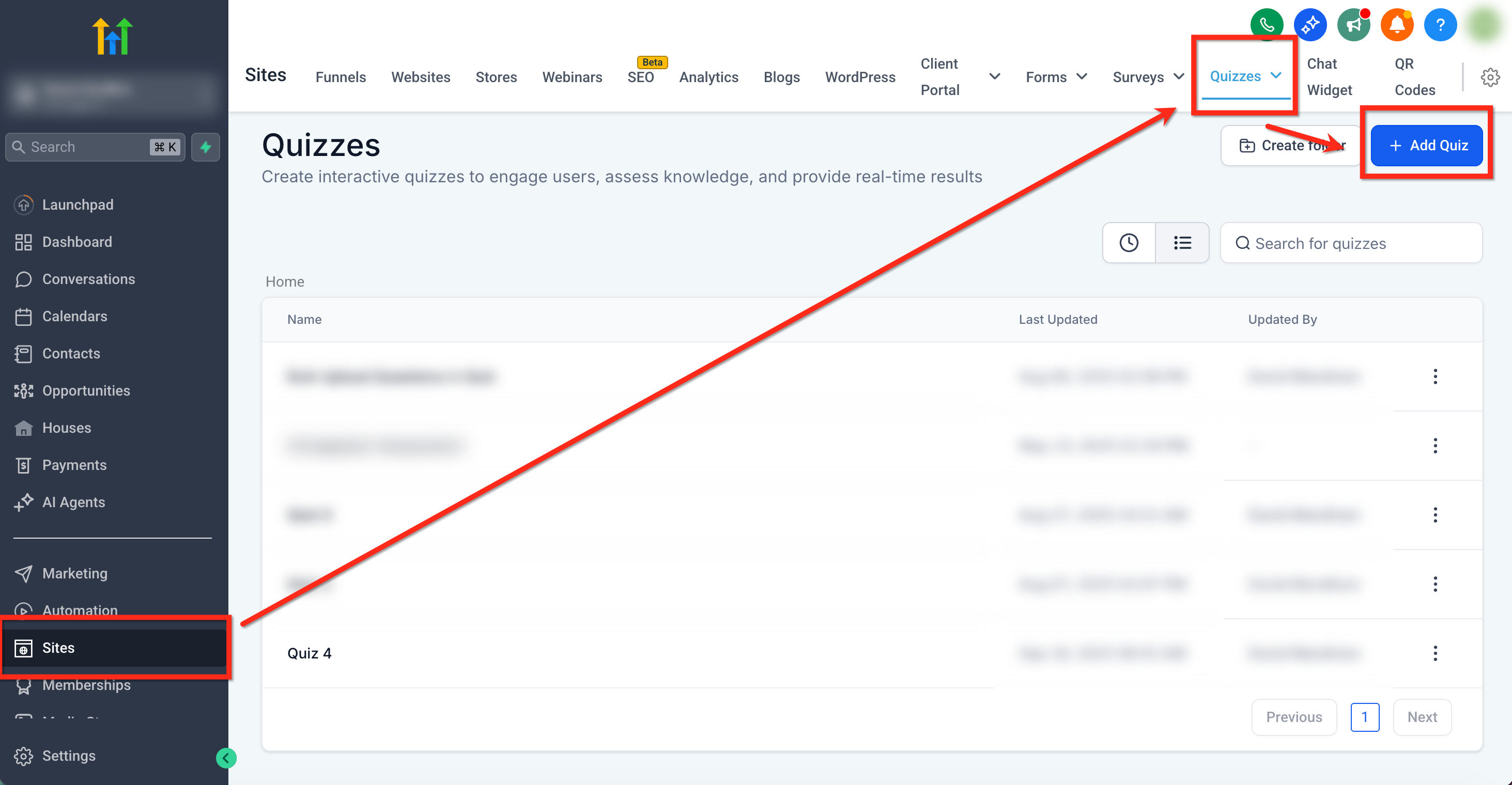
Navigate to Sites → Quizzes → + Add Quiz (or select an existing quiz)
Step 2: Create Categories
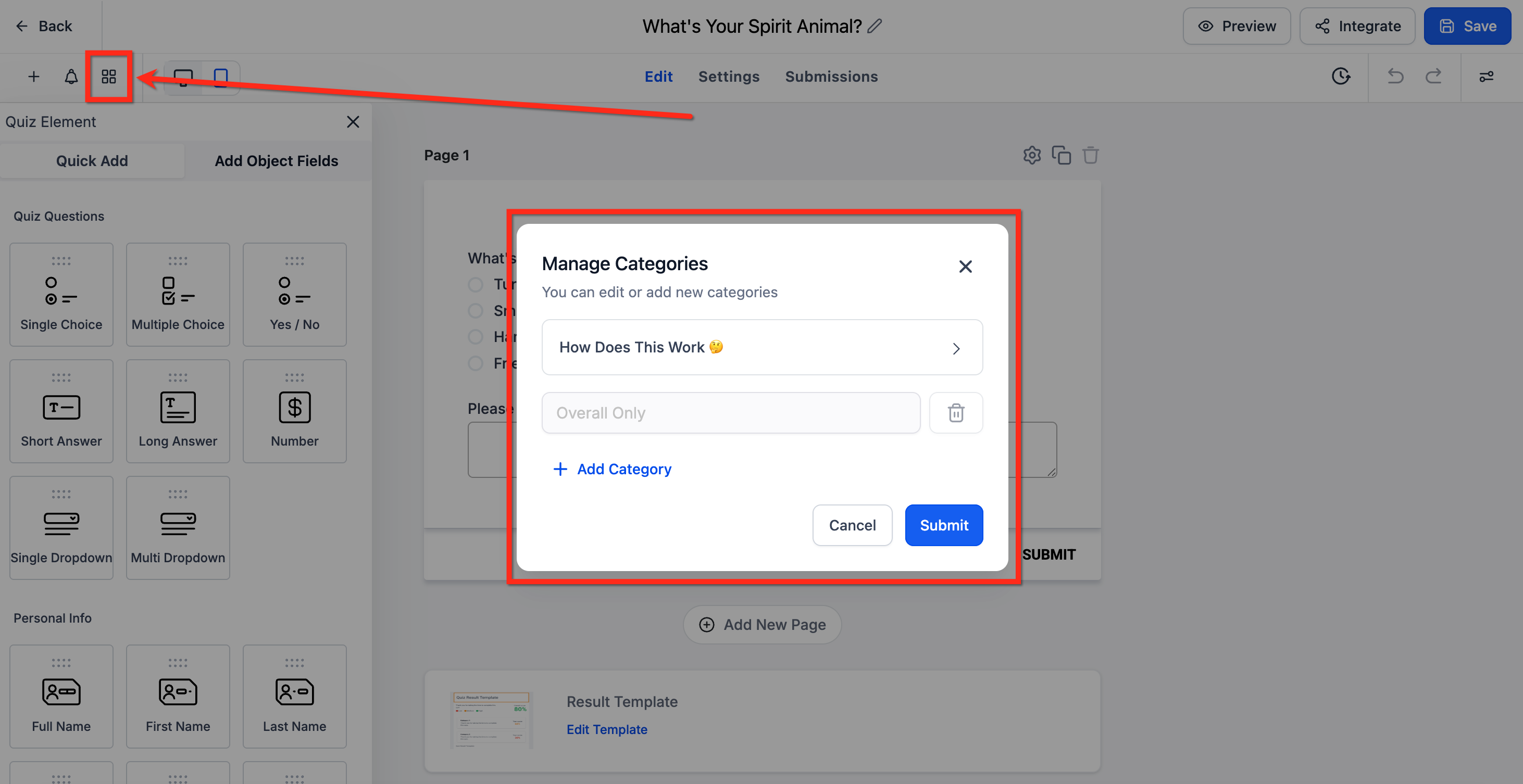
Click on the 'Manage Categories' option on the top-left side then add categories.
Step 3: Assign Categories & Scores
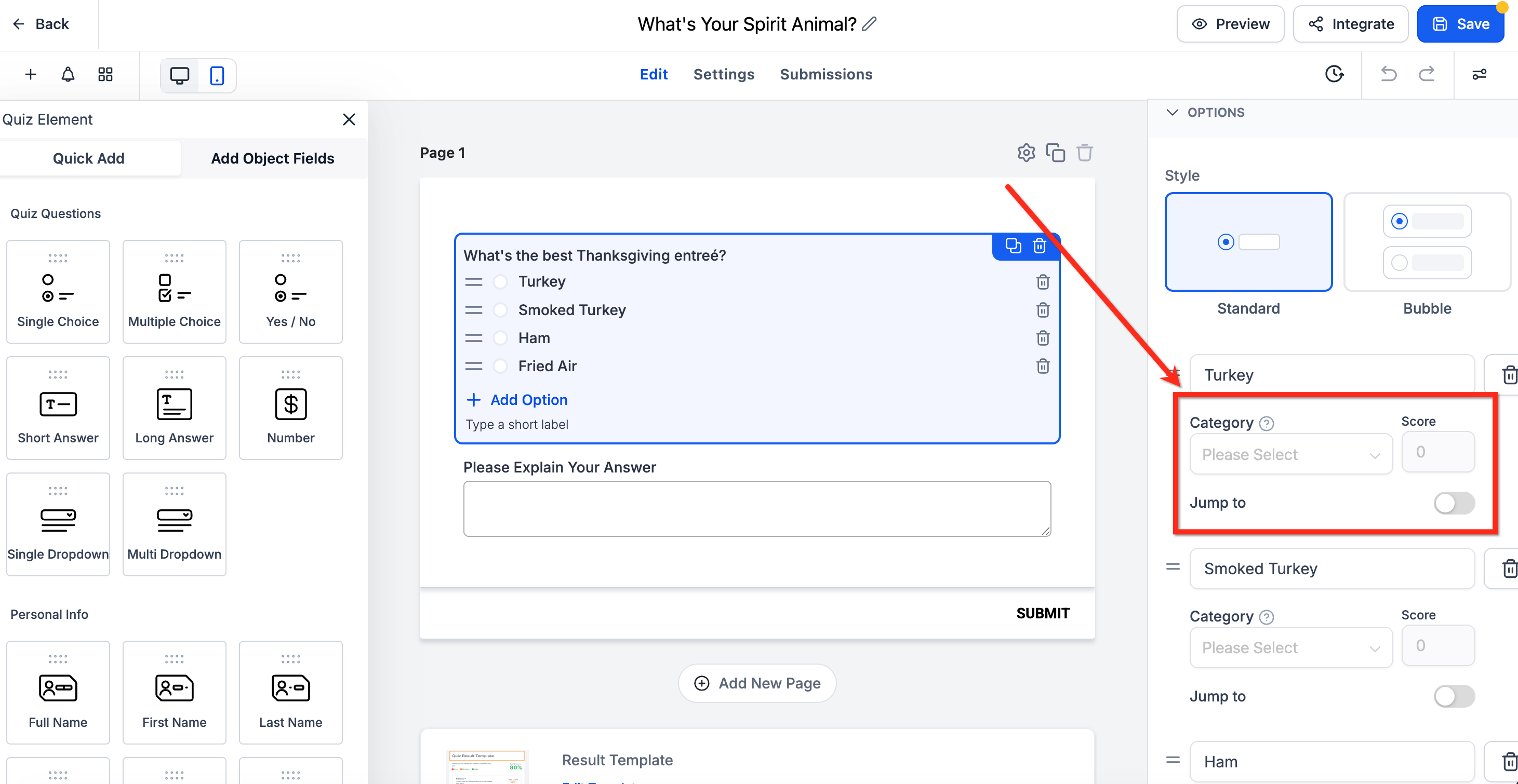
In the quiz builder, go to a question and look at the Options panel on the right. Under each answer, assign a Category and a Score
Step 4: Build the Results Page
After setting up your categories and scores, move to the Result Page editor.
Here you can fully customize what the quiz taker sees after completing the quiz.
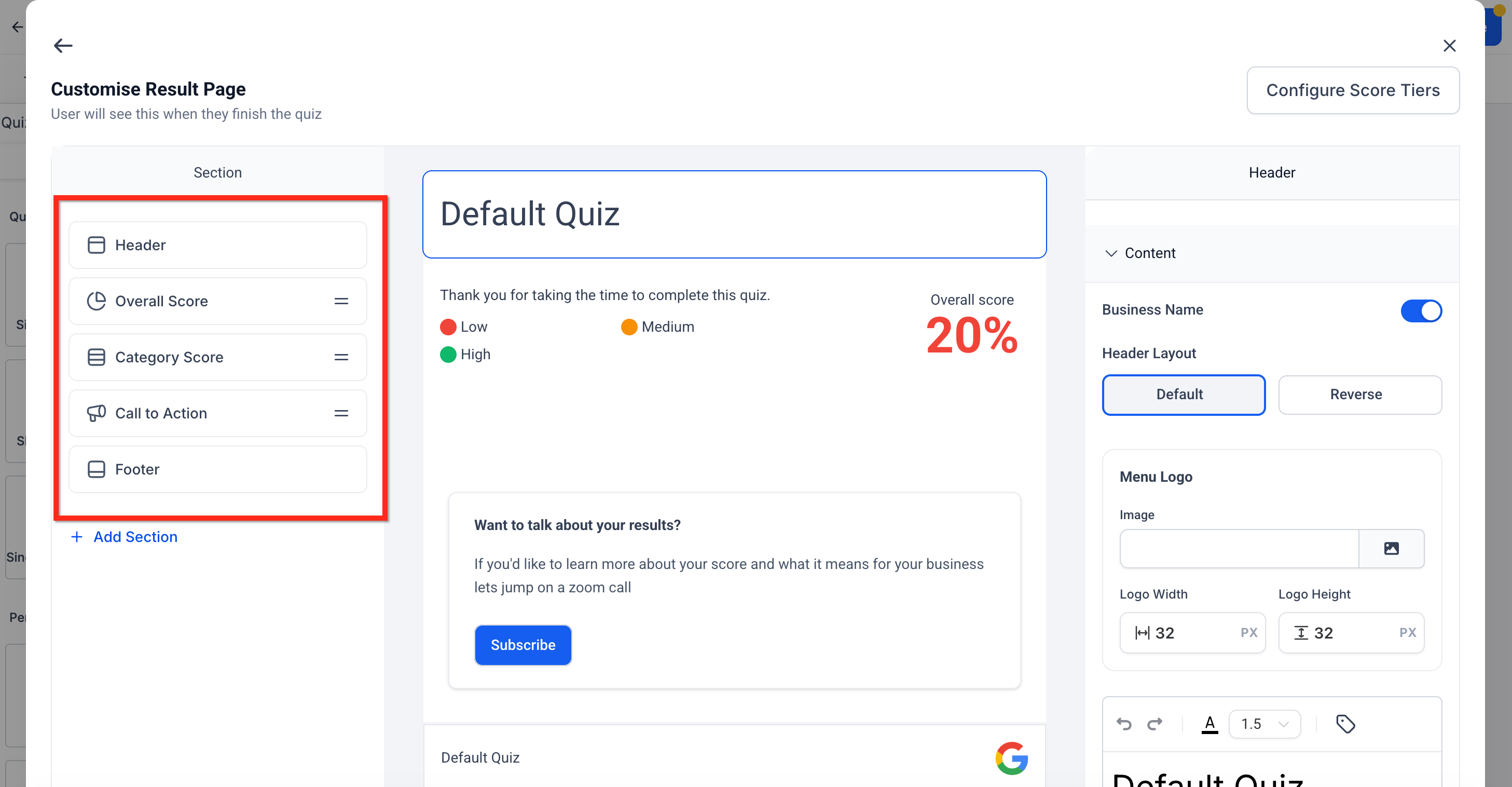
Sections Available
Header → Title, logo, business name toggle.
- Overall Score → Shows the overall quiz result. You can choose to display a percentage (with optional Low/Medium/High ranges), the actual score, or an out-of-10 result.
- Category Score → Shows the breakdown across all categories. You can also pick how each category score displays—percentage, actual score, or out-of-10—to match your overall score style.
Individual Category → Displays only the highest or lowest scoring category.
Call to Action → Add a button (e.g., Subscribe, Book a Call).
Footer → Add disclaimer, copyright, or links.
Step 5: Show Highest or Lowest Category
To configure personality-style results:
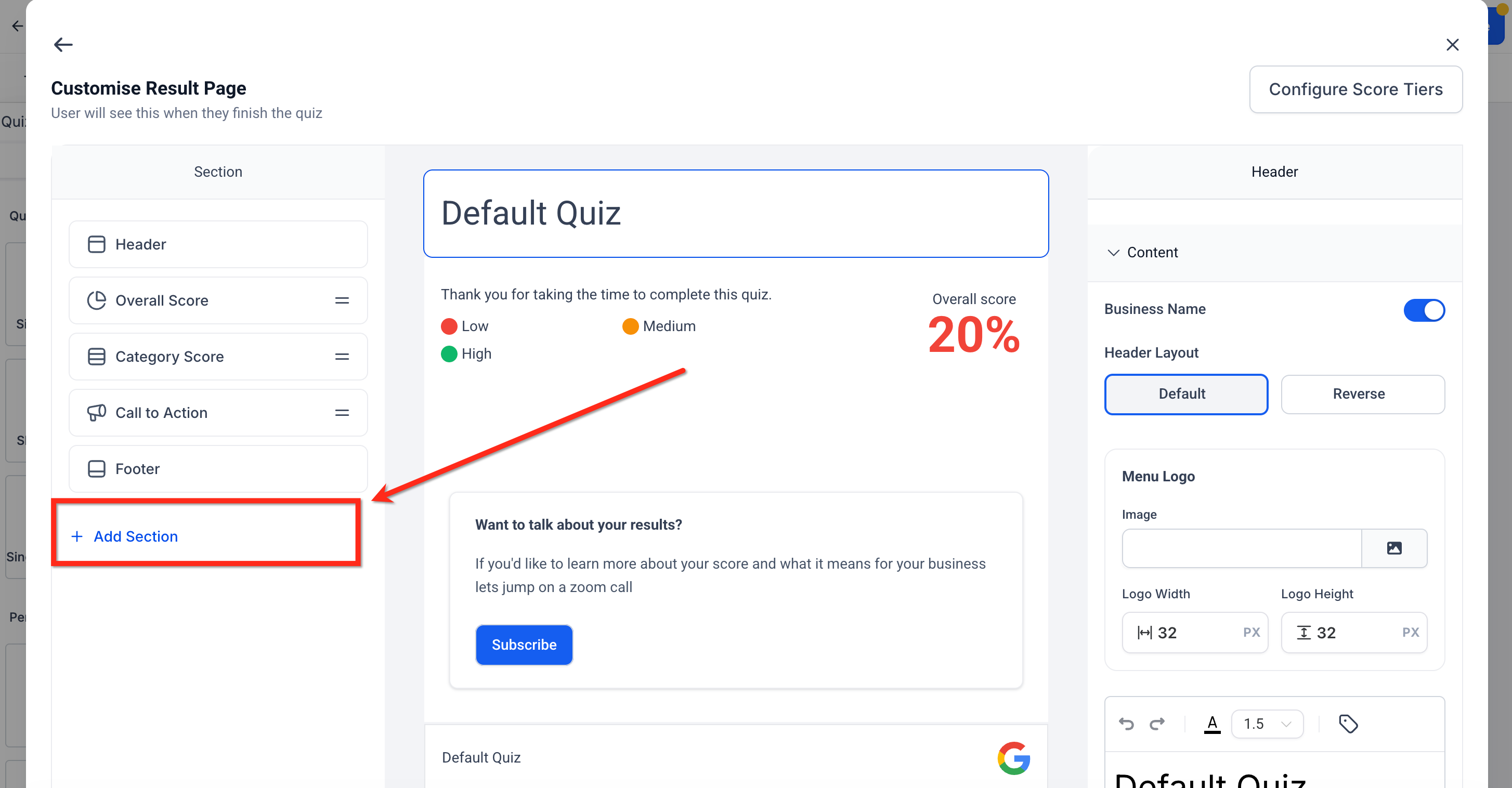
On the Result Page, click + Add Section.
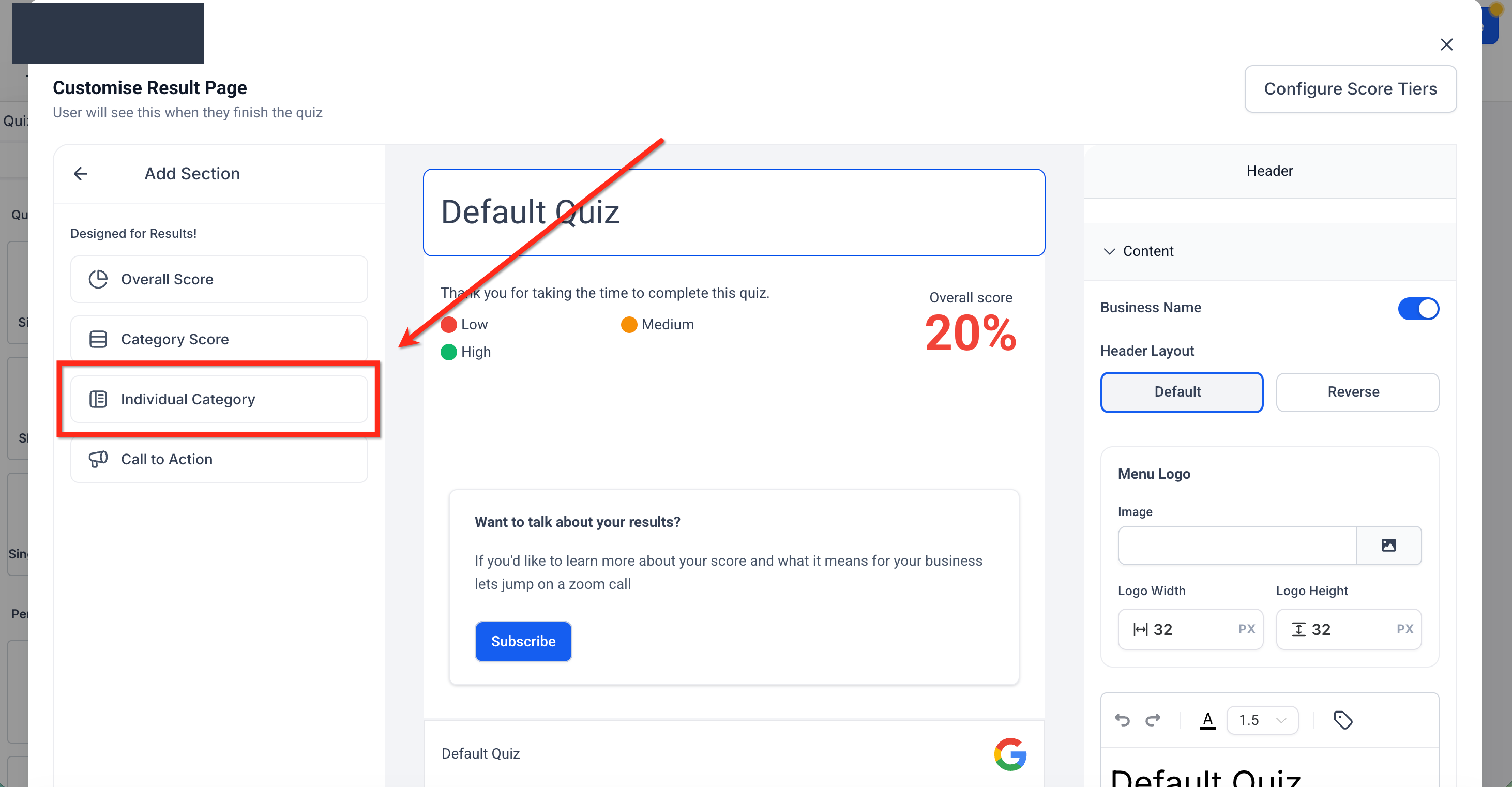
Choose Individual Category
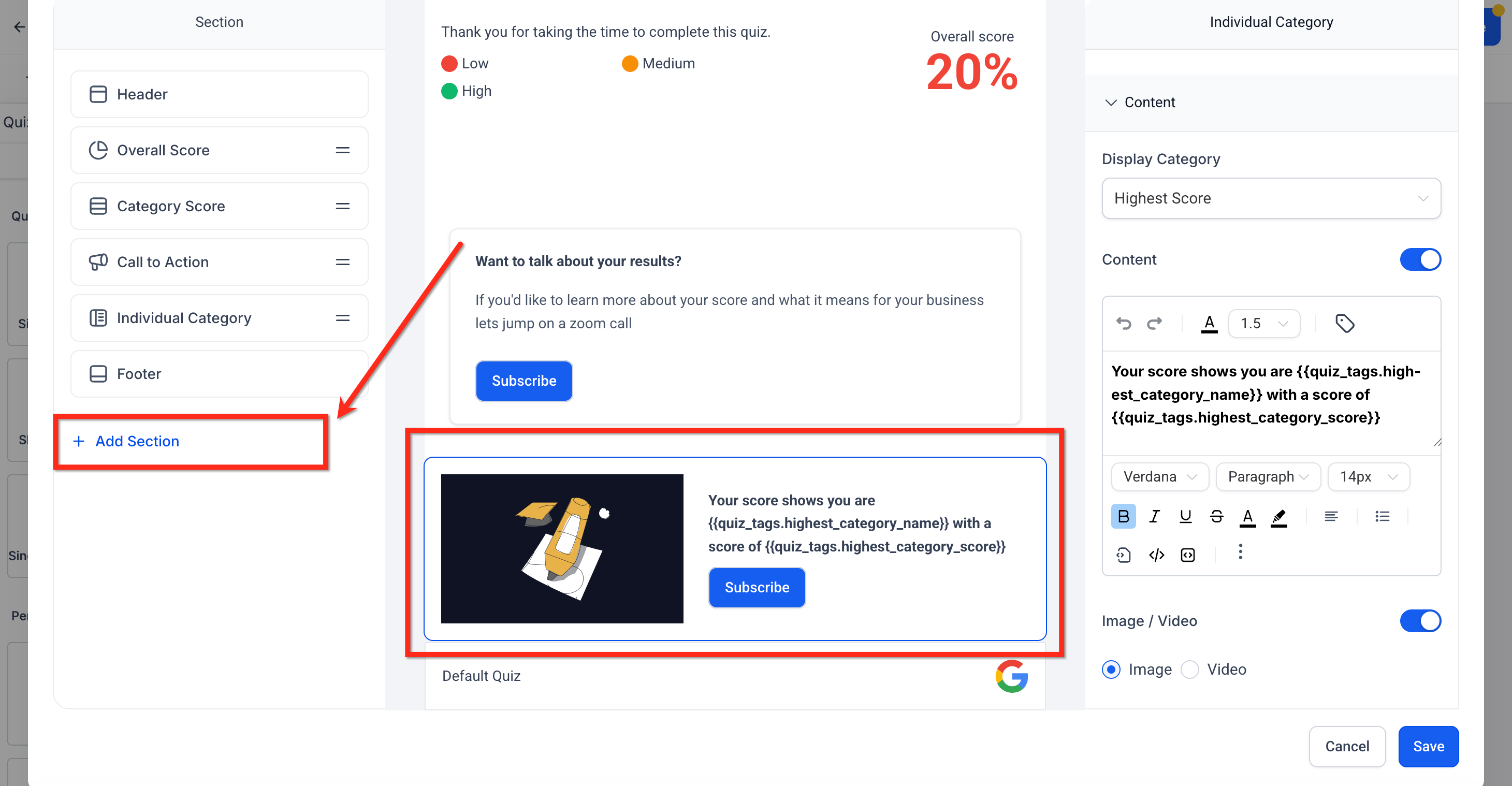
In the section settings, select:
Highest Category → Shows the category with the top score.
Lowest Category → Shows the category with the bottom score.
Use the editor to add text, and include dynamic tags (available inside this section):
{{quiz_tags.highest_category_name}}{{quiz_tags.highest_category_score}}{{quiz_tags.lowest_category_name}}{{quiz_tags.lowest_category_score}}
Example setups:
Highest → “Your strongest area is {{quiz_tags.highest_category_name}} ({{quiz_tags.highest_category_score}}%).”
Lowest → “Your weakest area is {{quiz_tags.lowest_category_name}} ({{quiz_tags.lowest_category_score}}%).”
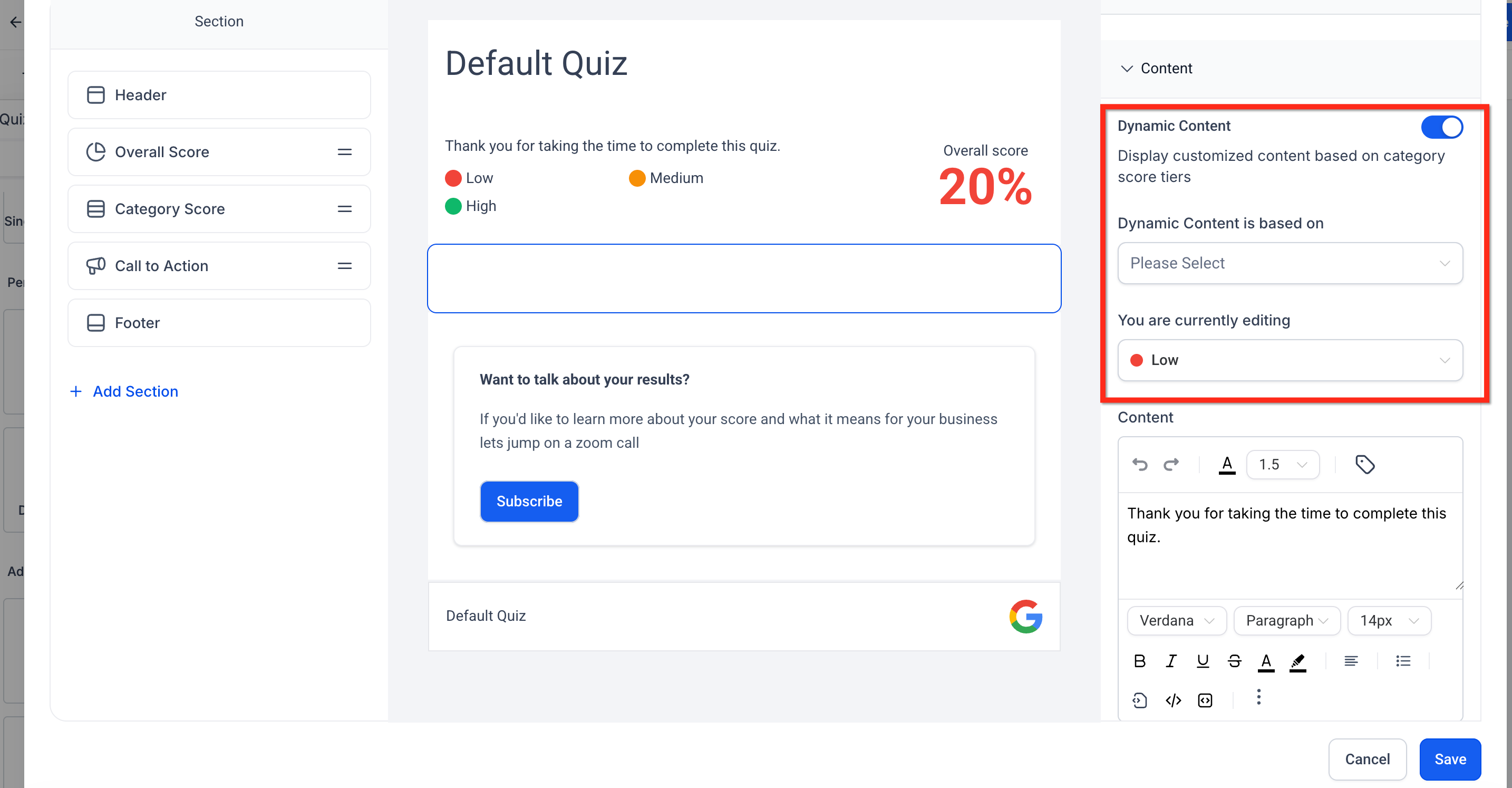
Step 6: Add Dynamic Score Ranges (Optional)
On the Overall Score or Category Score sections, you can configure score tiers (Low, Medium, High).
Example:
Low = 0–40%
Medium = 41–70%
High = 71–100%
Add a message for each tier (e.g., encouragement, recommendations).
Step 7: Save and Preview
Once all sections are configured, click Save.
Use the Preview option to complete the quiz and confirm:
Scores are calculating correctly.
Highest/Lowest categories display as expected.
Messages and CTAs appear in the right places.
Frequently Asked Questions
Q: Where do I insert the dynamic tags?
Use the tag picker in the Rich Text Editor to insert Quiz Tags, Contact fields, Custom Values, or timestamp tags.
Q: How can I send different emails based on the persona?
Use Workflows with a Quiz Submitted trigger to send tailored messages.
Q: Can I show both the highest and the lowest category?
Yes. Add two Individual Category sections—one set to Highest, the other to Lowest—or pair Highest with the Category Score section to show the full breakdown.
Q: Can I mix personality scoring with overall score percentages in the same quiz?
Yes. Use the Individual Category section for personality outcomes and the Overall Score section for total percent—both can coexist on the Result Page.