
Keep your Conversation AI bot accurate without the busywork. Auto Refresh of Knowledge Base Trained Links lets SourCherry automatically re-crawl and retrain your web URL sources on a daily, weekly, or monthly cadence—so customer answers stay current while your team focuses on higher-value work. Configure it once, then monitor statuses and logs from a single table view.
TABLE OF CONTENTS
- What is Auto Refresh of Knowledge Base Trained Links?
- Key Benefits of Auto Refresh
- Setting the Refresh Frequency
- Monitoring Refresh Status & Logs
- How To Setup Auto Refresh of Knowledge Base Trained Links
- Best Practices for a Healthy Knowledge Base
- Frequently Asked Questions
- Related Articles
What is Auto Refresh of Knowledge Base Trained Links?
Auto Refresh is a feature in SourCherry that schedules automatic re-training of the web URLs you’ve added to your Knowledge Base. Instead of manually clicking Refresh for each URL, SourCherry periodically re-crawls the pages, updates the table data, and re-indexes the fresh content your bot relies on. This ensures your bot can reference up-to-date product pages, help docs, and blog articles without manual maintenance.
Auto Refresh removes the need for recurring manual updates and reduces the risk of outdated answers. By continuously syncing your Knowledge Base URLs on a schedule, the feature helps your bot deliver consistent, reliable responses drawn from the most recent source material.
Key Benefits of Auto Refresh
Understanding the benefits helps you decide the right cadence and scope. These advantages focus on accuracy, time savings, and operational visibility, especially for teams managing many links across multiple sub-accounts.
Always-current answers: Ensures the bot uses the latest content for higher accuracy and reliability.
Time savings at scale: Reduces manual refresh work, especially when managing many URLs across sub-accounts.
Fewer outdated responses: Prevents stale instructions, prices, or policies from reaching customers.
Lower risk of human error: Automates repetitive refresh tasks so one missed click doesn’t leave sources stale.
Predictable scheduling: Choose Daily, Weekly, or Monthly cadences to match your content update rhythm.
Load management: Stagger refreshes to avoid peak-time crawling and manage performance on large sites.
Setting the Refresh Frequency
Scheduling controls how often SourCherry automatically re-crawls your URLs. Choose a frequency that aligns with how frequently your source content updates and the size of your URL library.
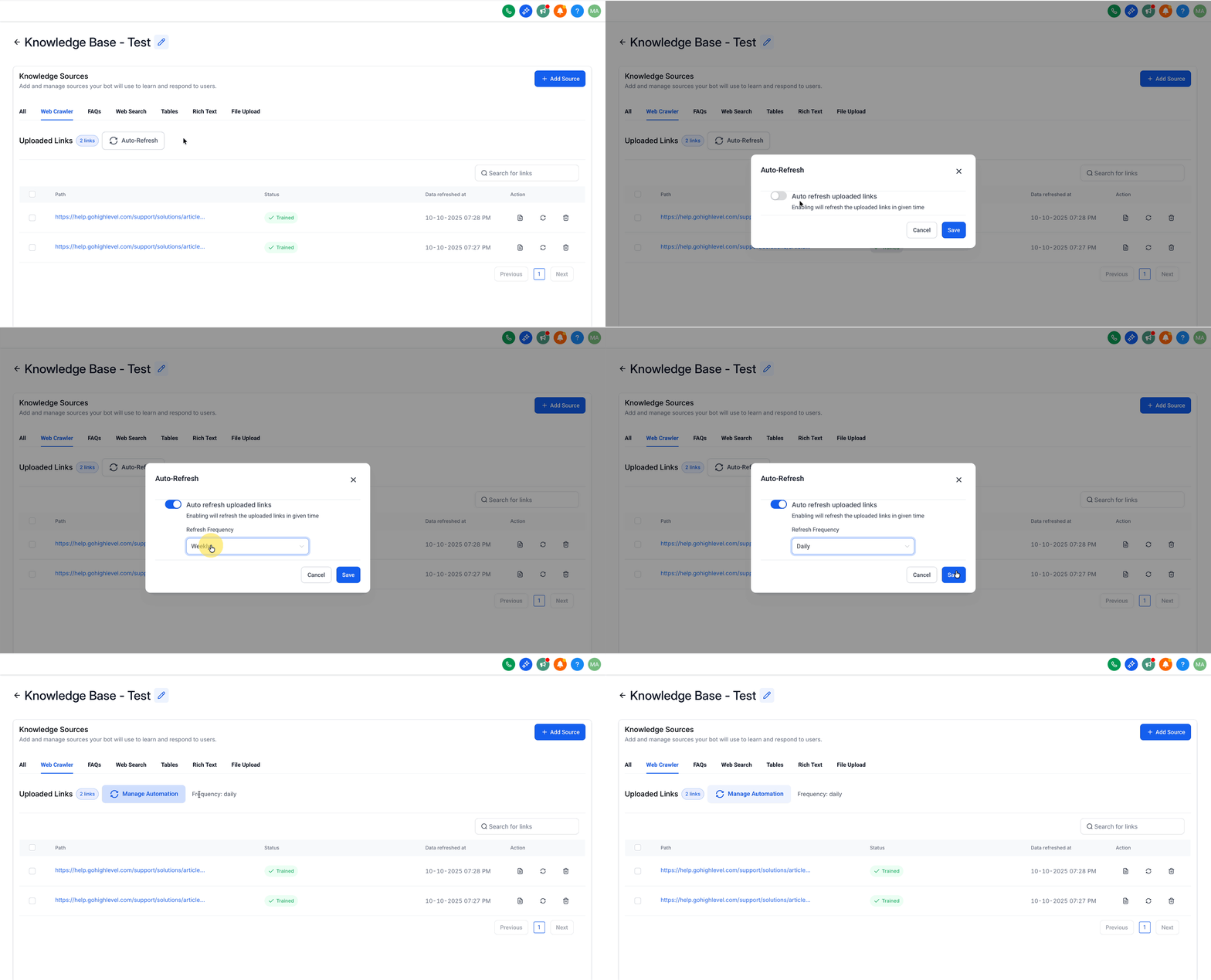
Click the Auto Refresh icon (circular arrows) and select your preferred schedule:
Daily: Refreshes approximately every 24 hours.
Weekly: Refreshes on the same weekday you select.
Monthly: Refreshes on the same calendar day each month.
Monitoring Refresh Status & Logs
Visibility into each crawl cycle helps you validate that refreshes are working and quickly resolve errors that would otherwise leave stale content in place.
The Status column reflects the current state of each URL:
Getting Data: SourCherry is actively re-crawling the page.
Trained: The latest data was saved; check Last data refreshed at for the timestamp.
Failed: The crawl encountered an error; retry the refresh or review page accessibility.
How To Setup Auto Refresh of Knowledge Base Trained Links
A reliable setup ensures refreshes run on time and your bot benefits from the latest content. Complete these steps in order to avoid missed schedules.
From your Sub-Account, go to AI Agents → Knowledge Base.
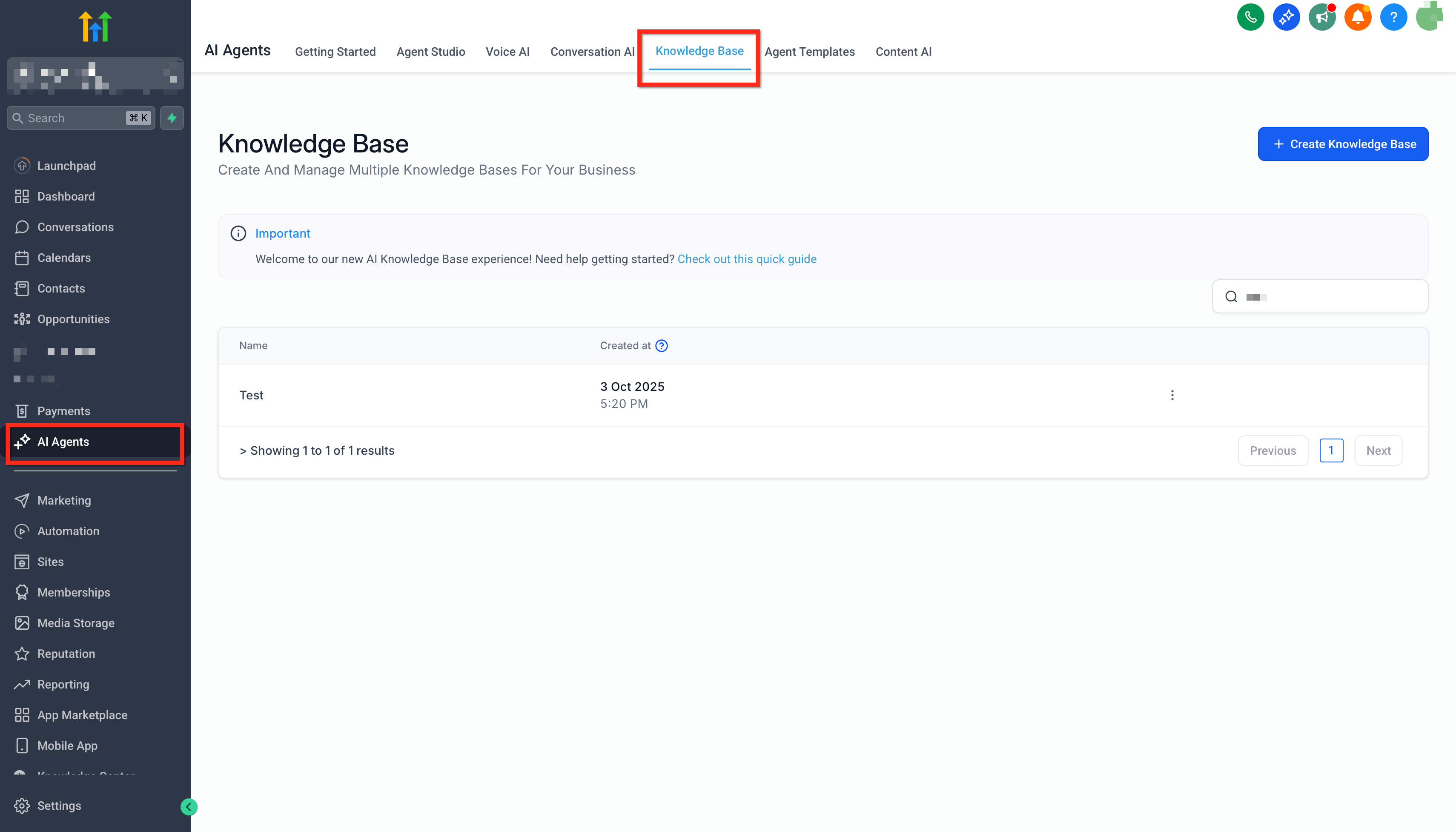
Select the knowledge base you want to configure and click Web Crawler.
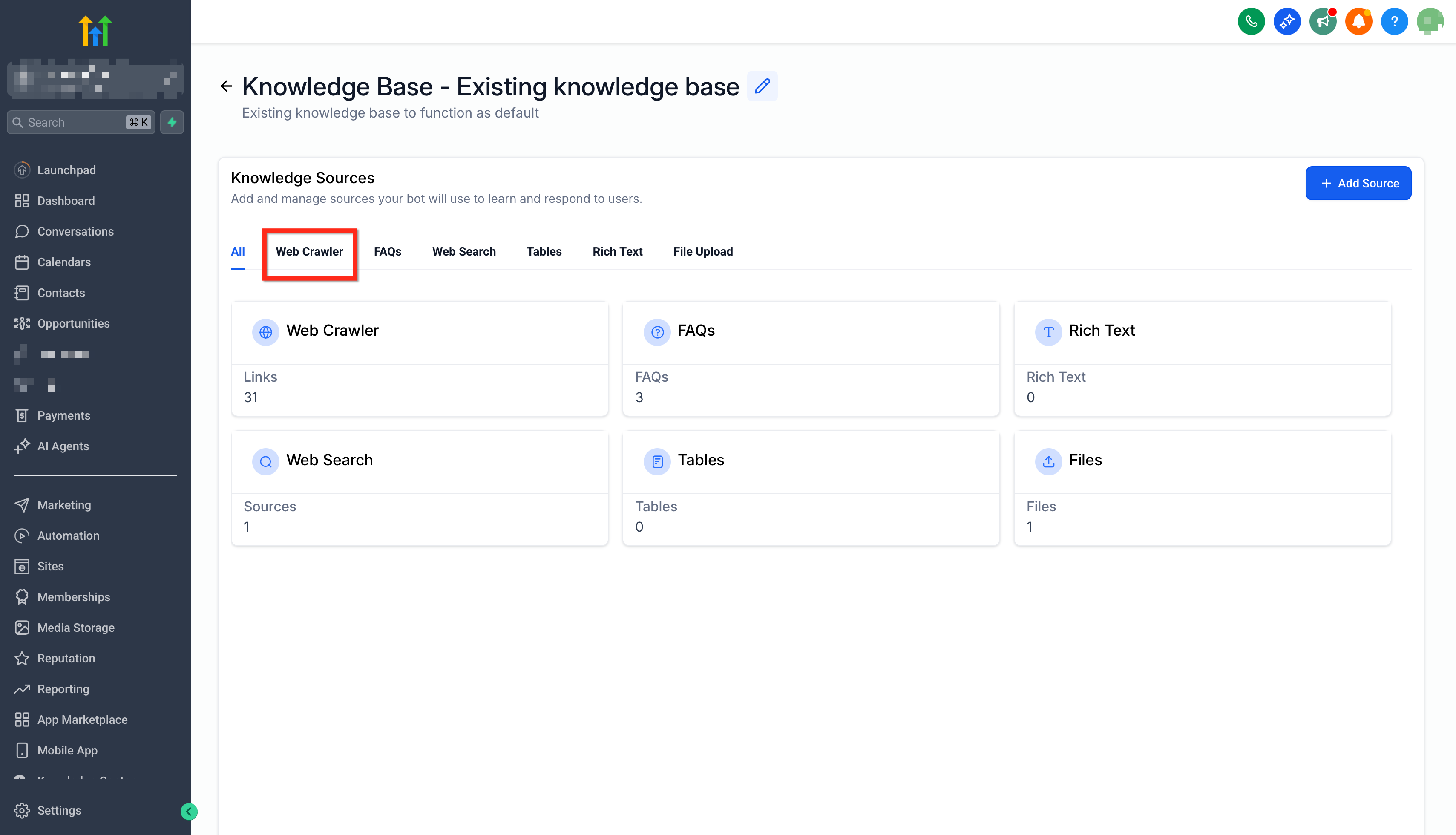
Click the Auto Refresh icon (circular arrows) and choose a refresh frequency - Daily, Weekly, or Monthly then click Save.
Best Practices for a Healthy Knowledge Base
Following these best practices improves crawl reliability, reduces failures, and helps your bot serve more accurate answers at scale.
Use stable URLs: Avoid addresses that frequently redirect or require login to view content.
Keep pages lightweight: Extremely long or script-heavy pages may crawl slowly and can hit timeouts.
Audit failures weekly: Investigate rows stuck in Failed; fix broken links and retry.
Stagger heavy sites: For large libraries, prefer Weekly or Monthly to spread load over time.
Prioritize critical pages: Set Daily for pages that change often and directly affect customers.
Frequently Asked Questions
Q: Does Auto Refresh cost extra credits?
A: No. URL re-crawls are included in your existing Conversation AI usage.
Q: What happens if a refresh fails?
A: The Status changes to Failed and the previously trained content remains active. Fix the URL or retry manually.
Q: Will Auto Refresh update custom FAQ pairs?
A: No. Custom Q&A entries are static; update them manually as needed.
Q: Does Auto Refresh work with domain crawls as well as single URLs?
A: Yes. Auto Refresh can be applied wherever those URLs appear in the Web URLs table. Cadence and performance depend on page depth and size.
Q: Can I pause Auto Refresh temporarily?
A: Yes. Click on Manage Automation and Disable Auto Refresh. Re-enable later without losing data.
Q: Are Google Docs or PDFs supported?
A: Auto Refresh currently focuses on publicly accessible web pages. For documents, convert or publish to a web-accessible page.