
This article explains the Appointments List View for Bookings in Rentals — where you can view and manage all listings that have been booked, along with their respective statuses and payments. It also covers how time zones affect displayed times and how filters, sorting, and quick actions work.
TABLE OF CONTENTS
What is the Appointments List View?
The Appointments view gives you a complete overview of all rental listings that have been booked. Each row in this list represents one listing from a booking — not the booking as a whole.
If a booking includes three listings, the system creates three separate rows in the Appointments table, one for each listing. This helps you monitor each item’s timing, payment, and completion individually.
Key Benefits of Appointments List View
- Customizable Listings with Variants and Inventory: Create listings for each rental offering — define durations, quantity, pricing, and variants (e.g., size, equipment type, etc).
- Support for Hourly, Daily, Weekly and Monthly Rentals: Configure bookings to be charged for hours, days, weeks, or even months, perfect for businesses with flexible rental needs.
- Inventory Tracking & Availability Control: Manage how many units of each listing are available at any given time — whether it’s a single item or bulk inventory.
- Flexible Pricing Models: Support for fixed duration/flexible duration pricing, seasonal pricing, tiered discounts by duration & quantity, security deposit options, and more.
- Multi-Item Bookings: Customers can book more than one listing in a single checkout — perfect for events, combos, or bundled rental experiences.
- Built-in Payments and Invoicing: Collect payments directly from the booking flow and generate invoices automatically for each booking. Setup security deposit as per your business needs.
- Customer Booking Page: Offer customers a streamlined booking experience with a dedicated public-facing booking page that displays your listings, categories, pricing and availability in real-time.
How to Access the Appointments List View
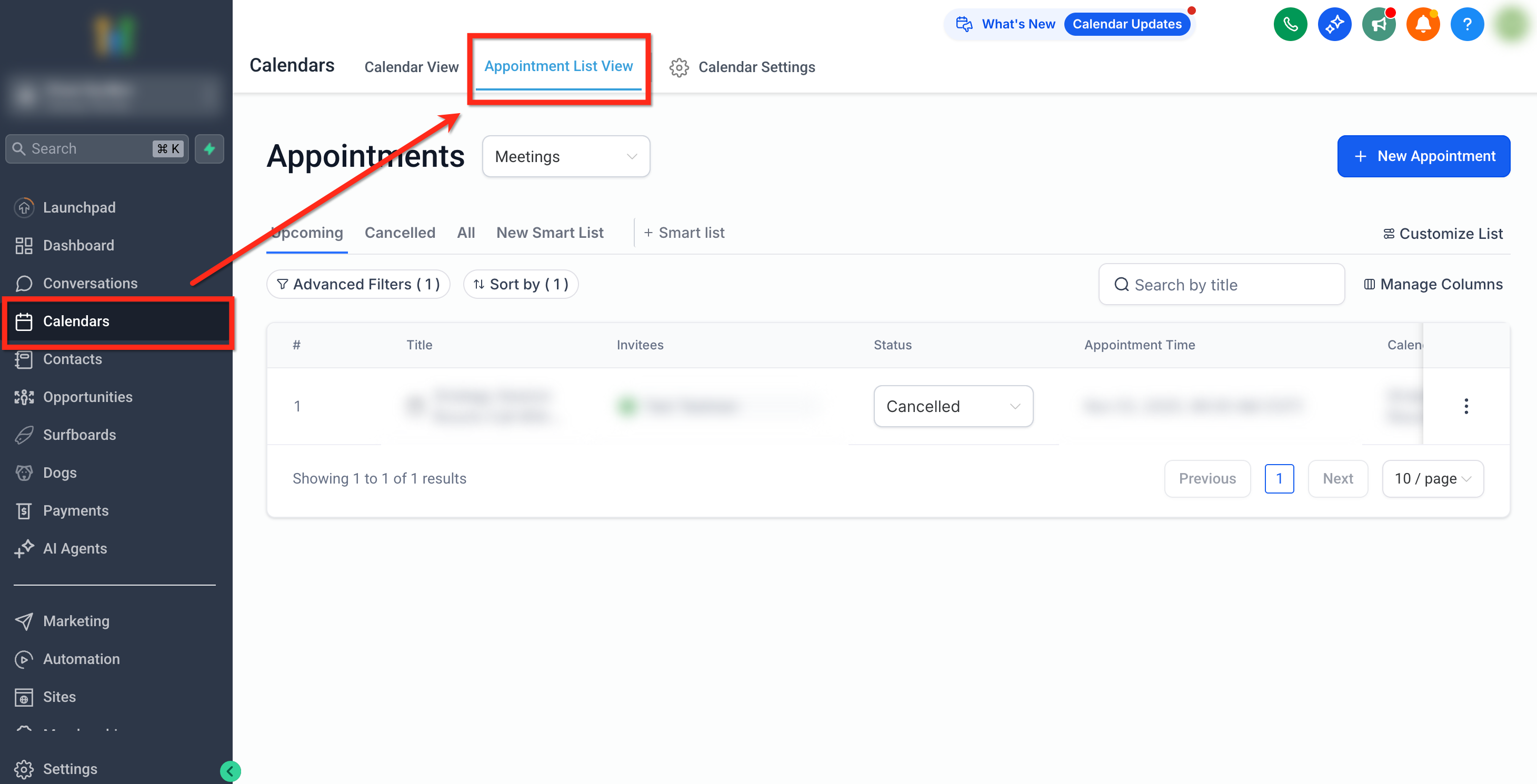
Navigate to Calendars → Appointment List View.
From the dropdown menu at the top, select Rentals.
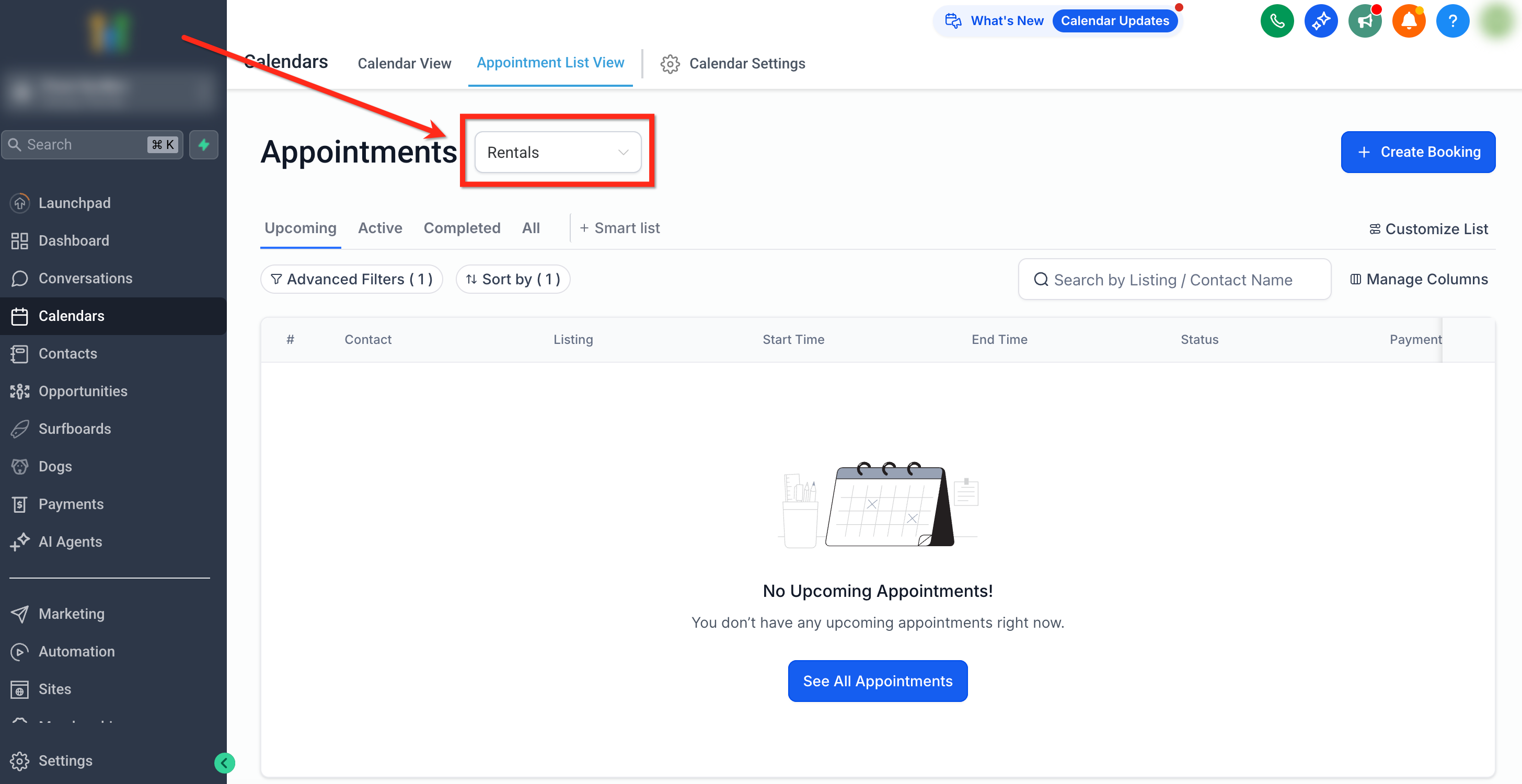
The Appointments view will appear, showing all booked listings with details like customer name, listing name, start/end time, status, and payment state.
Click Create Booking in the top-right corner to add a new booking manually.
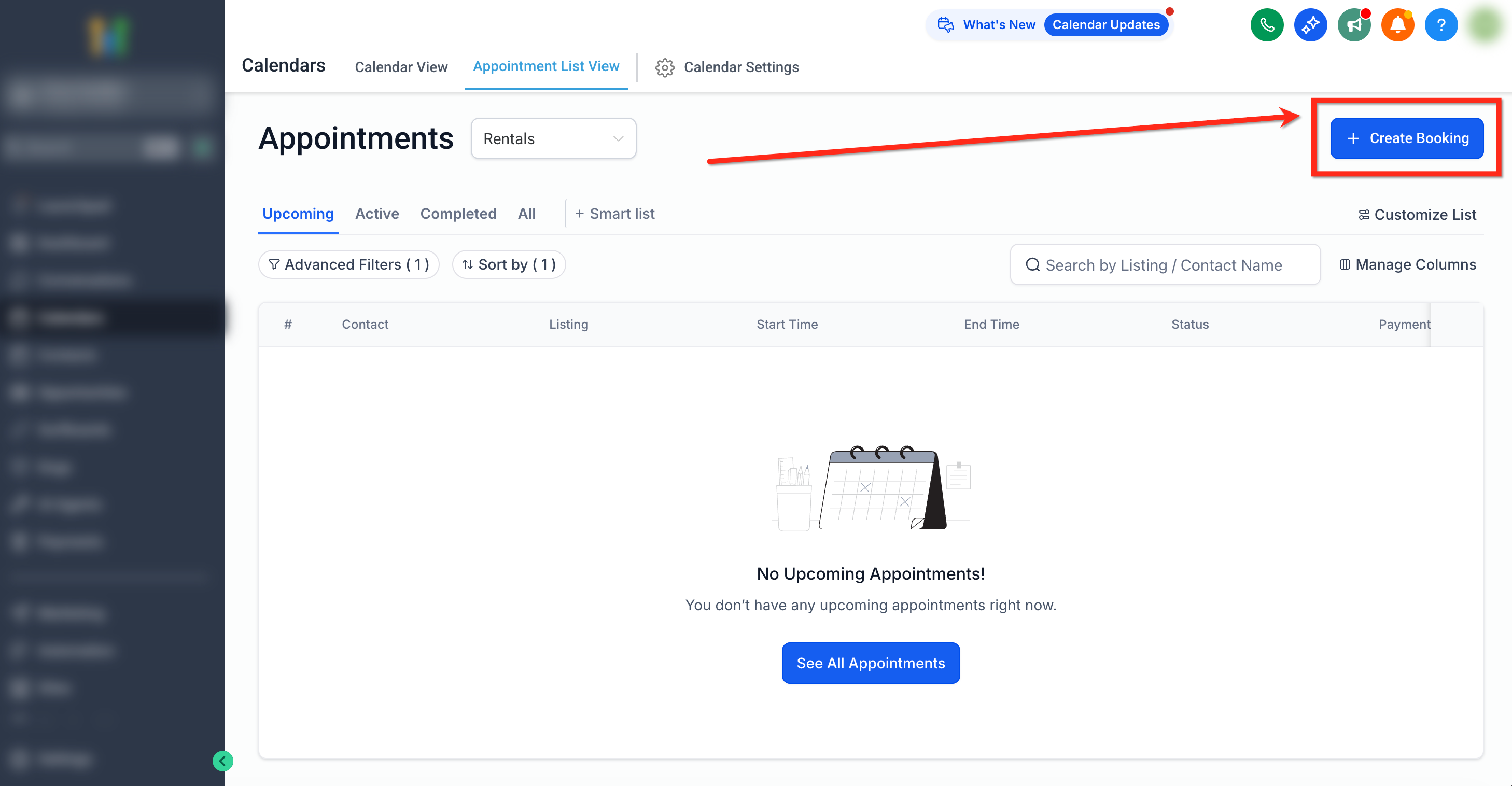
Appointments Table Overview
The Appointments Table displays every listing booked across all customers and bookings. It’s designed to give a detailed breakdown of your active, upcoming, and completed rentals.
Columns Explained
# – Serial number for reference.
Contact – Customer name and email address associated with the booking.
Listing – The name of the listing booked. For multi-listing bookings, each listing appears separately.
Start Time / End Time – The duration of the rental for that listing.
Status – Indicates the current booking state for that listing:
Unconfirmed – Booking has been received but not confirmed yet.
Booked – Confirmed and scheduled but not yet started.
Active – Currently in progress.
Completed – Finished successfully.
Canceled – Booking was canceled.
Payment Status – Displays the payment state for that specific listing entry:
Pending – Payment has not been received yet.
Paid – Payment has been fully collected.
Note: At the overall booking level, the payment status may also show as Partially Paid when only some listings have been paid for.Actions – Quick access icons:
View – Opens the entire booking with all listings and related details.
Edit – Opens the full booking editor where you can add, update listings, manage payments, and notes.
Important: Even though each listing appears as a separate row, clicking View or Edit opens the complete booking, including all associated listings, payments, and notes.Toolbar and Filters
The toolbar offers tools to organize and find bookings quickly.
1. Filter Tabs
Upcoming – Displays bookings scheduled for future dates.
Active – Rentals currently ongoing.
Completed – Bookings that have concluded.
All – Shows all bookings regardless of status.
2. Advanced Filters
Use Advanced Filters to narrow your view by:
Status (Unconfirmed, Booked, Active, Completed, Canceled)
Payment status (Paid, Pending)
Listing name or category
Date range (Start and End Time)
Customer name or email
3. Sort By
You can sort bookings by:
Start Time
End Time
Date Added
4. Search Bar
Quickly find bookings by Listing Name or Customer Name.
5. Manage Columns
Customize your table by showing, hiding, or rearranging columns using Manage Columns.
Note : Rental invoices are not automatically sent to the customer whenever a booking is created. We are working on rectifying the information being displayed within the contacts/conversations page that conveys otherwise.
Frequently Asked Questions
Q: Why do I see multiple rows for one booking?
Each row is a listing in the booking. A booking with multiple listings creates multiple rows.
Q: What does “Partially Paid” mean on a booking?
Some listings under that booking are Paid, while others remain Pending.
Q: Can I edit a booking from a row?
Yes. Click View or Edit in Actions; the full booking opens with all listings, payments, and notes.
Q: How do cancellations or reschedules appear in the list?
Canceled listings show Canceled in Status and remain visible under All. Reschedules update the Start/End Time.