
This article provides a complete guide to editing bookings in Rentals. It explains how to access the Edit Booking screen, understand what each section includes, manage payments and invoices, and update booking statuses effectively. The goal is to help you navigate the screen confidently and maintain accurate, up-to-date records for every booking.
TABLE OF CONTENTS
- Overview of Editing a Booking
- How to Edit a Booking
- Understanding the Edit Booking Screen
- Managing Statuses
- Key Behaviors
- Frequently Asked Questions
- Related Articles
Overview of Editing a Booking
The Edit Booking page allows admins to modify existing bookings, manage payments, and make post-creation adjustments. It provides complete visibility into every part of a booking—customer details, listings, invoices, transactions, and booking statuses—all in one centralized place.
From this page, you can:
Add, update or remove listings and adjust rental durations or quantities.
Manage payments, security deposits, and invoices.
Review all financial transactions and payment summaries.
Change booking and listing statuses or cancel bookings entirely.
This functionality ensures that you can update bookings as needed while maintaining data integrity and financial accuracy.
Key Benefits of Editing a Rental Booking
Flexible scheduling: Admins can set custom start/end when needed, even if public time pickers are disabled.
Conflict prevention: Buffers & inventory are always enforced so edits can’t create overlaps.
Clear Finance Handling: Payment Summary, Invoices, and Transactions show exactly what changed and what remains due.
Deposit control: Support Collect Upfront or Card on File deposits and charge/refund as needed.
Multi‑Listing Accuracy: Edit one listing in a multi‑listing booking without disrupting the others.
Immediate visibility: See results instantly in Appointments List View and Calendar View after you save.
How to Edit a Booking
Note: Each row in the Appointments View represents an individual listing under a booking. Editing any row opens the entire booking, including all listings, payments, and transaction details.
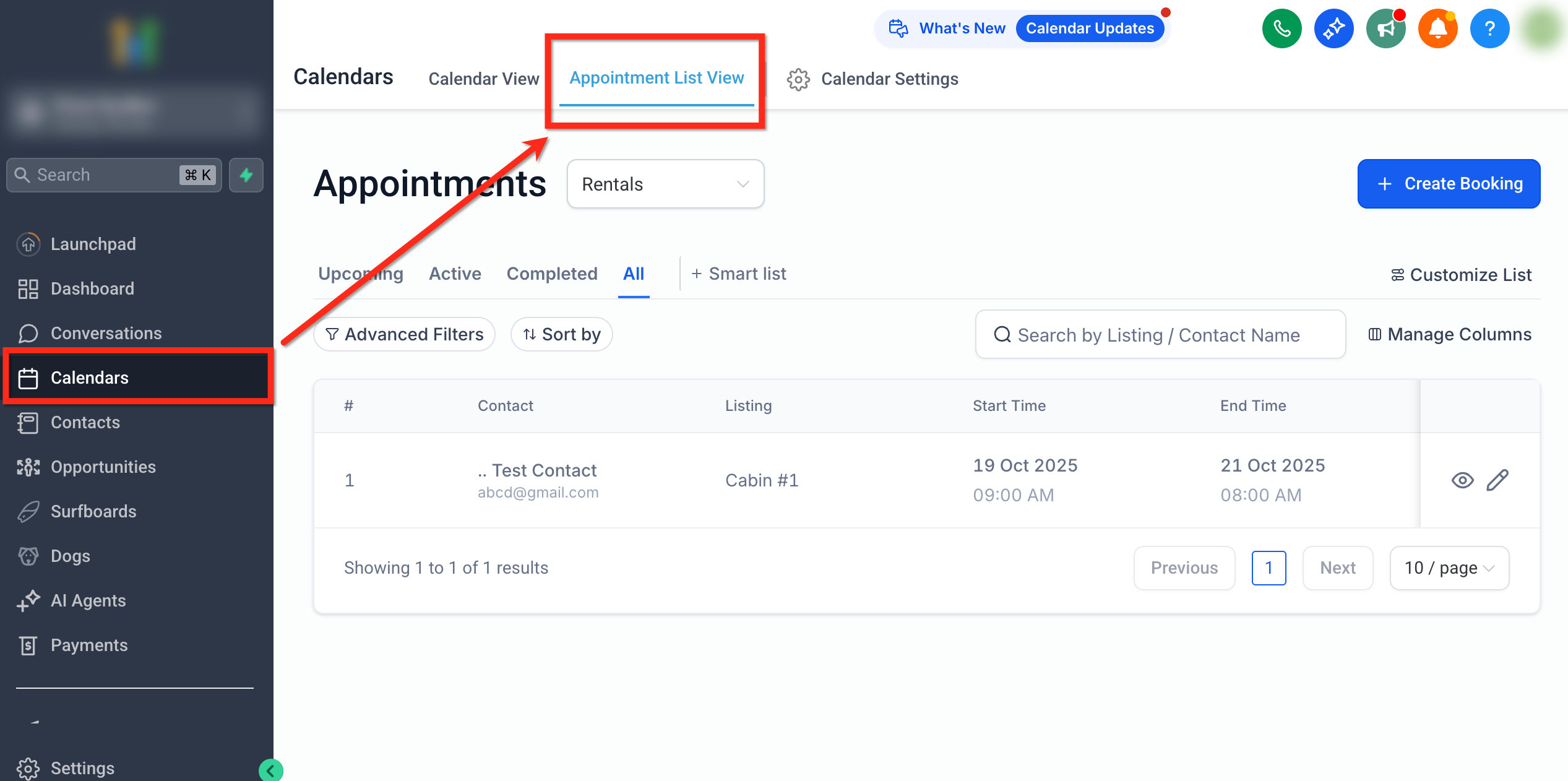
Navigate to Calendars → Appointment List View.
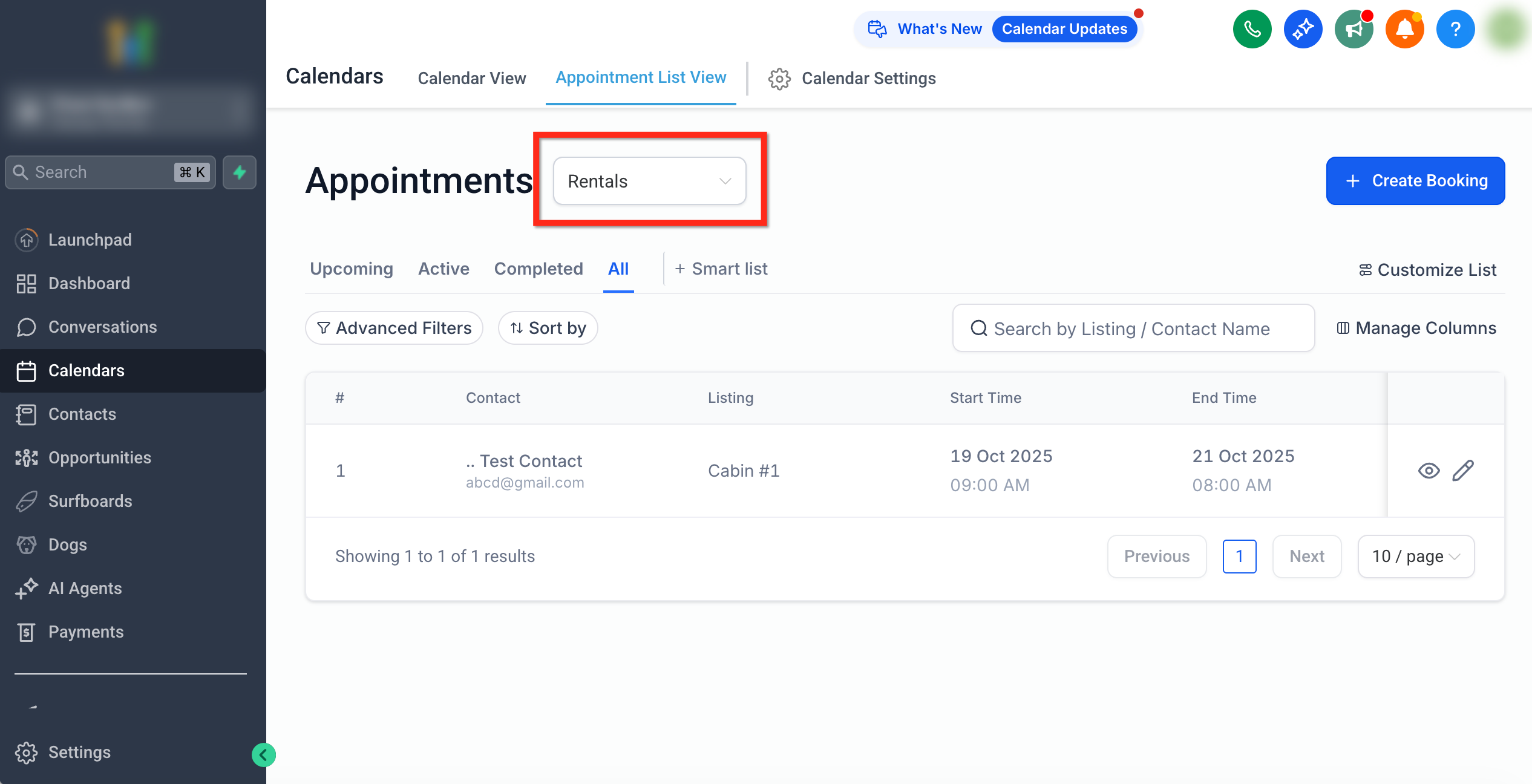
Select Rentals from the dropdown.
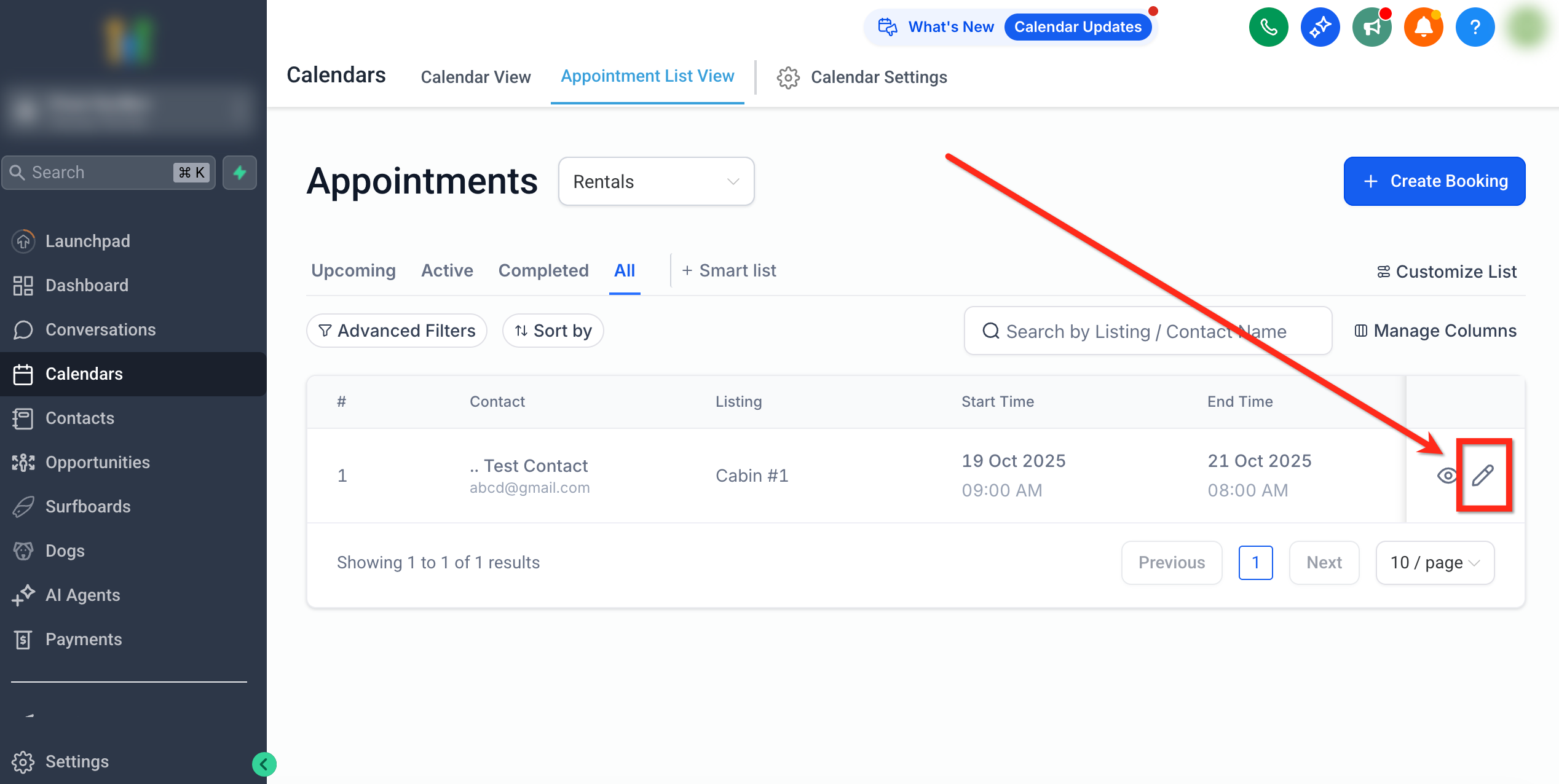
Locate the booking you want to edit and click the Edit (Pencil) icon in the Actions column.
Understanding the Edit Booking Screen
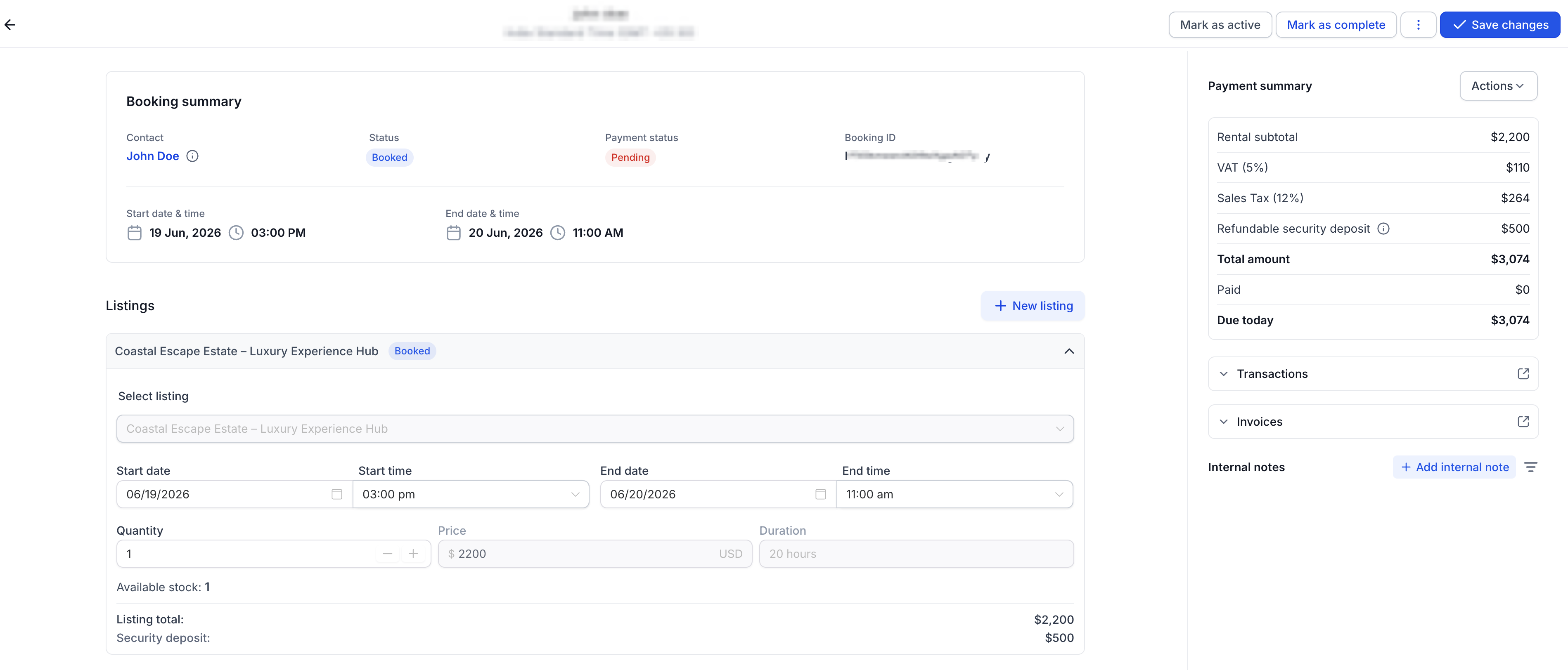
When you open a booking, the page is divided into several sections designed to help you manage different aspects of the booking efficiently:
Booking Summary – Displays booking identifiers, status, payment state, and rental dates.
Customer Information – Shows customer contact details linked to the booking.
Listings – Lists all rental items included in the booking with editable fields.
Internal Notes - Lists all the internal notes added for the booking with the ability to add more.
Payment Summary, Invoices, and Transactions – Provides financial overviews, including invoices and payment history.
Booking Actions – Allows status and payment management.
Managing Statuses – Explains how booking and listing statuses interact.
Each section below explains these elements in depth, along with practical examples and notes.
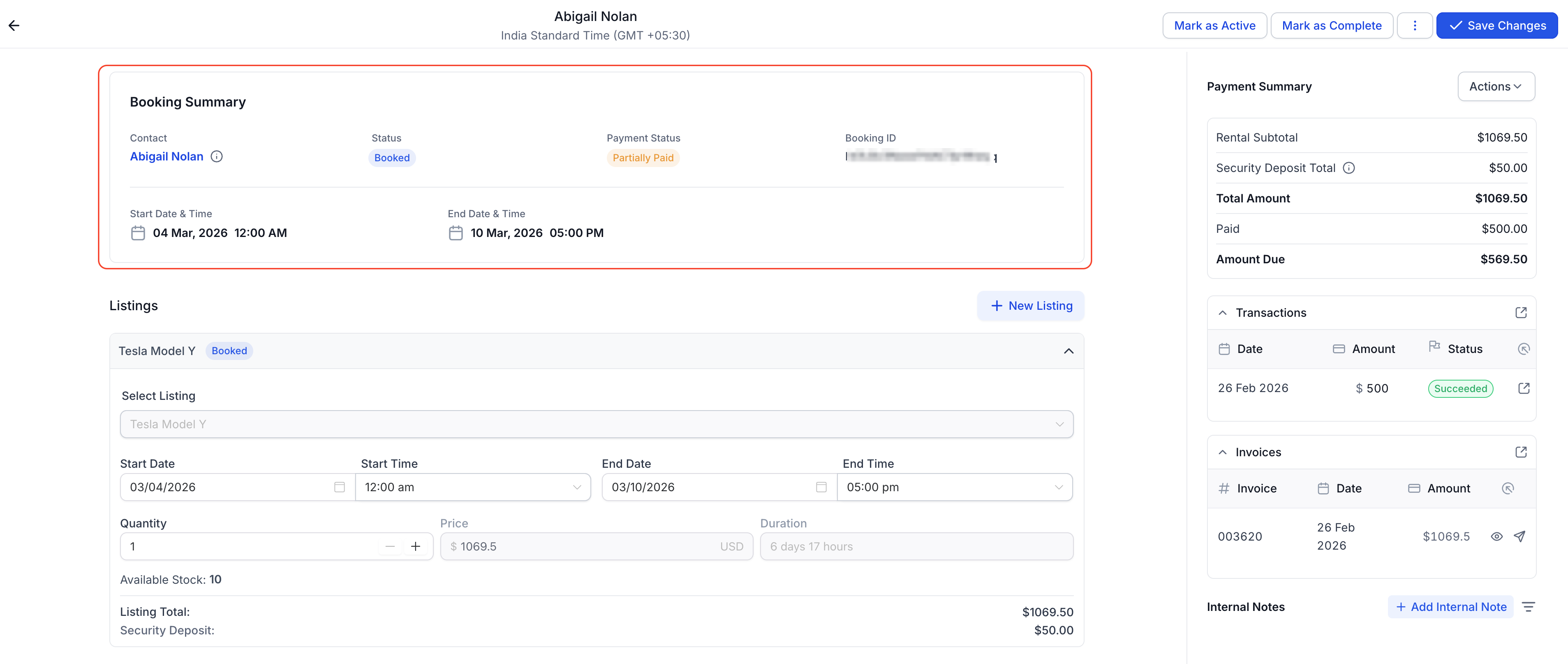
Booking Summary
The Booking Summary gives a quick snapshot of the booking’s key details at the top of the page. It helps you understand the booking at a glance before making any edits.
Details include:
Contact Information – Displays the name of the contact who has made the booking. You can also hover on the tooltip next to it to check the booking source (where the booking originated from (e.g., Calendars Page, Booking Page)) and by whom was it booked by.
Booking ID – A unique identifier used to track the booking.
Status – The booking’s current state (Unconfirmed, Booked, Active, Completed, Partial, or Canceled).
Payment Status – The overall payment progress (Pending, Partially Paid, or Paid).
Booking Source – The source from where the booking was made (e.g., Calendars page, Booking page, etc.)
Start Date & Time – Shows the earliest start time among all listings in the booking.
End Date & Time – Shows the latest end time across all listings.
Timezone – Displays the Business Timezone as configured in Global Settings → Booking
Tip: Use the booking summary for quick clarity on the booking's timeline. payment progress and source before diving into detailed edits.
Listings
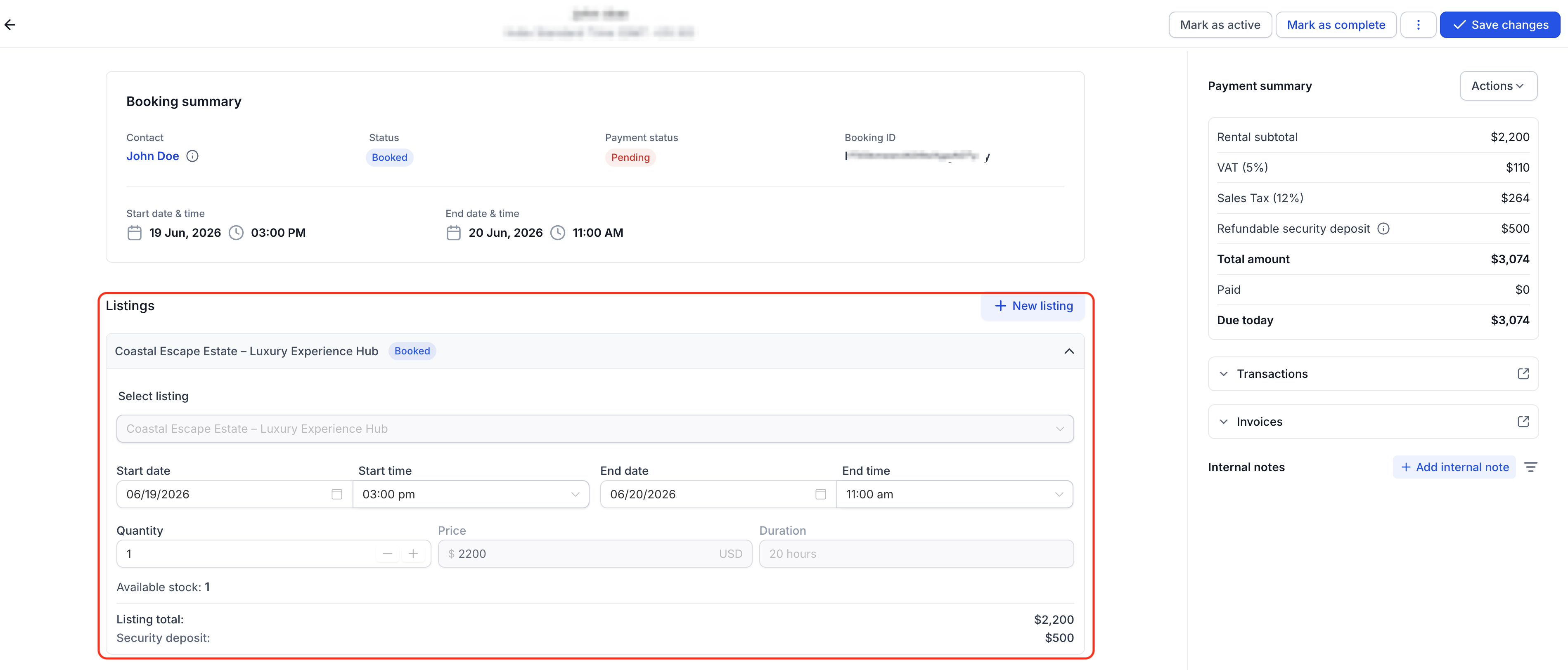
Each listing in the booking is displayed here with its details and editable fields.
For each listing in the booking, you can:
Update quantity.
Adjust start and end dates or times.
View the total price for that listing.
View the security deposit associated to that listing.
Available controls:
+ New listing – Add new listings to the booking.
- Delete – Remove listings from the booking.
Note: When editing, you can override standard restrictions such as operating hours, fixed durations, and booking windows. However, pre- and post-buffers still apply to ensure schedule accuracy and prevent overlap.Important: While updating or adding new listings to the booking, inventory must be available for the time duration for it to be selectable.
Payment Summary
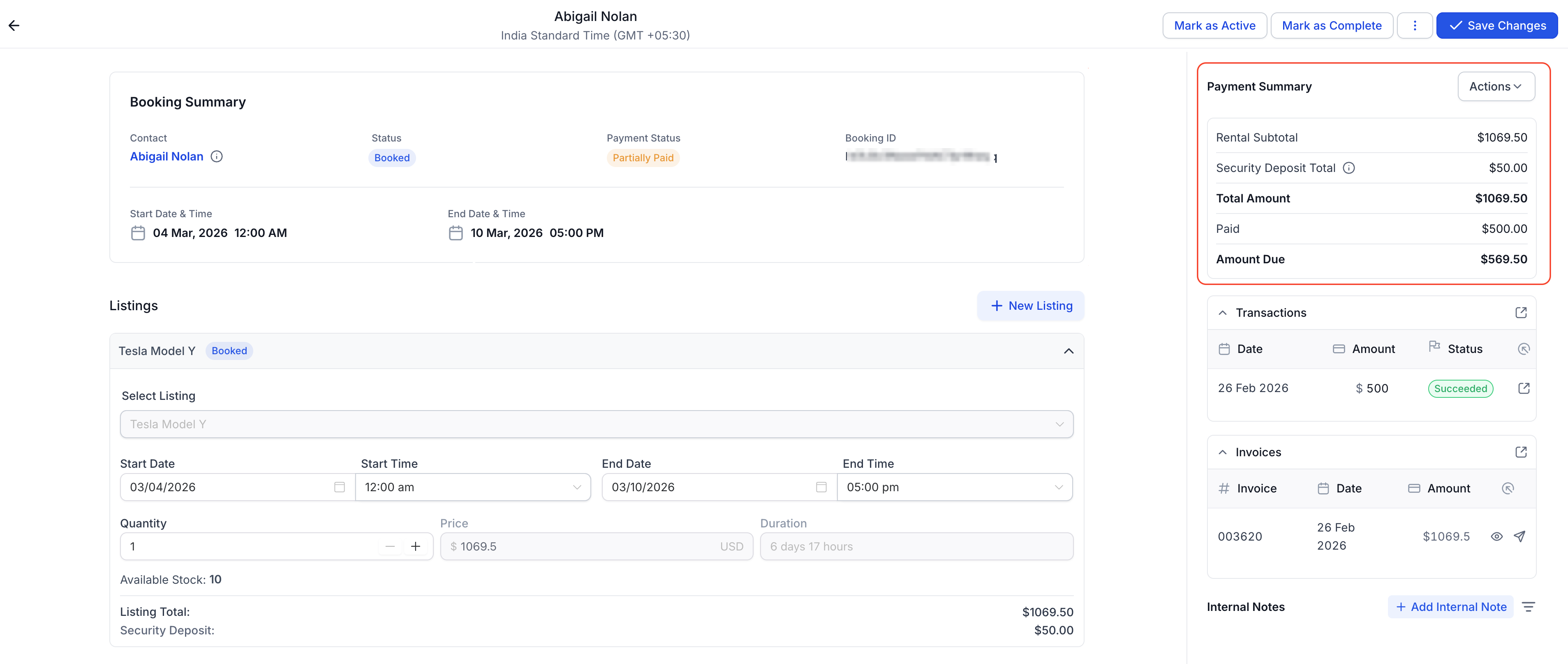
The Payment Summary provides an overview of the financial state of the booking. It shows totals, collected payments, outstanding balances, and how deposits are handled.
Displayed details:
Rental Subtotal – The combined value of all listings.
Taxes - The taxes associated to the listings (if applicable).
Security Deposit – Total security deposit applicable for the booking. This can be a part of the total amount to be collected upfront or an intimation of what can be charged incase of damages/violation of terms later (incase security deposit mode is set to card on file).
Security Deposit Charged – This appears incase Security Deposits are enabled and set to Card on File after manually charging a deposit. It conveys the security deposit that has been charged for the booking.
Total Amount - Final amount to be collected including any security deposit(s) and other charges as applicable.
Paid – Total amount collected so far.
Due Today – Remaining amount to be collected.
Security Deposit - Collect Upfront policy: The deposit is automatically included in the Subtotal.

Security Deposit - Card on File policy: The deposit appears in totals only after manually charging it.
This section helps track payment progress and outstanding balances at a glance.
Invoices
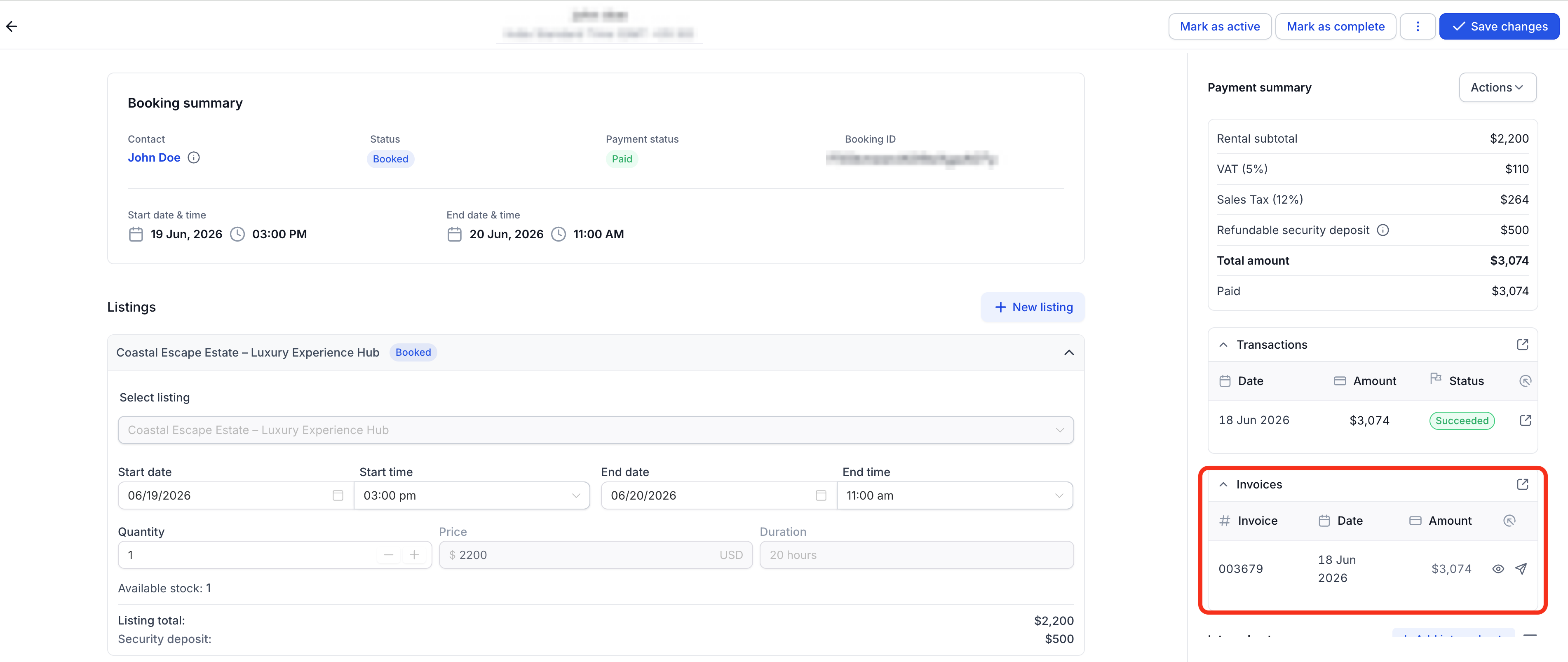
Invoices are automatically created for every booking and provide a clear, itemized record of charges, payments, and adjustments. They ensure both customers and admins have transparent financial documentation for each booking.
How invoices work:
Each booking automatically generates its first invoice at the time of creation. Subsequent edits, payments, or charges reflect back in the same invoice.
The invoice reflects the listings and any security deposits linked to the booking.
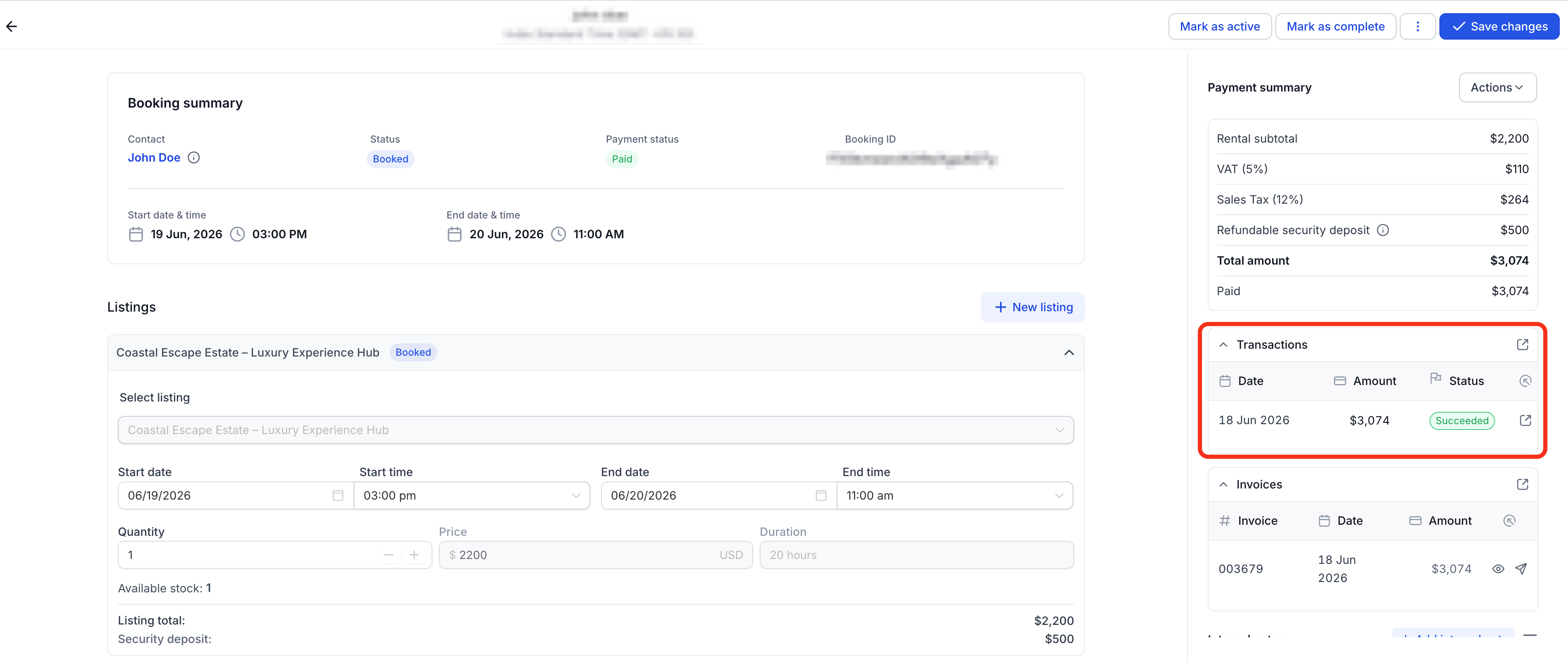
Transactions
The Transactions section lists all monetary actions related to the booking. It provides transparency and traceability for every payment, deposit, and refund.
Each transaction includes:
Date and Time – When the transaction occurred.
Amount – The value charged, paid, or refunded.
Status – Indicates whether the transaction succeeded, failed, or was refunded.
Refunds must be processed manually via Payments -> Transactions and will reflect here once recorded. Transaction records ensure complete visibility into all financial movements related to the booking.
Internal Notes
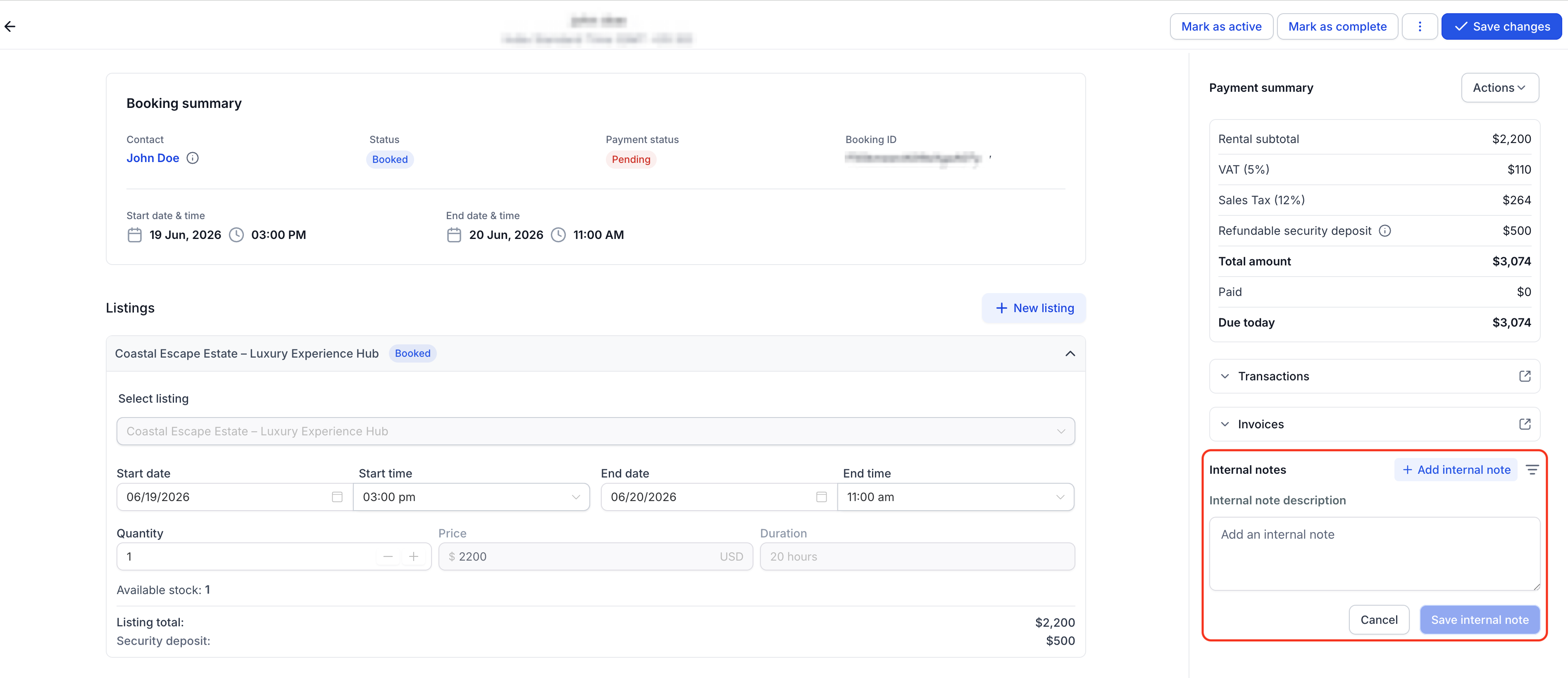
At the bottom of the right column, you’ll find the Internal Notes section. This area displays all previously added internal notes related to the booking and allows admins to add new ones.
View Notes: Scroll through all existing internal notes for context or reference. Each note shows who added it and when.
Edit or Delete : The internal notes can be edited for any modifications and deleted incase not needed.
Add New Note: Click Add Internal Note to record updates, reminders, or details. These notes do not appear on customer-facing pages or invoices
Tip: Internal notes are helpful for tracking special circumstances, follow-ups, or instructions for your team.
Booking Actions
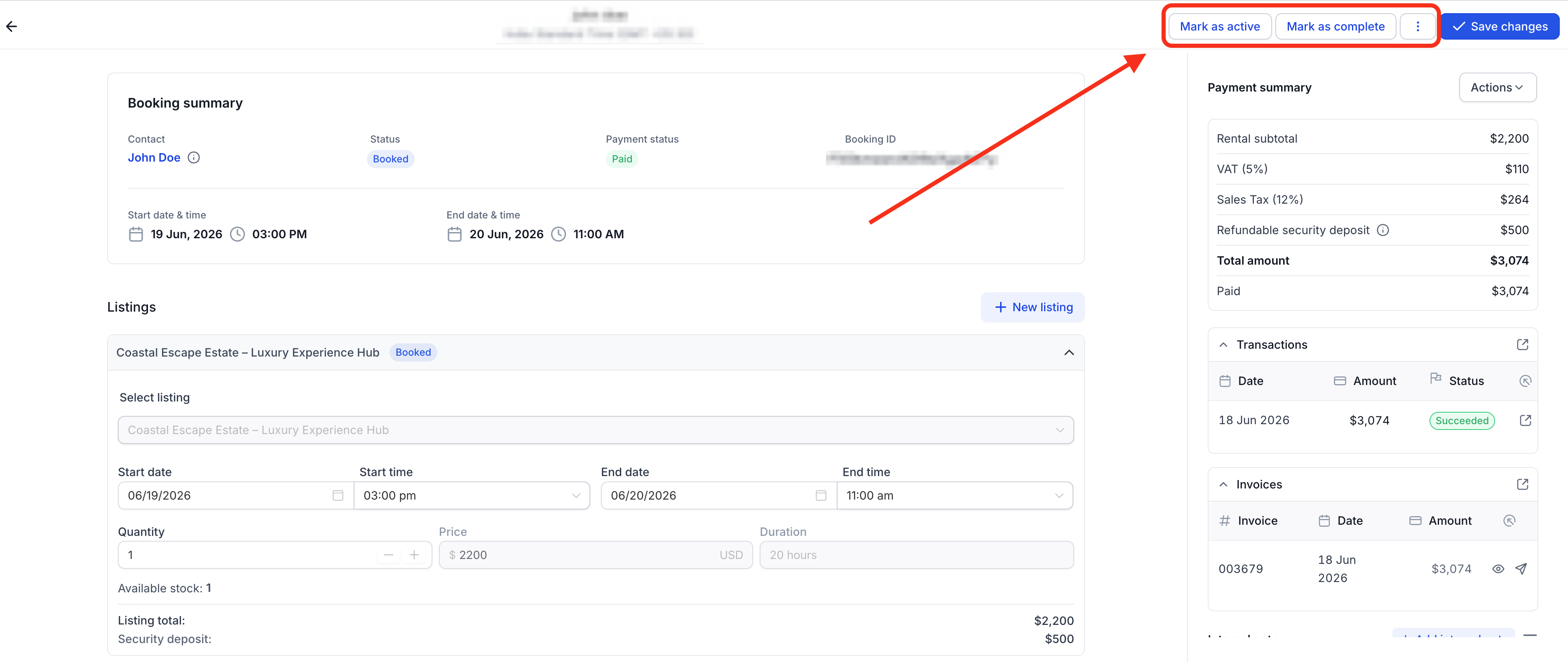
Admins can use action buttons to update booking statuses and manage payments directly from the Edit Booking page.
Status Actions
Mark as Confirmed – Appears only when the booking is Unconfirmed. Sets all listings to Booked.
Mark as Booked / Active / Complete – Opens a modal where you can select which listings to update the status for.
⋯ (More Menu) – Includes:
Revert to Unconfirmed – Sets the entire booking (and all listings) to Unconfirmed.
Cancel Booking – Cancels the booking and all listings under it.
Payment Actions
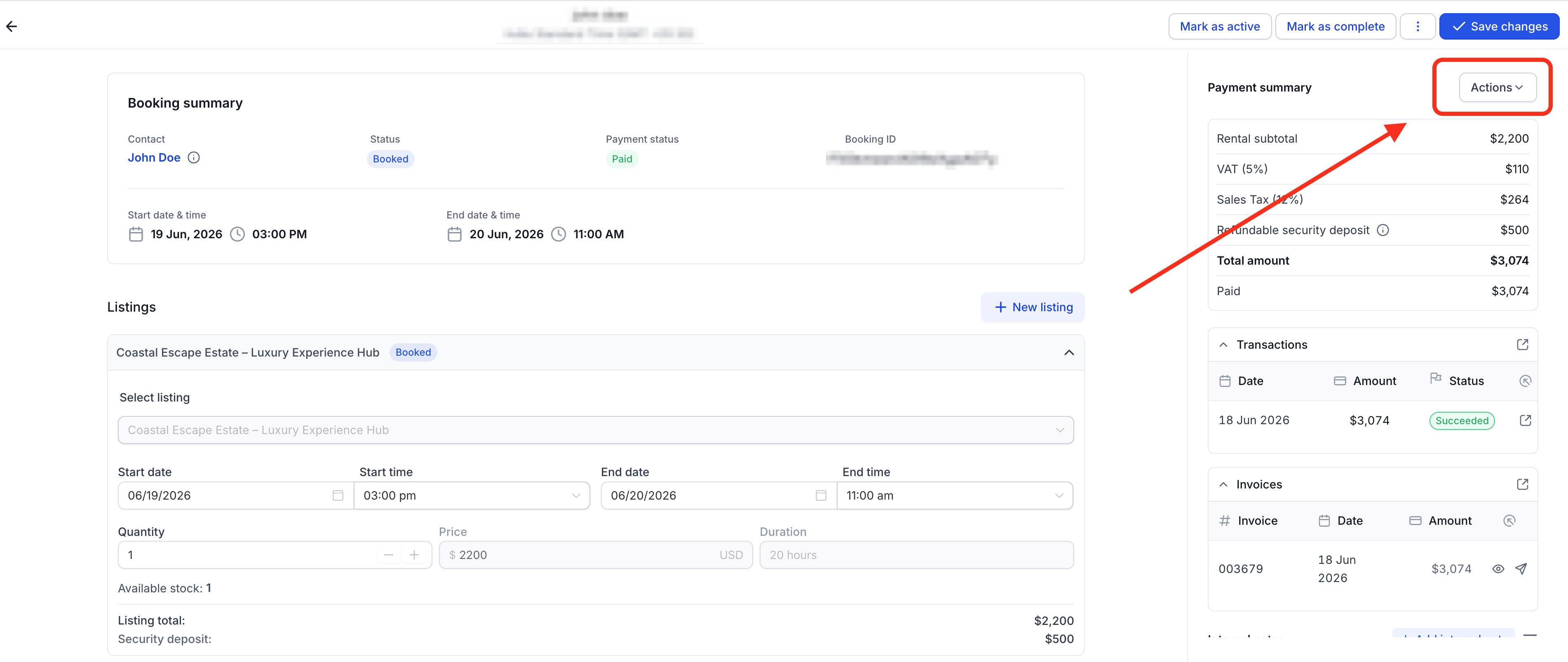
Collect Payment – Opens a payment modal to collect payments online or record manual payments.
Charge Security Deposit – Available only when Security Deposit is enabled and set to Card on File. Allows manual deposit charging, adding the amount as Security Deposit Charged in totals and invoices.
Managing Statuses
Statuses represent where a booking or listing stands in the rental process.
Listing-Level Statuses
Each listing must be updated manually as it progresses.
Unconfirmed – Indicates the booking was created but not confirmed.
Booked – Confirmed and ready to begin.
Active – Currently ongoing.
Completed – Successfully finished.
Canceled – Automatically set when the booking is canceled.
Booking-Level Statuses
The booking-level status is determined automatically based on listing statuses.
| Listing Combination | Booking Status |
|---|---|
| All Unconfirmed | Unconfirmed |
| All Booked | Booked |
| All Active | Active |
| All Completed | Completed |
| Mixed (e.g., Booked + Active) | Partial |
| All Canceled | Canceled |
Note: Clicking Cancel Booking immediately changes both the booking and all listings to Canceled.
Saving Changes
When you’ve finished editing:
Review all updates and financial details.
Click Save Changes (top-right corner).
The system updates all data in Appointments View and Calendar View instantly.
Tip: Always review Payment Summary and Invoice totals before saving to ensure accuracy.Key Behaviors
This section highlights important system behaviors to keep in mind when managing booking payments, edits, and refunds.
Editing after partial or full payment: If a booking is partially paid or fully paid, you can make edits as long as the updated total remains greater than or equal to the amount already paid.
Refund handling: Refunds are processed manually from the Transactions section. While these do not automatically update invoices or the payment summary, the related transaction entry will show the updated status — Refunded or Partially Refunded.
Maintaining positive balances: Totals are always maintained as positive values to ensure accurate accounting and prevent inconsistencies.
These behaviors ensure transparency, traceability, and consistency in booking financial management.
Frequently Asked Questions
Q: Can I modify a paid invoice?
You can make edits as long as the updated total remains greater than or equal to the amount already paid.
Q: What happens if I edit a partially paid booking?
You can edit a partially paid booking, provided the new total remains equal to or higher than the amount already paid. The changes reflect back in the latest invoice.
Q: How do refunds affect the booking?
Refunds are processed manually from the Transactions section. They won’t change the invoice or payment summary totals, but the transaction will update to show Refunded or Partially Refunded.
Q: What happens when I add new items after a booking is paid in full?
The existing invoice is updated automatically to record the new charges.
Q: Can totals ever go below zero?
No, totals are always kept positive to maintain accurate and traceable financial records.