
You're in the right place to set up Rentals within SourCherry. Learn how to configure listings, customize pricing and availability, enable deposits and payments, brand your booking page, and manage bookings. Use this article as your starting point, then follow the linked guides to setup your rentals with confidence!
TABLE OF CONTENTS
- What are Rentals?
- What's New in Rentals
- Setting Up Rentals
- Upcoming Features
- How to Provide Feedback
- Frequently Asked Questions
- Related Articles
What are Rentals?
Welcome to Rentals, our new scheduling and booking system designed for businesses that manage rentals — whether it’s properties, cars, equipment, or other bookable assets. With Rentals, you can efficiently manage availability, inventory, pricing, and multi-day bookings in one seamless platform.
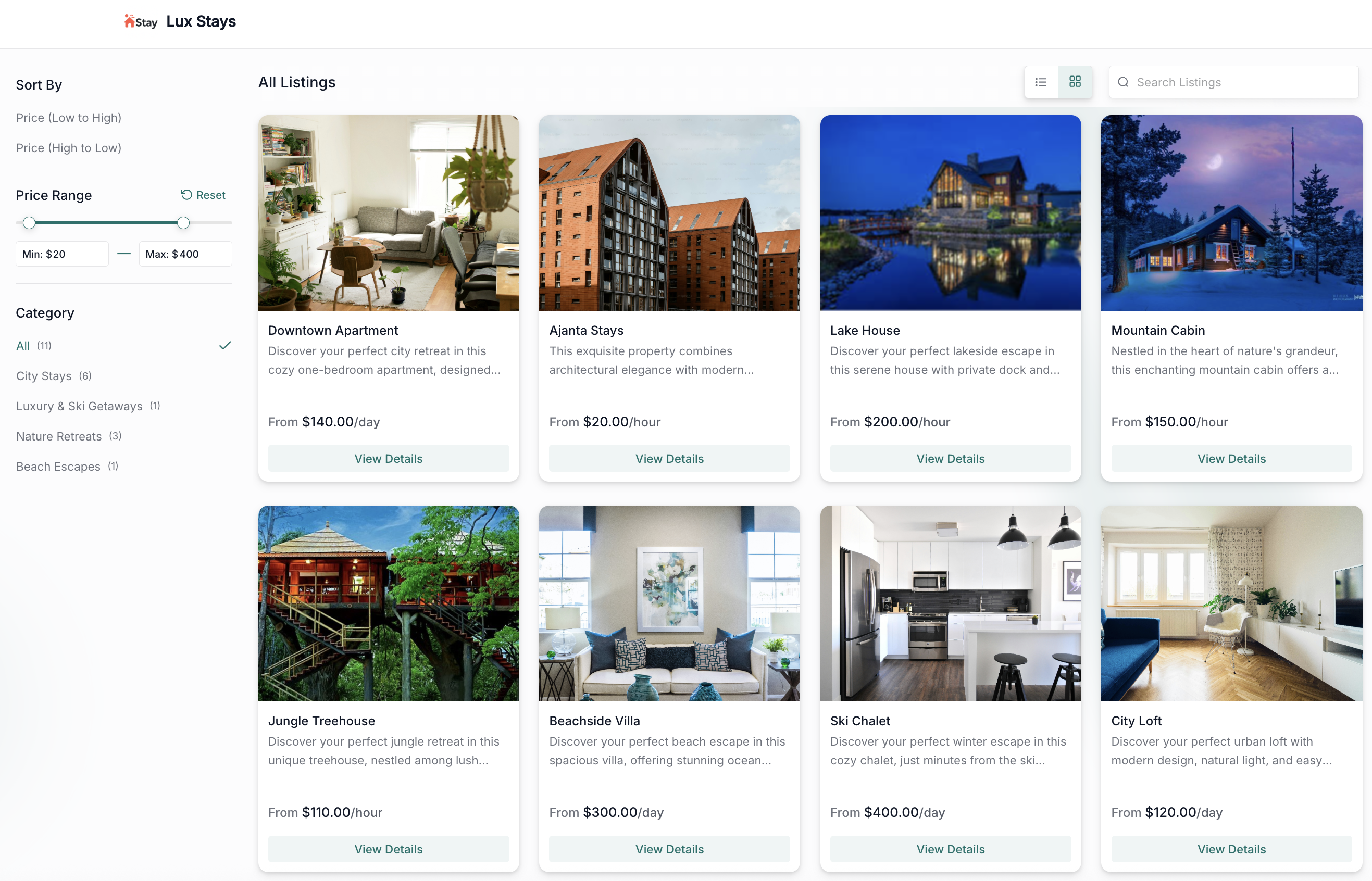
What's New in Rentals
Rentals is built to handle the unique complexities of rental-based scheduling. Here’s what’s Rentals can do:
Multi-Day Booking Support: Book assets across multiple hours, days, weeks, or months, with flexible duration and booking controls.
Listings and Categories: (Help Guide) Create listings for your rentals with detailed information, organized categories, and status management.
Inventory & Variants: (Help Guide) Enable quantity tracking for multiple units and define variants for different versions of the same listing.
Advanced Pricing & Discounts: (Help Guide) Use pricing rules for seasons, days of the week, hour of day, durations, or quantities. Automatically apply discounts for long-term or bulk bookings.
Calendar View: (Help Guide) View all bookings visually using a modern, filterable calendar that supports day, week, and month views. Identify overlaps, blocked slots, and real-time availability.
External Calendar Sync: Connect and sync bookings with third party platforms using Calendar Sync to ensure your availability is consistent across platforms.
Centralized Global Settings: (Help Guide) Control business operating hours, booking defaults, payment preferences, and communication templates from one location.
Built-in Payments and Invoicing: Collect payments directly from the booking flow and generate invoices automatically for each confirmed booking. Setup security deposits per your business needs.
Customer Booking Page: Offer customers a streamlined booking experience with a dedicated public-facing booking page that displays your listings, categories, pricing and availability in real-time.
Setting Up Rentals
If you don't see the Rentals tab in your Calendar settings, enable it by following the instructions in How To Enable/Disable Rentals For Your Locations.
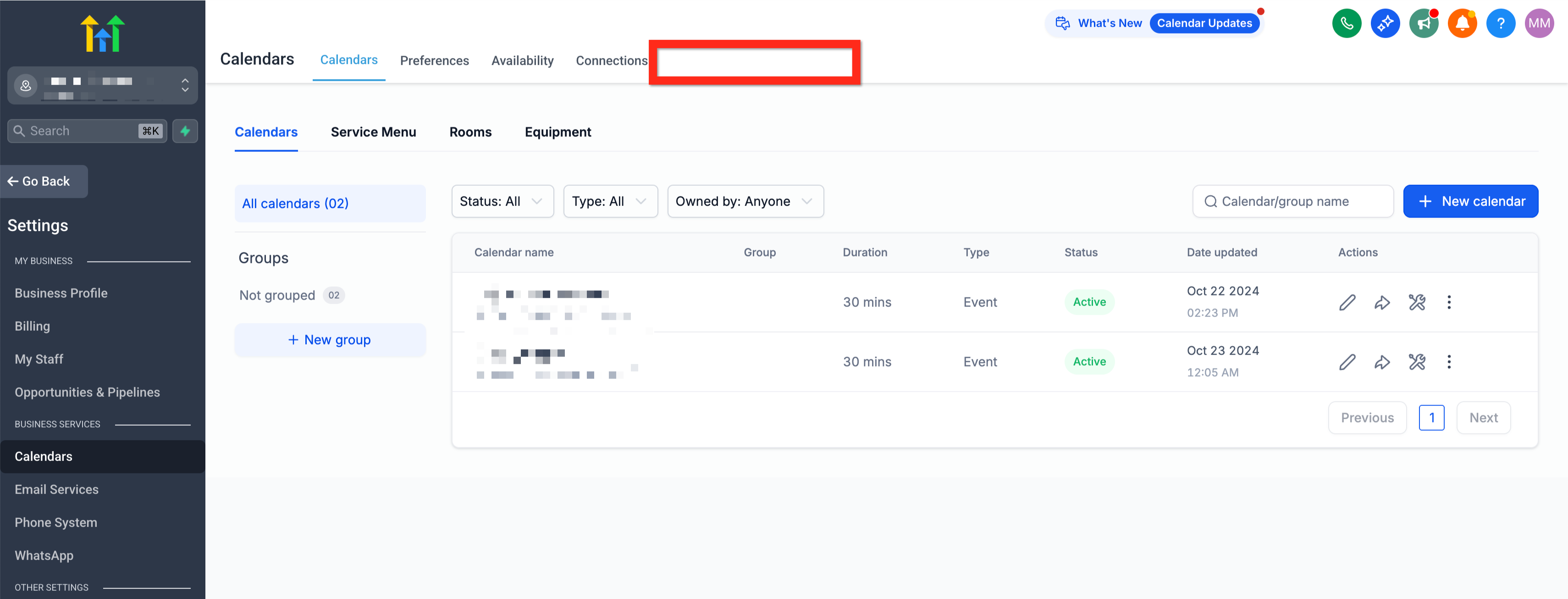
Once Rentals is enabled for your sub-account, continue:
Step 1: Access Rentals
Go to Calendars → Calendar Settings → Rentals
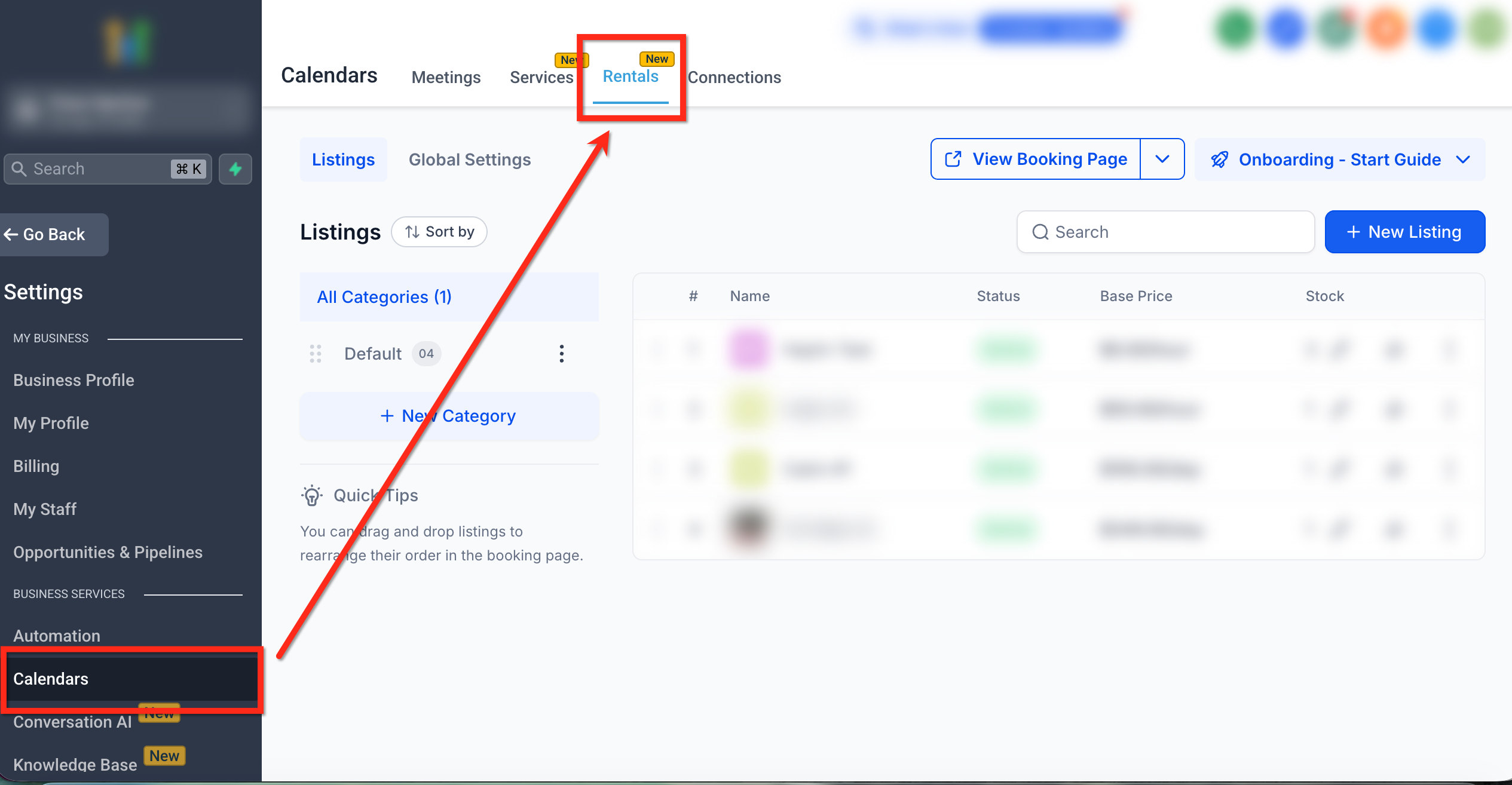
Step 2: Create Listing
Click + New Listing to add your first rental item or property.
Configure its name, description, price, and availability.
Use Advanced Settings to define inventory, variants, pricing, and booking rules.
Looking for more information on how to create a listing? Click here to read our article on Creating and Editing Listings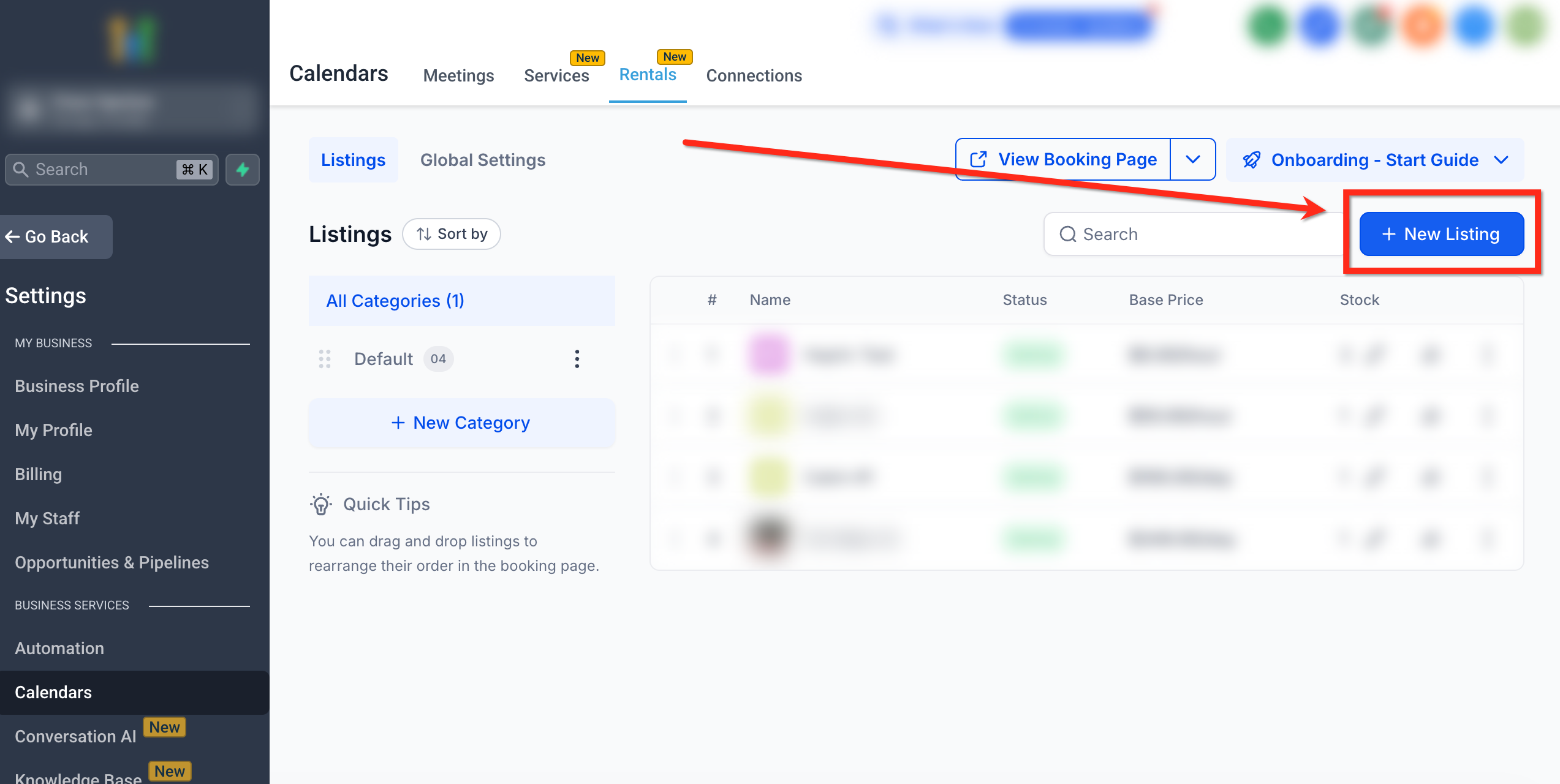
Step 3: Customize Global Settings
Navigate to Rentals → Global Settings to adjust business hours, communication settings, and payment methods.
Looking for more information on how customize global settings? Click here to read our article on Global Settings in Rentals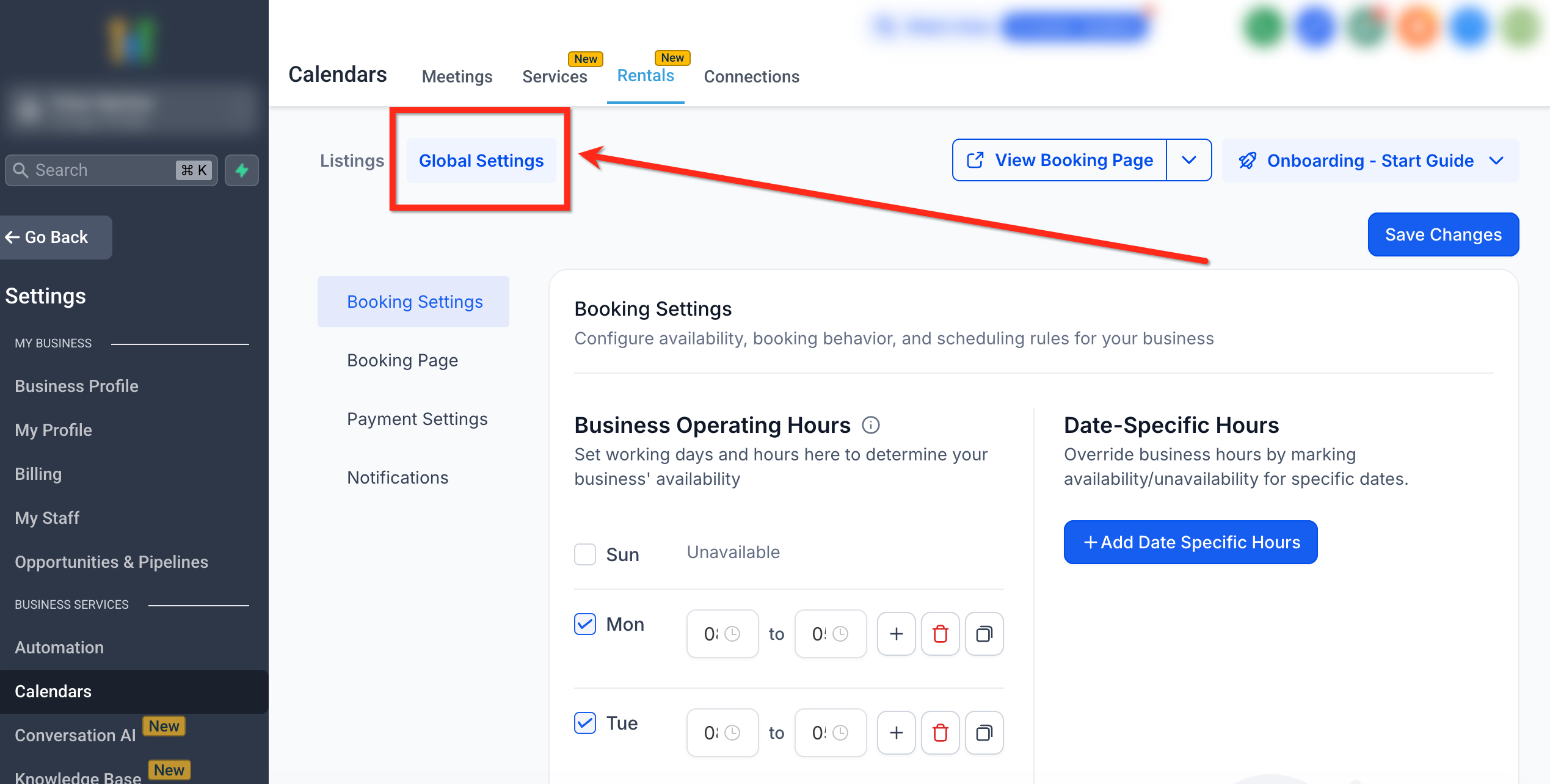
Step 4: Test a Booking
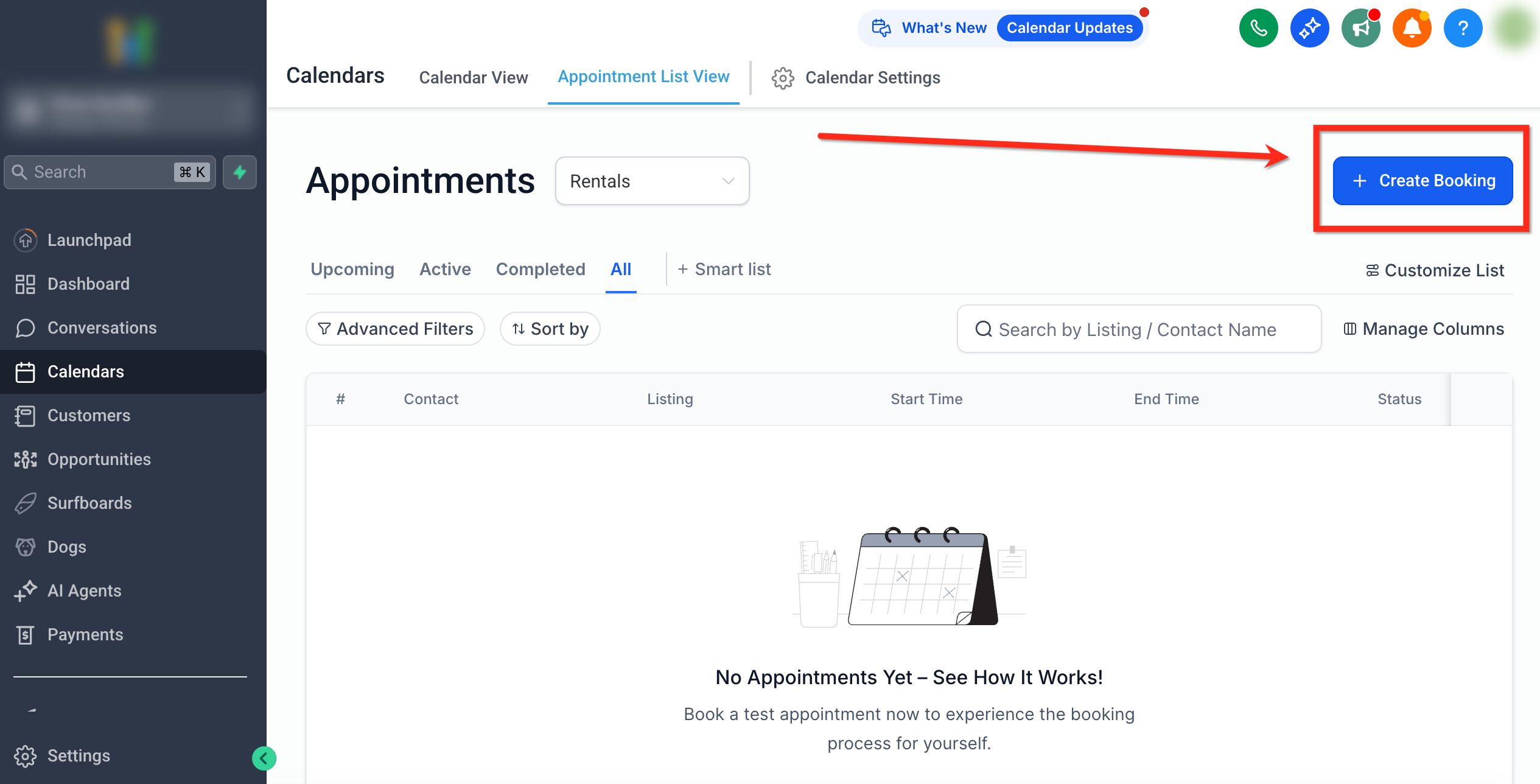
Create a test booking from the Calendar View or Appointments tab to verify configuration, pricing, and notifications.
Looking for more information on how to create a booking? Click here to read our article on Creating a Booking
Upcoming Features
We're constantly working to enhance Rentals. Here’s a sneak peek of what's coming up in the future:
- Mobile App Support (create and view rental bookings from the mobile app)
- Conversation AI and Voice AI support
- Add ons and additional fees
- Cancellation links
- Audit logs for bookings
- Public APIs
Note : Rental invoices are not automatically sent to the customer whenever a booking is created. We are working on rectifying the information being displayed within the contacts/conversations page that conveys otherwise.
How to Provide Feedback
Your feedback is critical to improving Rentals before general release. Here’s how to share it:
Post your feedback/suggestions/ideas on our Canny board.
Schedule a Feedback Call: Book a time that works for you using this scheduling link.
Email Us — Contact us directly at:
Connect With Us on Facebook Prefer chatting on social? Reach out via our Facebook profiles:
- Mayank Jain– PM, Calendars
Swadha Bhoj – PM, Calendars
Frequently Asked Questions
Q: How do Calendar and Appointments differ?
Use Calendar View for a visual schedule and overlaps; use Appointments List View for per‑listing rows, payments, and quick actions.
Q: What’s the difference between Listings and Categories?
A listing is a rentable item. A category groups listings and influences how they’re organized on the booking page.
Q: Do global changes affect existing bookings?
Most settings apply to new bookings going forward. Existing bookings and issued invoices typically remain unchanged.
Q: Where do I edit pricing if totals look off?
Adjust rules on the listing’s Pricing tab (see Pricing & Discounts) and re‑test.
Q: How do external calendars affect availability?
Imported events block time; exports share your availability. Use Refresh in a listing’s Calendar Sync to force an update.