
Get up to speed with SourCherry’s redesigned Audit Logs—now aligned with the New Design System UI. The right-side drawer keeps you in context, while keyboard navigation speeds up reviews. You’ll also learn how filters differ by area, how long data is retained (60 days), and practical tips to investigate changes efficiently.
TABLE OF CONTENTS
- What is Audit Logs?
- Key Benefits of the New Audit Logs UI
- Drawer & Keyboard Navigation
- Refreshed Layout
- Understanding Audit Log Filters
- How To Access the New Audit Logs UI
- Frequently Asked Questions
- Related Articles
What is Audit Logs?
Audit Logs are the source of truth for who did what and when across your SourCherry account. They provide time-stamped entries (with user, module, and action context) to help admins troubleshoot changes, maintain accountability, and meet compliance needs. The New Design System UI modernizes the experience so you can review details without leaving the main table.
Audit Logs provide a time-stamped record of key actions taken in your SourCherry account, enabling transparency and traceability for admins and power users. The updated interface delivers the same insights in a cleaner, faster workflow consistent with other New Design System screens.
Key Benefits of the New Audit Logs UI
Understanding the value of the redesign helps your team adopt it quickly and apply Audit Logs confidently during investigations.
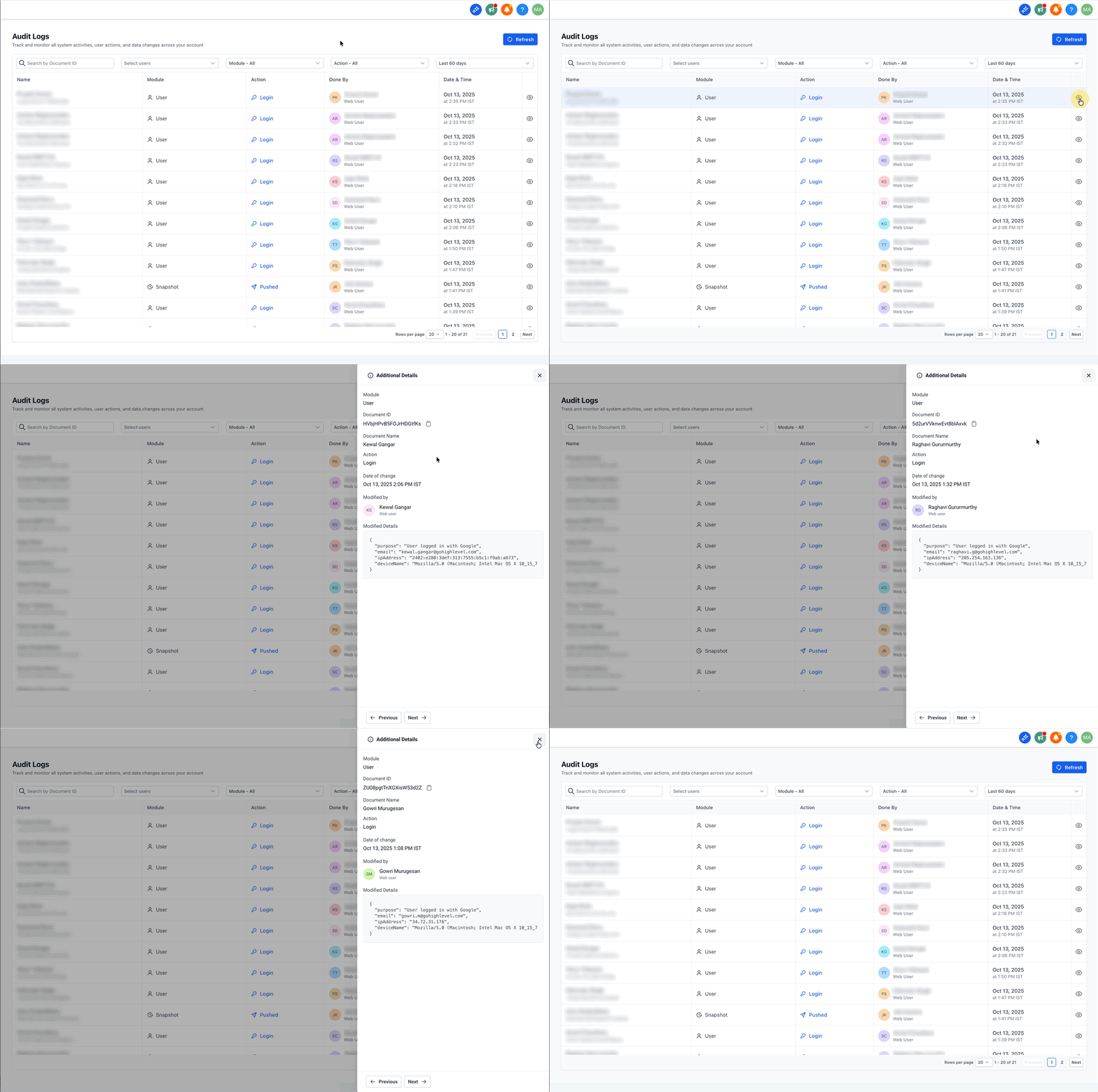
Drawer view: Details open in a right-side panel so you never lose your table position.
Keyboard navigation: Use ←/→ to move through entries quickly while keeping the drawer open.
Consistent components: New Design System spacing and typography improve readability and reduce scanning fatigue.
Faster triage: Stay in context to confirm changes, capture evidence, and move on without extra page loads.
- Enhanced Visibility & Accountability: Track all changes made to users, accounts, and settings to maintain a clear record of modifications.
- Faster Issue Resolution: Quickly identify and troubleshoot unexpected changes, saving time and effort.
- Improved Security & Compliance: Monitor user actions to prevent unauthorized modifications and ensure adherence to policies.
- Efficient User Management: Keep track of user activity, including account creations, edits, and deletions, for better team oversight.
Drawer & Keyboard Navigation
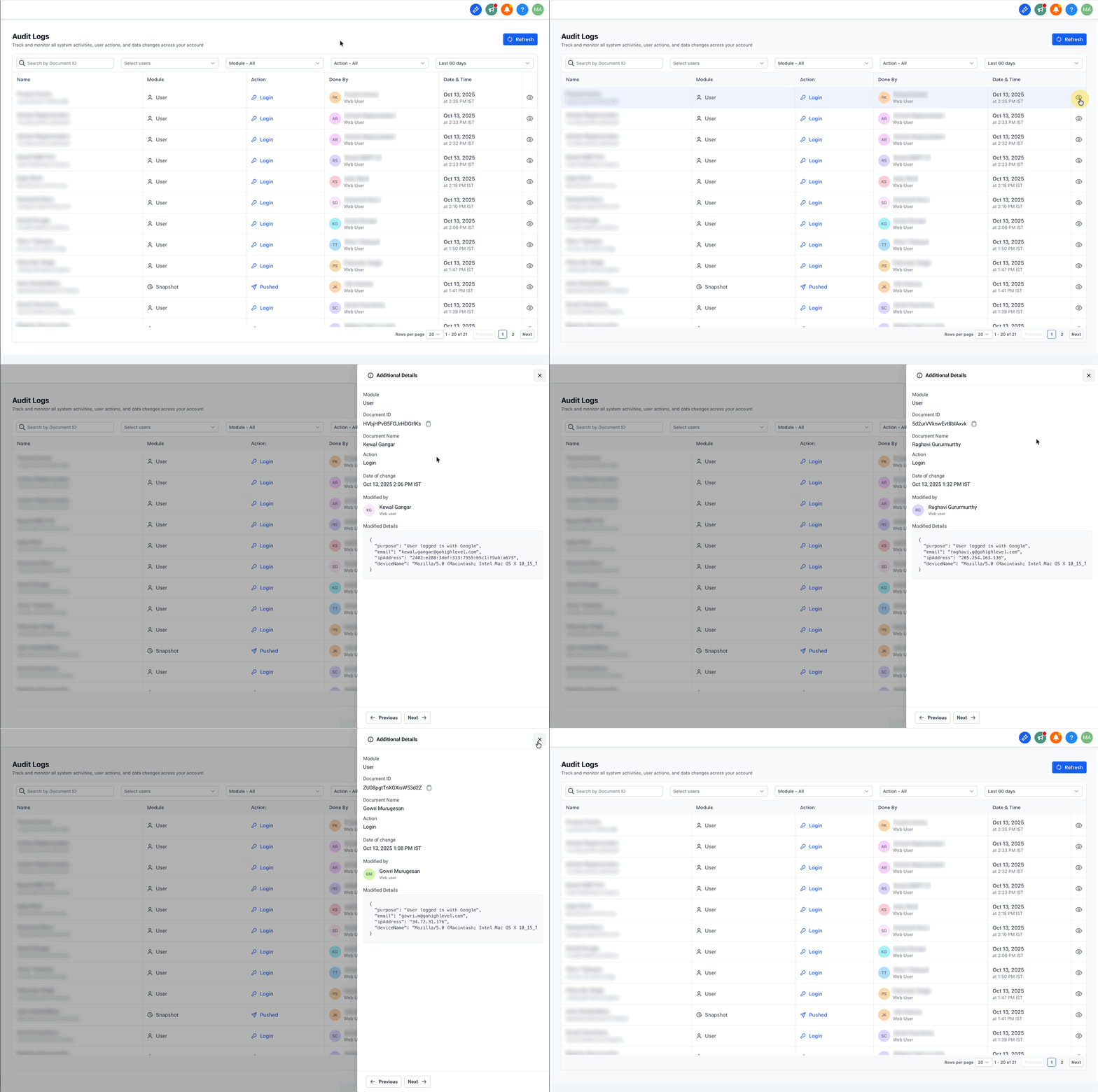
The redesigned, right-side drawer keeps you in context while you investigate changes. Once the drawer is open, you can use the keyboard to move through records without closing the panel—perfect for scanning long audit trails quickly and accurately.
- Open details in place: Click any row to open the sleek right-side drawer with field-level before/after values, user, and timestamp—no page reloads and no lost scroll position.
Notification Preferences audit details (Sub-Account)

Notification Preferences changes appear as Updated actions. When you open an entry, the details drawer shows only the fields that changed with before/after values.

- First-time save: Audit Logs captures all notification preferences.
- Later updates: Audit Logs records only the preferences that were modified.
Navigate with arrow keys: With the drawer open, press left and right arrow keys to jump to the previous or next audit record; the drawer updates in place so you maintain focus.
Work faster, click less: Keep hands on the keyboard to minimize misclicks and speed up reviews during long investigation sessions.
Stay in control: Close the drawer with the X icon or Esc; you’ll return to the exact spot in the table.
Deleted Page Builder assets are logged
Audit Logs now creates a Deleted entry when a user deletes saved Page Builder assets, including:
- Section Templates
- Global Sections
- Universal Sections
- Element Templates
- Universal Element Templates
Each deletion entry includes the asset name and asset ID. This applies to assets used in Funnels, Websites, Stores, and Webinars.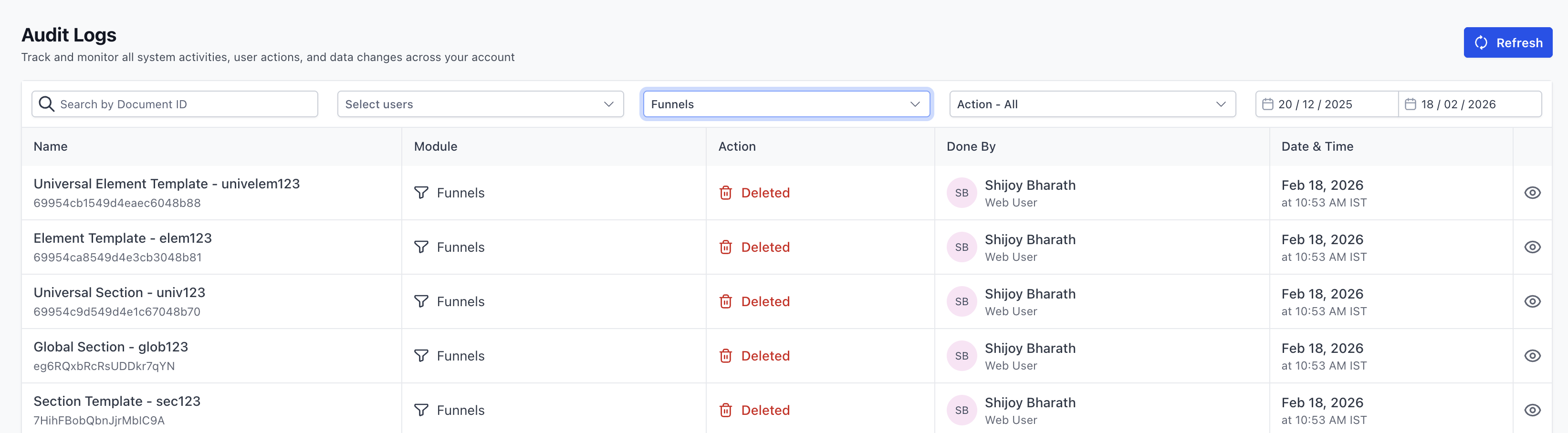
Understanding Audit Log Filters
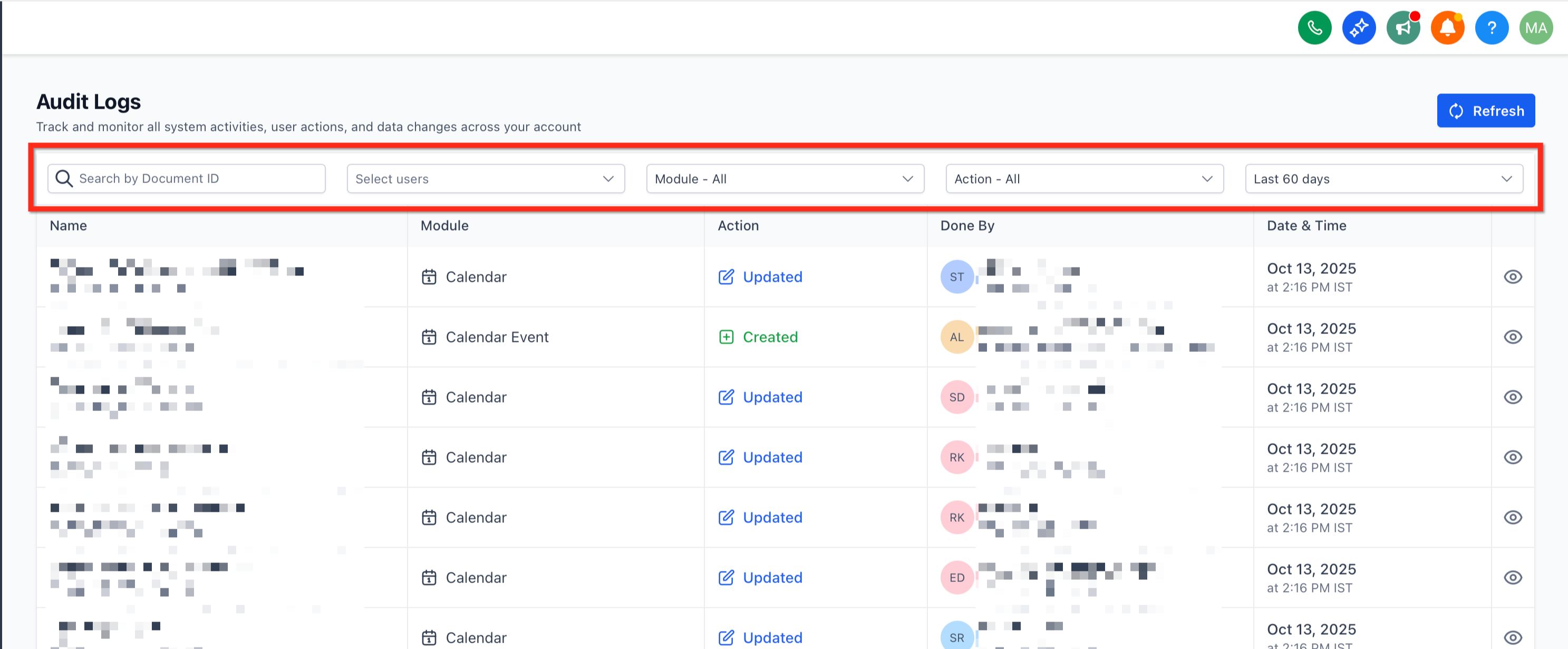
Each filter focuses the results so you can quickly isolate the most relevant events. Understanding what each option does helps you audit faster with fewer clicks.
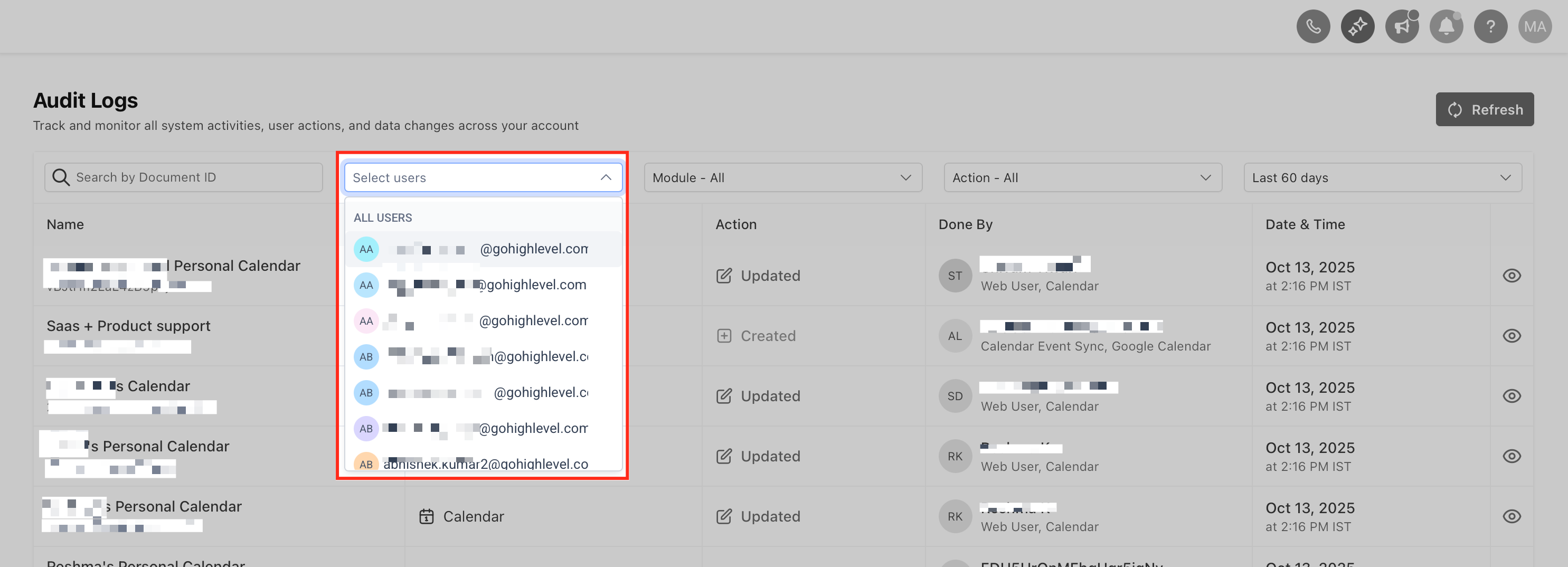
User: Select a specific team member to view only the actions they performed. Ideal for monitoring individual contributions and investigating suspected edits.
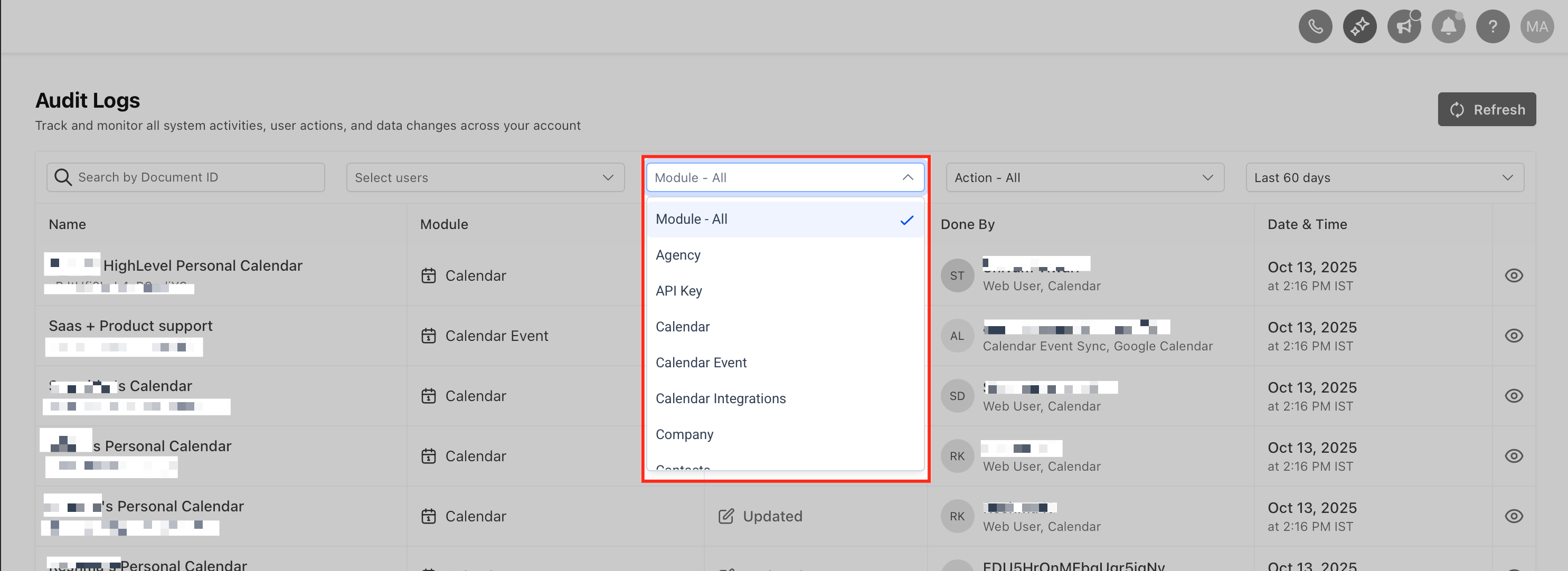
Module: Choose the affected area of the platform (for example, Users, Accounts, Contacts, Opportunities, Websites/Funnels/Stores, Custom Objects, Listings, and Notification Preferences) to focus on events from that system.
Action Type: Limit results to a type of change such as Create, Update, or Delete. Useful for spotting critical changes quickly.
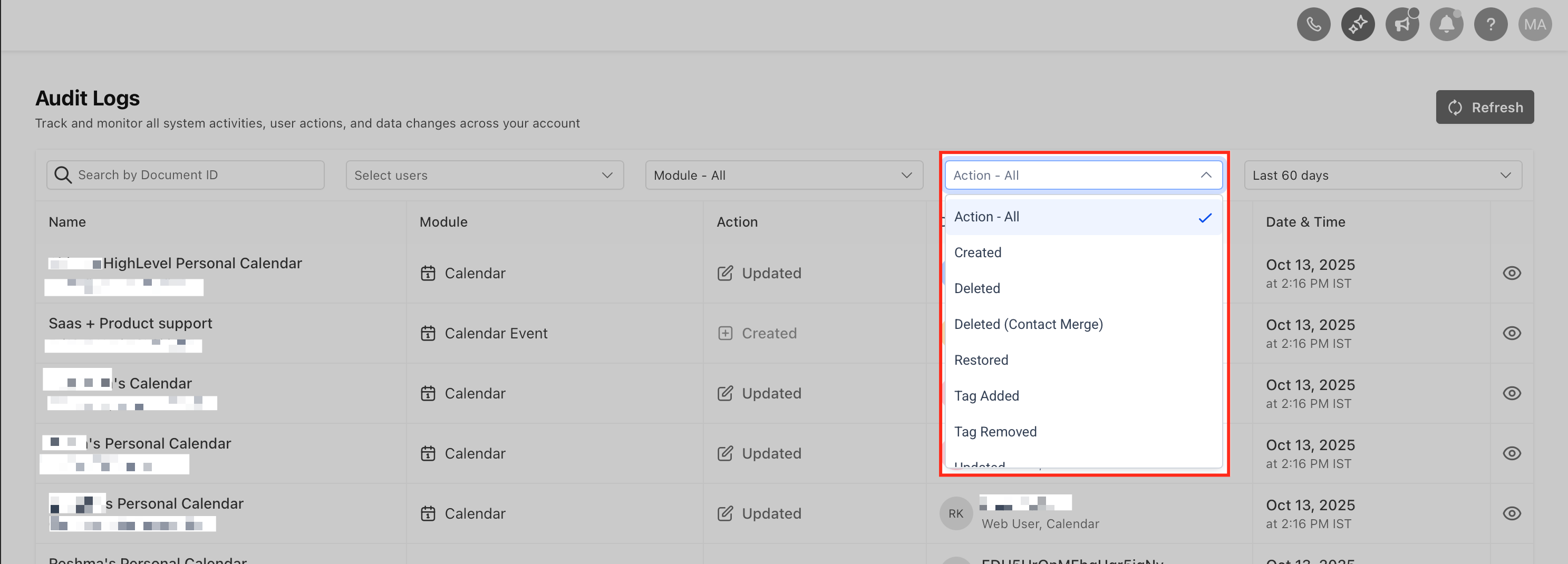
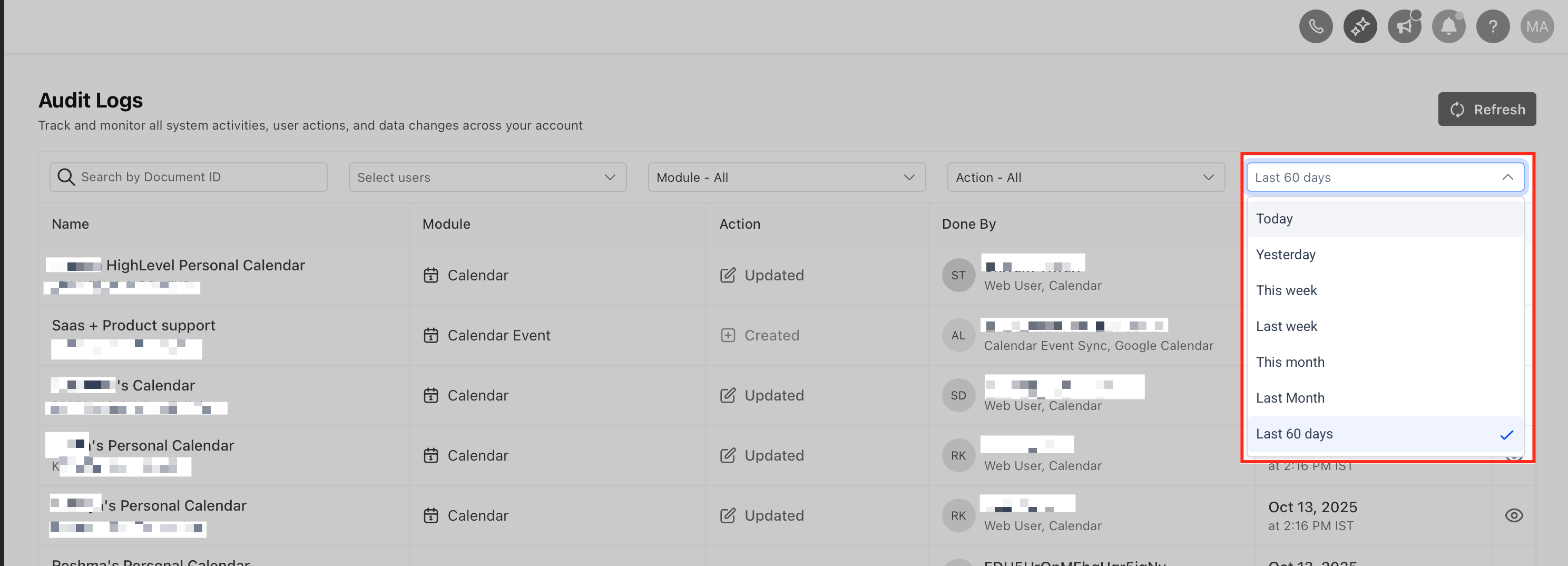
Time Range: Constrain results to a defined window (e.g., today, last 7 days, or upto 60 days) to match when the change occurred.
Export Audit Logs (CSV Download)
You can export filtered Audit Logs to a CSV file. Exports run asynchronously, and you can track progress and download completed files from the Exports tab.
For step-by-step instructions, see Exporting Audit Logs
How To Access the Audit Logs
The redesign is live across both Agency and Sub-Account (Location) contexts. Open Audit Logs in the context you need to review—each view shows only its own scope (agency-wide vs. location-specific).
Note: Notification Preferences audit logs are available in Sub-Account (Location) Audit Logs only.
Choose your context:
Agency-wide activity: Go to Agency → Settings → Audit Logs
Sub-Account activity: Go to Sub-Account → Settings → Audit Logs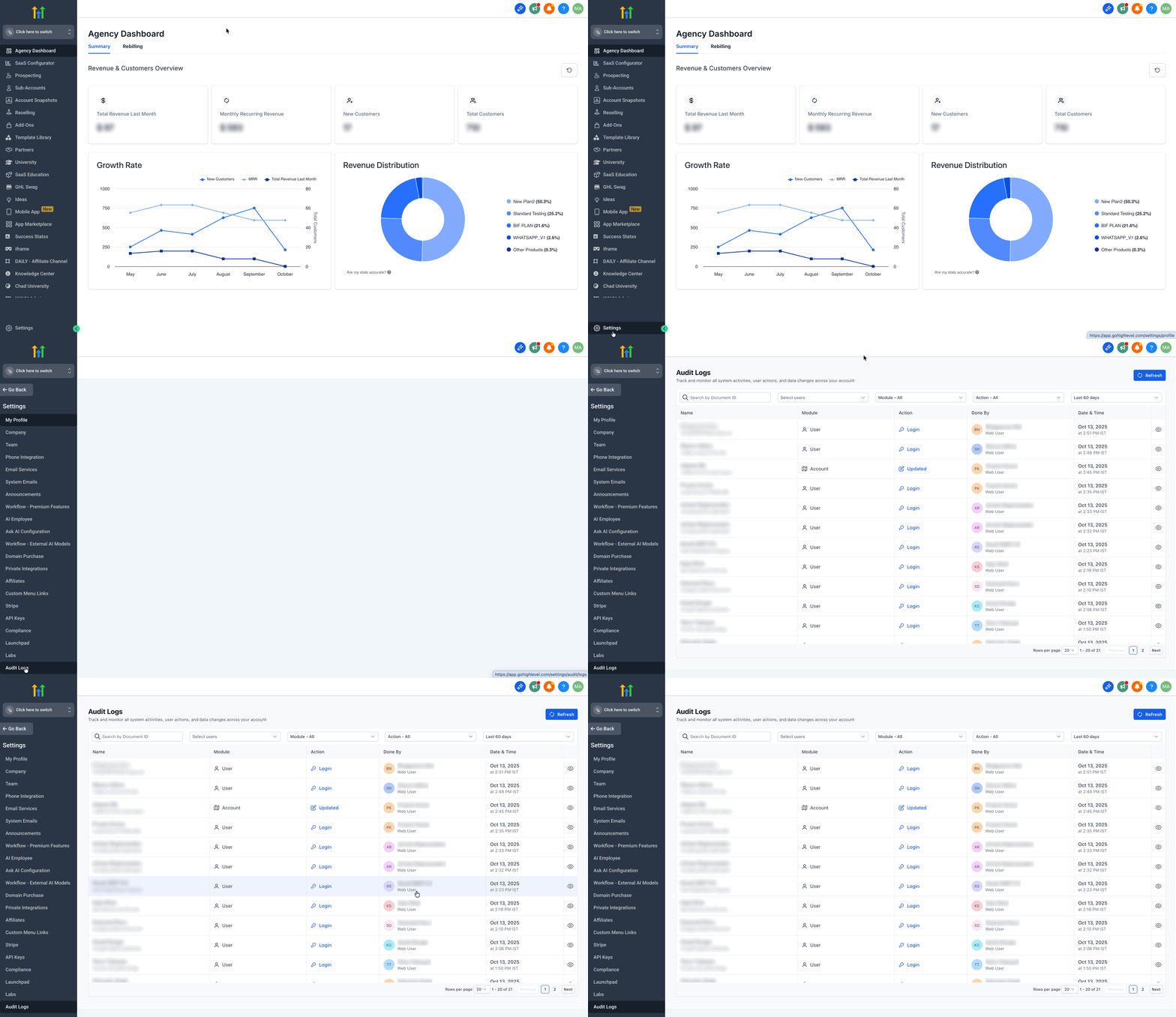
From the Audit logs list, click the Preview (Eye) button or anywhere in the row to open the details drawer of that log
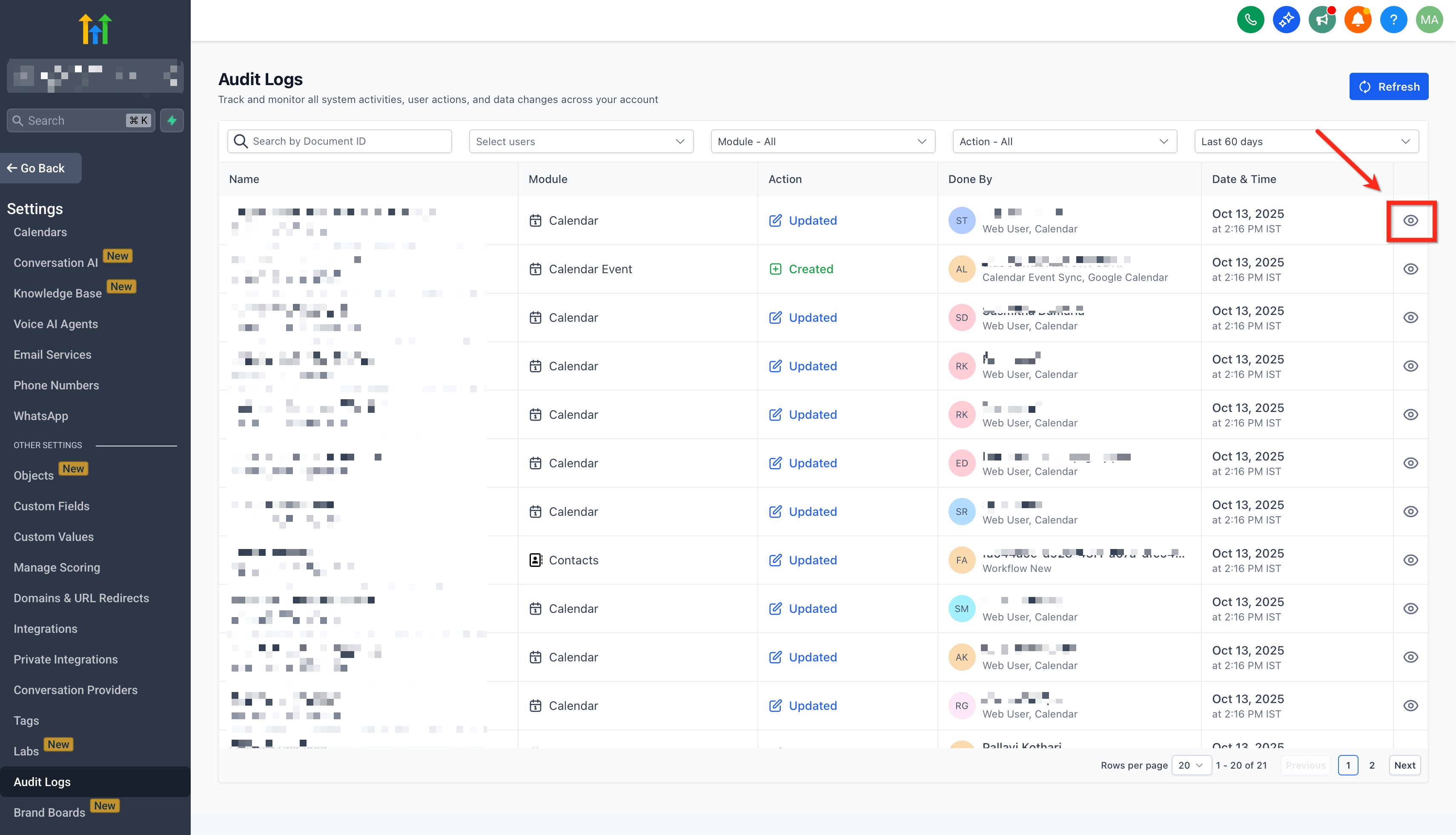
Use ←/→ on your keyboard to cycle through entries while keeping the drawer open.
Apply filters to narrow results. The User filter is available in both Agency and Sub-Account Audit Logs. (Other filter options such as Module and Action can vary by module.)
For module-specific reviews (e.g., Funnels/Websites/Webinars/Stores), open Settings → Audit Logs inside the relevant Sub-Account to see those entries.
Frequently Asked Questions
Q: Who can access Audit Logs, and where do I find them?
Agency-level logs are available to Agency Admins at Agency → Settings → Audit Logs. Module-level logs within sub-accounts are typically available to Account Admins at Sub-Account → Settings → Audit Logs.
Q: How long do the Logs retain for?
Audit Log entries are retained for 60 days and then purged. Plan to capture needed evidence within that window.
Q: Can I export Audit Logs?
Yes. Using the Export Option on the top right.
Q: What’s the fastest way to review lots of entries?
Apply Date first, then Action/Module to narrow the list. Open the first row and use ←/→ to step through results while the drawer stays open.
Q: How do I quickly find and restore deleted items (e.g., Opportunities)?
Filter Action = Deleted and the relevant Module (e.g., Opportunity). Open an entry to access restore options where supported. See: Deleting & Restoring Opportunities & Pipelines.
Q: Why do timestamps look different across teams or devices?
A: Time zone differences can cause mismatches. Verify your device time zone and the sub-account locale.
Q: How do WordPress Access/Activity logs relate to Audit Logs?
A: WordPress logs complement platform Audit Logs for key events (e.g., site creation/deletion). Use both to form an end-to-end audit trail. See: WordPress Access & Activity Logs.