
Traffic Source Analytics in SourCherry helps you quickly see where website and funnel traffic originates. Compare Paid vs Organic performance, spot daily trends, and drill into a single date or channel. This guide explains how to read the traffic source charts, and how attribution works.
TABLE OF CONTENTS
- What is Traffic Source Analytics?
- Key Benefits of Traffic Source Analytics
- How channels are Determined in SourCherry
- How To Use Traffic Source Analytics in Sites
- Frequently Asked Questions
- Related Articles
What is Traffic Source Analytics?
Traffic Source Analytics is a visual dashboard inside Sites → Analytics that breaks down daily traffic by marketing channels and sources. The stacked bar chart and companion tabs (Traffic Channel and Source/Medium) let you attribute results to the right campaigns, compare channels over time, and filter the entire dashboard to a specific date when needed.
Key Benefits of Traffic Source Analytics
Channel clarity: Quickly see how much traffic comes from Paid Search, Paid Social, Organic Search, Direct, Referral, Social (organic when available), and Other (Unknown/Unmapped).
Faster decisions: Identify growth, dips, or seasonal shifts at a glance with daily stacked bars and immediate tooltips.
Better attribution: Validate UTMs and click IDs so paid clicks don’t get misclassified as Direct or Other.
Team alignment: Use consistent colors and labels so stakeholders interpret charts the same way in reviews.
Focused analysis: Click a single day to filter the dashboard and investigate anomalies with context.
How channels are Determined in SourCherry
UTM parameters: SourCherry reads utm_source, utm_medium, and utm_campaign when present.
Click IDs & auto-tagging: Identifiers like gclid/msclkid/fbclid may help confirm paid traffic classification.
Referrer detection: Known search engines and social networks are matched; direct means no referrer/UTMs.
Other (Unknown/Unmapped): Sessions without usable UTMs/referrers or with malformed values.
How To Use Traffic Source Analytics in Sites
Proper setup ensures accurate attribution and clean visuals. Follow these steps to locate the dashboard, validate UTMs, and use drill-down effectively.
Go to Sites → Analytics.
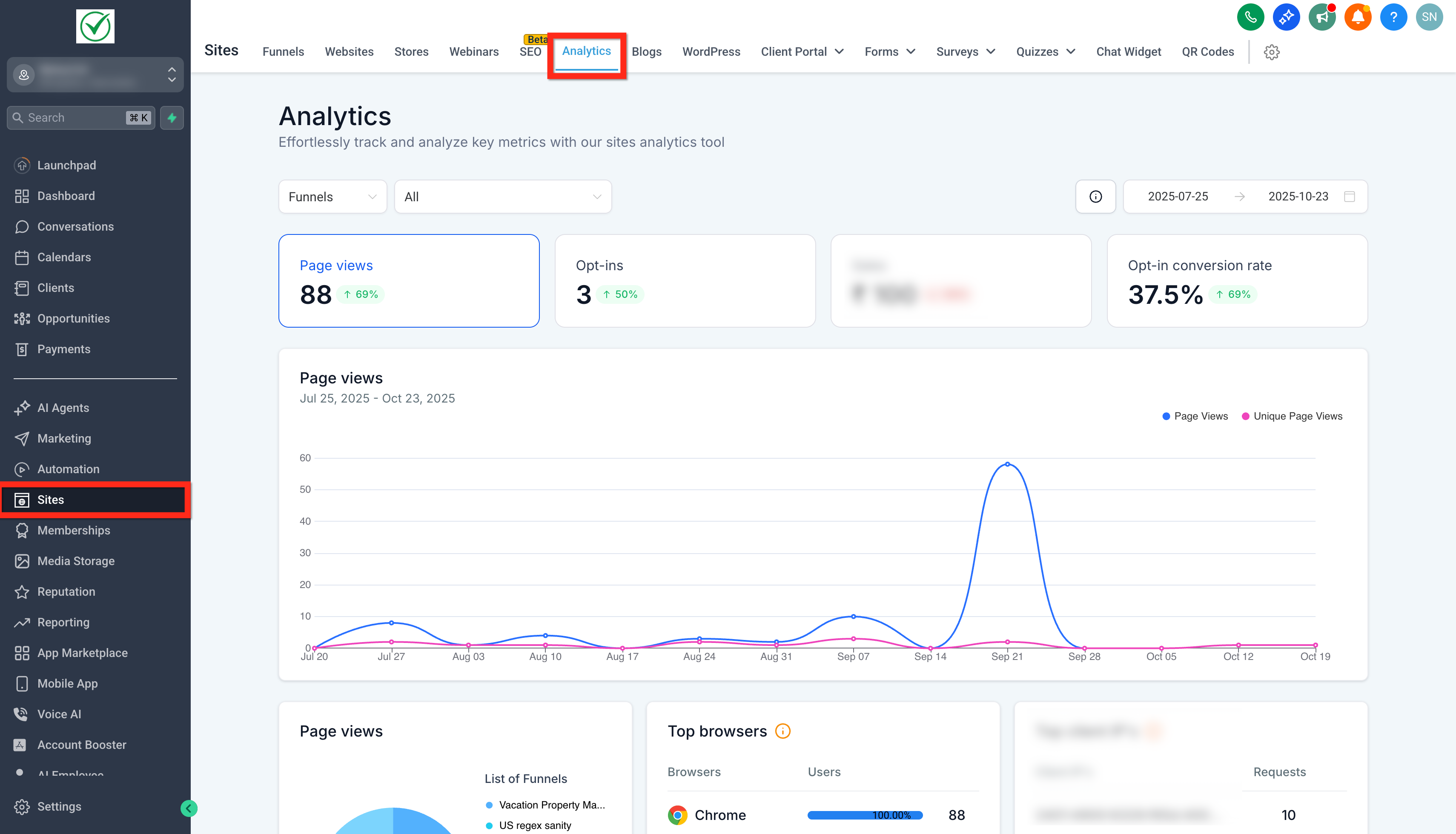
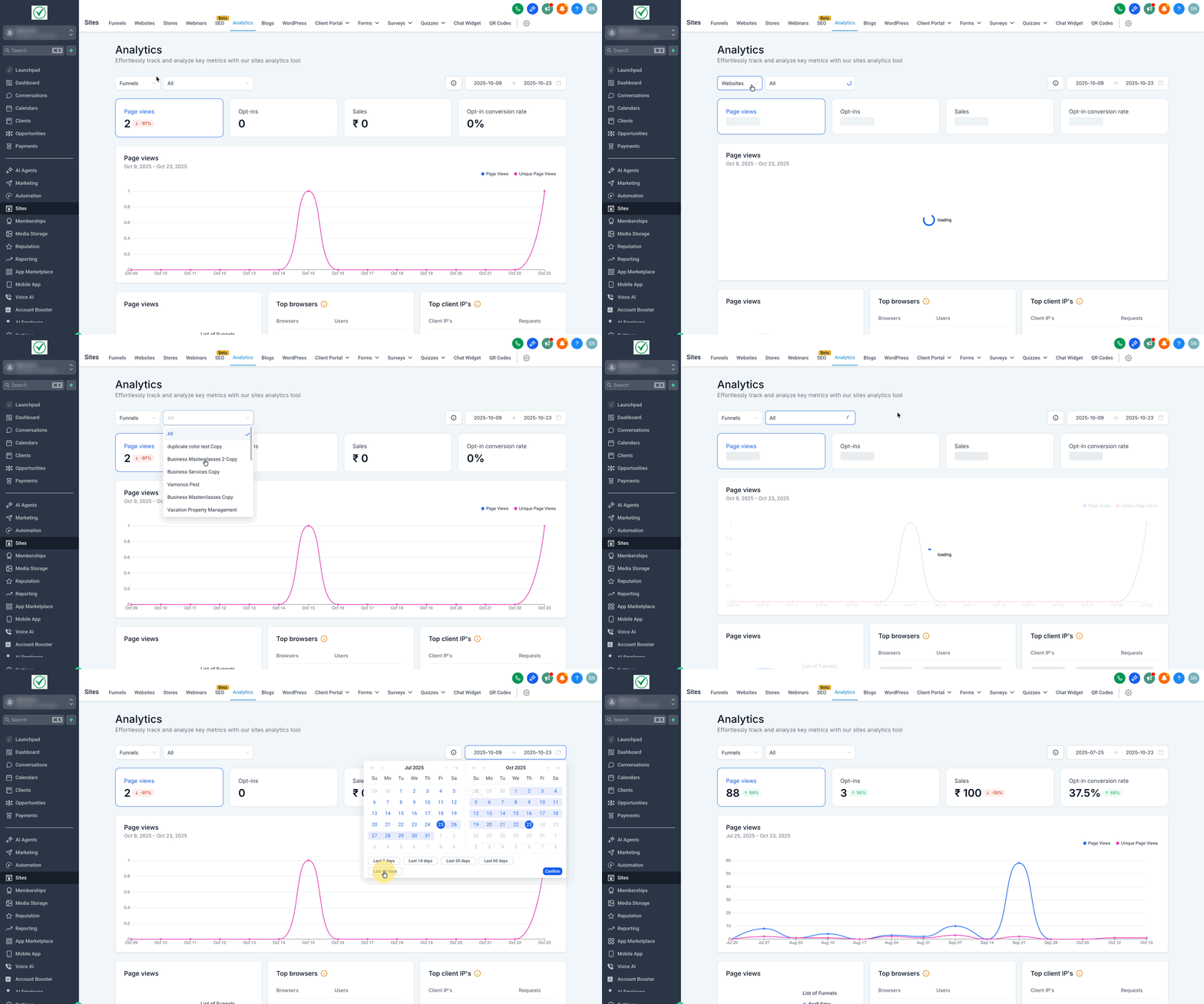
Select Funnels/Website then choose your Date Range.
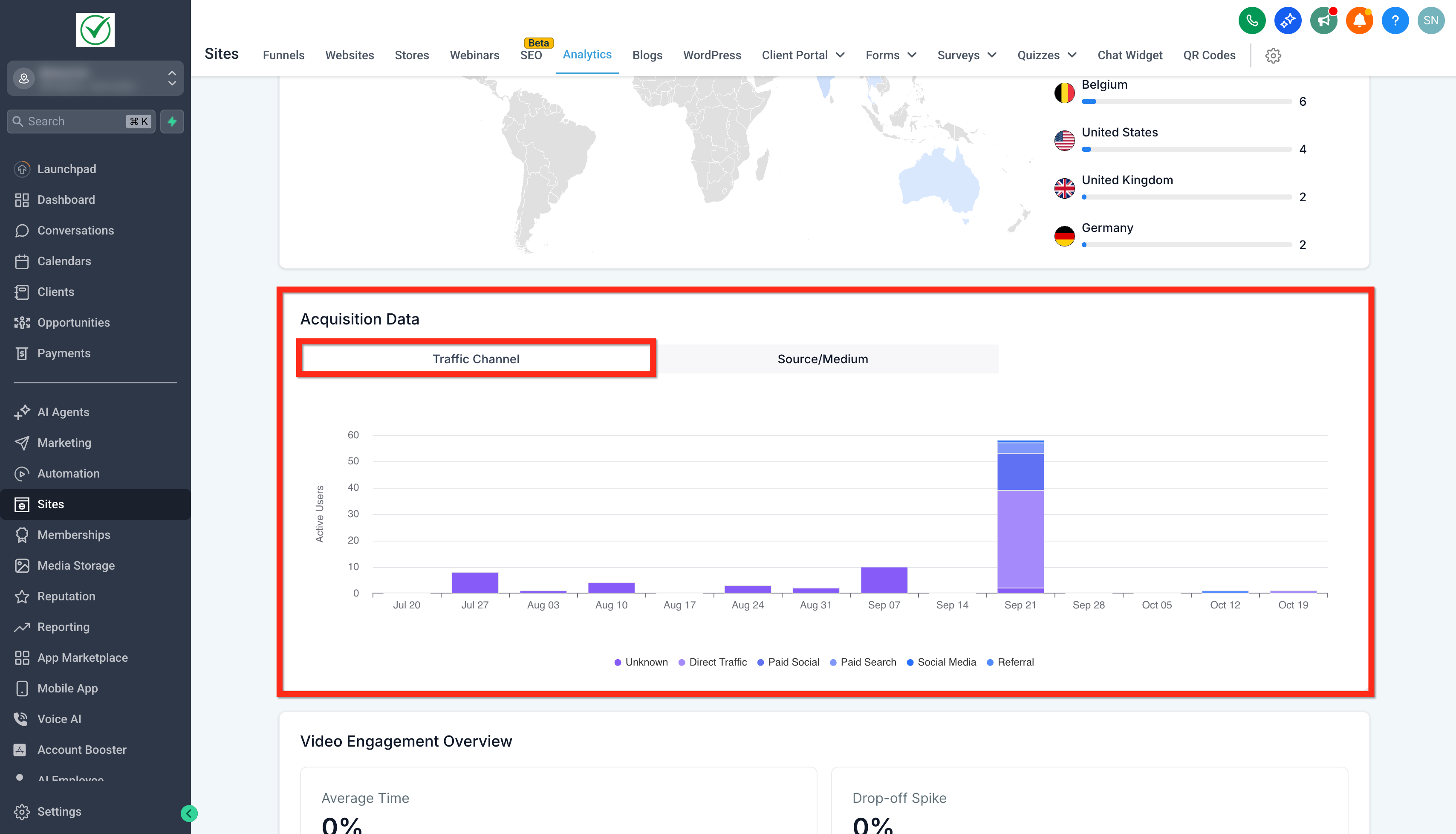
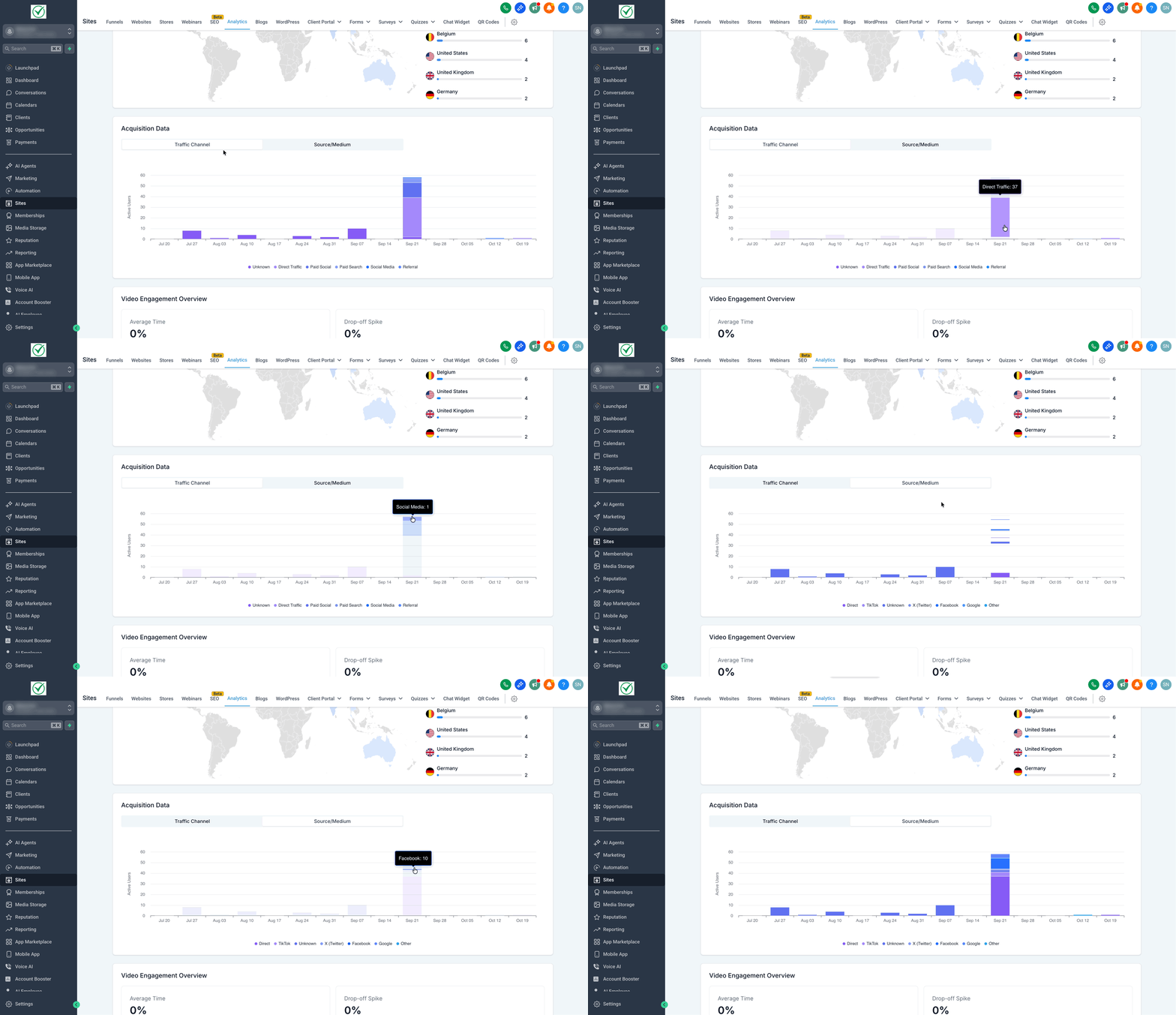
Scroll to Acquisition Data and select the Traffic Channel tab for a channel-level view (e.g., Direct Traffic, Paid Social, Paid Search, Social Media, Referral).
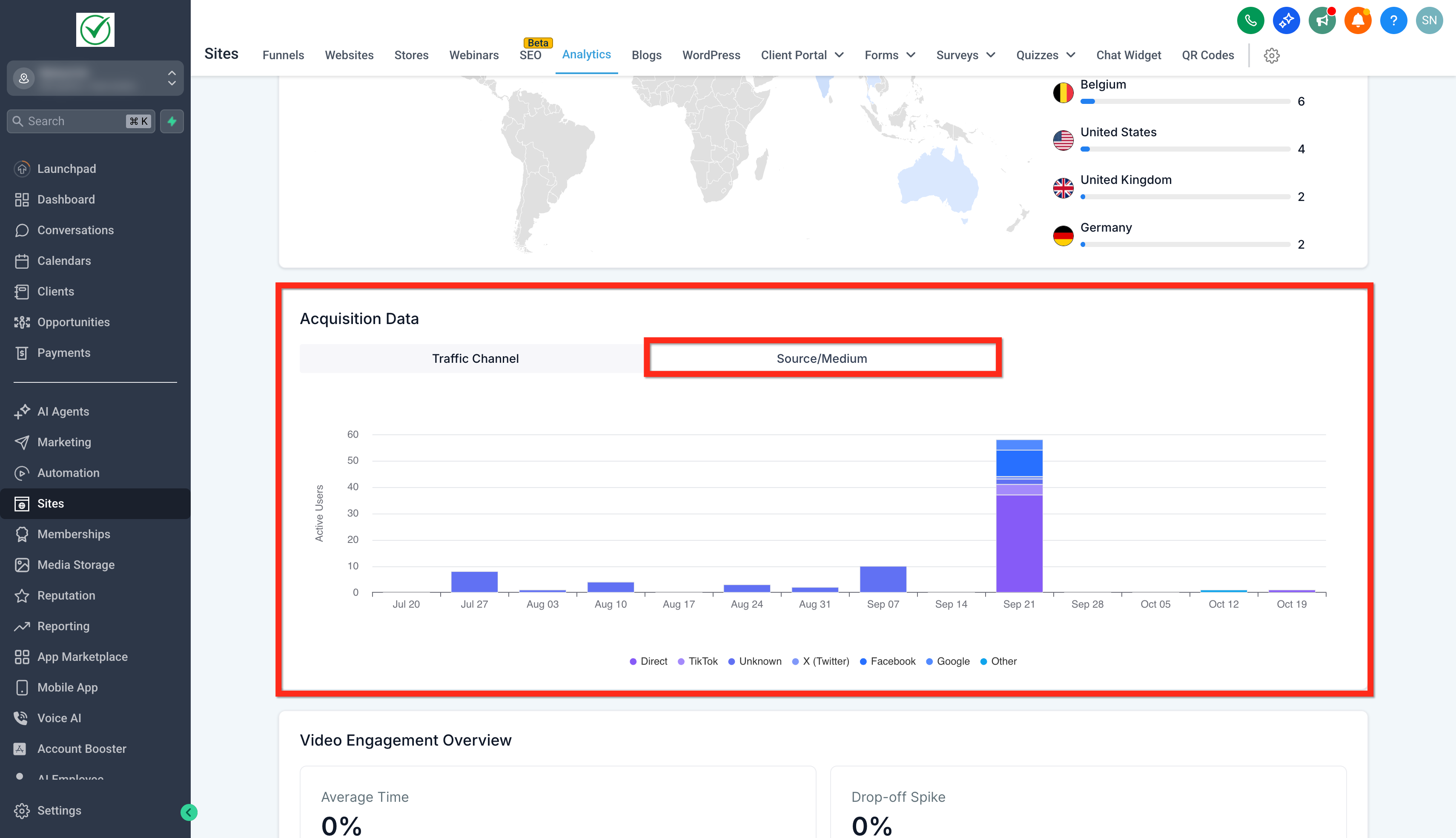
Switch to the Source/Medium tab to view precise origins (e.g., google, facebook, direct, TikTok, other).
Hover any day/date bar to see the exact count for that channel on that date.
Frequently Asked Questions
Q: Which metric is shown in the stacked bar chart?
Daily visits to your Sites assets (websites/funnels) within the selected date range.
Q: Why is some traffic categorized as Other (Unknown/Unmapped)?
Sessions may lack UTMs, include malformed parameters, or arrive without a referrer (e.g., app browsers, redirects). Add consistent UTMs and check redirects to reduce this bucket.
Q: What timezone does the dashboard use?
The data aggregates by your account/location timezone. If your team is distributed, communicate the timezone to avoid confusion.