
Voice AI Agent Logs help you review individual Voice AI calls and test interactions in detail. Use logs to inspect transcripts, recordings, execution timelines, triggered actions, latency, input and output data, and errors. This helps teams troubleshoot issues, understand agent behavior, and improve Voice AI performance in SourCherry.
TABLE OF CONTENTS
- What are Voice AI Agent Logs?
- Key Benefits of Voice AI Agent Logs
- When To Use Voice AI Agent Logs
- How To Navigate and Use Agent Logs
- Frequently Asked Questions
- Related Articles
What are Voice AI Agent Logs?
Voice AI Agent Logs are detailed records of individual Voice AI interactions in SourCherry. Each log helps you understand what happened during a call or test interaction, including what the caller said, how the agent responded, which actions ran, and where an issue may have occurred.
Agent Logs are different from dashboard metrics. Dashboard metrics help you monitor overall trends, performance, call volume, sentiment, and triggered actions. Agent Logs help you investigate a specific interaction step by step.
Key Benefits of Voice AI Agent Logs
Agent Logs give teams the visibility needed to review call quality, debug issues, and improve agent behavior. Instead of guessing why an interaction succeeded or failed, users can inspect the exact conversation and event details behind the call.
Conversation visibility: See full interactions between users and the AI
Execution tracking: Follow each step with precise timestamps
Transfer insights: Identify how and when agent handoffs occur
Latency analysis: Detect slow steps in conversations
Data inspection: View raw and formatted input/output data
Failure detection: Quickly identify where issues occurred
When To Use Voice AI Agent Logs
Agent Logs are most useful when you need to understand a specific Voice AI interaction, not just overall performance trends. Reviewing logs after calls and tests helps teams identify what worked, what failed, and what should be improved before sending more callers to the agent.
Use Voice AI Agent Logs to:
- Review a specific customer call.
- Review a Web Call or Phone Call test.
- Troubleshoot failed or incomplete interactions.
- Understand why the agent responded a certain way.
- Check whether a tool, action, transfer, or trigger ran correctly.
- Investigate delays, latency, or slow responses.
- Review transcripts and recordings for quality control.
- Identify prompt, flow, or configuration issues before live deployment.
- Compare expected behavior against what happened during the interaction.
How To Navigate and Use Agent Logs
Access Agent Logs
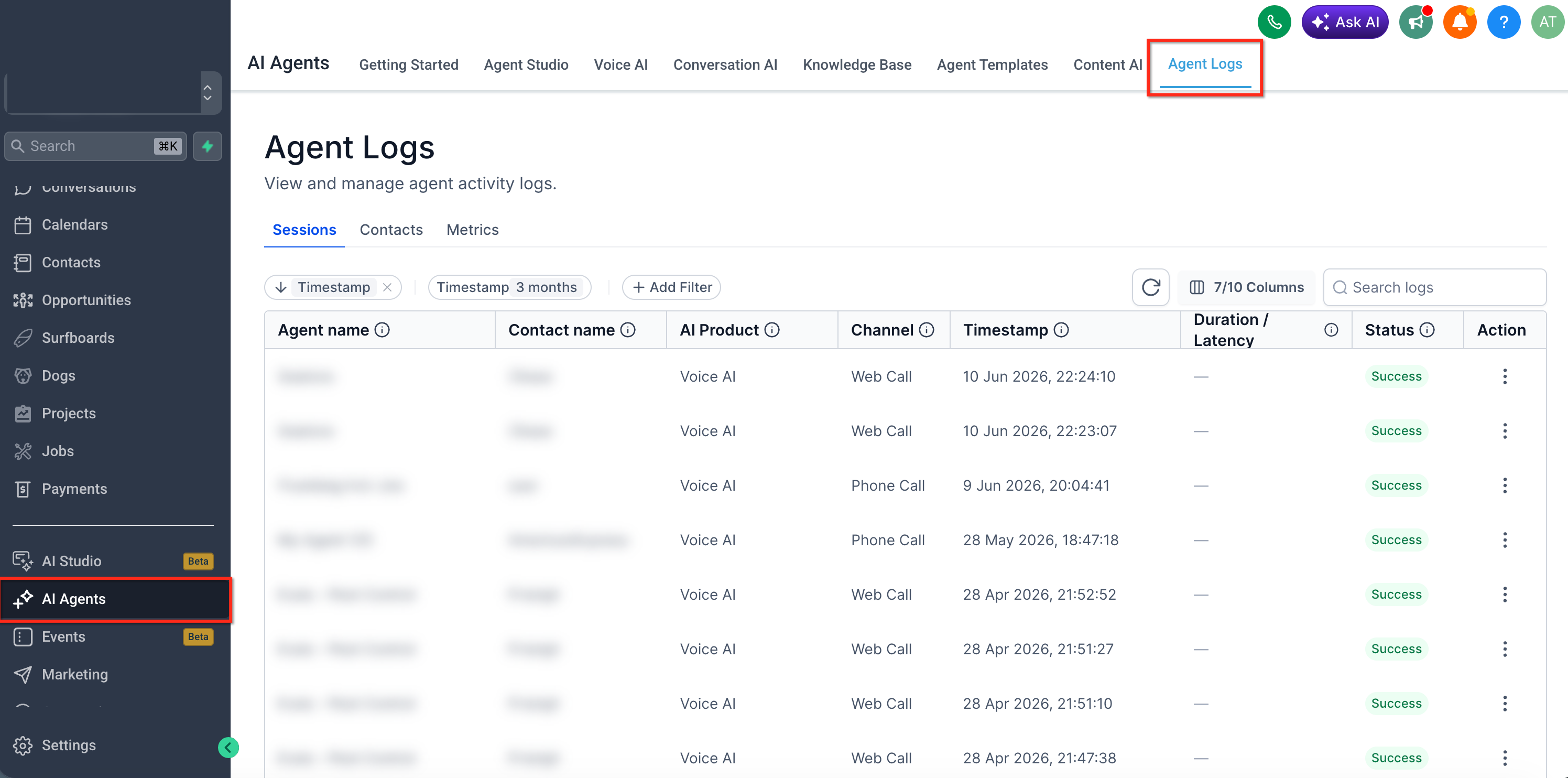
This image shows where to access Agent Logs from the main navigation.
Navigate to AI Agents
Click on Agent Logs in the top menu
Review the Logs Table
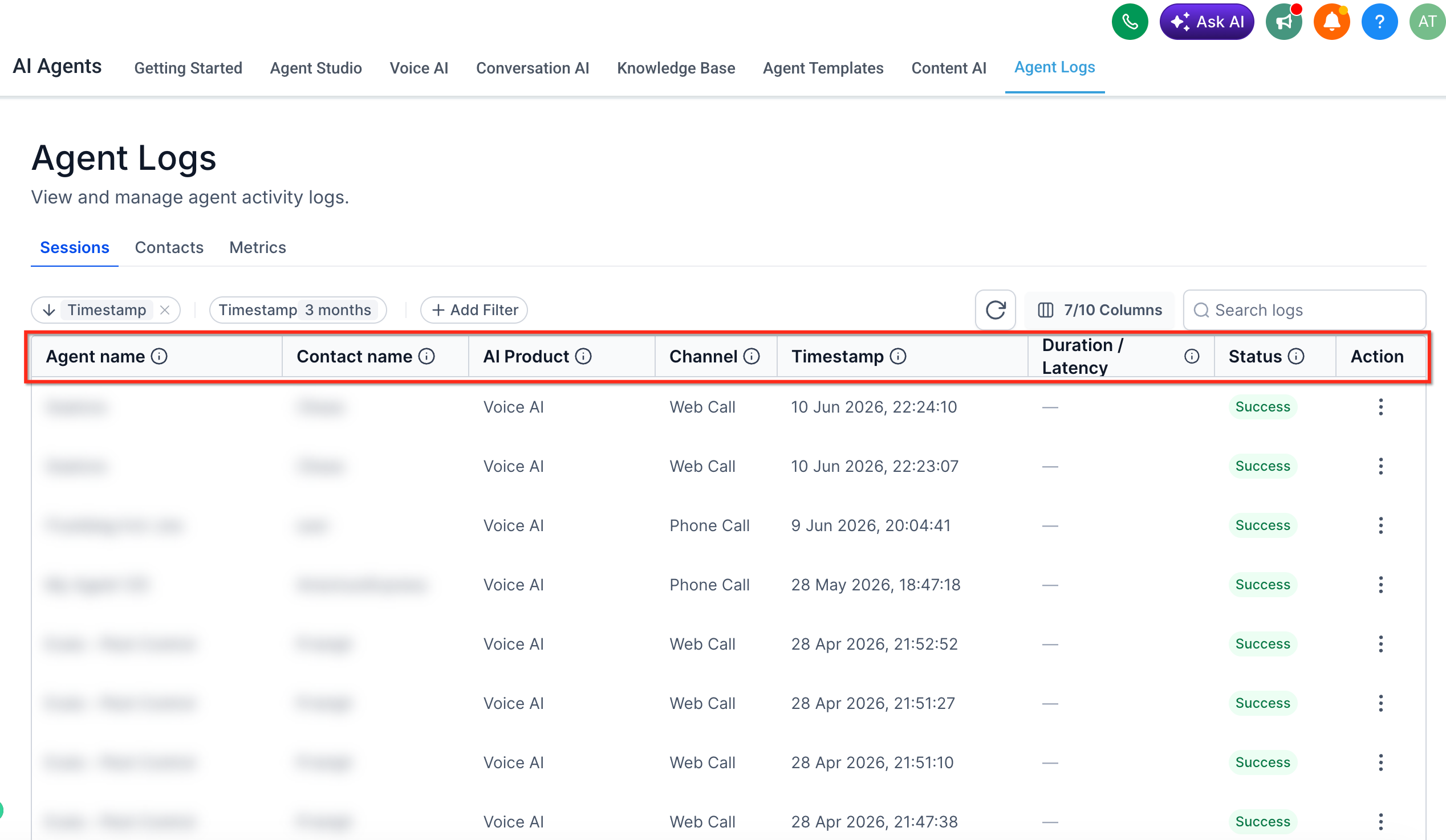
This image highlights the columns available in the logs table.
Use the table to review interactions based on:
Agent name
Contact name
AI product
Channel
Timestamp
Status
Use filters at the top to narrow down results
Locate and Select a Log
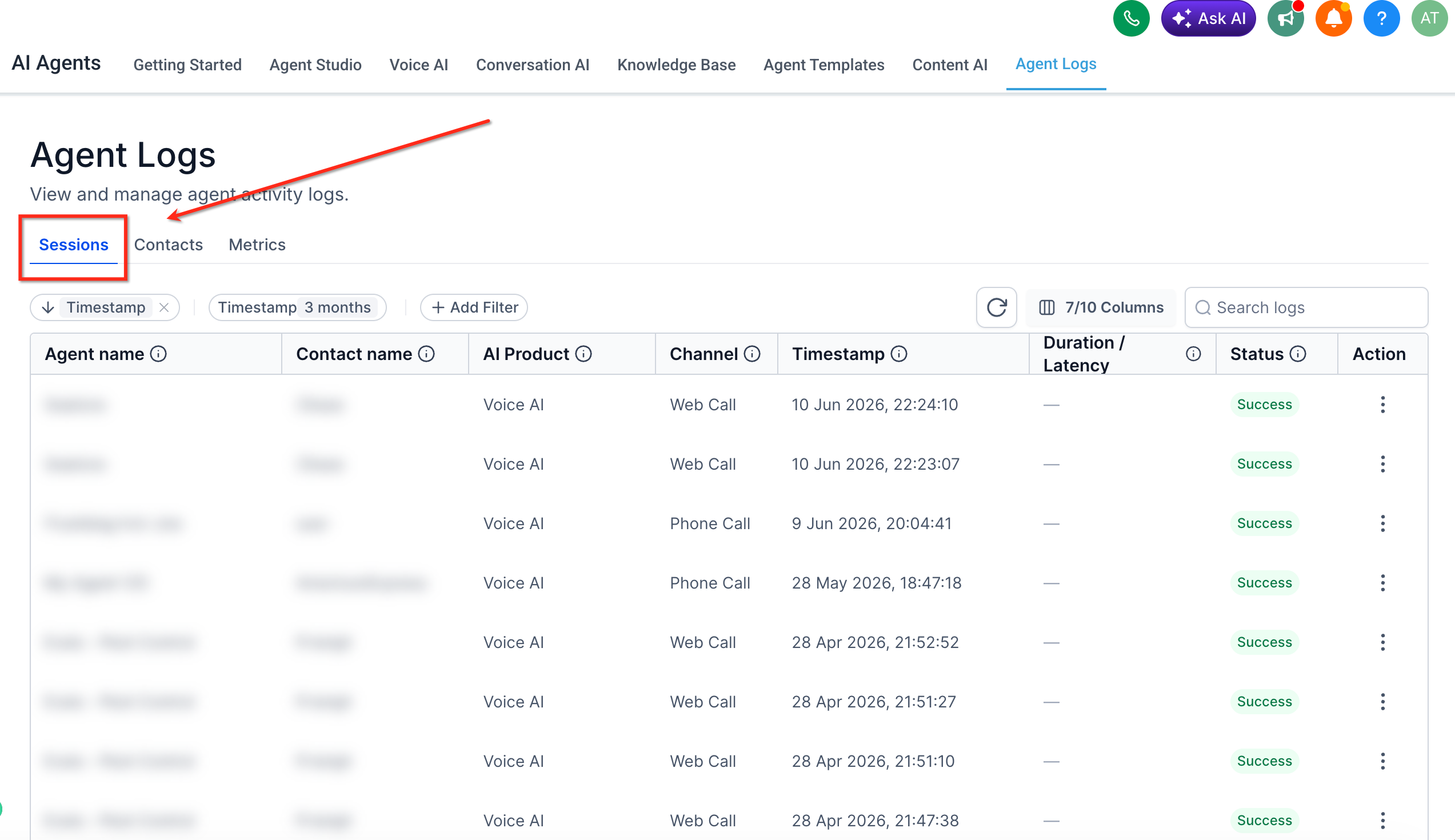
This view shows multiple interactions listed for review.
Scroll through logs to find the interaction you want
Look at timestamps and status to identify relevant sessions
Open Detailed Log View
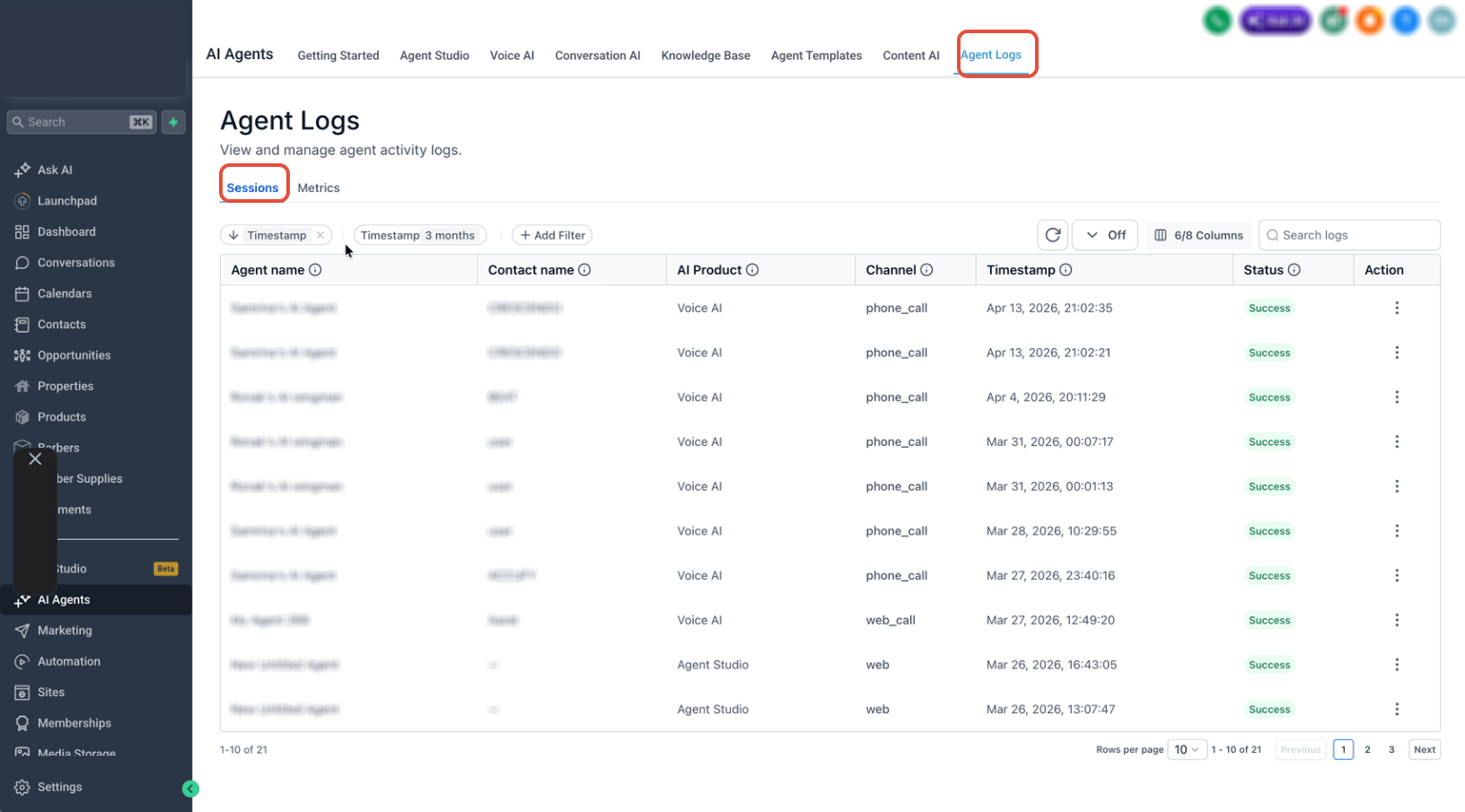
This screen shows how to open a specific interaction.
Click on an Agent name OR
Use the action menu (three dots) → View Details
Analyze the Conversation
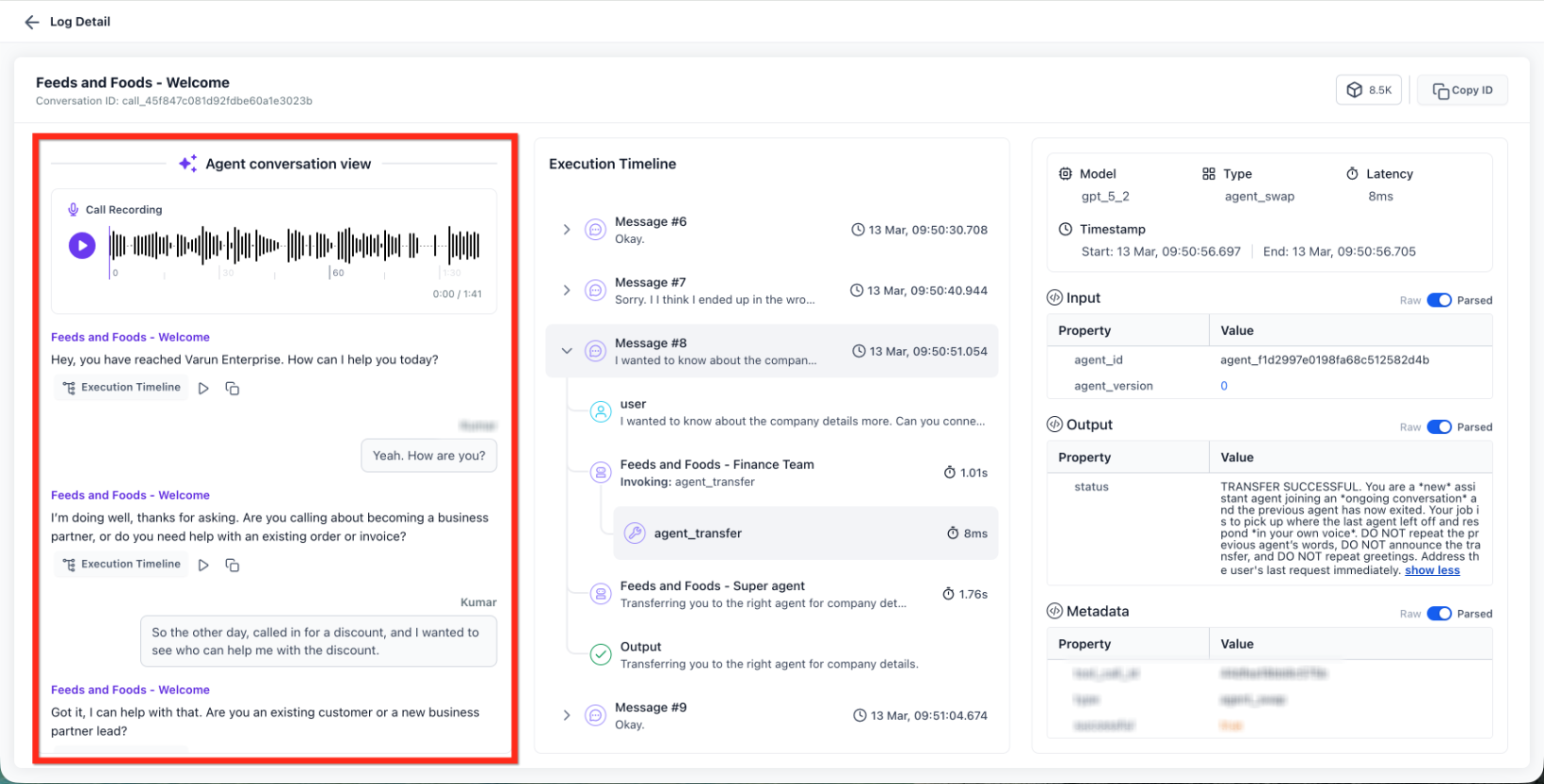
This section shows the full interaction between the AI and the user.
Review:
Call recording playback (if enabled)
Conversation messages
Context of the interaction
Trace Execution Timeline
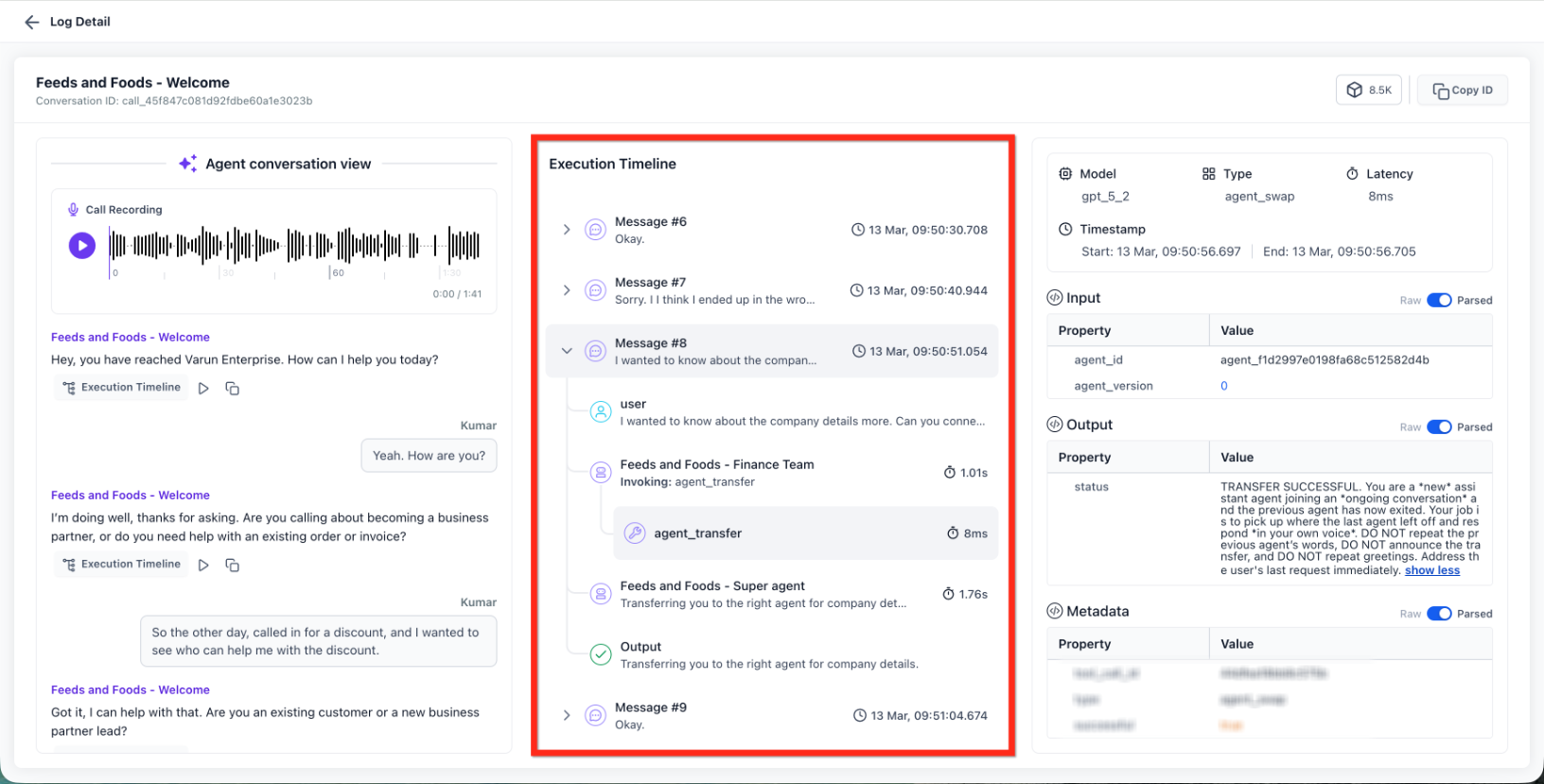
This panel shows step-by-step execution of the interaction.
Follow events in chronological order
Identify:
Delays
Transfers
Failures
Use timestamps to pinpoint issues
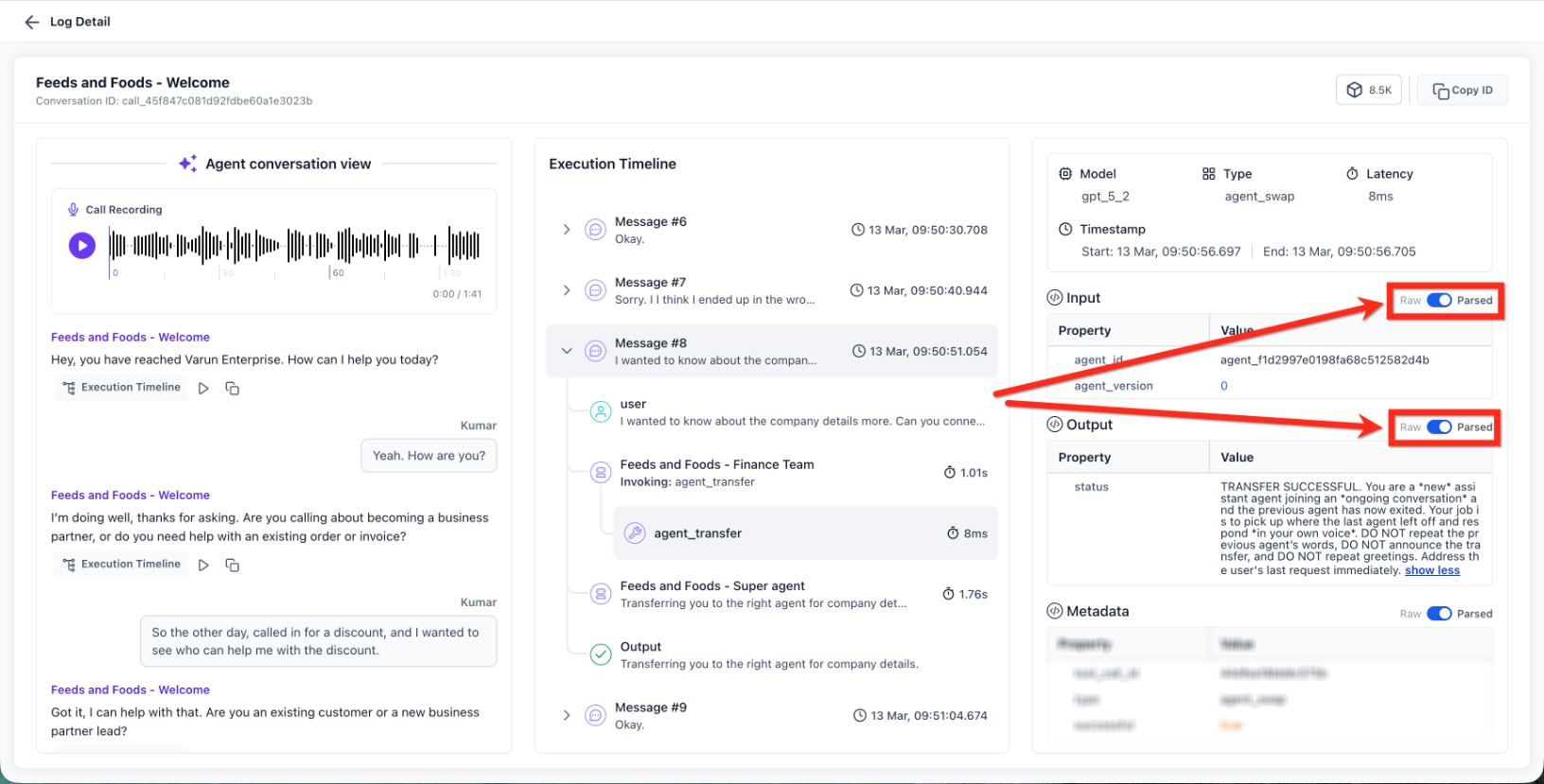
Inspect Input & Output Data
This image shows how to switch between raw and parsed data views.
Toggle between:
Raw: Original system data
Parsed: Human-readable format
Review what was sent and received at each step
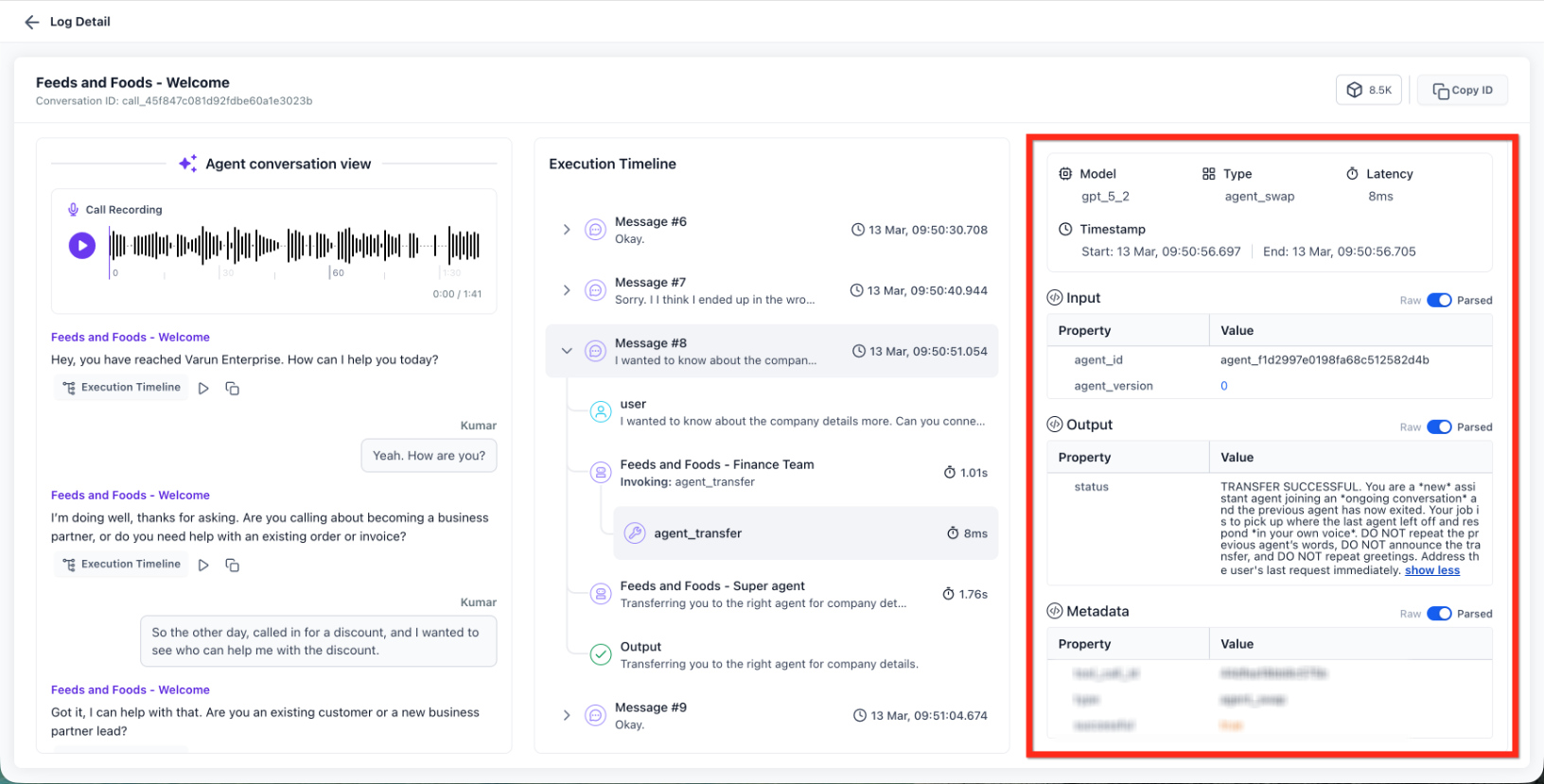
Review Technical Details
This panel provides deeper insights into execution.
View:
Model used
Execution type
Latency
Metadata
Use this information to audit performance and debug issues
Frequently Asked Questions
Q: What is the difference between Agent Logs and dashboard analytics?
Dashboard analytics show overall performance trends, call volume, sentiment, and triggered actions. Agent Logs show detailed records of individual interactions so you can review exactly what happened during a specific call or test.
Q: Do Web Call and Phone Call tests appear in Agent Logs?
Test calls may appear in logs when supported by the account and interaction type. Use call-type filters, such as Test Calls or Live Calls, if available.
Q: Do test calls affect dashboard analytics?
Test calls may appear in logs, but they are typically excluded from live dashboard analytics and performance metrics.
Q: Why is a recording missing from a log?
Recordings appear only when recording is enabled and available for the interaction. Some interaction types, settings, or phone configurations may not provide recordings.
Q: Why is the transcript missing or incomplete?
Transcripts may be incomplete if audio quality was poor, the call ended early, or processing was interrupted. Review the recording and timeline details when available.
Q: Can I see why a transfer failed?
Yes. Review the execution timeline for transfer events, failed steps, or missing conditions. Also confirm the transfer setup and prompt instructions are configured correctly.
Q: What is the execution timeline?
The execution timeline shows the sequence of events during an interaction, including agent responses, actions, delays, transfers, and errors.
Q: What is the difference between Raw and Parsed data?
Raw data shows the original technical payload. Parsed data organizes that information into a cleaner format that is easier to read.
Q: Can I export or access logs through an API?
Some Voice AI log and transcript data may be available through Voice AI Public APIs depending on the account and use case.
Q: Why can’t I see Agent Logs?
Your user may not have the required Voice AI permissions, logs may not be available for the interaction type, or the account may not have access to the feature. Ask an admin to review permissions and account access.