
Connect Cal.com to SourCherry Workflows to automate scheduling activity without custom webhooks, third-party tools, or manual booking follow-up. Use Cal.com triggers to start workflows when bookings are created, rescheduled, cancelled, or completed, and use Cal.com actions to create, cancel, reschedule, or find bookings directly from a workflow. This helps teams keep CRM records, customer communication, and scheduling operations aligned in real time.
TABLE OF CONTENTS
- What is Cal.com Actions & Triggers in Workflows?
- Key Benefits of Cal.com Actions & Triggers in Workflows
- Connecting Your Cal.com Account
- Cal.com Triggers
- Cal.com Actions
- Testing Cal.com Triggers and Actions
- How To Setup Cal.com — Actions & Triggers in Workflows
- Use Cases & Patterns
- Best Practices
- Frequently Asked Questions
- Related Articles
What is Cal.com Actions & Triggers in Workflows?
Cal.com Actions & Triggers in Workflows connects Cal.com scheduling events with SourCherry’s Workflow Builder. Triggers bring Cal.com booking events into SourCherry, while actions let workflows manage Cal.com bookings from inside an automation.
The integration works in two directions:
- Cal.com → SourCherry Workflows: Booking events such as created, rescheduled, cancelled, meeting ended, out-of-office updates, and new recordings can start workflow automation.
- SourCherry Workflows → Cal.com: Workflow actions can create, cancel, reschedule, or find Cal.com bookings.
Key Benefits of Cal.com Actions & Triggers in Workflows
Cal.com workflow automation helps teams reduce manual scheduling work, respond faster to booking changes, and keep customer communication connected to real booking activity.
Full booking lifecycle coverage: Automate around key booking events, including bookings being created, rescheduled, cancelled, completed, and out-of-office updates.
Fast event-based automation: Cal.com triggers are webhook-backed and fire within seconds of the booking event, helping confirmations, alerts, and follow-ups run quickly.
Programmatic scheduling: Use the Create Booking action to book meetings from workflow data, such as a form submission or qualified lead event.
Cleaner field mapping: Use a recent Cal.com booking as the mapping reference so downstream workflow steps can use real booking fields.
Rich booking payloads: Booking events can include details such as booking URL, title, start time, end time, notes, event type, attendees, and organizer.
Reusable connection: Connect Cal.com once in the sub-account, then use Cal.com triggers and actions across workflows without reconnecting each time.
Connecting Your Cal.com Account
Connecting from either the workflow step or the Integrations page ensures SourCherry can securely receive Cal.com booking events and call the Cal.com API from workflow actions. Choose the path that best matches your role and setup process.
In SourCherry, open Automation → Workflows and add any Cal.com trigger or action.
→ If Cal.com is not connected, click Connect Now and authenticate using your Cal.com API key, or OAuth where available. Then authorize the workspace and event types SourCherry should access.
→ If Cal.com is already connected, the trigger or action fields load instantly in the workflow step.
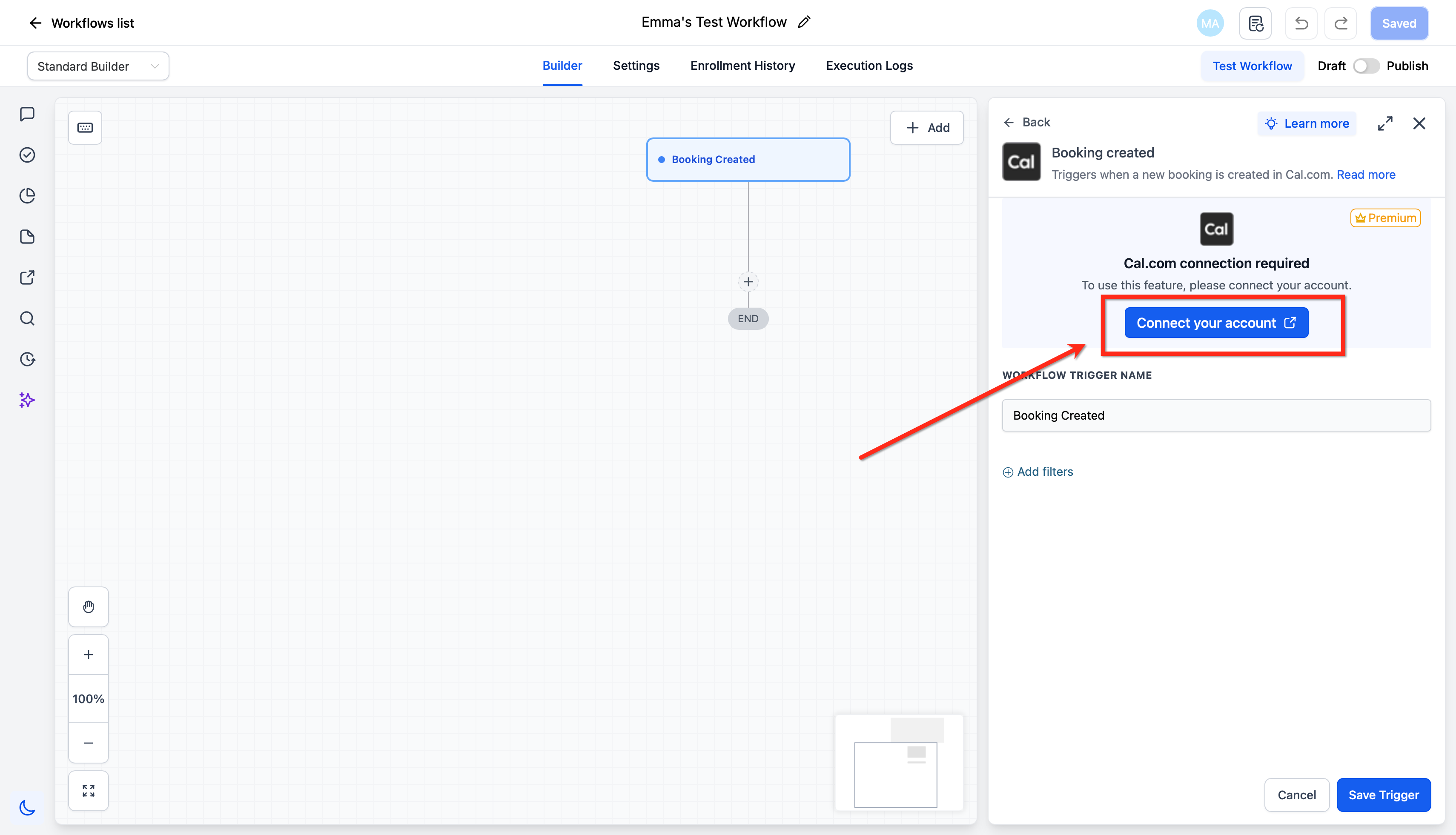
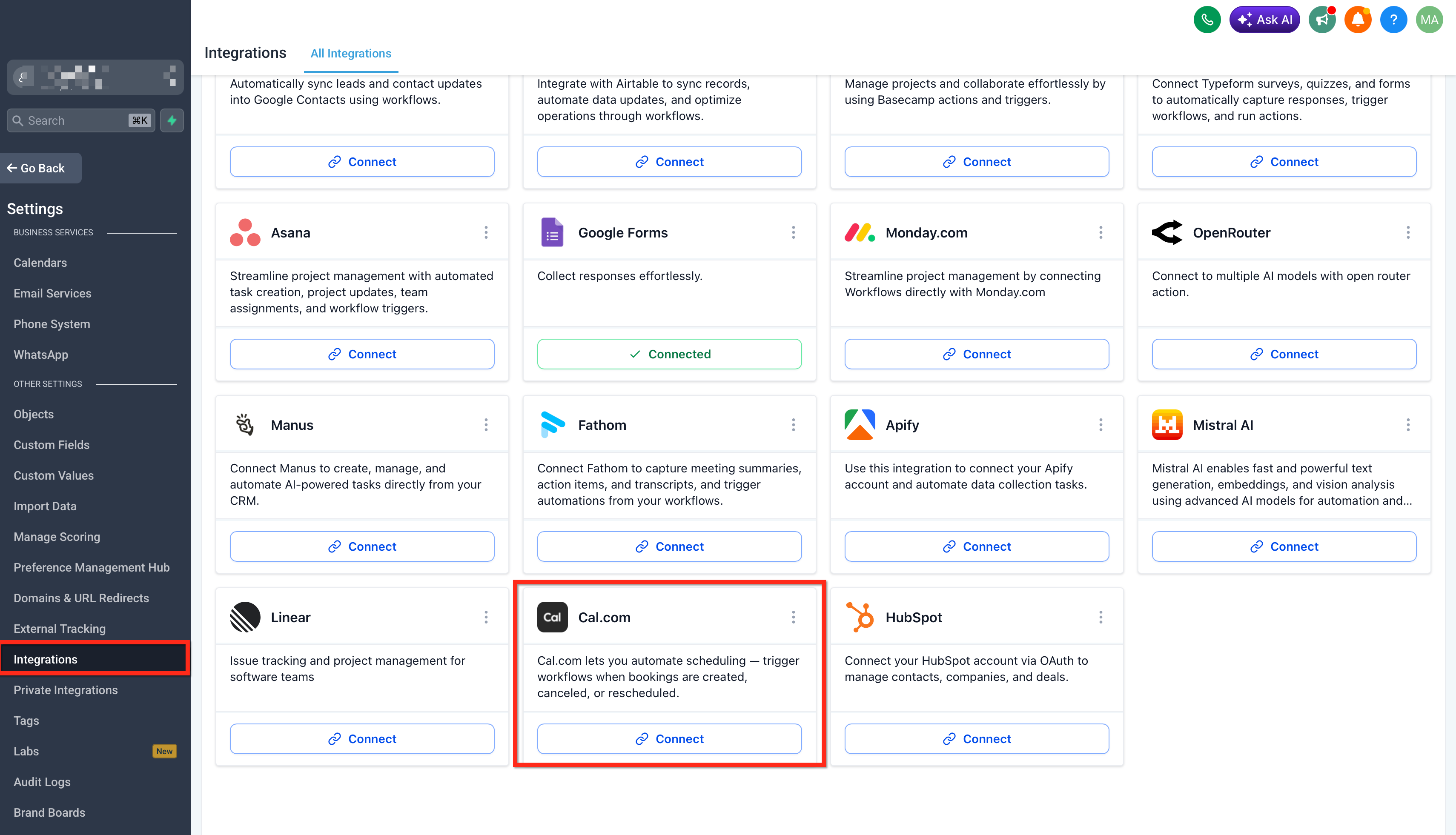
Alternate path: Go to Sub-Account Settings → Integrations → Cal.com → Connect.
Cal.com Triggers
Triggers start workflows when specific Cal.com events happen. Use triggers when booking activity in Cal.com should create or update contacts, send messages, branch workflows, assign tasks, or start follow-up sequences.
| Trigger | What it does |
|---|---|
| Booking Created | Starts a workflow when a new booking is created in Cal.com and returns the booking payload. |
| Booking Rescheduled | Starts a workflow when an existing booking is moved to a new start time and returns previous and updated time details. |
| Booking Cancelled | Starts a workflow when a booking is cancelled by the attendee, organizer, or system. Cancellation reason may be available if supplied. |
| Meeting Ended | Starts a workflow at the scheduled end time of the booking. If the booking is rescheduled, the Meeting Ended webhook is re-armed for the updated time. |
| OOO Created / Updated | Starts a workflow when an out-of-office entry is created or updated in Cal.com. |
Cal.com Actions
Actions let workflows send instructions back to Cal.com. Use actions when SourCherry should create a booking, cancel a booking, reschedule a booking, or look up booking details before another step runs.
| Action | Purpose |
|---|---|
| Create Booking | Creates a new booking for a selected Cal.com event type. Required fields include Event Type, Attendee Name, Attendee Email, and Start Time. |
| Cancel Booking | Cancels an existing booking by booking ID, with an optional cancellation reason. |
| Reschedule Booking | Moves an existing booking to a new start time. Cal.com handles calendar invite updates and notifications. |
| Find Booking | Looks up a booking by ID, attendee email, or filters and returns matching booking data. |
All four Cal.com actions are premium workflow actions. Premium action credits apply when these actions run.
Testing Cal.com Triggers and Actions
Testing confirms that the connection works, the right booking data is available, and downstream workflow steps can map fields correctly. A test should be completed before publishing any workflow that relies on Cal.com booking data.
Test a Cal.com trigger
Step 1: Add the trigger
- Open the workflow and click Add Trigger.
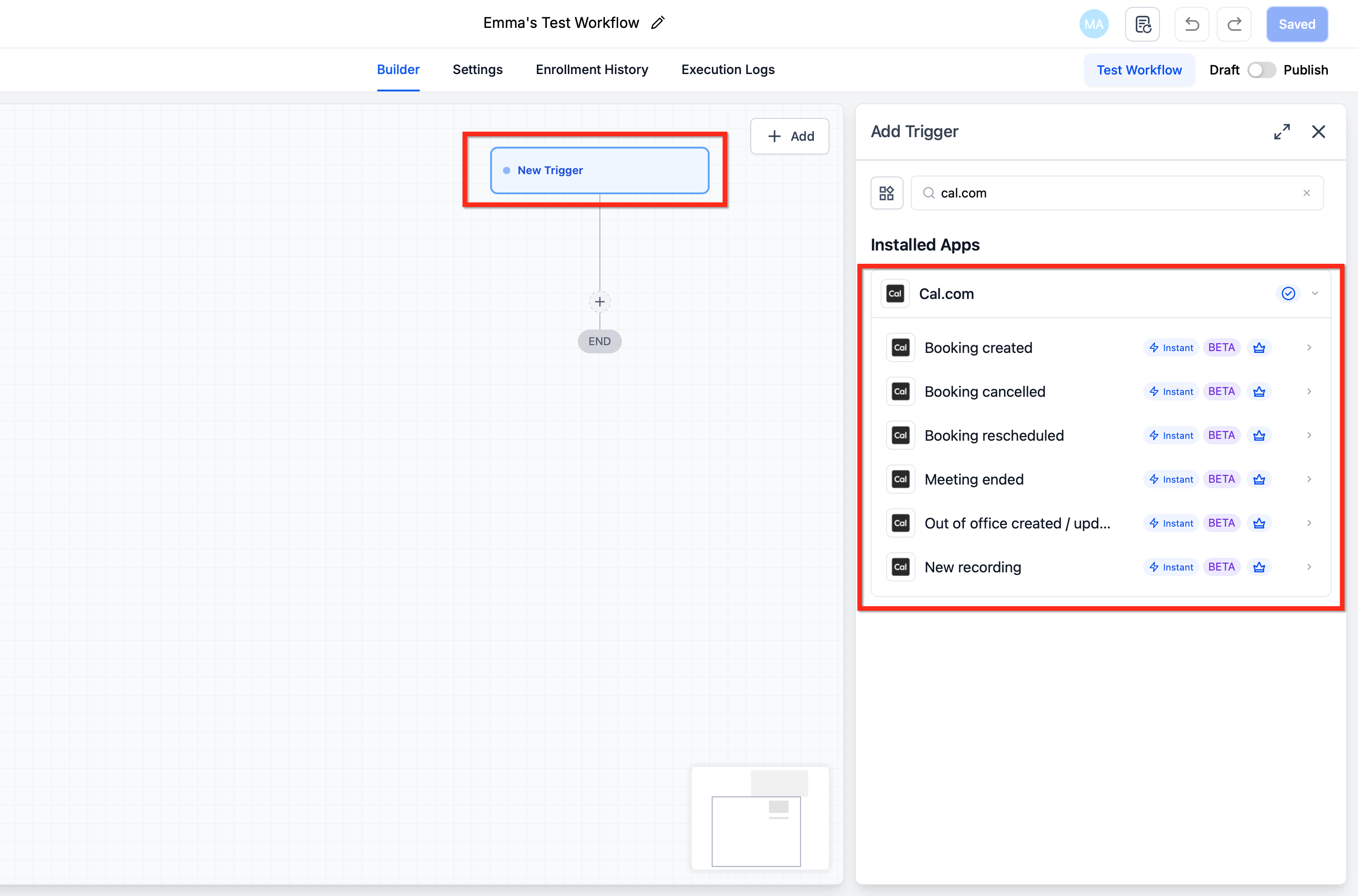
- Switch to the Apps tab and search for Cal.com.
- Select Booking Created from the Cal.com trigger list.
Step 2: Configure the trigger
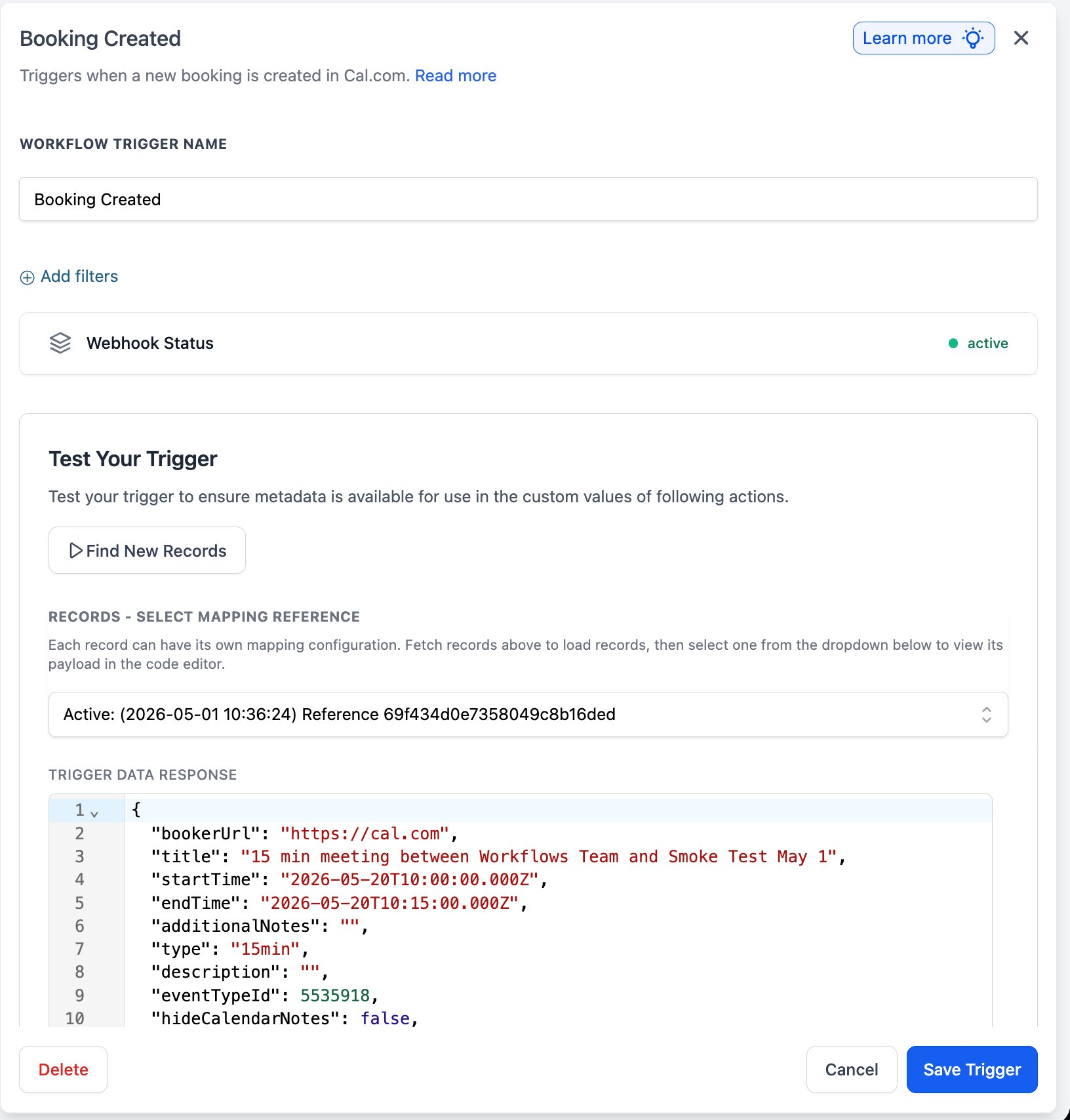
- Workflow Trigger Name — Give the trigger a meaningful label, such as ‘New Discovery Call Booking’.
- Add filters (optional) — Constrain the trigger by event type, host, location, or any other field on the booking payload, so unrelated bookings don’t enroll.
- Webhook Status — The trigger panel shows whether the underlying Cal.com webhook is active. If it goes inactive, reconnect the integration in Cal.com settings.
Step 3: Test the trigger
- Click Find New Records inside the Test Your Trigger panel.
- The system fetches the most recent matching bookings from Cal.com.
- In the Records — Select Mapping Reference dropdown, pick one of the returned records — for example: Active: (2026-05-01 10:36:24) Reference 69f434d0e7358049c8b16ded. This locks the payload schema so every downstream step can map fields cleanly.
- Review the Trigger Data Response panel to confirm the payload contains the fields you plan to use — bookerUrl, title, startTime, endTime, additionalNotes, type, description, eventTypeId, hideCalendarNotes, attendees and organizer.
- Click Save Trigger to finish.
Test a Cal.com action
This walkthrough programmatically books a meeting on a host’s calendar from inside a workflow — for instance, after a high-intent form submission.
Step 1: Add the action
- Inside the workflow, click Add to insert a new step.
- Open the Apps tab and select Cal.com.
- Choose Create Booking from the action list.
Step 2: Configure the action
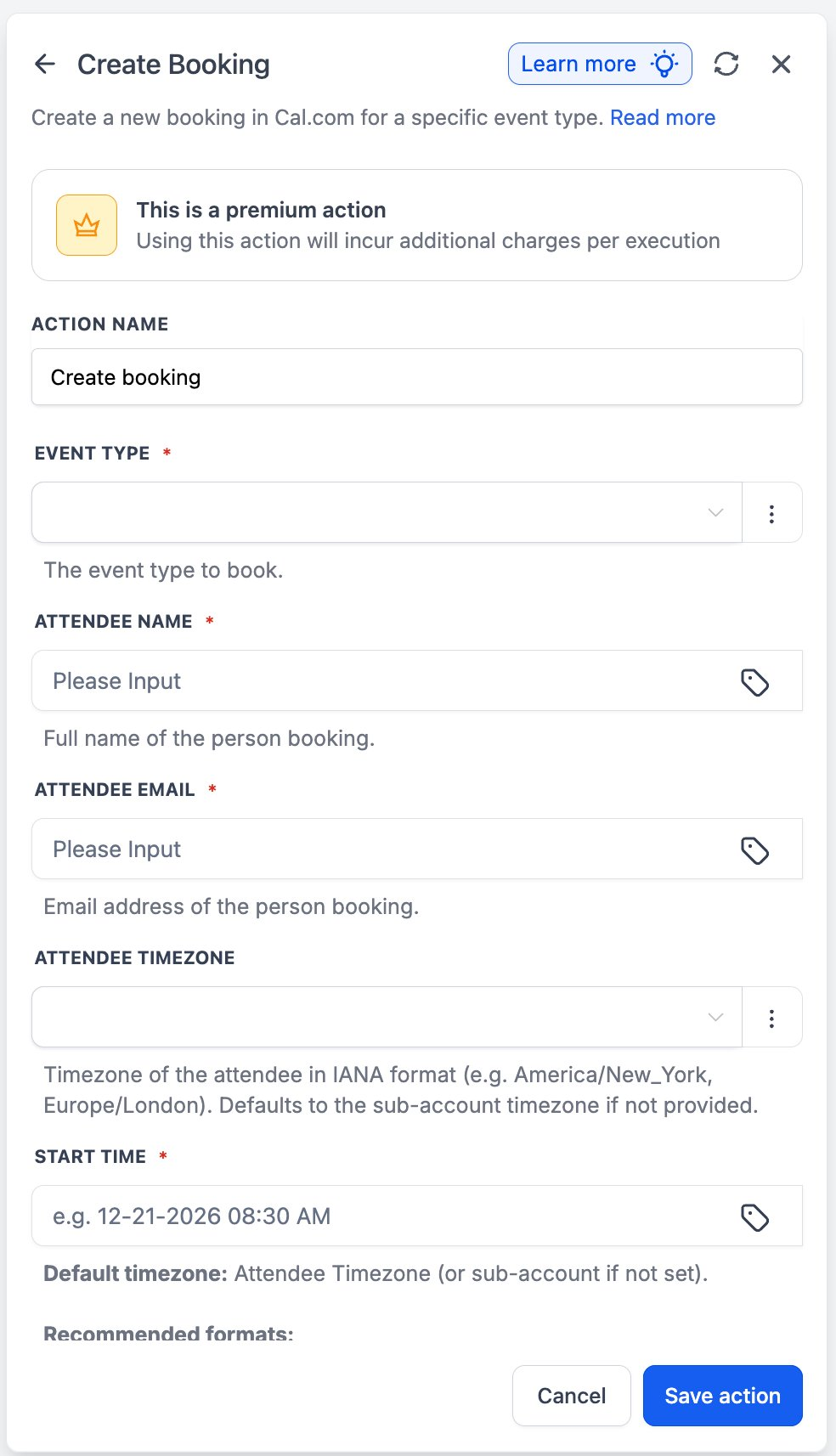
- Action Name — Give the step a meaningful label such as ‘Book Discovery Call’.
- Event Type (required) — Pick the Cal.com event type to book. The dropdown lists every event type the integration is authorized to access.
- Attendee Name (required) — Use inline workflow variables, e.g. {{contact.full_name}}.
- Attendee Email (required) — Use inline workflow variables, e.g. {{contact.email}}.
- Attendee Timezone — IANA format, e.g. America/New_York or Europe/London. Defaults to the sub-account timezone if not provided.
- Start Time (required) — Use the suggested format (e.g. 12-21-2026 08:30 AM) or ISO-8601. The interpreted timezone is the Attendee Timezone (or sub-account default if unset).
Step 3: Save and use the output
Click Save action. The new booking’s ID and metadata are exposed as workflow output variables. Chain a Send Email or Send SMS step to confirm the booking to the attendee, or use the booking ID later in a Cancel Booking or Reschedule Booking step if downstream conditions change.
How To Setup Cal.com — Actions & Triggers in Workflows
A clean setup helps ensure booking events enter the workflow correctly and action steps send accurate scheduling instructions back to Cal.com. Start with a simple workflow, confirm the Cal.com connection is active, then add the trigger, action, and follow-up steps needed for your scheduling process.
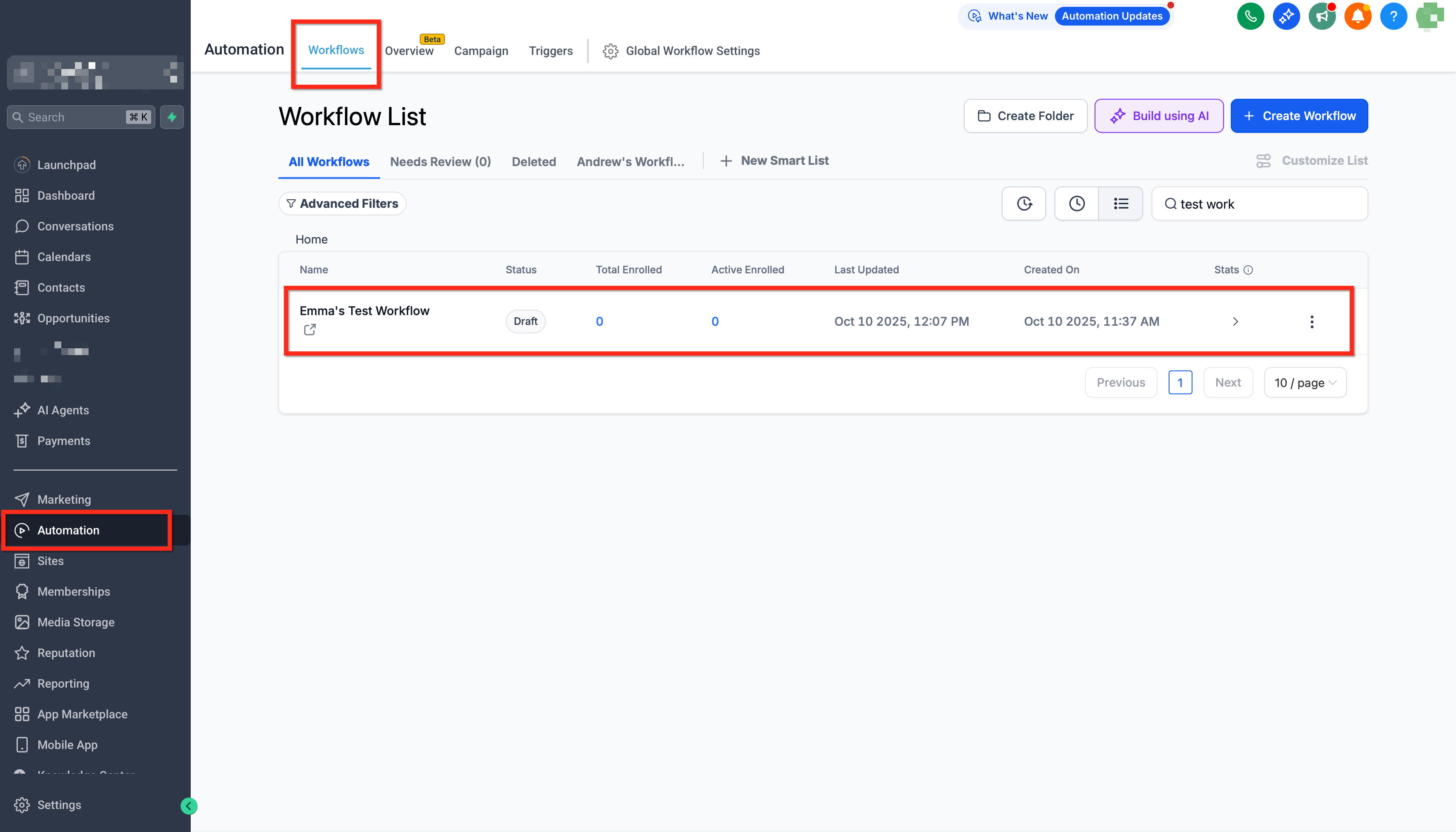
- Go to Automation → Workflows and create a new workflow or open an existing workflow.
- Click Add Trigger, go to the Apps tab, search for Cal.com, and select the trigger that matches your goal, such as Booking Created, Booking Rescheduled, Booking Cancelled, or Meeting Ended.
- Click the + icon to add the next workflow step, then choose the SourCherry or Cal.com action you want to run after the trigger fires. Use SourCherry actions for CRM updates, messages, tags, tasks, and internal notifications. Use Cal.com actions when the workflow needs to create, find, cancel, or reschedule a Cal.com booking.
- To create a booking from the workflow, select Cal.com → Create Booking, then complete the required fields: Event Type, Attendee Name, Attendee Email, and Start Time. Add Attendee Timezone in IANA format, such as
America/New_YorkorEurope/London, when the booking should respect the attendee’s timezone.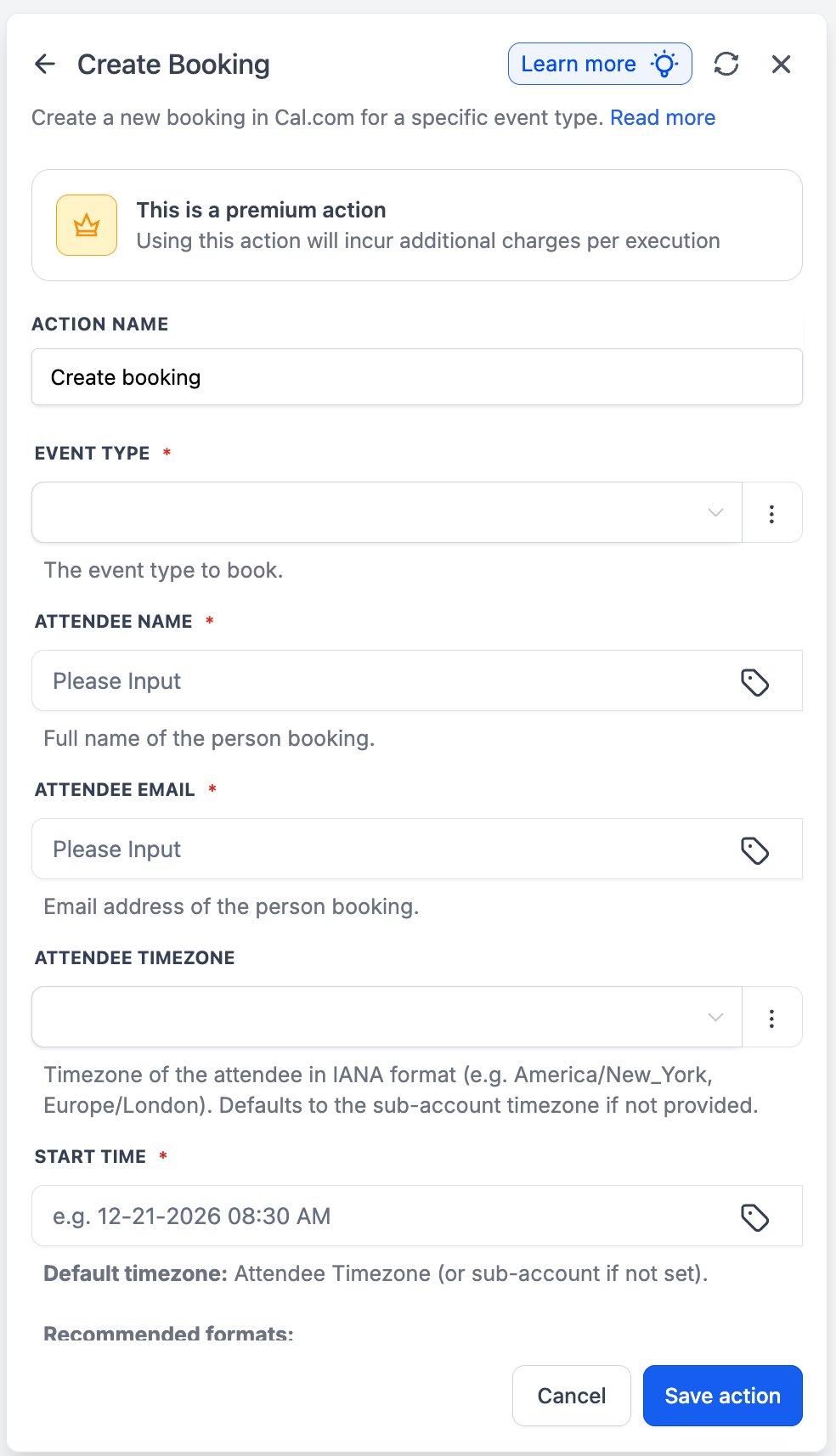
- Add any remaining follow-up steps, such as sending confirmation messages, adding contact tags, creating internal tasks, branching with If/Else conditions, or logging booking details in the CRM.
- Click Save, run a final workflow test, confirm all mapped values populate correctly, then publish the workflow.
Use Cases & Patterns
These workflow patterns help teams turn booking activity into consistent customer communication and internal follow-up. Start with the closest use case, then customize filters, branches, and messages for your process.
Use Case 1: New Booking → CRM Contact + Welcome Sequence
Goal: Turn every new booking into a fully-onboarded contact with the right context attached.
Workflow Setup:
- Trigger: Booking Created
- Action: Create/Update Contact (use attendee email as the merge key)
- Action: Tag the contact with the booking’s event type
- Action: Send Welcome Email with prep materials sized to the meeting type
- Action: Add the contact to a follow-up campaign that ends 24 hours before the meeting
Example: A prospect books a 30-minute discovery call. The workflow creates a contact, tags them as ‘discovery’, sends a personalized prep email, and ensures a reminder fires the day before the call.
Use Case 2: No-Show Recovery
Goal: Auto-recover no-shows without requiring a CSM to track them down.
Workflow Setup:
- Trigger: Meeting Ended
- Action: Find Booking (refresh state to capture no-show flag)
- Conditional: only proceed if the attendee was a no-show
- Action: Send a personalized rescheduling link with one-click rebook
- Action: Tag the contact for follow-up if no rebook within 48 hours
Example: Whenever a meeting ends, the workflow checks the booking state. If the attendee was a no-show, they get a softening message with a one-click rebook link — instead of falling through the cracks.
Use Case 3: Cancellation Retention
Goal: Treat a cancellation as the start of a save flow, not a dead end.
Workflow Setup:
- Trigger: Booking Cancelled
- Conditional: branch on cancellation reason (schedule conflict vs. lost interest)
- Action: Send retention message with rebook link (for schedule conflict)
- Action: Hand off to CSM with full context (for lost interest)
Example: A prospect cancels their demo because of a calendar conflict. The workflow sends a friendly reschedule message with two pre-filled time options — and tags the contact for CSM follow-up if there’s no rebook within a week.
Use Case 4: Programmatic Scheduling from a Form
Goal: Eliminate the email-back-with-a-booking-link round-trip for high-intent leads.
Workflow Setup:
- Trigger: Form Submission (with preferred time captured)
- Action: Create Booking on the assigned host’s event type
- Action: Send confirmation message
Example: A lead requests a same-day call via a high-intent form. The workflow books the meeting on the assigned AE’s calendar at the requested slot and confirms it instantly — no manual scheduling, no missed lead.
Use Case 5: Recording Distribution
Goal: Get Cal Video recordings to the right place automatically.
Workflow Setup:
- Trigger: Recording Ready (where supported)
- Action: AI summarize the recording into a customer-friendly note
- Action: Send the recording URL and the summary to the attendee
- Action: Log a CRM activity with the recording link attached
Example: Right after a recording finishes processing, the attendee receives a thank-you email with the recording link and an AI-generated recap — and the CRM activity log captures the same context for the rep.
Best Practices
Following a few setup standards helps reduce mapping errors, timezone issues, and failed booking updates. These practices are especially useful when workflows create or change bookings automatically.
- Always supply Attendee Timezone explicitly when booking on behalf of leads from different regions — relying on the sub-account default is fine for single-region operators only.
- Use the suggested Start Time format (e.g. 12-21-2026 08:30 AM) or ISO-8601 strings. Ambiguous formats can drift the booked time by hours.
- Pair Find Booking with Cancel Booking or Reschedule Booking — confirm the booking exists and is in the expected state before mutating it.
- Use Meeting Ended (not Booking Created) as the entry point for post-meeting follow-up flows — Cal.com schedules it automatically and re-arms it on reschedule.
- Watch the Webhook Status indicator on the trigger panel — if it goes inactive, the underlying webhook needs to be reconnected in Cal.com settings.
- Test the trigger first to lock the mapping reference, then build downstream actions against the captured sample payload. The Records — Select Mapping Reference field is the foundation of clean field mapping.
Frequently Asked Questions
Q: Are Cal.com actions premium workflow actions?
Yes. Create Booking, Cancel Booking, Reschedule Booking, and Find Booking are premium workflow actions and consume premium action credits when they run.
Q: What data is available from a Cal.com trigger?
The booking payload can include details such as booking URL, title, start time, end time, notes, event type, attendees, and organizer.
Q: What does Webhook Status mean?
Webhook Status shows whether the underlying Cal.com webhook is active. If the status becomes inactive, reconnect the Cal.com integration.
Q: What timezone format should I use in Create Booking?
Use an IANA timezone format, such as America/New_York or Europe/London. If the field is left blank, Cal.com falls back to the sub-account timezone.
Q: What Start Time format should I use?
Use a standard date-time value. The suggested format is 12-21-2026 08:30 AM, and ISO-8601 values such as 2026-12-21T08:30:00 are also accepted.
Q: Does Cancel Booking notify the attendee?
Yes. Cal.com sends its standard cancellation email, including the cancellation reason if one is supplied.
Q: Will Reschedule Booking send updated calendar invites?
Yes. Cal.com cancels the original calendar event and sends an updated invite for the new time.
Q: Will Booking Created fire again when a booking is rescheduled?
No. Booking Rescheduled is its own trigger. Booking Created does not fire again when an existing booking is rescheduled.
Q: Does the integration work with self-hosted Cal.com?
Self-hosted Cal.com supports the same webhook surface, but some self-hosted setups may have issues with Meeting Started or Meeting Ended behavior. Test with a real booking before relying on it in production.
Q: Can I use workflow variables in Cal.com action fields?
Yes. Inline workflow variables can be used in fields such as Attendee Name, Attendee Email, Start Time, and other fields exposed by the action.