
SourCherry’s Courses learner experience controls and lesson auto-progression updates make it easier for learners to move through course content with fewer interruptions. With autoplay, next-lesson playback, and automatic completion options, creators can design a smoother learning flow while still controlling how each course behaves. This article explains the available controls, how they affect the learner experience, and how to configure them for your courses.
TABLE OF CONTENTS
- What is Courses: Learner Experience Controls and Lesson Auto-Progression?
- Key Benefits of Courses Learner Experience Controls and Lesson Auto-Progression
- Improved Video Experience
- Smarter Lesson Completion
- How To Setup Courses Learner Experience Controls and Lesson Auto-Progression
- Frequently Asked Questions
- Related Articles
What is Courses: Learner Experience Controls and Lesson Auto-Progression?
Courses: Learner Experience Controls and Lesson Auto-Progression refers to a set of updates that improve how learners start, continue, and complete lessons in SourCherry Courses. These updates include autoplay for video lessons, an Up Next card for moving to the next lesson, smart video completion, automatic completion for text lessons, and course-level settings that let creators control how learners progress.
These updates are designed to support both structured courses and self-paced learning experiences. Creators can decide whether learners should begin automatically, continue from one lesson to the next, and have lessons marked complete as they move forward.
Key Benefits of Courses Learner Experience Controls and Lesson Auto-Progression
- Lower friction for learners: Videos can start automatically and lessons can continue with fewer manual actions, helping learners stay focused on the content.
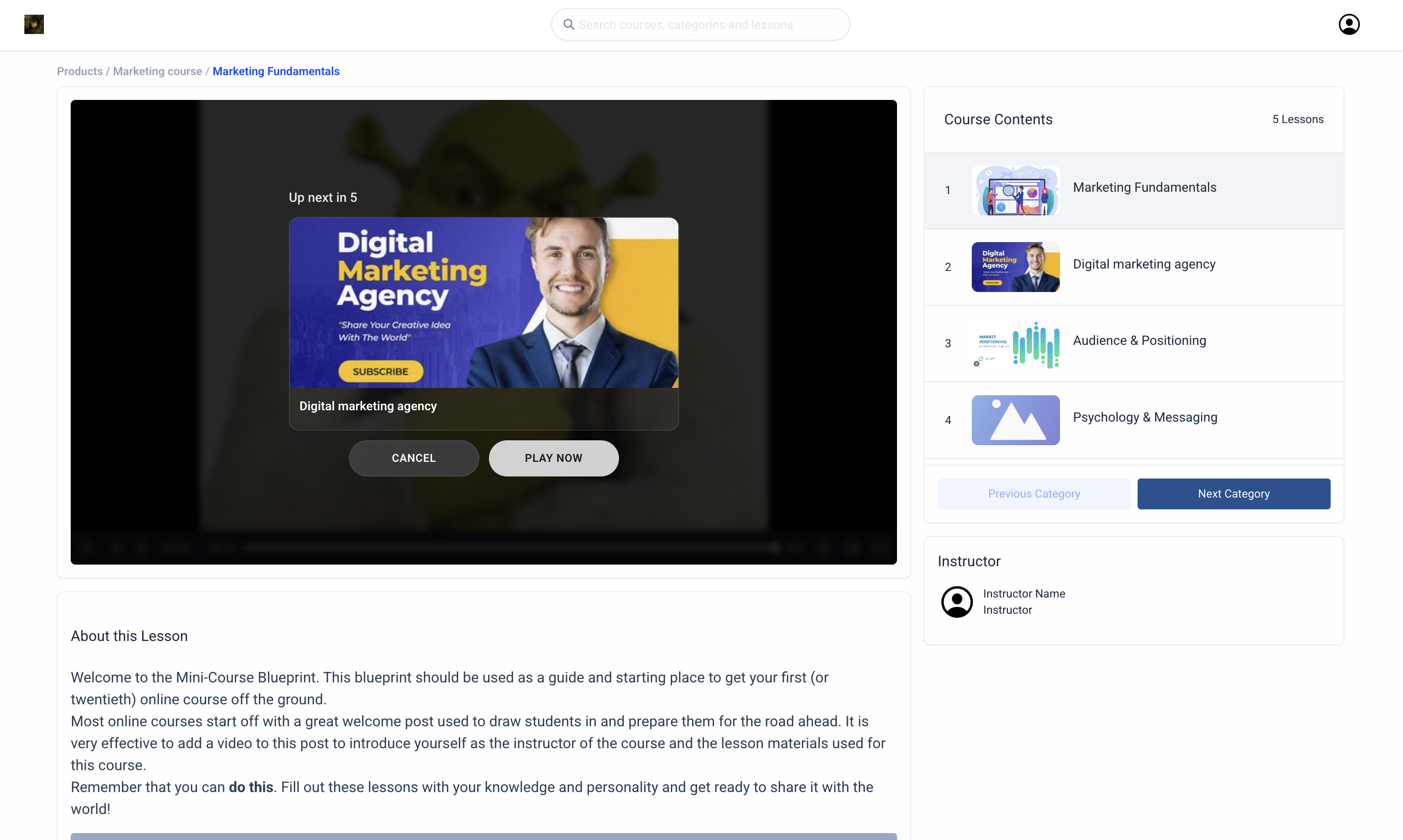
- Smoother lesson progression: The Up Next card helps learners understand what is coming next and gives them the option to continue automatically or select Play Now.
- Flexible course design: Per-course controls allow creators to support guided learning, binge-style lesson playback, or more intentional manual progression.
- Reduced manual completion steps: Text lessons can be marked complete when learners navigate forward, helping avoid missed completion clicks.
- More consistent course experiences: Apply to All Courses lets creators quickly standardize learner experience settings across multiple courses.
- Cleaner progress tracking: Automatic completion can help reduce missed manual completion steps, which is useful when course progress supports certificates or completion-based workflows.
Improved Video Experience
Video lesson enhancements help learners stay engaged by reducing the delay between opening a lesson and starting the content. These updates create a more continuous viewing experience while still giving learners control when they want to move ahead manually.
Key elements of the improved video experience include:
- Autoplay on Lesson Load: Videos start automatically when a learner opens a lesson.
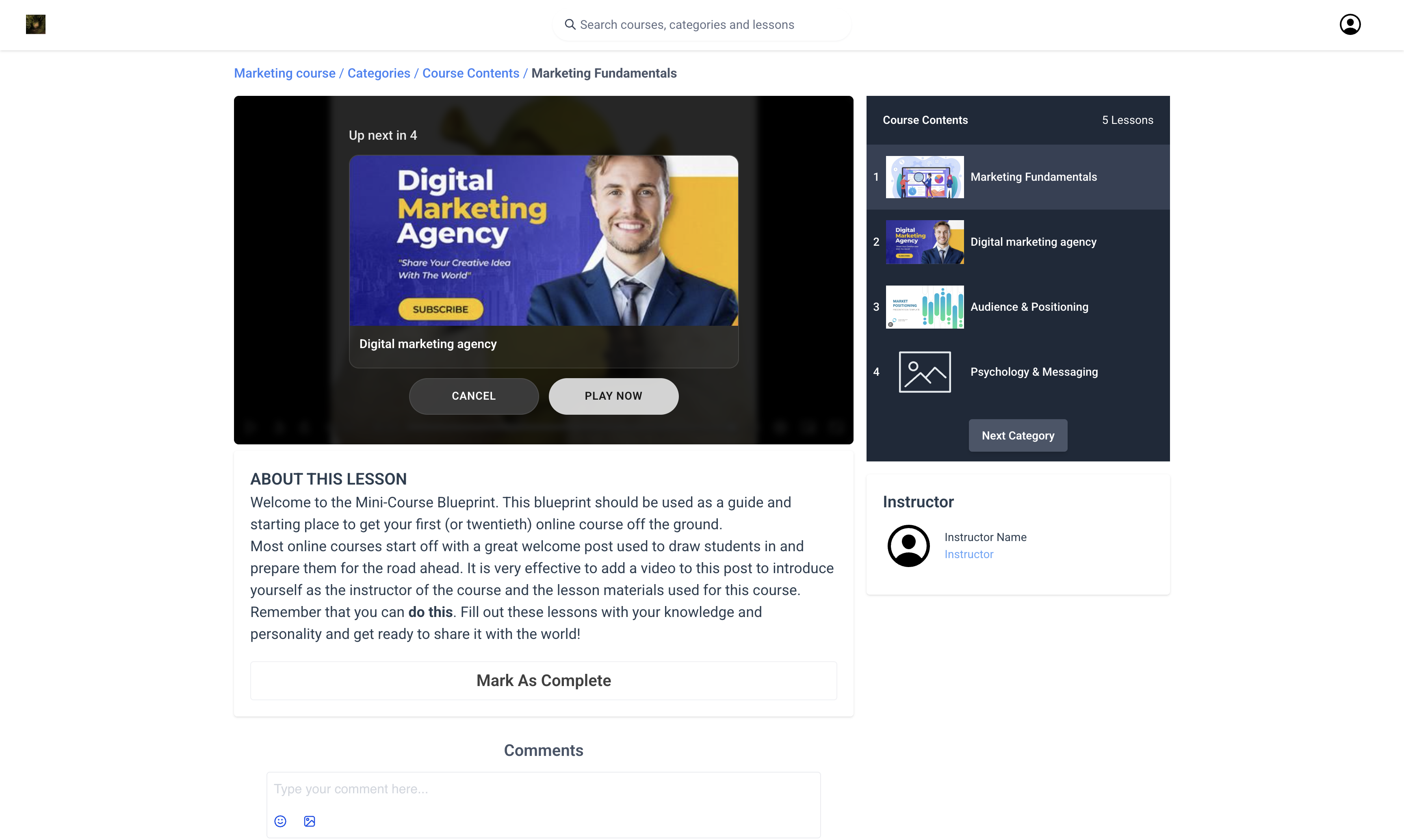
- Next Lesson Card with Auto-Play: An Up Next card appears inside the player with the next lesson thumbnail, countdown timer, and Play Now button.
- Play Now option: Learners can skip the countdown and move to the next lesson immediately.
- Smart Auto-Completion: Video lessons are marked complete based on meaningful progress when learners move to the next lesson.
Smarter Lesson Completion
Smarter lesson completion helps learners move through content without repeatedly stopping to mark lessons complete. This is especially helpful for text-based lessons, where the learner’s forward navigation can indicate that they are ready to continue.
Text lessons are automatically marked complete when learners navigate forward to the next lesson. This reduces manual effort and helps progress reflect the learner’s natural movement through the course. For video lessons, completion is based on meaningful progress when learners move to the next lesson. This helps SourCherry capture progress without requiring learners to manually confirm every video lesson.
How To Setup Courses Learner Experience Controls and Lesson Auto-Progression
Proper setup ensures your course behaves the way you intend before learners begin moving through lessons. Review these controls before publishing or updating a course so the learner flow matches your desired pacing, completion rules, and content structure.
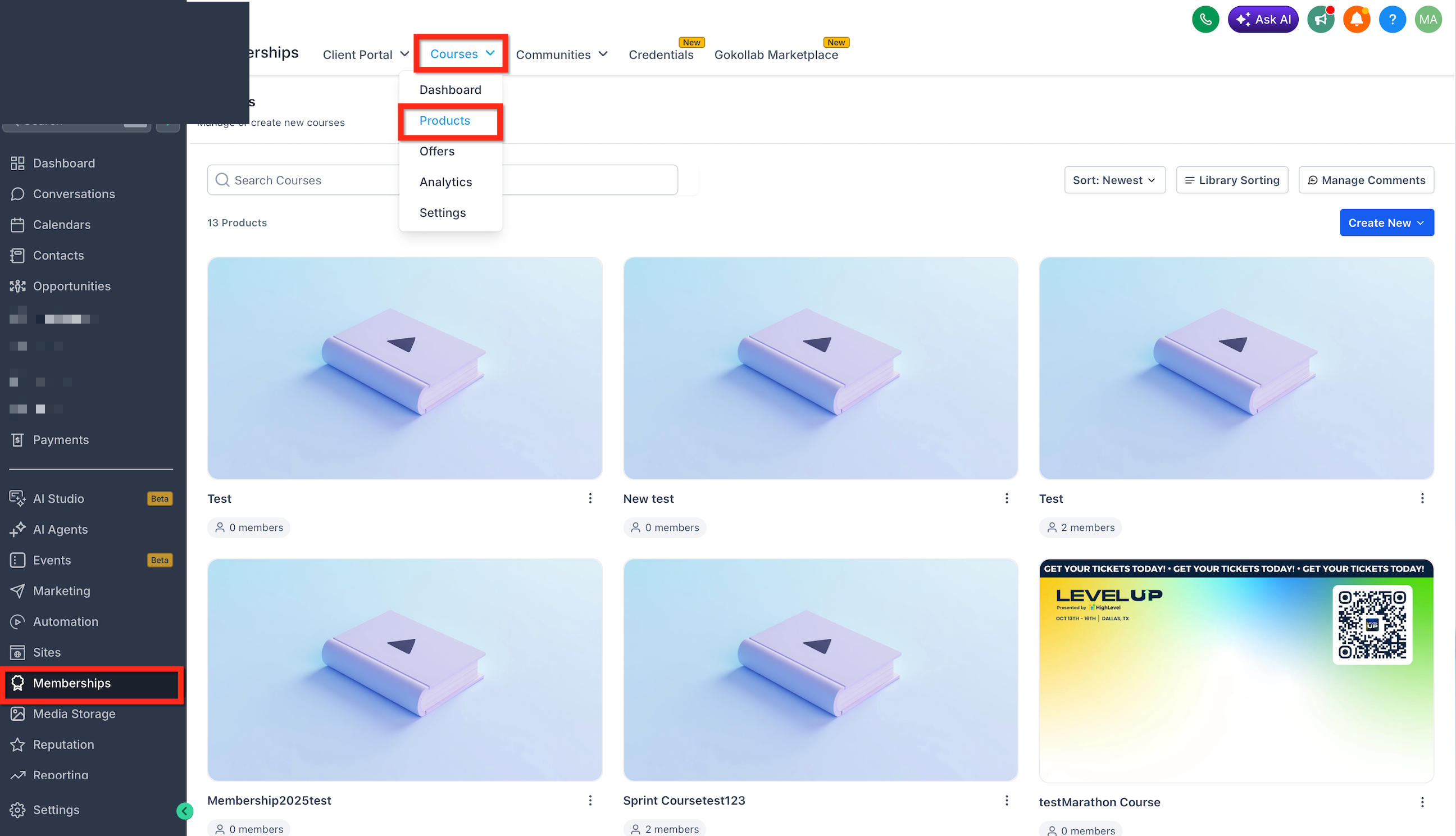
- Go to Memberships in SourCherry. From the top menu select Courses → Products
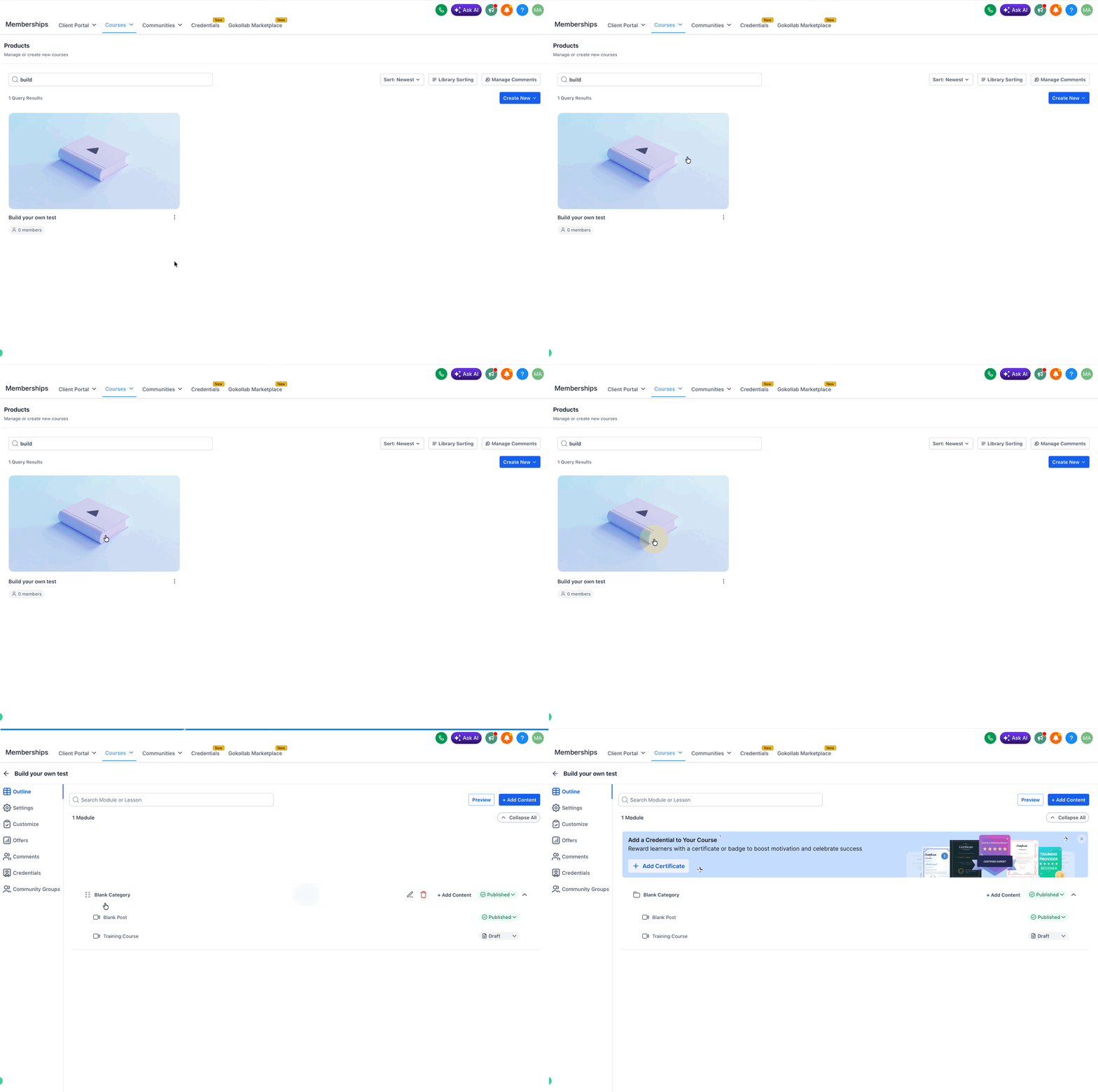
- Open the Course you want to update.
Click Settings, then go to the Learning Experience Controls section.
Learner Experience Controls are course-level settings that allow creators to decide how automated the course progression should be. These controls are useful when different courses need different pacing, such as a guided onboarding course compared with an evergreen self-paced training program.Configure the available learner experience settings:
Enable Auto-Start First Lesson to automatically begin the first lesson when a learner enters the course.
Enable Auto-Play Next Lesson to let lessons continue automatically.
Enable Auto-Complete Lessons to mark lessons complete as learners progress.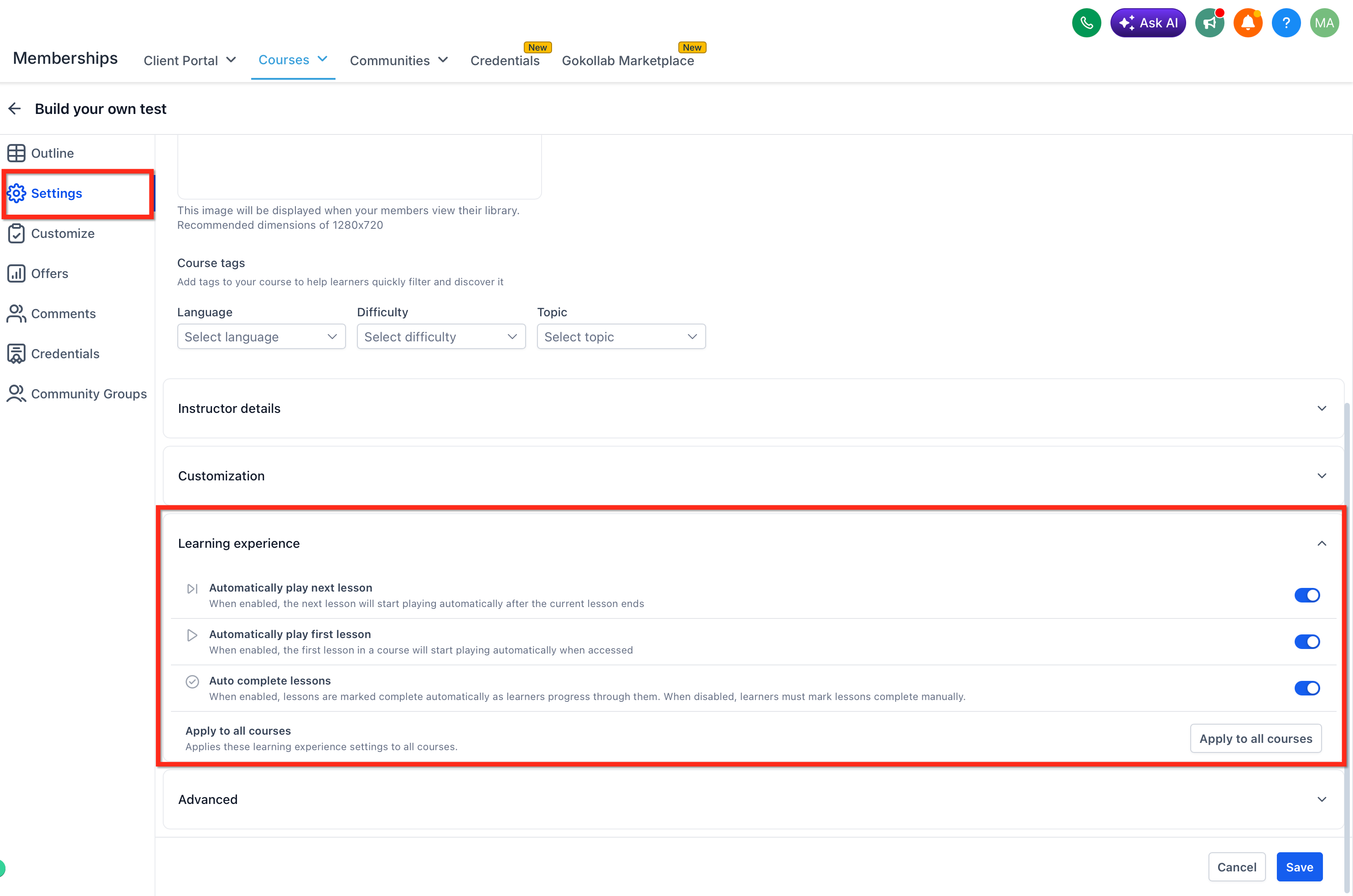
- Use Apply to All Courses to apply the same learner experience settings across your course catalog.
Apply to All Courses helps creators roll out the same learner experience settings across their course catalog. This is useful when you want consistent autoplay and auto-completion behavior across multiple courses without updating each course individually. - Save your changes and Preview the course as a learner and test.
Note: Learner experience enhancements are enabled by default to provide a smoother course experience out of the box. Creators can customize or override these settings at the course level using Learner Experience controls.Frequently Asked Questions
Q: Are these learner experience enhancements enabled by default?
Yes. These enhancements are enabled by default to create a smoother lesson experience out of the box. Creators can customize or override the behavior at the course level.
Q: Can I turn off autoplay for a specific course?
Yes. Use the course-level learner experience controls to adjust autoplay behavior for each course.
Q: How does Auto-Complete Lessons work for text lessons?
Text lessons are marked complete when learners navigate forward to the next lesson.
Q: How does smart auto-completion work for video lessons?
Video lessons are marked complete based on meaningful progress when learners move to the next lesson.
Q: Do these settings affect certificates or workflows?
These settings help manage lesson progression and completion behavior. If your course uses certificates or completion-based workflow triggers, review the full learner flow to confirm completion happens as expected.