If you're not seeing incoming SMS messages in the platform — or they're showing up as calls instead — this guide walks you through how to troubleshoot and resolve the issue based on whether you're using Twilio or LC Phone.
How to Fix This (At a Glance)
Contact Support for resolution.
- Check Twilio Number Configuration
- Number is SMS/MMS-capable.
- Webhook URL is correctly set for messaging.
- Check if Messaging Services are enabled.
- Review Message Logs.
- If the issue still persists, contact Twilio Support.
Step-by-Step Fix (for Twilio Users)
- Go to twilio.com/login and sign in.
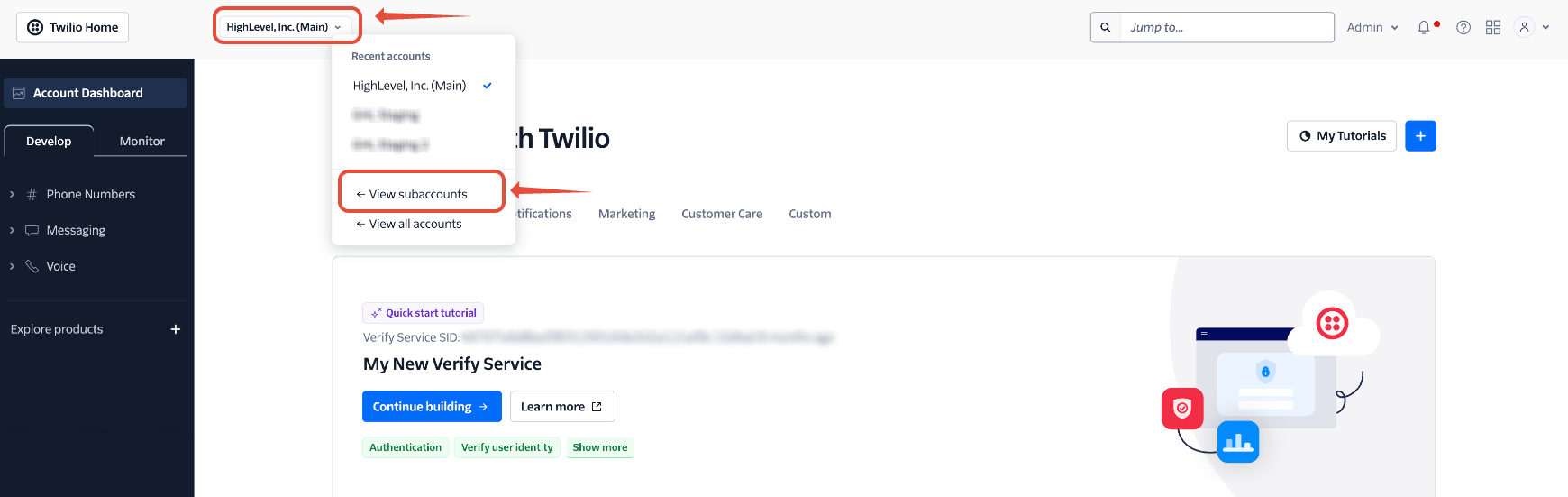
- In the top-left drop-down, click Account Name > View Subaccounts.
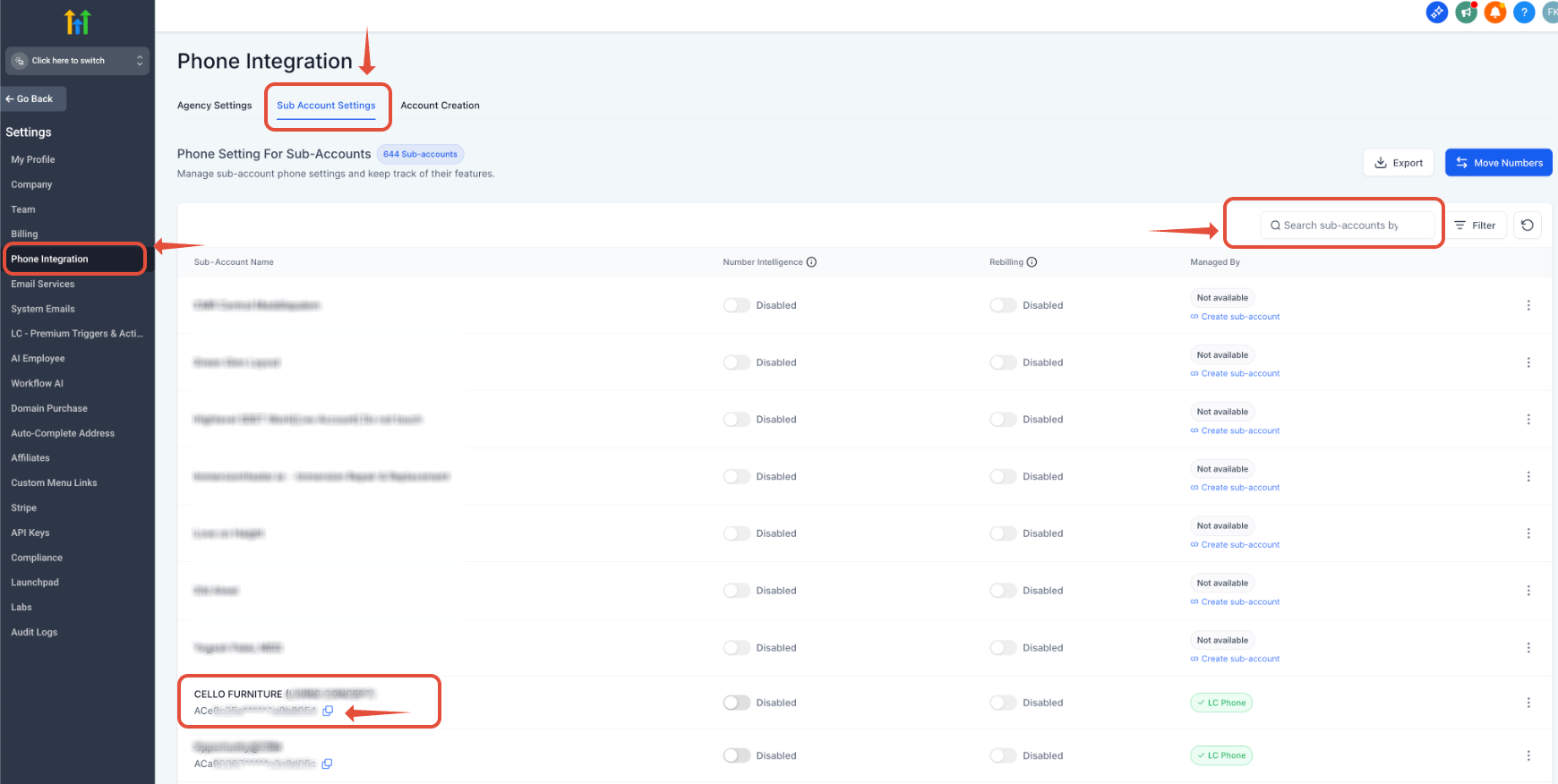
If you have multiple subaccounts and can't find the right one, go to your Agency View > Settings > Phone Integration > Sub-Account Settings. Search for the account you're troubleshooting and copy the Account SID as shown in Screenshot 2.0 below.
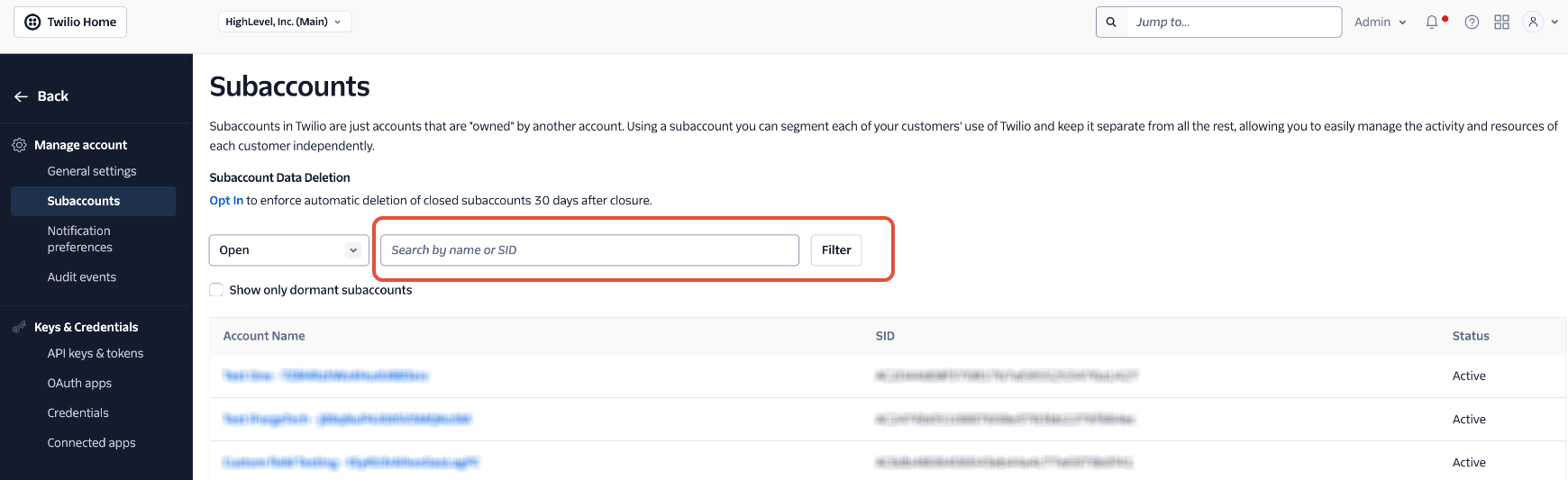
- In Subaccounts, paste the Account SID into the search bar to find the matching subaccount.
- Click on the sub-account you were looking for.
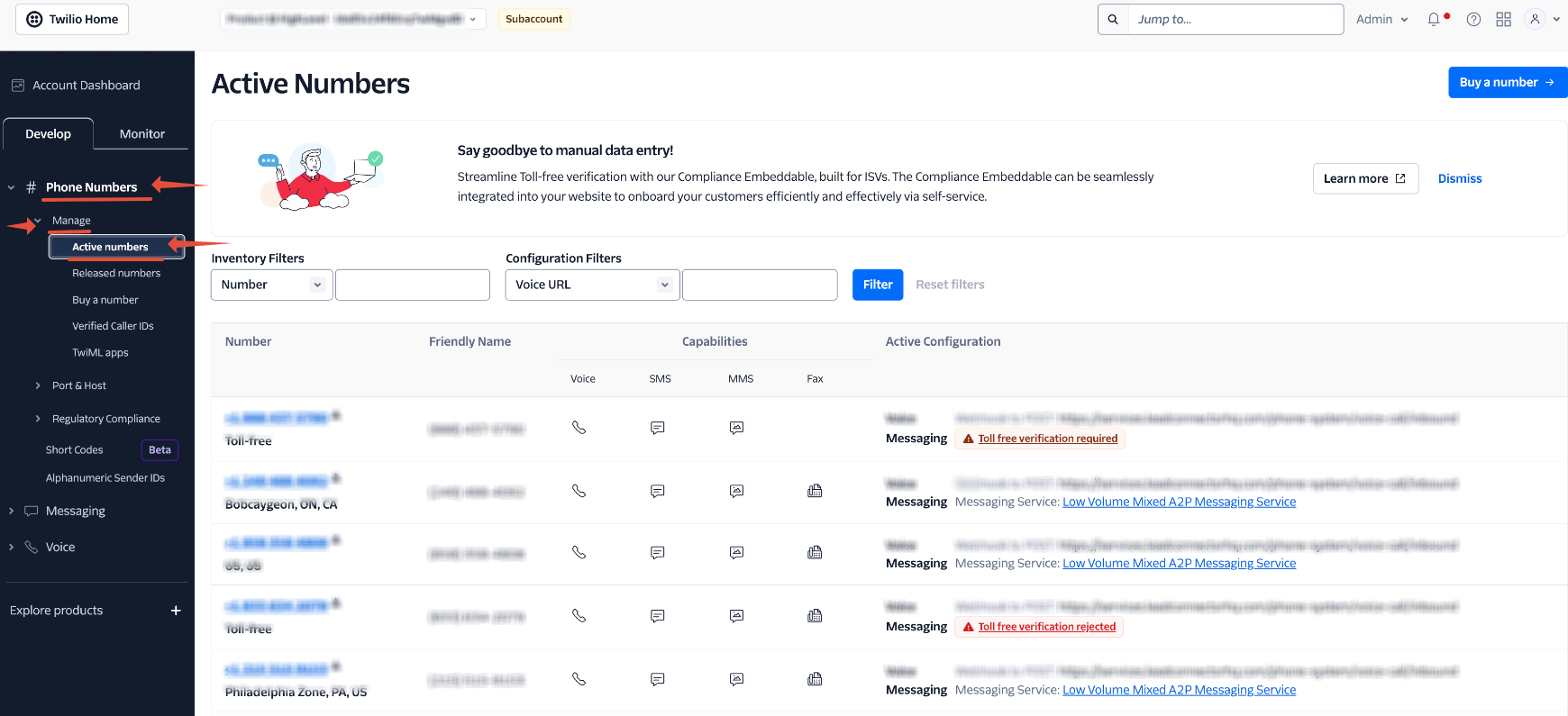
- Go to Phone Numbers > Manage > Active Numbers.
- Click the phone number in question.
- Scroll down and check the Messaging webhook settings.
- If it's missing or incorrect, update it accordingly (Screenshot 3.2 and 3.3).
- Click Save.
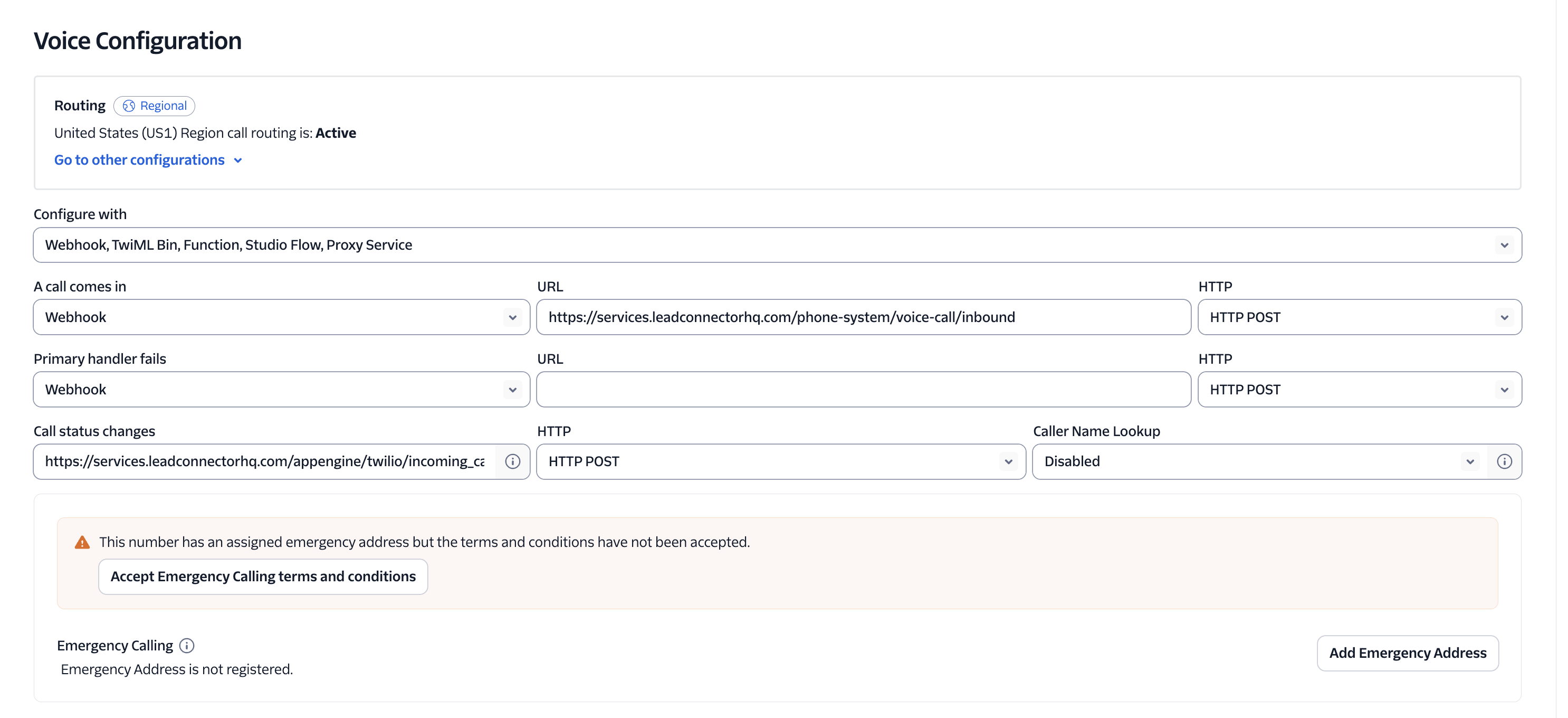
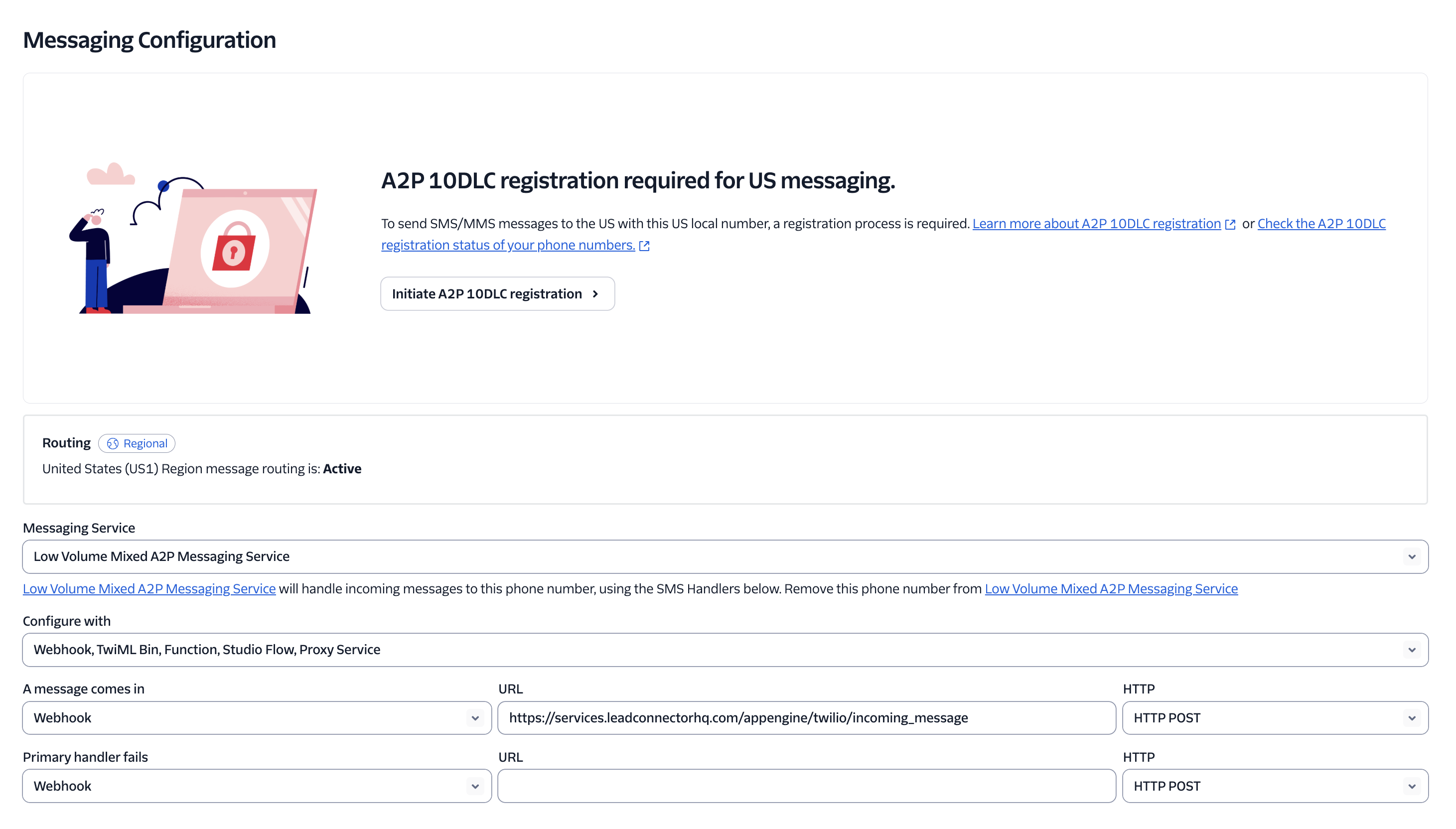
Now test to see if inbound messages are appearing correctly.
Check SMS Capability
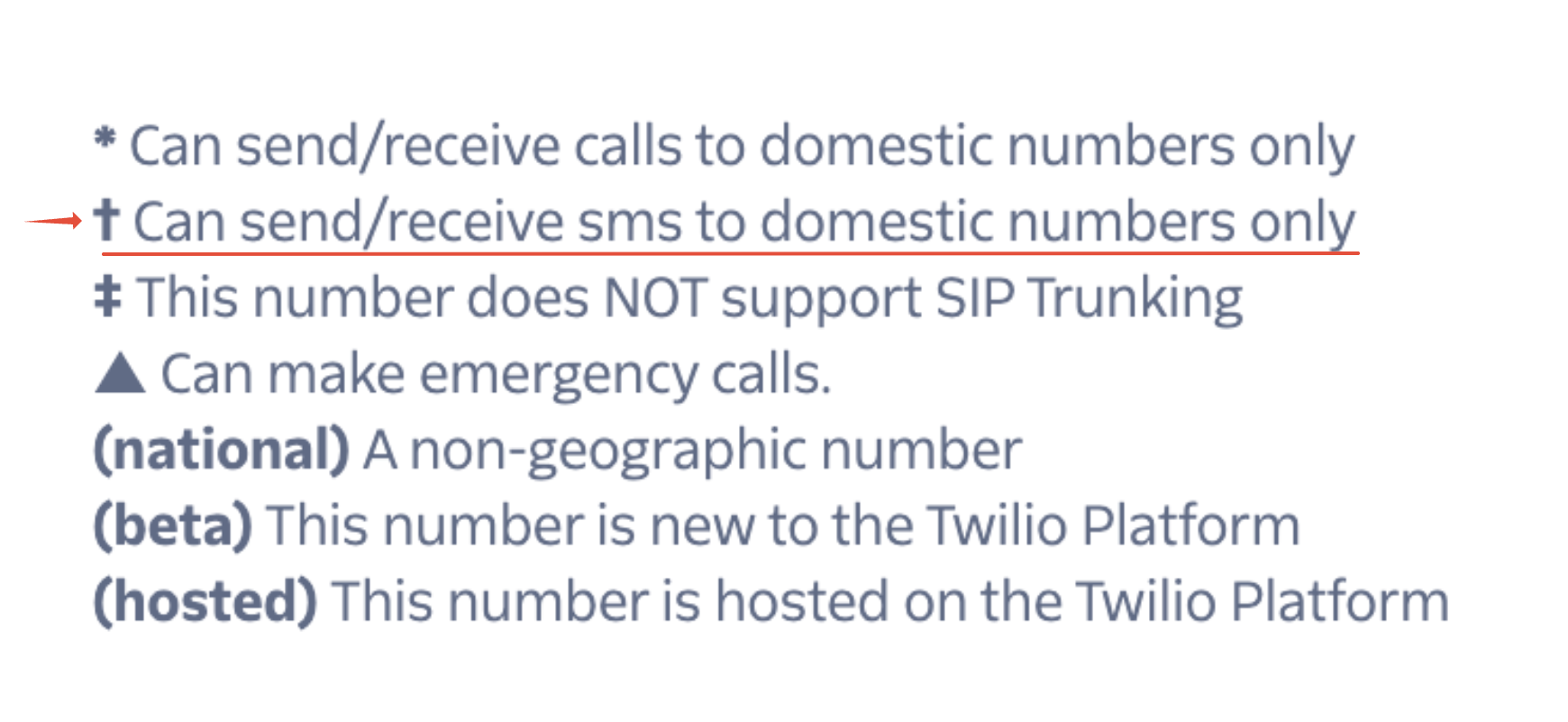
Look for the dagger icon (†) next to the number — it means the number can send/receive SMS only within the country.
Review Message Logs
- In the left sidebar, click Monitor > Logs > Messaging.
- Enter the lead's phone number in the To field (numbers only — no spaces, dashes, or parentheses).
- Review the message status.
- Click the Date to view message details.
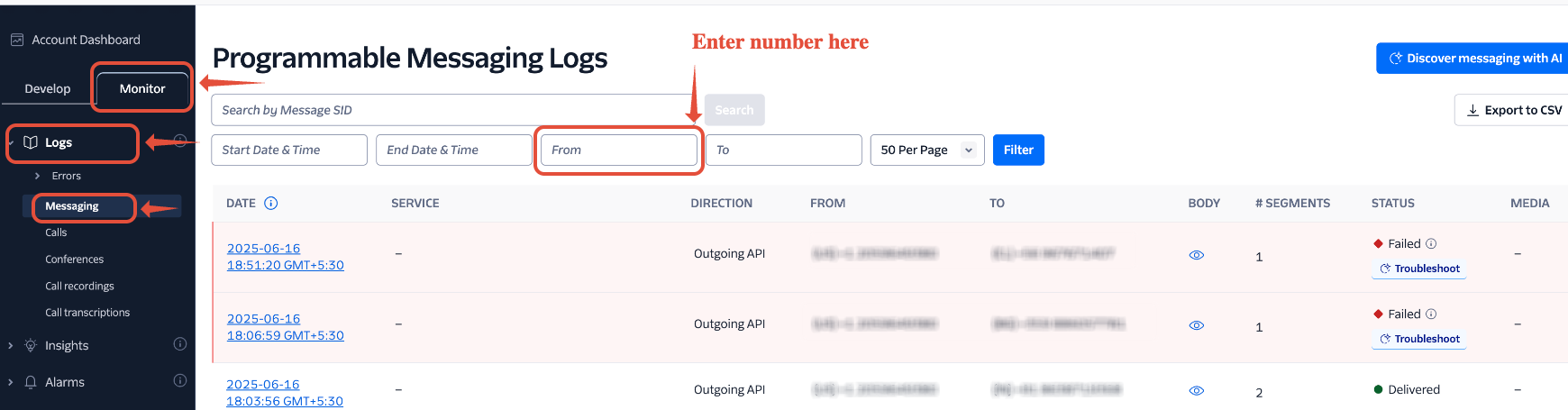
If the message status is "Delivered" but nothing shows in the platform, copy the Message SID and open a ticket with Twilio Support.