
This article provides an in-depth guide on the "Do Not Disturb" (DND) feature in SourCherry, explaining its purpose, key benefits, and how to configure it effectively. You'll also find step-by-step instructions for managing DND settings across various communication channels, practical use cases, and answers to common questions about this feature.
TABLE OF CONTENTS
- What is Do Not Disturb (DND)?
- Key Benefits of Do Not Disturb (DND)
- How to Configure Do Not Disturb (DND) Settings
- Managing DND for Specific Channels
- Automating DND Settings with Workflows
- DND Attribution in Conversations and Activity Logs
- Frequently Asked Questions
- Related Articles
What is Do Not Disturb (DND)?
The Do Not Disturb (DND) feature in SourCherry allows businesses to manage communication preferences by enabling or disabling specific channels for individual contacts. This ensures that communications are aligned with each contact's preferences, enhancing customer satisfaction and compliance. DND settings can be applied globally or tailored to specific channels such as Email, SMS, Calls, Facebook Messenger, Google My Business (GMB), and WhatsApp.
Key Benefits of Do Not Disturb (DND)
Respect Communication Preferences: Automatically exclude contacts who have opted out of specific communication channels, ensuring compliance with privacy regulations.
Enhanced Customer Satisfaction: Reduces unwanted contact, leading to a better customer experience and higher trust.
Improved Automation Efficiency: Simplifies workflows by enabling or disabling communication-based on DND status.
Customizable Channel Control: Allows businesses to manage DND settings per channel or apply them globally across all channels.
Streamlined Compliance Management: Helps businesses remain compliant with communication laws and guidelines by automating opt-outs for SMS and email.
How to Configure Do Not Disturb (DND) Settings
Proper configuration of DND settings ensures that communications are sent according to each contact's preferences. Follow these steps to set up DND in SourCherry:
Access the Contact Record:
- Navigate to the "Contacts" section in SourCherry.
- Select the contact you wish to update.
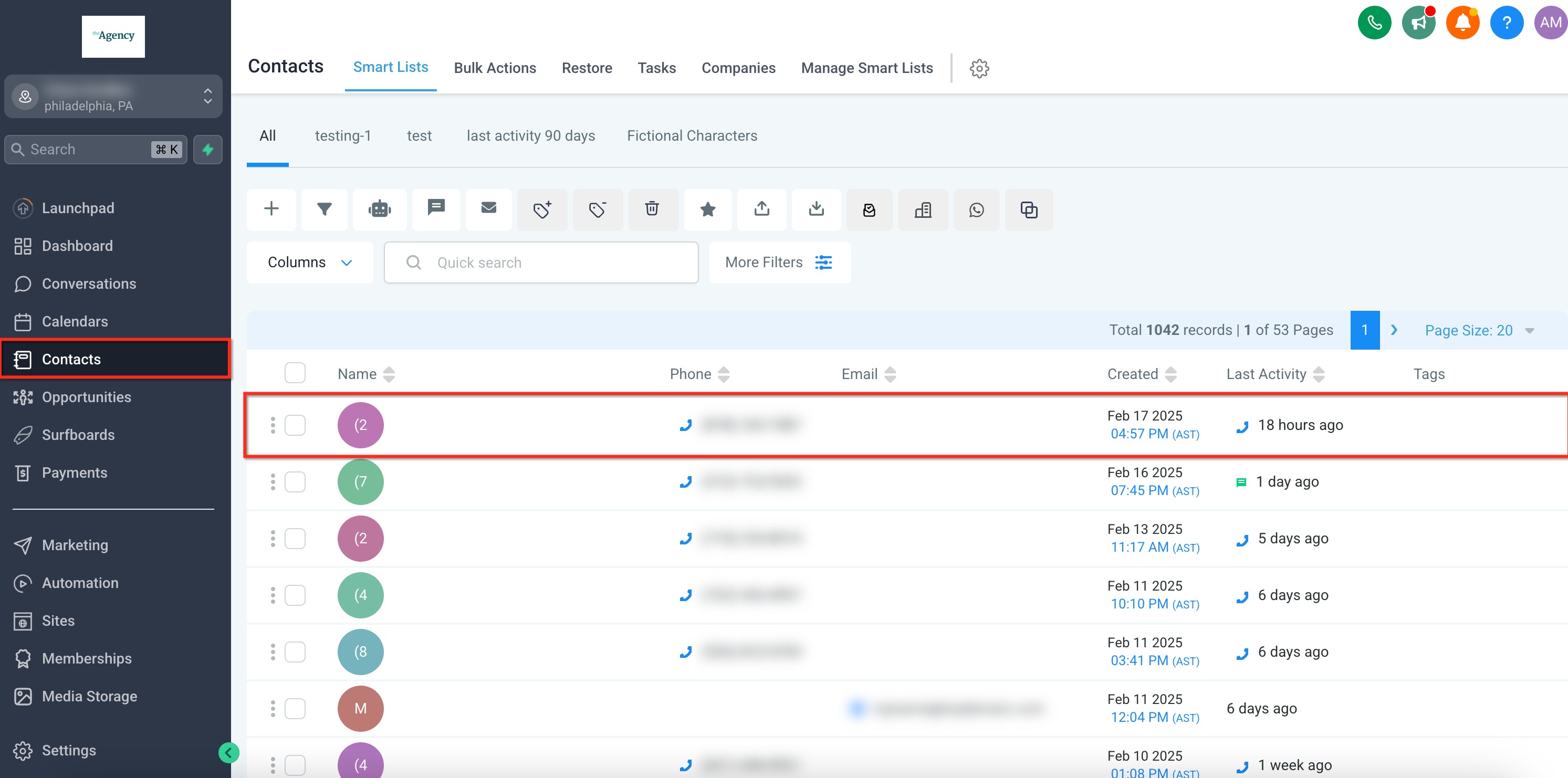
- Navigate to the "Contacts" section in SourCherry.
Modify DND Settings:
- Within the contact's profile, locate the "DND" section, which is usually in the left column at the bottom.
- Choose to Enable or Disable DND for all channels or select specific channels (Email, SMS, Calls, and GBP).
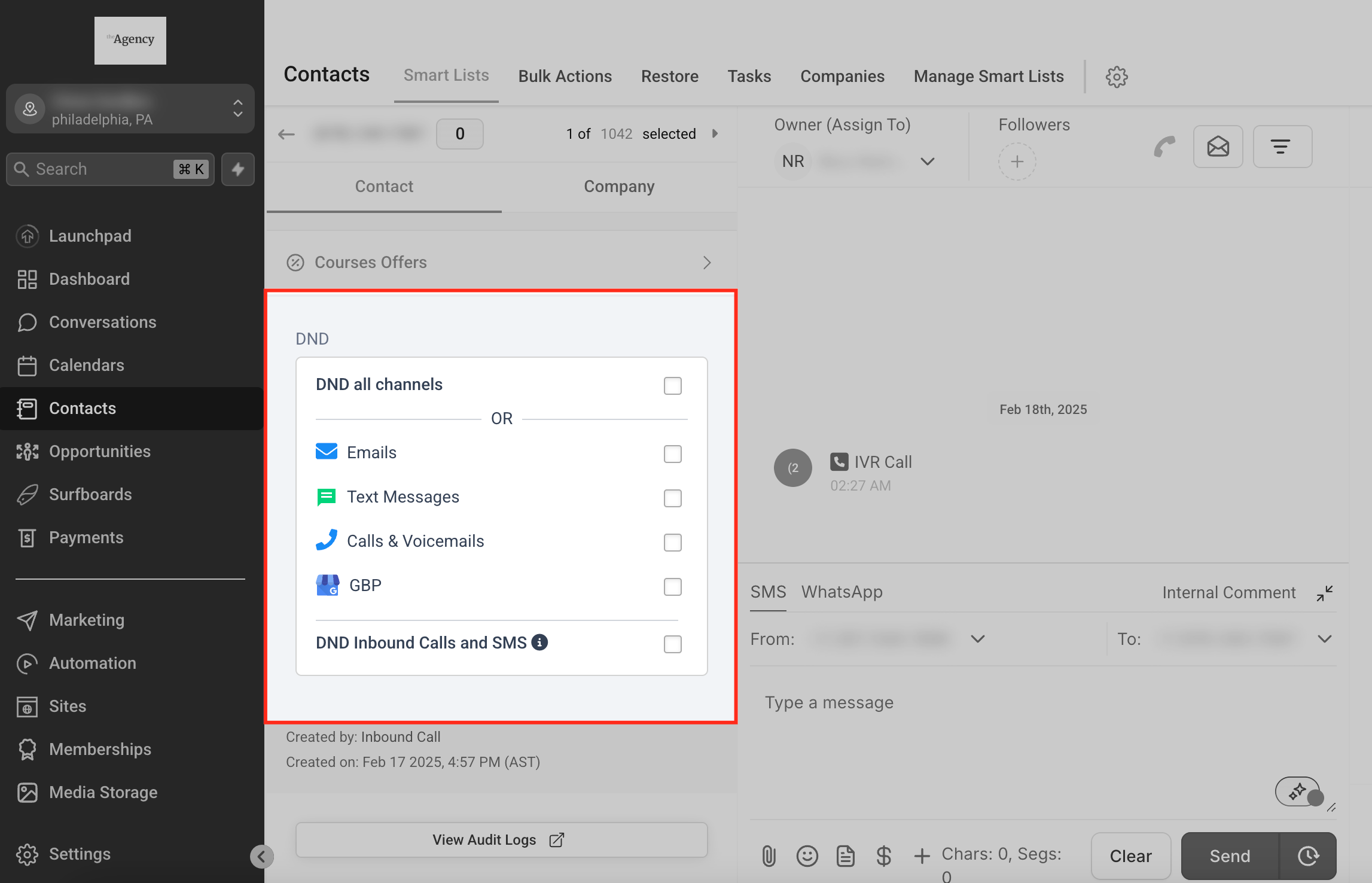
- Within the contact's profile, locate the "DND" section, which is usually in the left column at the bottom.
Please Note: We do have a separate checkbox for DND Inbound Calls and SMS in which Inbound calls from the contact's number will be directly blocked whereas Inbound SMS will be blocked at system level so charges will incur
Managing DND for Specific Channels
SourCherry allows for granular control over communication channels. Here's how DND functions for key channels:
1. Email
Automatic DND Activation: The system enables DND if a contact unsubscribes, marks an email as spam, or if there are permanent failures like bounces.
Removing Email DND: To remove DND, ensure the contact's email is valid and not on suppression lists. Then, manually update the DND status in the contact's profile.
2. SMS
Automatic DND Activation: DND is enabled if a contact replies with opt-out keywords (e.g., STOP, UNSUBSCRIBE) or if specific error codes (30003, 30004, 30005, 30006) are received from the service provider.
Removing SMS DND:
- Temporary DND: Can be updated directly within the contact's record.
- Permanent DND: Requires the contact to send an opt-in message (e.g., START) or for the agency to provide proof of opt-in to support for manual removal.
3. Calls
Inbound DND: Enabling DND for calls ensures that no incoming calls from the contact are forwarded or displayed, providing uninterrupted workflow.
Managing Call DND: Adjust the DND settings within the contact's profile to enable or disable call reception as needed.
4. Facebook Messenger, GMB, and WhatsApp
Channel-Specific DND: Once integrated, DND settings can be applied to these channels individually, allowing contacts to opt out of specific platforms while remaining active on others.
Configuration: Access the contact's profile and adjust the DND settings for the desired channel accordingly.
Automating DND Settings with Workflows
Automations help you apply, clear, and react to DND consistently at scale. This improves compliance, data hygiene, and team response times.
Useful Triggers & Actions
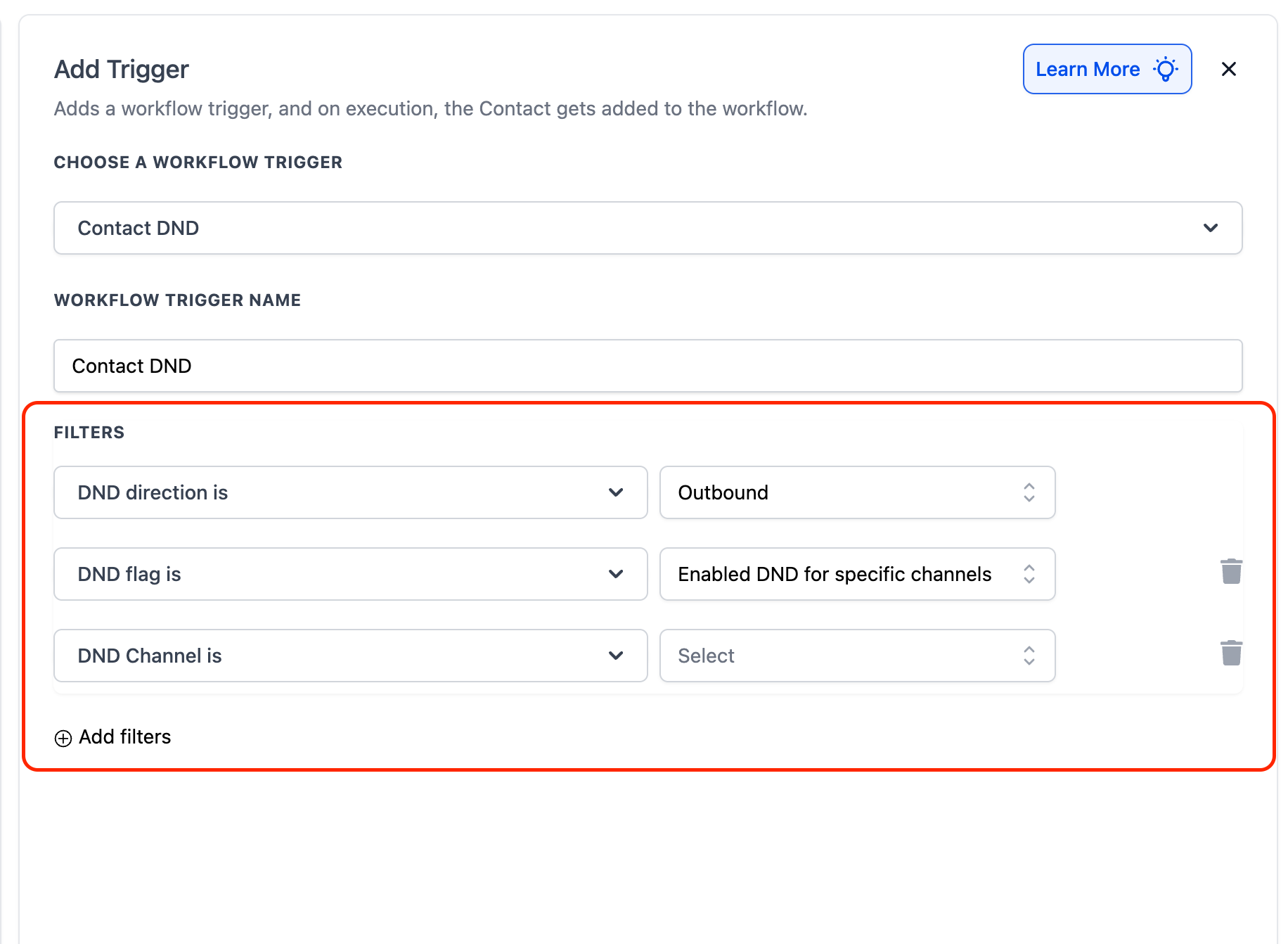
Contact DND: Fires when DND is enabled/disabled; filter by channel (Email/SMS/Calls) or direction (Inbound/Outbound) to branch logic.
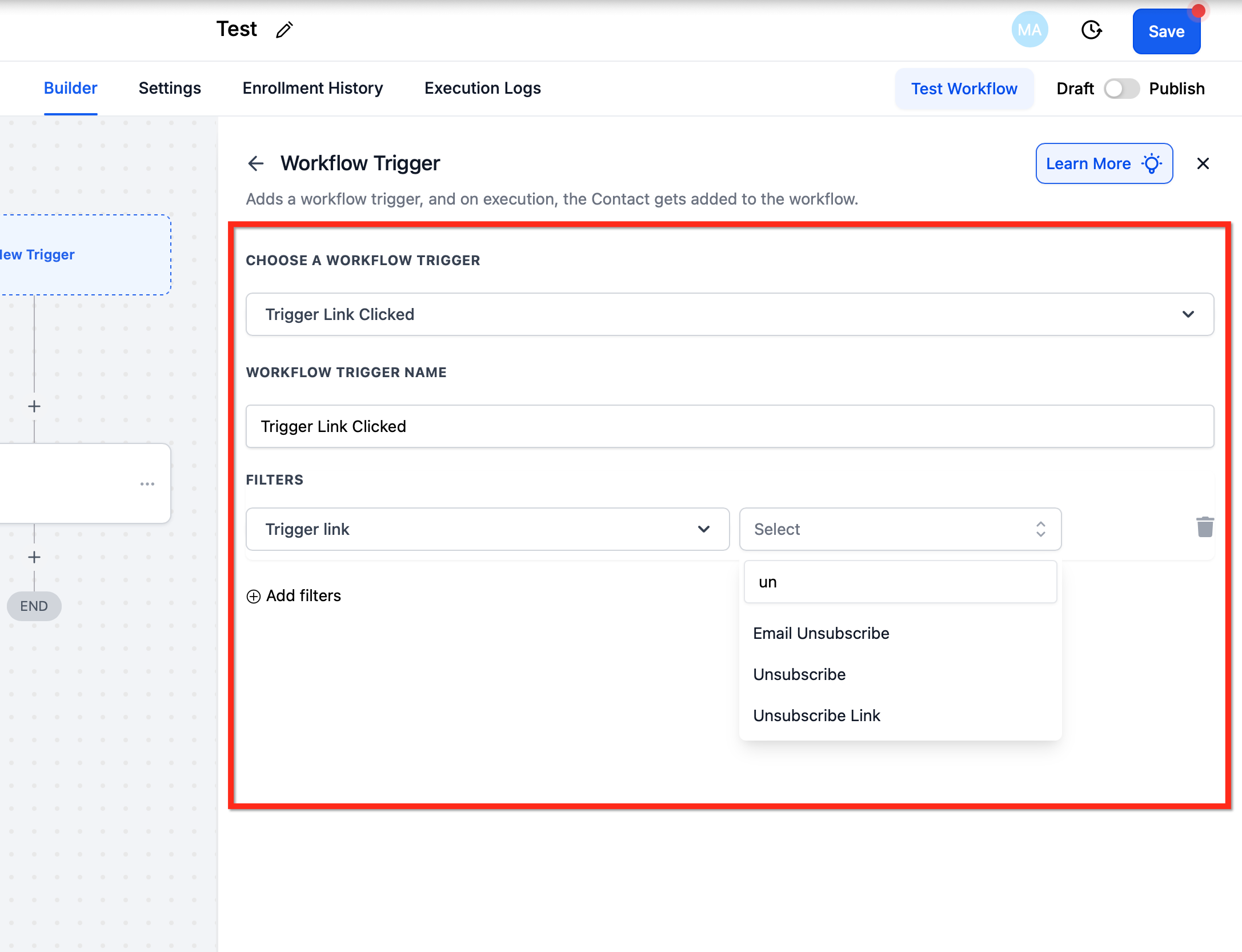
Trigger Link Clicked: Use unsubscribe trigger links for Email/SMS and route to a workflow that sets per‑channel DND.
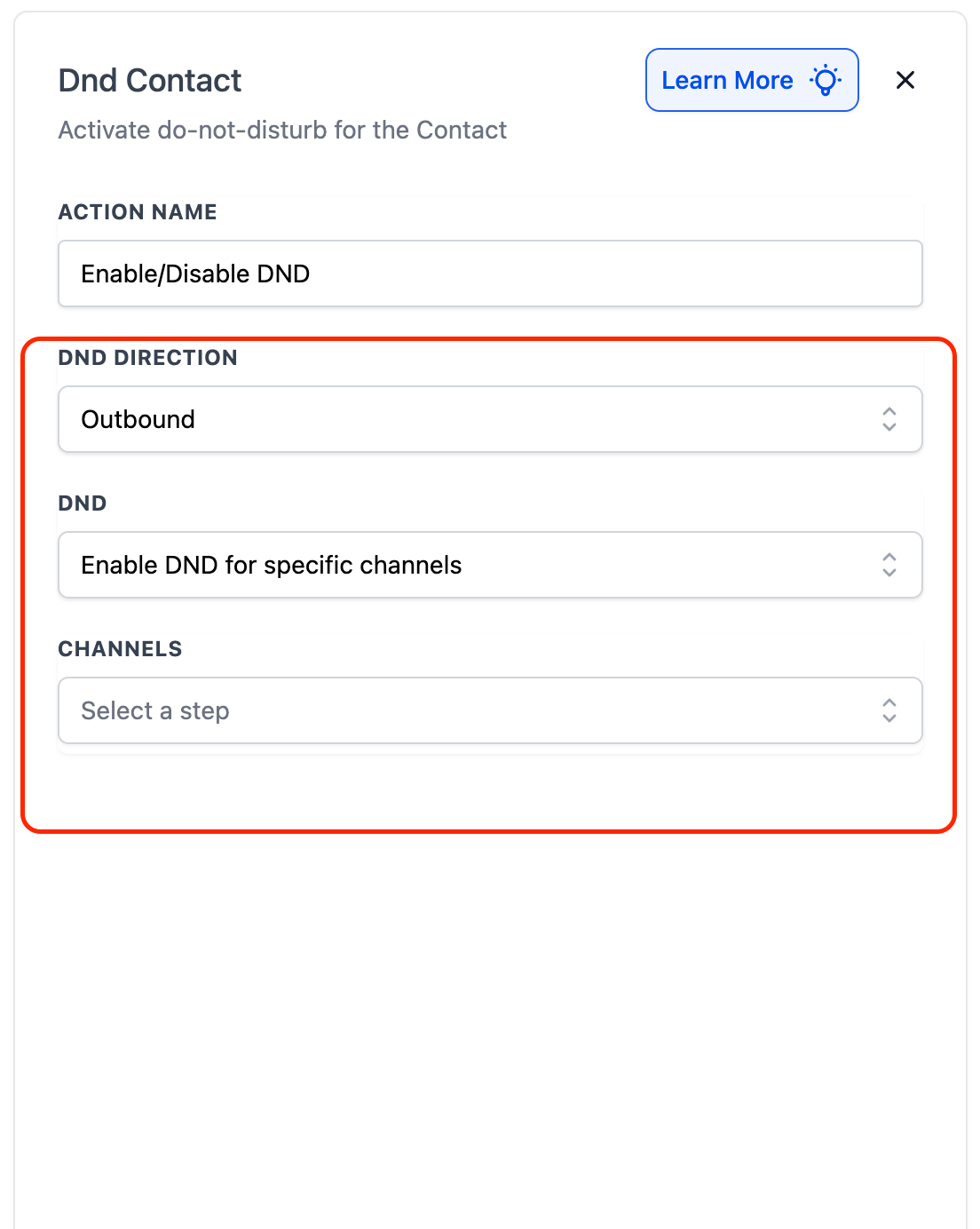
Enable/Disable DND Action: Automatically turn a contact's Do Not Disturb status on or off within workflows. Supports direction control—set to Inbound to block incoming calls/SMS from a contact, or Outbound to stop outgoing communications.
Key Actions
DND Contact: Enable/disable global or per-channel DND. Set direction to Inbound or Outbound.
Update Contact Field: Set supporting fields (e.g., Consent Source, Opt‑in Timestamp).
Remove from Workflow / Stop Campaign: Immediately halt scheduled sends when DND becomes true.
Internal Notification: Alert the owner when high‑value contacts opt out.
DND Attribution in Conversations and Activity Logs
SourCherry shows who triggered a DND status change in Conversations and activity logs:
- DND Enabled by Workflows/User/Contact for particular channel or all channels.
- DND Disabled by Workflows/User/Contact for particular channel or all channels.
Use the “by” value to understand the source of the change:
- Workflows: A workflow enabled or disabled DND.
- User: A team member enabled or disabled DND.
- Contact: The contacted person enabled or disabled DND.
This applies across all channels and requires no setup.
Frequently Asked Questions
Q: What happens if a contact is marked as DND?
The contact will be excluded from receiving communications through the channels specified in their DND settings, ensuring their preferences are respected.
Q: Can DND settings be customized per channel?
Yes, SourCherry allows you to enable or disable DND for individual channels if direction is outbound, providing flexibility based on each contact's preferences. Although, Inbound dnd can only be turned on or off for all channels, the channels supported are call and sms only as of now for inbound DND.
Q: How do I know if a contact has enabled DND?
You can check a contact's DND status by opening their contact profile in SourCherry. If they have enabled DND for a specific channel, it will appear grayed out under the DND section on the left side of their profile.
Q: Does enabling DND stop all communications?
It depends on how DND is set up. Contacts can opt out of specific channels (e.g., SMS but not emails), or they can enable global DND, which blocks all communications.