
This article walks you through how to configure a specific phone number inside your SourCherry sub-account, including settings like call forwarding, timeout behavior, whisper messages, call recording, and more. Proper setup ensures optimal call routing, lead handling, and automation accuracy across your account.
TABLE OF CONTENTS
- What is Phone Number Configuration
- Where to Find the Edit Configuration option?
- Phone Number Configuration Options Explained
- Frequently Asked Questions
- Related Articles
Phone Number Configuration Options – At a Glance
| Option | Purpose | Common Use Case/Example |
|---|---|---|
| Name Your Number | Label numbers for internal use | “Main Sales Line” or “Support Desk” |
| Pass Called Number As Caller ID | Show dialed number instead of caller’s number on Caller ID | Useful in forwarding scenarios |
| Forwarding Calls To | Route calls to external or mobile numbers | Send calls to team members' personal phones |
| Use Verified Number as Caller ID | Show verified number for outbound calls | Enhances professionalism in outbound calls |
| Call Connect | Adds prompt before call connects to ensure a human answers | Ideal for triggering missed-call automation |
| Whisper Message | Custom message before call connects | “Call from XYZ Agency - press 1 to connect” |
| Call Recording | Automatically records calls for compliance or training | Quality assurance and team monitoring |
| Play Call Recording Message | Announces recording to comply with legal standards | “This call may be recorded...” |
| Incoming Call Timeout | Determines how long phone rings before voicemail | Route to CRM voicemail or personal voicemail |
| Outgoing Call Timeout | Sets outbound ring time limit | Avoids hitting recipient voicemails |
| Ring Incoming Calls to Users | Ring multiple users simultaneously | Ensures calls are answered promptly |
What is Phone Number Configuration?
Phone number configuration in SourCherry enables you to control how each phone number behaves for both inbound and outbound calls. These configurations are crucial for teams that rely on efficient phone communications, whether they show a custom caller ID, route calls to users, or enable voicemail.
Where to Find the Edit Configuration option?
Step 1: Navigate to Phone Numbers-
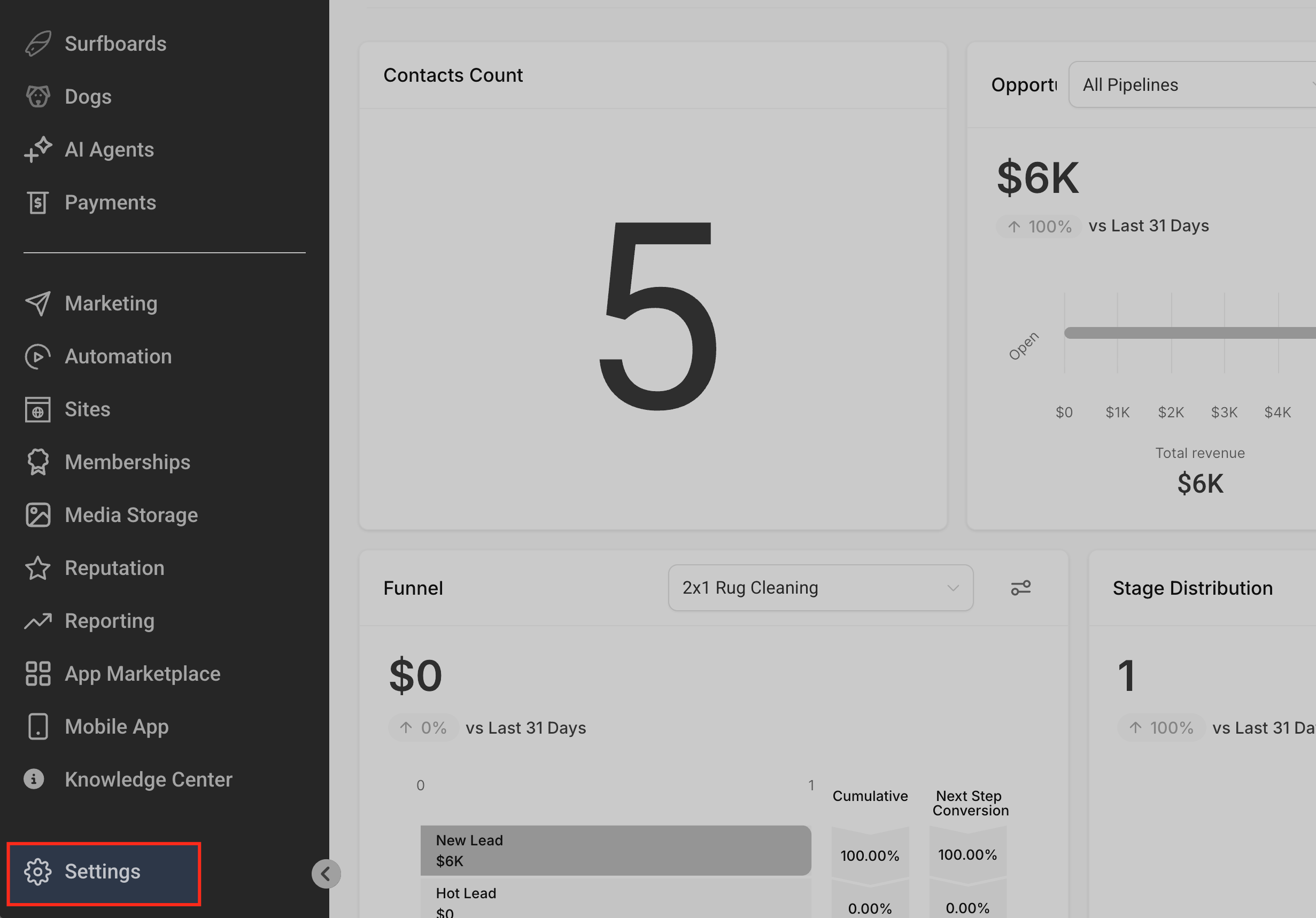
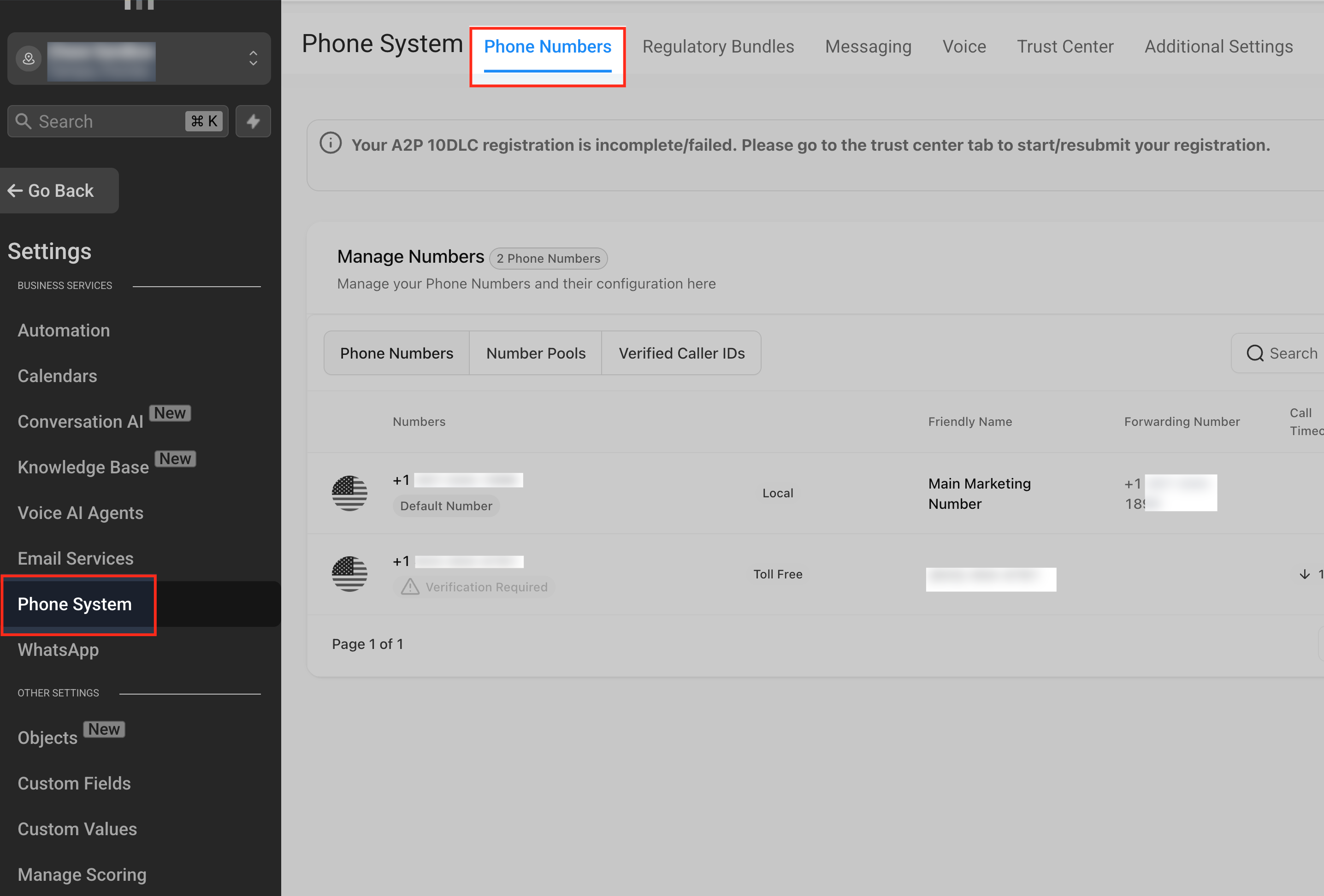
Click on Settings from your sub-account > Phone System > List of available numbers for the sub-account will show under Manage Numbers tab.
Step 2: Navigate to Edit Configuration Option-
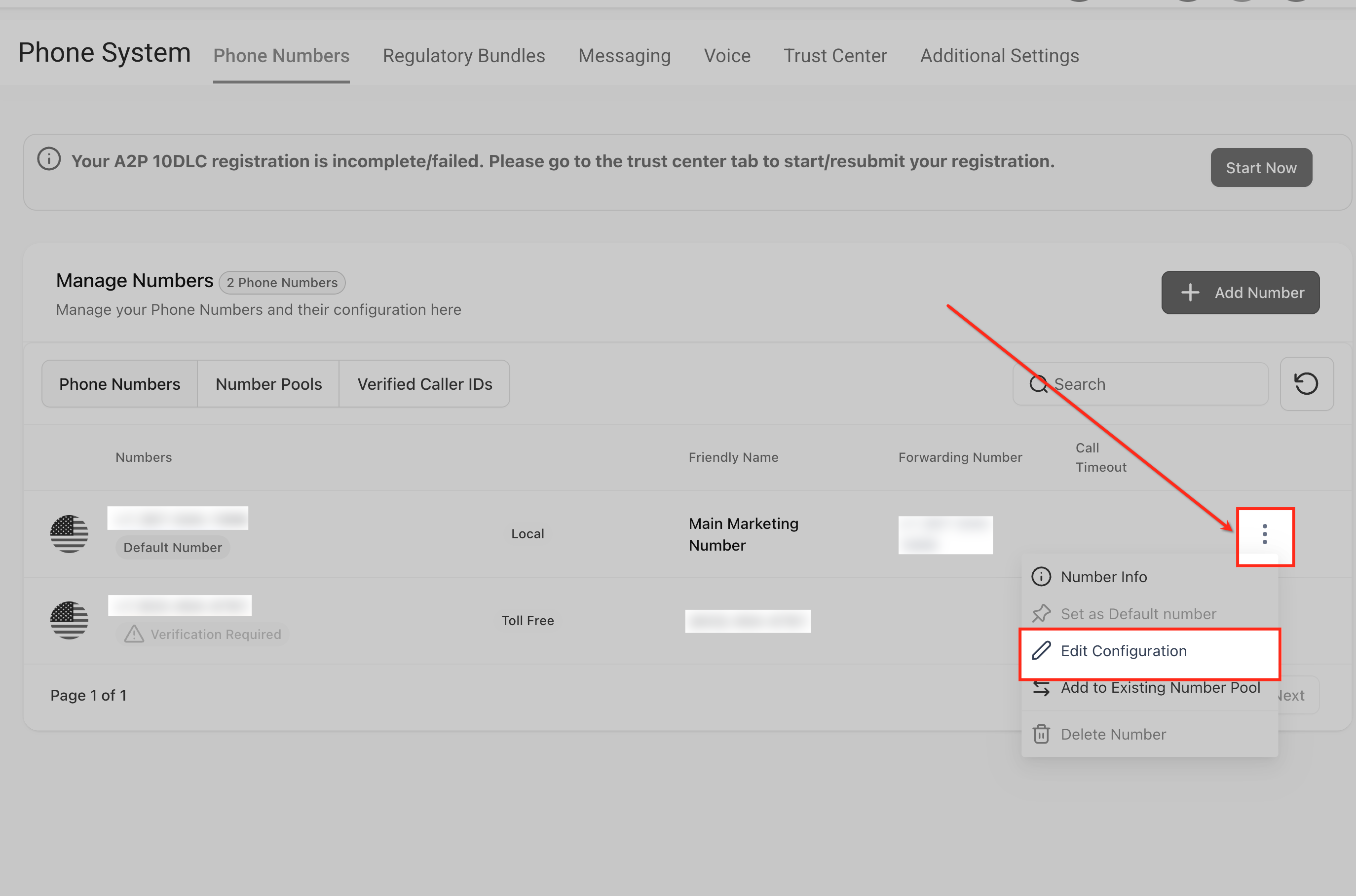
Click on the Three Dots beside the number you want to configure>Edit Configuration option from the pop-up
Phone Number Configuration Options Explained
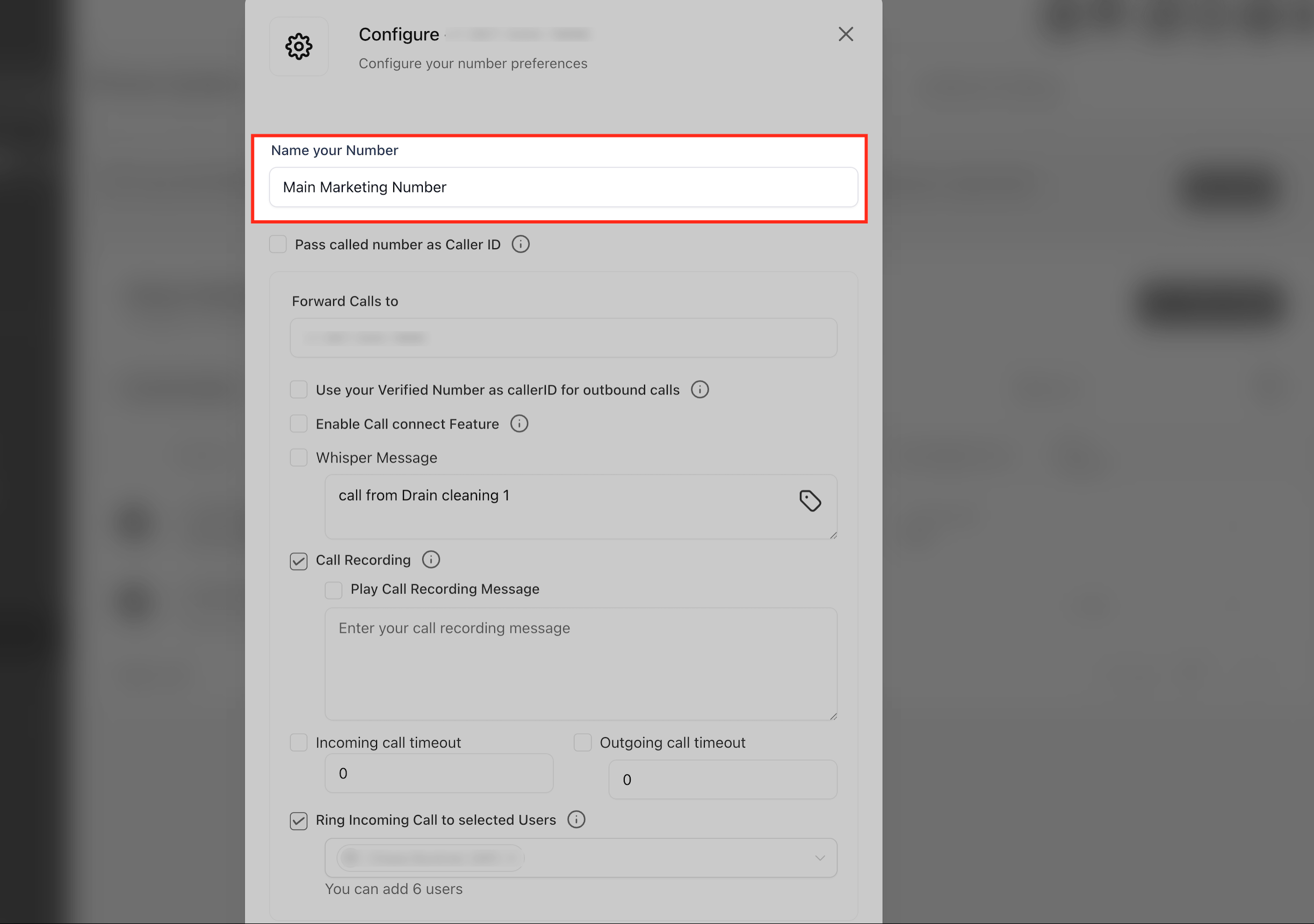
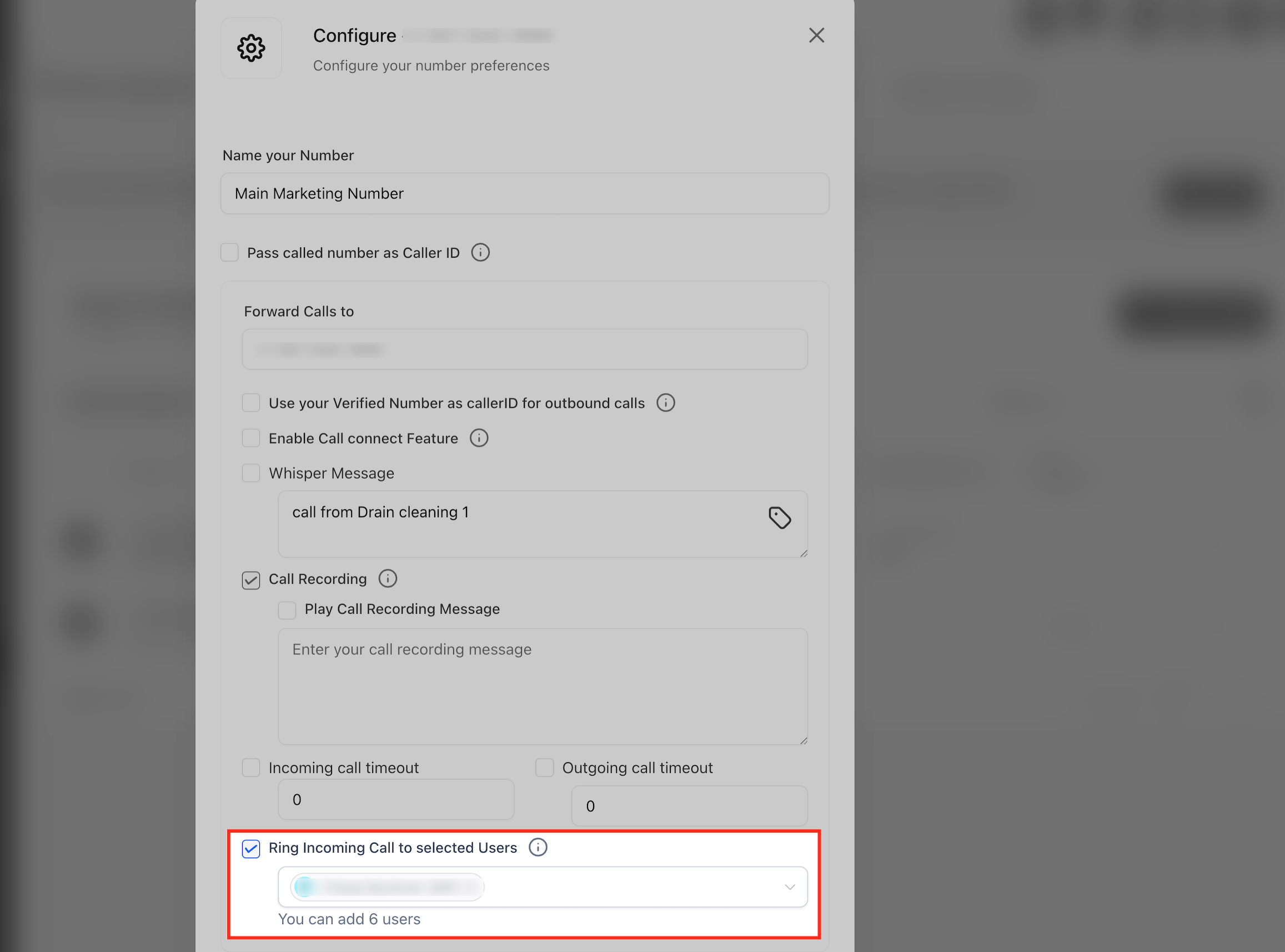
1. Name Your Number
- This option lets you label your number for internal reference.
- Example: Main Sales Line, Support Line, or Agent John's Number.
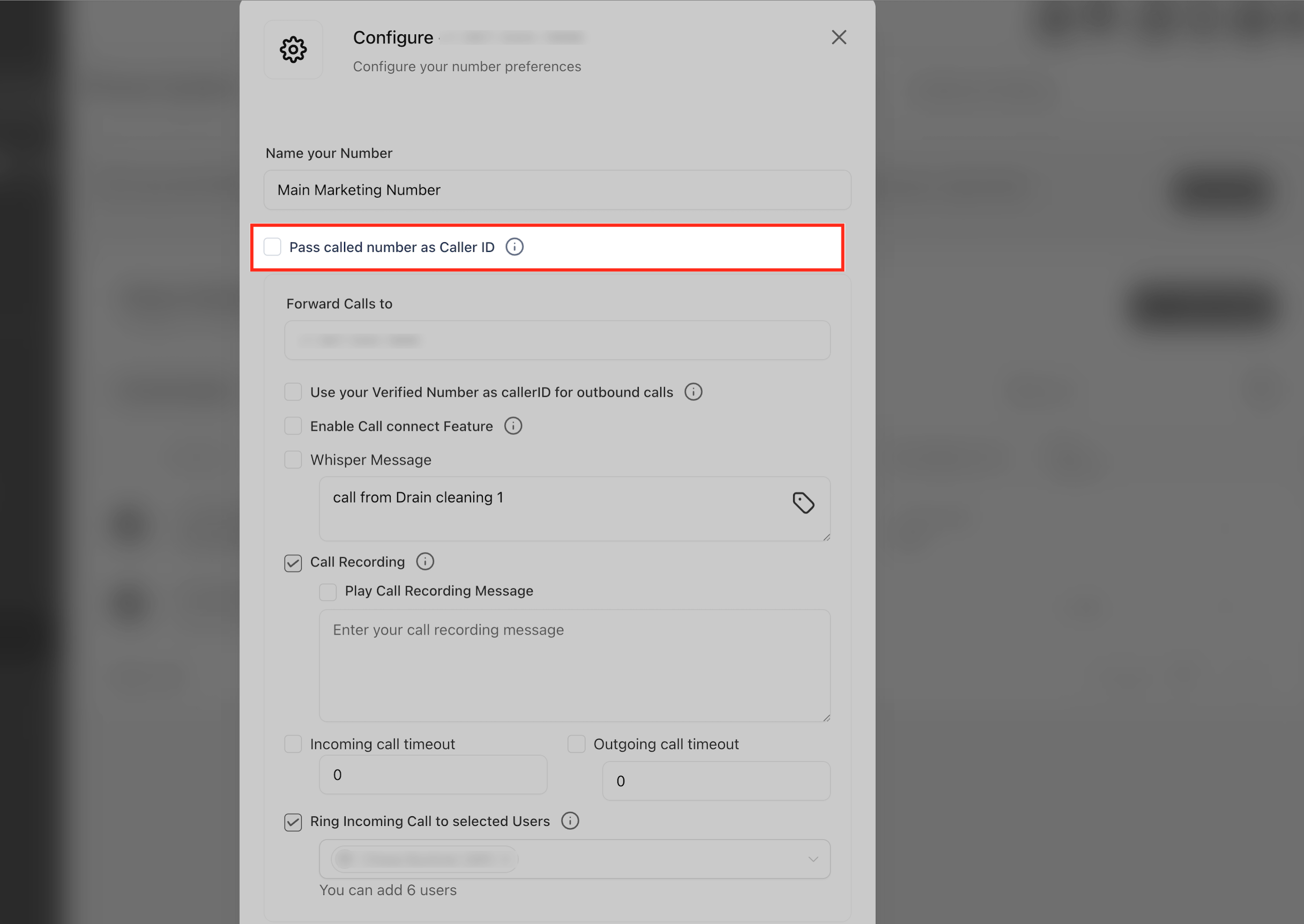
2. Pass Called Number As Caller ID
- By default, the system transmits the number of the caller for caller ID. However, if you prefer your caller ID to show the number that the caller dialed instead, you can activate this feature.
- This is most relevant if the caller dialed number A and was forwarded to number B (your number).
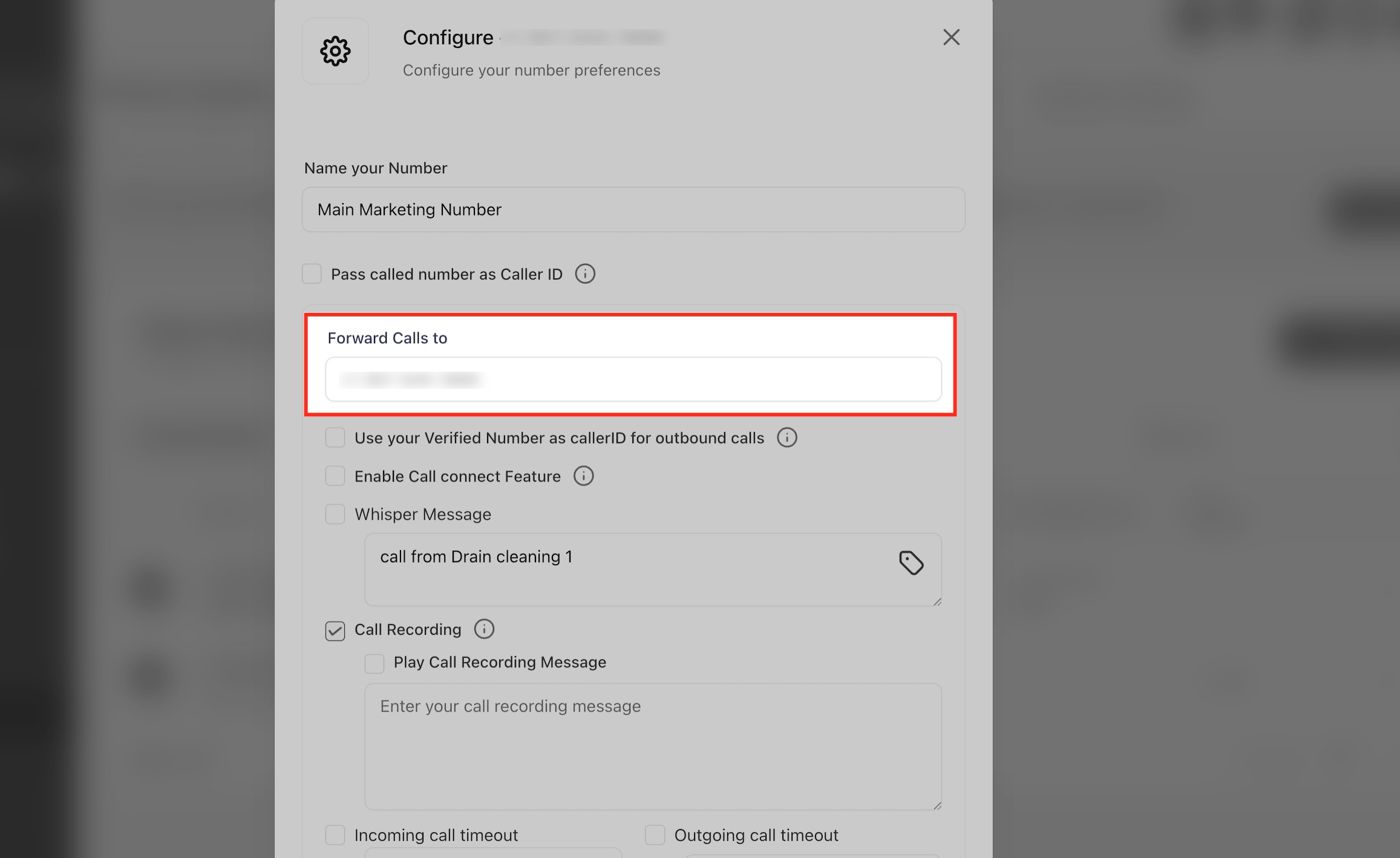
3. Forward Calls To
- Lets you define the number where incoming calls will be routed to. Useful for forwarding to mobile phones, external lines, or different departments.
- When a caller dials Number A (the configured number), the call is immediately forwarded to Number B (the destination number).
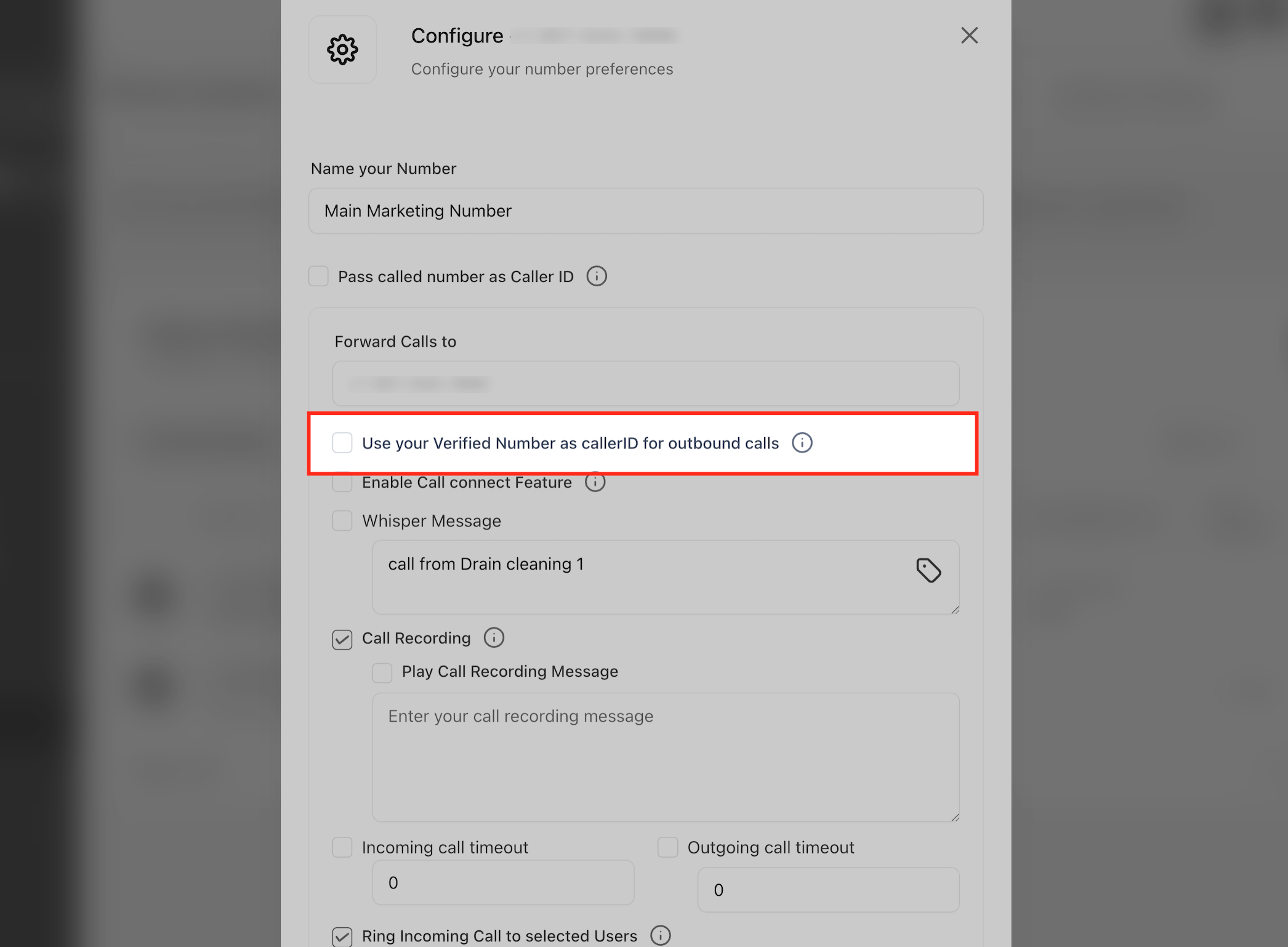
4. Use Your Verified Number as Caller ID for Outbound Calls
- This feature allows you to show your verified phone number in the callerID of the recipient when you are making outbound phone calls.
Note: This option is only applicable to Verified Phone Numbers.
Checkout our guide on: How to Set Up Verified Caller ID (Use your number for Voice Calls)
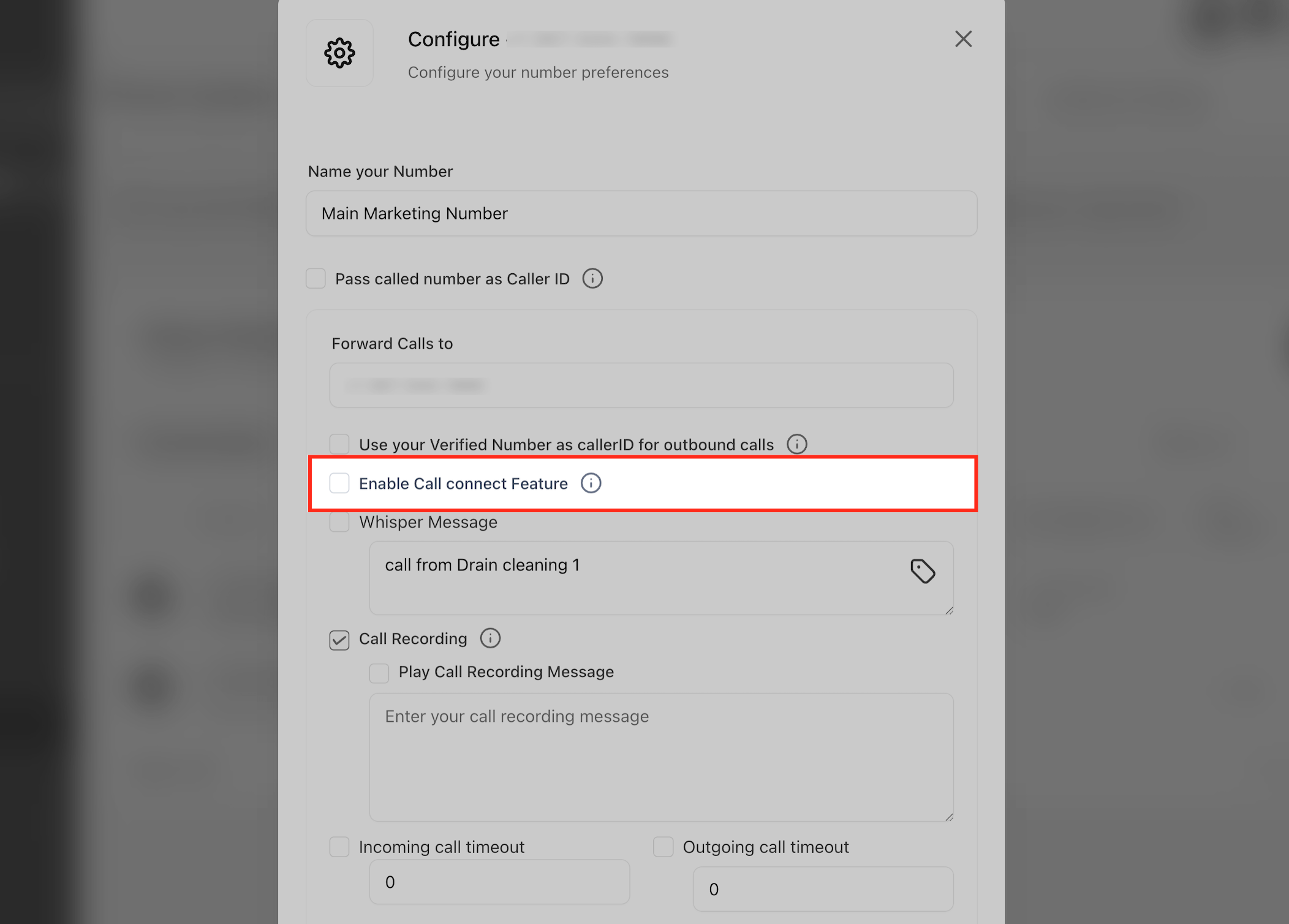
5. Call Connect
- When enabled, the recipient will hear a whisper message prompting them to press a key to accept the call, ensuring that only calls answered by a human are marked as connected.
- Ideal for:
- Enabling Missed-Call Text-Back automations.
- Preventing voicemails from being falsely marked as successful calls.
6. Whisper Message
- This option allows you to set the message that plays before connecting the call when Call Connect is enabled.
- Example: “Call from SourCherry - press a key to connect.” or "Call from XYZ Agency - press a key to connect."
Important: The Call Recording and Whisper messages uses Text-to-Speech (TTS). TTS is billed at $0.00084 per 100 characters.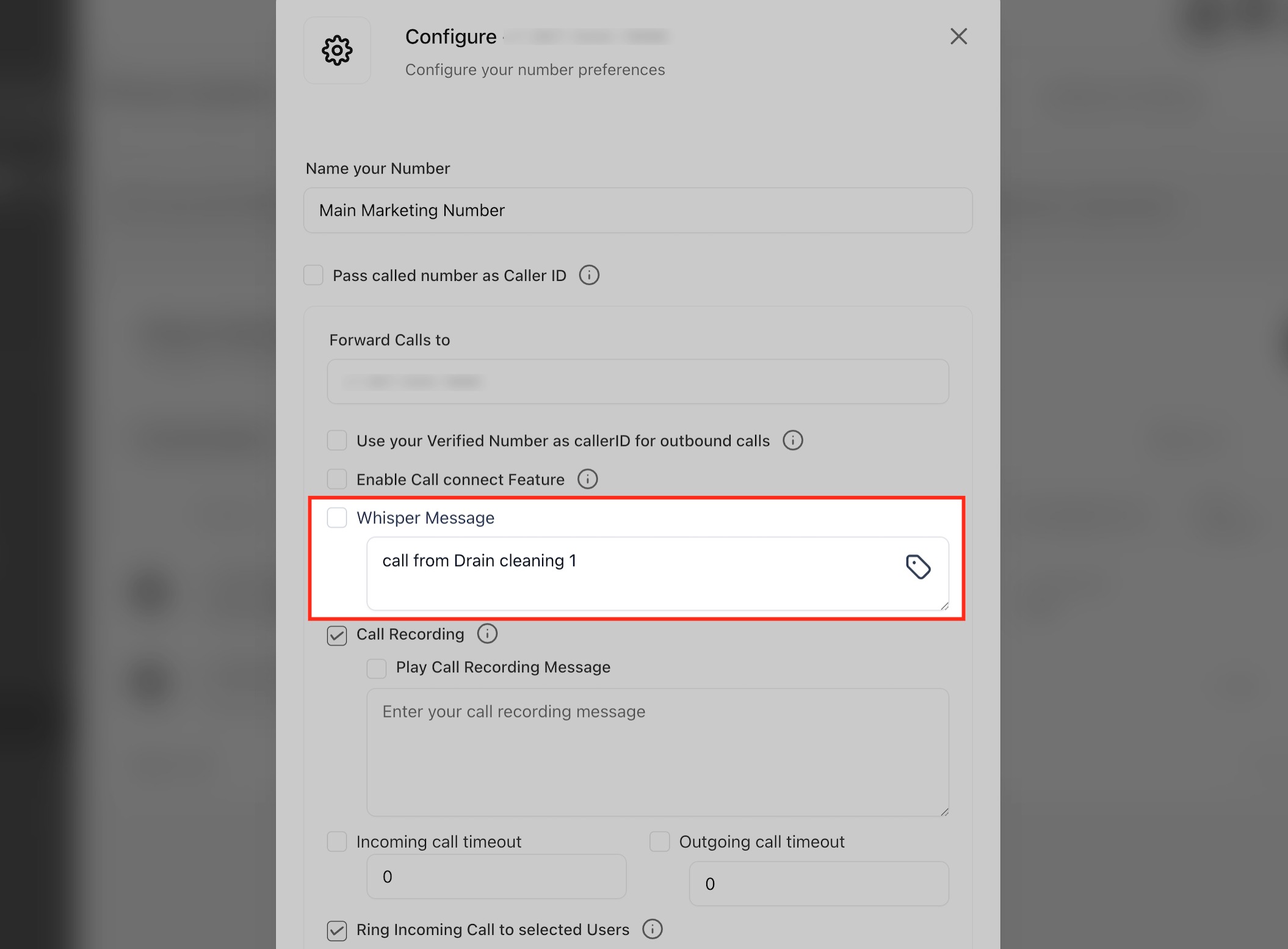
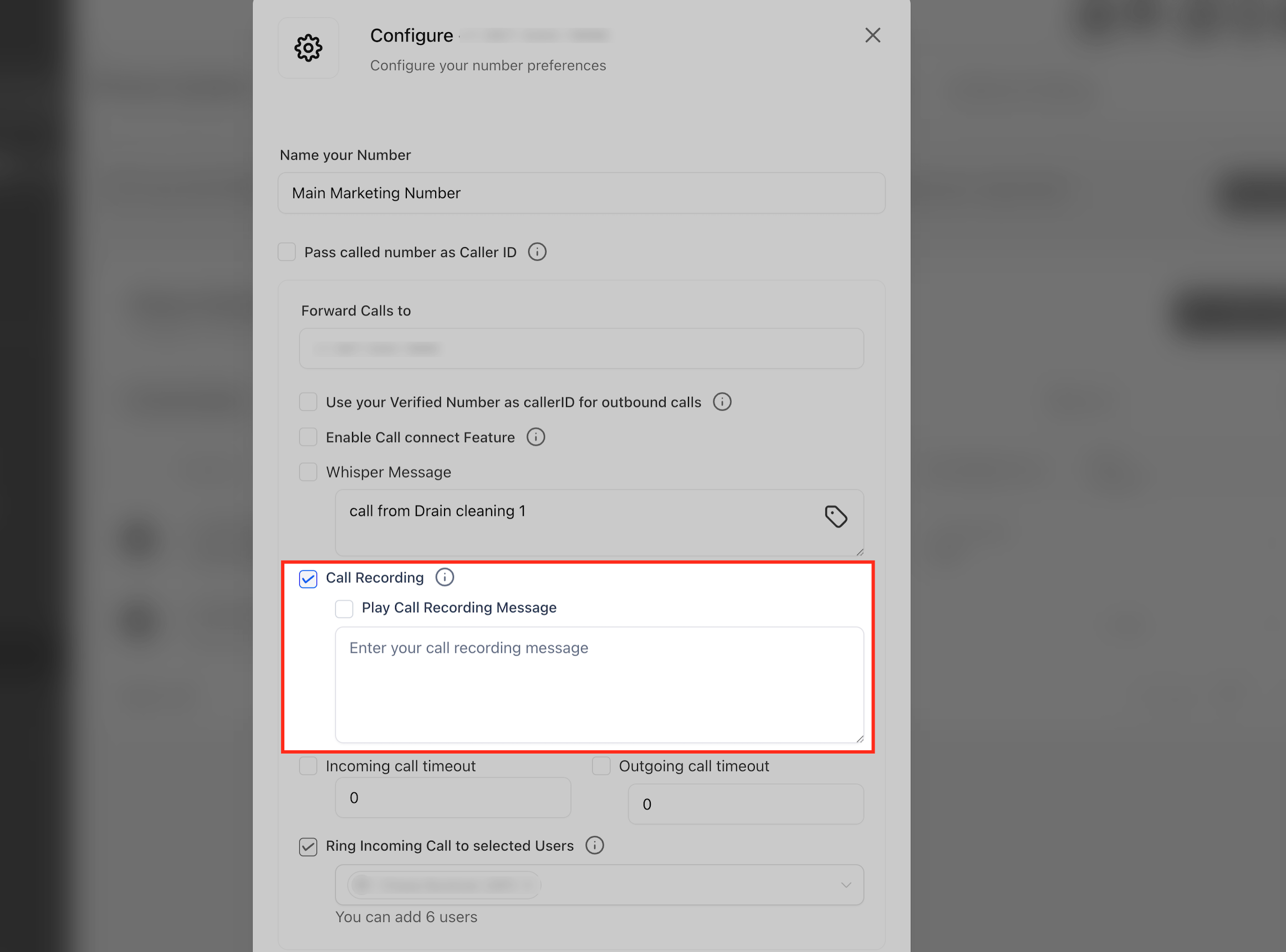
7. Call Recording and Play Call Recording Message
- The Call Recording option enables automatic call recordings for training, quality assurance, or compliance purposes.
- The Play Call Recording Message setting lets you add a pre-recording whisper message, such as “This call will be recorded for quality purposes,” to inform the receiver before recording begins.
Important: Call Recording costs $0.0025/min. Storing it costs $0.0005/min/month.
Note: In many U.S. states, playing a recording disclaimer is legally required to ensure compliance.
8. Incoming Call Timeout
- The amount of time (in seconds) the system lets the inbound call ring before being dropped or forwarded to a voicemail (personal voicemail or pre-recorded voicemail within the CRM).
A) Scenario 1: Route to Personal Voicemail
If you want missed calls to go to your cellphone's voicemail, simply leave the Inbound Call Timeout field blank or set it to 60 seconds. This gives the call enough time to reach your personal voicemail system.
B) Scenario 2: Route to CRM Voicemail After Ringing
If you'd like the call to ring briefly before directing the lead to a pre-recorded voicemail within the CRM, set the Inbound Call Timeout to around 20 seconds. This avoids the call reaching your personal voicemail and ensures it gets handled by your CRM setup.
C) Scenario 3: Direct to CRM Voicemail Immediately
To send calls directly to a pre-recorded CRM voicemail without ringing your phone, set the Inbound Call Timeout to 1–4 seconds.
Note: Make sure you’ve uploaded a voicemail recording (MP3 or WAV format) either in the Business Info tab or in the assigned user’s profile settings.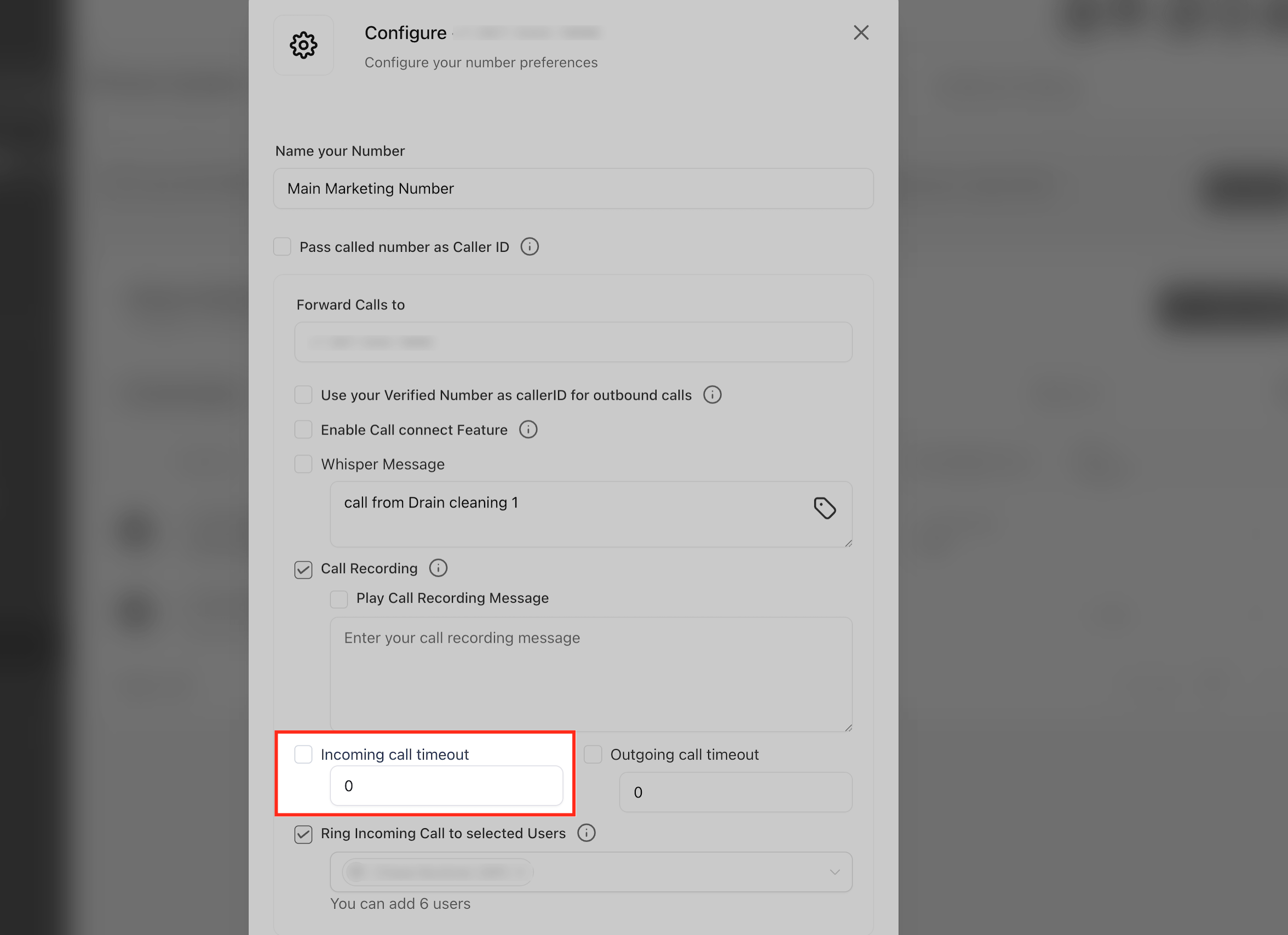
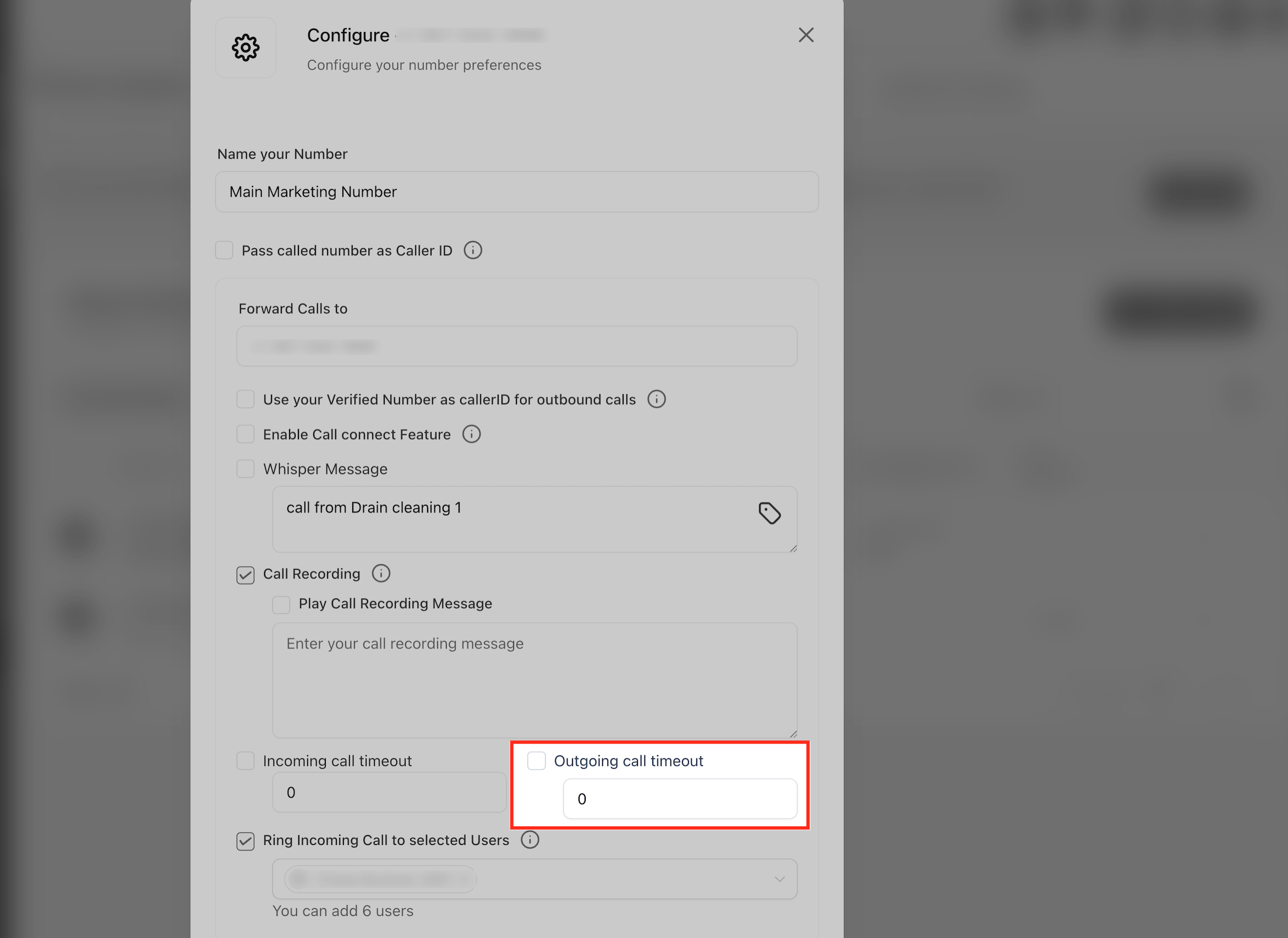
9. Outgoing Call Timeout
- The amount of time (in seconds) the system lets the outbound call ring before dropping the call.
- Use a shorter timeout like 30 seconds to avoid hitting customer voicemails, ideal for voicemail-drop or lead-churn reduction campaigns.
- Outbound call progress audio (Connecting vs. Ringing). SourCherry plays different tones during outbound dialling to match real network progress:
Connecting tone: Plays while SourCherry is still trying to reach the recipient’s carrier.
Ringback tone: Starts only after the carrier confirms the destination device is actually ringing.
If the carrier can’t be reached, the call ends after the connecting tone (no “phantom ringing”).
10. Ring Incoming Calls to Selected Users
- This feature allows you to route incoming calls to multiple users (team members) within your sub-account.
- When a call comes in, the phones of all selected users will ring simultaneously until someone answers or the call times out.
- You can assign maximum 7 users to receive these calls, helping ensure that important calls are answered promptly, even if some team members are unavailable at the time.
For more details, checkout our article: Ring Incoming Calls to Multiple Users
Frequently Asked Questions
Q: What happens if I leave inbound or outbound timeout fields blank?
A:The system defaults to 60 seconds for both inbound and outbound timeouts.
Q: What URL should I provide when verifying a toll-free number?
A:Use your official business website URL, one that customers can find and verify.
Checkout this article for more information - Toll-Free Verification Guide for LC - Phone (US/Canada)
Q: Can I assign the same number to multiple users?
A:Yes, under "Ring Incoming Calls to Selected Users," you can assign up to 7 users to a single number.
Q: How do I stop forwarded calls from going to my personal voicemail?
A:Use a short inbound timeout (~20 secs) so calls hit a CRM voicemail before reaching your personal voicemail.
Q: Why aren’t my outbound calls displaying the right caller ID?
A:Ensure that your number is verified and approved for outbound calling and you’ve selected “Use Verified Number as Caller ID.”
Q: Can I use toll-free numbers for both SMS and voice?
A:Yes, but they must be registered and verified for SMS compliance and typically have limitations for outbound voice caller ID depending on carrier support.
Q: Why isn’t my whisper message playing when calls are routed through my IVR workflow?
A: Whisper messages will only play for calls forwarded to external phone numbers.
If the call is answered through the SourCherry web app, mobile app, or desktop app, the whisper message will not play , this is expected behavior.