
Resources in Services let you reserve the real-world assets needed to deliver an appointment, like rooms, chairs, or stations, so booking stays accurate. This article covers what resources are, when to use them and how to set them up.
TABLE OF CONTENTS
Overview of Resources in Services
Resources represent physical assets such as rooms, chairs, or stations that are required to deliver a service. Assigning resources to services ensures that when the service is booked, the associated resource is also reserved — preventing double bookings and keeping availability accurate.
Resources should be created only when availability matters. For example:
A scissor does not need to be created as a resource for a haircut, since there are usually plenty.
A haircut chair should be created as a resource if there are only 2 chairs available. Even if 3 staff are free, only 2 appointments can be booked simultaneously because of the chair limitation.
Note: Currently, each service can book only one resource at a time, but you can assign multiple resources (e.g., Chair 1 and Chair 2). The system will automatically book any available one of them.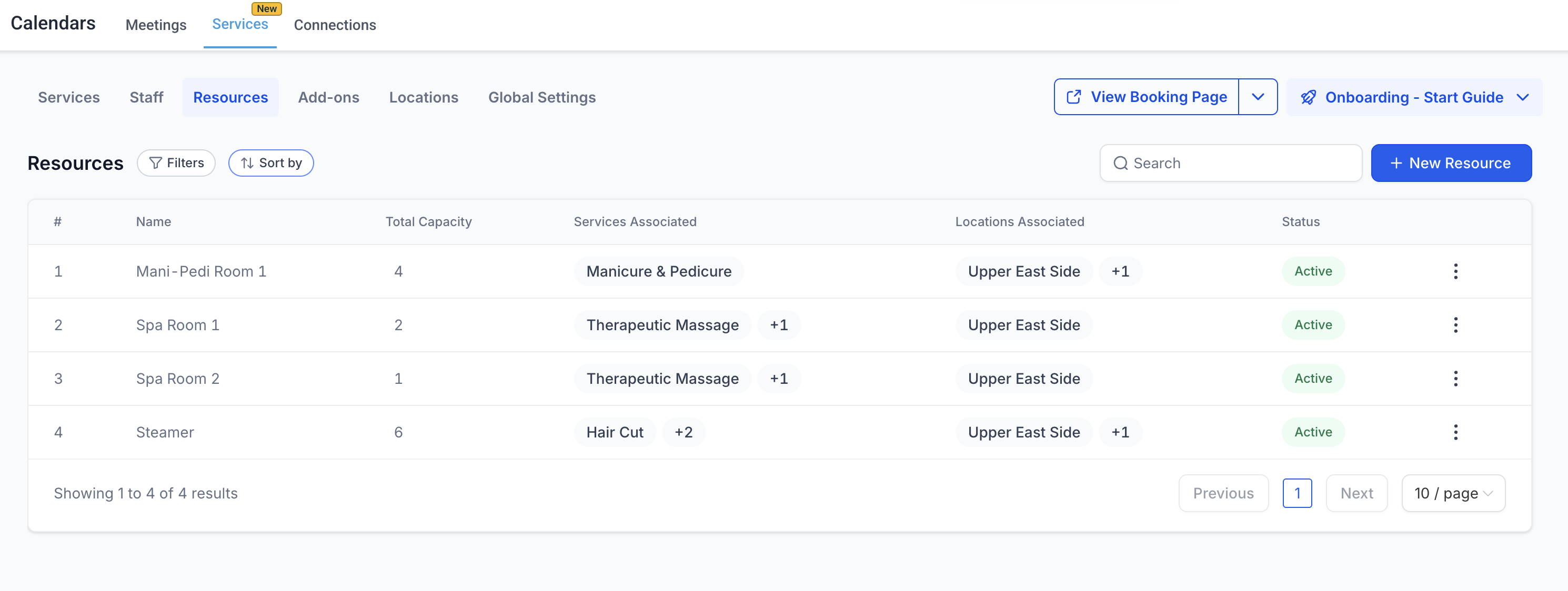
Key Benefits of Resources
Understanding the benefits helps you decide where you can use resources to add the most value in your scheduling processes.
- Fewer Scheduling Mistakes: Prevents double-booking so you avoid last-minute cancellations, reschedules, and unhappy customers.
Control Capacity: Resources can limit how many appointments are allowed at the same time, based on their defined capacity.
Less Manual Oversight: Automatically reserves the required asset when a service is booked, freeing your team from constant checks.
Keeps Appointments Moving: When multiple equivalent resources are assigned, the system books any available one so one busy room or chair doesn’t stall the schedule.
Capacity vs. Quantity
It’s important to distinguish between resource quantity and resource capacity:
Quantity: Create a separate resource for each physical unit (e.g., Room 1, Room 2, Room 3).
Capacity: Set how many people/appointments that unit can handle at once (e.g., Room 1 has a capacity of 4).
Example:
A spa has 3 rooms → create 3 resources: Spa Room 1, Spa Room 2, Spa Room 3.
If Spa Room 1 can host 4 people at the same time → set its capacity to 4.
How to Create a Resource
Use the steps below to set up a resource—details, timing, pricing, staff, and preview—so your booking page is accurate and ready to share.
Step 1: Navigate to + New Resources
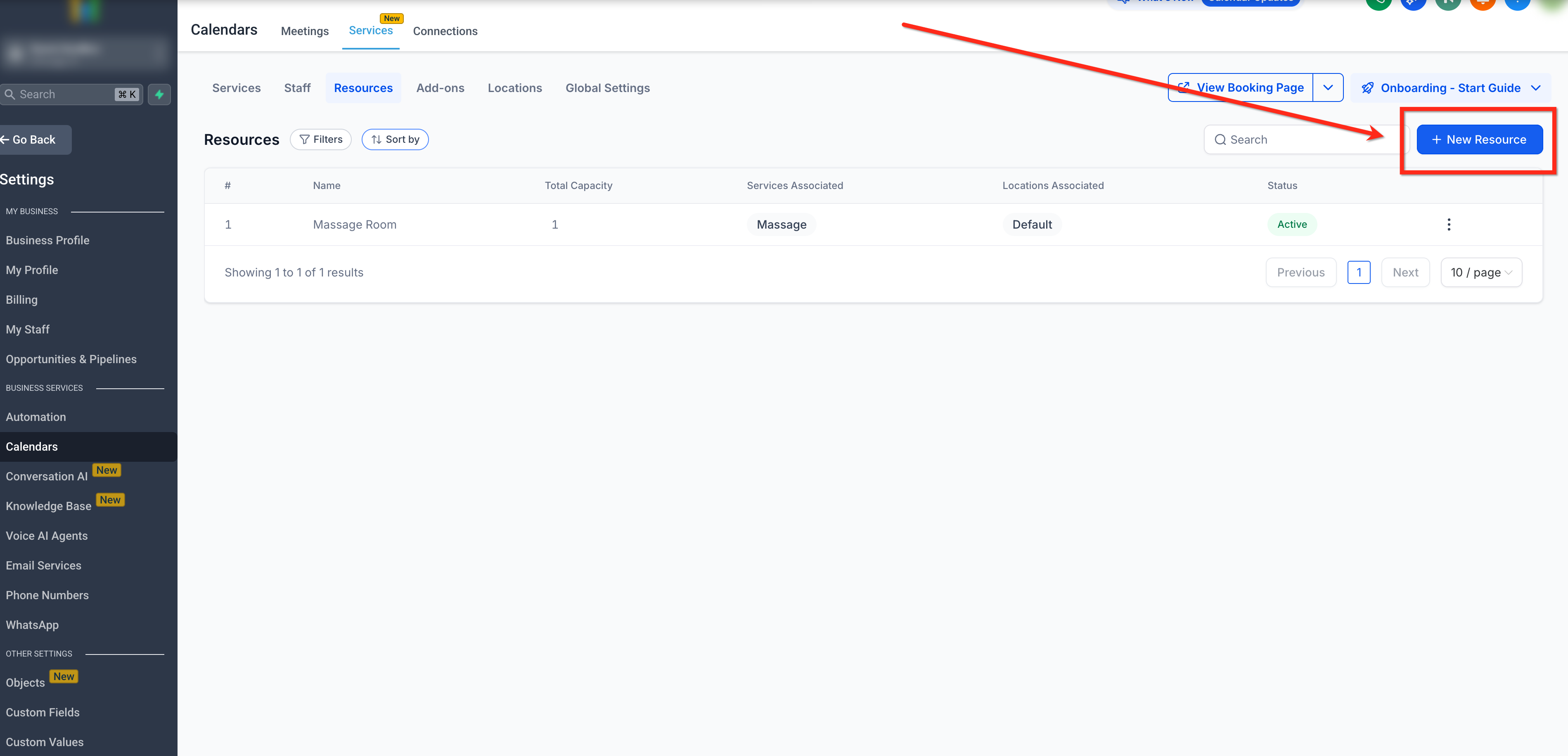
- Navigate to the Resources Page (Calendar > Calendar Settings > Services > Resources)
- Click the + New Resource button in the upper right corner
Step 2: Add Resource Details
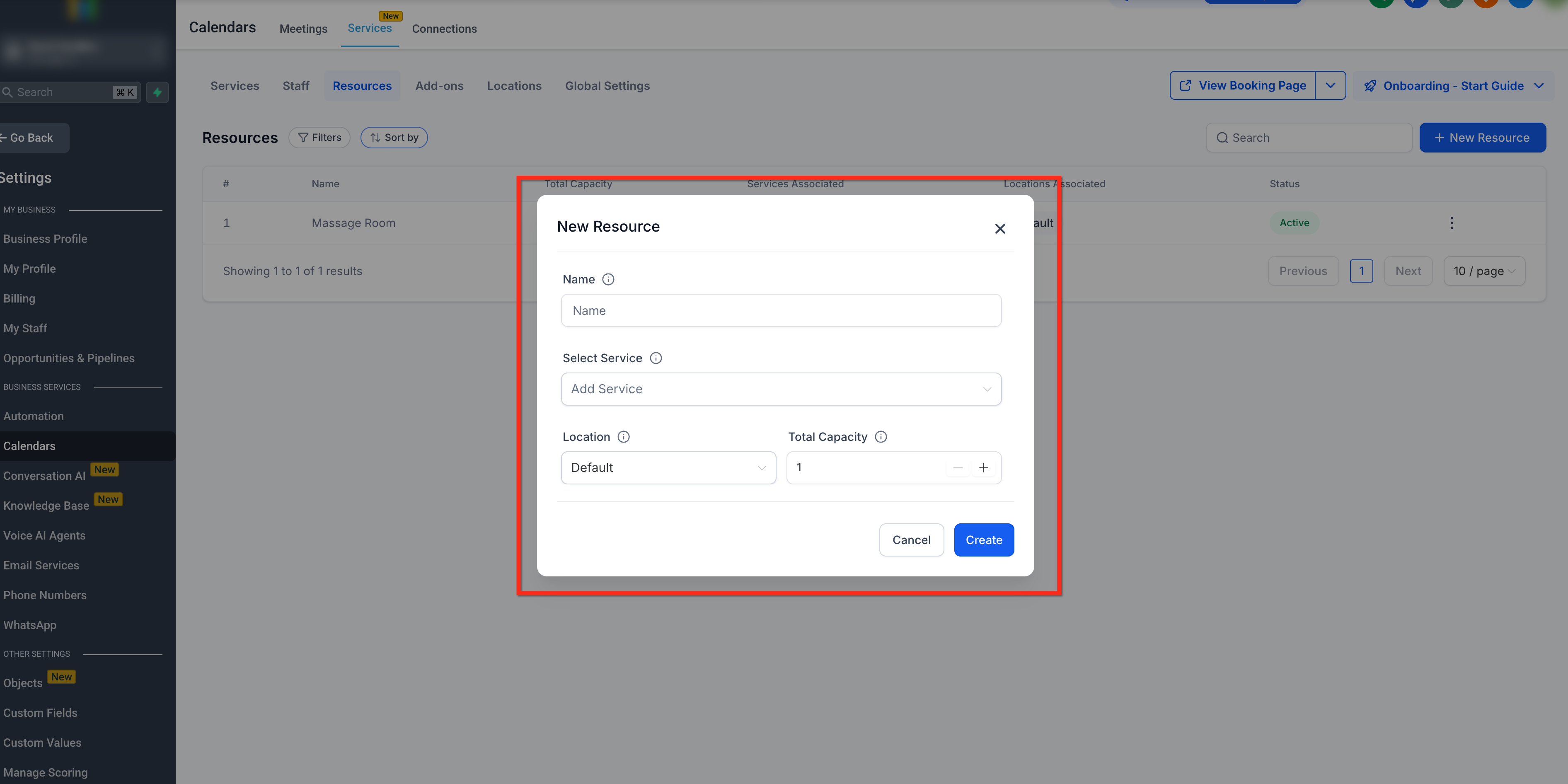
- Enter the Resource Name and optionally a description.
Select Service(s) that will use this resource.
Select Location(s) where the resource is available.
Define the capacity for each location (if multiple).
Save your changes by clicking the blue Create button
Once created, the resource will be automatically reserved whenever its associated services are booked.
Assigning Resources to Services
When creating or editing a resource, you’ll need to:
Assign Services – Select which services require this resource.
Assign Locations – Choose where the resource is available (useful if you operate multiple locations).
Set Capacities – Define the maximum capacity for each location for flexible scheduling.
You can assign resources either from the Services tab or directly in the Resources tab. Once linked, the system will automatically block off that resource whenever its assigned service is booked. If the resource is not available at the requested time, the appointment cannot be scheduled.
Best Practices
Only create resources for real limiting factors (e.g., treatment rooms, chairs, machines).
Use clear, descriptive names (e.g., Spa Room 1, Haircut Chair 2).
Always set the correct capacity to avoid overbooking.
Assign resources consistently across locations to keep scheduling accurate.
Resources make sure your services are not just staff-dependent, but also tied to the real-world assets required to deliver them. This ensures smoother scheduling, accurate availability, and a better customer experience.
Frequently Asked Questions
Q: I don’t see the Resources tab—how do I turn it on?
Make sure Services is enabled for your sub-account. Click here to learn how to turn on Services
Q: Can a service book more than one resource at a time?
No. A service can book only one resource at a time. You can assign multiple resources to the service, and the system will book any one that’s available.
Q: What happens if the required resource is unavailable?
The time slot will not be offered; the appointment cannot be scheduled at that time.
Q: What’s the difference between Rooms/Equipment and Resources in Services?
Rooms & Equipment are managed under Calendar Rooms & Equipment to prevent double-bookings at the calendar level, while Resources live inside Services and are tied to service bookings. They’re separate setups—choose the one that best fits your workflow.
Q: Why isn’t my service showing on the public booking page?
Check if the service is set to Private. Private services don’t appear on the public booking page; share the direct link instead.
Related Articles
- Services - Overview & How to Get Started
- Global Settings in Services
- How to Enable Services
- Configuring Staff in Services
- Categories in Services
- How to Create in Services
- Workflow Trigger – Service Booking