
Global Settings in Services centralizes the most important configuration choices for your Services module. Use it to quickly apply consistent rules for the booking page, payments, scheduling, notifications, and third‑party calendar behavior. This article goes over the options available in Global Settings for Services.
TABLE OF CONTENTS
- Overview of Global Settings in Services
- Key Benefits of Global Settings
- In-App Settings
- Booking Page Settings
- Customize Booking Page
- Additional Settings
- Forms
- Confirmation Page
- Payment Settings
- Service Settings
- Service Booking Title for Mobile Appointments
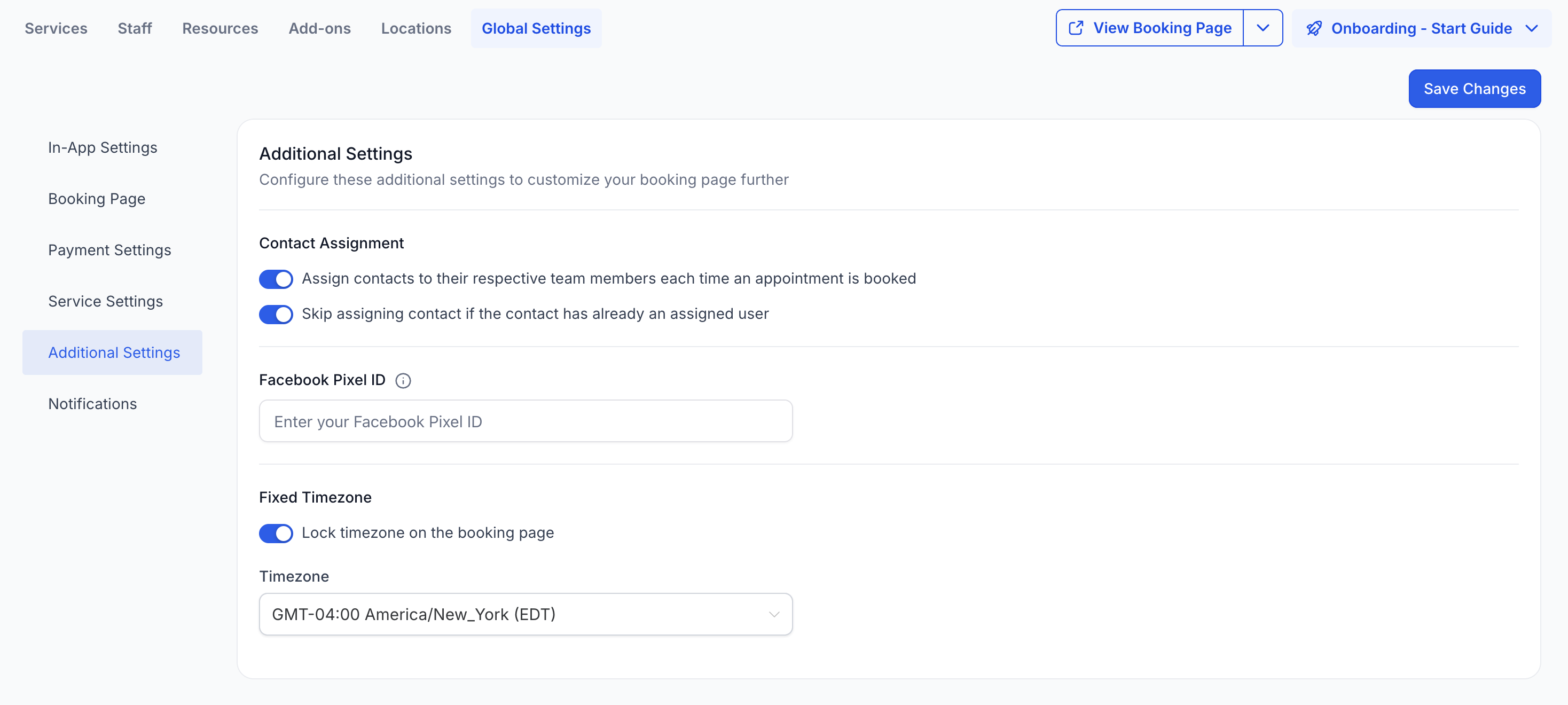
- Additional Settings
- Notifications
- Third-Party Calendar Settings
- Related Services Booking Enhancements
- Frequently Asked Questions
- Related Articles
Overview of Global Settings in Services
Global Settings allow you to configure essential settings that will be applied across all services. These are divided into five main sections:
- In-App Settings: Configure options related to your in-app platform.
- Booking Page: Manage settings for your customer-facing booking widget.
- Payment Settings: Configure payment modes, set up currencies, and manage all payment related options.
- Service Settings: Control options for service bookings and appointments.
- Additional Settings: Miscellaneous settings for added functionality.
- Notification Settings: Customize how and when customers and staff are notified about bookings.
Key Benefits of Global Settings
These benefits summarize how centralized configuration supports a consistent, streamlined booking experience across all services.
Centralized Control: Apply booking, payment, scheduling, and notification rules from one place.
Consistent Customer Experience: Keep the booking page layout, labels, and choices uniform across services.
Faster Updates: Change global behaviors (like staff selection or payment visibility) without editing each service.
Smoother Scaling: As offerings grow, you can add services that use existing resources without reinventing your scheduling approach.
In-App Settings
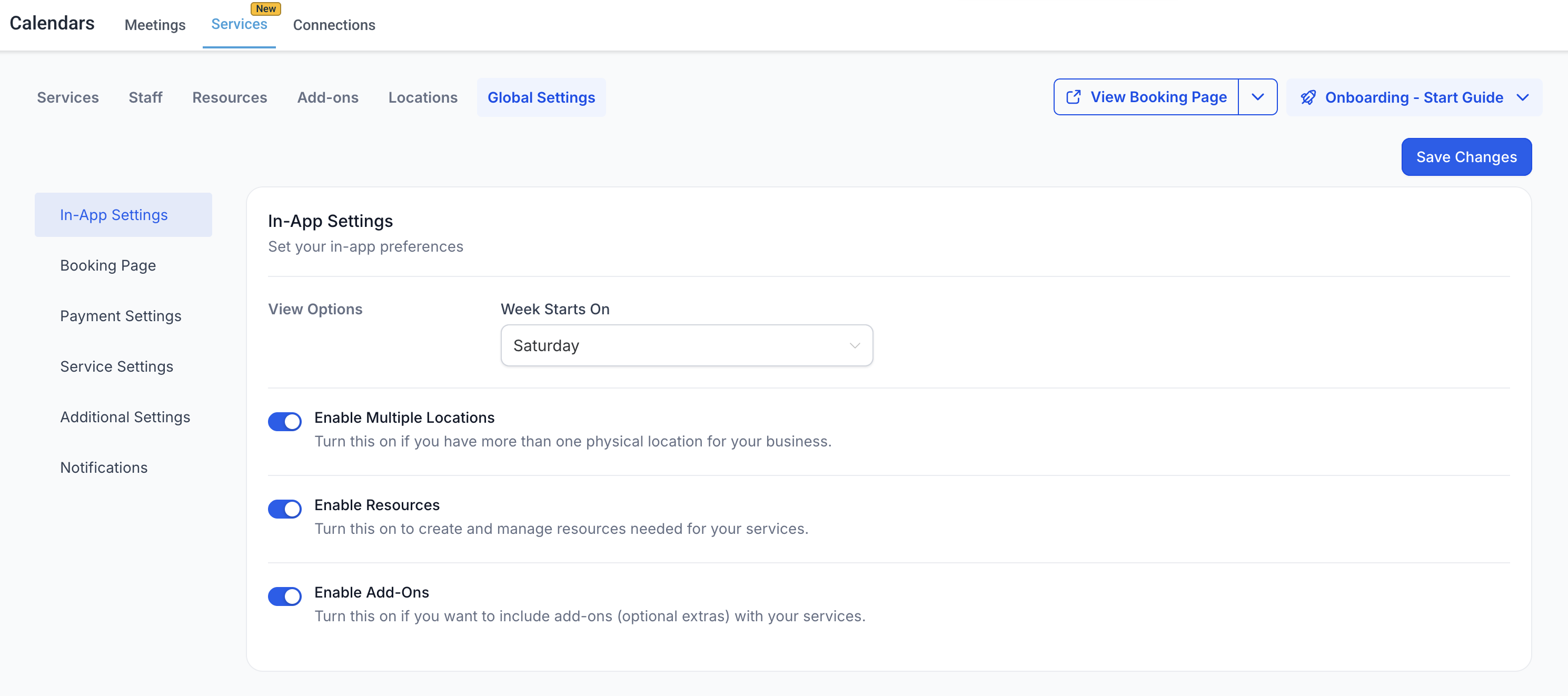
- View Options: Choose which day the calendar view should start on: Monday, Saturday, or Sunday.
- Enable Multiple Locations: Enable this if your business operates in multiple locations. This will allow you to create and display more than one location on your booking page, so customers can choose where to book.
- Enable Resources: If your business uses resources like rooms, spaces, or tools, toggle this on to manage and track them. It will prevent double bookings and help ensure the correct resources are reserved for services. Enabling this will add a "Resources" tab where you can configure these settings.
- Enable Add-ons: Toggle this on if your business offers add-ons or extras when booking a service. This can help upsell additional services. Enabling this will add an "Add-ons" tab for configuration.
Booking Page Settings
The Booking Page Settings are broken down into 4 sections; Customize Booking Page, Forms and Confirmation Page.
Customize Booking Page
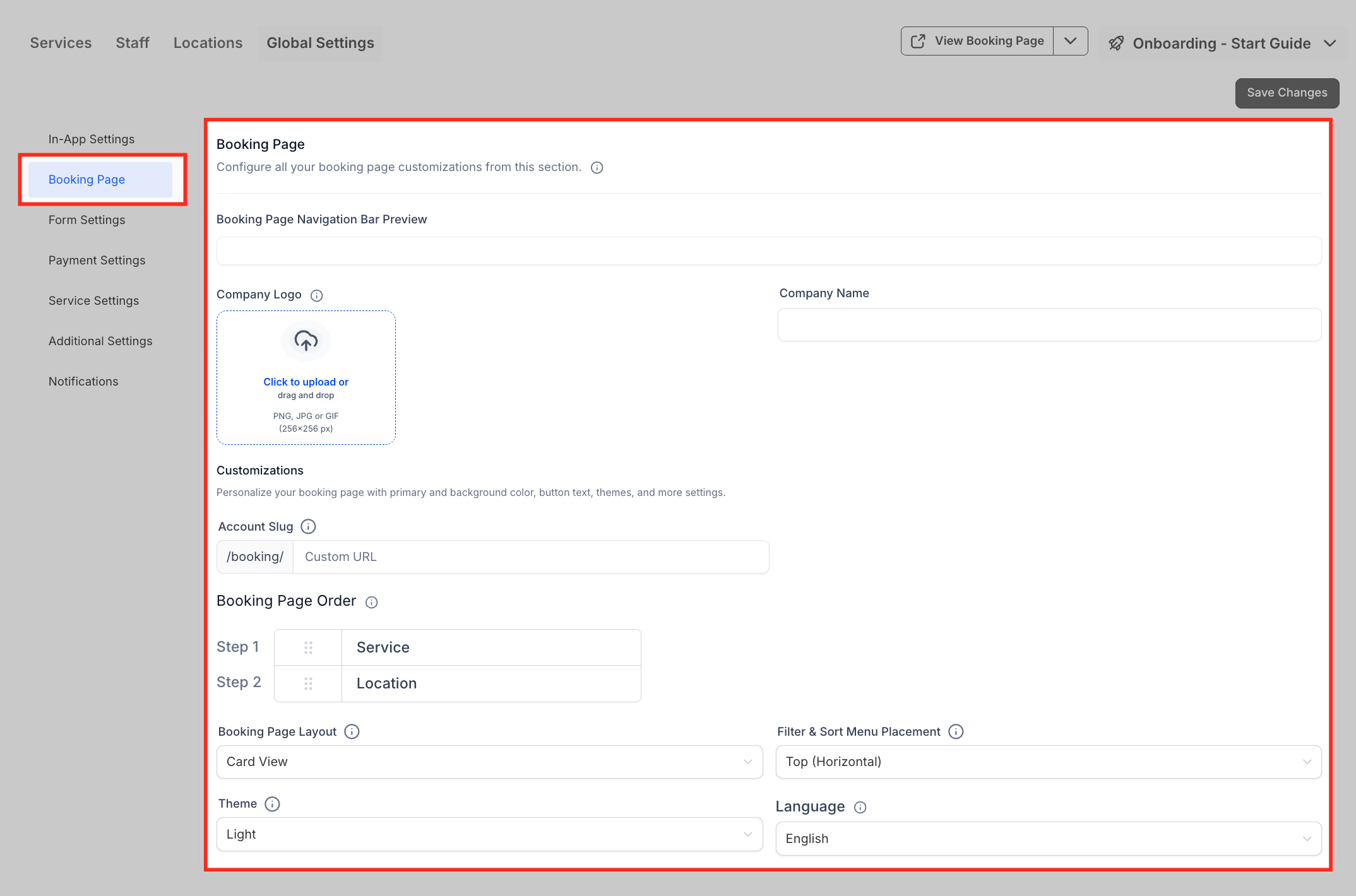
- Company Name & Logo: Add your company name and upload your company logo, which will be displayed on your booking page.
- Account Slug: Your account slug is a unique identifier used as the base for all your service URLs.
- Booking Page Order: Decide the flow of your booking page. In case of multiple locations, choose whether customers select a service first or a location first before proceeding with the booking.
- Booking Page Layout: Decide how services appear on your booking page — display them in a card view, a list view, or give customers the option to choose their preferred view in real time.
- Filter & Sort Menu Placement: Set how filters and sorting options are displayed on the booking page — either horizontally at the top or vertically on the left, based on your preferred browsing experience.
- Theme: Choose between a light or dark theme for your booking page, which affects the header, footer, and widgets.
- Language: Select the language in which the booking page will be displayed to customers.
- Primary Color: Set the color for all actions like buttons and date selection.
- Background Color: Choose the color for the background of the booking page.
- Service Selection Button Label: Customize the button text that appears when customers select a service (e.g., 'BOOK')
- Final Booking Button Label: Set the text for the final button on the booking page, where customers complete their appointment (e.g., 'Schedule Appointment').
- Preview: Preview your booking page with your changes applied.
- Insert Custom Code: Add custom CSS to further customize the look and feel of your booking page. Simply paste your code and save to apply changes.
Additional Settings
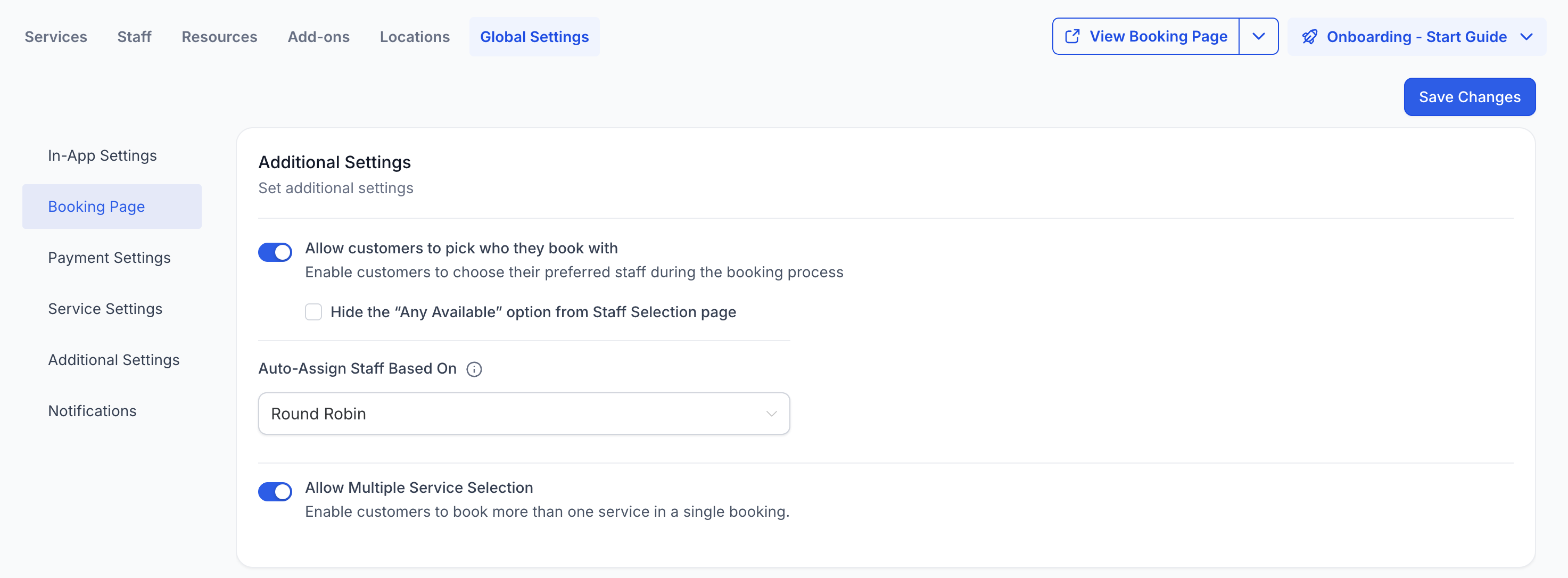
- Allow customers to pick who they book with: Enable this if you want customers to select a staff member during booking. Otherwise, the system will assign a staff member automatically based on availability and round robin logic.
- Hide the “Any Available” option from Staff Selection page: If staff selection is enabled, you can hide the "Any Available" option, requiring customers to always select a specific staff member.
- Allow Multiple Service Selection: Enable this to let customers book multiple services in one session.
- Auto-Assign Staff Based On: Used when the customer doesn’t select a staff member. The system will follow this preference to assign one automatically.
Forms
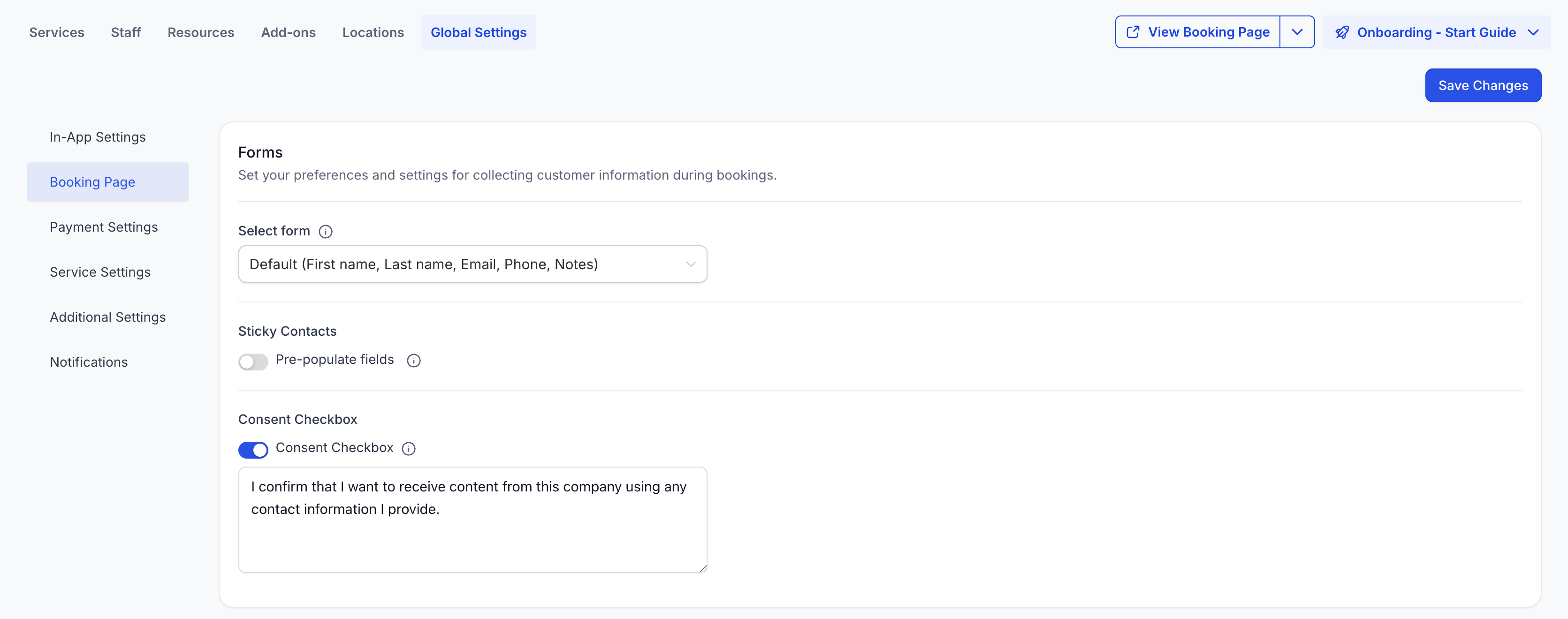
- Select Form: Choose the form that should be displayed when booking services. You can use the Default Form (First Name, Last Name, Phone, and Email) or create a custom form in Sites > Forms. The form helps in collecting booker's information and create a subsequent contact in the system.
- Pre-populate Fields (Sticky Contacts): This feature remembers customer information using browser cookies. It pre-populates the booking form for returning customers. This should only be enabled when customers are filling out the form themselves. If different customers use the same browser, the information may get overwritten.
- Consent Checkbox: Enable this to obtain customer consent during the booking process. You can customize the consent message. This is only available when using the Default Form.
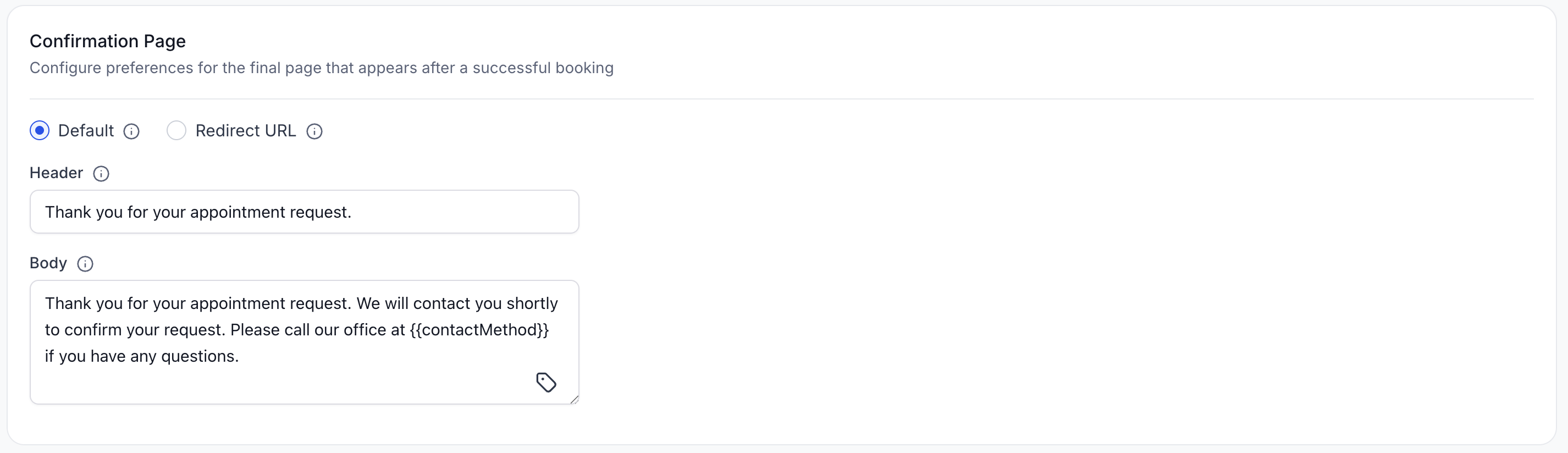
Confirmation Page
After a booking is made, choose to show a custom message on the default confirmation page or redirect the customer to another page.
Payment Settings
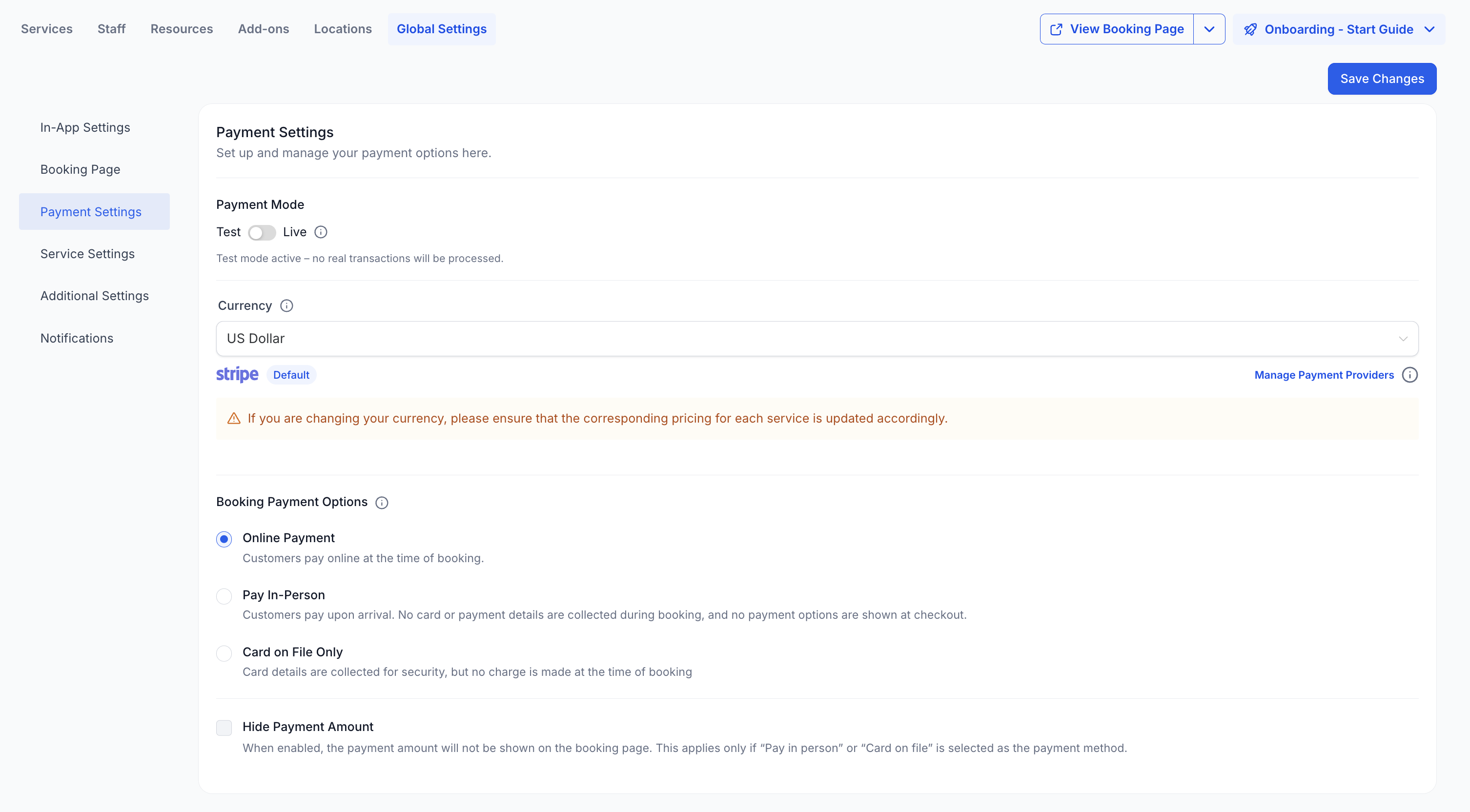
- Test Mode vs. Live Mode: Enable "Test Mode" to simulate the booking and payment process. Once testing is complete, toggle to "Live Mode" to start accepting real payments.
- Currency: Select the currency in which payments will be displayed and collected. This will apply to all services. If you are changing your currency, please ensure that the corresponding pricing for each service is updated accordingly.
- Booking Payment Options: Set how payments are handled on your booking page. This will determine what your customers see during checkout.
- Hide Payment Amount: Enable this option to hide the payment amount on the booking page. This setting only applies when the payment method is set to Pay in Person or Card on File.
Service Settings
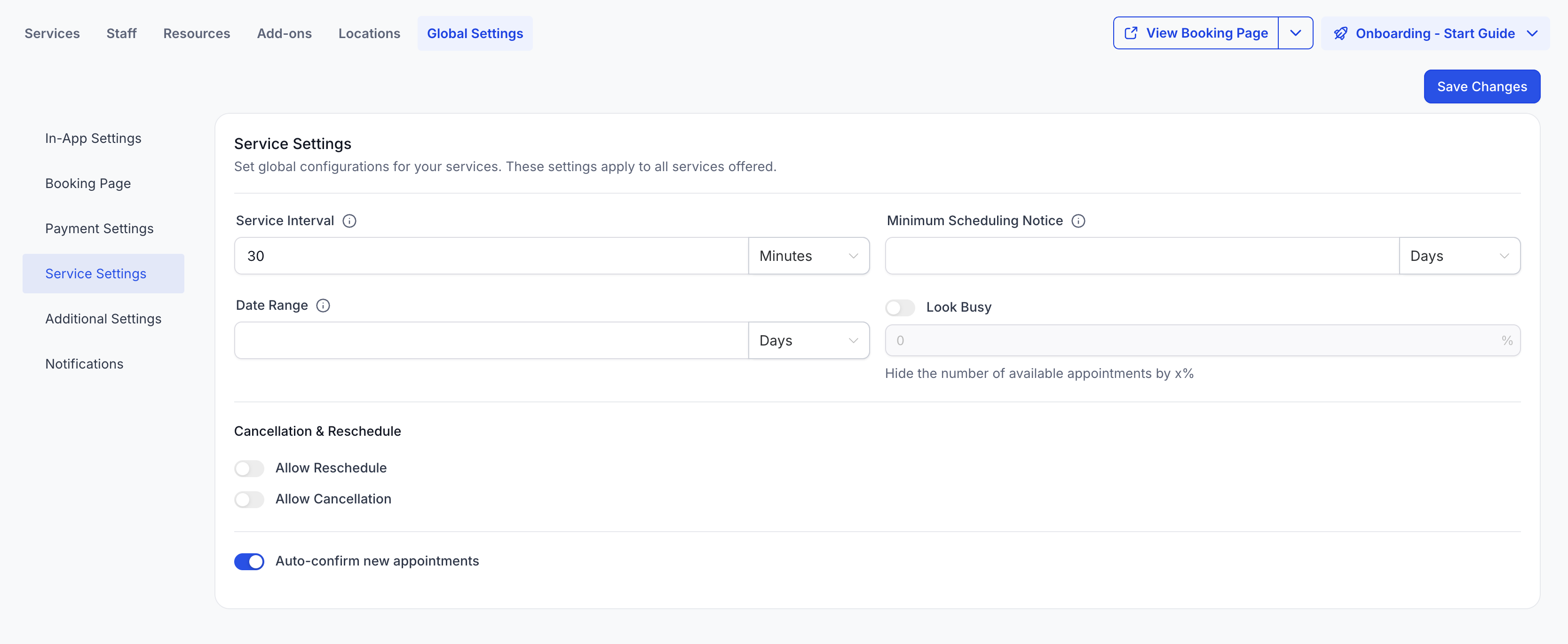
- Service Interval: Determines how often time slots are available for booking. For example: If the interval is set to 1 hour, available slots will be shown every hour (e.g., 9:00 AM, 10:00 AM). If the interval is set to 30 minutes, available slots will appear every 30 minutes (e.g., 9:00 AM, 9:30 AM, 10:00 AM). This allows the booking slots to be spaced out based on the chosen interval.
- Minimum Scheduling Notice: The minimum time required after which an appointment cannot be booked. For example, if the notice is set to 2 hours, a 10 AM slot cannot be booked after 8 AM on the same day.
- Date Range: Controls how far into the future customers can book appointments. If set to 1 month, only slots for the next 30 days will be available.
- Cancellation & Reschedule:
- Allow Cancellation: When enabled, you can set an expiration time to your cancellation link. This link will expire at the set time before the appointment, preventing last-minute cancellations.
- Allow Rescheduling: Similar to cancellation, enabling this lets you set an expiration time to the rescheduling link. It will expire as configured before the appointment time.
- Auto Confirm New Appointments: New bookings will automatically be marked as confirmed by default. If disabled, appointments will be unconfirmed, allowing manual review before confirmation.
- Allow Cancellation: When enabled, you can set an expiration time to your cancellation link. This link will expire at the set time before the appointment, preventing last-minute cancellations.
Service Booking Title for Mobile Appointments
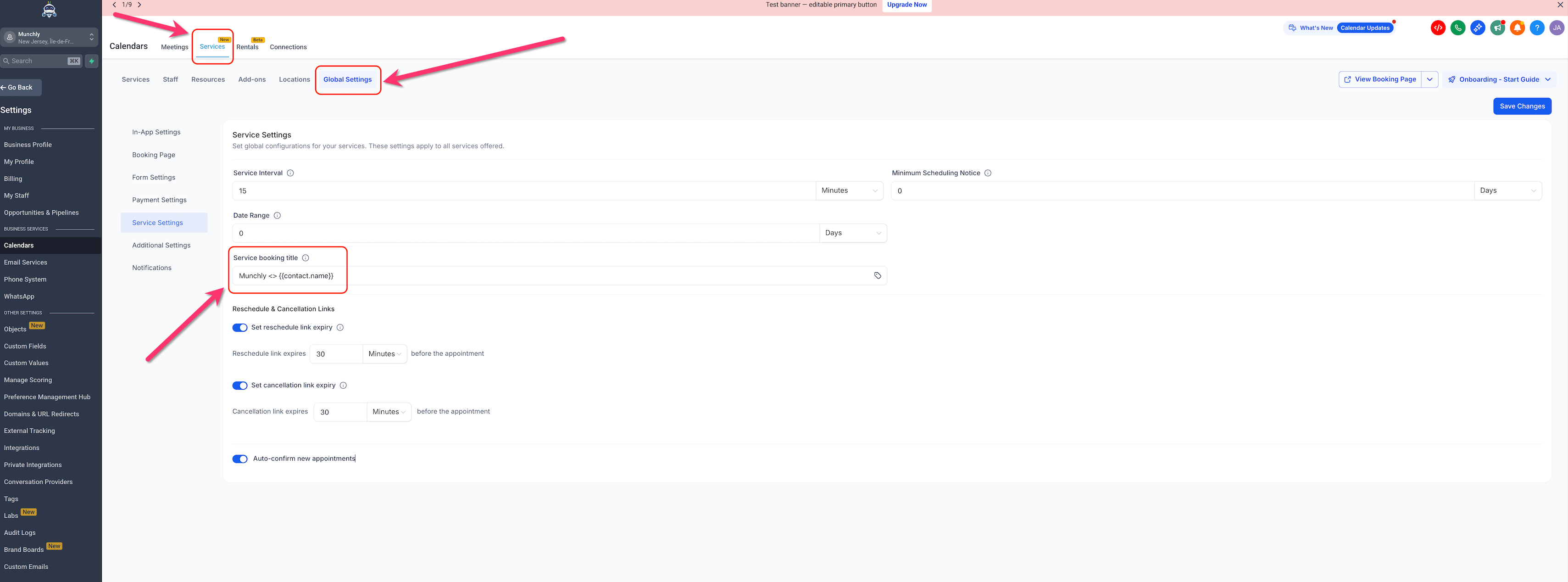
The Service booking title setting controls how new service appointment titles are pre-filled, helping teams keep appointment naming consistent across booking channels. Using one shared title template reduces manual editing and keeps web and mobile bookings aligned.
When a Service booking title is configured in Services Global Settings, new service bookings created in the mobile app use that title automatically in the Appointment Title field.
If the Service booking title is empty or not configured, the mobile app falls back to <Contact Name> so existing booking behavior continues without interruption.
This setting applies to new service bookings created in the mobile app.
Additional Settings
- Contact Assignment:
- Assign contacts to service staff members upon booking: When enabled, this updates the contact's assigned user to the staff member handling their appointment. For example, if Contact A's assigned user is User A, but Contact A books an appointment with User B, the contact's assigned user will switch to User B.
- Skip assignment if the contact already has an assigned user: If enabled, this setting prevents reassignment of a contact who already has an assigned user. It will only update contacts that currently have no assigned user to the appointment's owner.
- Assign contacts to service staff members upon booking: When enabled, this updates the contact's assigned user to the staff member handling their appointment. For example, if Contact A's assigned user is User A, but Contact A books an appointment with User B, the contact's assigned user will switch to User B.
- Facebook Pixel ID: Enter your Facebook Pixel ID here to track events triggered through the booking process.
- Lock timezone on the booking page: This option locks the displayed timezone on the booking page, preventing users from changing it. It’s particularly useful for in-person services, ensuring slots are shown in your set timezone regardless of the booker’s location.
Notifications
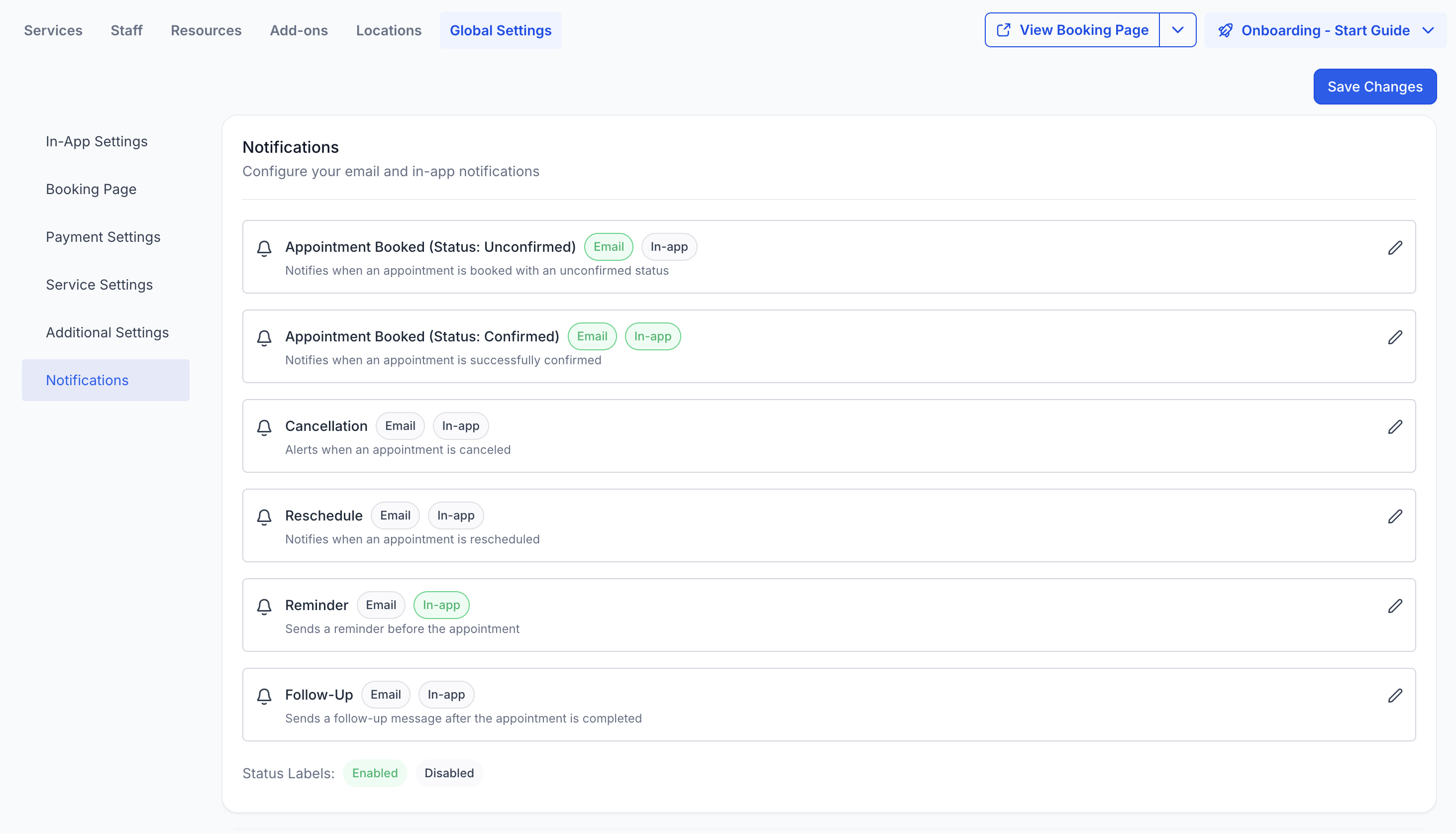
Notifications keep both your team and your customers updated about appointment activity. You can configure different types of notifications, decide who receives them, and customize their content to fit your needs.
Notification Types
There are six main notification types available:
- Appointment Booked (Unconfirmed Status): Sent immediately when an appointment is booked with the Unconfirmed status.
Appointment Booked (Confirmed Status): Sent immediately when an appointment is booked with the Confirmed status or when an existing appointment is updated to Confirmed.
Cancellation Email: Sent when an appointment is canceled, marked as a no-show, or deemed invalid.
Reschedule Email: Sent when the appointment date or time is changed.
Reminder Email: Sent before the appointment at the time you specify (e.g., 1 day or 1 hour before).
Follow-Up Email: Sent after the appointment based on your configured timing (e.g., immediately after, or 1 day later).
Delivery Channels
Notifications can be delivered via:
Email — sent to contacts and assigned users.
In-App — alerts shown within the web and mobile app for assigned users.
SMS - sent to contacts and assigned users
Third-Party Calendar Settings
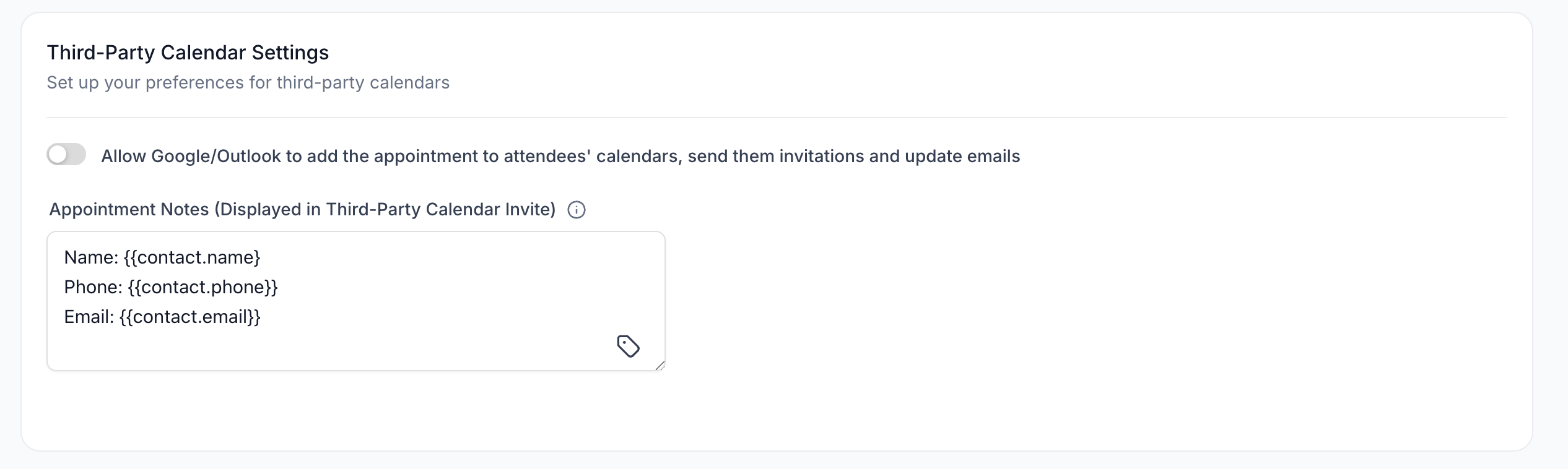
Third-party calendar settings let you control how your service appointments integrate with external calendars such as Google, Outlook or iCloud. These settings help ensure that attendees receive accurate invitations and updates directly in their calendars.
Calendar Sync & Invites: Allow Google or Outlook to automatically add appointments to attendees’ calendars. Invitations and update emails are sent whenever an appointment is booked, rescheduled, or canceled.
Appointment Notes: Add custom notes that will appear directly in the third-party calendar invite (e.g., meeting links, instructions, or preparation details).
Tip: Use Appointment Notes to include key details your attendees should see at a glance in their calendar events.
Related Services Booking Enhancements
Services setup and booking behavior continue to improve across staff availability, linked calendar visibility, and booking-page usability.
You may also want to review related guidance for:
- staff availability in Services
- linked third-party calendar setup
- calendar widget customization for the booking experience
Frequently Asked Questions
Q: What’s the advantage of using Global Settings instead of editing each service?
Global Settings applies defaults across all services, so you can update booking, payment, and scheduling behavior from one place.
Q: When should I use Global Settings versus editing an individual service?
Use Global Settings for defaults you want across services (booking page behavior, payments, notifications, scheduling windows). Edit a specific service for its own details like price/duration, variations, assigned staff/resources, or add‑ons.
Q: Do direct links for specific services or staff reflect changes made in Global Settings?
Yes. Service, staff, and category share links are filtered views of the same booking experience, so updates to Global Settings (layout, forms, payments, notifications) apply automatically.
Q: How can I preview how the booking page looks after updating Global Settings?
Use the booking page preview for the service to verify before sharing links. Previewing lets you confirm that global changes render as expected on the public booking page.