
Granular permissions for Voice AI Agents give account owners pinpoint control over who can view, configure, and analyze AI‑powered voice agents. Whether you're managing a large team or onboarding new roles, these settings help protect agent logic and streamline team workflows
TABLE OF CONTENTS
- What are Granular Permission Controls for Voice AI Agents?
- Key Benefits of Voice AI Granular Permissions
- How to Configure Granular Permissions
- Permission Types Explained
- View & Manage Voice AI Agents
- Navigation Visibility and Real-Time Enforcement
- View Voice AI Agent Goals (Read-only)
- View & Manage Voice AI Agent Goals
- View Voice AI Dashboard
- Frequently Asked Questions
- Related Articles
What are Granular Permission Controls for Voice AI Agents?
Granular permission controls for Voice AI Agents give teams the flexibility to assign role-specific access while protecting sensitive configurations and workflows. Using four distinct toggles, you can govern different parts of the Voice AI experience. Instead of an "all‑or‑nothing" approach, you can decide who creates agents, who tweaks their goals, and who sees performance data.
With these settings, users can:
- Control who can view or manage agents
- Define access to goal configuration features
- Separate dashboard visibility from editing privileges
Key Benefits of Voice AI Granular Permissions
Fine‑tuned permissions help you balance security with productivity.
- Protect AI Agent Edits: Prevent unintentional edits to AI agent logic by giving users only the access they need.
- Ensure Operational Clarity: Separate permissions for dashboards, goals, and agent configuration to ensure each user understands their specific scope.
- Support Scalable Onboarding: Easily assign appropriate access for support, training, and admin as your team or agency grows.
- Stronger Role Boundaries: Voice AI permissions now control not only what users can do, but also what they can see. Users without Voice AI access won’t see Voice AI entries in navigation menus, reducing accidental discovery and preventing unauthorized access attempts.
How to Configure Granular Permissions
Setting up granular Voice AI permissions uses the Roles & Permissions panel. Follow these steps to configure the granular permissions:
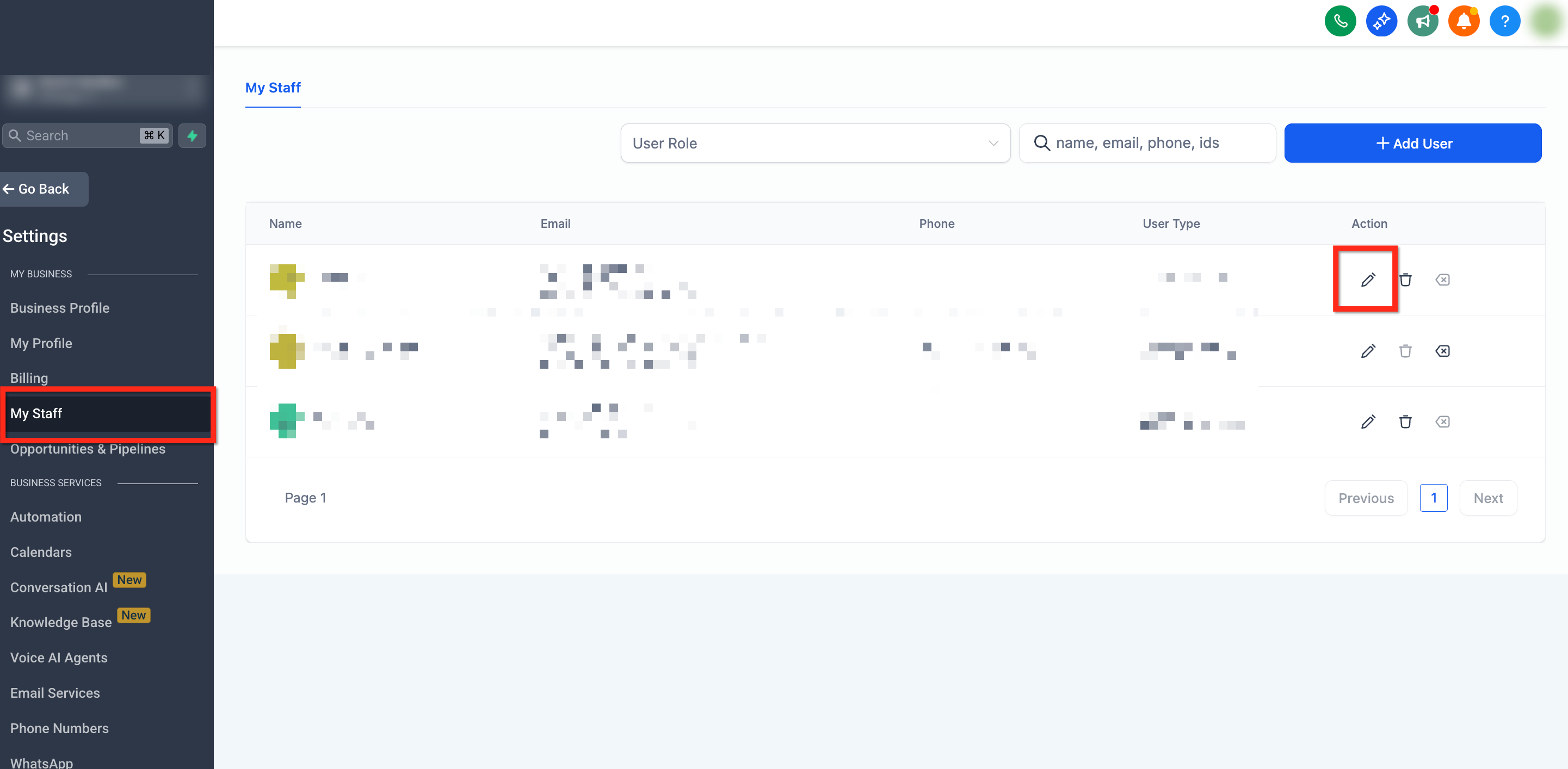
Step 1: Navigate to My Staff
- From your sub-account, click Settings in the lower left corner
- Using the left side navigation bar, select My Staff
- Locate the staff member you’d like to update and click the Edit (Pencil) icon
Step 2: Locate AI Agents Settings
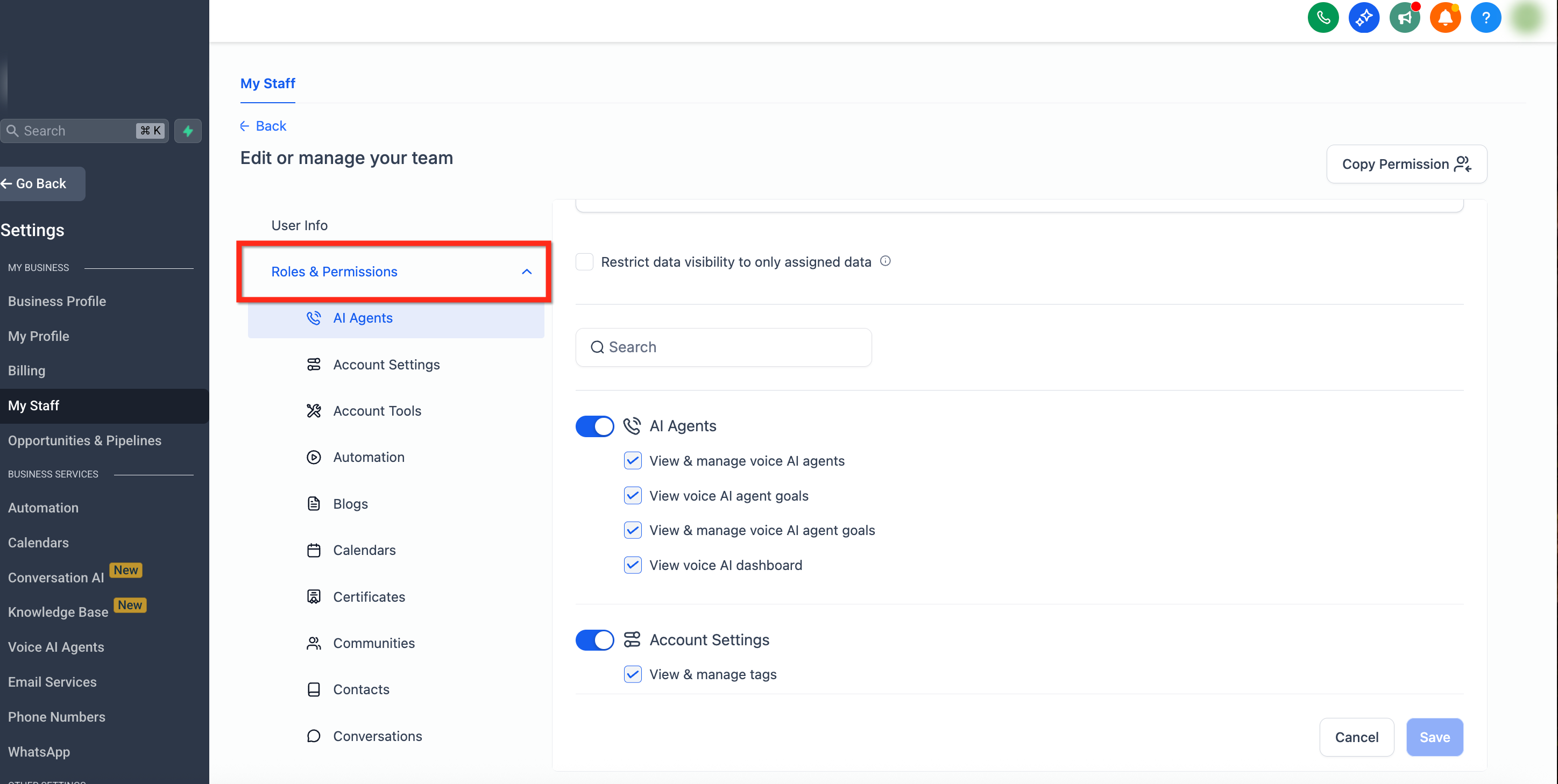
- Using the secondary navigation bar on the left, click Roles and Permissions
- Scroll down to AI Agents
Step 3: Configure Permission Settings
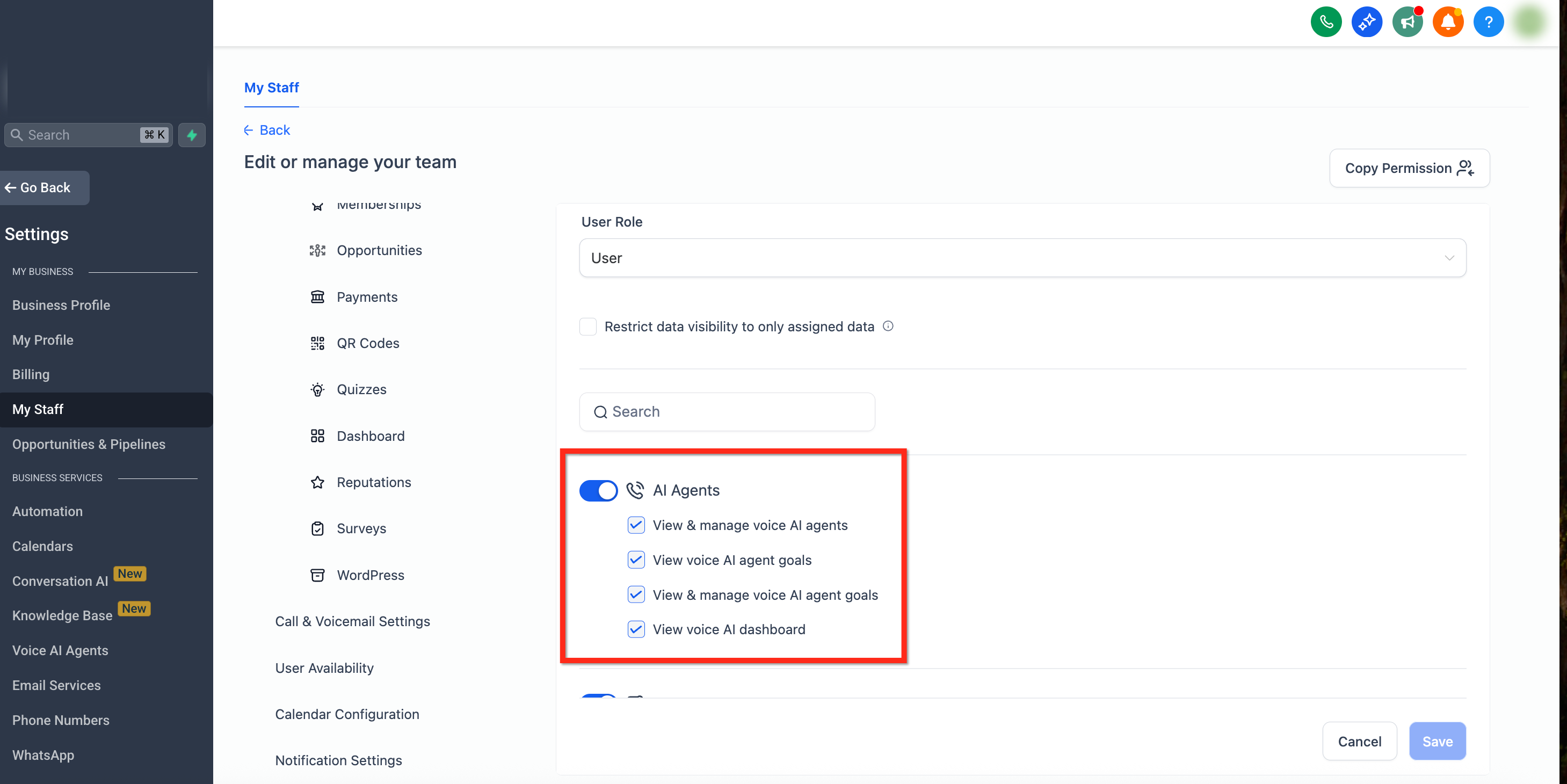
Configure permission toggles on or off based on the user’s role. Toggles include:
- AI Agents (Parent Control)
- View & Manage Voice AI Agents
- View Voice AI Agent Goals
- View & Manage Voice AI Agent Goals
- View Voice AI Dashboard
For more information on each permission, see Permission Types Explained
Step 4: Save your Changes
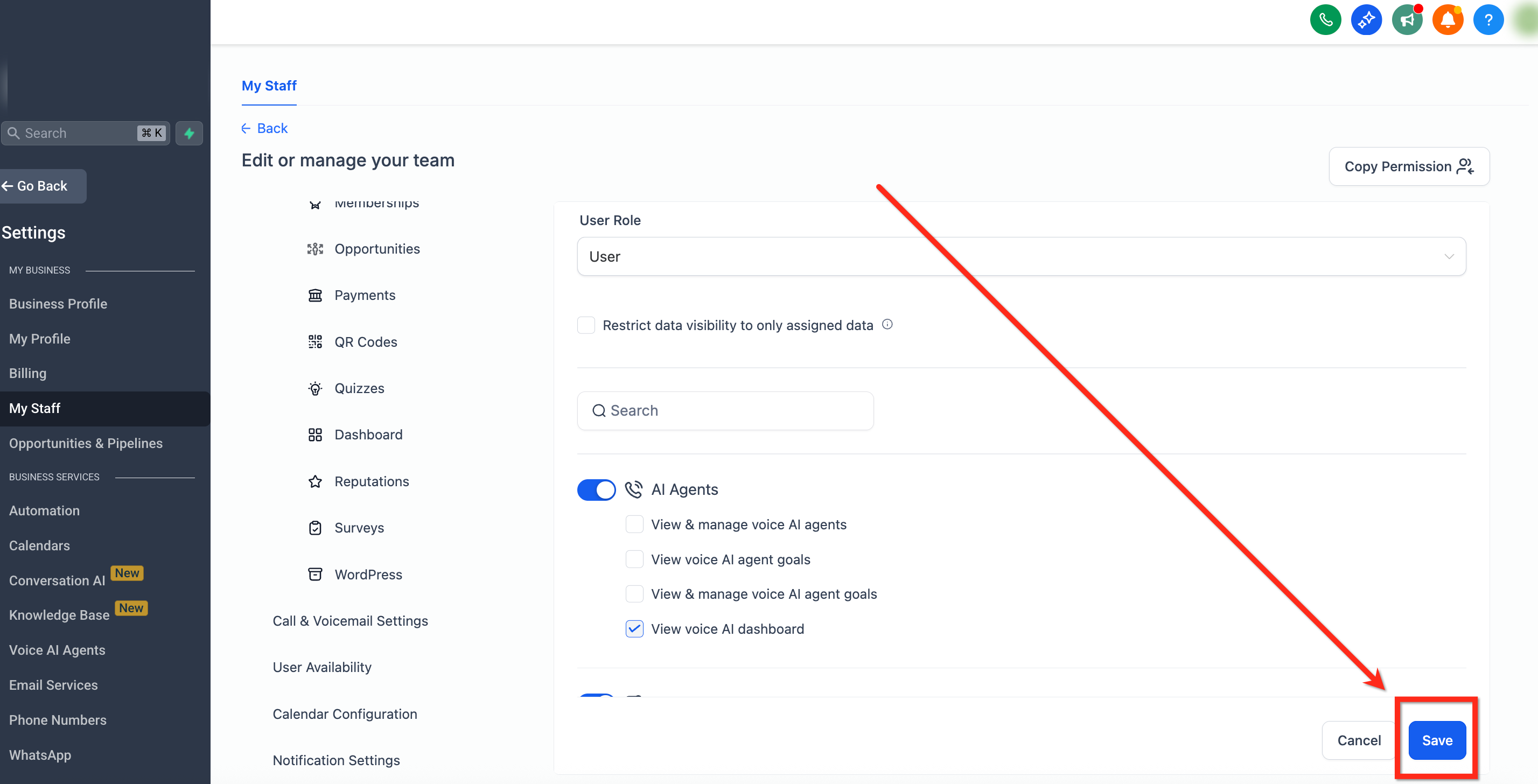
Confirm your changes have been applied successfully by clicking the blue Save button
Permission Types Explained
1. View & Manage Voice AI Agents
This is the primary permission for managing agents, best suited for users who need to Create, Edit, and Delete Voice AI Agents.
Note: This is the parent control for managing agents, while dashboard access remains a parallel permission for analytical visibility.When Enabled:
- Full access to create, edit and delete Voice AI agents
- Ability to assign phone numbers, update settings, and configure agent behavior
- Enables dependent goal-related permissions like “View & Manage Agent Goals” and “View Agent Goals”
When Disabled:
- The Voice AI Agents list is hidden entirely
- Users cannot create or modify agents
- Disables only goal-related permissions, since they are child-level permissions
- Dashboard access is not affected by this permission
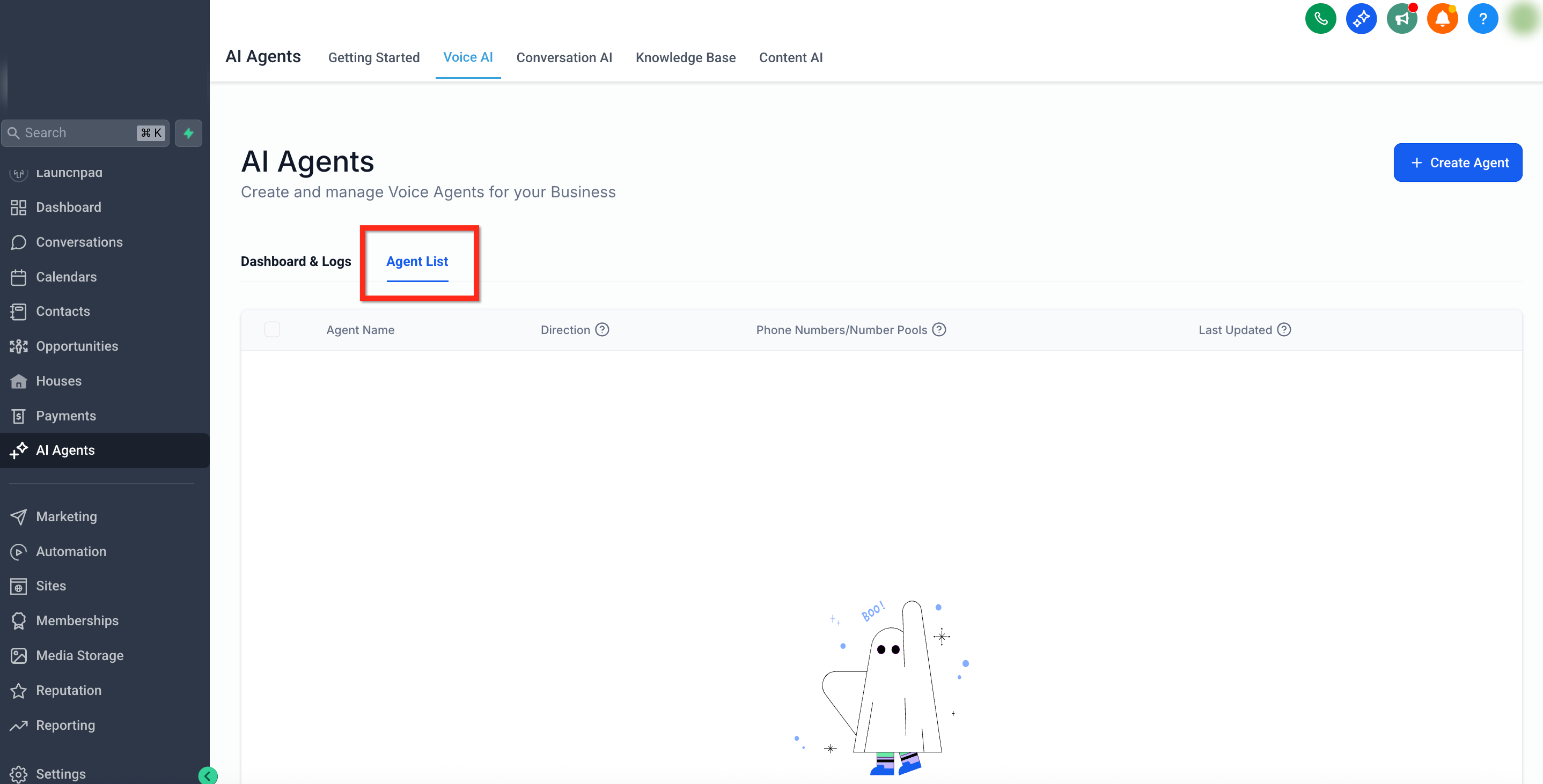
Navigation Visibility (When Voice AI Permissions Are Not Assigned)
- Voice AI navigation items are hidden in the location UI, including Voice AI entries inside the AI Agents area and the Settings sidebar.
Real-Time Permission Enforcement
- If a user’s Voice AI permissions are revoked while they are actively using Voice AI, SourCherry immediately blocks further actions and shows a Permission Denied message.
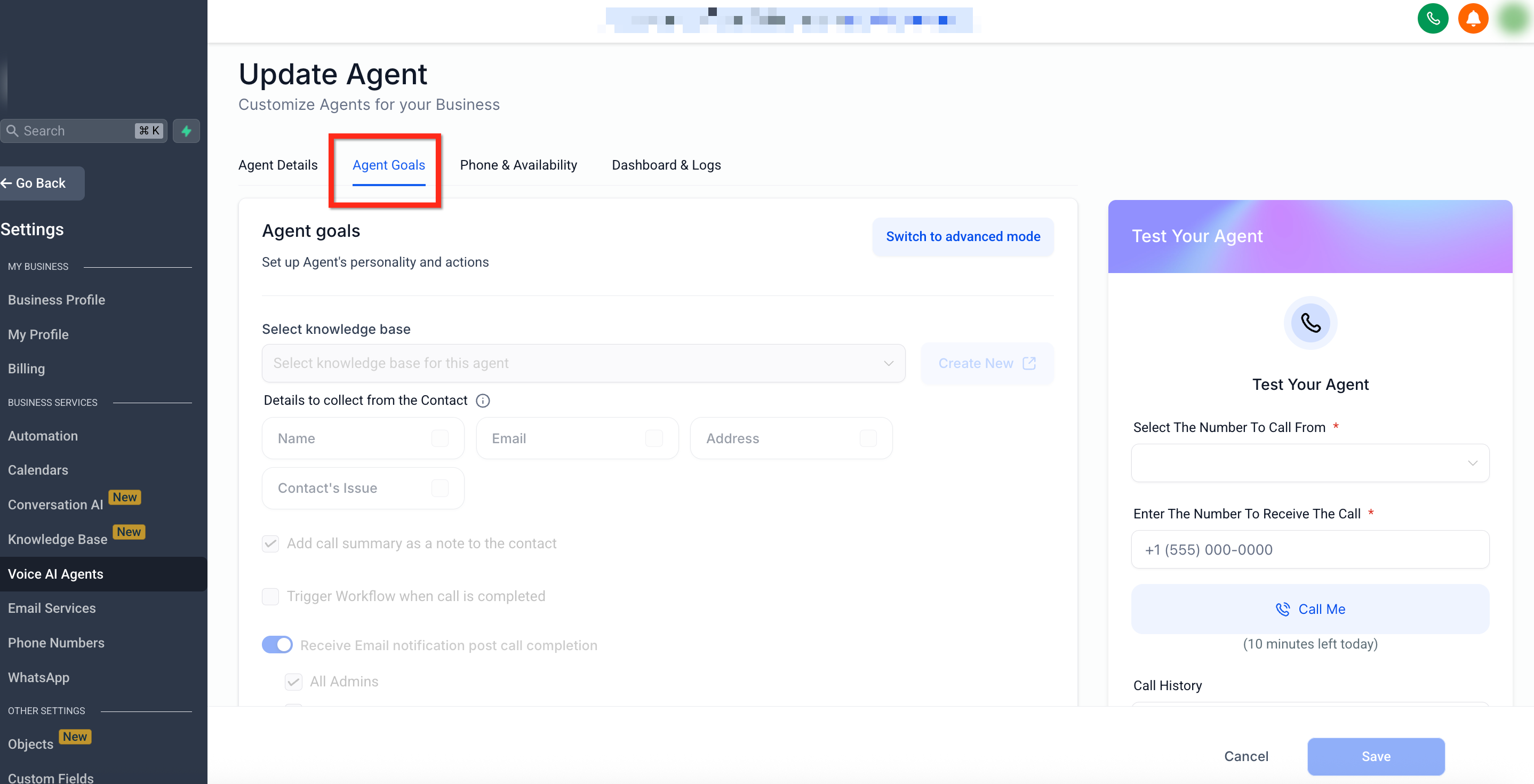
2. View Voice AI Agent Goals (Read-only)
Suitable for roles like support or training that require awareness but not control.
When Enabled:
- Provides read-only access to the Agent Goals tab
- Users can view configured settings without risk of edits or misconfigurations
When Disabled:
- Goals tab not visible
- No visibility into how agents are configured
- Useful for limiting access to sensitive automation logic
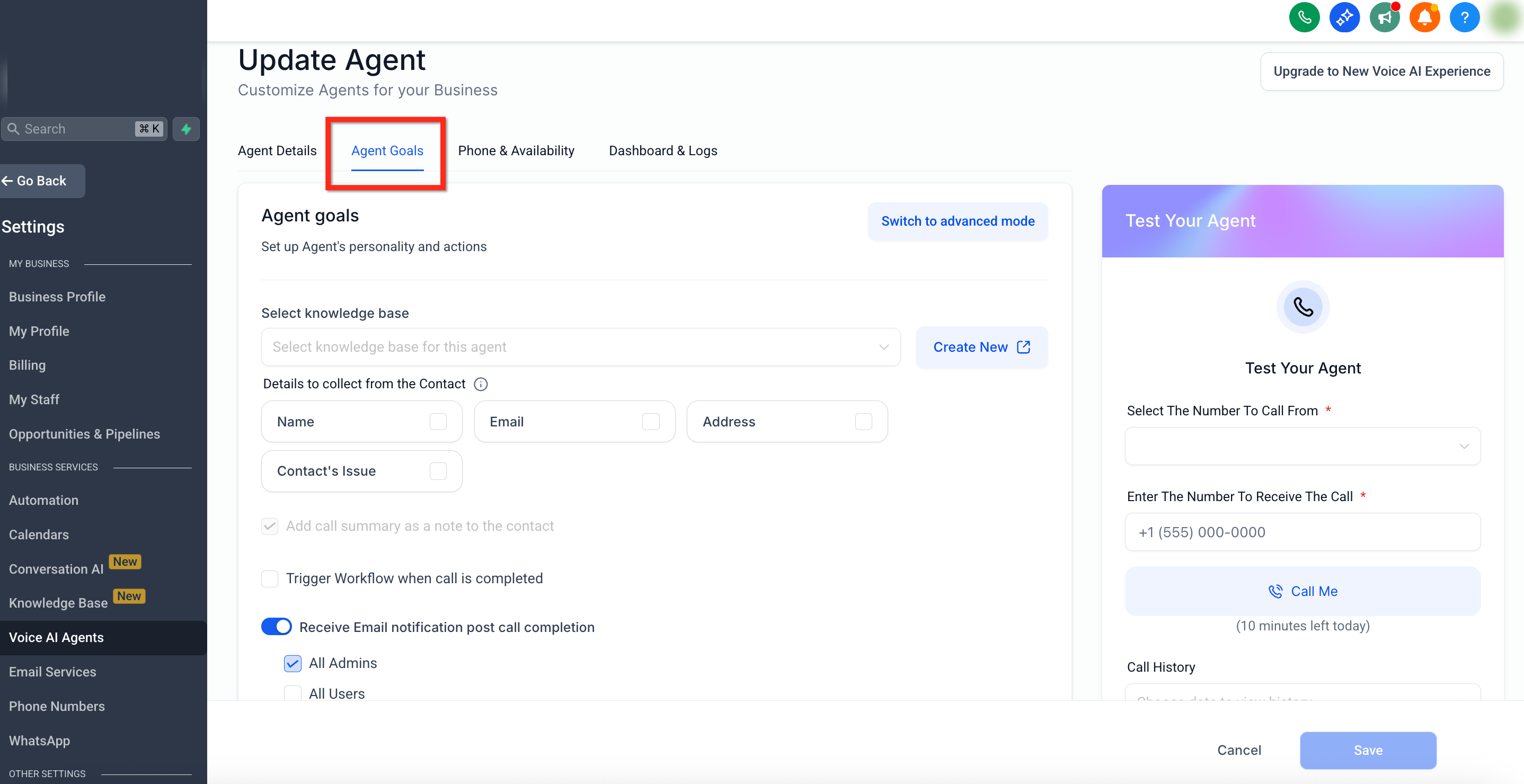
3. View & Manage Voice AI Agent Goals
Best suited for advanced users or admins who handle AI logic and workflows.
Enabled:
- Users can configure agent behavior, such as knowledge base, post-call workflows, data extraction fields & advanced actions
- Full access to both basic and advanced goal modes
Disabled:
- Agent Goals tab is hidden while editing an agent
- Users can still set goals during agent creation, but cannot update them later
- Offers a balance between setup flexibility and long-term control
- Users cannot upgrade to the new Voice AI experience without View & Manage Voice AI Agent Goals permission. Agent Goals remains view-only when only read access is granted.
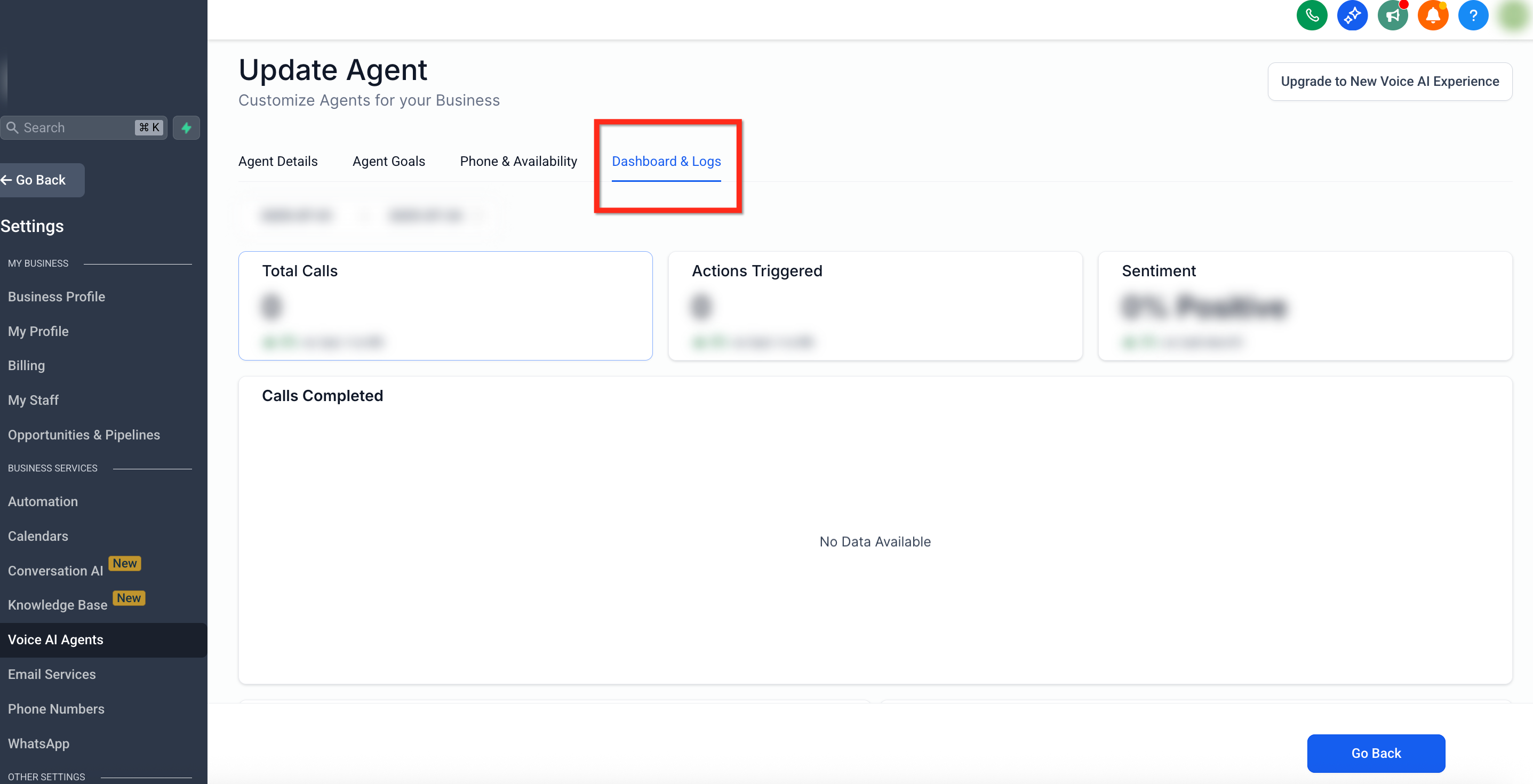
4. View Voice AI Dashboard
Recommended for supervisors and analysts who monitor Voice AI outcomes.
When Enabled:
- Access to performance dashboards for both test and live customer calls
- Includes transcripts, summaries, call recordings, and key metrics
When Disabled:
- Hides the Voice AI dashboard globally and within the agent detail views
- Prevents exposure of call logs, sensitive data, and performance metrics
Frequently Asked Questions
Q: Are these permissions available at the agency level?
Granular Voice AI permissions are set per sub‑account.
Q: Can I copy the same permission set to multiple users?
Yes. Go to Settings > My Staff and select the user you would like to apply the new permissions to. Click Copy Permission in the top right copy and select the user to copy the permissions from. This will affect all permissions, not only Voice AI Permissions.
Q: How can I safely test a custom Voice AI permission set?
Create a temporary user, apply permissions then verify that the visibility matches your expectations before rolling out to the wider team.
Q: Do these toggles affect Conversation AI chatbots?
No. They only govern Voice AI phone agents. Conversation AI has its own permission set.
Q: Why can’t I see Voice AI in the sidebar or AI Agents menu?
Your role may not include Voice AI permissions. Ask an admin to enable the required Voice AI toggles under Settings → My Staff → Roles & Permissions → AI Agents.
Q: Why am I seeing “Permission Denied” while editing Voice AI?
Your Voice AI permissions may have been changed while you were working. Refresh and confirm your assigned permissions with an admin.