
Connect the conversational power of Ask AI with the workflow flexibility of Agent Studio. This integration lets you route chat queries to custom AI agents, automate multi-step actions, and deliver answers faster—no code required.
What is Ask AI + Agent Studio Integration?
Ask AI × Agent Studio Integration links SourCherry’s in-app AI assistant (“Ask AI”) with any agent you build in Agent Studio. By describing each agent’s capabilities and mapping it to Ask AI, the assistant can decide when to pass a user’s request to that agent, run the workflow, and return results in the same chat thread.
Key Benefits of Ask AI + Agent Studio Integration
Discover why this upgrade is a game-changer for agencies and sub-accounts:
- Unified chat + workflow experience: Trigger complex automation without leaving Ask AI.
- Intelligent routing: Ask AI chooses the best agent based on your capability descriptions.
- Dynamic data handling: Ask users for missing inputs at run-time or pre-fill custom values.
- Faster execution: Launch multi-step flows (emails, ads, lookups, image generation, etc.) instantly.
- Scales with your creativity: Combine web search, MCP, API calls, and more in one agent.
Seamless Agent Mapping
Define which Agent Studio agent should handle specific request types so Ask AI can route conversations automatically. This mapping eliminates manual command syntax—users simply ask, and the right agent springs into action.
- Assign an existing Agent Studio agent to Ask AI in just a few clicks.
- Add a plain-language “Agent Description” and list key skills (e.g., “Creates ad copy and emails contacts”).
- The assistant evaluates every user prompt against these descriptions to decide when to invoke the agent.
Dynamic Variable Configuration
Give each agent the exact data it needs—no hard-coding required. This flexibility keeps workflows precise while maintaining a natural chat experience.
- Variables support text, numbers, choices, and more, matching the robust variable management options already available in Agent Studio.
- For any input variable you created in Agent Studio, choose to:
- Enter a fixed default value
- Mark it “Ask at runtime,” prompting Ask AI to collect the value from the user before execution.
- Enter a fixed default value
Building Agents with Tools, Generative & Capture Nodes
Agent Studio’s drag-and-drop builder lets you craft sophisticated agents that pair perfectly with Ask AI.
Design once—then call the agent from Ask AI whenever needed.
- Tool Nodes: Web Search, MCP, API, Knowledge Base, and more.
- Generative Nodes: Use LLM prompts to write copy, summaries, or images.
- Capture Nodes: Gather structured user inputs (text or choice) for downstream steps.
How To Setup Ask AI + Agent Studio Integration
Proper setup ensures seamless hand-offs between chat and automation.
- Build or open an agent in Agent Studio (AI Agents → Agent Studio).
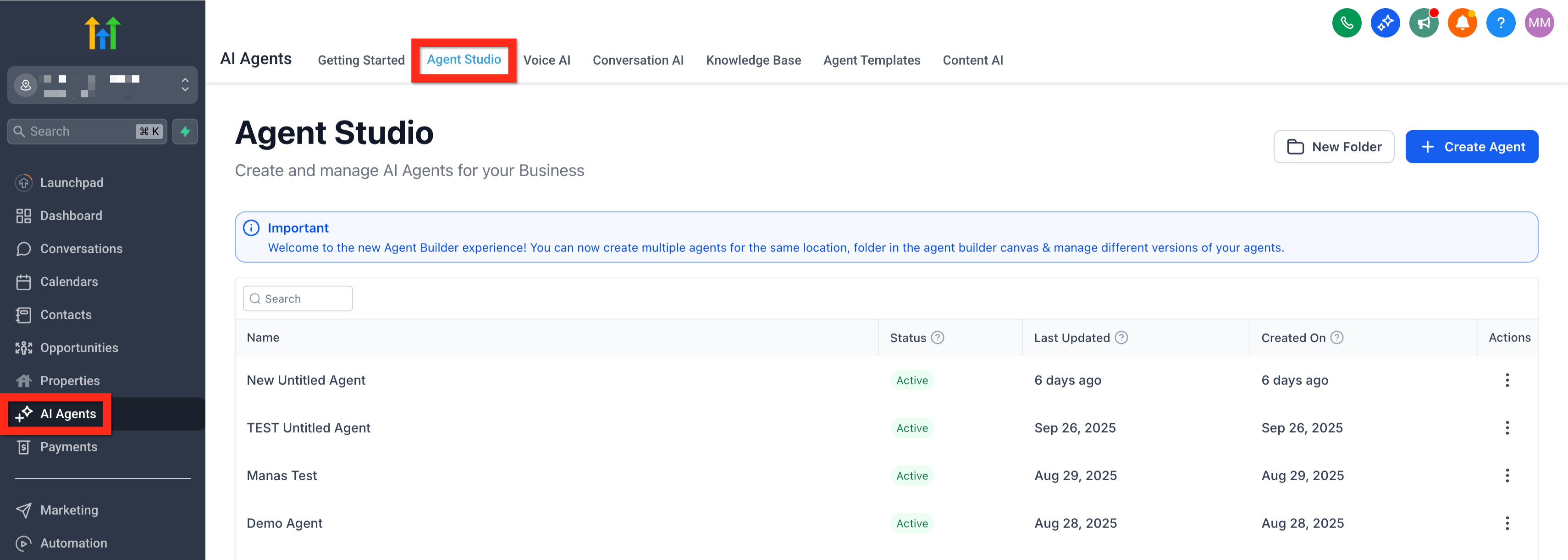
- Confirm your workflow nodes, variables, and lifecycle stage (move to Production).
- Go to Settings → Ask AI → Agent Mapping (or open Ask AI and click “Manage Agents”).
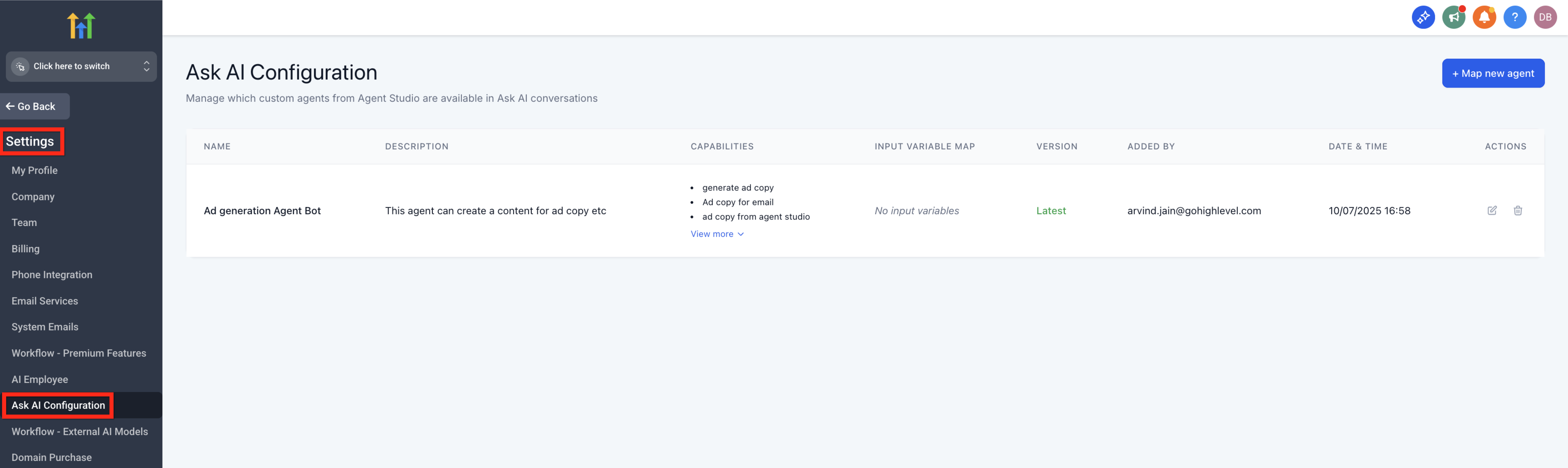
- Click “Map Agent,” select your Agent Studio agent, and add:
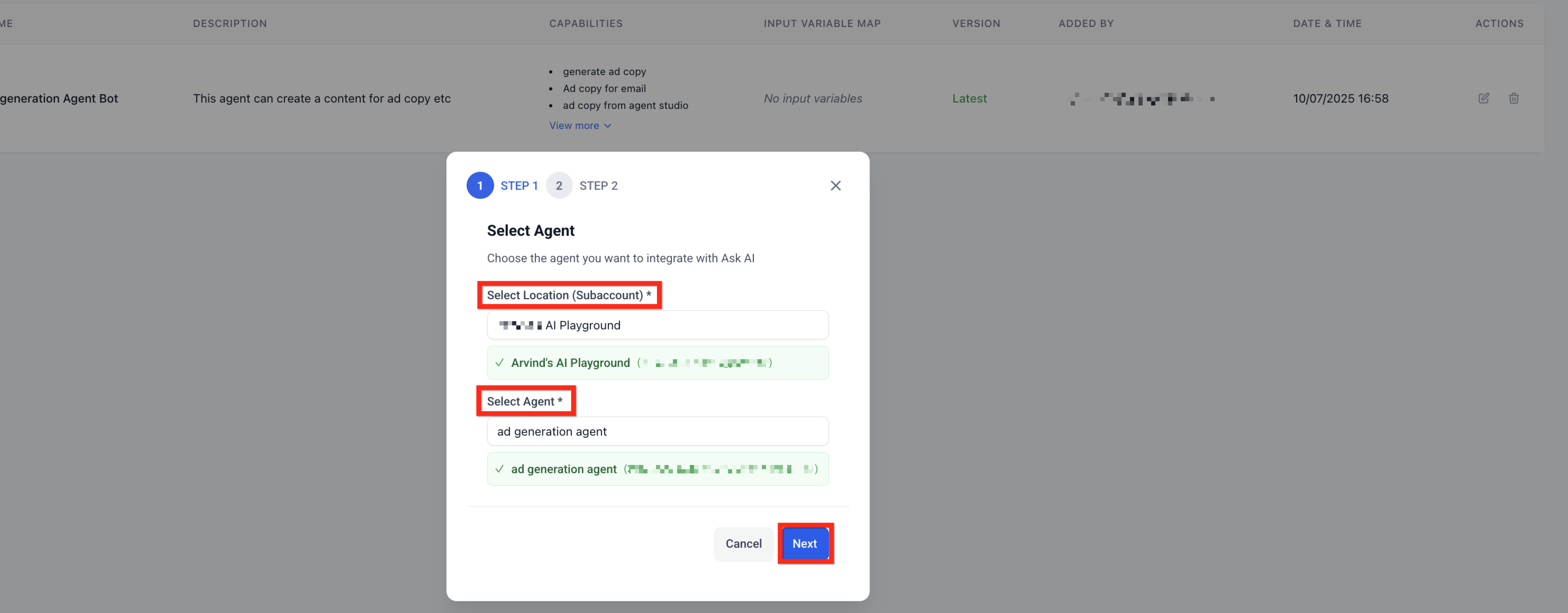
- Step 1: Select Agent - location and specific agent.
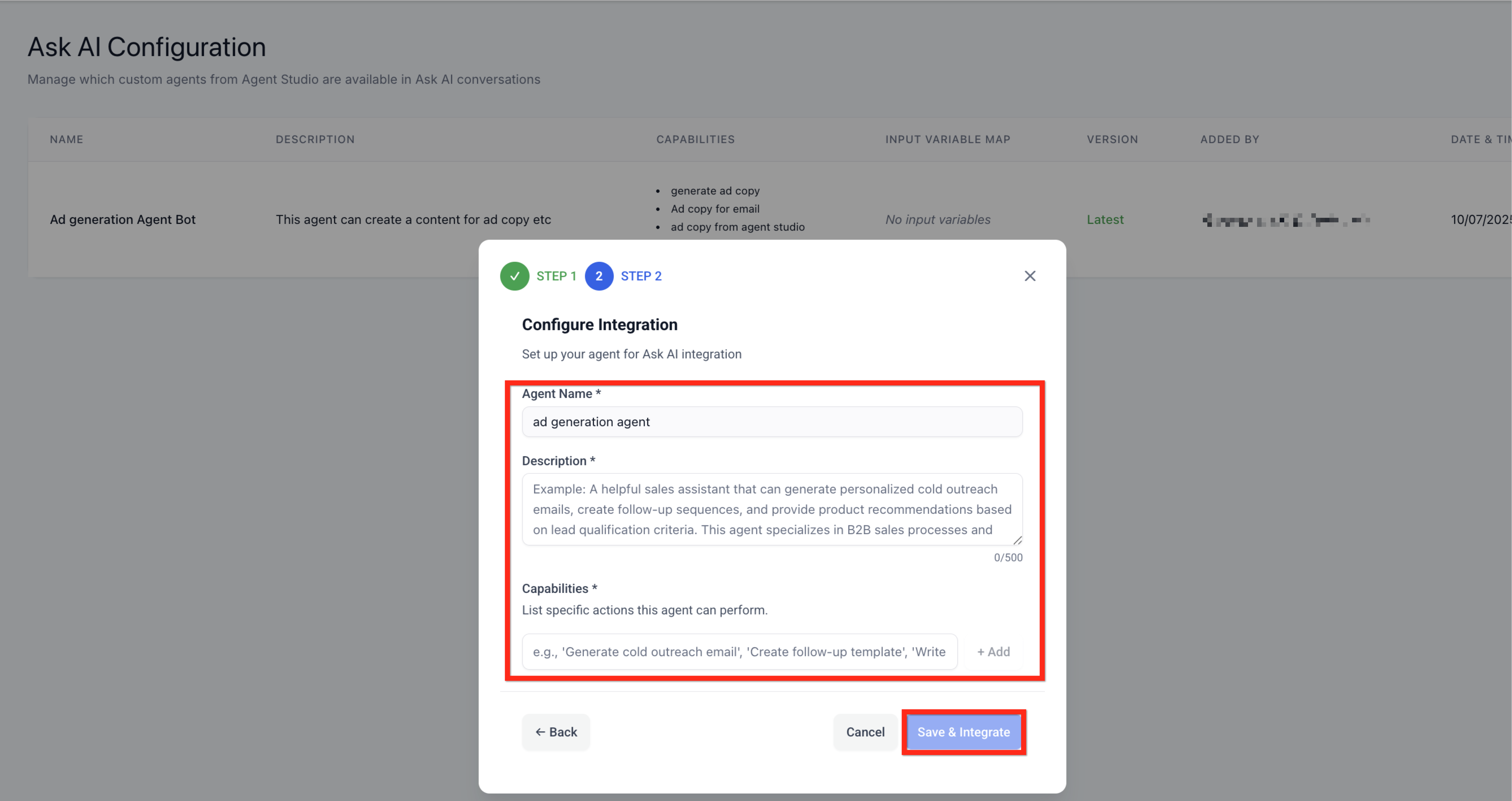
- Step 2: Configure Integration - Agent name, description, and capabilities.
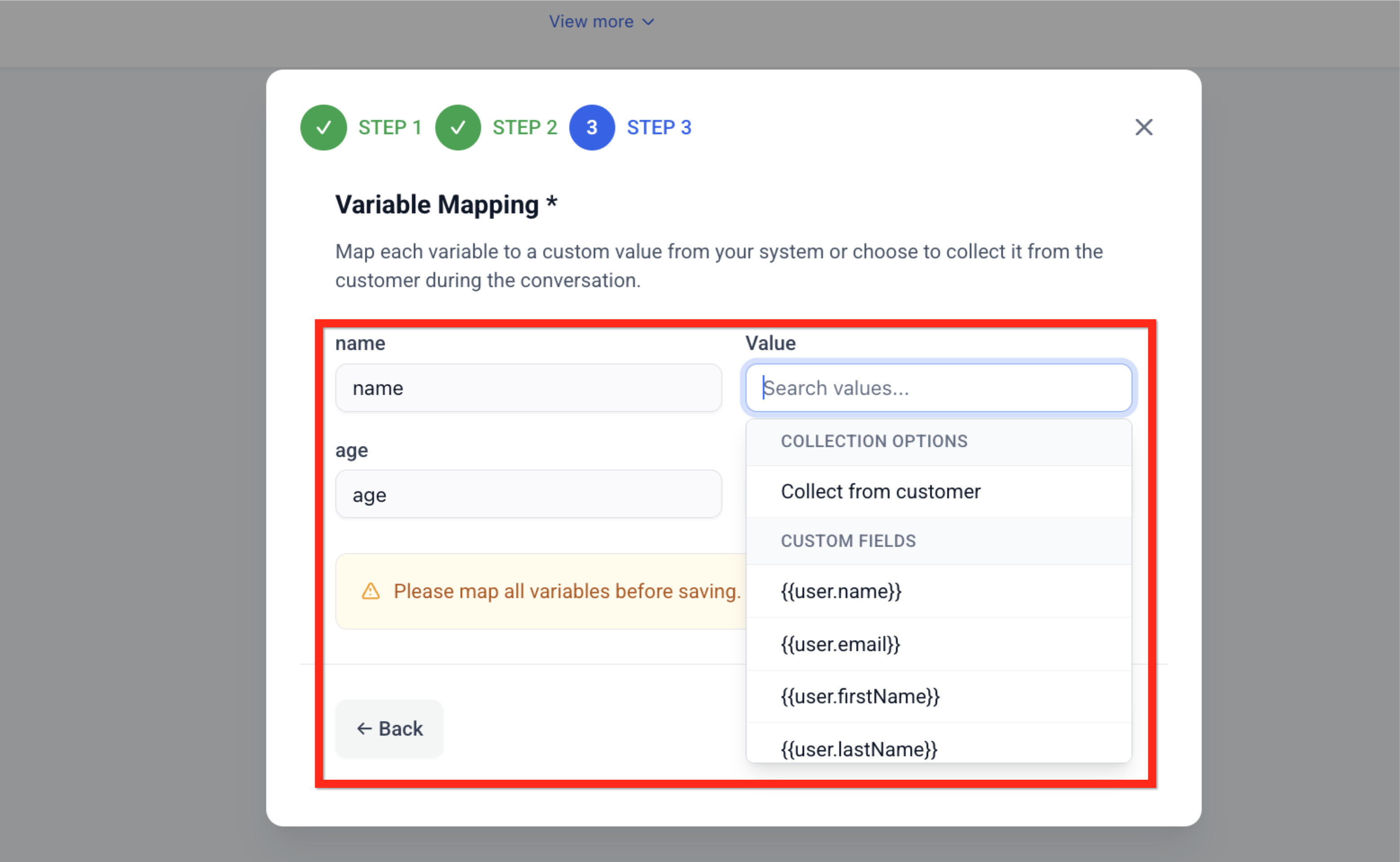
- Step 3: Variable Mapping - variable name and value (system custom value or created on the fly from the conversation with Ask User At Runtime).
- Step 1: Select Agent - location and specific agent.
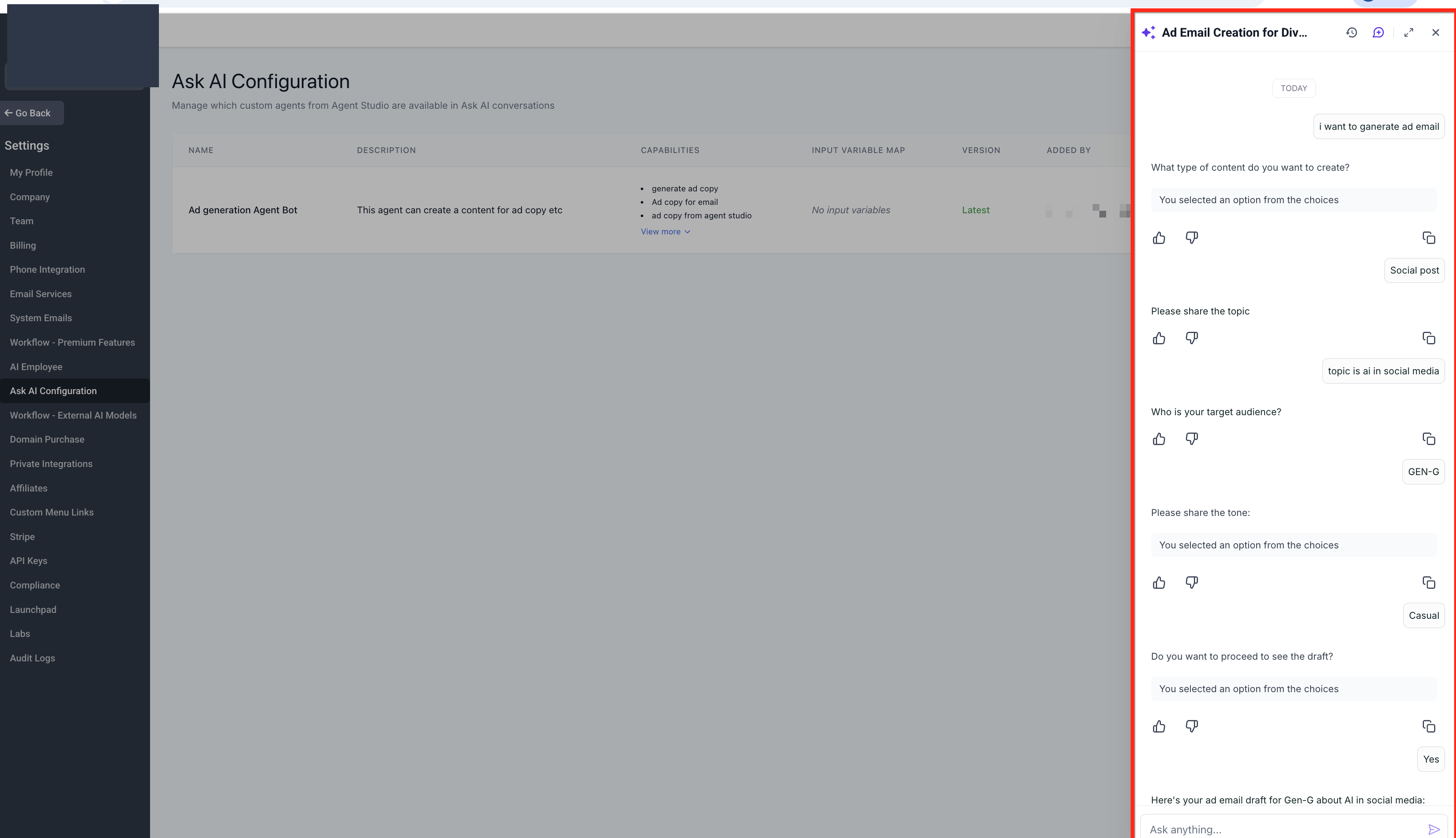
- Save. Test in Ask AI chat by typing a relevant request (e.g., “Create ad copy for Jane Doe”).
- Verify the chat shows: “Running [Agent Name]…” followed by the agent’s results.
Frequently Asked Questions
Q. Do I need the AI Employee add-on to use this integration?
Yes—Ask AI and Agent Studio require the Unlimited AI Employee plan.
Q. Can I map multiple agents to Ask AI?
Absolutely; Ask AI will evaluate each mapped agent’s description to find the best match.
Q. What happens if no agent matches a user’s prompt?
Ask AI will respond normally using its built-in capabilities.
Q. Does the agent run in staging or production?
Only agents published to “Production” are available for mapping.
Q. Are variable prompts branded?
Runtime questions inherit your sub-account’s chat styling for a seamless user experience.
Q. Can I update an agent after it’s mapped?
Yes. Ask AI uses the agent’s Production version. To update behavior, make changes in Staging, then promote the updated version to Production. No remapping is needed after promotion.
Q. Is there a limit to the number of variables?
No set limit, but simpler agents yield faster responses.
Q. How do I monitor agent performance?
Use the Agent Studio “Run Logs” and Ask AI chat history to review executions.