
SourCherry Voice AI now books appointments across multiple calendars by understanding a caller’s intent—not just keywords. This guide explains how to enable multi‑calendar booking, train AI with calendar descriptions and trigger keywords, and configure intelligent fallbacks when requests don’t match your services. You’ll get step-by-step setup, best practices, and FAQs to launch with confidence.
TABLE OF CONTENTS
- What is SourCherry Voice AI Multi‑Calendar Booking?
- Key Benefits of Multi‑Calendar Booking
- AI‑Powered Calendar Selection
- AI‑Generated Descriptions & Trigger Keywords
- Prerequisites & Access
- How To Setup Multi‑Calendar Booking in Voice AI
- Frequently Asked Questions
- Related Articles
What is SourCherry Voice AI Multi‑Calendar Booking?
SourCherry Voice AI can interpret a live conversation, determine which appointment type best fits the caller’s need, and automatically book that time on the correct calendar. Instead of forcing callers through menus or rigid rules, the AI evaluates the context of the entire call and maps it to eligible calendars you select.
- Works across distinct calendars (e.g., Demo, Pricing Consult, New Patient Intake)
- Honors availability, buffers, and conflict settings from your calendars
- Provides graceful options when a request doesn’t match any service
Key Benefits of Multi‑Calendar Booking
Understanding the value helps you decide where to deploy multi‑calendar booking and how to measure success. These benefits focus on faster booking, fewer errors, and better caller experience.
- Fewer Missed Opportunities: AI routes callers to the right appointment type the first time.
- Faster Scheduling: No IVR trees or manual triage required; callers speak naturally.
- Higher Booking Accuracy: Intent analysis considers the whole conversation, not single keywords.
- Scales Across Teams/Services: Support separate calendars for sales, service, healthcare, or agencies.
- Reduced Training Time: AI‑generated descriptions and trigger keywords accelerate setup.
- Better CX On No‑Match: Clear, friendly guidance and configured fallbacks prevent dead ends.
Prerequisites & Access
Confirm access and integrations before enabling multi‑calendar booking to avoid setup errors and caller frustration.
- Active SourCherry Voice AI feature enabled for the sub‑account
- At least two configured calendars for eligible services
- Google or Outlook calendar integration connected (as applicable)
- Availability configured (slot length, buffers, min notice)
- Linked/conflict calendars set to prevent double booking
- Appropriate user permissions to edit AI and calendar settings
AI‑Powered Calendar Selection
The AI analyzes conversational intent and context to decide which calendar best matches the caller’s request. It can distinguish similar phrases and use the caller’s wording, questions, and clarifications to boost accuracy.
Example Mappings:
- “I’d like to schedule a demo” → Demo Calendar
- “I need to talk about pricing” → Sales Consultation Calendar
- “I’m a new patient; first visit” → New Patient Intake Calendar
Considerations:
- Uses the full conversation, not just isolated keywords
- Honors availability, buffers, min notice, and conflicts from the selected calendar
- Supports confidence/priority logic when multiple calendars may match
AI‑Generated Descriptions & Trigger Keywords
AI can generate clear calendar descriptions and suggested trigger phrases so the system better understands when to use each calendar. You can accept, refine, or replace these to suit your brand and services.
- Provide calendar names and essential details; AI drafts descriptions
- Review/edit suggested trigger keywords per calendar
- Use concise, specific language; avoid overlapping phrasing across calendars
- Keep industry examples handy (see templates below)
How To Setup Multi‑Calendar Booking in Voice AI
Proper configuration ensures the AI selects from the correct calendars, understands your services, and handles no‑match requests gracefully.
Step 1: Create or verify calendars
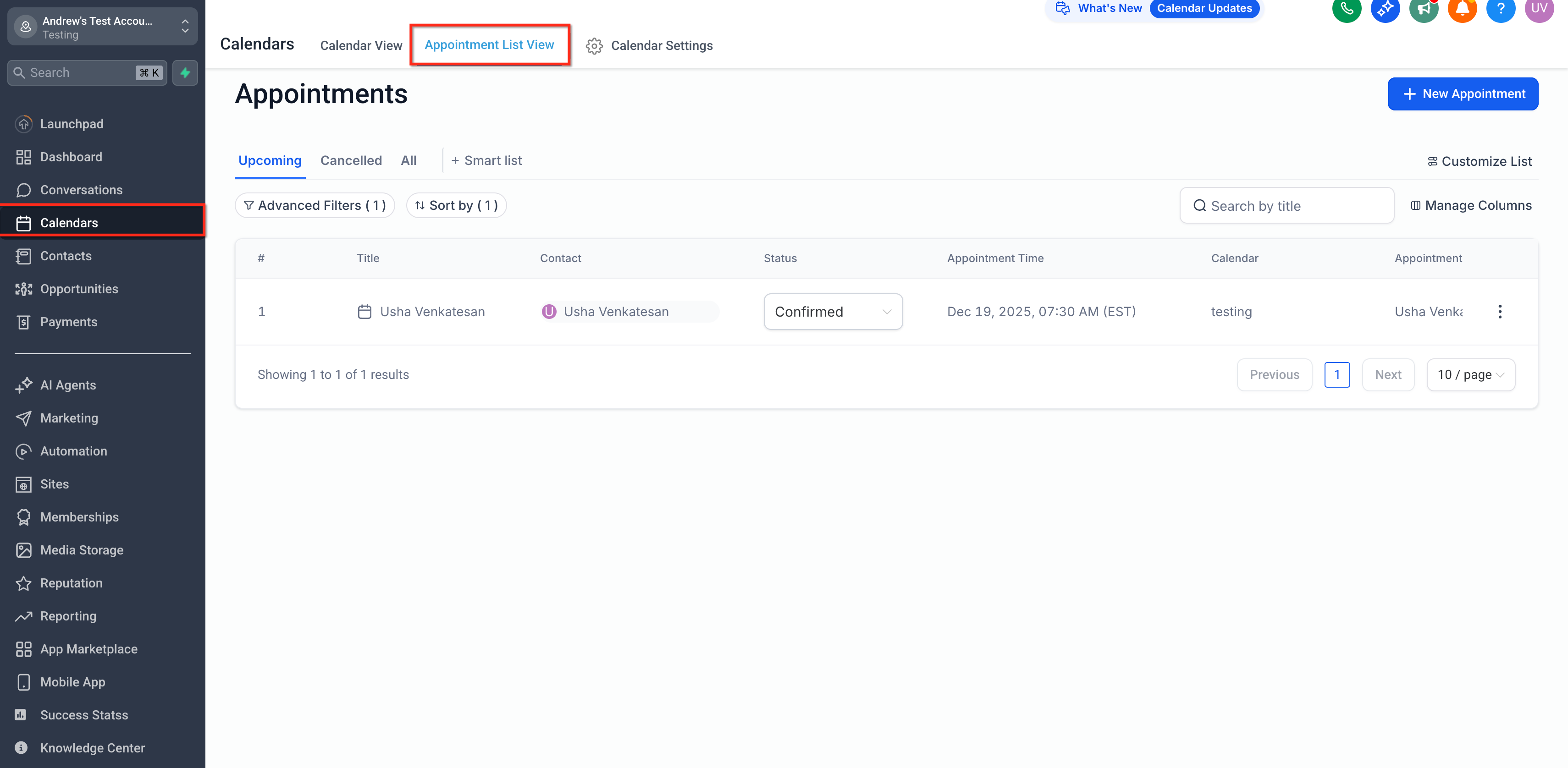
- Go to Calendars and confirm each service has its own calendar with correct duration, availability, buffers, and linked/conflict calendars.
- Calendars section will list with service‑specific calendars and status indicators.
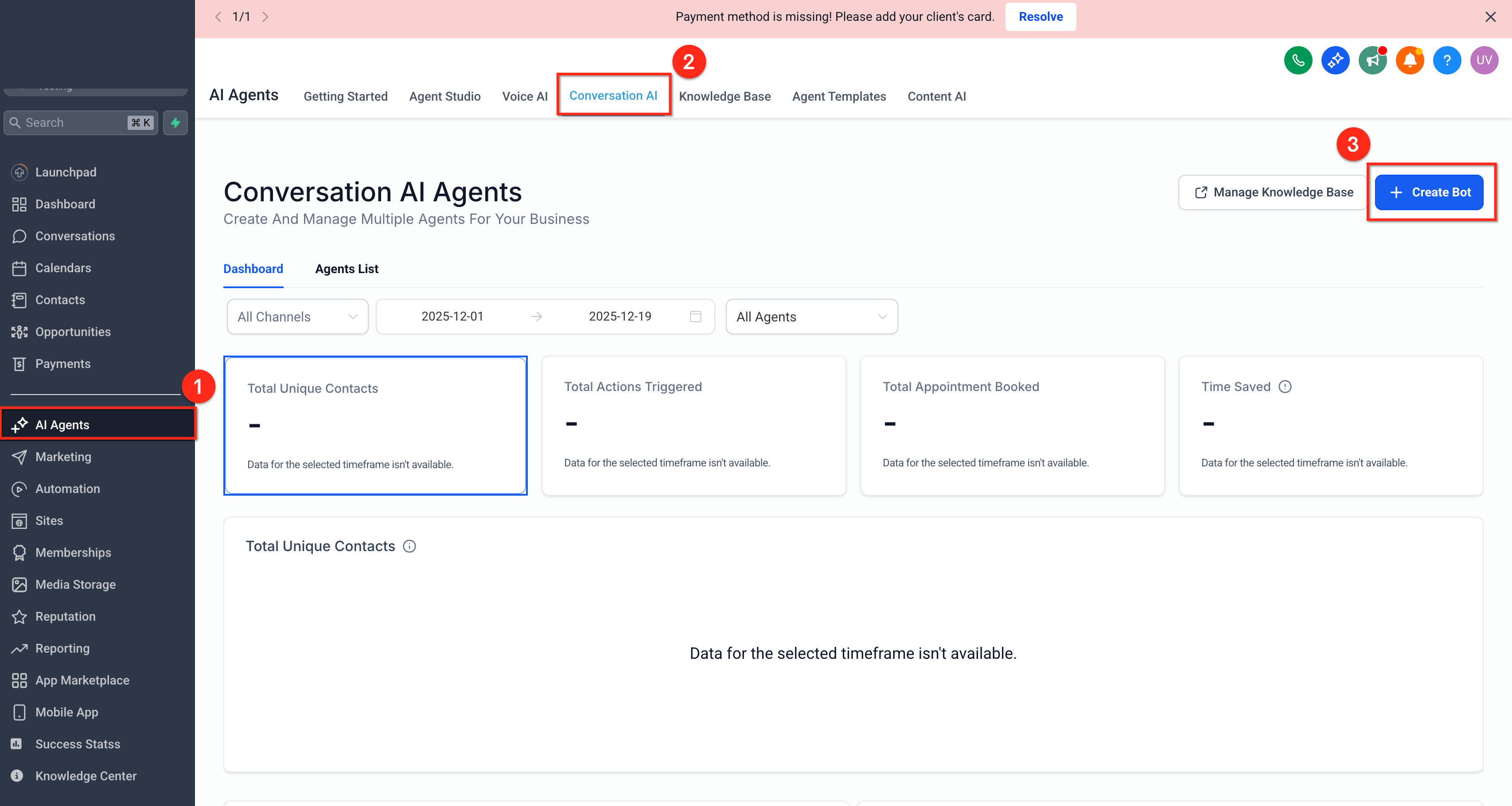
- Navigate to AI Agents and click on Conversation AI.
- Click on "Create Bot" to start creating the process.
Step 3: Select Bot
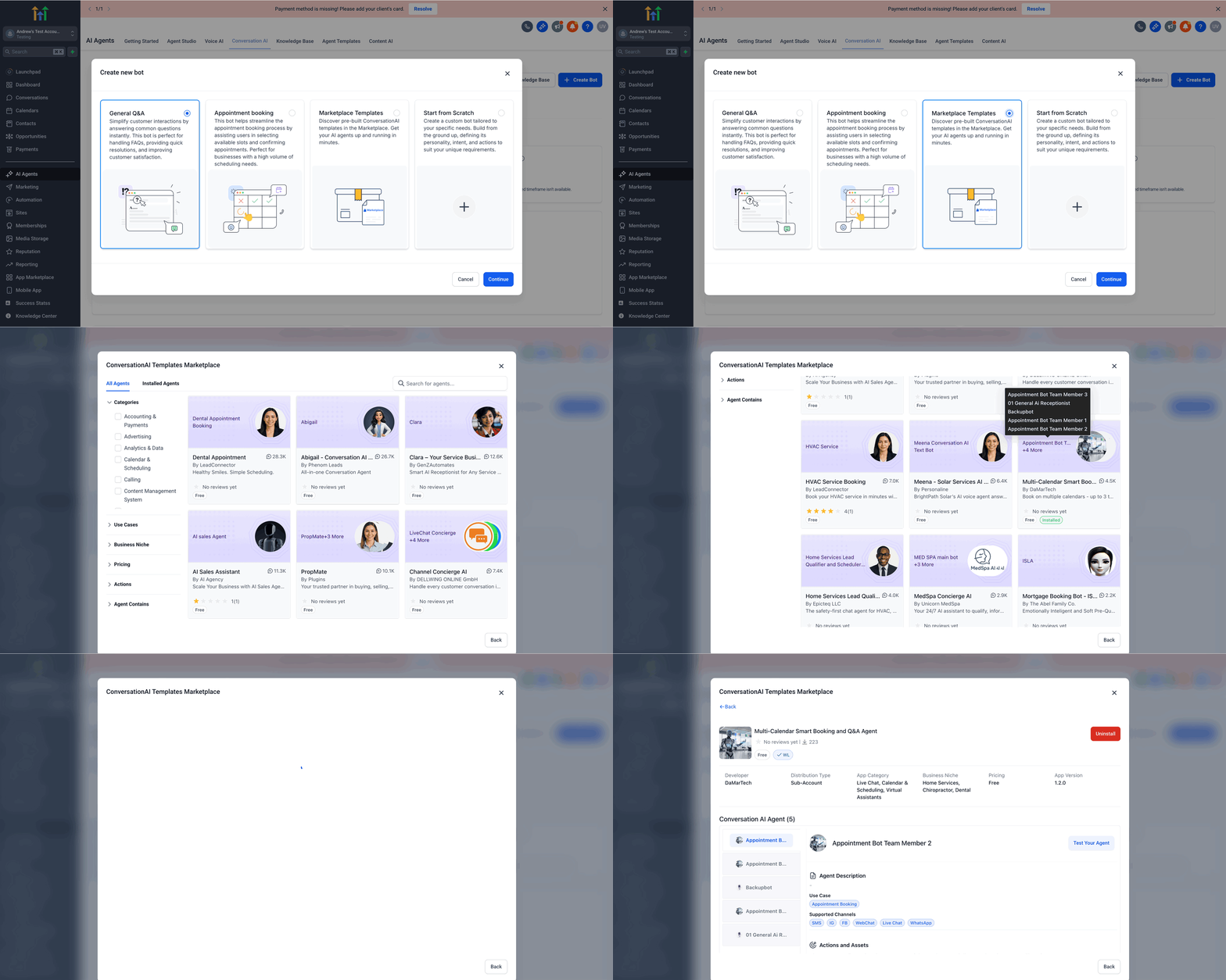
- In Eligible Bots, choose the prompt based bot.
- Click on Create New Bot and the users will be navigated to the page.
- Choose the Marketplace Templates and start installing the respective template to continue the process.
Step 4: Set the Appointment Settings
- Navigate to the Conversation AI and click on the installed template from the Agent list.
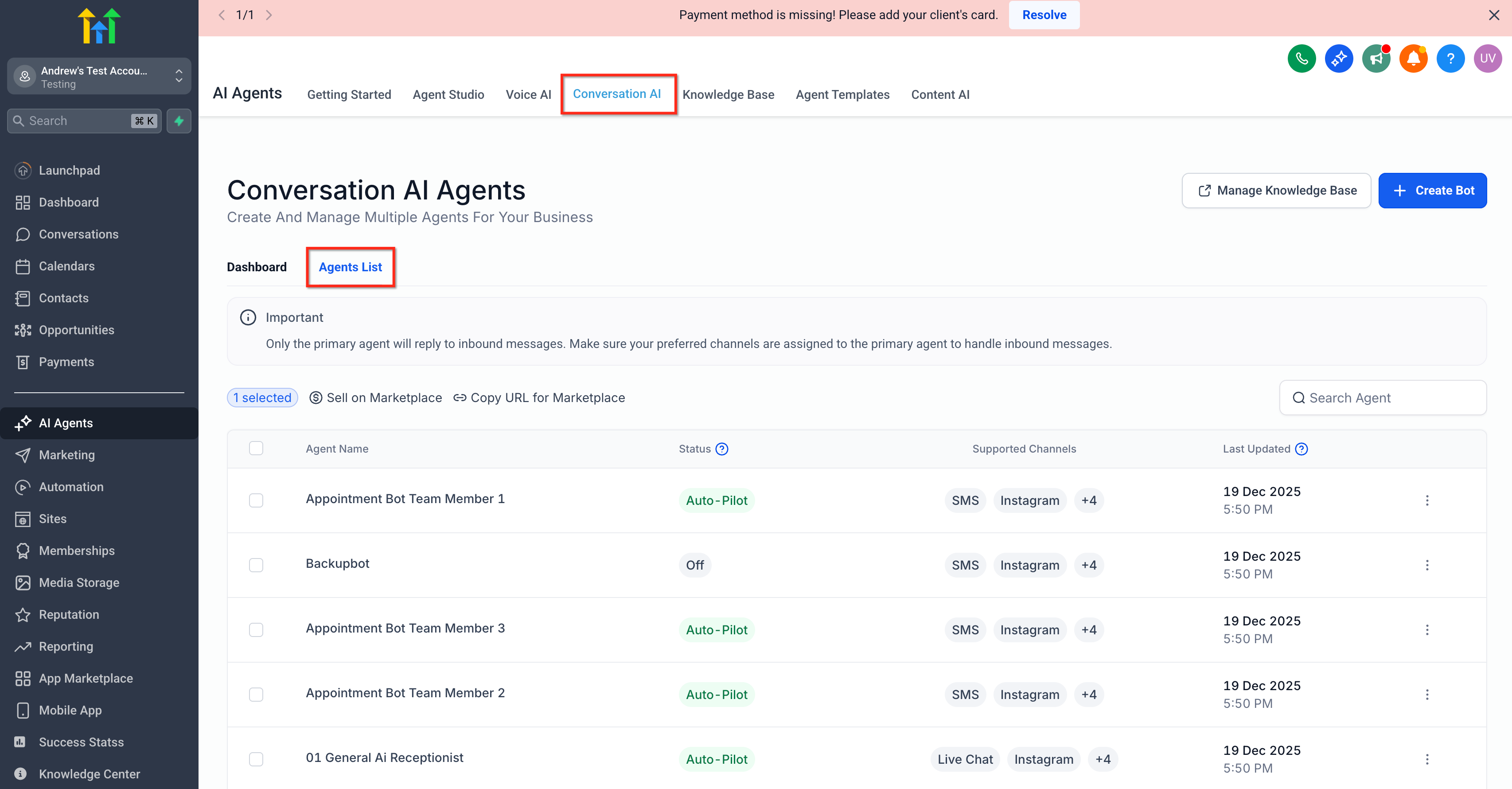
- Click on the agent added and navigate to the Bot Goals section and start completing the appointment booking settings.
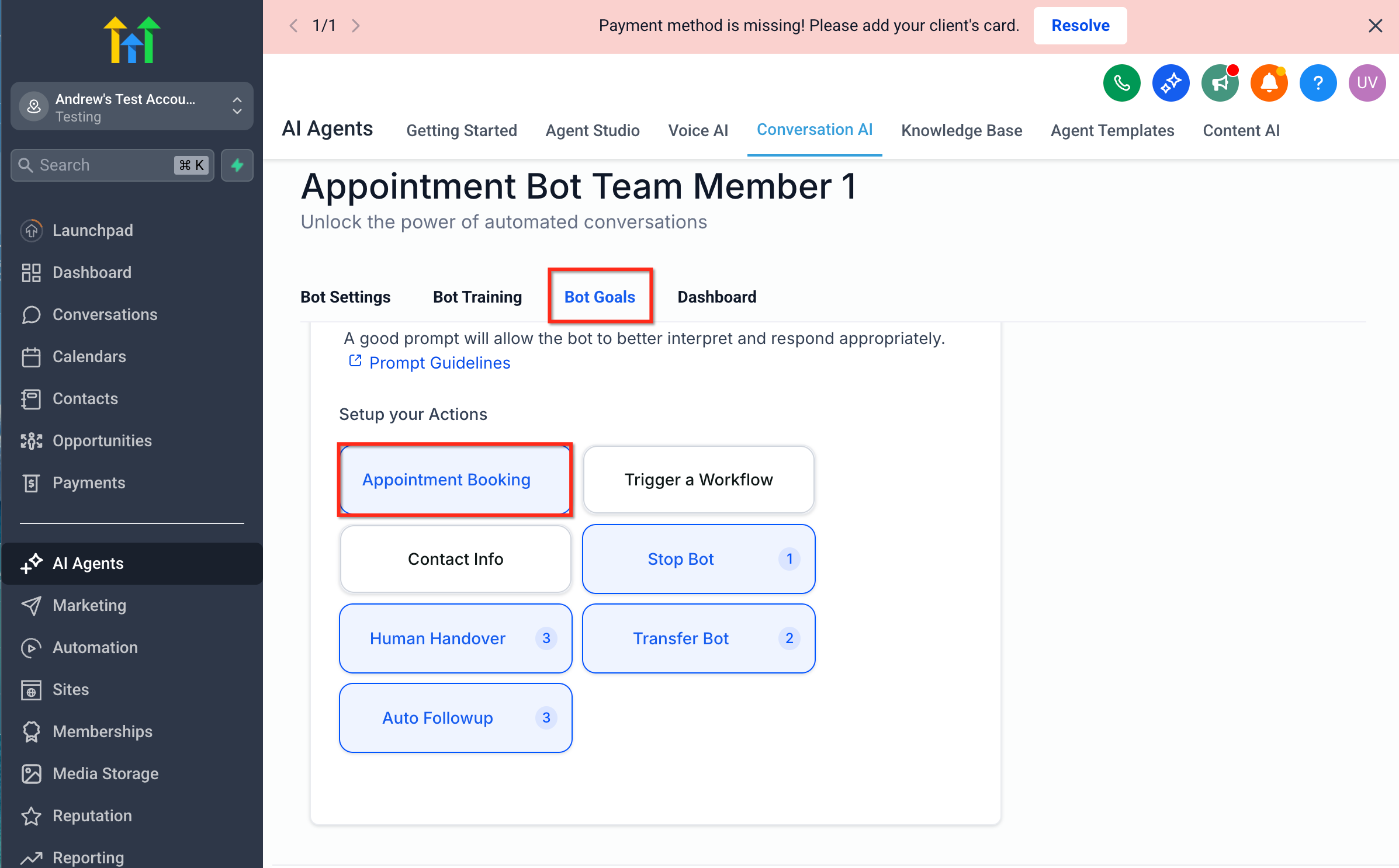
Step 5: Setting Up Appointment Booking
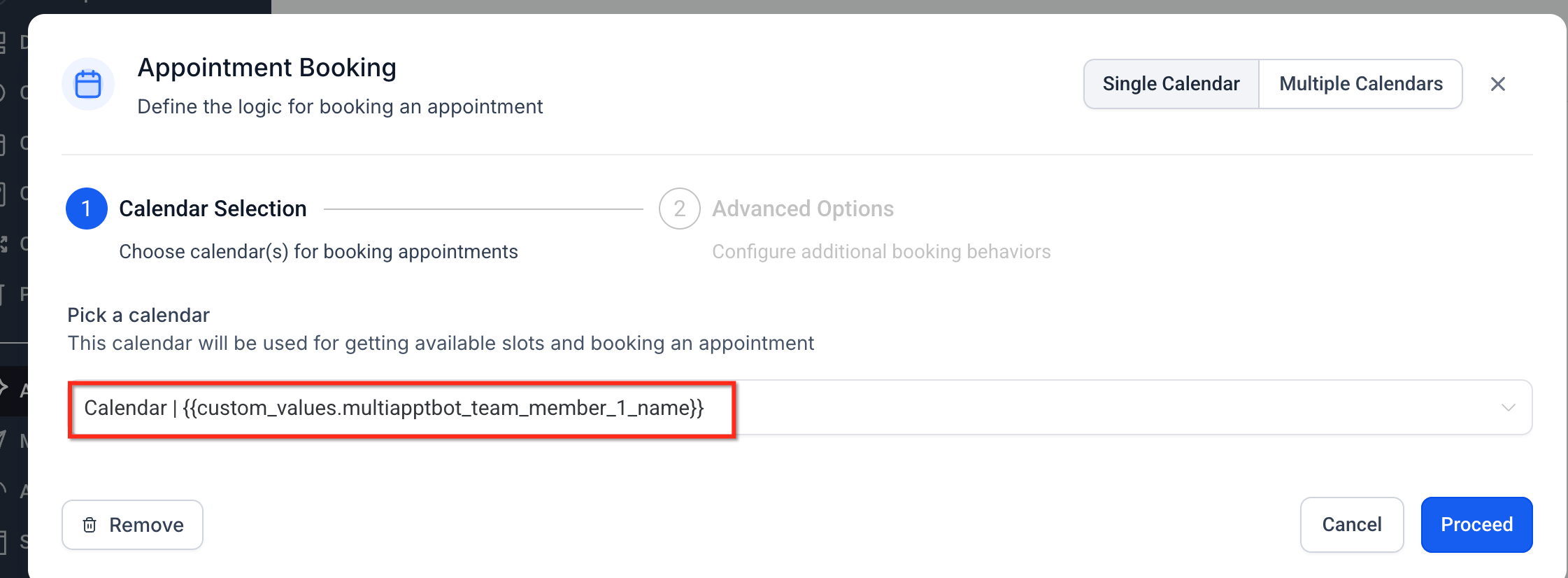
- Pick the calendar from the dropdown and click on Proceed.
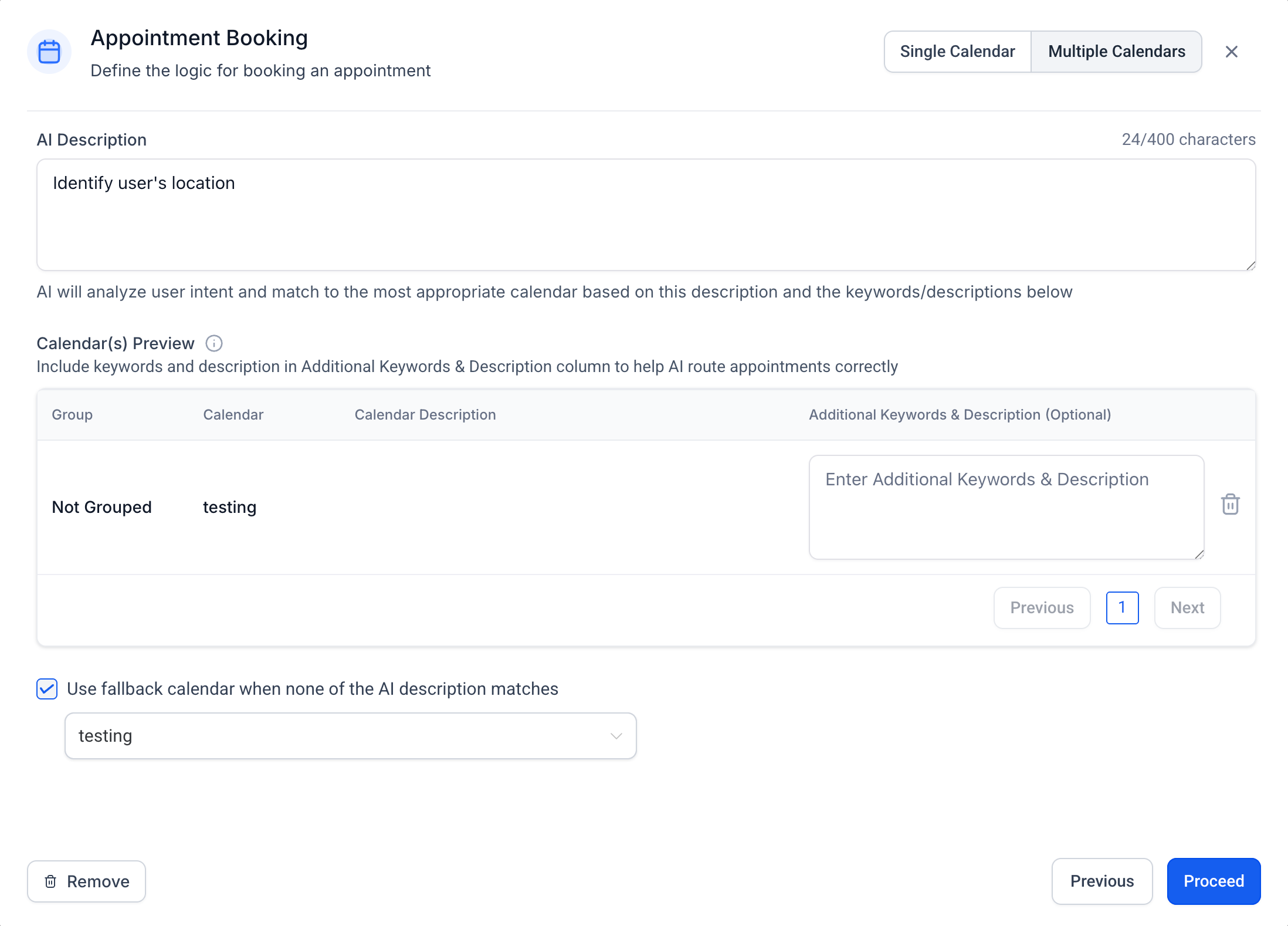
- Add AI Description and Choose a Fallback Calendar (optional).
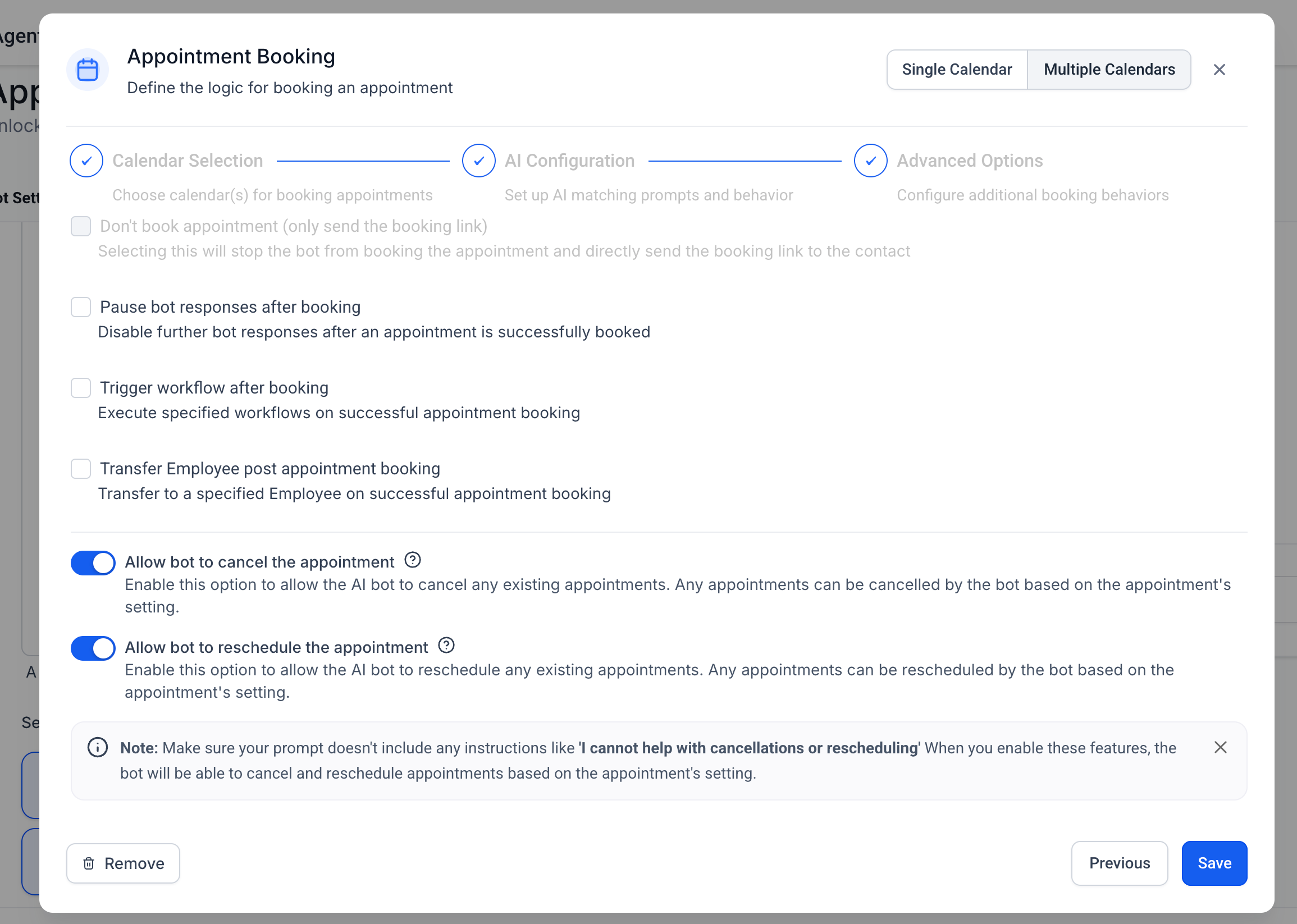
Step 6: Add Advanced Options
- After clicking on Proceed, add the required advanced options. Click on Save to complete the changes.
Frequently Asked Questions
Q: Can I exclude a calendar from AI consideration without deleting it?
A: Yes. Remove it from Eligible Calendars so the AI won’t consider it for booking.
Q: What happens if multiple calendars match a caller’s intent?
A: The AI uses confidence and priority to choose the best match. If confidence is low, it can clarify or present options.
Q: How do buffers and minimum notice affect offered times?
A: The AI respects each calendar’s availability rules, including buffers and minimum notice. Tight rules may limit available slots.
Q: Can the AI reschedule or cancel existing appointments?
A: If enabled for your agent, the AI can manage changes by verifying caller details and updating the original calendar.
Q: How do I handle services we don’t offer?
A: Configure Fallback & No‑Match to present available services, use a Fallback Calendar, or take a message/transfer.
Q: What if the AI books the wrong calendar?
A: Adjust the relevant calendar’s description/keywords, remove overlapping triggers, and refine priorities. Review transcripts for phrasing patterns.
Q: Are there limits on the number of calendars?
A: Accounts may have practical limits for usability and accuracy. Keep the eligible set focused on distinct services.
Q: How does time zone work for callers in other regions?
A: Confirm your calendar’s time zone behavior. The AI offers times according to your configured preference and communicates clearly to the caller.
Q: Can I capture intake questions as part of the booking?
A: If your calendar has intake questions or your workflow collects data, the AI can prompt for answers and store them accordingly.