
Make quick, safe, database‑level text updates across your hosted WordPress sites—without third‑party plugins or scripts. SourCherry’s built‑in Search & Replace lets you preview matches, then confidently apply replacements in Live or Staging. Common uses include domain changes after migration, HTTP→HTTPS updates, and bulk URL or email fixes.
TABLE OF CONTENTS
What is the Search & Replace tool?
Search & Replace is a native WordPress hosting utility in SourCherry that scans your site’s database for a specific string and, optionally, replaces it across supported tables. It’s designed to streamline post‑migration cleanups, link corrections, and other bulk text updates while guiding you through safe, reversible practices such as taking backups and testing in Staging first.
Key Benefits of Search & Replace
Understanding how this tool helps ensures you pick the fastest, safest path for wide‑ranging content edits. These benefits focus on reducing risk, saving time, and improving operational consistency across client sites.
- Native & Secure: No third‑party plugins or custom scripts required.
- Preview First: Run a Search‑only to confirm match counts before replacing.
- Environment Aware: Works in Live and Staging to support safe testing.
- Guided Safety: Backup reminders and confirmations minimize accidental edits.
- Fewer Errors: Consistent, centralized workflow for common maintenance tasks.
- Time Savings: Bulk updates beat manual page‑by‑page edits.
Preview Mode (Search‑Only)
Previewing lets you validate exactly what will be changed before any data is modified, reducing risk and rework.
- Enter the Search string and choose Search (without Replace) to get a match count.
- Use the count to spot obvious issues (e.g., an unexpectedly high number for a broad string).
- Adjust your search for specificity before committing to a replacement.
Replacement Options & Matching Behavior
Understanding matching rules helps you target the right content while avoiding unintended changes.
- Case Sensitivity: Matching respects case to prevent accidental replacements (e.g., HTTP vs http).
- Partial Matches: Standard string matching is supported. Use specific strings to avoid over‑broad changes.
- Tables & Data Safety: The tool is designed to work safely with common WordPress data, including post content and metadata. Extremely sensitive/system fields (like credentials) should not be targeted.
- Regex & Wildcards: Not supported. Aim for precise, literal strings.
How To Set Up and Use Search & Replace
Following a consistent setup and execution flow reduces errors and accelerates safe deployments across client sites.
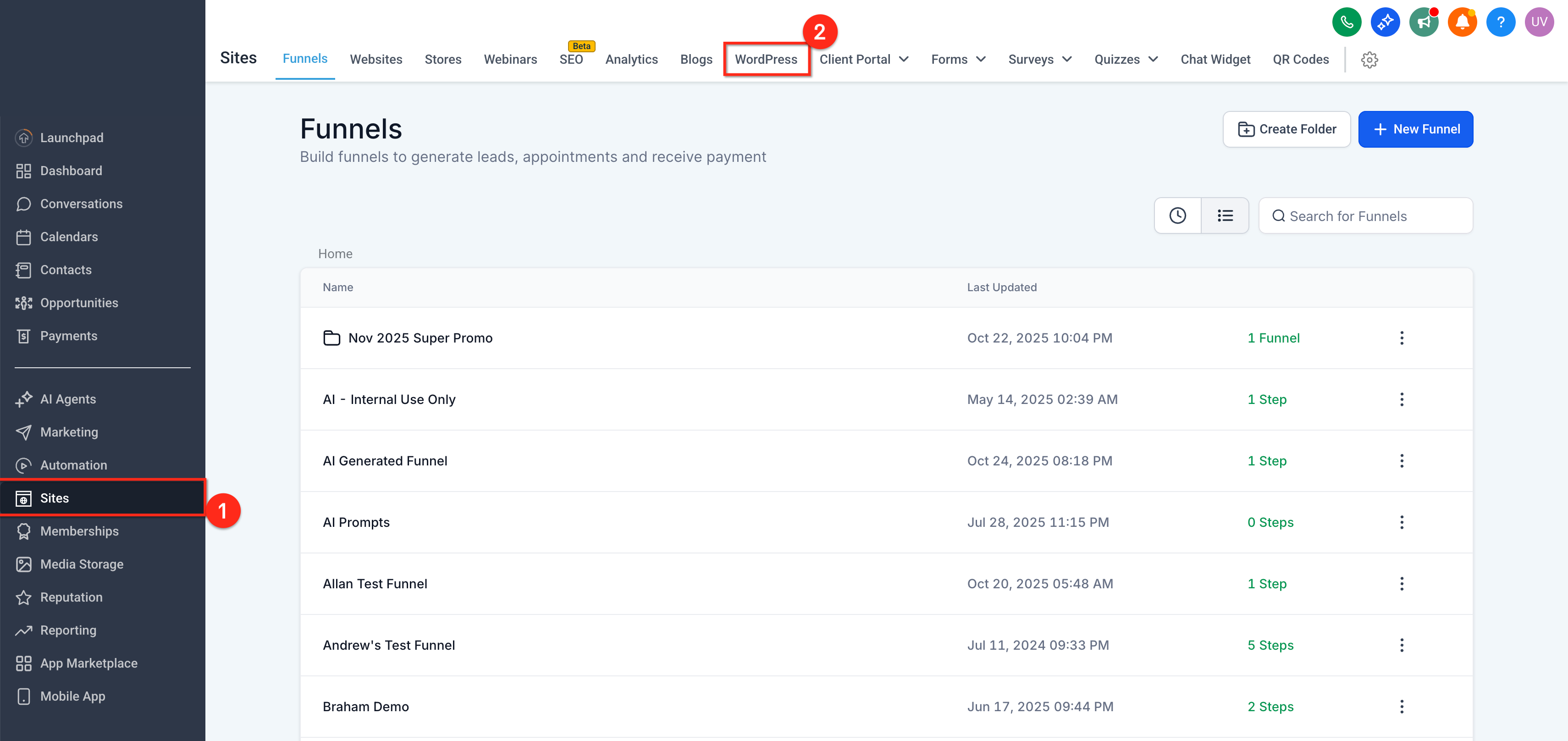
- Open Sites → WordPress → Select Site.
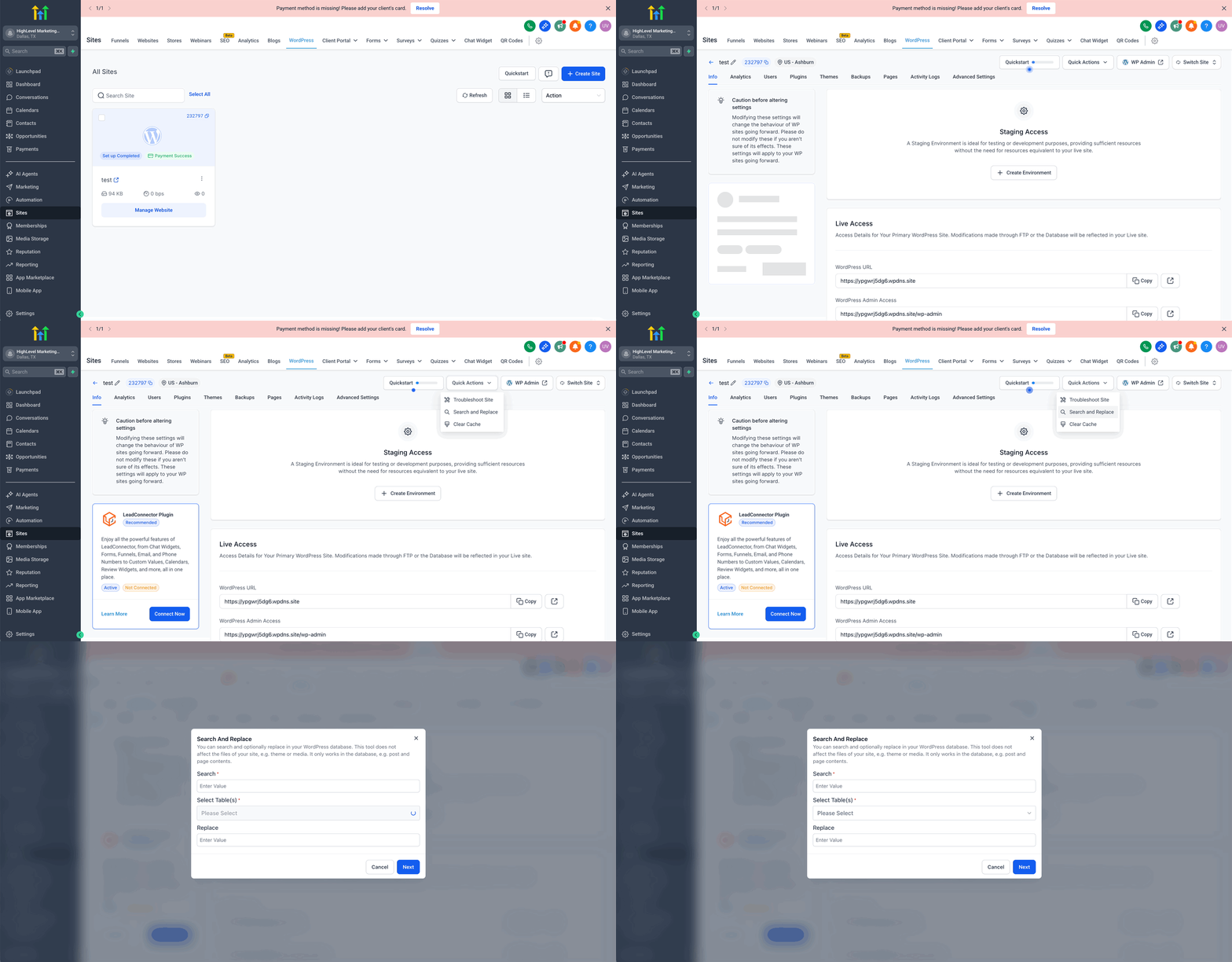
- In Quick Actions, select Search & Replace.
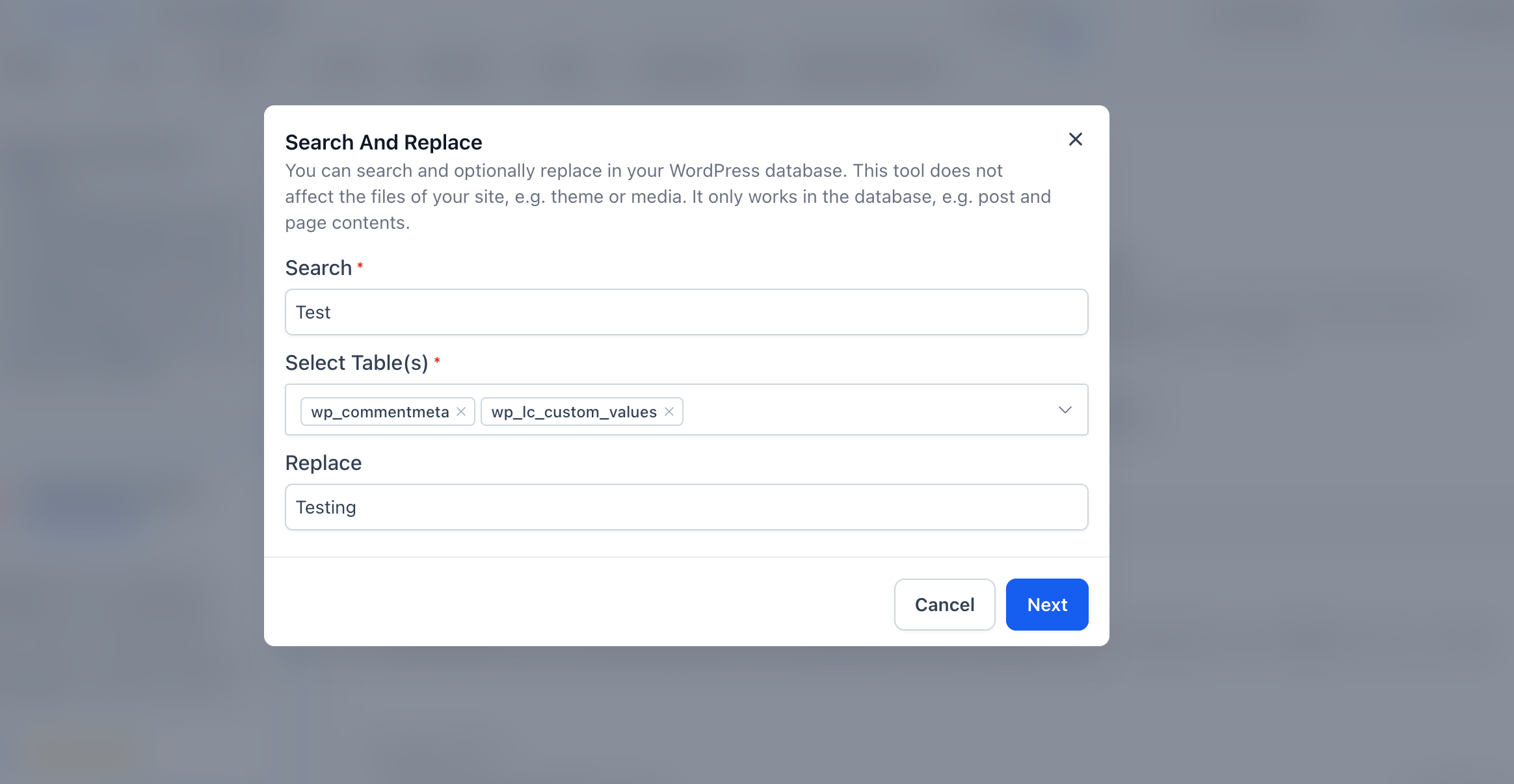
- Include Search Values, Tables and Replace Values. Click on Next to continue.
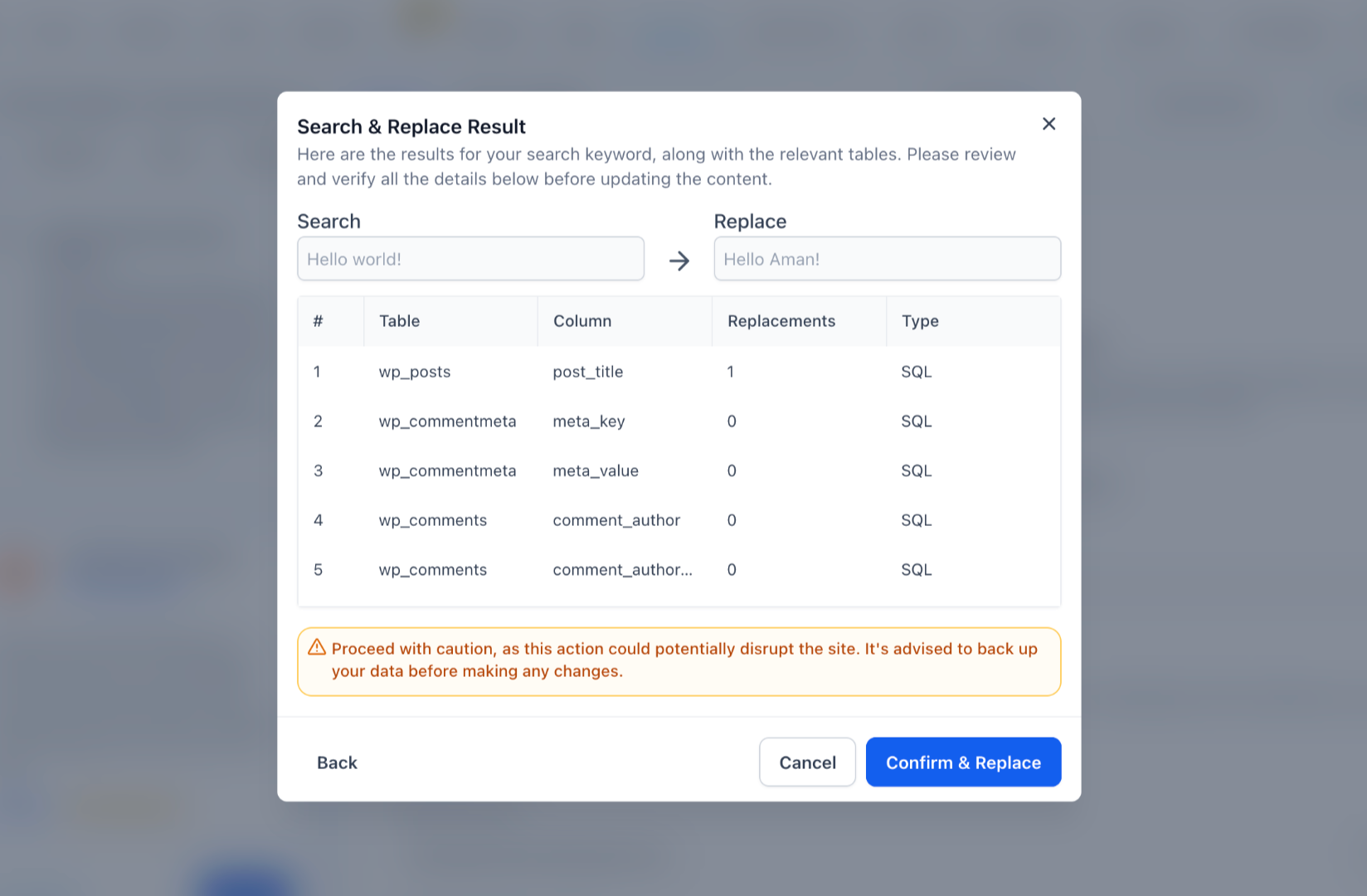
- Wait for the completion confirmation. Review the summary and spot‑check several pages/posts.
Frequently Asked Questions
Q:Can I undo a replacement?
Use Backup & Restore to revert to the backup created before running the tool.
Q: Does the tool support regex or wildcards?
No. Use precise, literal strings for predictable results.
Q: Will this handle serialized data safely?
The tool is designed for common WordPress data patterns. For complex custom tables or plugins, validate in Staging first.
Q: Can I limit replacements to specific tables?
Not at this time. Use specific search strings and preview counts to control scope.
Q: Is matching case‑sensitive?
Yes—case sensitivity helps avoid unintended matches. Enter strings exactly as stored.
Q: Will it work on Multisite?
Run per site. Network‑wide replacements are not supported in one pass.
Q: Where can I see who ran a replacement?
Check your WordPress Access/Activity/Audit Logs for administrative actions relevant to your site.
Q: How long does it take?
Duration depends on database size and server load. For large sites, run during low‑traffic windows and use Staging first.