
Managing who has access to your SourCherry account(s) is crucial for security, efficiency, and accountability. This article explains how to set up and control user access both at the agency level (across all your client accounts) and at the sub-account / team level (within a specific client account). It also describes what user attributes and permissions you can configure.
Agency Team Management
Who this is for
This section applies if you’re an agency owner or admin and need to grant access to employees or client personnel across multiple client accounts.
How to access
Go to Settings from the side navigation menu while in Agency View.
Select Team.
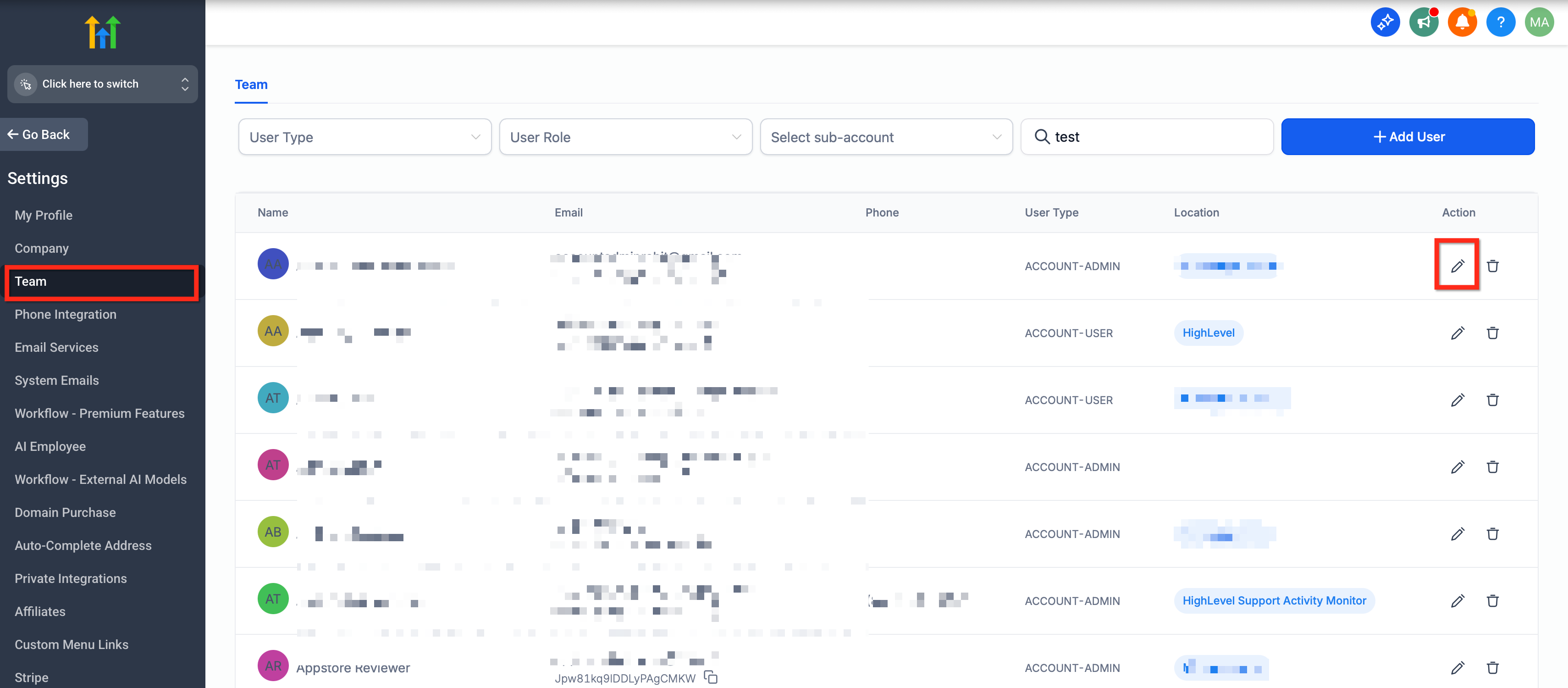
What you can do
From here, you can add new users, edit existing ones, or delete users.
When adding or editing a user, you can modify the following:
Personal logo (for user profile)
First name
Last name
Email address (this is used as the login email)
Phone number
Password
Permissions (see the Agency | Managing user roles & permissions article for the details)
User Type — two choices:
Agency: user can access all client accounts under the agency
Account: user can access only selected client accounts
Account assignment:
If Agency type is chosen, you specify which client accounts the user gets notifications for
If Account type is selected, you choose which specific client accounts the user can access
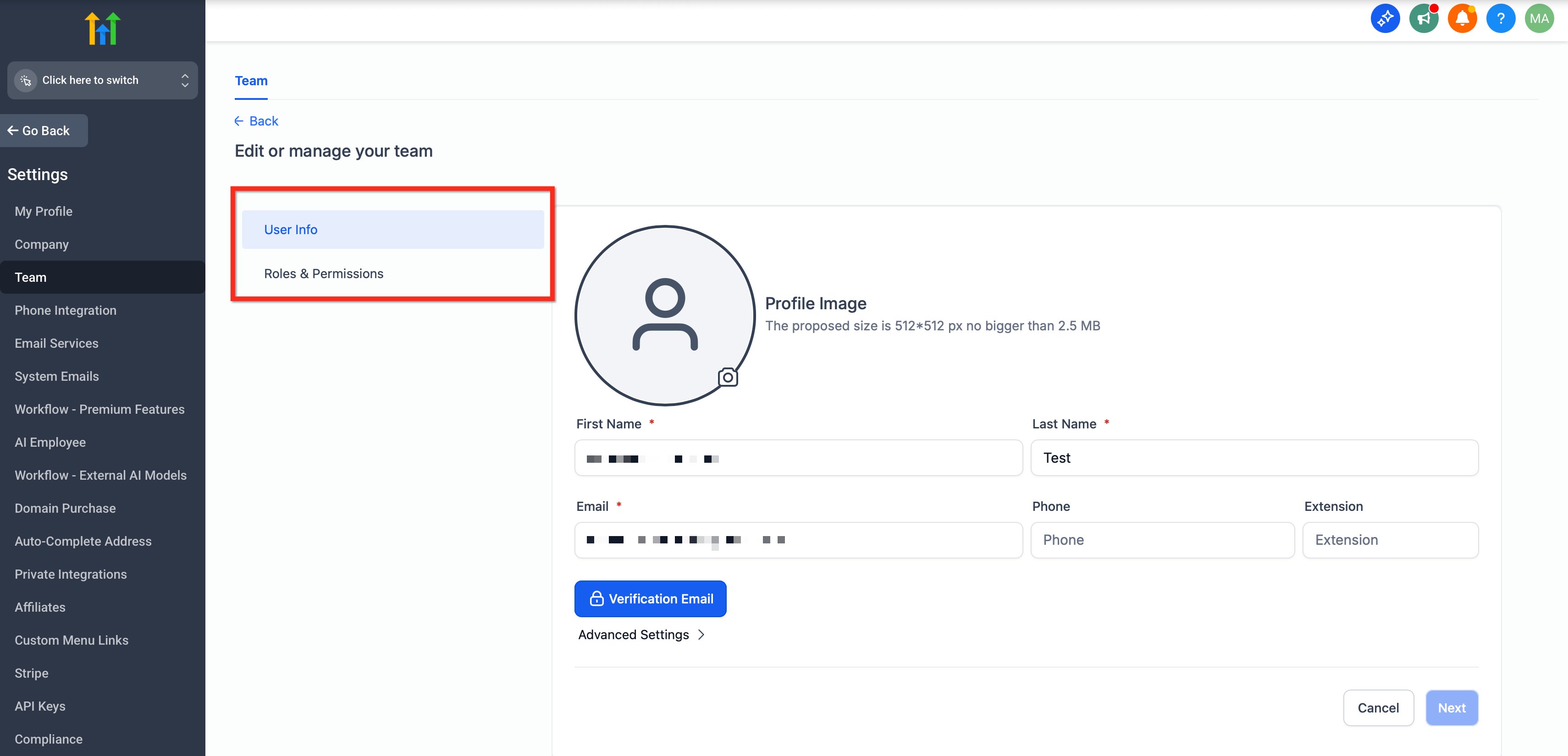
Login As Permission
The ability to Login As another user is permission-gated per admin. When Enable Login As is turned off for a user, the option is hidden.
Agency Settings › Team › Edit user › Roles & Permissions › User Management.
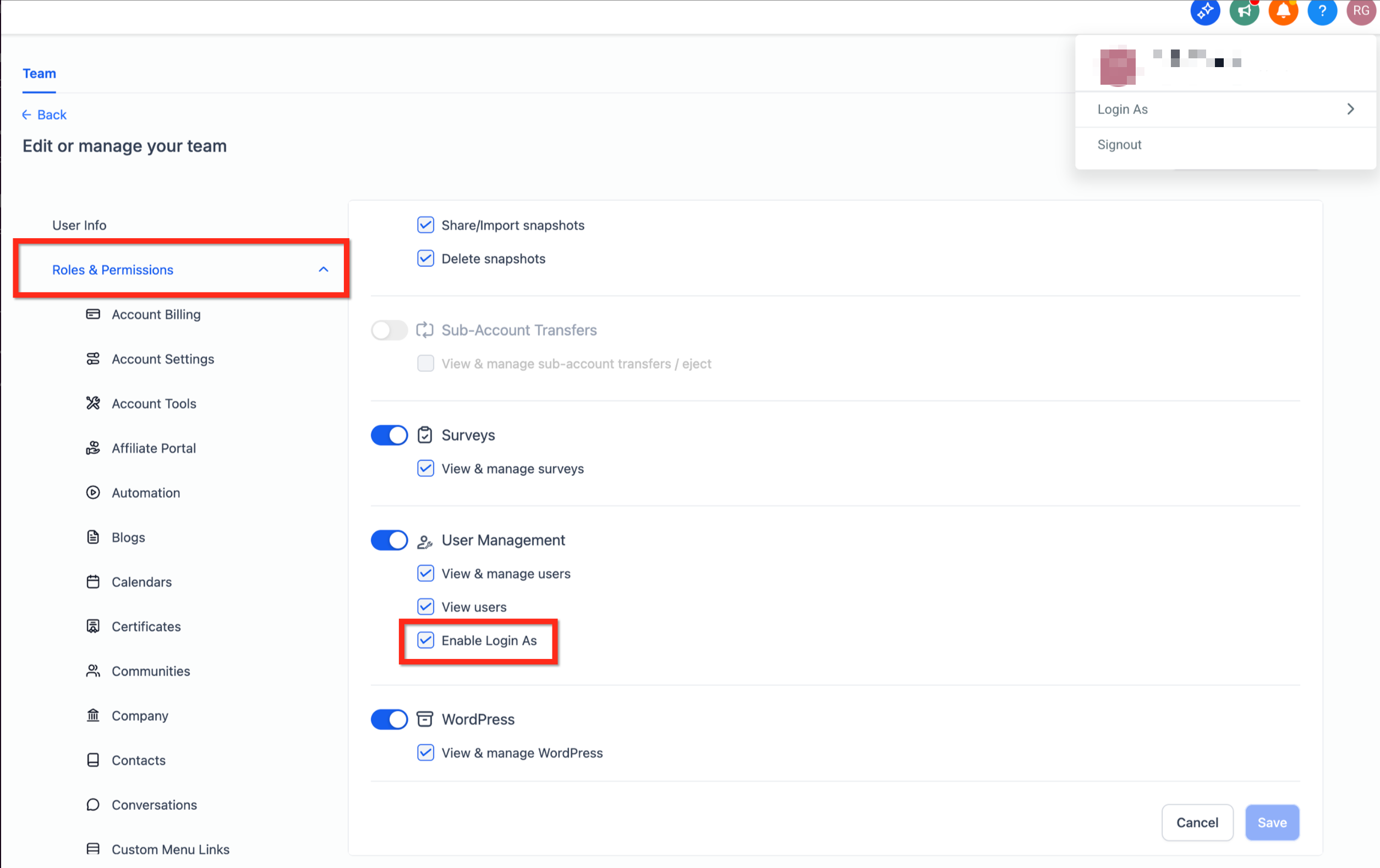
Team Management (Sub-Account Level)
Who this is for
Used by clients or team members within a specific client’s SourCherry account. Any user added here will also be visible under Agency Team Management.
How to access
Switch to the relevant sub-account.
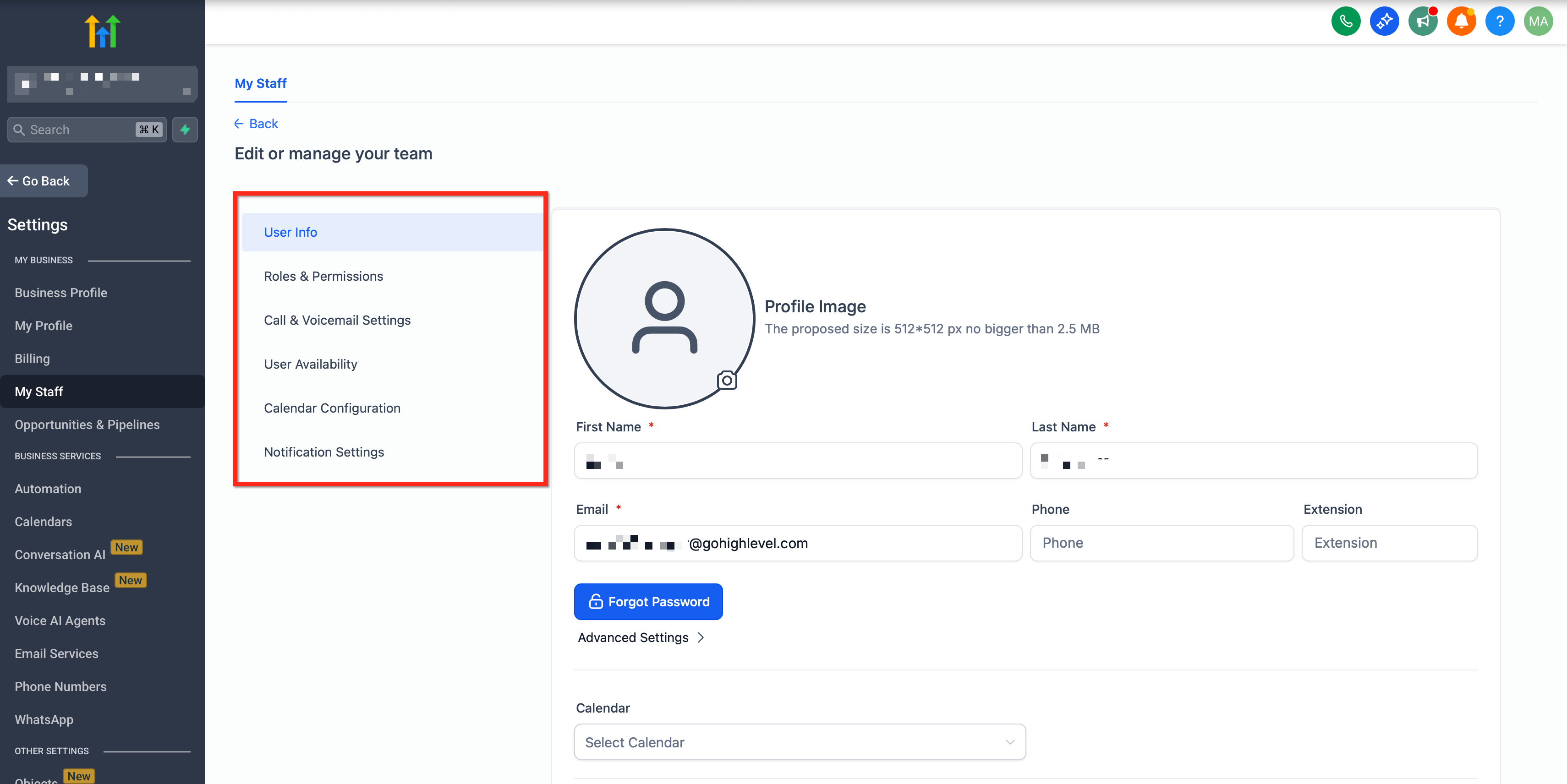
In the side navigation, go to Settings.
Click My Staff.
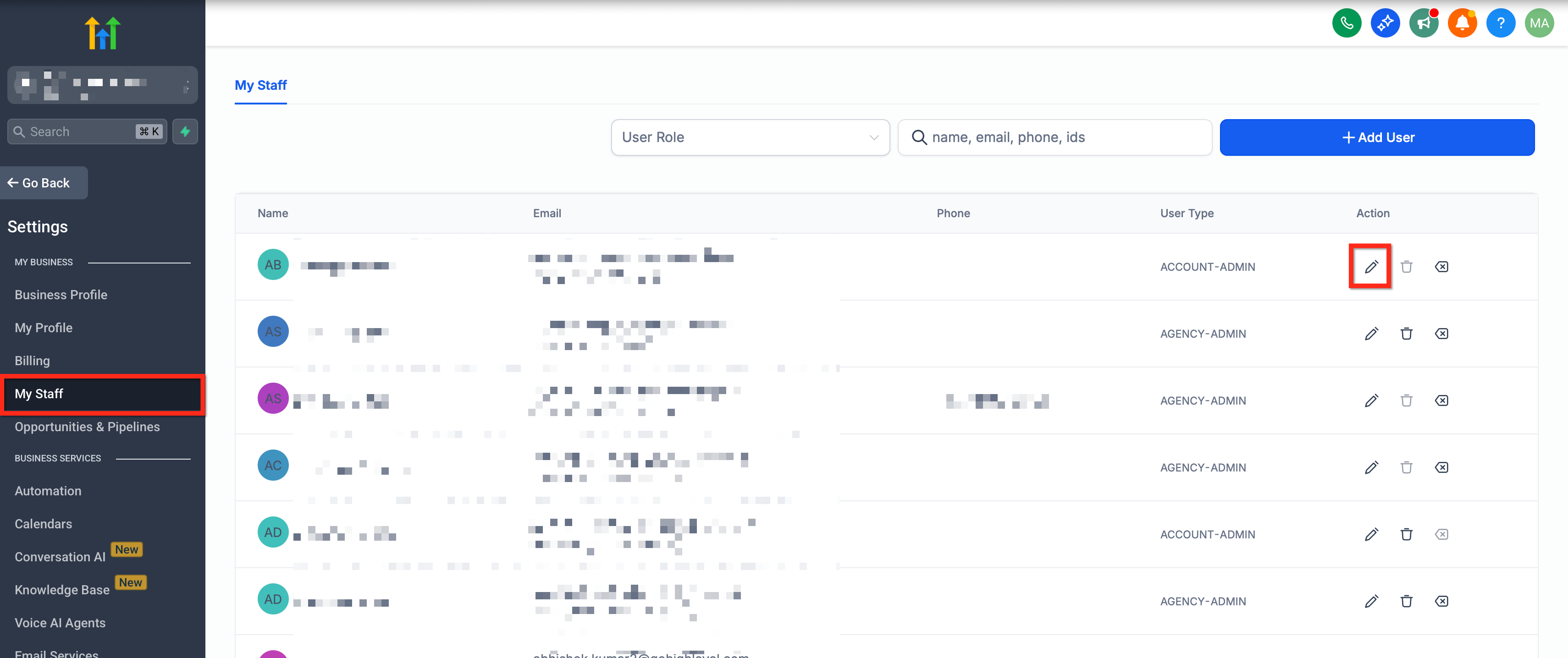
What you can do
As with agency-level user management, here you can add, delete, or edit users. For each user, you can modify:
Personal logo
First name
Last name
Email (login)
Phone number
Password
Permissions (again, see User Roles, Permissions and Assigned data : Subaccount)
Automatic personal booking calendar creation for newly added sub-account users depends on the agency-level Preloaded Example Data setting in Settings > Company.
Permissions & Roles Overview
(If you’re not already familiar with how permission settings work, this section helps you understand what control you have.)
You can fine-tune what a user can do by assigning roles or permission scopes. These determine what parts of SourCherry the user can access (e.g. marketing tools, settings, campaigns), what actions they can perform (view, edit, delete), and which accounts their access applies to.
Email change verification (multi-channel OTP)
Changing a user’s login email is a sensitive update. SourCherry now supports multi-channel OTP verification so you can confirm identity even if the existing email is inaccessible.
Available verification methods
Email OTP
Phone (SMS) OTP
TOTP (Authenticator app)
The verification options shown depend on the user’s verified 2FA methods.
When you change your own email
- The system prompts you to verify using another available 2FA method (for example, SMS or Authenticator app).
If no other verified method is available, you are prompted to set up an authenticator app.
When an admin changes another user’s email
The system shows all available verification methods for that user (Email, SMS, and/or Authenticator app).
Best Practices
Least Privilege Principle: Give users only the permissions they need. Avoid giving full agency access unless absolutely necessary.
Use Account-type users when you want someone to have limited access (e.g. sales or support assistant for one client).
Track changes: Maintain clear records of who has what access and when changes are made (helps with audits or troubleshooting).
Review access periodically: People’s roles change, so prune permissions or remove users who no longer need them.
Frequently Asked Questions
Q: What’s the difference between “Agency” user type vs “Account” user type?
An Agency user type grants access across all client accounts under your agency. An Account user type restricts access to only the client accounts you explicitly select.
Q: If I add a user under “My Staff” in a sub‐account, will they appear in Agency Team Management?
Yes — all users added in sub-accounts (“My Staff”) are also visible under the Agency’s Team list.
Q: Can I set different permission levels for different users?
Absolutely. The permissions settings let you control precisely which features and actions each user can use.
Q: How do I change someone’s access later if their role changes?
Go to the relevant user record (either in Agency Team or My Staff), edit their user type, assigned accounts, or permissions as needed.