Services helps you create bookable services so customers can self-schedule online with confidence. Use variations to present multiple options under a single service, add-ons to increase order value, and resources to prevent conflicts. This article walks through accessing the Services panel, organizing services with categories and creating a new service.
TABLE OF CONTENTS
What are Services?
Services is where you define what your business offers to clients, like coaching sessions, spa treatments, or fitness programs. It helps you create service listings that customers can book online while keeping things organized behind the scenes.
You can manage how and when services are offered, who provides them, and enhance them with optional add-ons, resource management, and categories. Services support both simple bookings and advanced business flows such as:
Multi-location scheduling
Service variations (e.g., different durations or price tiers)
Upsells with add-ons
Deposit payments
Key Benefits of Creating Services
Knowing what each feature does makes setup faster and keeps your booking page accurate. The benefits below reflect options you configure directly when creating or editing a service:
Variations: Offer multiple options (such as different lengths or tiers) within a single service, each with its own duration and price
Add-ons: Present optional extras during checkout that can increase the price of the booking
Resources: Reserve limited items (like rooms or stations) so they aren’t double-booked
Processing Time & Buffers: Build realistic gaps and in-service timing to support smooth scheduling
Staff & Availability: Assign team members to the service and manage their working hours
Categories: Group services and control the order shown on the booking page
Private Service: Hide specific services from the public list when you only want to share them directly
Custom URL & Preview: Share a clean link and verify the booking experience before promoting it
Deposits & Pricing: Collect a deposit at booking and manage your pricing settings
How to Access the Services Panel
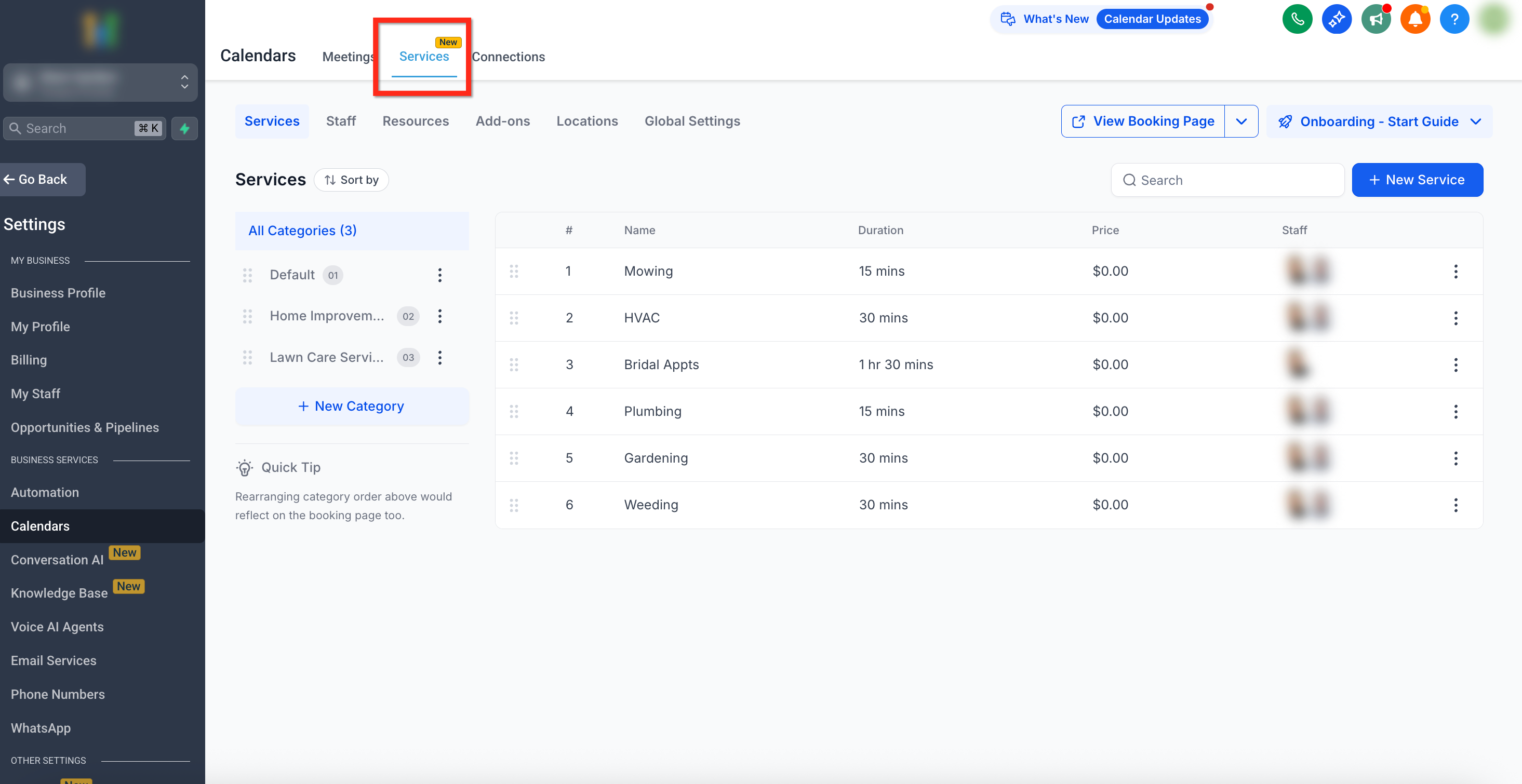
The Services Panel is the starting point for building, organizing, and previewing your booking experience. Within the Services Panel, you’ll find:
A searchable and sortable list of all services
An option to create new services
Each service’s name, duration, price, and assigned staff
Categories displayed on the left for easy organization
A three-dot menu with actions: Edit, Duplicate, Delete, or Share
A View Booking Page link for customer-facing access
To access your list of services in the Services Panel, follow these steps:
- Click the Calendars tab on the left navigation bar
- Select Calendar Settings from the top navigation ribbon
- Choose the Services tab from the top navigation ribbon on the Calendar Settings page
Creating and Managing Categories
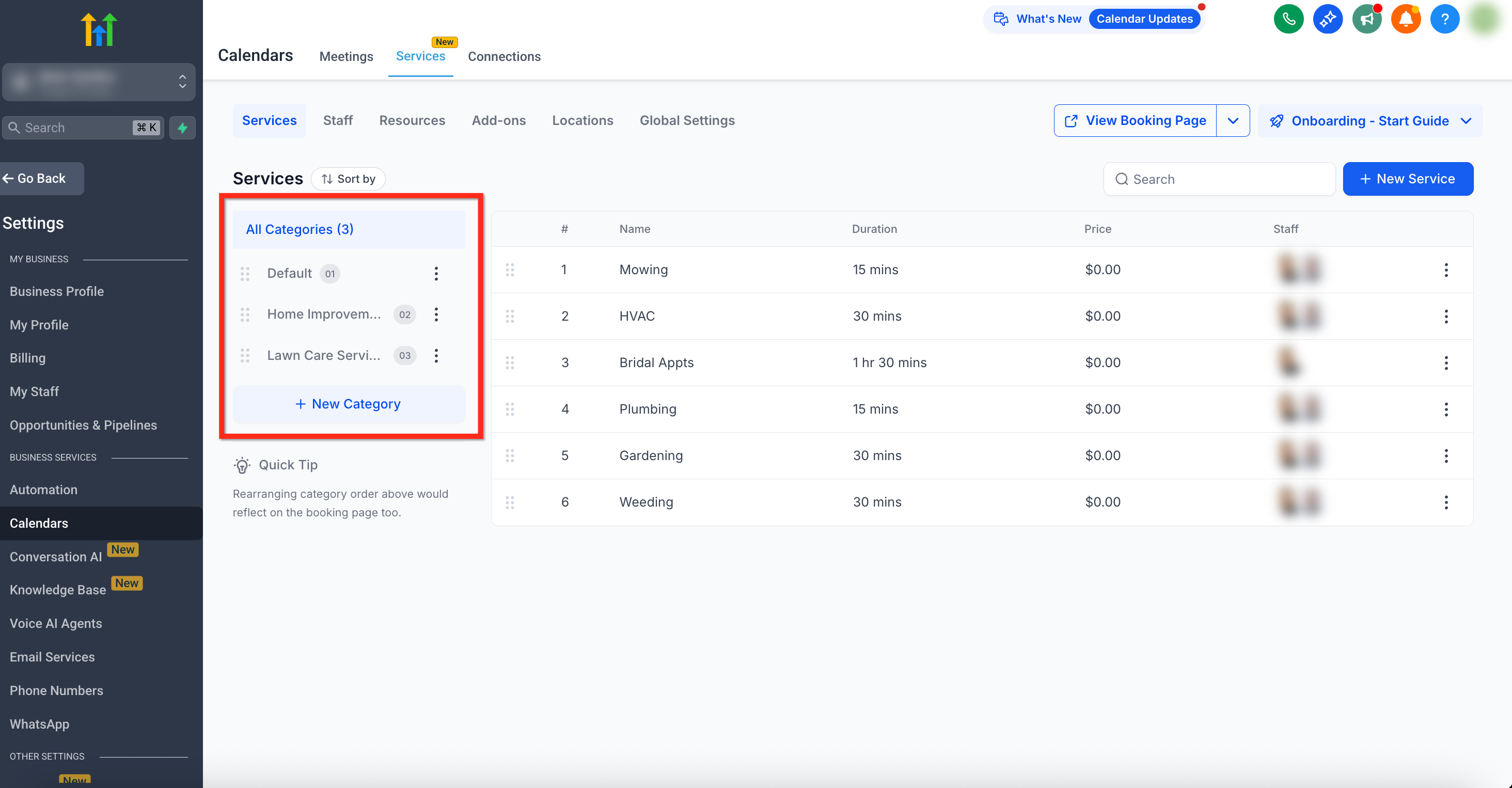
Service categories serve as a way to group similar or relevant services, making it easier for customers to navigate your offerings. These categories are displayed on the booking page, under which specific services are listed.
Click the + New Category button to create a new category
Use the three-dot (⋮) icon to edit a category
Drag categories to rearrange them; the order is reflected in the booking page layout
Service Management Features
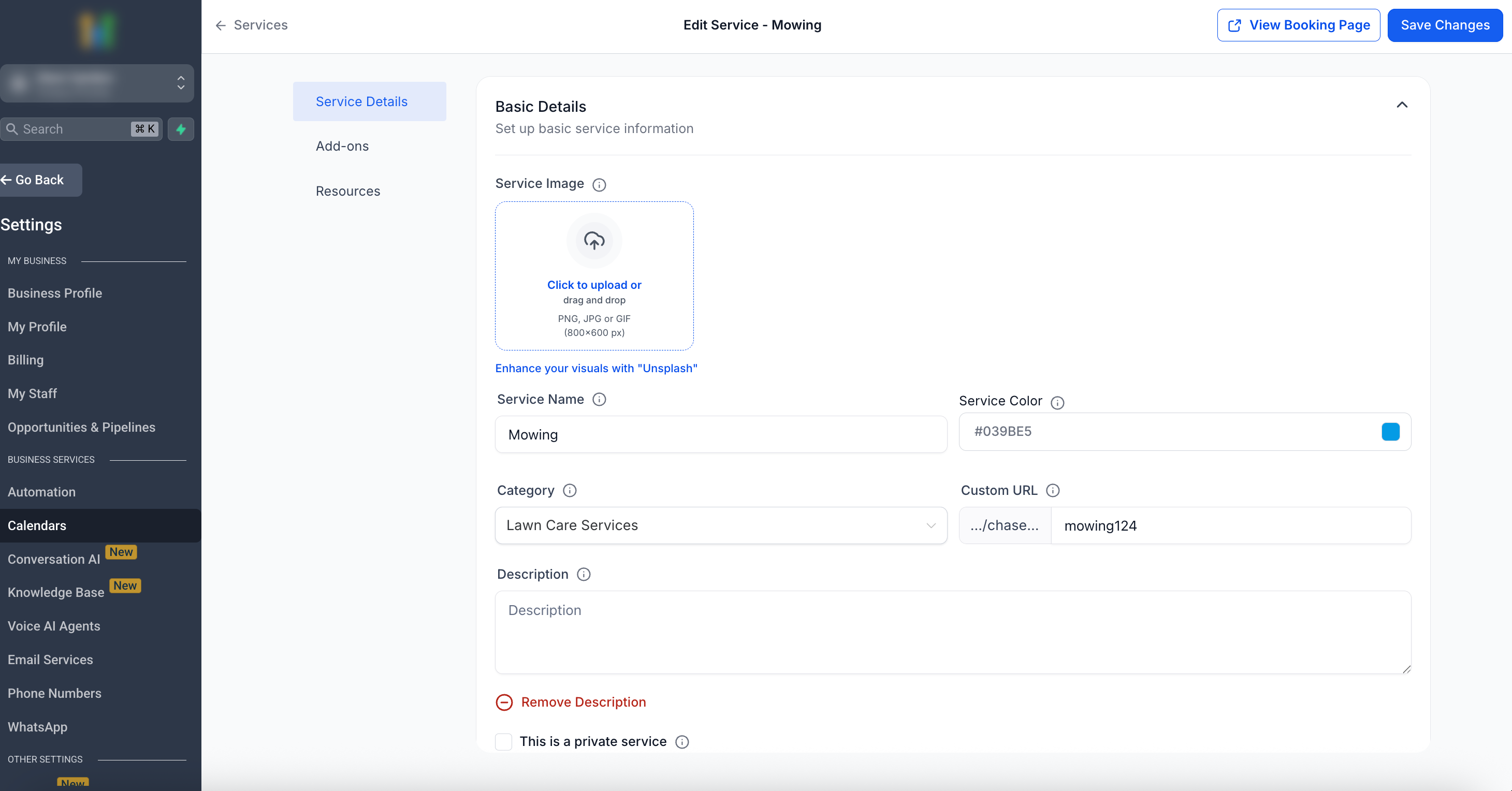
Use the service editor to edit and update existing features. To open the editor, click the three-dot (⋮) icon next to the service within the Services Panel and choose Edit. The Service Editor includes:
Service Details: Staff, duration, buffer times, processing, variations, pricing, payments, deposits
Add-Ons: Upsell or enhance services with extras
Resources: Assign rooms, chairs, or other assets required for the service
What are Add-ons?
Add-ons let you enhance services by offering optional extras that customers can book alongside their main service. They’re perfect for upselling additional features (like massage oils, treatments, or accessories) and for giving customers the ability to personalize their appointments. Add-ons can be customer-facing on the booking page or used internally by staff when creating appointments.
How Add-ons Appear on the Booking Page
Customer-facing add-ons display as optional checkboxes when booking a service
The add-on price and/or duration is added to the total booking cost
Hidden add-ons will not appear for customers but can be selected by staff inside the appointment modal
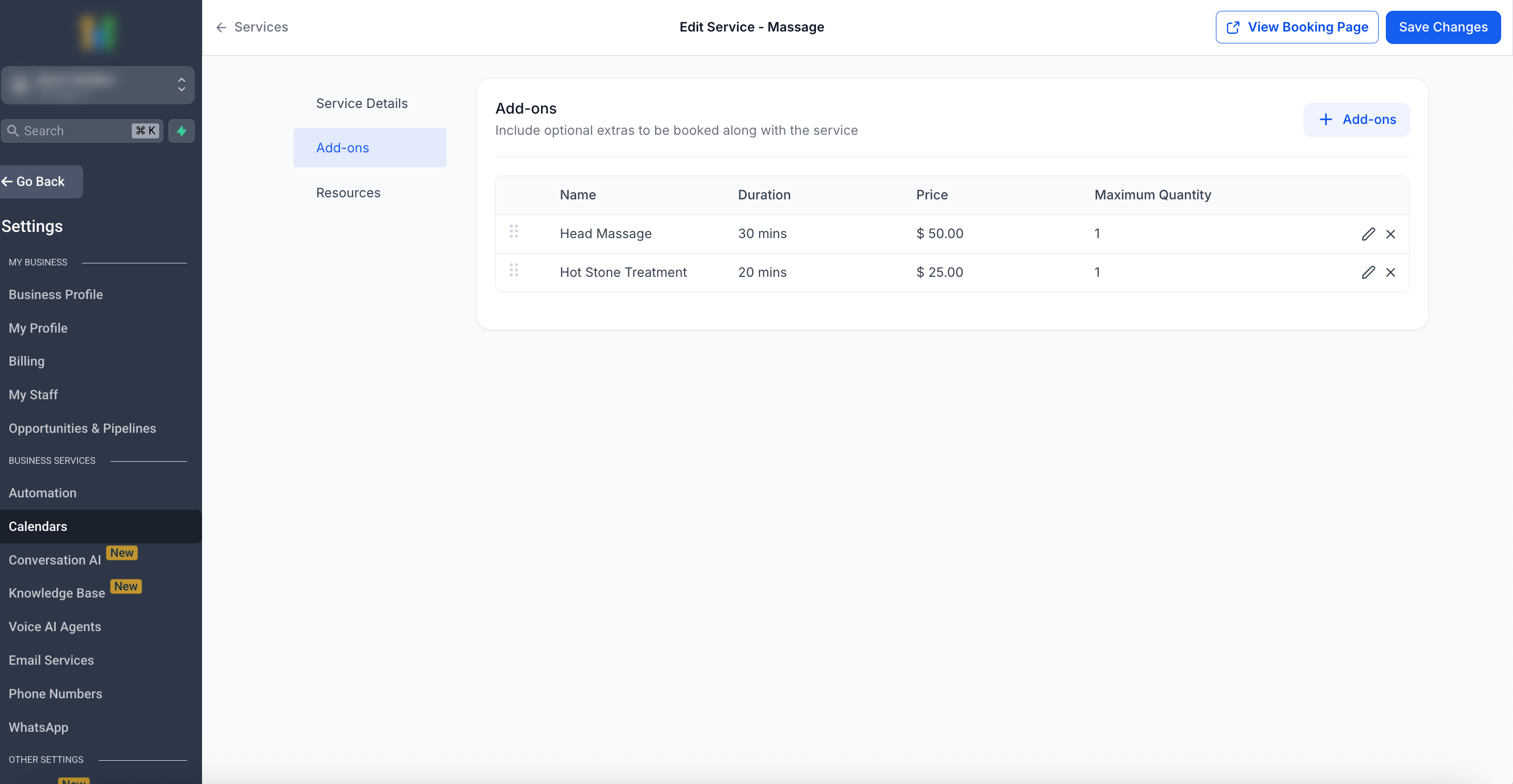
Accessing Add-ons
- Navigate to the Services Panel (Calendar > Calendar Settings > Services)
- Open the Service Editor for the selected service (Three-dot (⋮) > Edit) and click the Add-ons tab
- Here you’ll see a list of add-ons linked to the selected service, along with their Price, Duration, and Maximum Quantity
- From this tab, you can create new Add-ons or edit existing ones
Click here for more information about Add-ons, including how to create and edit them
What are Resources?
Resources are shared assets like rooms, chairs, stations, or tools that must be available for a service to take place. Assigning resources to services helps prevent double bookings and ensures accurate capacity management.
Each resource can be linked to one or more services and configured by:
- Location: Assign where each resource is available
- Capacity: Set how many appointments or people the resource can accommodate
For example, a "Room 1" resource might be used by several services but can only support 4 people at a time. You can specify this capacity per location for granular control.
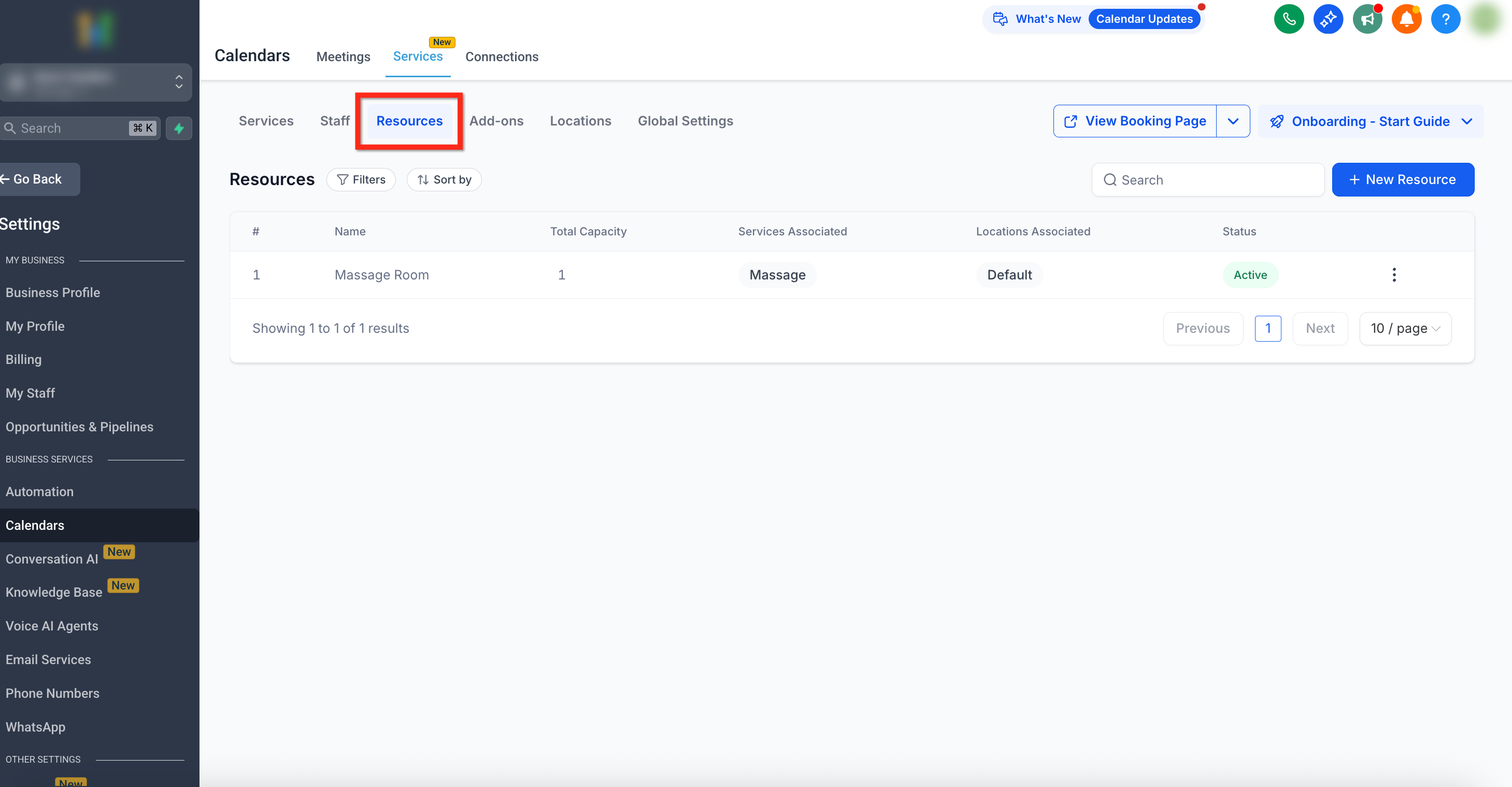
Accessing Resources
- Navigate to the Services Panel (Calendar > Calendar Settings > Services)
- Open the Service Editor for the selected service (Three-dot (⋮) > Edit) and click the Resources tab
- Here you’ll see a list of Resources, along with their Total Capacity, Services Associated, Locations Associated and Status
- From this tab, you can create new Resources or edit existing ones
Click here for more information about resources, including how to create and edit them
How to Create a New Service
Use the steps below to set up your service—details, timing, pricing, staff, and preview—so your booking page is accurate and ready to share.
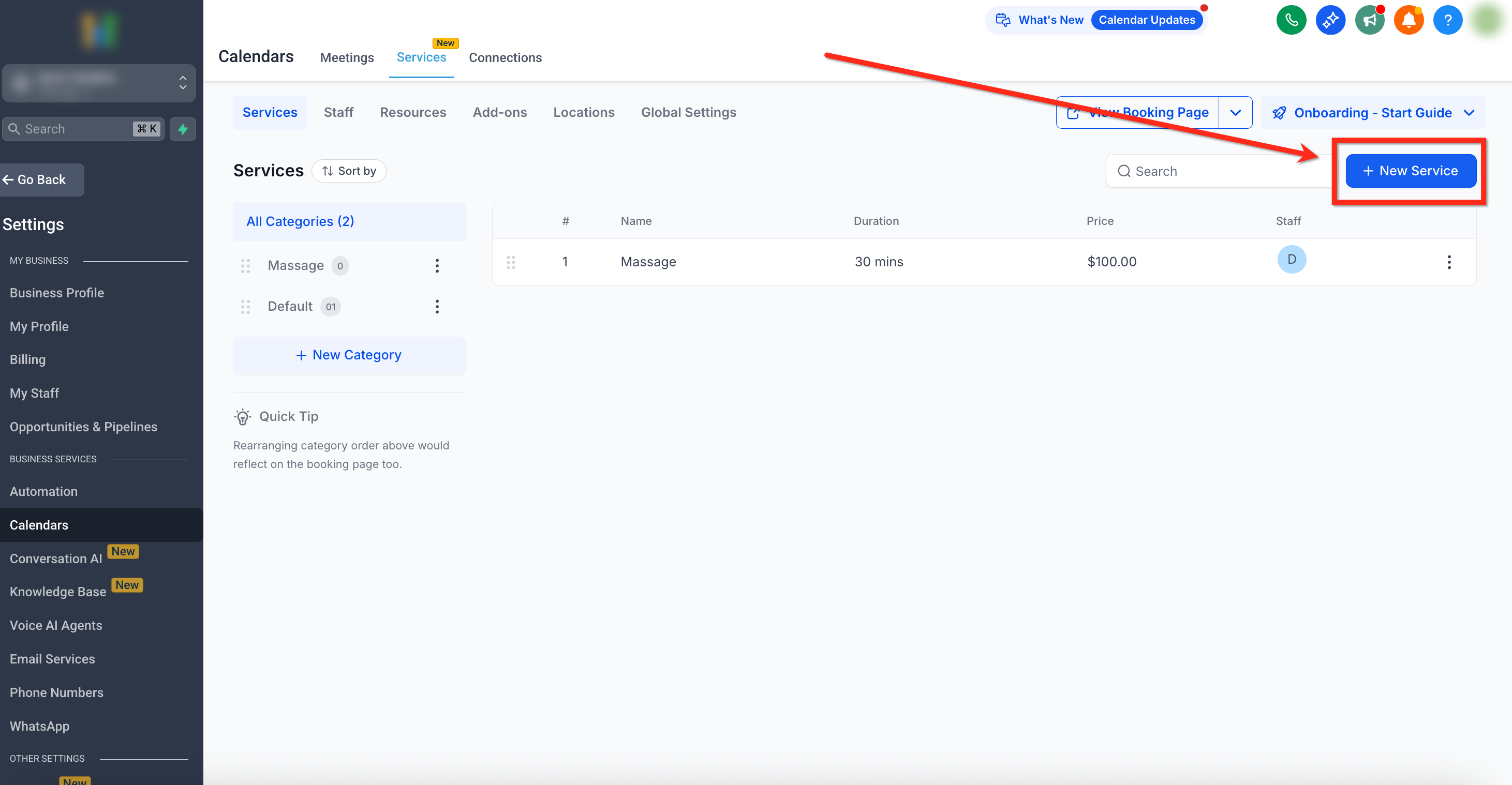
Step 1: Click + New Service
- Navigate to the Services Panel (Calendar > Calendar Settings > Services)
- Click the + New Service button in the upper right corner
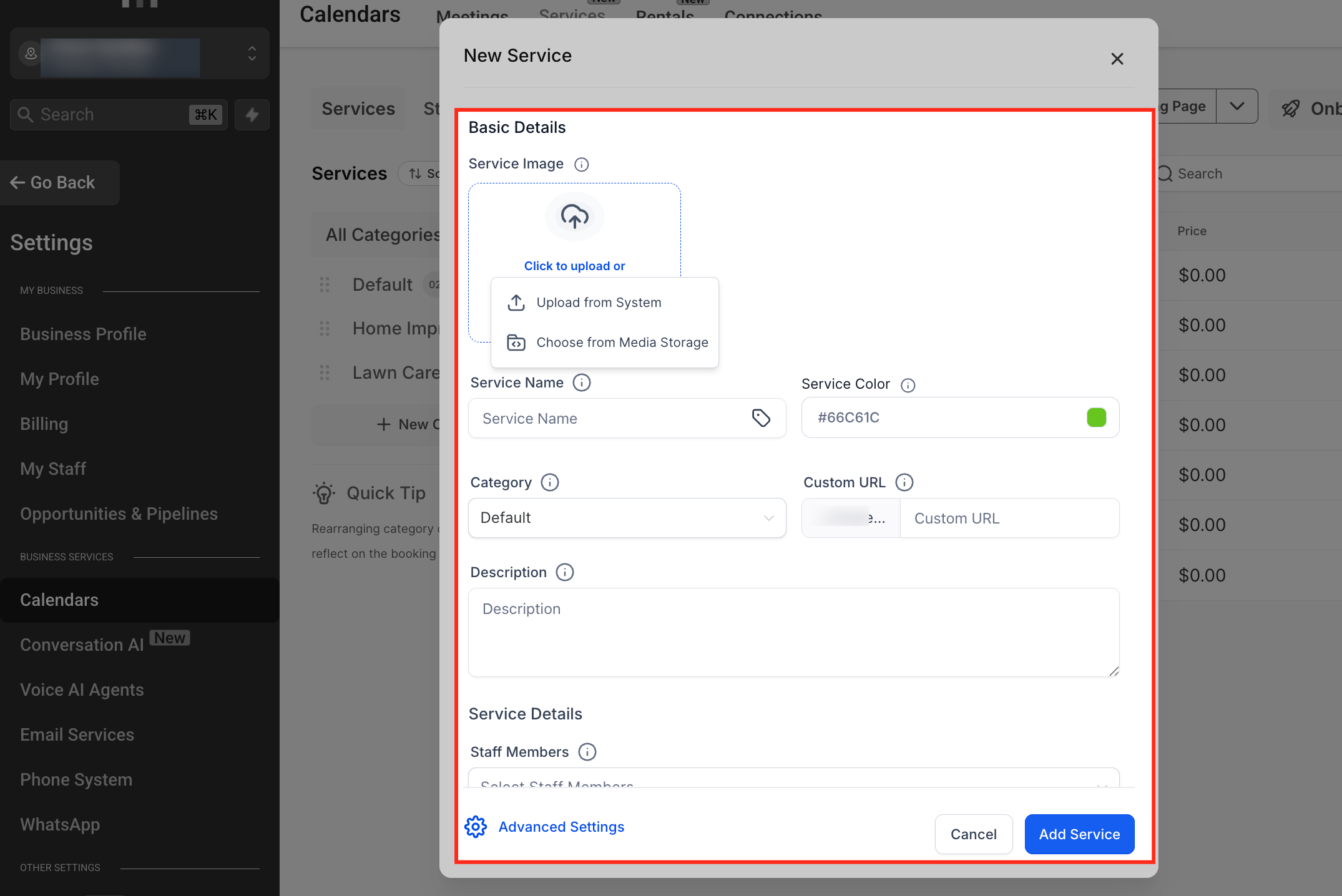
Step 2: Add Basic Details
- Fill in the basic details for the service. These details include:
Service Image: Upload an image that visually represents your service. You can upload from your device or a Media Library.
Service Name: The title of the service shown to customers
Service Color: Assign a color to help identify this service in the calendar
Category: Place the service under a relevant category (a new service will automatically be added to the default category if none selected)
Custom URL: Set a unique booking link for the service
Description: Add a brief summary of what the service offers. You can format this content using the rich text editor (bold/italic/underline/strikethrough, bulleted or numbered lists, hyperlinks, text/background colors, headings, and text alignment).
Private Service: Hide this service from public booking pages. New bookings may only be scheduled internally via the platform
Staff Members: Assign staff who can provide this service. At least one staff member must be assigned for the service to be bookable
Duration: Add how long the service will last
Once all basic details have been added, click Advanced Settings to configure additional service details
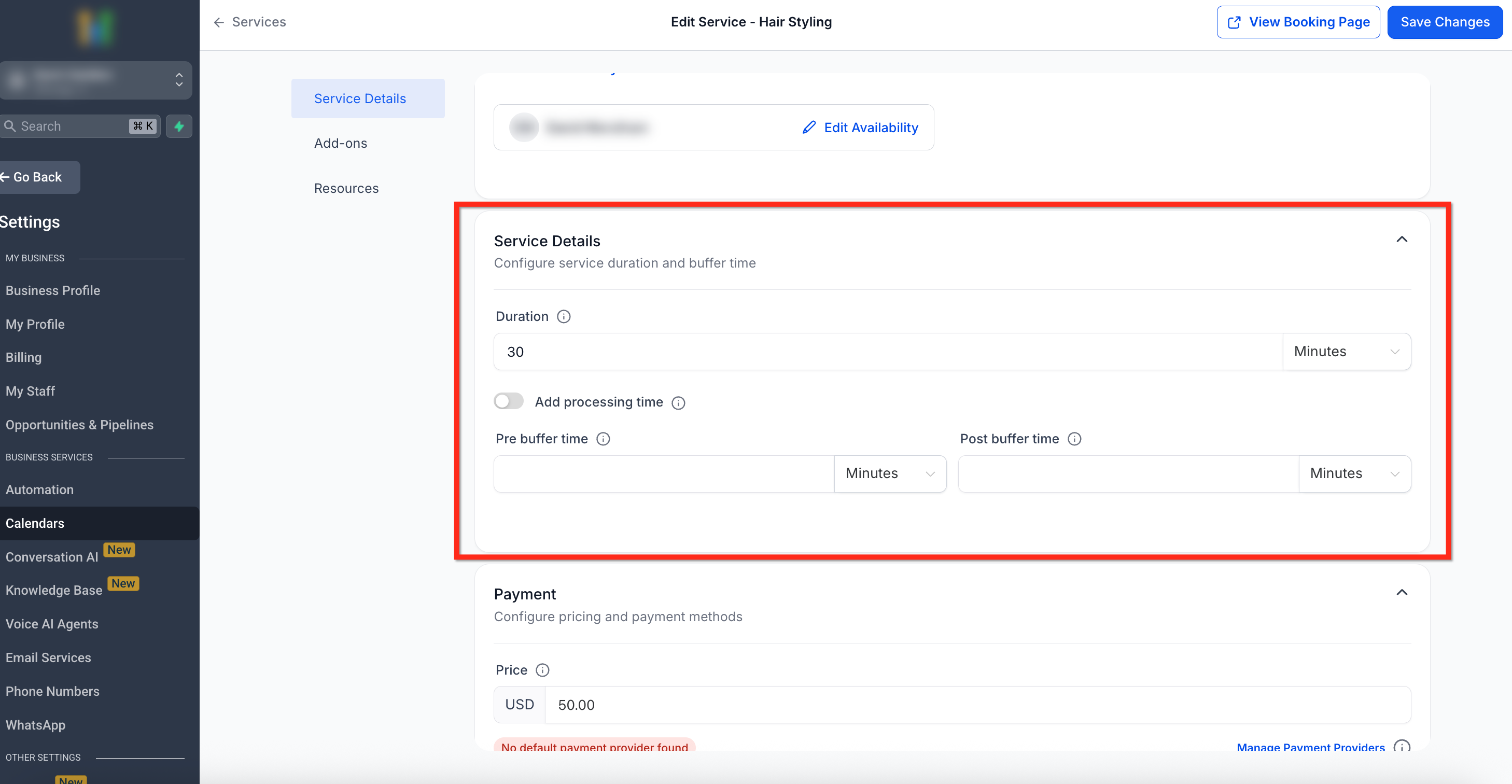
Step 3: Configure Service Details
Duration: Set how long the service lasts
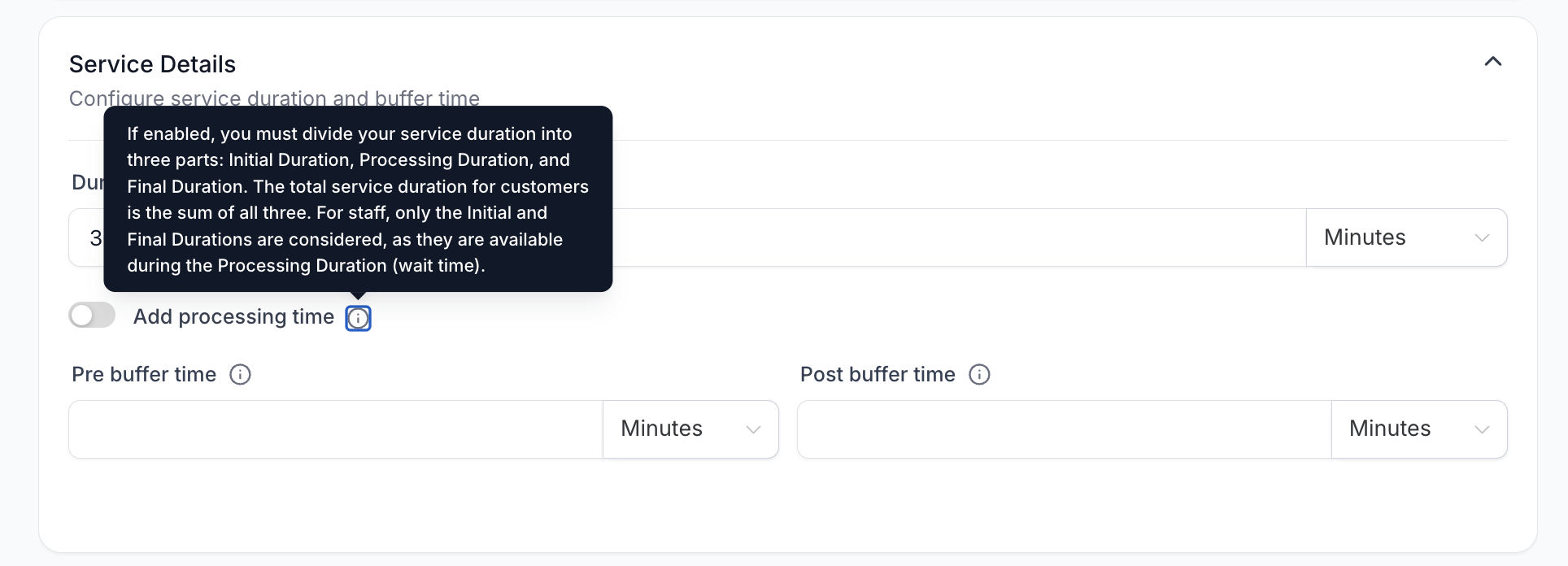
Processing Time: Break down duration into three phases (Initial, Processing, Final). Staff are only booked during Initial/Final phases, and remain available for other appointments during the Processing phase
Buffer Time: Add time before or after the appointment for prep or cleanup
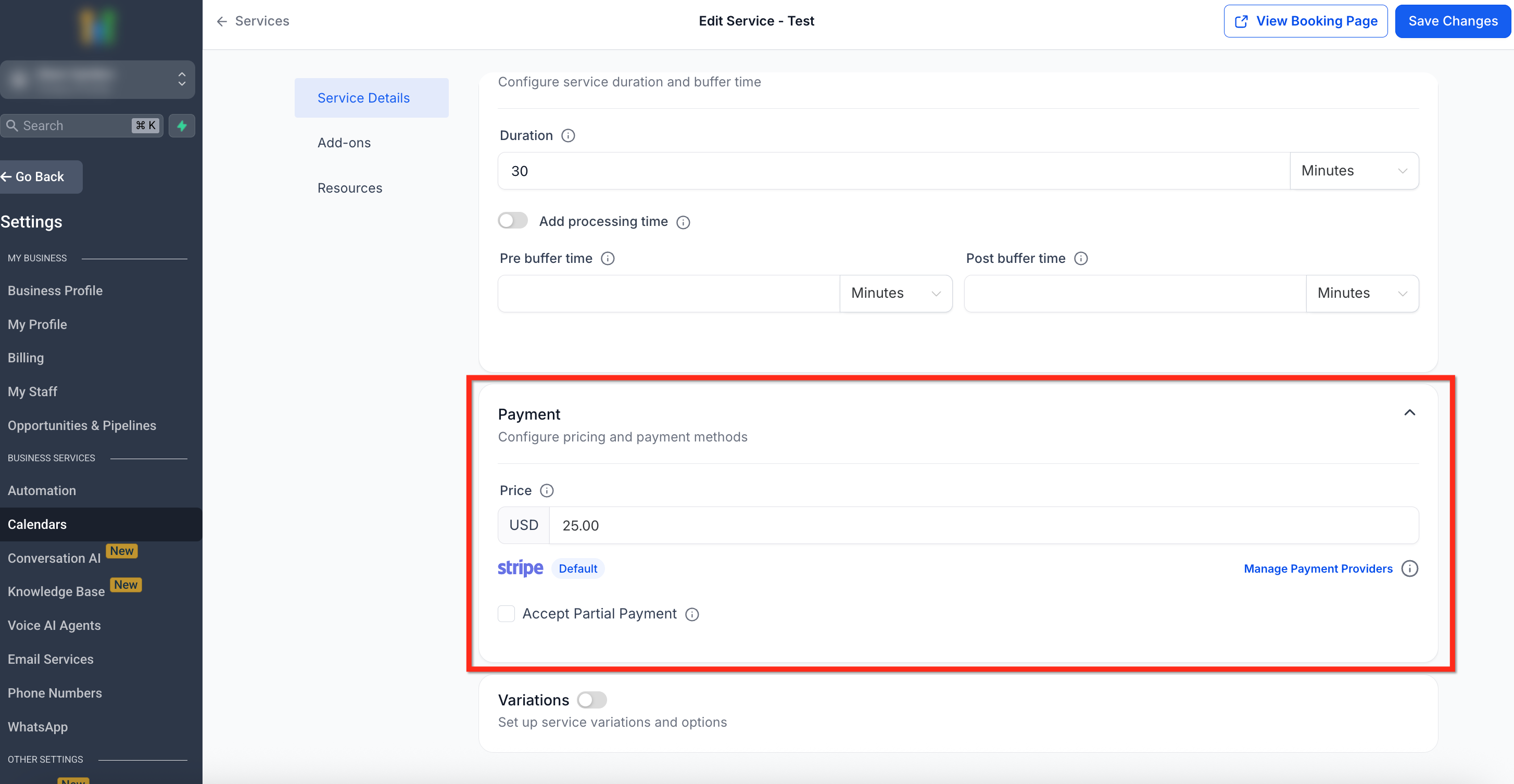
Step 4: Set Up Payments
Price: Enter the price customers will pay
Partial Payments: Allow customers to pay a deposit instead of full payment. Choose between fixed amount or percentage
Step 5: Configure Variations (Optional)
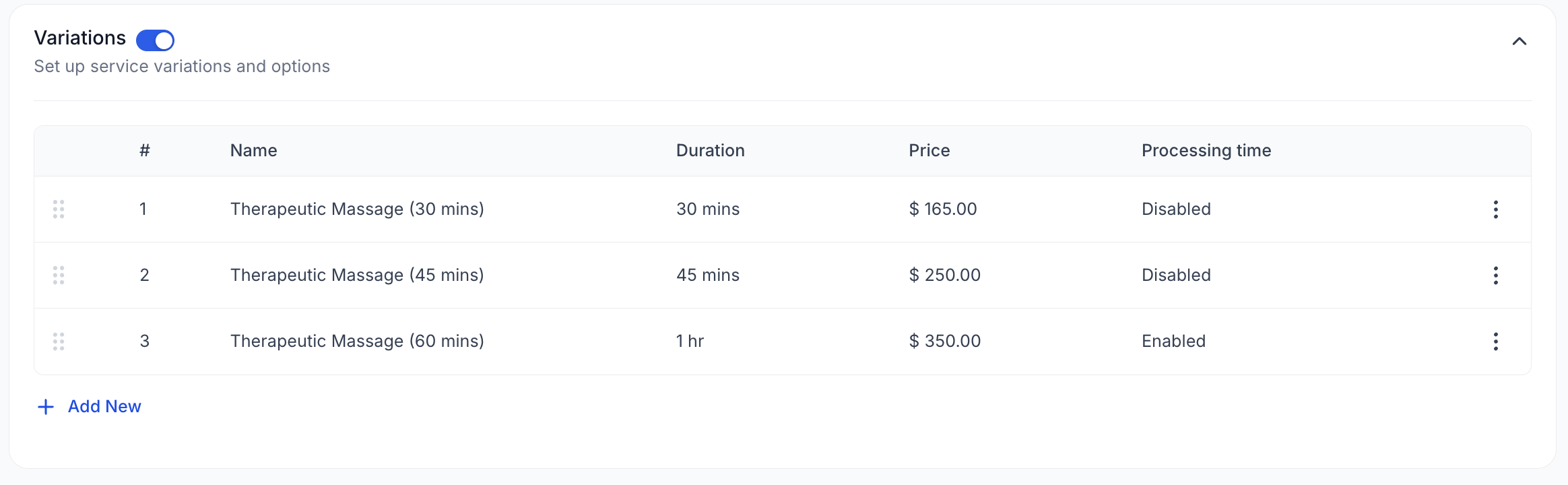
Enable Variations to offer multiple options under one service (e.g., different durations, or pricing).
Add each variation’s Name, Duration, Price, and Processing Time (if any)
- Example:
- 30 mins – $120
- 45 mins – $100
- 60 mins – $350
- 30 mins – $120
Step 6: Save & Preview
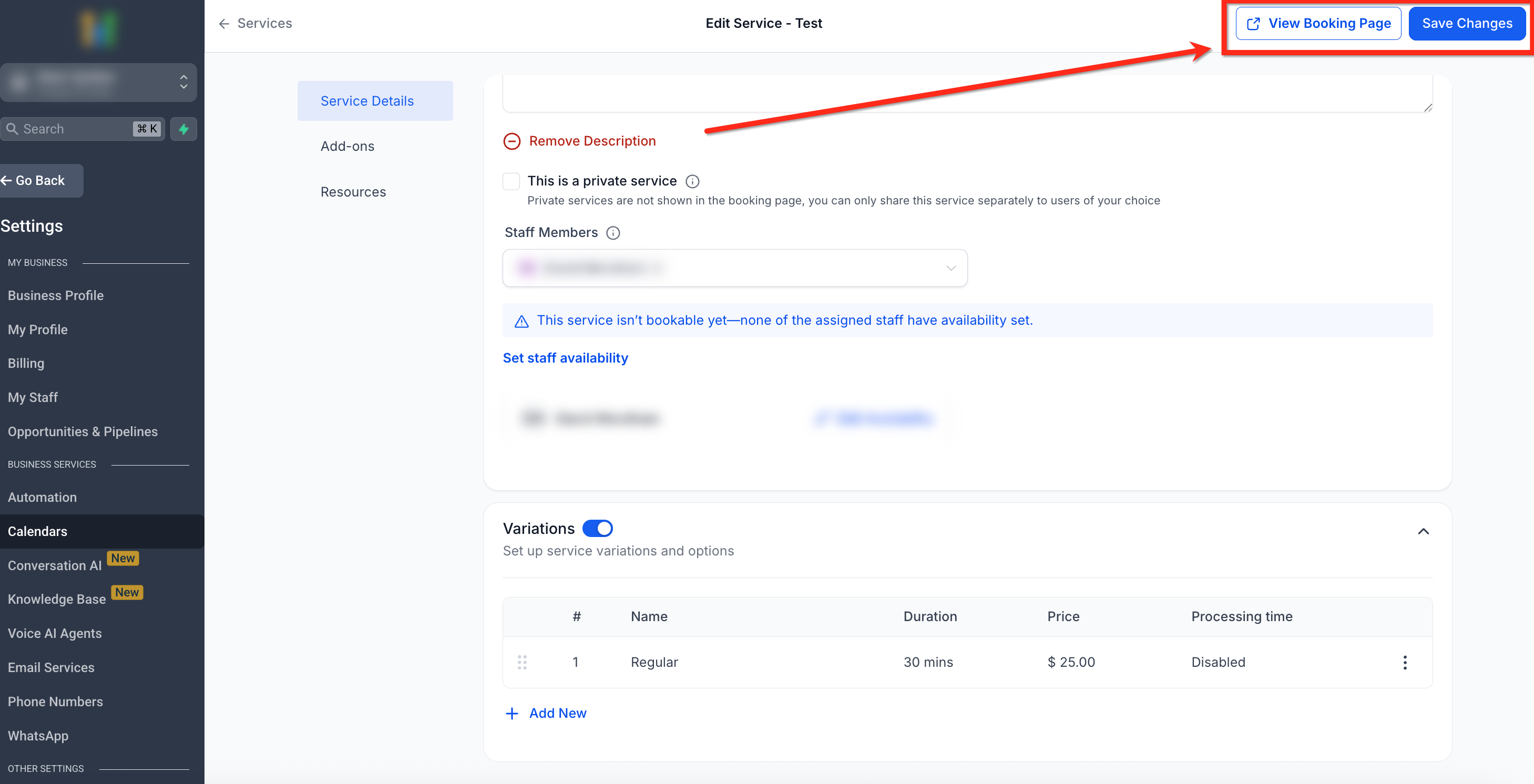
Click Save Changes to apply updates
Use View Booking Page to preview how customers will see the service
Best Practices
- Assign Staff and configure their availability to every service for them to be bookable
- Organize services meaningfully into categories
- Leverage Add Ons for upsells and custom options
- Use Resources to prevent over-utilization and optimize availability of linked resources
Frequently Asked Questions
Q: Can I hide a service from the public booking page?
Yes. Enable "This is a private service" for the service and share the direct link instead. When this is turned on, the service will not be shown on the public booking page.
Q: How do categories impact the booking page?
Category assignment and order determine how services are grouped and displayed in the public booking page. Please be aware that changing the order of the categories in the editor will change the order on the booking page.
Q: What’s the difference between processing time and buffers?
Processing time is part of the appointment when the service is still in progress. Buffers are extra time added before or after the appointment to space out bookings (useful for setting up before or cleaning after an appointment).
Q: Does inventory tracking for products linked to services stay in sync with service appointments?
No. Inventory tracking for products linked to services is not managed or synced with the service booking lifecycle.