
Set up staff inside Services to control who can be booked, when they’re available, and which services they handle. This article walks through adding staff, assigning them to services and defining availability.
TABLE OF CONTENTS
- Overview of Configuring Staff in Services
- Key Benefits of Configuring Staff
- Accessing the Staff Panel
- Adding a Staff Member
- Default Availability When Adding Staff to a Service
- Editing a Staff Member / Advanced Settings
- Understanding Availability
- Best Practices
- Frequently Asked Questions
- Related Articles
Overview of Configuring Staff in Services
The Staff panel allows you to manage the individuals responsible for delivering services. Whether you’re working solo or running a team, staff profiles are critical to booking functionality. Only services assigned to active, available staff members can be booked by customers.
You can define staff details, assign services, set working hours, and configure availability with precision to ensure smooth scheduling.
Key Benefits of Configuring Staff
Organizing staff at the Services level ensures bookings follow the right person’s schedule and options.
Staff Visibility: Assign services to make a staff member appear in the booking flow for specific services.
Centralized Availability: Manage each staff member’s hours and availability in one place.
Flexibility: Create multiple time slots per day to accommodate changes such as breaks.
Service-Specific Pricing: Define pricing at the staff level for assigned services.
Appointment Limits: Limit how many appointments a staff member can receive per day.
Quick Management: Edit staff details and options anytime.
Accessing the Staff Panel
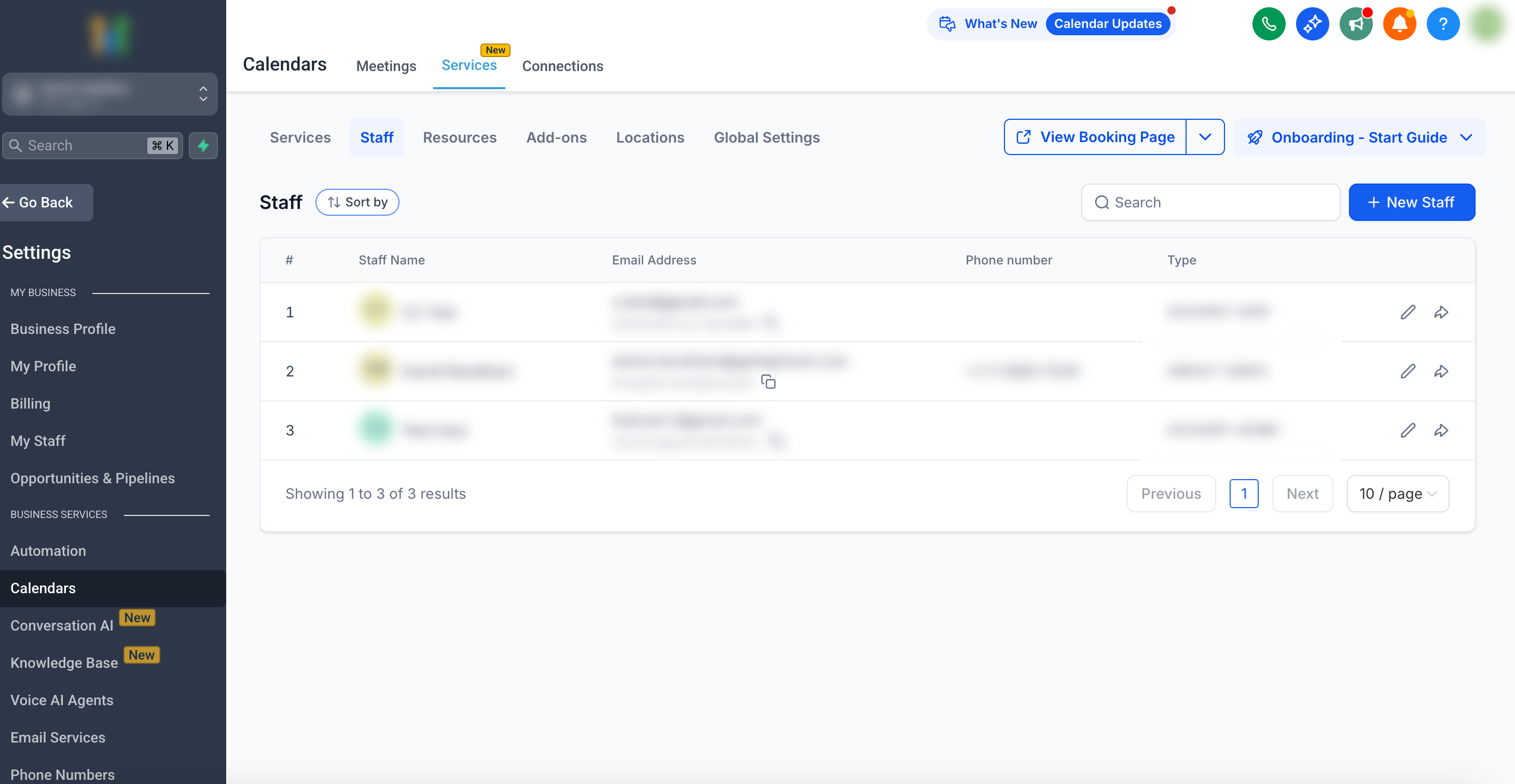
To access the staff panel, navigate to Calendar > Calendar Settings > Services > Staff
From here, you can:
View a list of staff with their name, email, phone number, and role (admin/user).
Use the search bar and sorting options to quickly find staff.
Add new staff or manage existing ones.
Share a staff member’s booking page link.
Adding a Staff Member
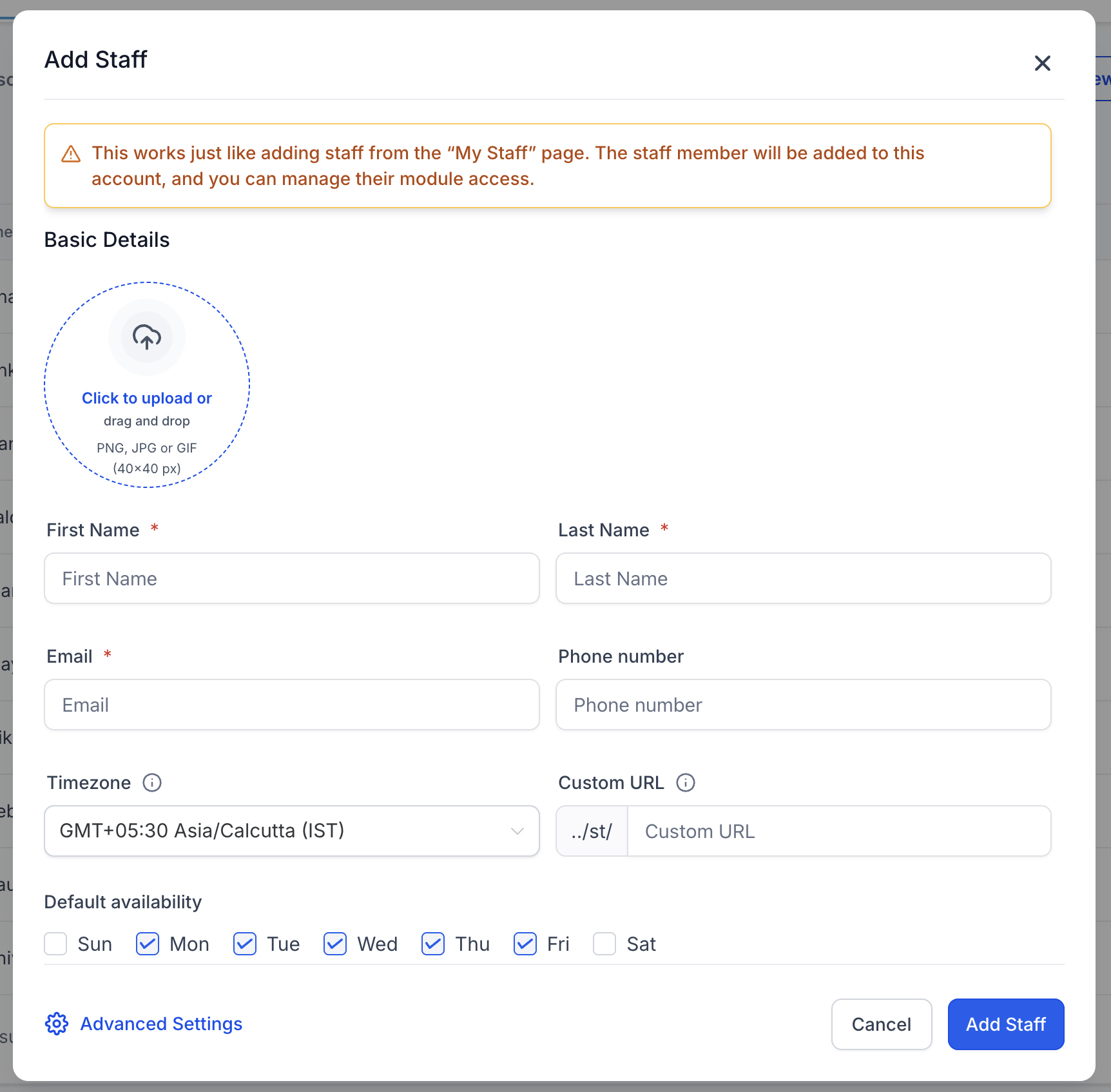
When adding or editing staff, you'll see the following fields:
Basic Details:
Profile Picture – Upload an image to represent staff on booking/scheduling pages.
First & Last Name (required) – Shown internally and on the booking interface.
Email (required) – Must be unique; used for login and notifications.
Phone Number – Optional.
Timezone – Determines the timezone the staff member works in.
Custom URL – Generate a unique booking link for the staff member.
Default Availability - Configure base working hours (e.g., 9:00 AM – 5:00 PM).
Default availability is the baseline schedule applied to a staff member whenever they are added to a service. Think of it as the “starting point” for their working hours.
Without availability, services assigned to a staff member cannot be booked — so setting it up is essential.
Default availability ensures that the staff member is bookable across all services right away.
You can override or refine this schedule later using Weekly Working Hours (for recurring patterns) or Date-Specific Hours (for one-off adjustments).
Example:
If Hannah’s default availability is set to Mon–Fri, 9:00 AM – 5:00 PM, then whenever she’s assigned to a service, those hours will automatically be used. You can later edit her schedule if she works shorter hours for a specific service or takes a day off.
Default Availability When Adding Staff to a Service
Default availability helps new staff become bookable faster by giving each newly assigned service user a starting schedule right away. This reduces setup friction and makes it easier to test the booking experience without manually configuring hours first.
When a new staff member is added to a service, SourCherry now automatically applies a default availability of 9:00 AM to 5:00 PM.
This helps:
- make the service visible on the booking page sooner
- reduce manual setup during initial service configuration
- allow teams to experience the booking flow immediately
After the staff member is added, you can continue adjusting their availability as needed based on your business hours and scheduling preferences.
Editing a Staff Member / Advanced Settings
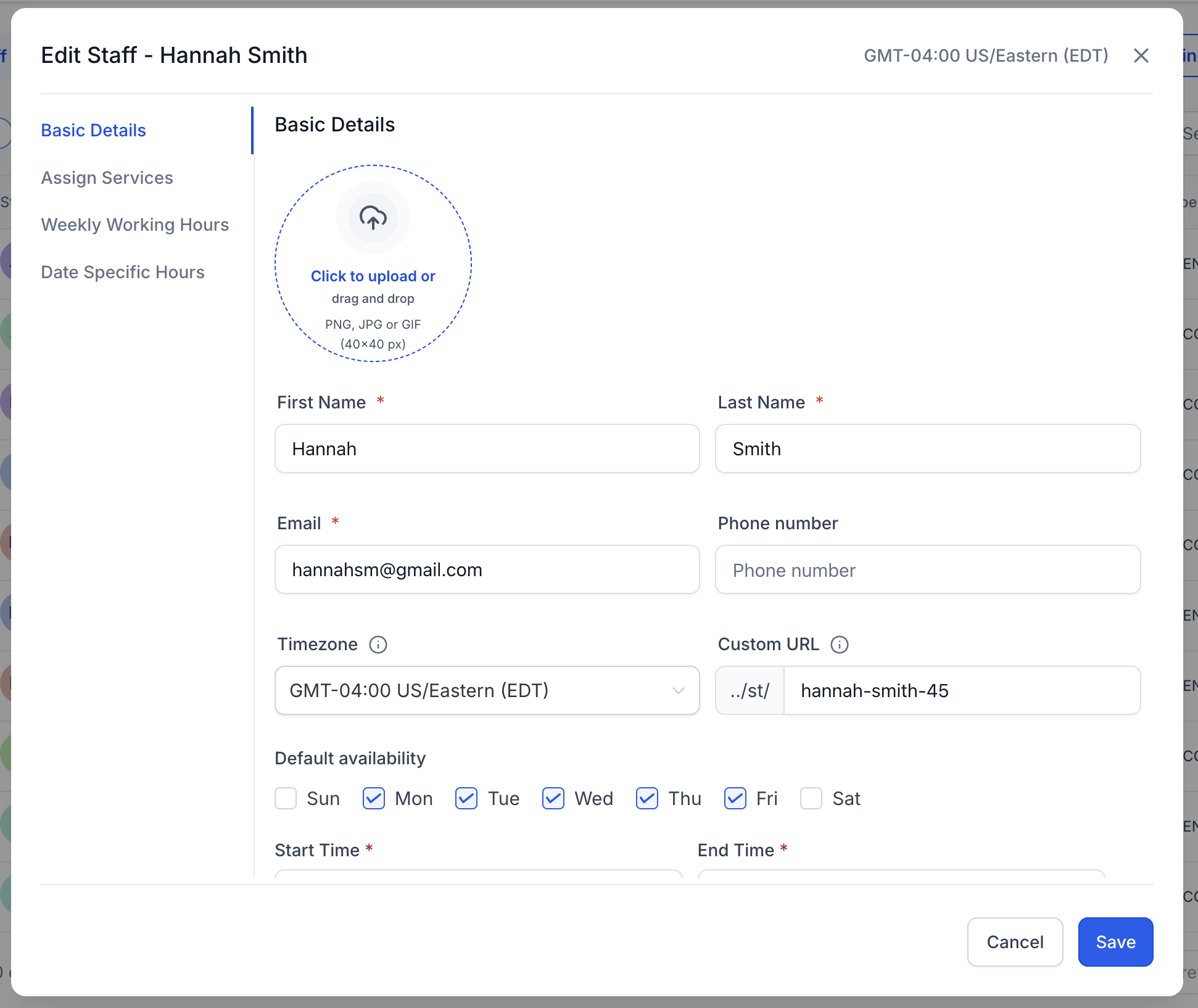
Click the pencil icon next to any staff member to edit. You can update their profile, assign services, configure availability, and set advanced options.
1. Basic Details
This tab allows you to make changes to the staff member's core profile fields:
- Update name, email, phone number, or profile picture
- Adjust the staff member’s timezone
- Set or change the custom booking URL
- Configure their default availability
2. Assigning Services
In the Assign Services tab, you can select one or multiple services the staff member will provide
- Service-Specific Pricing (New): Adjust prices for each service if this staff member charges differently.
- Appointment Limits (New): Optionally cap the number of appointments per day/week/month that can be assigned to this staff member.
Note: Assigning services is mandatory for the staff to appear in the booking flow.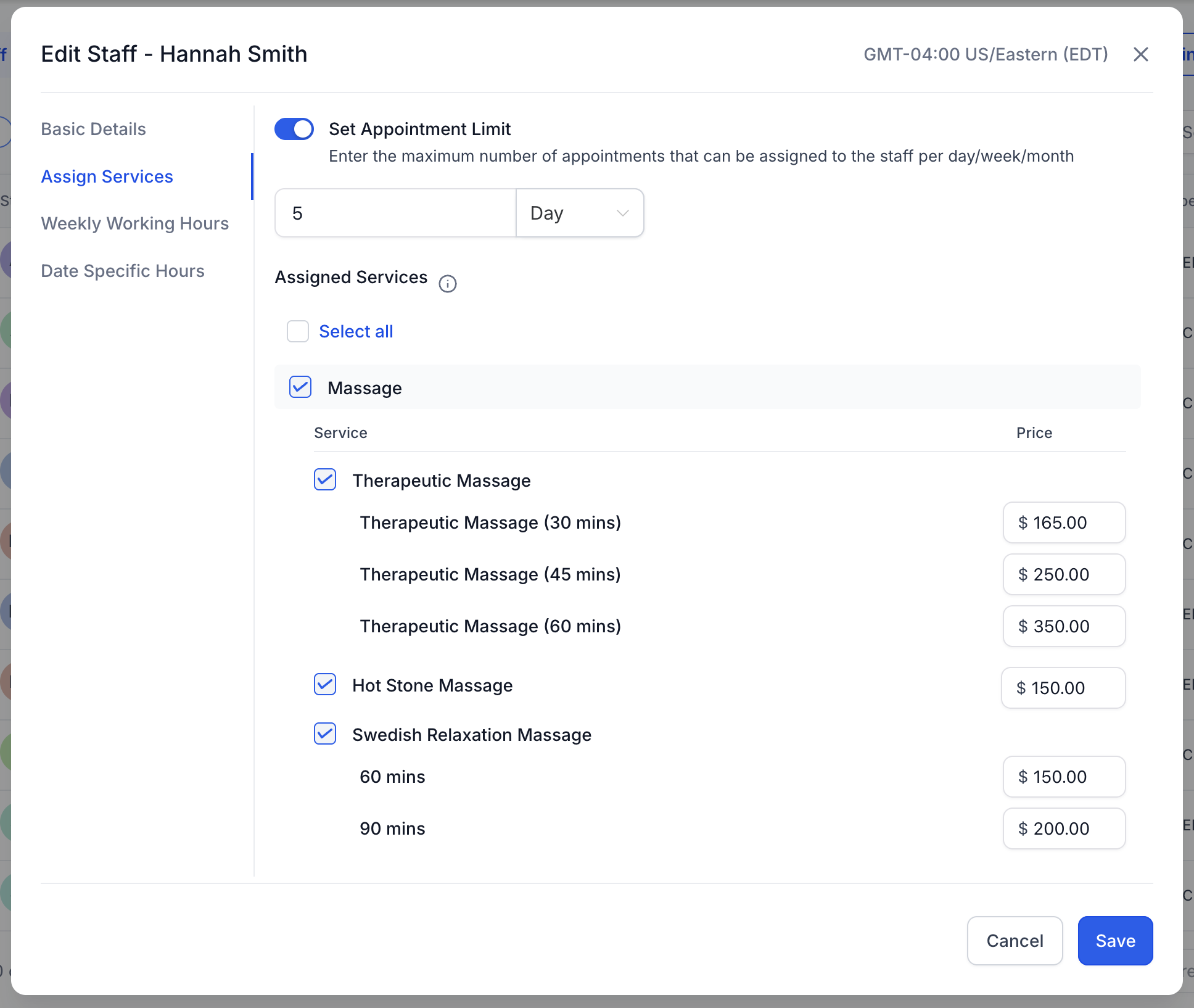
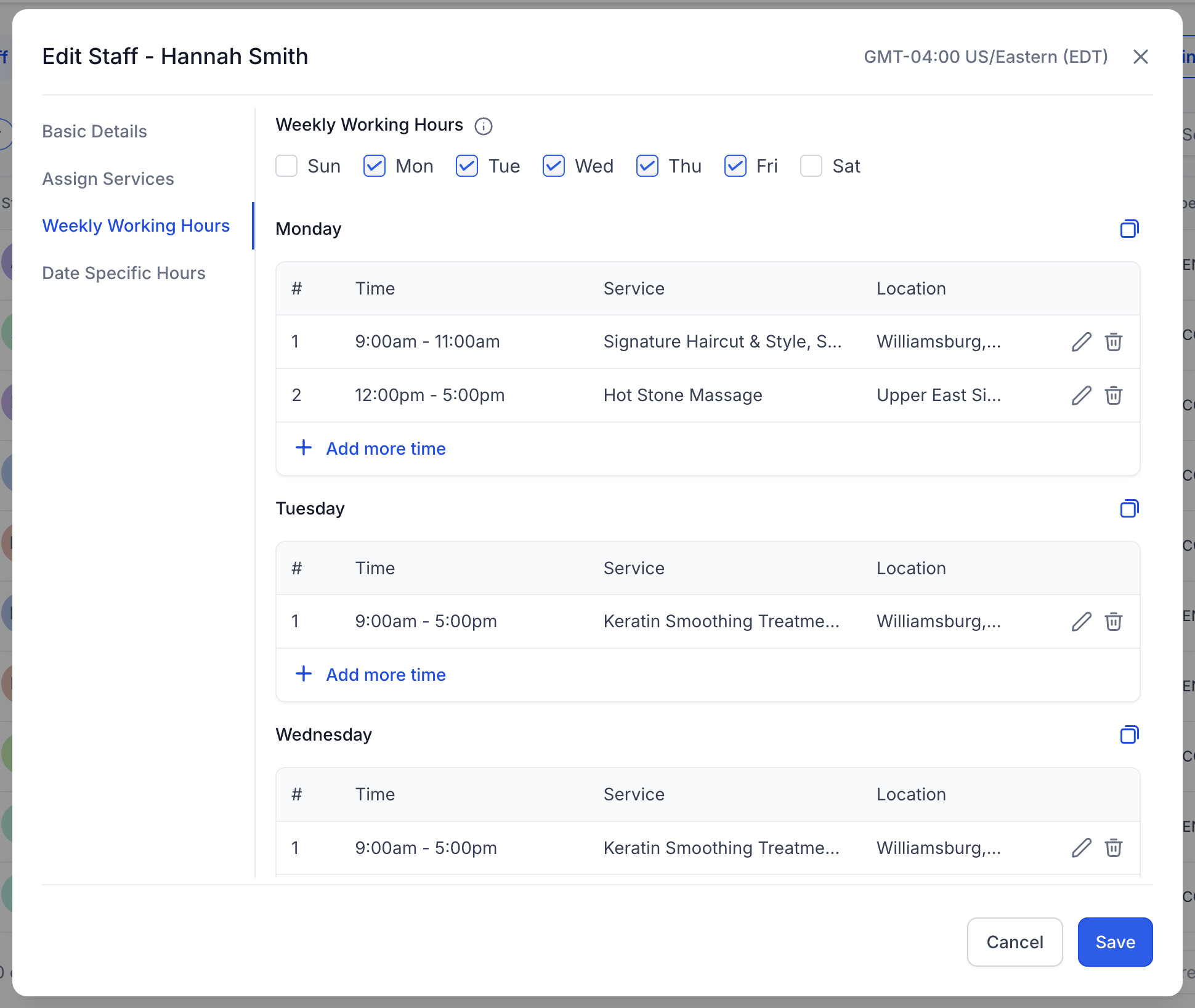
The Weekly Working Hours tab allows you to configure the staff member’s regular availability:
- Set the working days in a week
- Add multiple time slots per day
- Assign services which would be provided during these slots
- Assign locations wherein the service would be provided during these slots
Breaks can be created by inserting separate work periods (e.g., 9:00–11:00 and 12:00–5:00).
4. Date-Specific Hours
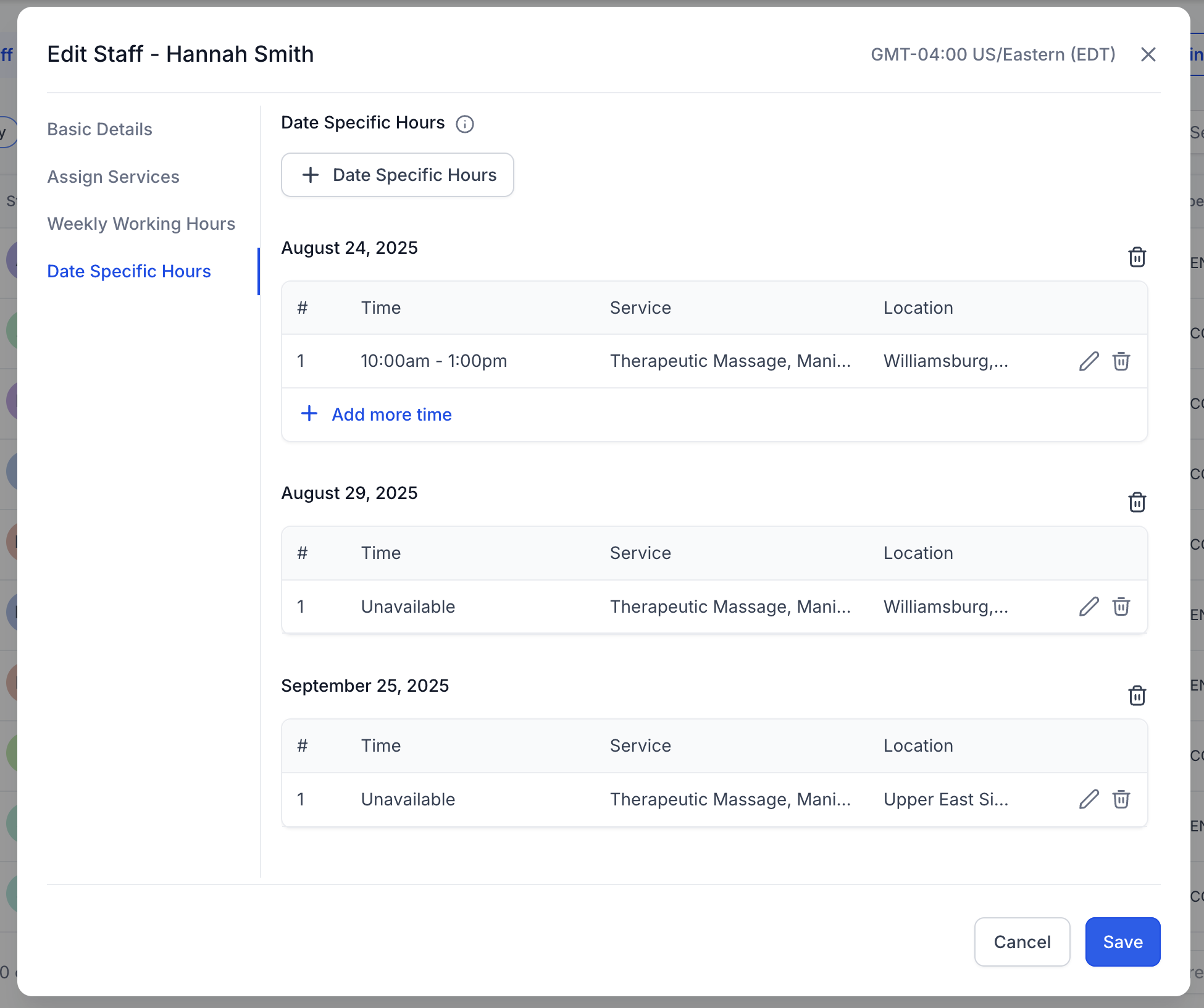
Override weekly hours for special days:
- Mark the staff as available or unavailable for any specific time/day
- Define custom time blocks for specific dates
- These can be configured for specific services and locations as well
- Non-consecutive dates are split into separate entires
Use this for one-off adjustments like holidays, special events, or ad hoc scheduling changes.
5. Add Date-Specific Hours for Multiple Dates:
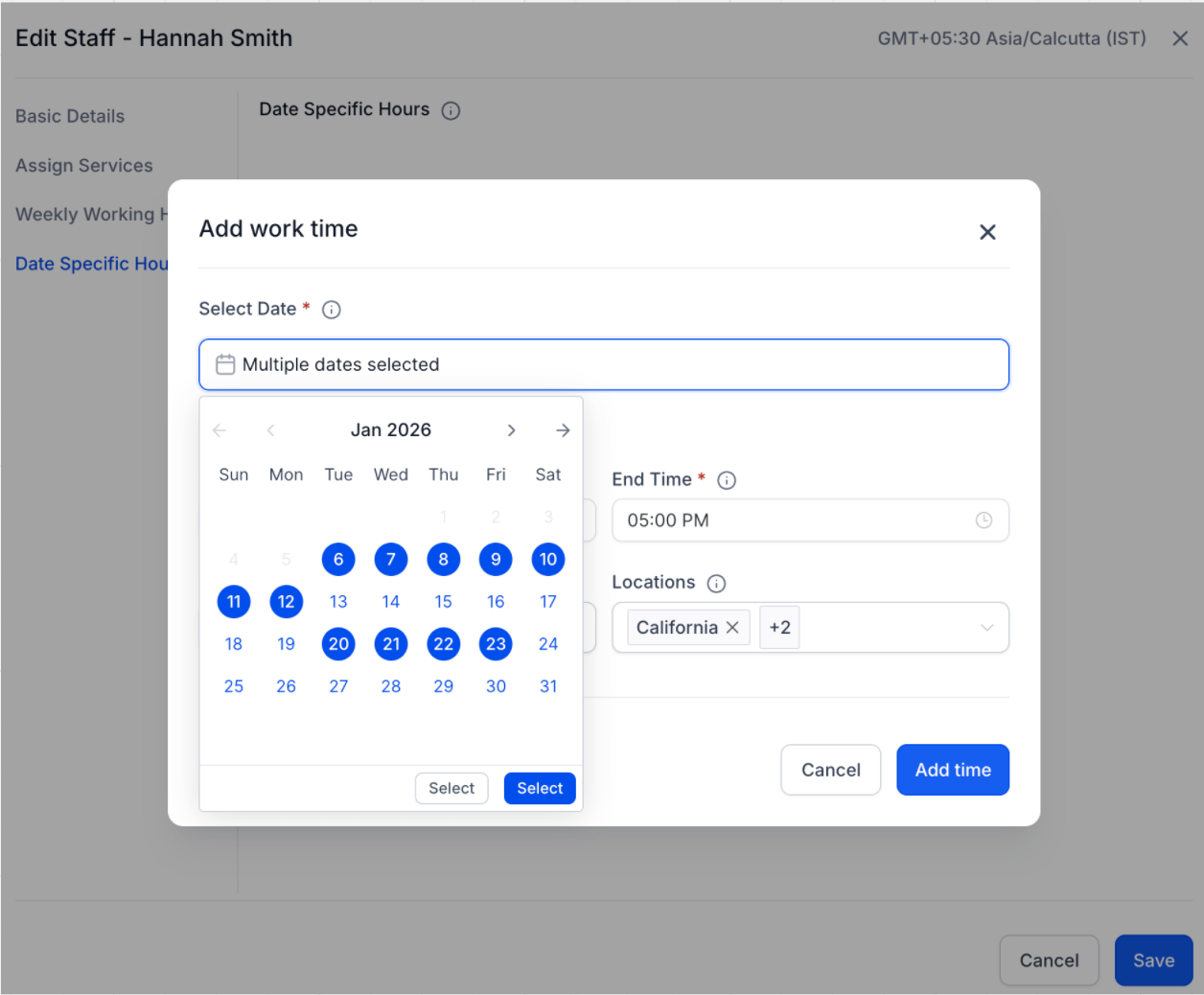
When you need the same hours across several days (for example, holiday hours), you can apply date-specific hours in bulk:
- In the Date-Specific Hours tab, select multiple dates in the date picker.
- Set the start time and end time.
- Select the services and locations you want these hours to apply to.
- Apply the changes to add the same date-specific hours across all selected dates.
How date grouping works:
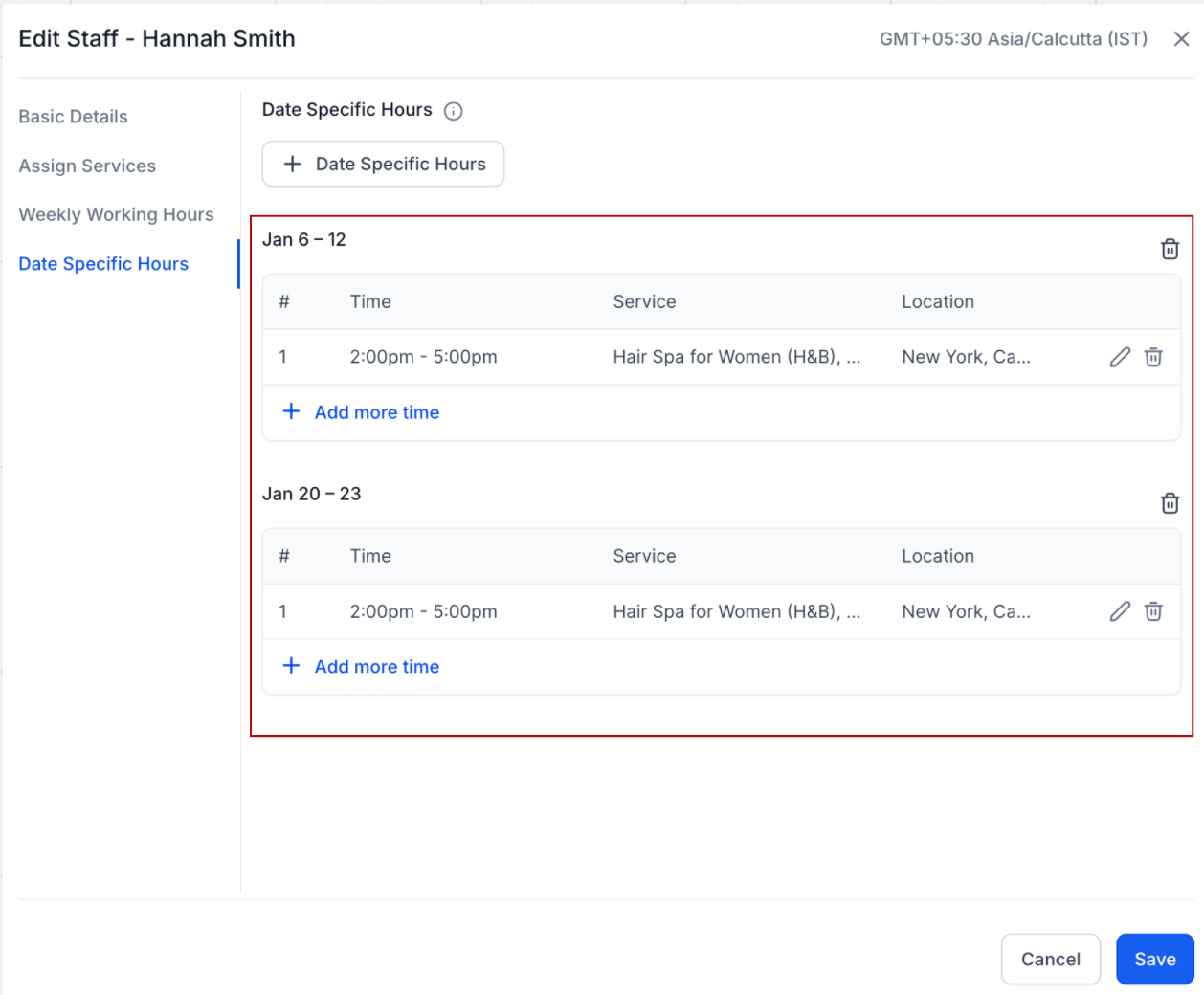
After you apply date-specific hours in bulk, SourCherry groups the dates to keep the list easier to manage:
- Consecutive dates are grouped into one entry.
Understanding Availability
There are three levels of availability you can set for staff:
Default Availability: A baseline schedule that’s applied automatically whenever a staff member is assigned to a service for the first time. Think of it as a quick-start helper.
Weekly Working Hours: The staff member’s actual recurring schedule. This is what truly controls when they’re bookable week after week.
Date-Specific Hours: One-off overrides for special cases like holidays, events, or temporary changes.
| Type | What It Means | When It’s Used | Example |
|---|---|---|---|
| Default Availability | A template schedule applied across all services when staff are first assigned. It auto-fills weekly hours so services are bookable immediately. | To avoid adding the same schedule manually every time a staff member is added to a service. | Hannah’s default is Mon–Fri, 9 AM–5 PM. When she’s added to any service, those hours appear automatically. |
| Weekly Working Hours | The staff member’s real weekly schedule, which can be edited per service. This is what determines ongoing bookability. | To customize availability for each service, or adjust to reflect the staff’s actual working routine. | Hannah changes her weekly hours so she works Mon–Thu, 10 AM–4 PM for Massage, but Fri 12–6 PM for Hair Cut. |
| Date-Specific Hours | One-time overrides that replace weekly/default availability for a given date. | To handle exceptions like holidays, time off, or temporary extra shifts. | Hannah marks herself unavailable on May 27th for a personal event. |
Best Practices
Always assign staff to at least one active service and location for them to be bookable.
Ensure that the staff has availability set for the assigned services for them to be bookable.
Frequently Asked Questions
Q: How do I set lunch breaks or mid-day gaps?
In Weekly Working Hours, add multiple time slots for the day (e.g., 9:00 AM–12:00 PM and 1:00 PM–5:00 PM).
Q: How do I let customers pick which staff member to book with?
Turn on Allow customers to pick who they book with in Global Settings → Booking Page.
Q: If I set both Weekly Working Hours and Date-Specific Hours, which one wins?
Date-Specific Hours override Weekly Working Hours for the selected date(s). Use this for holidays, special events, or one-off exceptions
Related Articles
- Services - Overview & How to Get Started
- Global Settings in Services
- How to Create Services
- Categories in Services
- Resources in Services
- Workflow Trigger – Service Booking